
Import Export by RockStarLab has two ways to move content between WordPress sites. Content Sync sends selected posts straight from one site to another. Export and Import goes through a file: you export from one site and import the file on the other. Both copy content, images and categories. They differ in what you can do along the way. The same three blog posts move both ways below, which shows which method fits which job.
Short Answer
- Use Content Sync when both sites are yours, can reach each other, and you want to push a few selected posts or pages now: staging to live, one site to another.
- Use Export and Import when the sites can’t connect, when someone else does the import, when you want to edit or check the data in a spreadsheet first, when the content comes from another system, or when you need a file as a record.
- Use Content Migration to move a whole site’s content in one package (see migrating posts and pages to a new site).
The comparison
| Content Sync | Export and Import | |
|---|---|---|
| Connection | Both sites have the plugin and are connected with an API key | None; the file is the link |
| Sites must reach each other | Yes (a live site can’t reach a local one) | No |
| How you pick content | Tick posts in the WordPress list, or select one in the editor | Filters: date, status, author, category, custom field and more |
| How existing content is found | Auto-match by title, or pick the target post yourself | Any field you choose: slug, ID, title, SKU, email |
| Images | Copied with alt text, links rewritten to the target site | Downloaded from the URLs in the file; alt text needs its own column |
| Edit data on the way | No | Yes: in a spreadsheet, or with transformations and find-and-replace during import |
| Content from other systems | WordPress to WordPress only | CSV, Excel, JSON and XML from any source |
| Record of what moved | Jobs Log entry | The file itself, plus the Jobs Log |
| Pull content back | Yes, Pull from Site | Export on the other site and import |
| Repeating on a schedule | Yes: choose a finished push or pull on the Schedules page | Yes: choose a finished export or import on the Schedules page |
| Free | Posts, pages, media, comments, categories and tags | Posts, pages, media and comments |
| PRO adds | Custom post types, WooCommerce data and more | Users, terms, custom post types, WooCommerce, database tables, transformations |
Method 1: Content Sync
We wrote three posts on staging, each with a featured image, an image in the text and the category “Workshop News”. The staging site is connected to live (setup steps: syncing content between two WordPress sites).
In Posts on staging, tick the three posts, choose Sync Content, pick the live site and click Push to Site. Then click Auto-match by Title. Live doesn’t have these posts yet, so all three will be created.

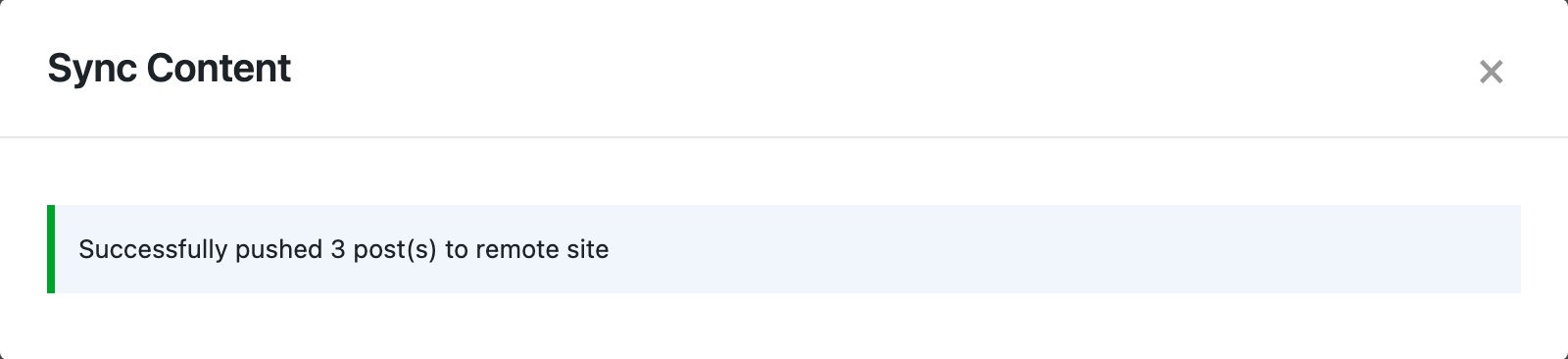
On live, the three posts appeared with their original dates, slugs and category. The images were copied into the live media library with their alt texts, and the image links in the text point to the live domain. You don’t need to prepare any file.
Method 2: Export and Import
For the same three posts with a file, go to Import Export → Export on staging, choose Blog Posts and filter the posts (here by ID; a category or date filter works the same way). Choose the columns: Title, Slug, Date, Status, Content, Categories, Featured Image URL and Featured Image Alt Text.

Export to CSV, then on live go to Import Export → Import, choose Blog Posts, upload the file and click Auto Map. With Check for Existing Items by Field set to Slug, the three posts were created. The images in the text and the featured images were downloaded into the live media library.

One difference showed up here. With Content Sync, alt texts move automatically. With a file, they move only if the file has a Featured Image Alt Text column. In the first export without that column, the featured images arrived without alt text.
The file can be imported again. After a change, import the updated file with If Match Found set to Update: the posts are updated in place, matched by slug, and nothing is duplicated.

Before you import, back up the receiving site. In the admin, open UpdraftPlus and click Backup Now, or ask an AI agent to run the rsl-ie/updraftplus-backup-start ability. See how to create a WordPress backup and restore it. The same applies before a push.
Which one for which job
| Job | Use | Why |
|---|---|---|
| Push finished pages from staging to live | Content Sync | Select and push; existing pages are updated, orders and other content stay as they are. See pushing staging to live. |
| Bring live content back to staging | Content Sync (Pull) | Same screen, the other direction. See refreshing staging. |
| Local site to live | Content Sync from the local site | Local can reach live, live can’t reach local. See LocalWP to live. |
| Client site you can’t log in to | Export and Import | Send the file; the client imports it. |
| Fix titles, dates or categories before moving | Export and Import | Edit the file in Excel or Google Sheets. |
| Rewrite domains, emails or text during the move | Export and Import | Replace rules at import. See replacing old URLs during import. |
| Move hundreds of posts selected by a rule (date, author, category) | Export and Import | Filters select them; one file holds them all. |
| Same page on several sites | Either | Sync for identical text, a file with replace rules for per-site details. See updating the same page on several sites. |
| Content from Shopify, a spreadsheet or another CMS | Import | Content Sync only connects WordPress sites. |
| Weekly or daily updates | Either, on a schedule | A scheduled push repeats the same selection; a scheduled import reads the newest file. Already pushed posts are updated, not duplicated. |
With an AI agent
An AI agent connected through the WordPress MCP Adapter (see connecting Claude Code to WordPress) can do the Content Sync part. It uses rsl-ie/sync-auto-map to find the matching posts on the other site and rsl-ie/sync-push to send them. A prompt for the staging site:
Find the posts in the category "Workshop News" on this site and match them
by title to the posts on the connected site "Live". Show me the matches.
After I confirm, push only the posts I changed today and report what was
created or updated.
In our run, the agent matched all three posts to their copies on live (posts 2020, 2024 and 2028 there). We edited one post on staging and confirmed. The agent pushed it with the mapping, and the result was “updated: 1, created: 0”, with the image mapped to the existing file on live. The live post showed the new text, and there was still one post with that title.
For file-based work, an agent can also run exports and imports; see exporting WordPress content to JSON for AI.
FAQ
Does Content Sync replace the whole database like a staging push?
No. It sends only the items you select. Everything else on the target site stays as it is.
Which method keeps post IDs?
Neither assigns the source IDs to new posts, because those IDs may already be used on the target. Existing posts are updated in place, so their IDs stay the same.
Can I use both?
Yes. A common setup: Content Sync for everyday staging to live pushes, and export files for client handoffs, bulk edits and backups of what you moved.
What if the sites can’t connect?
Use Export and Import, or fix the connection with the connection troubleshooting guide.
Related Guides
- How to Sync Content Between Two WordPress Websites Without Export Files
- How to Import CSV Files into WordPress with Field Mapping
- Staging to Production Checklist for Freelancers
- How to Copy Only New Posts from Staging to Production
- How Content Sync Works: API Keys, Push, Pull and What Gets Copied
- Syndicate Blog Posts from One WordPress Site to Several Sites
- Let an AI Agent Draft on Staging, Then Push the Approved Posts to Live
Get the free plugin on WordPress.org.

Comments 0
Have a question or a tip to share? Leave it below.