
If you run several WordPress sites, some pages have to say the same thing on all of them: the privacy policy, the terms and conditions, the returns policy, a cookie notice. When the lawyer sends a new version, editing each site by hand is slow, and sooner or later one site keeps the old text.
With the free Import Export by RockStarLab plugin you update those pages on every site from one place. There are two ways:
- Push with Content Sync when the text is the same everywhere. A few clicks per site.
- Import a file with replace rules when each site needs its own email address, company name or delivery time.
We tested both on three stores: the main store with the new texts, a second store, and an outlet store. All three already had a Privacy Policy page. Only the second store had a Terms and Conditions page, and it was out of date.
Before you start
Edit the pages on one site, which becomes the main copy. Here that’s the main store, where we updated the Privacy Policy and wrote a new Terms and Conditions page.
The update replaces the page content on the other sites, so back them up first. In the admin, open UpdraftPlus and click Backup Now, or ask an AI agent to run the rsl-ie/updraftplus-backup-start ability. See how to create a WordPress backup and restore it.
Method 1: Push the pages to each site
Connect each site to the main one once. On each other site, copy the API key from Import Export → Content Sync. On the main site, click Add New Site and paste the key. Give each connection a clear name; here they are “Second store” and “Outlet store”. The steps with screenshots are in syncing content between two WordPress sites.
On the main site, go to Pages, select Privacy Policy and Terms and Conditions, and choose Sync Content from the bulk actions. Select the first site and click Push to Site.

Click Auto-match by Title. On the second store, both pages already exist, so both will be updated:

Click Confirm & Sync. Then open Sync Content again with the same two pages and pick the outlet store. It has a Privacy Policy but no Terms page yet, so Terms and Conditions will be created:


After both pushes, all three stores show the same texts. Updated pages keep their ID and address on each site. So the Privacy Policy is still the page set under Settings → Privacy, links in the footer and checkout keep working, and no duplicate pages are created. Repeat the push whenever the main copy changes.
Method 2: One file, different details per site
Often the text is the same but a few details differ: each store has its own support email, or the outlet ships in 3 days instead of 2. Content Sync copies the page exactly, so for this case use an export file and replace rules.
- On the main site, go to Import Export → Export, choose Pages and export the two pages with the fields Title, Slug, Status and Content.
- On the other site, go to Import Export → Import, choose Pages and upload the file. Auto Map matches all four columns.
- In Import Options, set Check for Existing Items by Field to Slug, If Match Found to Update and, if you only want to update pages the site already has, If No Match Found to Skip.
- Turn on Replace links and add a rule for each detail that differs on this site.

Despite its name, Replace links replaces any text. Here @example-store.com becomes @outlet.example-store.com in every email address, and “within 2 business days” becomes “within 3 business days”.

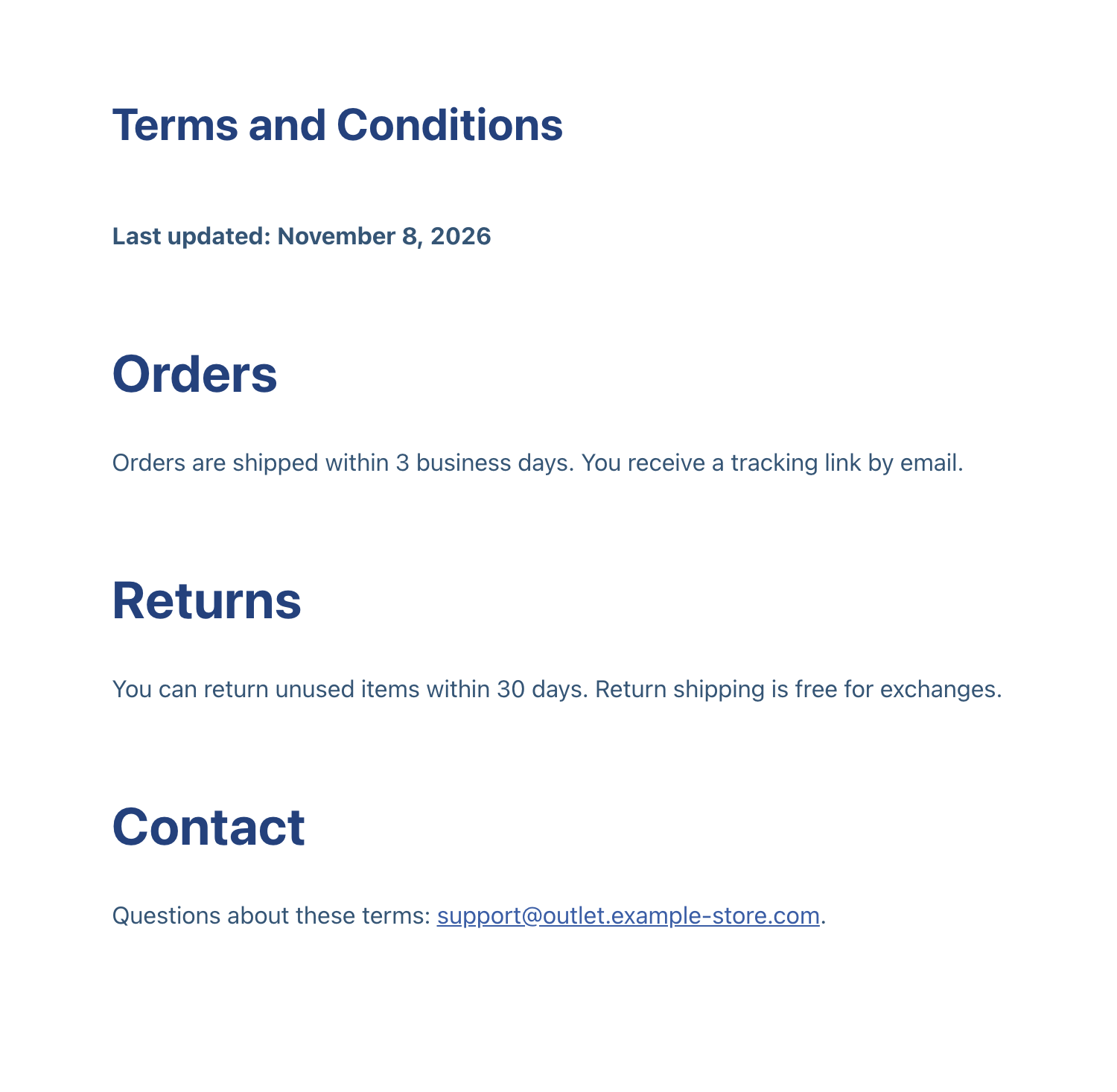
Both pages were updated in place, matched by slug. The outlet’s Terms page now has the new text with the outlet’s own details:
Keep the export file and write down each site’s rules. Next time the text changes, export again and repeat the import with the same rules on each site.
Which method to use
| Content Sync push | File import with replace rules | |
|---|---|---|
| Same text on every site | Best fit | Works |
| Different emails, names or numbers per site | Edit after pushing | Best fit |
| Sites must be connected | Yes, once | No |
| Client sites you can’t connect | No | Yes, send the file and the rules |
| Missing pages | Created | Created or skipped, your choice |
Tips
- Keep the same slug for these pages on all sites (
privacy-policy,terms-and-conditions). The file import matches by slug, and the address is the same everywhere. - Put a “Last updated” date at the top of legal pages. After the update, you can check each site at a glance.
- To check which sites still have the old text, export Pages on each site with the filter Content contains a phrase from the new version, such as the new date. Any site that returns 0 still has the old text.
- The same works for any shared content: a size guide, shipping information, FAQ pages, or blog posts you publish on several sites.
To keep whole sites in sync rather than single pages, see syncing posts and pages between multiple sites.
With an AI agent
An AI agent connected to the main site through the WordPress MCP Adapter (see connecting Claude Code to WordPress) can push the pages to every connected site in one go. It uses rsl-ie/connection-list to find the sites, rsl-ie/sync-auto-map to match the pages on each one by title, and rsl-ie/sync-push to send them. A prompt:
Back up the other sites first. Then push the Privacy Policy page from this
site to every connected site. Match it by title on each site, show me the
matches, and after I confirm, push it and tell me per site whether the page
was updated or created.
In our run, the main site had two connections, “Live” and “Outlet store”. The agent matched the Privacy Policy page to the existing page on both sites and, after confirmation, pushed it to each one: “created: 0, updated: 1” for both. Each site still had exactly one Privacy Policy page, now with the new paragraph.
FAQ
Do all sites need to be connected?
Only for the Content Sync method. The file method works without a connection: export once, import on each site.
Will the pages be duplicated on the other sites?
No. Content Sync matches pages by title and updates them; the file import matches by slug. A page is created only when the site doesn’t have it.
Does the Privacy Policy page stay linked in Settings > Privacy?
Yes. Updated pages keep their ID on each site, so the setting and links to the page keep working.
Can I do the same with posts?
Yes. Both methods work for posts as well as pages.
Related Guides
- How to Sync Content Between Two WordPress Websites Without Export Files
- Content Sync vs Export/Import: Which One for Which Job
- Changed Domain? How to Replace Old URLs in Content During Import
- Staging to Production Checklist for Freelancers Managing Client Sites

Comments 0
Have a question or a tip to share? Leave it below.