
After a domain change, the content of a WordPress site still remembers the old address. Links between posts, image addresses, block settings and custom fields all contain it, often in forms that a quick look does not reveal. When content is moved to the site on the new domain, those addresses should be rewritten on the way in, not hunted down afterwards.
The Replace links option of the free importer in Import Export by RockStarLab does that during the import. A test post was built with every common form of the old address, imported with two different rules, and checked field by field. The table below shows what each rule catches.
Short Answer
Export the content from the old site, start the import on the new one and switch on Find and replace links or other text values during import in the import options. Enter the old domain without http:// or https:// in Replace what and the new domain in Replace to. One rule like that replaced every form of the old address in the test, including links in custom fields and JSON data.
Where the Old Domain Hides
The test post contained the old address in twelve places. It was imported twice: once with a rule that includes the protocol (http://www.old-domain.com), once with the bare domain (www.old-domain.com).
| Where the old address was | Rule with http:// |
Rule with domain only |
|---|---|---|
Link starting with http:// |
Replaced | Replaced |
Link starting with https:// |
Left unchanged | Replaced |
Protocol-relative link //www.old-domain.com/... |
Left unchanged | Replaced |
| Domain written as plain text | Left unchanged | Replaced |
| URL-encoded address in a share link | Replaced | Replaced |
| Image in the content | Downloaded, address points to the new site | Same |
| Cover block background (stored in block settings) | Downloaded, block stays valid | Same |
| Featured image | Downloaded | Same |
| Custom field with a serialized array | Replaced, still an array | Same |
Custom field with JSON and escaped slashes (http:\/\/...) |
Replaced, still valid JSON | Same |
Custom field with JSON containing quotes and \u escapes |
Kept valid | Same |
| Backslashes in the text (a Windows path) | Kept | Same |
After the second import, the post contained no trace of the old domain. A rule replaces exactly the text entered, but the importer also looks for the JSON-escaped and URL-encoded forms of that text, and it rewrites serialized values without breaking their stored lengths.
What You Need
- Import Export by RockStarLab (Free), version 2.1.7 or later, on both sites. Earlier versions could damage Cover blocks, backslashes and JSON custom fields during an import. The installation guide covers the setup.
- The old site still online during the import, because images are downloaded from it.
- An export file of the content. The export filter examples show how to select exactly the posts that should move.
Step 1: Export From the Old Site
On the old site, open Import Export by RockStarLab → Export, choose Blog Posts (or Pages), add filters if only part of the content should move, and add all fields in the Fields step. Custom fields travel as columns, so they are part of the replacement as well. JSON keeps structured values most reliably; the test used a JSON export with 31 columns.
Step 2: Set the Replace Rule on the New Site
On the new site, open Import, choose the same content type, upload the file and use Auto Map on the mapping step. On the options step, keep Automatically Import Media Files on and switch on Find and replace links or other text values during import.
A rule with the protocol only matches links written exactly that way:
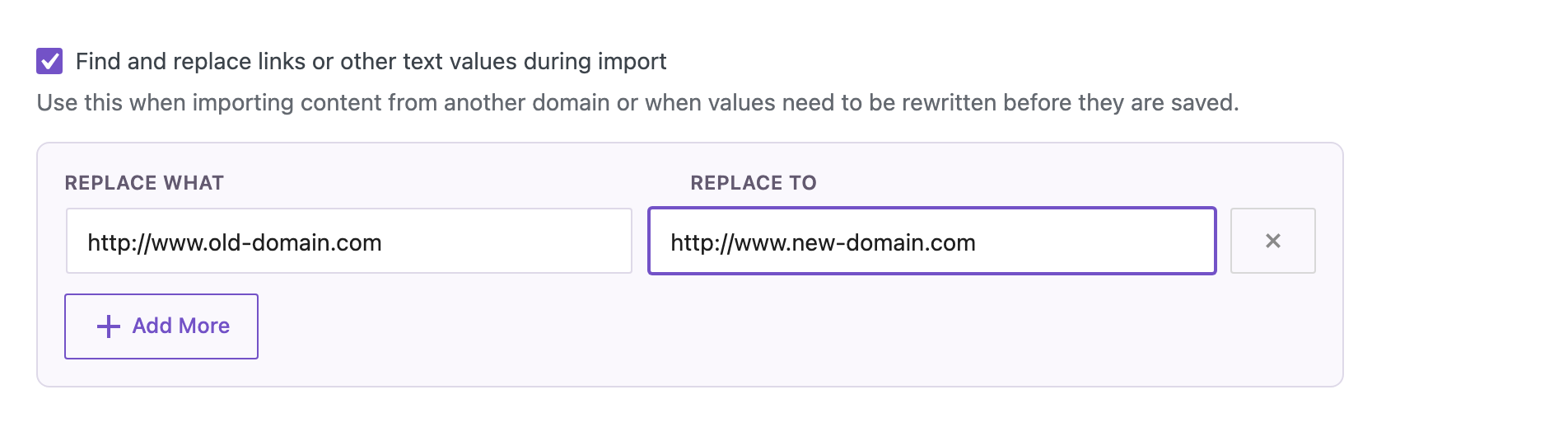
In the test, this rule left the https:// link, the protocol-relative link and the plain-text mention of the domain untouched. The rule with only the domain caught all of them:
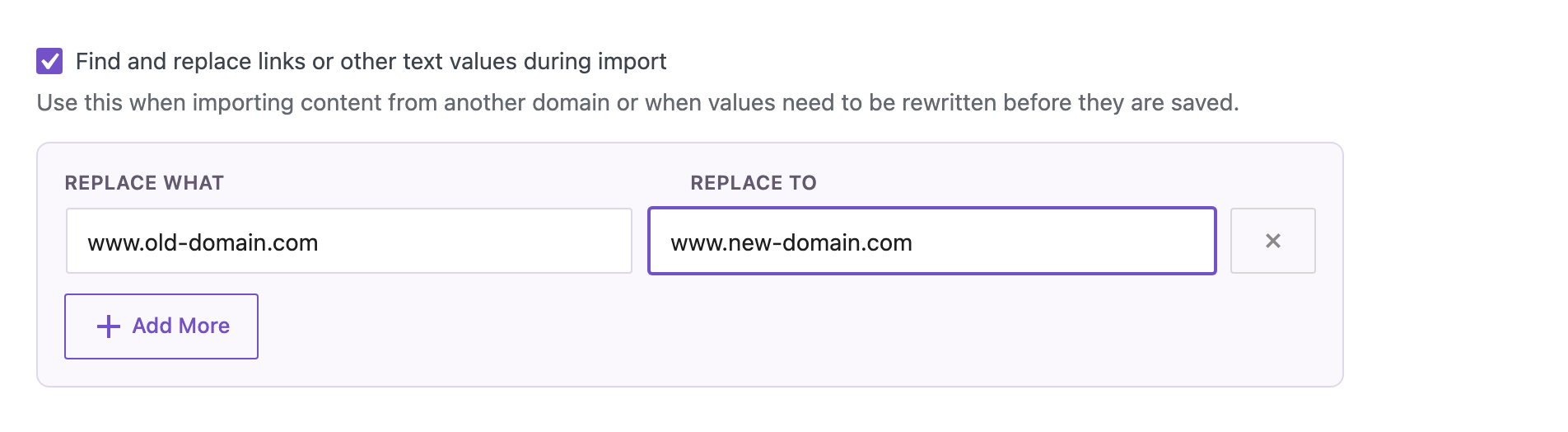
Use Add More for additional rules, for example when content links to a second old domain or to an old subdomain that also moved.
Step 3: Import and Check the Result
Start the import. The result screen reports the created, updated and skipped items. If an image could not be downloaded from the old site, it says so and lists the address.
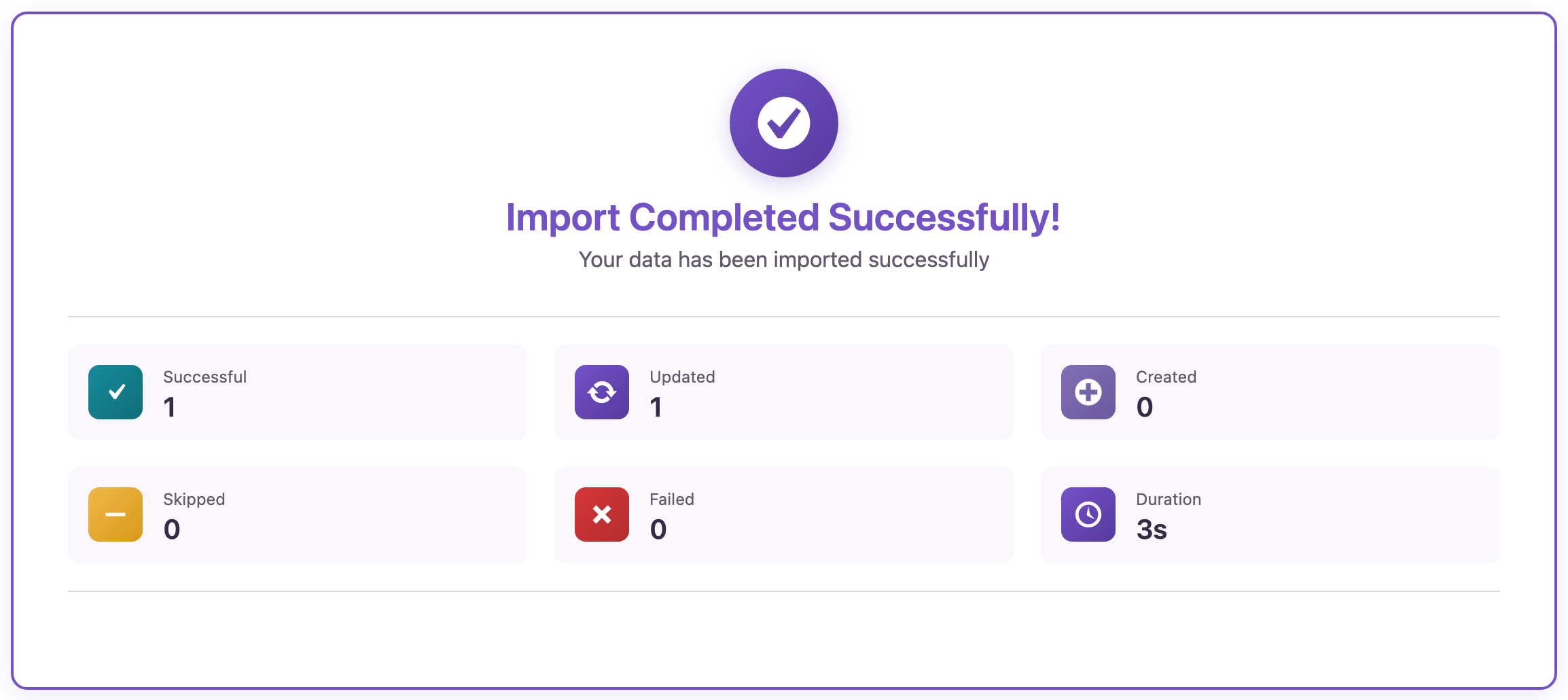
On the new site, the post shows its images from the new Media Library, and the links point to the new domain.

The static srcset attribute is removed from images during the import. That is intentional: WordPress builds responsive image sizes again when the page is displayed, as long as the image is linked to its attachment. On the test page, the image had a full srcset on the new domain.
Choosing the Right Rule
- Same protocol on both sites: one rule with the domain only, for example
www.old-domain.com→www.new-domain.com. - Old site had links with and without
www: add a rule for each form, longest first, for examplewww.old-domain.comand thenold-domain.com. - Email addresses: a domain-only rule also changes
info@old-domain.com. That is usually what a domain change needs, but check it if mail stays on the old domain. - Subdomains:
old-domain.comis also part ofcdn.old-domain.com. If a subdomain should keep its address, write the rule for the full host name instead.
Check the Site for Leftovers
The export screen doubles as a search. On the new site, start an export of Blog Posts, add a filter on the content that contains the old domain and look at the counter: it shows how many posts still mention it. Repeat it for pages. In the test, the counter stayed at zero after the import with the domain-only rule.
Already Imported With the Old Domain?
If the export file is still available, run the import again with the replace rule and If Match Found set to Update, matched by slug. The posts are rewritten in place without duplicates. For content that is already on the site and has no export file, the PRO addon’s Content Updater can find and replace text in existing posts in bulk.
Replace Old URLs With an AI Agent
The import is also available as WordPress Abilities. With the Abilities API (WordPress 6.9 and later) and the MCP Adapter plugin on the new site, an agent such as Claude Code, Cursor, Codex, GitHub Copilot or Gemini CLI can upload the export file, import it with a replace rule and check the result. Enable Enable Abilities API under Plugin Options → AI Agent Connection. The setup is described in the Abilities API guide.
The prompts below were run by an AI agent (Claude) connected to the new test site. It used rsl-ie/upload-create, rsl-ie/upload-complete, rsl-ie/import-prepare, rsl-ie/import-start, rsl-ie/job-get and rsl-ie/export-preview.
1. Import with the replace rule
Import old-domain-post.json as blog posts. Replace www.old-domain.com with www.new-domain.com everywhere,
download the images, and skip posts whose slug already exists.
The agent uploaded the file, took the suggested mapping, started the import and reported it as completed. The suggested mapping contained the 19 standard post fields. Custom fields are not part of it, so for content with custom fields the import screen with Auto Map is the more complete route; it mapped all 31 columns in the test.
2. Check for leftovers
List the posts on this site whose content still contains old-domain.com. Do not change anything.
The agent ran an export preview with a content filter and reported no matching posts.
Common Problems and Fixes
Some links still point to the old domain
The rule included the protocol and those links use a different one, or they are protocol-relative. Use the domain without http:// or https://, or add a rule for each variant.
Images are broken after the import
The old site was offline or blocked the new server while images were downloaded. The import result lists the files that failed. Make the old site reachable and run the import again with Update.
A page builder layout looks wrong after the import
Update to version 2.1.7. Earlier versions could turn JSON strings in custom fields into arrays and remove backslashes, which breaks the stored data of some builders. Re-import the affected posts with Update.
The block editor says a block contains unexpected content
This affected Cover blocks imported with versions before 2.1.7. Re-import the post with Update on 2.1.7 or later.
FAQ
Does the rule also change custom fields?
Yes. Every imported field is searched, including custom fields with serialized arrays or JSON.
Is the replacement case-sensitive?
It matches the text as entered. Domain names are usually written in lowercase, so one lowercase rule covers most content.
Can the same option be used for something other than domains?
Yes. Any text can be replaced, for example an old company name or a changed path such as /wp/ after moving WordPress out of a subfolder.
What about images that are not used in any post?
They are only moved when the Media Library itself is exported and imported. The media guide covers that.
Related Guides
- How to Fix http to https Links in WordPress Post Content in Bulk
- How to migrate only posts and pages to a new WordPress site
- How to bulk update existing WordPress posts without creating duplicates
- WordPress export data filters: examples
- How to export and import WordPress media files without duplicates
- How to use the WordPress Abilities API with AI agents
Import Export by RockStarLab is free on WordPress.org.

Comments 0
Have a question or a tip to share? Leave it below.