
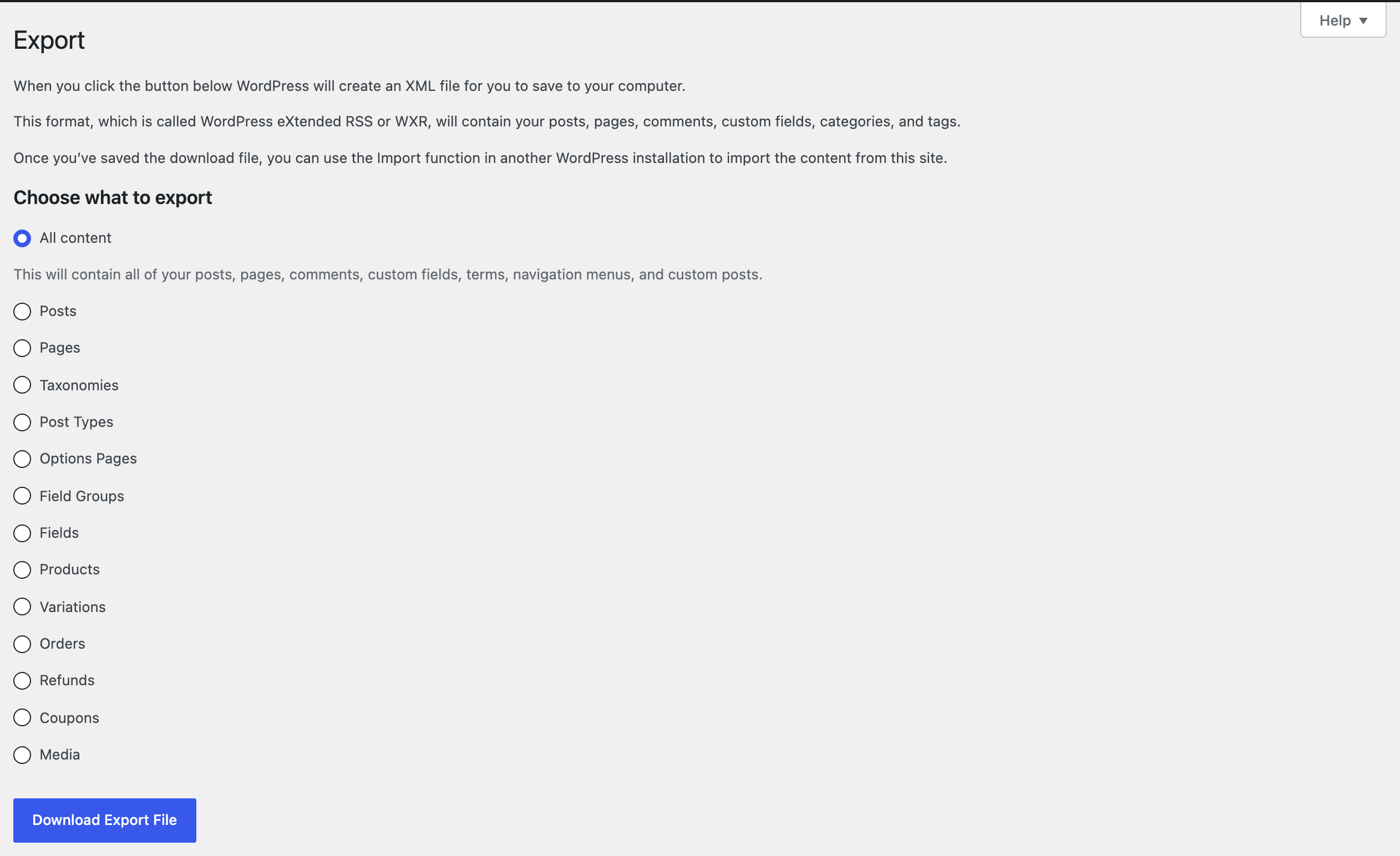
Every WordPress site has a built-in exporter under Tools → Export and a matching importer, the WordPress Importer plugin. For moving a small blog to a fresh install, the pair works. For most other moves, it leaves things behind or brings things along twice, and the export screen does not say which.
To find out exactly, a site with 69 posts, 32 pages, 75 media files, a WooCommerce shop with 18 products and 8 orders, menus, widgets and theme settings was exported with All content and imported into a second site with the current WordPress Importer (version 0.9.7). Below: what arrived, what didn’t, and where Import Export by RockStarLab fills the gaps.
Short Answer
The built-in export file (WXR) contains posts, pages, comments, custom fields, categories, tags, menus and the records of media files. It does not contain the media files themselves, WooCommerce orders stored in their own tables, widgets, theme settings, menu locations or users who have not written anything. The importer recognises existing content only by title and date, so pages and products that already exist on the target site are imported a second time.
What the Export File Contained
The export took 3.4 seconds and produced a 2.2 MB XML file.
| Content on the old site | In the export file |
|---|---|
| 69 posts, 32 pages | Yes |
| 38 comments and reviews | Yes |
| Custom fields | Yes (2,028 values) |
| Categories, tags, product categories | Yes |
| Navigation menus | Yes (74 menu items) |
| 18 products, 7 variations, 3 coupons | Yes |
| Media files | Only the records (95), not the files |
| 8 WooCommerce orders | No |
| Widgets | No |
| Theme settings (80 values) and menu locations | No |
| 8 user accounts | Only the 3 users who wrote posts |
The orders are missing because current WooCommerce versions keep orders in their own database tables, which the WordPress exporter does not read. Widgets and theme settings are stored as site options, which the export never includes.
What the Import Did
The target site was a fresh install with its own shop pages and a few products. On the second screen, the WordPress Importer asks how to handle authors and whether to download the media files.
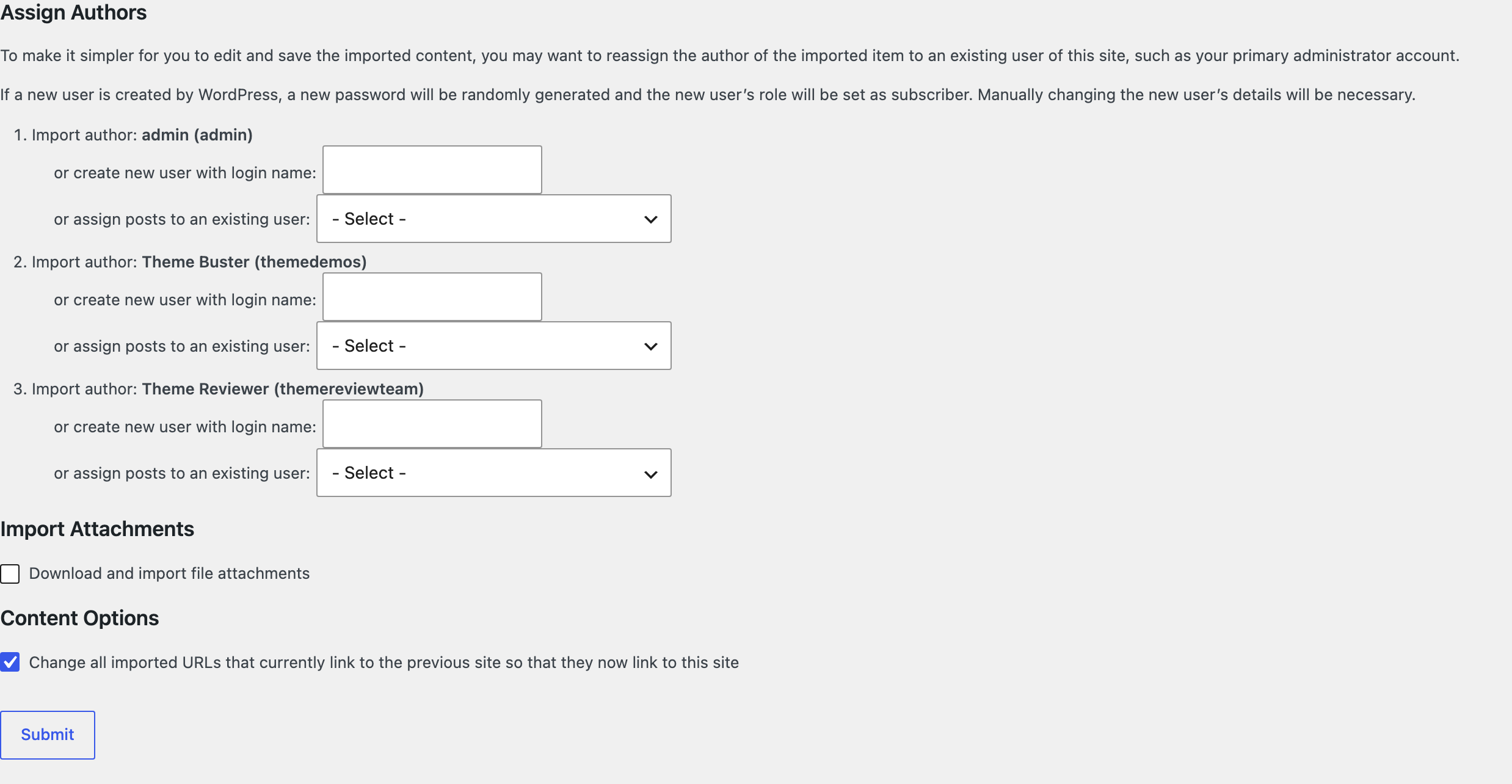
Two defaults on this screen matter. Download and import file attachments is off, so without ticking it no image arrives. Change all imported URLs that currently link to the previous site is on; it is part of current versions of the WordPress Importer (0.9.7 in the test) and needs WordPress 6.7 or later.
With attachments ticked and the old site online, the import took 26 seconds.

What worked
- All 69 posts, the pages, their comments and the 7 menus arrived.
- All 95 media files were downloaded from the old site, and all 16 featured images were linked to them.
- Links in post content that pointed to the old domain were rewritten to the new one.
What did not
- Custom fields kept the old domain. The URL rewriting covers post content and excerpts only. A plain URL, a serialized array and a JSON value in custom fields all still pointed to the old site.
- Pages and products were duplicated. The target site already had a Cart, a Shop and other shop pages, and 18 products with the same names. The importer added a second copy of each: 37 pages instead of 32, 36 products instead of 18.
- Authors were assigned to the importing user. Two of the three authors already existed on the target site. The importer tried to create them again, failed, and attributed their posts to the current user. Mapping each author by hand on the second screen avoids it.
- Menus arrived without locations. The header and footer still showed the target site’s own menus.
- No orders, widgets or theme settings, because they were not in the file.

Running the import again
A second run of the same file reported “already exists” for 226 items and skipped them. One post was imported again anyway: its title contained a backslash, which breaks the title comparison. Repeating an import is mostly safe, but not completely.
When the old site is offline
The media files are downloaded from the addresses in the file. In a run where the old site could not be reached, all 95 downloads failed with “Failed to import Media”, and posts arrived with broken images. The export file alone is not a backup of a site.
Built-in Tools Compared With Import Export by RockStarLab
| Need | Tools → Export + WordPress Importer | Import Export by RockStarLab |
|---|---|---|
| Choose what to move | All content or one type, with category, author, date and status filters for posts | Filters on any field, including custom fields (Free); tick posts in the list for Content Sync (Free) |
| Items that already exist on the target | Matched by title and date; others are duplicated | Matched by slug or ID, with a choice to skip or update (Free) |
| Old domain in custom fields | Not changed | Replaced, including serialized and JSON values (Free) |
| Authors | Mapped by hand, otherwise the importing user | Matched to existing accounts by email (Free) |
| Media files | Downloaded from the old site, option off by default | Downloaded from the old site during import and migration; Content Sync sends the files itself (Free) |
| WooCommerce orders and customers | Not exported | PRO addon |
| Menus, users without posts | Menus without locations; users not exported | PRO addon |
| Widgets, theme settings | Not exported | Not exported either; use a full-site migration or backup for these |
The free guides that show these in practice: migrating only posts and pages to a new site, which skips pages that already exist, and replacing old URLs during import, which covers custom fields.
When the Built-in Exporter Is Enough
- Moving a blog with posts, pages and comments to an empty WordPress site.
- The old site stays online until the import is finished.
- Theme, widgets and menus will be set up again on the new site anyway.
- No shop orders and no customer accounts need to move.
Outside that, plan for the gaps: map authors by hand, tick the attachments option, check for duplicated pages, fix custom fields that still point to the old domain, and move orders, widgets and settings another way.
Common Problems and Fixes
Images are missing after the import
Download and import file attachments was not ticked, or the old site was not reachable. Run the import again with the option ticked while the old site is online.
The import stops on a large site
The WordPress Importer processes the whole file in one request, so a large file can hit the server’s time or upload limit. Split the export by content type or date range, or use an importer that works in background batches.
Posts show the wrong author
Authors that already existed were not mapped on the second screen. Reassign them in the Posts list with bulk edit, or run the import again with each author mapped to the existing account.
There are two of every shop page
The target site already had those pages. Delete the imported copies, or exclude pages from the export when the target site has its own.
FAQ
Does Tools → Export include images?
No. It includes the records of the media files and their addresses. The files are downloaded from the old site during the import, if the option is ticked.
Can the built-in exporter move WooCommerce orders?
Not on current WooCommerce versions with order storage in custom tables. Products, variations and coupons are exported, orders are not.
Does the WordPress Importer change links to the old domain?
Current versions do, in post content and excerpts, when the option is left on. Custom fields are not changed.
Is a WXR file a backup?
No. It lacks the media files, settings, widgets and orders. The backup guide describes a full backup.
Related Guides
- How to migrate only posts and pages to a new WordPress site
- Changed domain? How to replace old URLs in content during import
- How to export and import WordPress media files without duplicates
- How to migrate WooCommerce store data to another site
- How to create a WordPress website backup and restore it
Import Export by RockStarLab is free on WordPress.org.

Comments 0
Have a question or a tip to share? Leave it below.