
To migrate WooCommerce store data to another WordPress site, export a Content Migration ZIP on the source site, upload it on the destination, and import the related content together. With Import Export by RockStarLab, the package can include products, attributes, product taxonomies, customers, orders, refunds, reviews, and media records. The important final step is checking that the imported records still point to each other.
A product count alone cannot tell you whether a migration worked. An order might display the right item name while linking to the wrong product. A grouped product might be missing a child. A refund might exist without appearing under its original order. This tutorial shows the admin workflow and the checks that make the result useful, followed by an alternative workflow using an AI agent through the WordPress Abilities API.
This is a store-data migration, not a complete website clone. The ZIP does not include your theme, site settings, or the actual image files. The destination downloads media from the source during import, so keep the original site and its media URLs available.
What this WooCommerce migration moves—and what needs separate work
Use this workflow when you have a WordPress destination ready and want to move store content into it. For example, you might be rebuilding a shop with a different theme, preparing a staging copy, or consolidating store data into an existing WordPress installation.
| Content | Migration scope | What to verify afterward |
|---|---|---|
| Products and variations | Woo Product data, including supported variation and product relationships | SKU, type, prices, stock, attributes, variation selection, images, and linked products |
| Attributes and terms | Woo Attribute and the selected product taxonomies | Attribute names, terms, categories, and product assignments |
| Customers | Woo Customer records | Email identity, customer details, and the customer attached to each order |
| Orders | Woo Order records and supported line-item data | Status, currency, totals, quantities, customer, and product/variation links |
| Refunds | Woo Refund records | Parent order, amount, reason, and affected line items |
| Reviews | Woo Review records | Correct product, text, author, rating, approval, and verified-owner display |
| Media | Media records and source URLs; files are fetched during import | Images load from the destination and are assigned correctly |
| Coupons | A selectable Woo Coupon step | Codes, restrictions, and behavior in your own test; this tutorial’s fixture had no coupons |
| Themes, plugins, store settings | Not a replacement for installing and configuring these on the destination | Theme, checkout, payment gateways, shipping, taxes, email, and integrations |
| Extension-specific commerce data | Requires separate compatibility checks | Subscriptions, bookings, memberships, payment tokens, and extension-owned tables |
If you only need a spreadsheet of your catalog, use the separate guide to export WooCommerce products to CSV, Excel, or XML. If the task is an ongoing transfer between connected sites, see Content Sync without export files. A migration package is a different workflow: you create a file, transport it, then import its content.
Before you export: prepare both sites
Install the required plugins and confirm the direction
Install and activate WooCommerce and Import Export by RockStarLab on both sites. The WooCommerce workflows used here require the PRO integration. Check that the required content types appear in Content Migration before starting; an inactive integration on the destination can leave a type unavailable.
Write down the source and destination URLs. In this test, aie6 was the source and aie7 was the destination. All screenshots show local test sites. Use your own URLs, and check the WordPress toolbar before importing so that you do not accidentally run the destination step on the original shop.
Back up the destination and decide how to handle live changes
Create a restorable backup before importing into a site you care about. Content Migration is not that backup: it does not capture a complete filesystem and database restore point. Follow the WordPress backup and restore guide if you need to prepare one first.
For a live shop, agree on a cutover window. Products, customers, and orders are exported in separate steps, so the package is not a transactional snapshot of the store at one instant. If purchases continue during export, later orders or edits may fall outside the package. Rehearse on staging, then choose how you will stop or reconcile new activity for the final transfer.
Configure the test destination so that it does not send unintended customer messages or trigger live external integrations. Keep payment and fulfillment testing separate from importing historical records. Copying an order or refund record is not a request to collect money or issue a new gateway refund.
Record a small set of connected examples
Before running a large migration, identify a few records that you can inspect from end to end. Include a simple product, a variable product, a customer order containing a variation, a refund, and a product review. If your catalog uses grouped products, include one with multiple children.
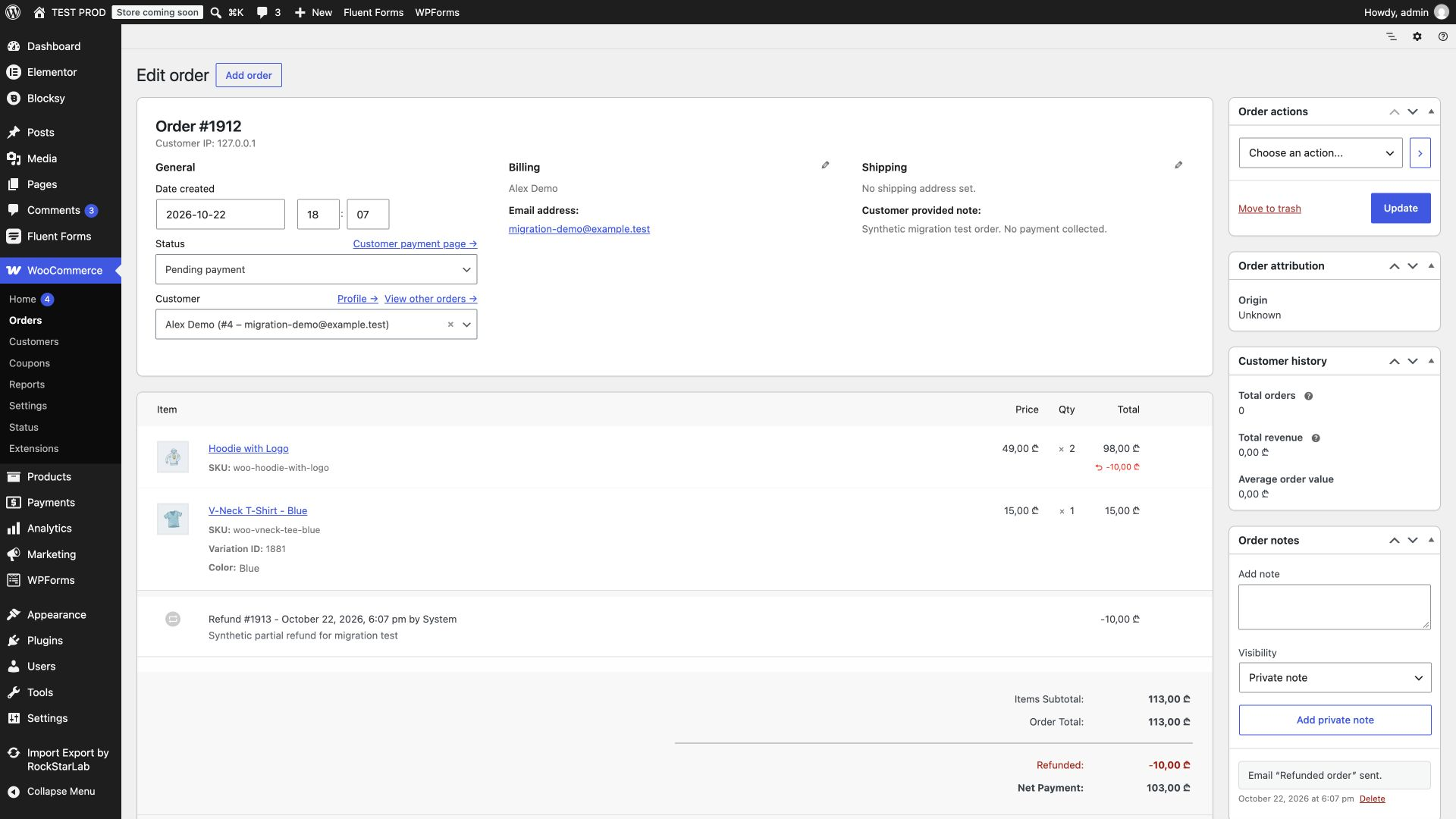
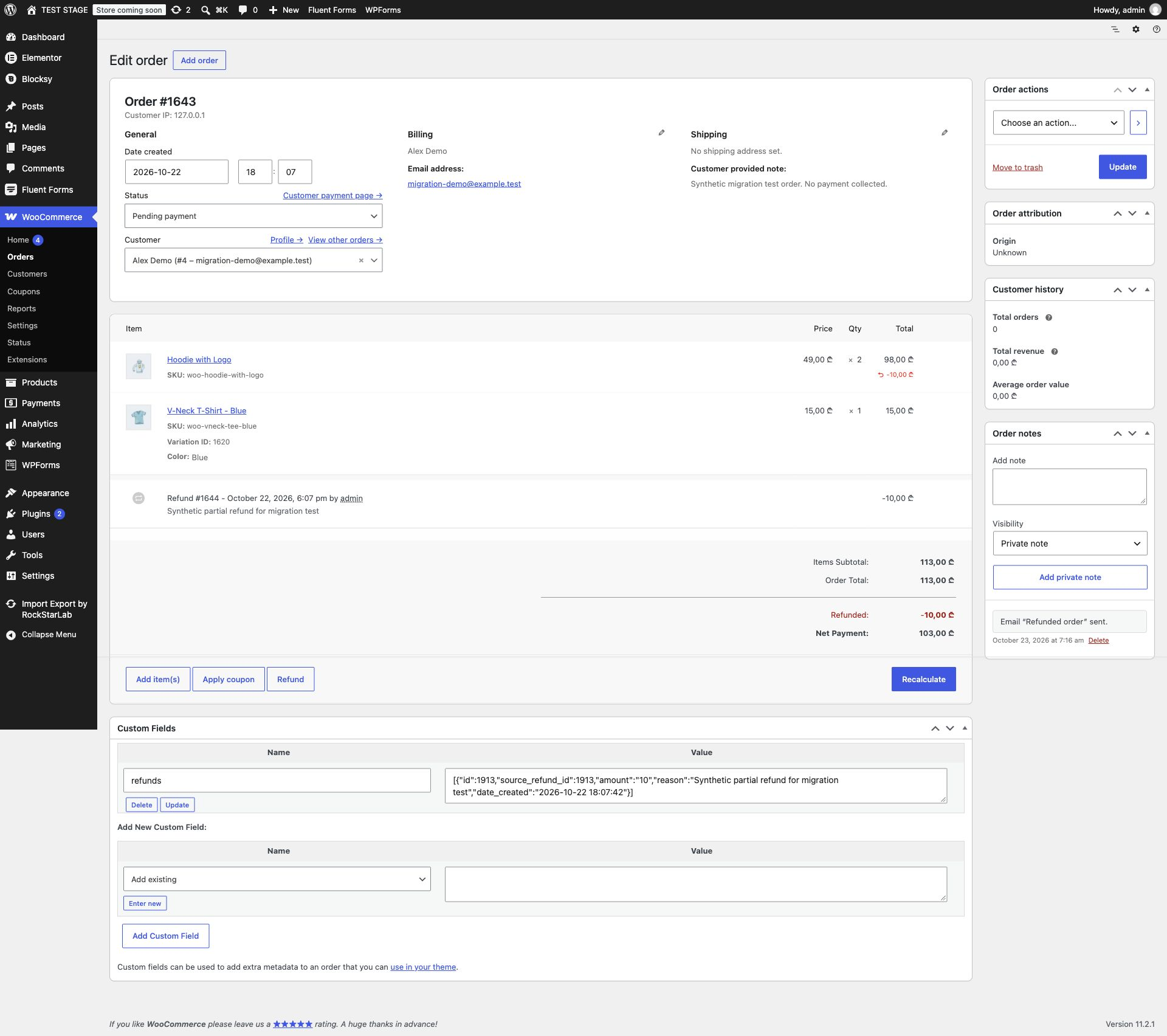
Our fixture contained 18 parent products, one customer account with the customer role, one order, one refund, and one review. The order totaled 113 GEL: two Hoodie with Logo items at 49 GEL each and one blue V-Neck T-Shirt variation at 15 GEL. Its partial refund was 10 GEL. The review had five stars and belonged to Hoodie with Logo. These were synthetic local test records; no payment was collected.
Step 1: create a WooCommerce migration package on the source
- Open Import Export by RockStarLab → Content Migration on the source site.
- Select Create export file.
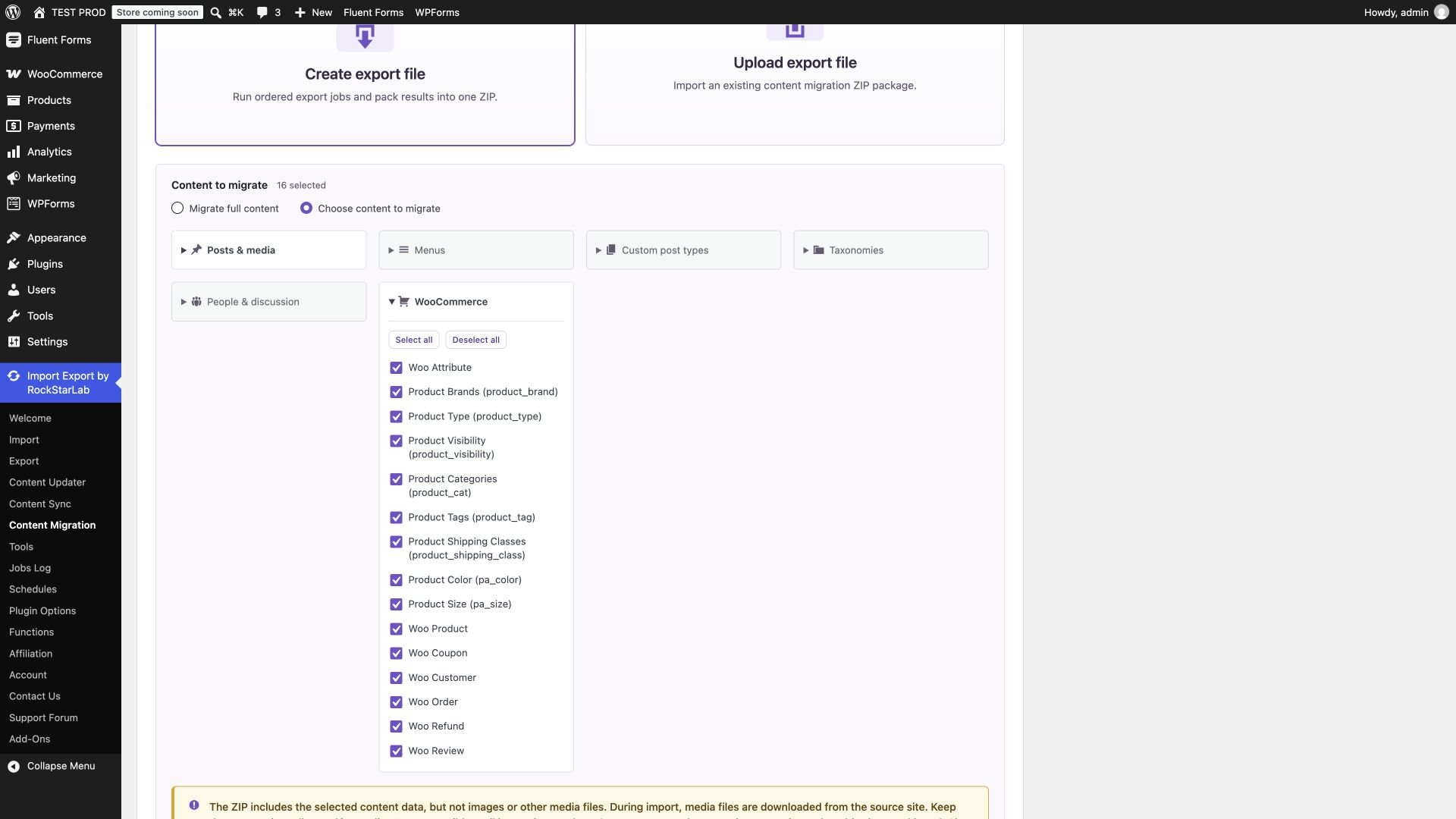
- Select Choose content to migrate for a store-focused package.
- Expand WooCommerce and select the store data you need.
- Include Media under Posts & media when you want to migrate media-library records as part of the package.
For this tutorial, we selected Media and the WooCommerce group: attributes, product taxonomies, products, coupons, customers, orders, refunds, and reviews. We deselected ordinary posts, pages, menus, unrelated custom post types, unrelated taxonomies, and the general User and Comment steps.
Keep the related steps together. An order needs its customer and product references to resolve at the destination; a refund needs its order. Selecting only orders is not equivalent to migrating a store. The plugin runs the selected steps in its dependency order rather than relying on the order in which you clicked the checkboxes.
Media selection can include more than product photographs. Our test site’s Media step contained 126 media records, including material unrelated to the store. Check the scope before using this choice on a site with a large library. Likewise, do not assume that the number of Woo Customer rows will equal the number of accounts with the WordPress customer role: inspect the exported scope for your installation.
If you genuinely want posts, pages, and other supported content too, choose Migrate full content. That label refers to the supported content selection; it does not add themes, plugin files, or site settings to the package.
Step 2: run the export and download the ZIP
Click Start migration. Wait for the export to finish and the package to be assembled. A running export or an individual completed child job is not yet a finished migration ZIP.
The completion screen shows the export-file count, exported-item count, package size, and duration. Click Download Migration Package and keep the ZIP intact. Upload it through Content Migration on the destination rather than treating it as an ordinary product CSV.
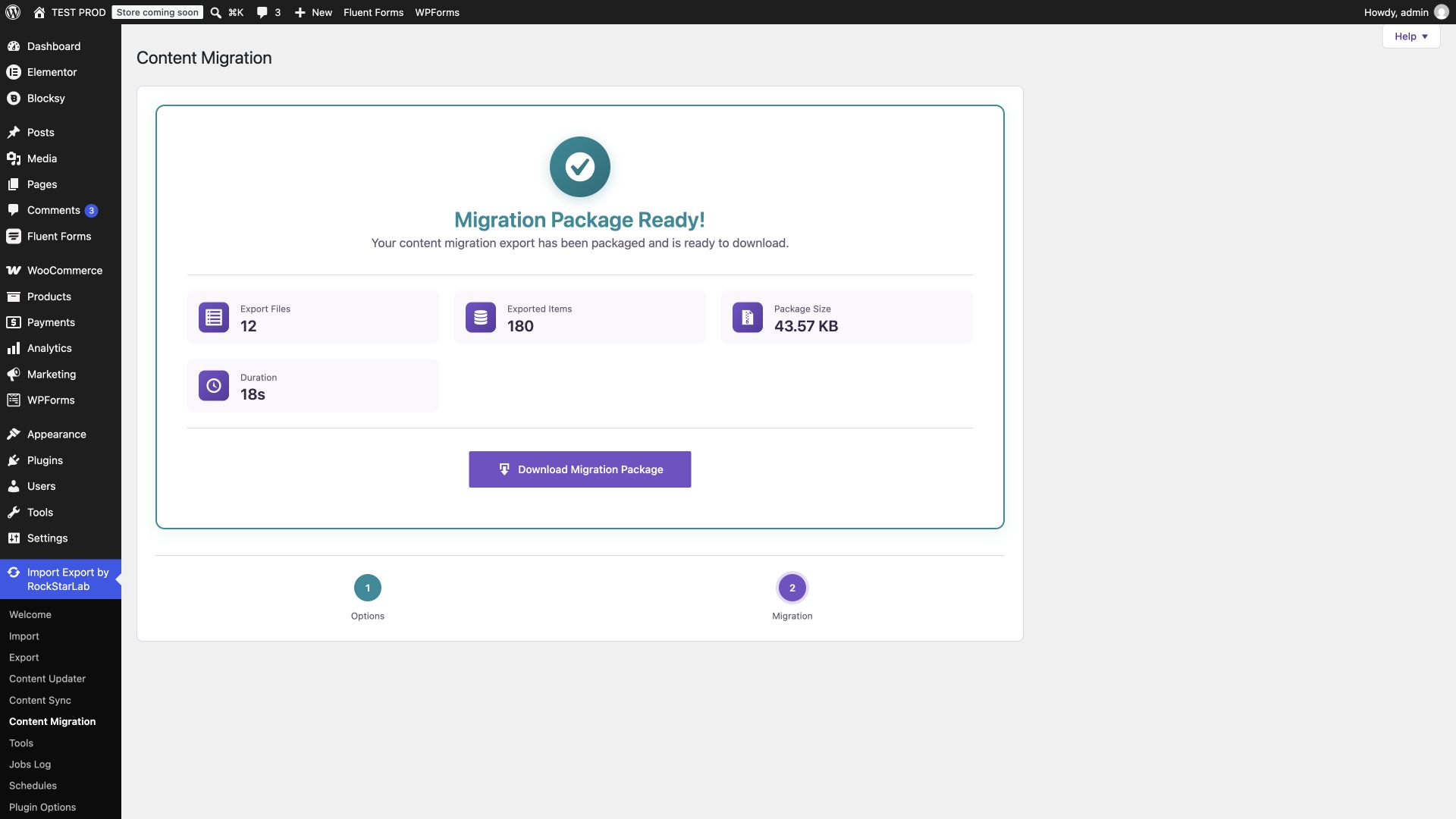
We selected 16 content steps, but four were empty, so the final archive contained 12 data files plus its manifest. Its 180 records were not 180 products: that aggregate included media and other selected content. Keep these distinctions in mind when comparing the completion screen with WooCommerce’s product count.
Store the package securely. A real store export can contain customer information and order details. Avoid putting it in a public download directory or attaching it to a public support discussion.
Step 3: upload the package on the destination
- Open Content Migration on the destination WordPress site.
- Select Upload export file.
- Click Select ZIP File and choose the migration ZIP.
- Wait while the plugin uploads, reads, and checks the package.
- Review Content to migrate once the package is ready.
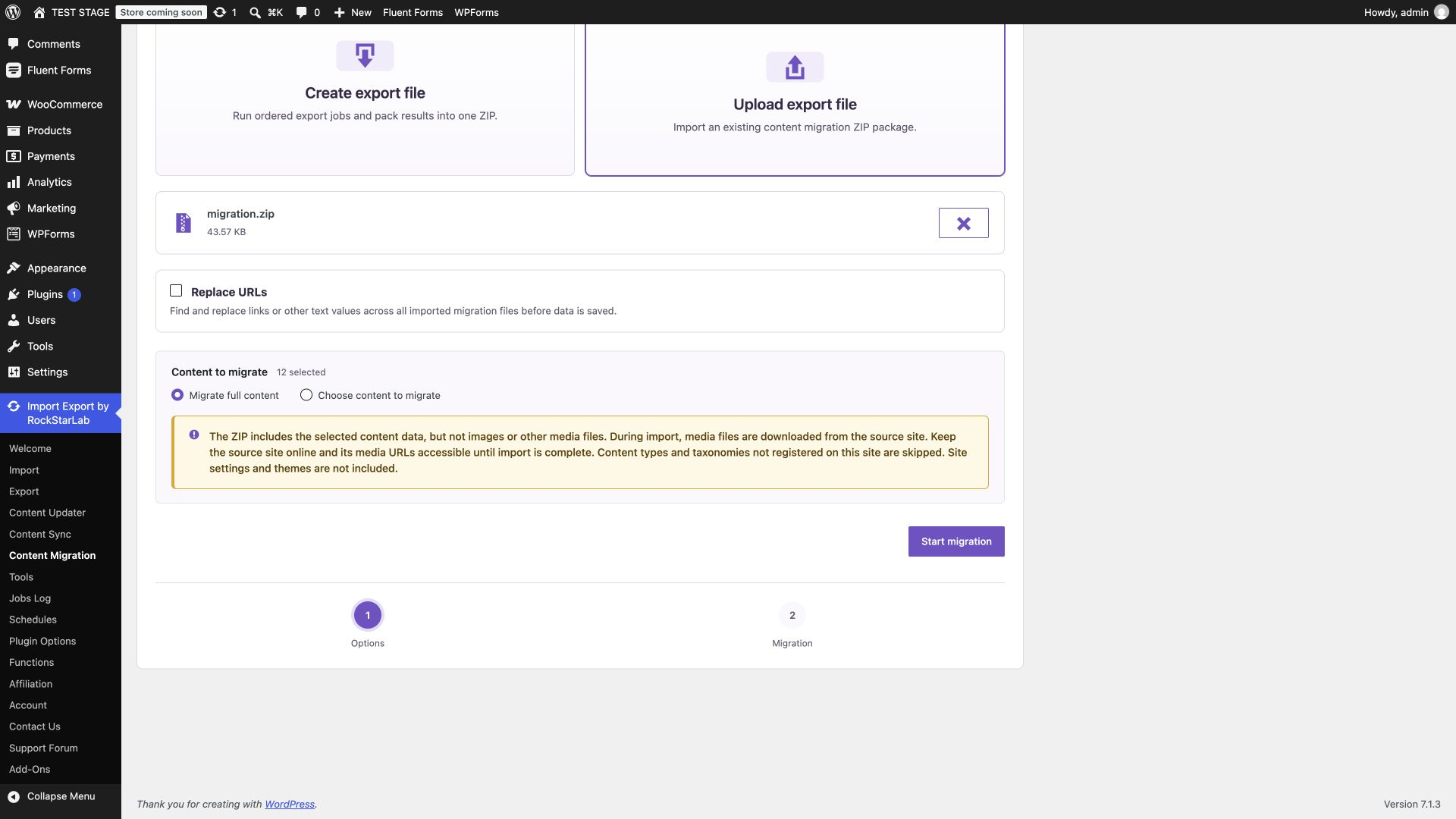
For the complete store-focused package created above, select Migrate full content. At this point, “full” means all content present in that package. It does not pull additional content from the source. You can instead choose particular available content types, but do not remove dependencies without checking what the remaining records reference.
When to use Replace URLs
The optional Replace URLs control replaces matching links or other text values in imported files before they are saved. Use it for an intentional change, such as replacing an old site origin in product descriptions with the new origin. Keep rules narrow and inspect the result on staging before applying them to a live catalog.
URL replacement is separate from the media-download process and from resolving a product or customer relationship. It is also not an HTTP redirect: changing imported text does not make visitors to an old URL land on a new one.
We left Replace URLs off in this test to isolate the content transfer. The screenshots therefore show zero URL replacements. This tutorial does not claim a tested search-and-replace rule for every possible theme, serialized field, or extension.
Step 4: import the content and inspect the result
Click Start migration. The progress screen moves through the package’s content steps and their records. Media can take longer than text because files must be fetched from the source. Keep the source available until the import is finished and the destination images have been checked.
Background jobs depend on the site’s worker and WP-Cron execution. A progress read does not itself process another batch. If a job appears inactive, inspect its state and cron execution before starting another import. On our local setup, due worker events were also advanced during testing; the durations in screenshots are observations from this fixture, not performance promises.
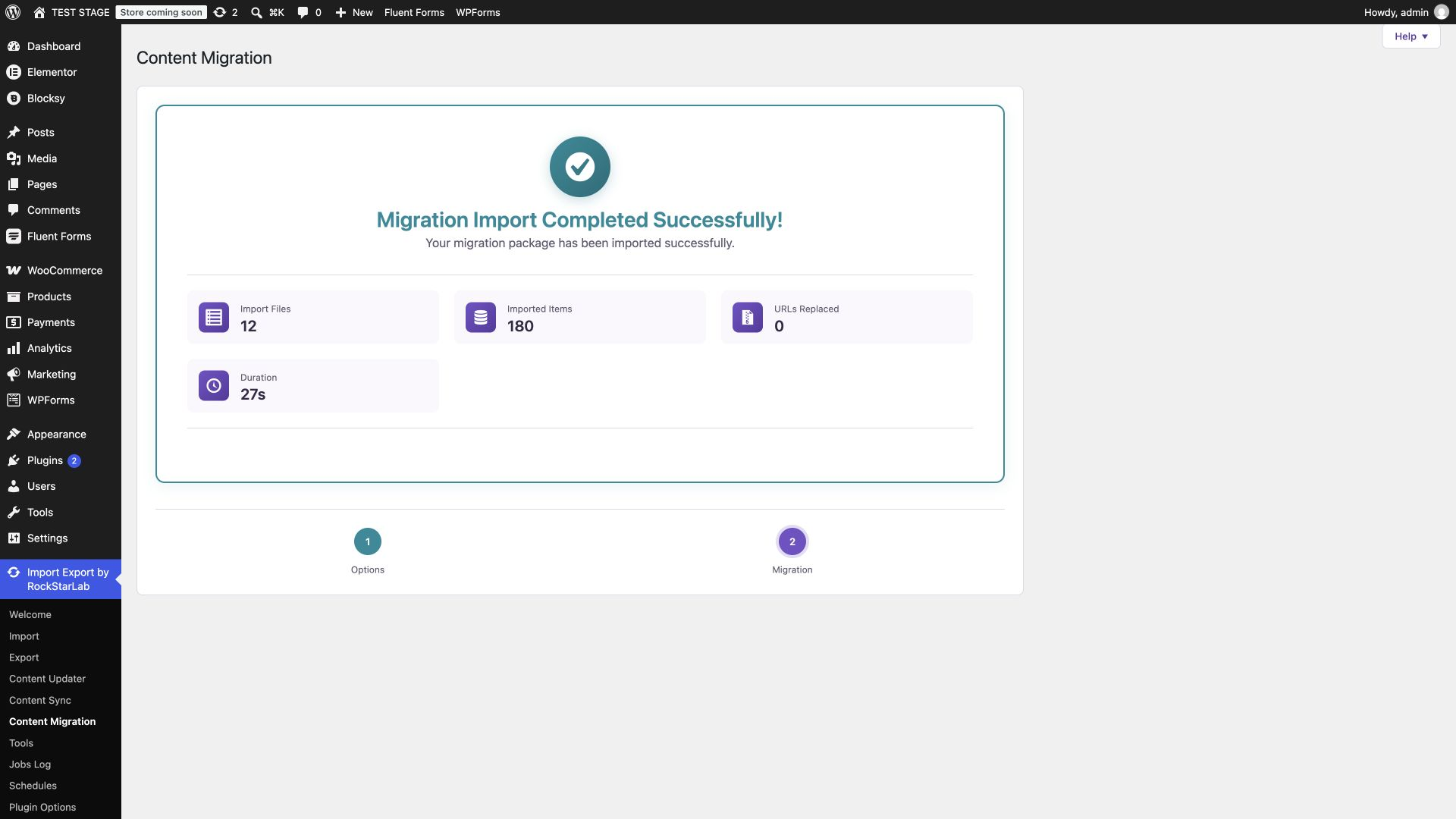
A successful completion banner is the start of verification. Open the actual products, orders, and reviews. Do not launch the destination shop solely because the job reached 100%.
Step 5: verify the migrated WooCommerce data
Products, images, and variations
Compare the number of parent products separately from variations. Open a simple product and check its SKU, regular and sale prices, stock-management setting, quantity, category, featured image, and gallery. On the storefront, verify that the image loads and the expected price is displayed.
For a variable product, inspect its attributes and child variations, then select an actual option on the storefront. A parent product existing in the database does not prove that its variations are selectable or attached to the right parent. Use a variation from a migrated order as a particularly useful cross-check.
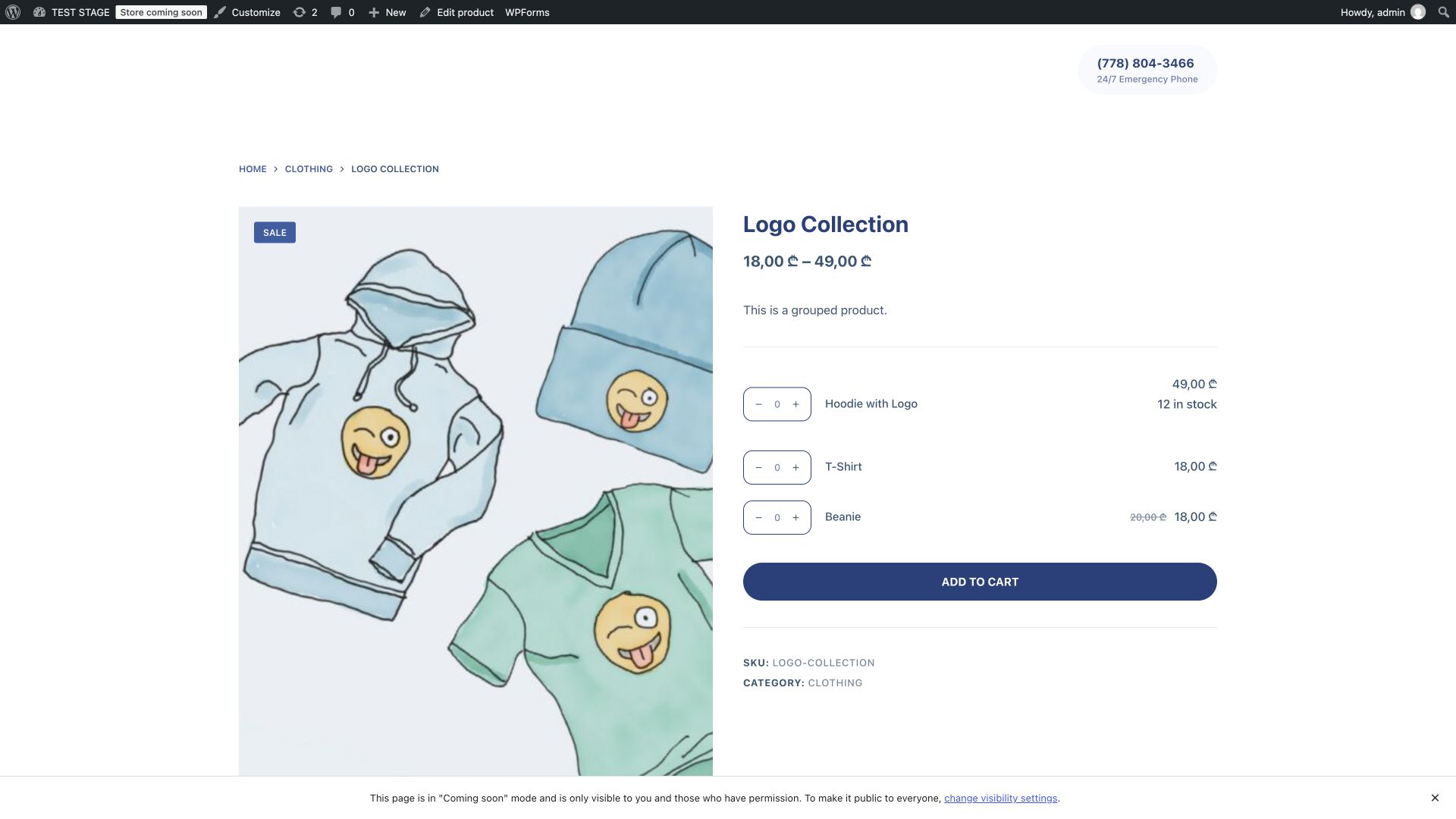
For grouped products, open Product data → Linked Products and compare the members with the source. Then open the grouped product on the storefront. In our final test, Logo Collection displayed Hoodie with Logo, T-Shirt, and Beanie, each linking to the destination product.
Customers, orders, and refunds
Open WooCommerce → Orders and find your test order by its customer and contents. Compare the status, currency, order total, quantities, and line totals. Follow the customer profile link and the product links: they should resolve to the intended records on the destination.
Different WordPress IDs are normal. What matters is that the destination relationships are correct. In our test, source order 1912 became destination order 1643. Its Hoodie with Logo reference changed from product 1867 to 1626, and its blue variation changed from 1881 to 1620. The order still totaled 113 GEL.
The refund appeared beneath that order as a 10 GEL partial refund. Check the refund amount and its parent order together, not as two independent counts. The WooCommerce screen showed a 103 GEL amount after subtracting the refund, but the fixture was unpaid; that display is not evidence of a real payment or gateway transaction.
For a separate reporting export, see exporting WooCommerce orders to CSV or Excel and exporting WooCommerce refunds. Those files are useful for audits, but they do not replace opening the transferred order in WooCommerce.
Reviews and ratings
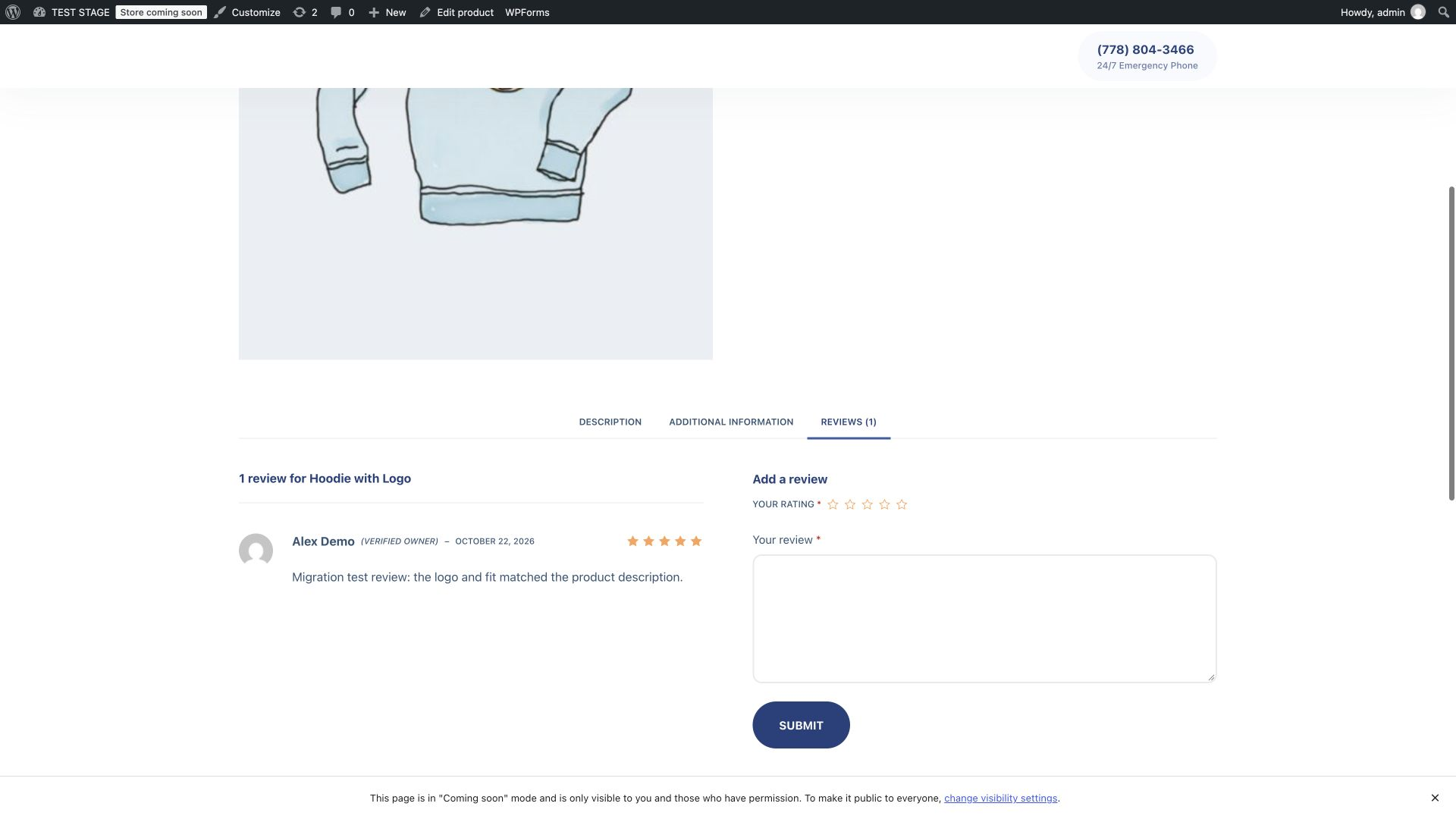
Open the product’s Reviews tab on the destination storefront. Confirm the review text, author, star rating, and product association. In our fixture, Alex Demo’s five-star review appeared on Hoodie with Logo, including the verified-owner label. We also checked the review’s customer and product references in the stored data.
If you need a standalone audit file, the WooCommerce review export tutorial covers that narrower task.
What our final checks established
| Check | Verified outcome |
|---|---|
| Parent products | 18 active products on the destination |
| Customer account | The synthetic customer’s email matched and the order referenced that account |
| Order | One order, 113 GEL, correct quantities and product/variation references |
| Refund | One 10 GEL refund attached to that order |
| Review | One five-star review attached to Hoodie with Logo and the test customer |
| Grouped product | Three correct destination product references, visible on the storefront |
| Repeated migration | The checked record IDs and counts stayed stable; the final MCP update run reported 180 updated, zero created, zero failed |
Testing used WordPress 7.1.3, WooCommerce 11.2.1, and local Import Export builds labeled FREE 2.0.1 and PRO 2.0.0, with the migration fixes applied on October 23, 2026. The version labels alone do not identify those fixes; use a release containing them. The storefront checks were performed while logged in on test sites in Coming soon mode. This was not a checkout, payment, subscription, or high-volume benchmark.
Alternative: migrate WooCommerce data with an AI agent
An AI agent can perform the package workflow through the plugin’s abilities. It still needs the same scope decisions and destination checks. Connect both WordPress sites using the WordPress Abilities API and MCP setup guide, and give the two connections distinct names such as source_store and destination_store.
Do not paste application passwords into a prompt or article. Configure authentication in the client’s connection settings. The agent also needs a supported way to download the source package and upload it to the destination; source and destination file IDs are not interchangeable.
Prompt 1: discover support and prepare the plan
Use source_store as the source and destination_store as the destination.
Discover the abilities on both sites and read the current input schemas.
Get the source migration plan. Identify the steps needed for products,
variations, attributes, product taxonomies, customers, orders, refunds,
reviews, and media. Explain any unavailable types or extra data included.
Do not modify content yet. Show me the exact source, destination,
selected steps, and the checks you will run after import.
The relevant planning ability is rsl-ie/migration-plan. Ask the agent to use the returned step keys, rather than guessing them from labels. For example, a product-category step can have a key such as taxonomy:product_cat, while the product step is woo_product.
Prompt 2: export and prepare the destination package
Export the approved store-data scope from source_store using Content
Migration. Use a unique request_id. Poll until the parent export is
completed and the package file_id is available. Download that package
with authenticated file transport, upload it to destination_store, and
run migration-prepare until validation and pagination are complete.
Report the destination package ID, SHA-256, steps, and row counts.
Do not start the import yet.
The sequence is rsl-ie/migration-start with operation: export_file, then rsl-ie/migration-get and rsl-ie/file-get. The upload workflow exposes upload-create, chunk transport, and upload-complete; the agent must read their current schemas. After upload, rsl-ie/migration-prepare validates the ZIP and returns the package hash and prepared steps.
Preparation can return a pending response. Repeat it as instructed until it finishes, and read all pages if the step list is paginated. Do not confuse validation with an import: preparing the package does not create the store records.
Prompt 3: run the import and verify relationships
Import the validated package into destination_store using its exact
file_id and SHA-256 from migration-prepare. Use the approved content
steps, download_media=true, and duplicate_handling="update" for this
staging rehearsal. Do not add URL replacements. Use a new request_id.
Poll migration-get to a terminal state. Stop and report any failure.
Then compare product, customer, order, refund, and review counts and
IDs. Open the destination in the browser and verify the test order,
its variation and refund, the review, images, and grouped products.
Do not declare success from the job status alone.
This prompt explicitly selects update, which can overwrite matching destination records. For an initial import into an empty destination, choose the policy appropriate to that environment; the ability defaults to skip. Neither policy is a reason to skip a backup or assume every content type uses the same matching rules.
The import ability is rsl-ie/migration-import-start. It requires the destination package’s file_id, exact sha256, and a request_id. Use a new request ID for a deliberately new operation, and reuse the original one when resolving an uncertain response to the same start request. Poll the parent with rsl-ie/migration-get.
In our test, the agent export completed all 16 selected steps. After the fixes, the MCP import completed all 12 package steps; the final update run reported 180 updated records, zero newly created records, and zero failures. We verified the order and review in the browser, then checked the corrected grouped-product relationship and repeated the UI import. Record counts and the checked identities stayed stable.
Troubleshooting a WooCommerce content migration
| Symptom | What to check |
|---|---|
| A required type is missing | Check that WooCommerce, the required integration, and the relevant content type or taxonomy are active on the destination. |
| The package seems too small to contain the photographs | The archive stores data and media URLs, not the image binaries. Check destination access to source media. |
| Progress appears inactive | Inspect the current parent and child jobs, worker execution, and WP-Cron. Avoid starting duplicate operations while the original may still be running. |
| An order reports a missing reference | Confirm that its customer, products, and variations were included and imported correctly. Collect the job ID and exact error; do not manually substitute arbitrary IDs. |
| The job completed but a product relationship is wrong | Compare the source and destination relationship, not only the names or counts. Stop the rollout and investigate the mapping before continuing. |
| Some content exists after a failed import | Completed steps can remain on the destination. Cancellation or failure is not a transactional rollback; inspect the partial state before rerunning or restoring. |
| The store looks different | Theme, layout, menus, plugins, and settings require their own migration or setup. The package is not a visual clone. |
For a support report, include plugin and WooCommerce versions, the parent job ID, the affected content type, and one reproducible example with source and destination IDs. Keep customer data and credentials out of public screenshots. A small synthetic example is usually easier to diagnose than a full production export.
Before making the destination store live
Once the data checks pass, finish the parts outside the package: configure the destination theme and required plugins, verify store currency and tax settings, check shipping and payment configuration, and test the checkout in the appropriate test mode. Confirm customer-account behavior and any extension-specific commerce flows separately.
If the public domain or URL structure changes, prepare redirects and check the destination product URLs, internal links, canonical URLs, and indexing configuration. Do not leave a staging restriction in place accidentally, and do not make a rehearsal store publicly indexable merely to inspect a product page.
Keep the original site available until the imported media and store data have been verified and your cutover is complete. Retain a backup and a written verification record. The useful endpoint is a destination shop whose data and behavior you have checked—not simply a ZIP that downloaded successfully.
Start with a staging rehearsal using Import Export by RockStarLab, check the Free and PRO feature scope, and use the same connected examples for both the admin and AI workflows.
Frequently asked questions
Can I migrate WooCommerce products, customers, and orders together?
Yes. Select the relevant WooCommerce steps in Content Migration and import their package together. Verify that destination orders reference the correct customers, products, and variations before using the migrated store.
Does the migration ZIP contain product image files?
No. It contains content data and media URLs. During import, media files are downloaded from the source, which must remain accessible until the transfer and image checks are complete.
Will order and product IDs stay the same?
Do not rely on identical IDs across sites. Destination IDs can differ. Check the actual relationships and record identities rather than treating an ID change as a failed migration.
Does Content Migration copy my theme and WooCommerce settings?
No. This workflow moves selected supported content. Themes, plugin installation, payment and shipping configuration, and other site settings need separate preparation or a full-site migration process.
Can I migrate refunds and product reviews?
The Woo Refund and Woo Review steps are available. This tutorial verified a partial refund attached to its migrated order and a five-star review attached to the correct product and customer.
Can an AI agent run the migration?
Yes, when both sites expose the required abilities and the client can transport the package. The agent should discover current schemas, export, upload and validate the ZIP, start the import, and verify the resulting content in the browser.
Is it safe to rerun a migration?
Test the selected duplicate policy on staging first. The verified update runs kept the checked identities and counts stable, but updating can overwrite matching destination data, and a failed run can leave partially imported content.
Can I migrate a live store without pausing sales?
The package is not a transactional snapshot. If sales continue during export, plan how to reconcile orders and edits made during the transfer. Rehearse first and agree on a final cutover process before moving a live shop.