
Before running any major WordPress import, export, content sync, media sync, or bulk content update, it is a good idea to create a fresh website backup.
A backup gives you a safe restore point if something goes wrong. For example, you may accidentally update the wrong field, apply the wrong transformation function, import incorrect data, or change more records than expected.
In this video, we show how to create a WordPress backup with UpdraftPlus Backup & Restore, intentionally make a bulk content update mistake, and then restore the website database back to the previous state.
Disclosure: Some links in this article are affiliate links. If you purchase through them, we may earn a commission at no extra cost to you.
Why WordPress backups are important
WordPress websites store most content in the database. Posts, pages, titles, custom fields, settings, metadata, WooCommerce data, and many plugin settings are all stored there.
When you run bulk operations, those records can change quickly. That is useful when everything is configured correctly, but it can be risky if you selected the wrong field, used the wrong filter, or applied an incorrect transformation.
That is why we recommend creating a fresh backup before workflows such as:
- Importing WordPress posts or pages
- Exporting and re-importing content
- Running Content Updater workflows
- Syncing content between staging and production
- Running WooCommerce data updates
- Making large custom field changes
- Registering or syncing media files
Recommended backup option
There are several ways to back up a WordPress website. Many hosting providers include backup tools, and there are also many third-party WordPress backup plugins.
For this tutorial, we use UpdraftPlus Backup & Restore, one of the most popular WordPress backup plugins.
In the future, we also plan to develop a dedicated backup addon designed to work natively with Import Export by RockStarLab. Until then, we recommend using your hosting provider’s backup system or a trusted backup plugin such as UpdraftPlus.
Step 1: Install UpdraftPlus Backup & Restore
To install the backup plugin, open your WordPress admin dashboard.
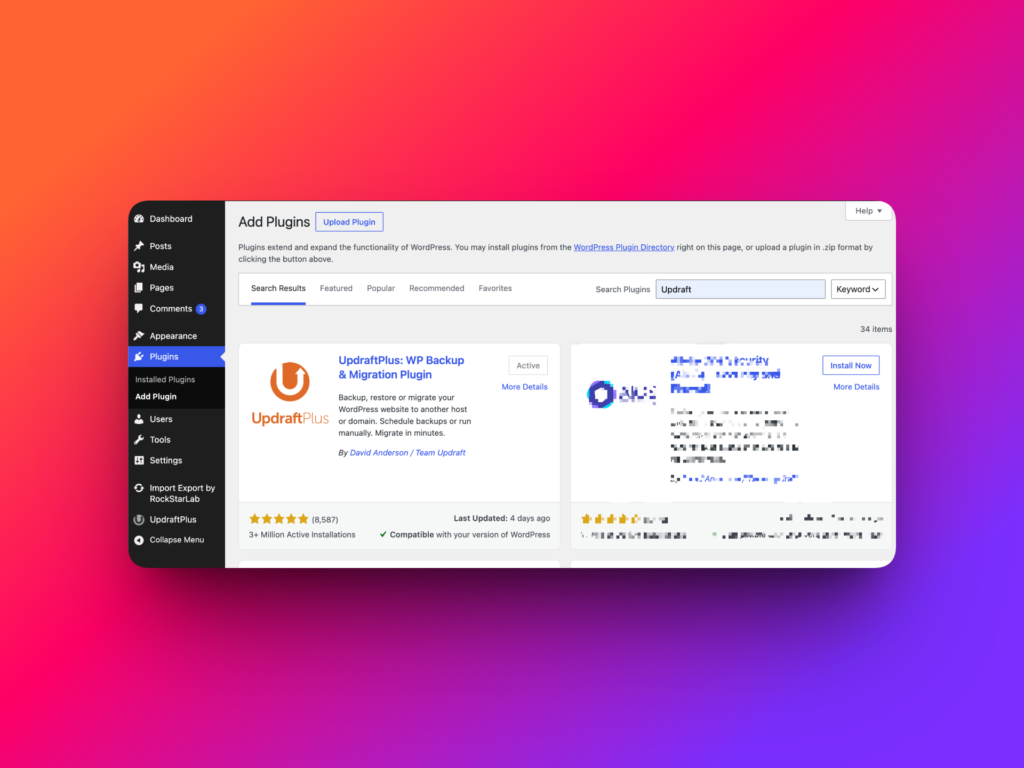
- Go to Plugins → Add New.
- Search for UpdraftPlus Backup Restore.
- Click Install Now.
- After installation finishes, click Activate.
After activation, you will see a new UpdraftPlus option in the WordPress admin area.
Step 2: Create a fresh WordPress backup
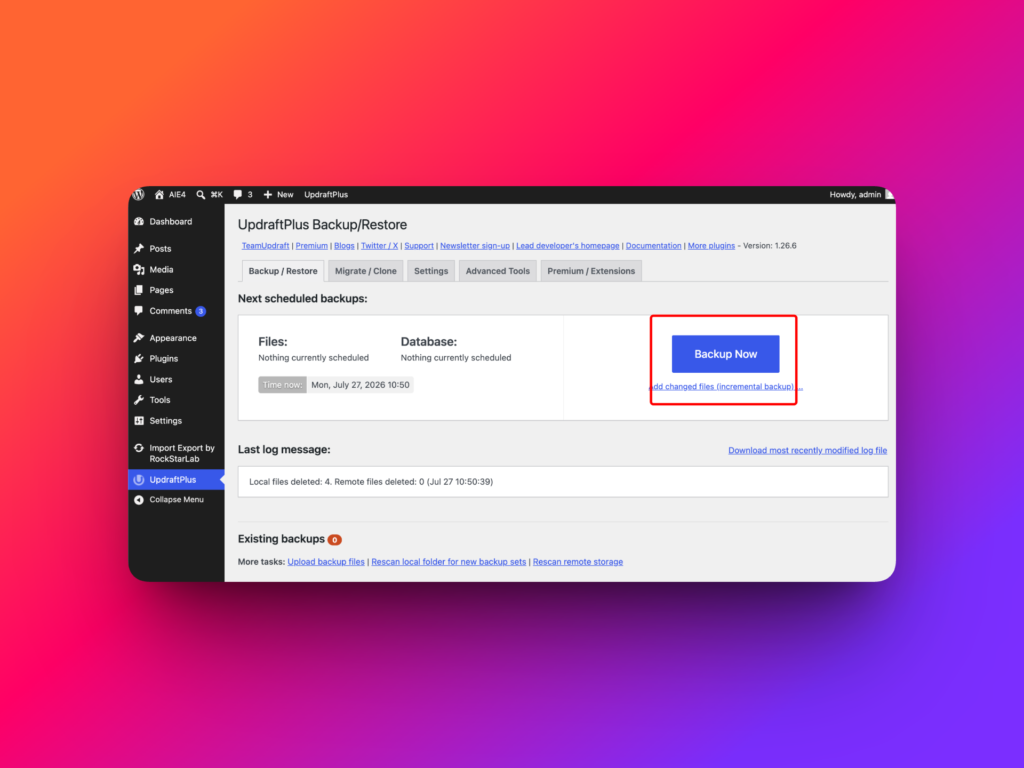
Open the UpdraftPlus screen and click the large Backup Now button.
A dialog window will ask what should be included in the backup.
For most content-related workflows, we recommend backing up the database. This is where WordPress stores posts, pages, titles, custom fields, settings, and most content changes.
If your workflow may affect media files, you can also include the uploads folder. The uploads folder stores images, documents, and other files uploaded to the Media Library.
For the example in this video, we only change page titles, so the most important part is the database backup. Plugins and themes do not need to be restored for this specific scenario.
After choosing the backup options, click Backup Now and wait until the backup is created.
Step 3: Make a test bulk update
In the video, we intentionally make a mistake to demonstrate why backups are useful.
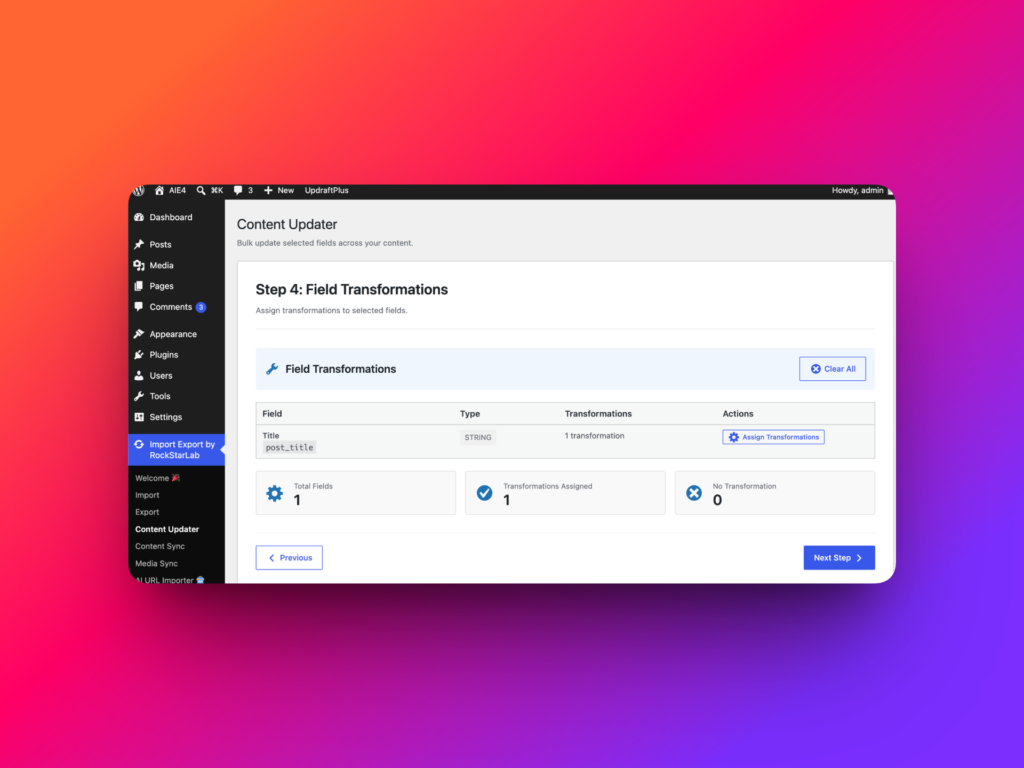
We open Import Export by RockStarLab → Content Updater, choose Pages, and continue through the update workflow.
On the field selection step, we select the Title field. Then we apply a transformation that converts page titles to uppercase.
After starting the update, all selected page titles are changed to uppercase.
In a real workflow, this could represent an accidental bulk update. For example, you may apply the wrong transformation, update too many pages, or modify the wrong field.
Step 4: Restore the WordPress database
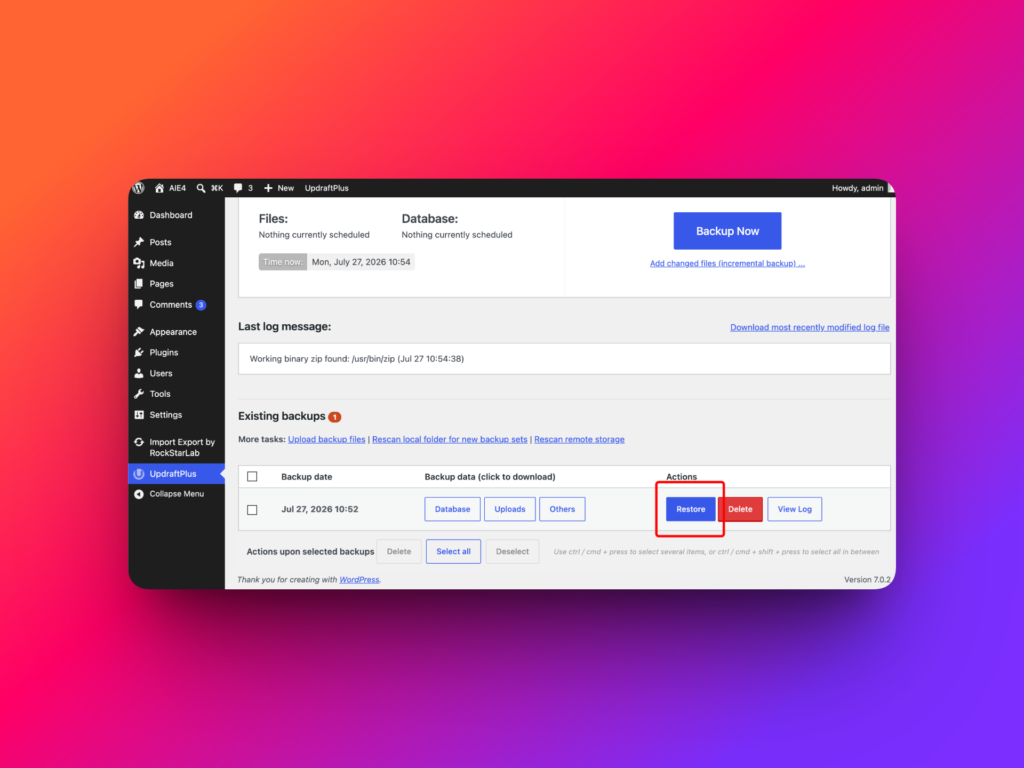
To undo the mistake, return to UpdraftPlus and scroll to Existing backups.
Find the backup you created before running the bulk update and click Restore.
UpdraftPlus will ask which parts of the backup you want to restore.
Because this example only changed content stored in the database, select Database. You do not need to restore uploads, plugins, or themes if those files were not changed.
Click Next and follow the restore steps until the process is complete.
Step 5: Check that the content was restored
After the restore is complete, go back to Pages in the WordPress admin dashboard.
The page titles should now be back to the state they were in before the accidental bulk update.
This confirms that the database restore worked correctly.
Best practices before import, export, or bulk update workflows
Backups are most useful when they are created right before an important operation. If you create a backup too early, it may not include the latest state of your website.
Before using import/export or bulk update tools, consider the following best practices:
- Create a fresh backup before changing many records.
- Back up the database before updating posts, pages, custom fields, metadata, or WooCommerce data.
- Back up uploads if your workflow affects images or media files.
- Test large updates on a staging site first when possible.
- Review filters and selected fields before starting a bulk operation.
- Keep a recent hosting-level backup if your website is business-critical.
Why this matters for Import Export by RockStarLab users
Import Export by RockStarLab is designed for practical WordPress data workflows: importing content, exporting data, syncing selected content between sites, running media sync jobs, and updating content in bulk.
These workflows are powerful because they can save a lot of manual work. But because they can also change many records quickly, backups are an important part of a safe workflow.
Before running import, export, content sync, media sync, WooCommerce data operations, or Content Updater jobs, create a restore point first.
A few extra minutes spent creating a backup can save a lot of time if you need to undo a mistake.
Recommended links
FAQ
Should I create a backup before importing WordPress data?
Yes. It is recommended to create a fresh backup before importing WordPress data, especially if the import may create or update many records.
Should I back up the database or files?
If you are changing posts, pages, titles, custom fields, settings, or WooCommerce data, back up the database. If your workflow affects media files, also back up the uploads folder.
Can I restore only the WordPress database?
Yes. With UpdraftPlus, you can choose to restore only the database if the problem is related to content or settings stored in the database.
Do I need to restore plugins and themes?
Not always. If your mistake only changed database content, you may only need to restore the database. Restore plugins or themes only if those files were changed or damaged.
What plugin is used in this tutorial?
This tutorial uses UpdraftPlus Backup & Restore to create and restore a WordPress website backup.
Why are backups important for bulk content updates?
Bulk content updates can change many records at once. A backup gives you a safe way to restore the previous state if the wrong field, filter, or transformation was used.