
You can import WooCommerce products from CSV or Excel by choosing the product importer, uploading a spreadsheet, mapping its columns to WooCommerce fields, and deciding whether matching SKUs should update existing products. The last step is to check the actual product pages: a completed import does not, by itself, prove that prices, stock, or descriptions are correct.
This tutorial uses Import Export by RockStarLab to create three simple products, repeat the import from an Excel workbook, and update prices and stock without creating duplicates. You can follow the same workflow in the WordPress dashboard or ask a connected AI agent to prepare and run it through the plugin’s WordPress abilities.
The examples were tested on a local WooCommerce store. We checked the import results, product records, the product editor, and the storefront. The sample intentionally starts with simple products and no images so that you can verify the core mapping before adding more fields.
What you need before importing products
- A WordPress site with WooCommerce installed and active.
- Import Export by RockStarLab with the WooCommerce import features available. This walkthrough was tested with the base plugin and PRO add-on active; do not assume every step is available in the free edition.
- A CSV file or an Excel workbook containing one row per simple product.
- A stable, unique SKU for each product you may want to update later.
- A staging site or a current backup before changing an existing catalog.
If you are importing into an established store, first export your current WooCommerce products. That gives you a reference for SKUs and existing values. For recovery beyond product data, follow the WordPress backup and restore guide.
Do you need a plugin, or will the built-in WooCommerce importer work?
WooCommerce already includes a CSV product importer that can create and update products. If you have a straightforward CSV and prefer the built-in tools, that is a reasonable starting point. WooCommerce’s official CSV importer documentation explains its supported format and matching behavior.
| Your task | Practical starting point |
|---|---|
| Import a conventional WooCommerce CSV | The built-in WooCommerce importer may be sufficient. |
| Upload an XLSX workbook directly | The RockStarLab workflow below accepts the workbook used in this test. |
| Map supplier column names to product fields | Review the mapping screen before running an import. |
| Have a connected AI agent prepare, validate, and run an import | Use the plugin’s available WordPress abilities and inspect the result afterward. |
SKU matching is not unique to this plugin. The reason to use this walkthrough is the particular CSV/Excel workflow, the reusable field mapping, and the option to carry out the task through an AI agent.
Download the sample CSV and Excel files
- Download the three-product CSV.
- Download the equivalent Excel workbook.
- Download the price and stock update CSV.
The first two files contain the same products. Import the CSV first, then use the workbook to test an update of the same SKUs. The update CSV changes the Trail Notebook’s regular price from 18.50 to 20.00, sale price from 15.00 to 16.00, and stock quantity from 12 to 17.
| Product | SKU | Initial regular / sale price | Stock |
|---|---|---|---|
| Trail Notebook | RSL-DEMO-NOTEBOOK | 18.50 / 15.00 | 12, in stock |
| Canvas Tool Pouch | RSL-DEMO-POUCH | 24.00 / no sale price | 8, in stock |
| Studio Pencil Set | RSL-DEMO-PENCILS | 9.50 / no sale price | 0, out of stock |
Prices are numbers in the file, without currency symbols. WooCommerce displays them in the destination store’s currency; the screenshots show GEL because that is the test store’s setting. Importing the file does not perform currency conversion.
Prepare your product columns
Use a header row with clear names. These are the columns in the tested file and their intended destination fields. A supplier’s headers do not have to use these exact names, but you must map each one to the correct product field.
| Column | Example | Purpose |
|---|---|---|
post_title |
Trail Notebook | The product name. |
product_type |
simple | The product type used throughout this tutorial. |
sku |
RSL-DEMO-NOTEBOOK | The stable identifier used for repeat imports. |
regular_price |
18.50 | The regular price, without a currency symbol. |
sale_price |
15.00 | The sale price, if the product is on sale. |
manage_stock |
yes | Enables quantity-based inventory for these examples. |
stock_quantity |
12 | The number of units in stock. |
stock_status |
instock | Use a supported value such as instock or outofstock. |
post_status |
publish | The examples are published on the staging store. |
post_content |
A pocket notebook for field notes… | The full product description. |
post_excerpt |
Pocket notebook for everyday notes. | The short product description. |
product_cat |
Stationery | The product category. |
Keep SKUs as text in your spreadsheet, especially if they contain leading zeros. Avoid currency symbols, thousands separators, merged cells, and extra title rows above the headers. In a CSV, text containing a comma must be quoted correctly. A spreadsheet application can handle that quoting when you save as CSV.
The workbook supplied here uses numeric price and quantity cells. It is a simple single-sheet workbook, not a test of formulas, multiple worksheets, macros, or unusual Excel formatting. If your source is more complicated, make a small import sheet containing only the columns you need.
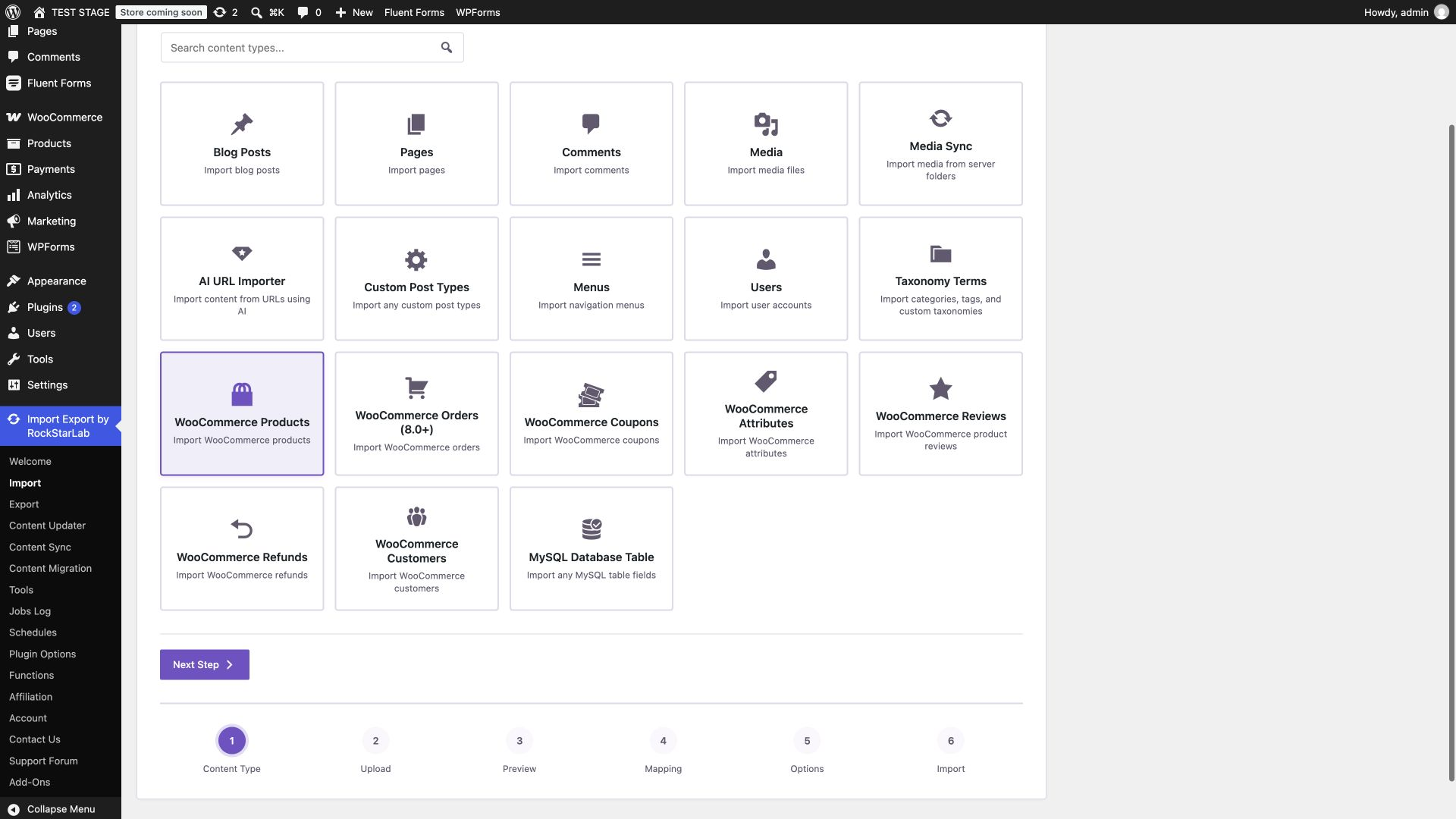
Step 1: Choose WooCommerce Products as the import type
In WordPress, open Import Export by RockStarLab → Import. Choose WooCommerce Products, then continue to the upload step. Choosing the product importer matters: a generic post import is not a substitute for a workflow that writes WooCommerce prices and inventory.
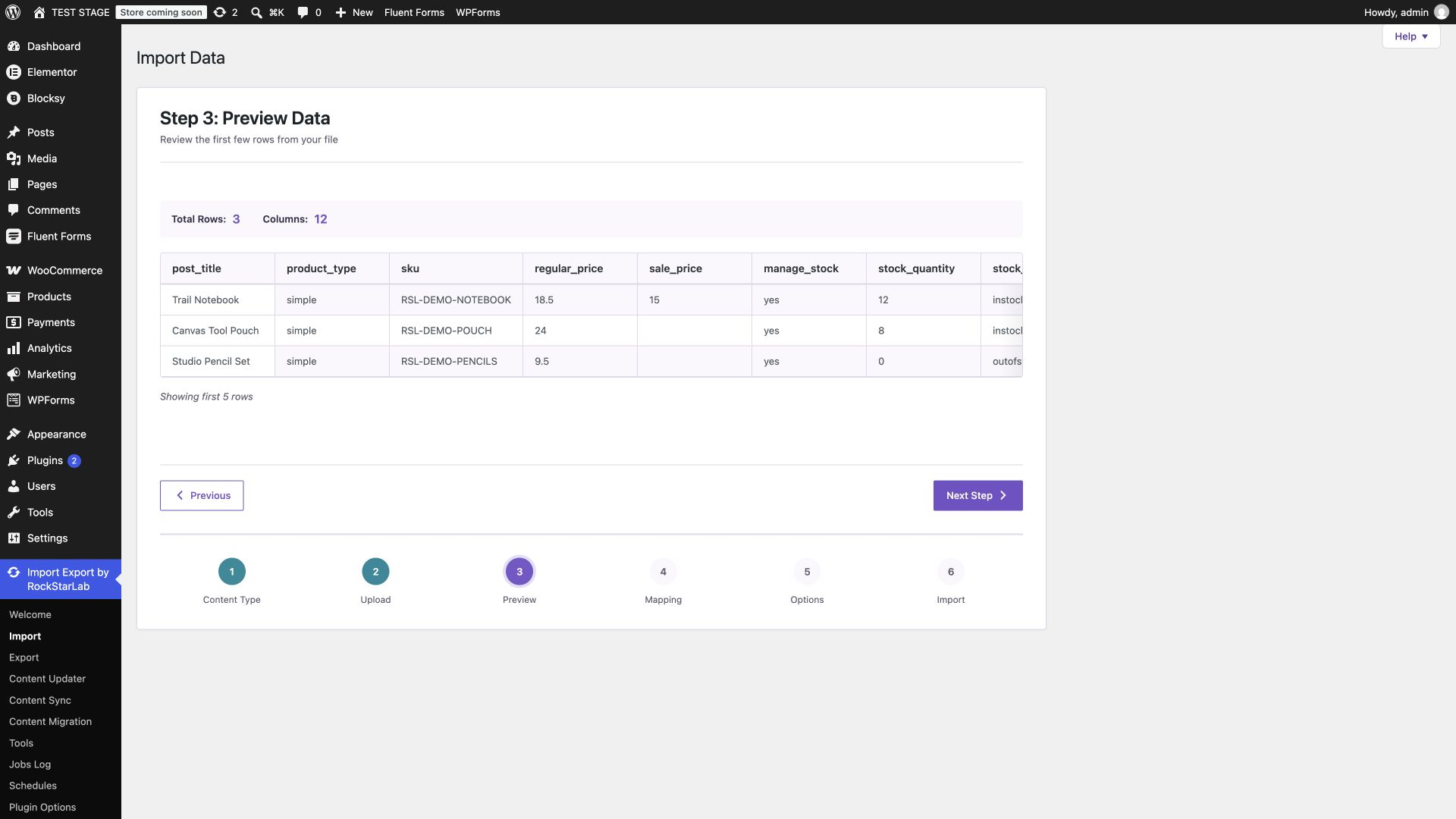
Step 2: Upload the file and inspect the preview
Click Select File and choose the sample CSV or your own prepared file. Wait for the upload to finish, then continue to the preview. For the sample, you should see three product rows and twelve columns. The header should be recognized as column names, not imported as a fourth product.
The same upload workflow accepted the supplied XLSX workbook in our test. Inspect the actual preview rather than assuming a file is correct because Excel opens it successfully. Product names, prices, SKUs, and long descriptions should each occupy the expected column.
If an entire CSV row appears in one column, check the delimiter. If text breaks into extra columns, inspect quoting around commas. Fix the source or parser settings before proceeding; mapping a malformed preview usually just moves the problem into the product catalog.
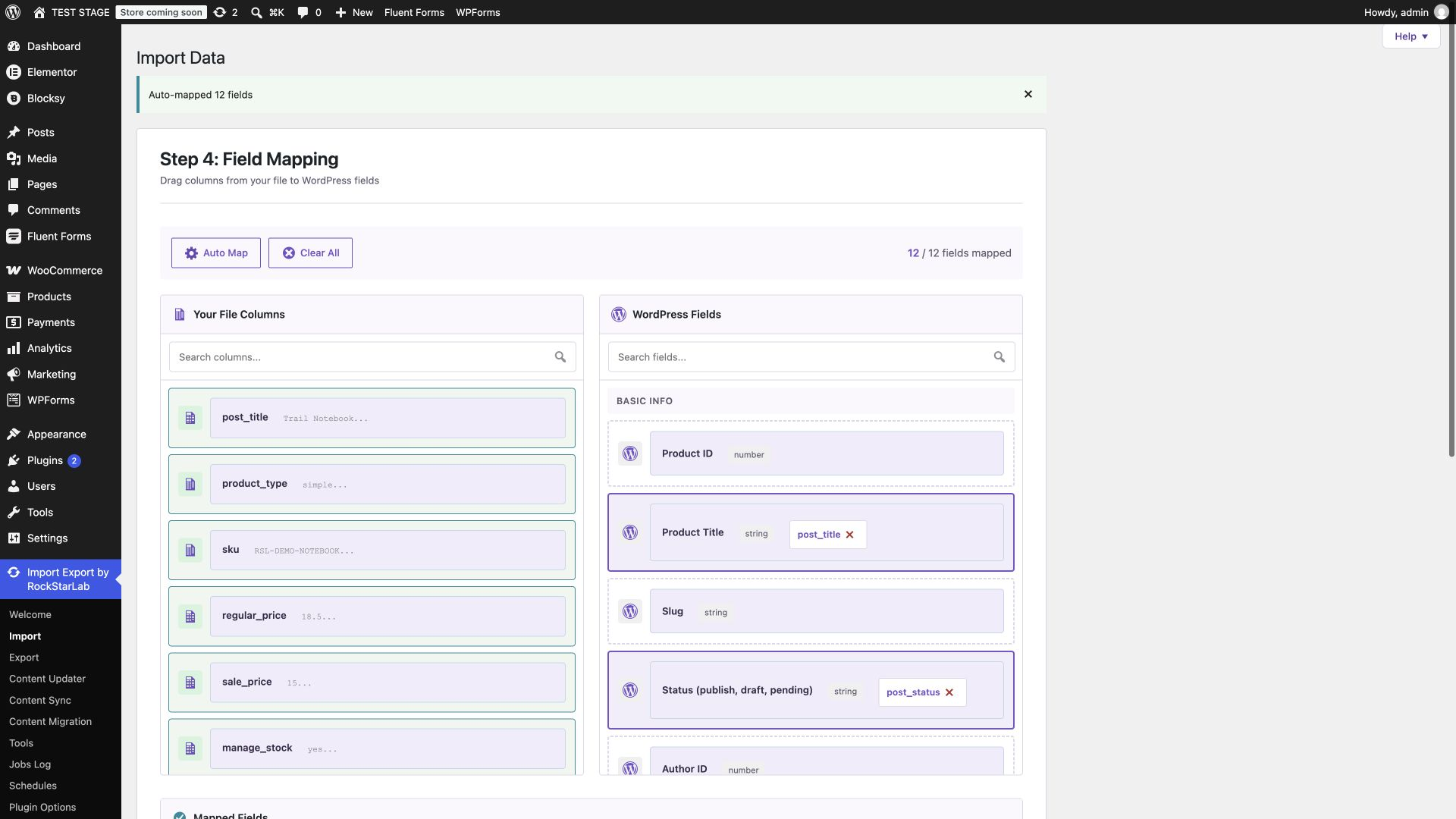
Step 3: Map the columns to WooCommerce fields
Continue to Mapping and use Auto Map as a starting point. Review all twelve assignments. In the sample, each header maps to the field with the same purpose: SKU to SKU, regular price to regular price, short description to the excerpt field, and so on.
Pay particular attention to the two descriptions and the two price fields. A technically valid mapping can still place the full description in the short description area, or put the regular price into the sale price field. The preview values help you catch that before the import.
If your supplier uses a header such as Item Code, map it to SKU manually. Do not rename or regenerate product identifiers casually. For a closer look at this stage, see the CSV field mapping tutorial.
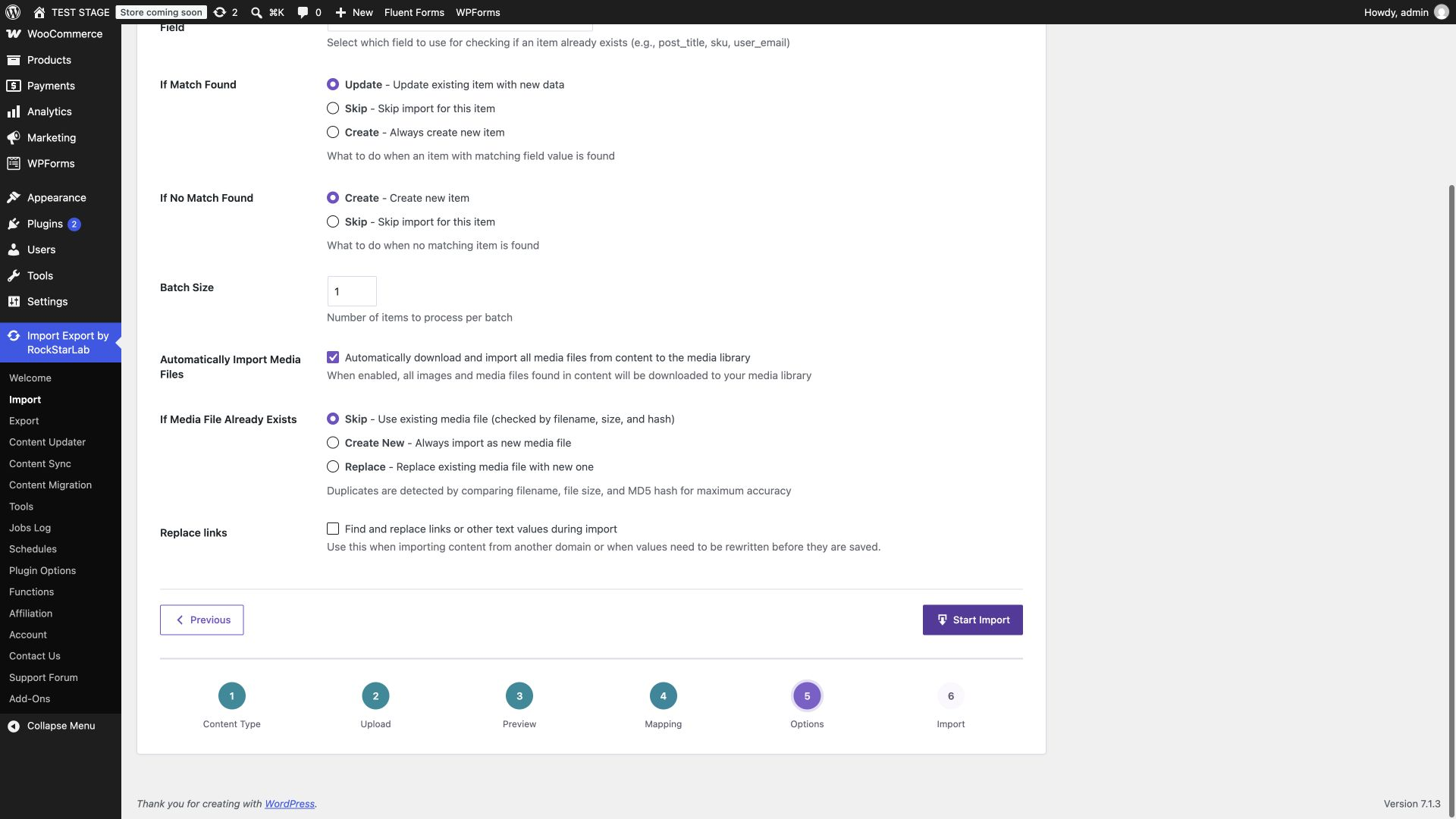
Step 4: Set matching and create-or-update behavior
On the options screen, choose SKU as the matching field. For the first sample import, use Update when a match exists and Create when no match exists. This creates the three new products on the first run and gives the same identifiers a defined update path on later runs.
Before importing your own data, check for duplicate SKUs in the file and compare them with the existing catalog. Product names are not a dependable substitute: two different products can share a title, and a title can change while the SKU stays the same.
For an update-only job, use Skip for unmatched records. That is the policy used in the AI repeat test later in this guide. A typo in a SKU then does not silently create a new product. Review skipped rows afterward, since a skipped record may represent a source-data error rather than an intentional exclusion.
Step 5: Run the import and review the counts
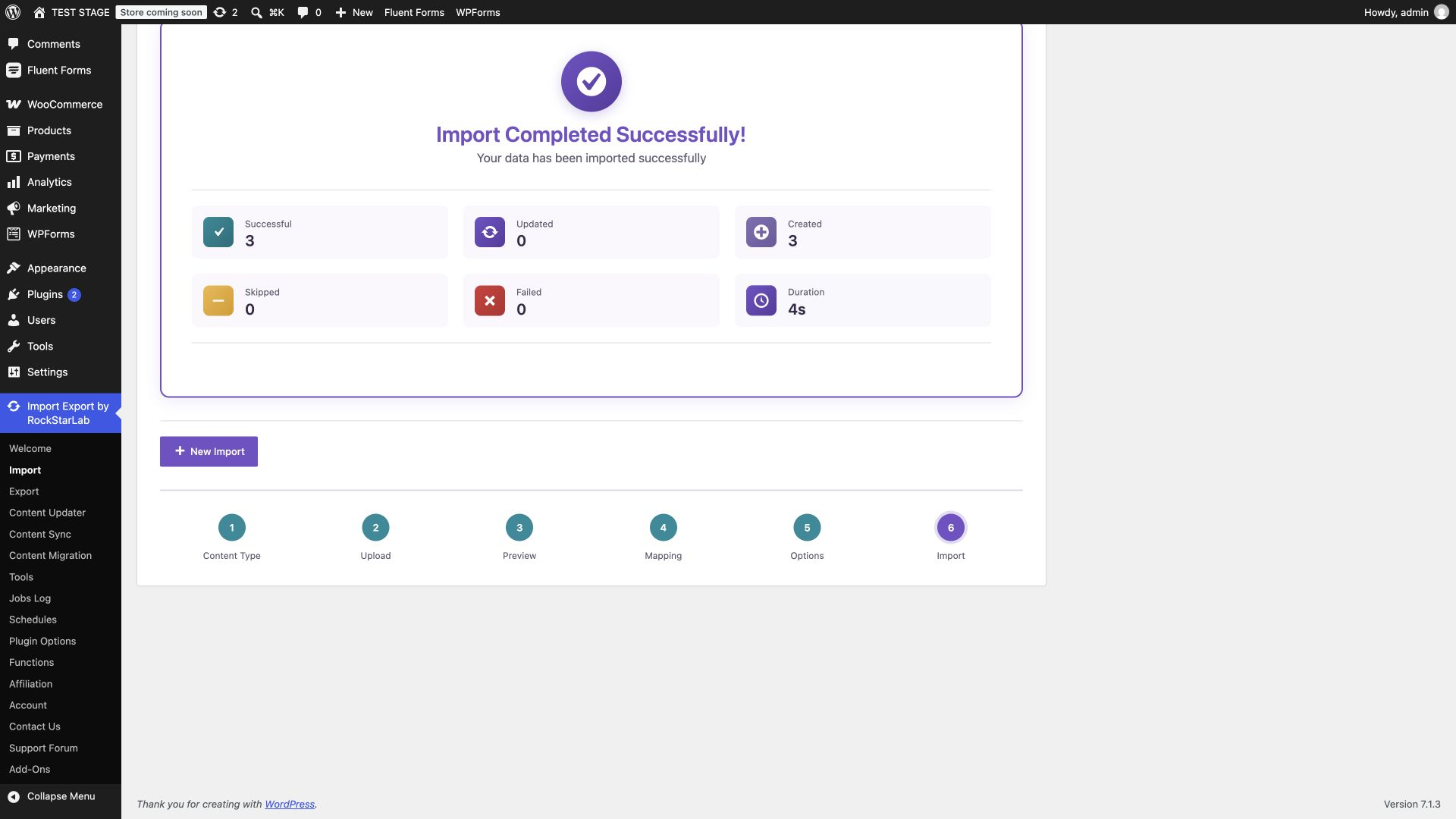
Start the import and let the job finish. Our first CSV run reported three created, zero updated, and zero failed. That is the expected result when none of the sample SKUs exists yet.
Read the individual counters. A completed job that skipped every row is different from a job that created every row. If the counts do not match your intention, inspect the job details and source data before repeating the import. Do not keep clicking Start with different matching rules until a result looks plausible.
Step 6: Check the product editor and storefront
Open the imported products in Products → All Products. Check the product type, SKU, regular price, sale price, stock management, quantity, descriptions, and category. Then use the product’s preview or view link to inspect the storefront.
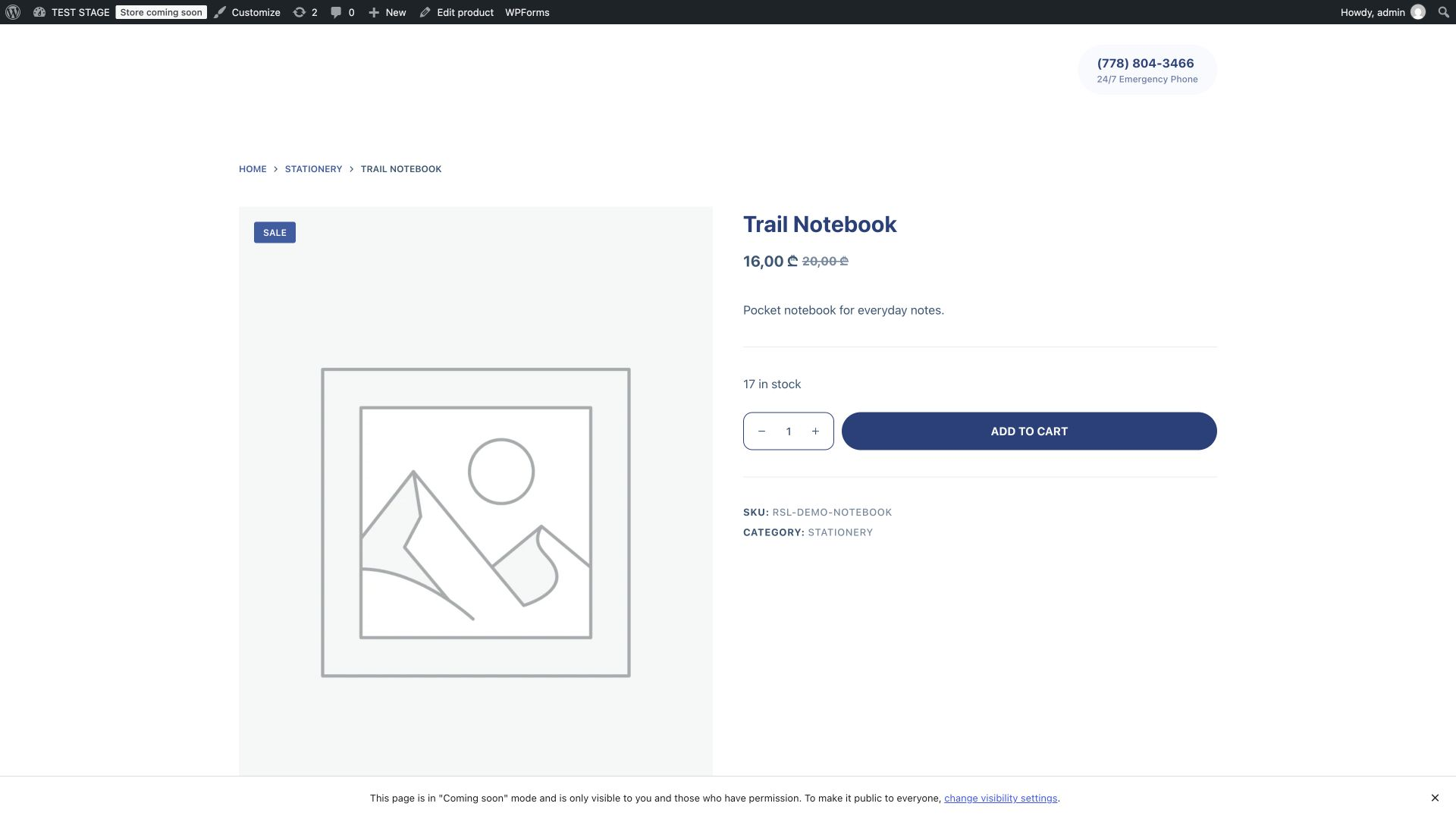
For Trail Notebook, the first import produced a simple product with a regular price of 18.50, sale price of 15.00, and twelve units in stock. The update file later changed those values to 20.00, 16.00, and seventeen. The screenshot below shows that later state, after the update and the AI repeat test.
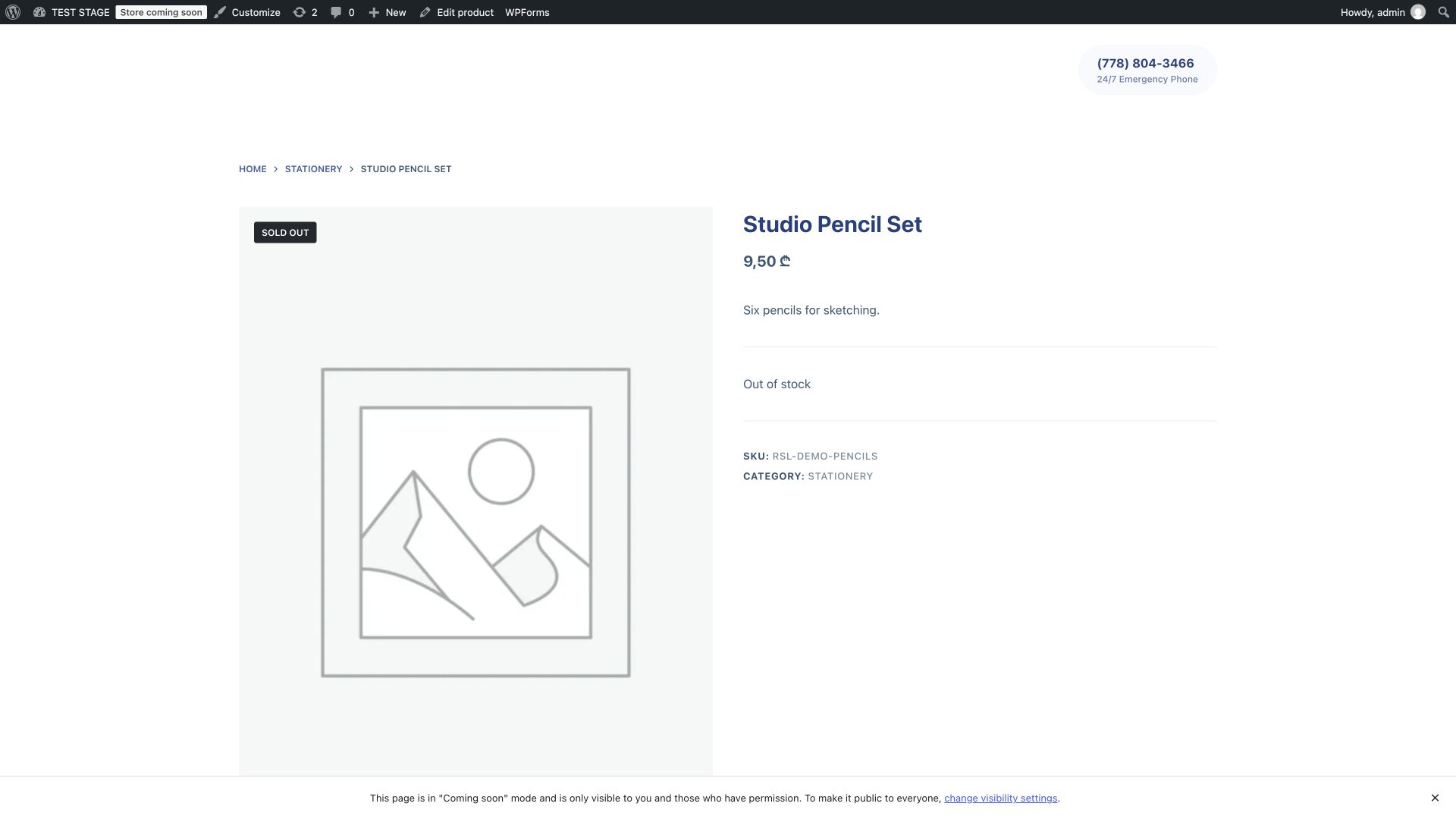
Check a deliberately different case too. Studio Pencil Set has zero stock and an outofstock status. Its storefront displayed “Out of stock,” while its price, description, and SKU remained correct. This catches mistakes that might be invisible if every sample product is in stock.
Import the Excel file again without creating duplicates
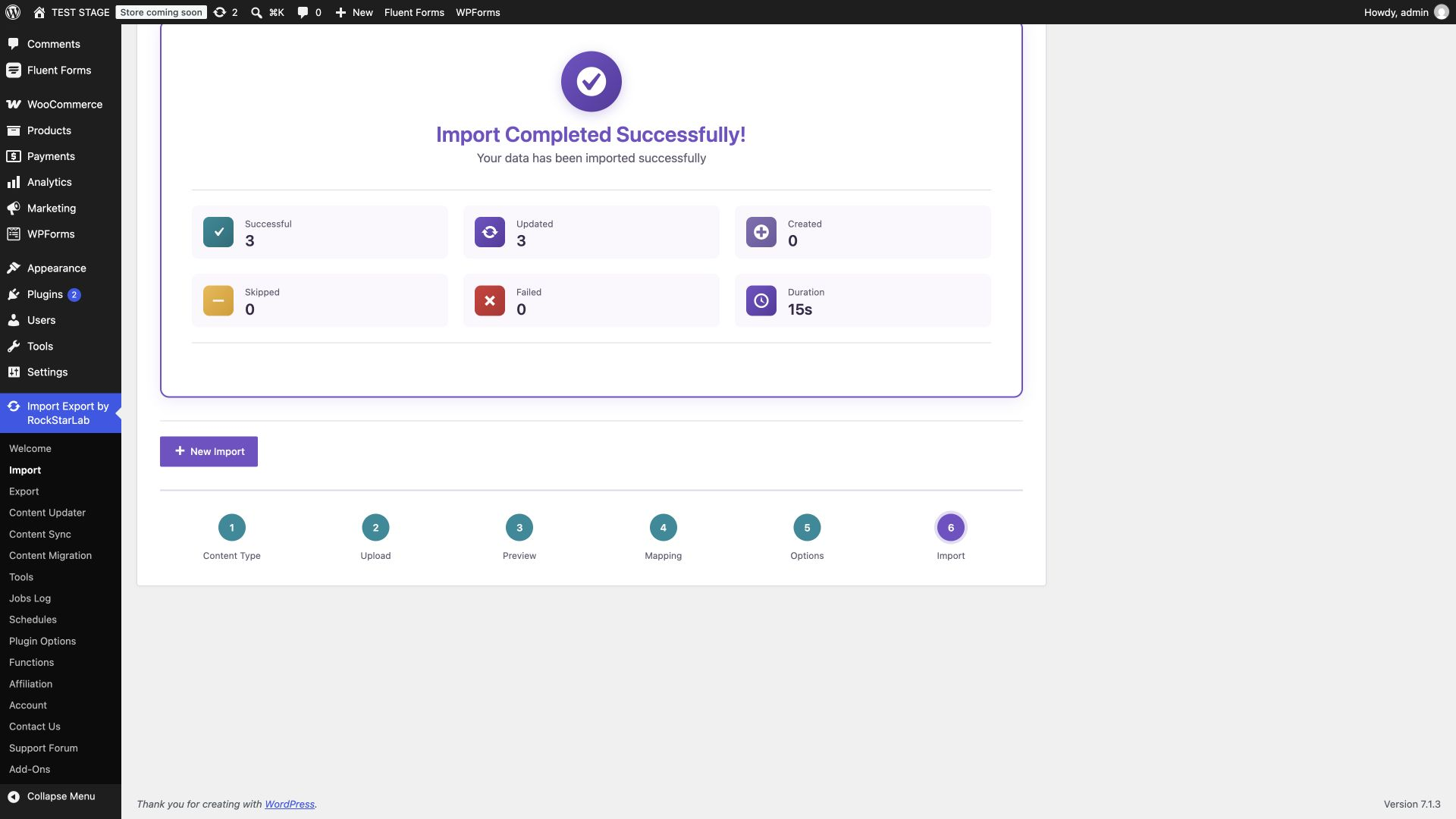
Start a new import, upload woocommerce-simple-products.xlsx, review the preview and mapping, and keep matching by SKU. Use Update for existing matches. Because the three SKUs already exist, the expected outcome is three updated and zero created.
That is what happened in our test. The products retained the same IDs: 1646, 1647, and 1648 on the test store. Your IDs will differ. The important point is that each SKU continues to identify the original product rather than generating another catalog entry.
Update prices and stock from a later CSV
Upload woocommerce-simple-products-update.csv through the same workflow. This file keeps all three SKUs and changes only the notebook’s price and stock values. The UI run updated three existing products with no new products and no reported failures.
| Trail Notebook field | Original file | Update file and verified result |
|---|---|---|
| Regular price | 18.50 | 20.00 |
| Sale price | 15.00 | 16.00 |
| Stock quantity | 12 | 17 |
| SKU | RSL-DEMO-NOTEBOOK | Unchanged |
This example reimports complete rows. It does not establish how every unmapped field or blank value behaves in a partial update. Before applying a supplier feed to a live catalog, test that particular file and mapping on a copy of a product. A blank cell, a missing column, and the number zero are different inputs.
If changing an existing catalog is your main task, continue with the WooCommerce bulk update guide.
What about product images, attributes, and variations?
The sample files deliberately omit images. A missing image in these screenshots is therefore expected, not an import failure. The product import schema exposes a featured image URL field, but downloading remote images was not part of the completed tests documented here. Do not treat these results as verification of image downloads, gallery order, or attachment reuse.
If you extend the file with images, test a small batch using direct, accessible image URLs and check both the Media Library and the storefront. A URL that opens a web page or requires a login is not the same thing as a downloadable image. Verify the resulting attachment and product image before scaling up.
Variable products need a separate plan for parent products, attributes, and individual variations. Do not change product_type from simple to variable and assume that variation relationships will be created automatically from this sample. This tutorial verifies simple products only. It also does not migrate orders, customers, refunds, reviews, or payment settings.
How to import WooCommerce products with an AI agent
A connected AI agent can use the plugin’s WordPress abilities to inspect capabilities, prepare a mapping, validate an import, start a job, and read the result. Start with the WordPress Abilities API and AI agent setup guide if your agent is not connected yet.
The connection alone is not enough. The agent needs the correct site, an accessible source file, the available WooCommerce import abilities, and a clear matching policy. Ask it to discover the current schemas rather than inventing parameter names or assuming another site’s configuration is identical.
Prompt 1: Inspect the file and prepare a plan
On my connected staging WooCommerce site, inspect the available Import Export by RockStarLab abilities and their current input schemas. Read the attached three-product CSV. Confirm the headers, number of rows, product types and SKU uniqueness. Prepare a mapping for the simple product importer. Show me the proposed matching rules and validation results. Do not start an import or change content yet.
This gives you a chance to catch the wrong site, wrong file, or wrong update policy before the agent writes products. Compare its planned mapping with the dashboard mapping described above.
Prompt 2: Create the sample products
Use the attached simple-products CSV on the connected staging site. Match products by SKU. Update matching products and create products only when the SKU has no match. Map the twelve source columns to their corresponding product fields, validate the import, then run it. Do not delete products or change unrelated settings. Wait for the job to finish and report created, updated, skipped and failed counts. Then verify each sample SKU, product type, prices, stock, descriptions and category.
This is a reusable prompt for the create-or-update task. In the tests for this article, initial creation was performed in the dashboard; the separately executed AI test used the update-only prompt below.
Prompt 3: Repeat an update without adding products
Use the attached product update CSV on the connected staging site. Match by SKU, update existing matches and skip unmatched rows. Discover the current ability schemas, prepare and validate the mapping, then start the import. Poll until the job completes. Verify that RSL-DEMO-NOTEBOOK has regular price 20.00, sale price 16.00 and stock 17; RSL-DEMO-POUCH has price 24.00 and stock 8; and RSL-DEMO-PENCILS has price 9.50, stock 0 and outofstock status. Check that no duplicate sample SKUs were created. Report any mismatch instead of calling the task successful.
The executed agent workflow uploaded the update CSV, prepared its twelve-field mapping, validated the import, and started job 82. The job completed with three successful rows and zero failed or skipped rows. The update used duplicate_check: sku, if_exists: update, and if_not_exists: skip.
Afterward, the three product records still had their original IDs and expected values. We also opened the notebook and pencil product pages in the browser to confirm the visible prices and stock states. This was a repeat of an already applied update; it verifies that the agent workflow can reprocess these existing products, not that it independently performed the initial creation.
If your agent can control a browser, ask it to inspect the product editor and storefront too. Otherwise, perform that part yourself. An ability’s success response cannot tell you whether a theme displays the imported data correctly.
Test results and scope
| Test | Observed result |
|---|---|
| Initial CSV import through the dashboard | 3 products created, 0 failures. |
| Equivalent XLSX imported with SKU matching | 3 products updated, 0 created, 0 failures. |
| Price and stock update CSV through the dashboard | 3 updated, 0 created, notebook values changed as expected. |
| AI ability workflow repeating the update | Job 82 completed, 3 successful rows, 0 failed, 0 skipped; product IDs retained. |
| Browser verification | Notebook editor and storefront values checked; pencil storefront confirmed out-of-stock state. |
These were small local tests of three simple products on a store that already contained other products. They are not a speed benchmark, a 100,000-row test, a clean-site migration, or a checkout test. The store was in coming-soon mode and viewed with authorized access. Its existing catalog was not cleared for this tutorial.
Troubleshooting a product import
The import creates products that should have been updated
Compare the exact source SKU with the existing product SKU, then check the selected matching field and unmatched-row policy. Leading zeros, whitespace, or an accidentally edited identifier can turn an intended match into a new record. Try an update-only run on staging with unmatched rows skipped before processing a supplier feed.
Prices look different on the storefront
First check the imported regular and sale prices in the editor. Then consider the store’s currency, number formatting, tax display, and theme. The sample uses decimal points in source data, while the test storefront renders comma decimal separators. Formatting differences alone do not prove that the numeric value was imported incorrectly.
A product has a quantity but the wrong availability
Review stock management, stock quantity, and stock status together. Our zero-stock sample explicitly sets manage_stock=yes, stock_quantity=0, and stock_status=outofstock. Use a deliberate out-of-stock test instead of checking only products with positive stock.
A blank cell produces an unexpected update
Do not assume blank means “leave unchanged.” Inspect the mapping and the importer’s available update options, then test the intended blank-value behavior on one product. The empty sale prices in this sample were verified for products that did not already have a sale price; clearing an existing sale price is a separate test.
The report is successful but the product page looks wrong
Check the product editor before changing the file again. If stored values are correct, inspect the theme output and relevant caches. If the stored values are wrong, compare the source preview and mapping. Keep the job identifier and a small reproducible file so that the discrepancy can be investigated.
Frequently asked questions
Can I import WooCommerce products from Excel?
Yes. The supplied XLSX workbook was uploaded directly through Import Export by RockStarLab and used to update three existing simple products. Check the preview and mapping before starting your own import.
Can I import WooCommerce products without an additional plugin?
WooCommerce includes a built-in CSV product importer. This tutorial uses Import Export by RockStarLab for its CSV and XLSX workflow and connected AI abilities.
How do I avoid duplicate products on a repeat import?
Use stable, unique SKUs, match by SKU, and update existing matches. For update-only jobs, skip unmatched rows. Check the resulting product IDs and counts after a small test.
Which fields are included in the sample file?
The sample includes product name, type, SKU, regular and sale prices, stock management, quantity, stock status, publication status, full and short descriptions, and category.
Can I update prices and stock with a CSV?
Yes. In this test, the update CSV changed the notebook’s regular price to 20.00, sale price to 16.00, and stock quantity to 17 while retaining the same product ID.
Does this tutorial import variable products or images?
No. The completed tests cover simple products without images. Variation relationships, remote image downloads, galleries, and image reuse require their own verification.
Can an AI agent run the import?
A connected agent can use the plugin’s available WordPress abilities to prepare, validate and run an import. The update-only ability workflow in this tutorial completed three rows successfully. Verify the resulting products afterward.
Does a successful import report mean the storefront is correct?
No. Check the imported values in the product editor and view the product page. Prices, descriptions, stock availability and theme output should match your expectations.
For more workflows, browse the Import Export written guides. Start with a small, predictable file, verify it in the editor and storefront, and then adapt the mapping to your real catalog.