
A clean CSV import starts with field mapping, not with the upload button. Field mapping tells WordPress exactly where each CSV column should go, including titles, content, custom fields, Yoast SEO fields, ACF fields, taxonomy terms, user data, product data, or other structured values.
WP Import Export by RockStarLab imports WordPress data from CSV files and lets you map each column before the import starts. It also supports large CSV imports by uploading files in chunks, which helps reduce timeout risk on bigger datasets.
What is CSV field mapping in WordPress?
CSV field mapping is the process of matching columns from your CSV file to fields in WordPress. For example, a CSV column named post_title can be mapped to the WordPress post title field, while a column named seo_description can be mapped to a Yoast SEO meta field or another custom field.
Field mapping is useful because CSV files often come from different systems, and their column names rarely match WordPress fields perfectly. WP Import Export lets you review the CSV data first, then connect each source column to the correct destination field.
Can I import CSV files into WordPress?
Yes. WP Import Export can import CSV files into WordPress and map CSV columns to WordPress fields. The import workflow supports CSV upload, chunked file handling, delimiter selection, data preview, field mapping, import options, automatic field mapping, and background processing for larger files.
Can WP Import Export import JSON?
No. At the time of writing, WP Import Export does not support JSON import. The plugin exports WordPress data to JSON, but imports data from CSV files.
What can you import from CSV?
WP Import Export can import different WordPress data types depending on the installed plugin edition, active addons, and available WordPress plugins.
| Data type | CSV import support | Notes |
|---|---|---|
| Posts and pages | Yes | Map CSV columns to standard WordPress fields such as title, content, status, date, and author. |
| Custom post types | Yes, with supported setup/addon | Useful for portfolios, listings, directories, events, and other structured content. |
| Custom fields | Yes | Map CSV columns to WordPress meta fields or custom field keys. |
| Advanced Custom Fields | Yes | WP Import Export supports mapping CSV columns to ACF fields, including ACF PRO field types such as Flexible Content where supported by the active setup. |
| Yoast SEO fields | Yes | CSV columns can be mapped to Yoast SEO meta fields during import where supported. |
| Taxonomies and terms | Yes, with supported setup/addon | Can be used for categories, tags, product categories, and custom taxonomies. |
| Users | Yes, with supported setup/addon | Useful for moving user accounts and user meta. |
| WooCommerce products | Yes, when WooCommerce support is available | WooCommerce must be installed, and some WooCommerce import types may require the PRO Addon. |
| MySQL database tables | Yes, with supported setup/addon | Useful for advanced migrations and custom database workflows. |
| JSON files | No | At the time of writing, WP Import Export exports JSON, but CSV is the supported import format. |
Before you import a CSV file
Before importing data into a live WordPress site, create a full database backup. CSV imports can create new records, update existing records, or change mapped fields in bulk, so a backup gives you a recovery point if the source file or mapping is wrong.
Also review your CSV file before upload. The first row should contain clear column names, and each row should represent one item you want to import.
Example CSV structure
A simple post import CSV might look like this:
post_title,post_content,post_status,category,yoast_title,yoast_description,acf_subtitle
"First imported post","This is the post body.","publish","News","SEO title for first post","SEO description for the imported post","Custom subtitle"
"Second imported post","Another imported article.","draft","Updates","SEO title for second post","SEO description for the second post","Another subtitle"
In the field mapping step, you could map post_title to the WordPress title field, post_content to post content, post_status to status, category to a taxonomy field, yoast_title and yoast_description to Yoast SEO fields, and acf_subtitle to an Advanced Custom Fields field.
Step 1: Open the Import screen
In the WordPress admin area, go to Import Export → Import. This opens the CSV import workflow.
Step 2: Select the content type
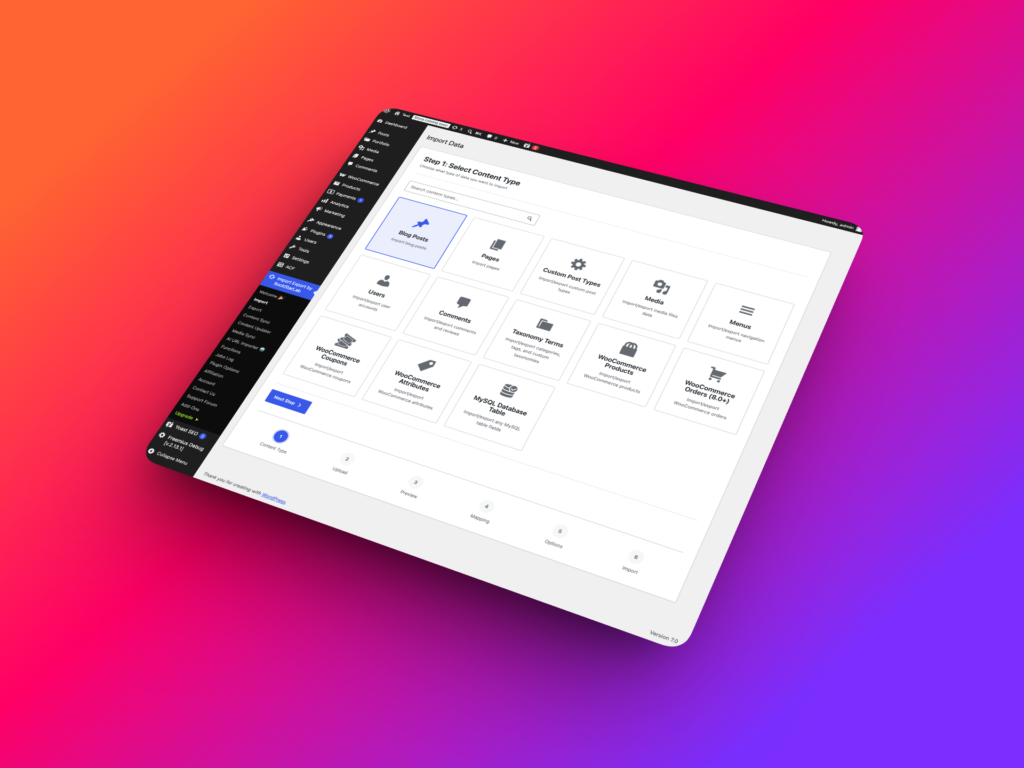
Choose the type of WordPress data you want to import. For a basic article import, choose posts. For a store migration, choose WooCommerce products if WooCommerce support is available. For structured content, choose the relevant custom post type.
The selected content type controls which WordPress fields are available during mapping. For example, a post import shows post fields, while a WooCommerce product import shows product-related fields.
Step 3: Upload the CSV file
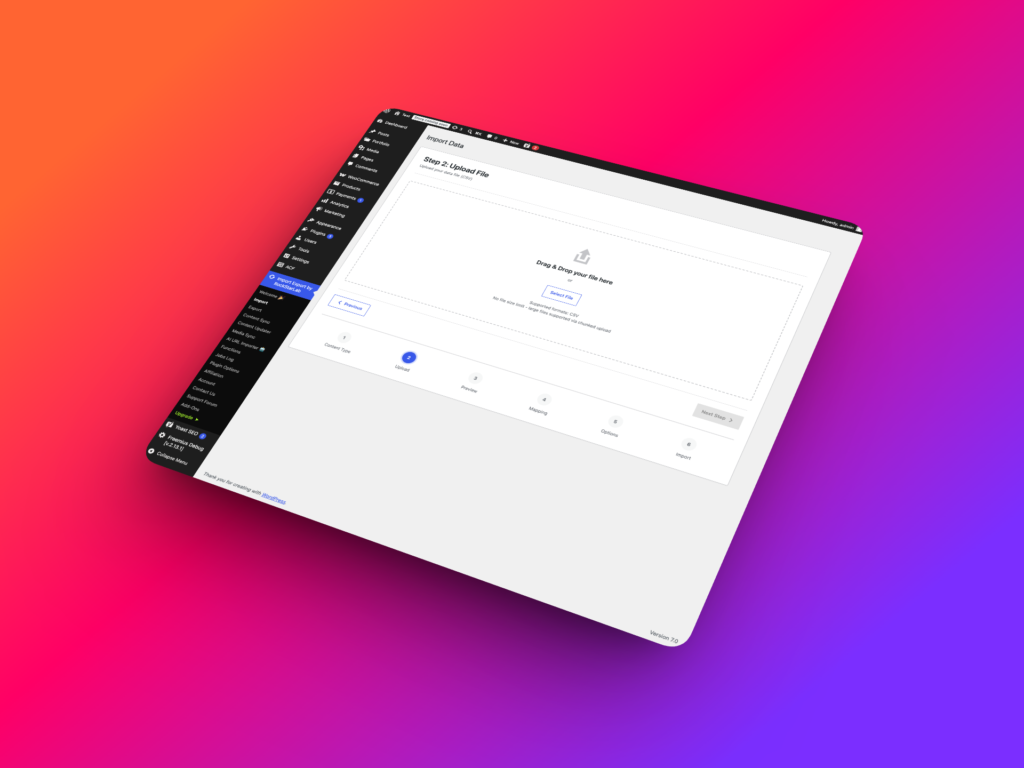
Upload your CSV file in the import workflow. WP Import Export supports CSV files for import and can process large files using chunked upload and background processing.
Chunked upload means the CSV file is split into smaller parts instead of being uploaded as one large request. This helps prevent server crashes, PHP memory issues, and timeout errors that can happen with large WordPress imports.
Choose the delimiter that matches your file. Common delimiters include comma, semicolon, and tab. If the delimiter is wrong, the preview may show broken columns or merged data.
Step 4: Preview the CSV data
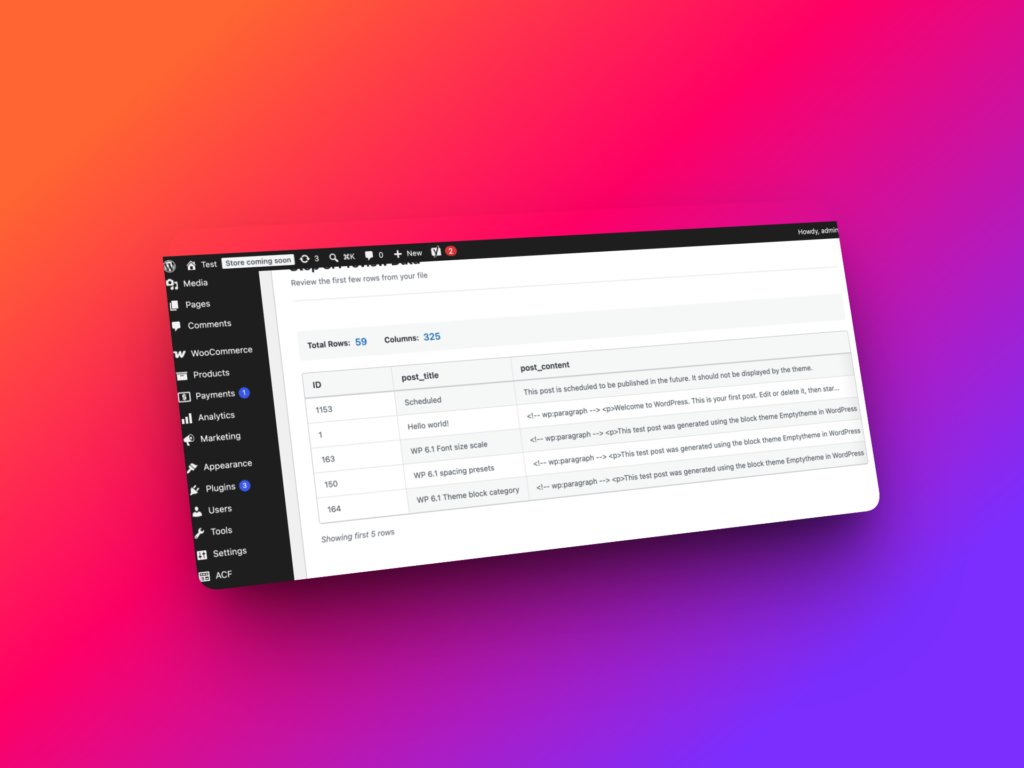
After upload, review the CSV preview. This step helps confirm that WP Import Export can read the file correctly before you map fields or create WordPress records.
Check that each column appears separately, the first row is interpreted correctly, and the sample values match the data you expect to import.
Step 5: Map CSV columns to WordPress fields
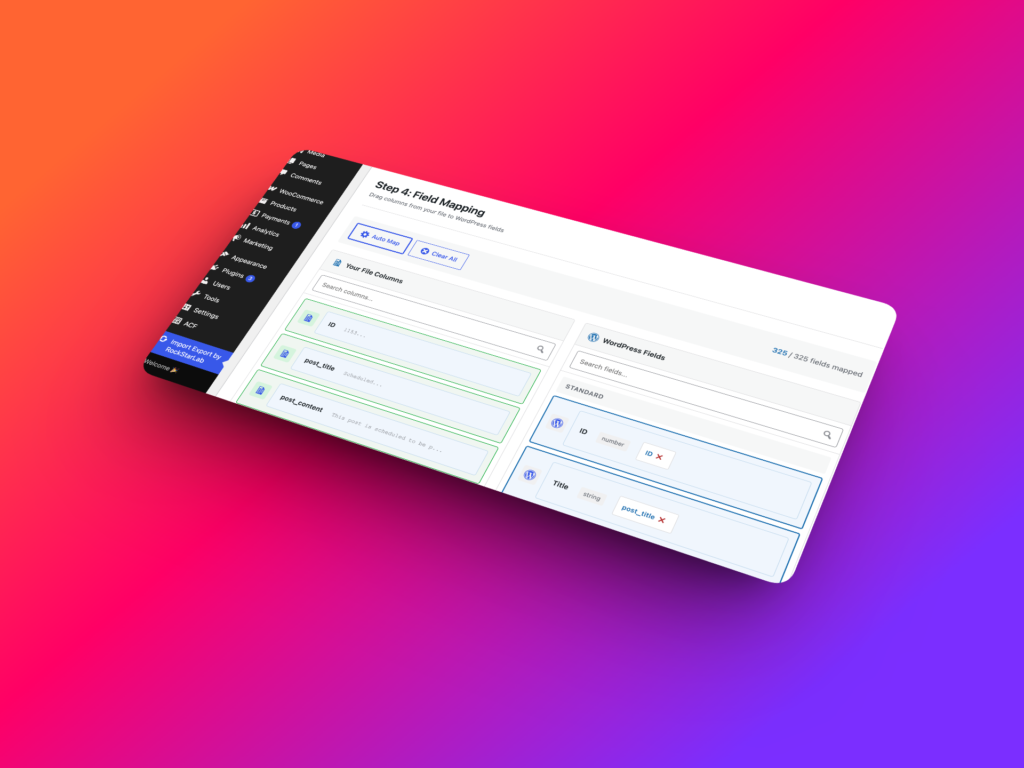
Field mapping is the most important step in a CSV import. Drag each CSV column from the source side to the matching WordPress destination field.
WP Import Export includes Auto Map to help match CSV columns to WordPress fields automatically. Automatic field mapping is useful when your CSV column names are close to the destination field names, because the plugin can connect matching columns before you review and confirm the final mapping.
You should still review every mapped field before starting the import, especially when importing custom fields, taxonomies, WooCommerce data, Yoast SEO fields, or ACF fields.
| CSV column | WordPress field |
|---|---|
post_title |
Post Title |
post_content |
Post Content |
post_status |
Post Status |
category |
Taxonomy field |
yoast_description |
Yoast SEO meta description |
acf_flexible_content |
Advanced Custom Fields field |
Step 6: Map custom fields, Yoast SEO fields, and ACF fields
If your CSV contains values that do not appear in the default WordPress field list, map them to the correct custom field, taxonomy field, Yoast SEO field, or Advanced Custom Fields field.
WP Import Export supports field mapping for Yoast SEO meta fields and Advanced Custom Fields. With ACF PRO, this can include advanced field types such as Flexible Content where supported by the active site setup.
Use clear field keys and taxonomy slugs. For example, a custom field might use _custom_price, while a taxonomy field might use product_cat for WooCommerce product categories.
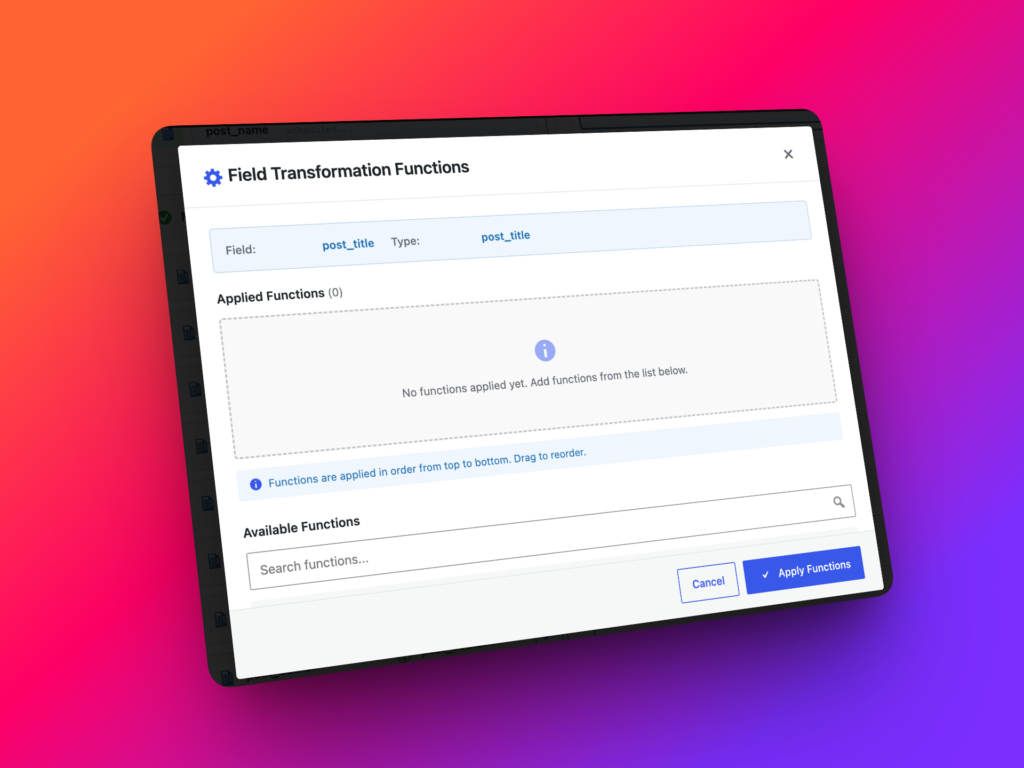
Step 7: Assign transformation functions to any field (PRO Add-on)
WP Import Export can assign transformation functions to any mapped field during import. A transformation function changes the CSV value before it is saved in WordPress, which is useful when source data needs cleanup, formatting, normalization, or conditional logic.
For example, you can assign a function to a title field, content field, custom field, Yoast SEO field, ACF field, taxonomy field, WooCommerce product field, or another supported destination field. Each field can have its own transformation pipeline, so different CSV columns can be cleaned or reformatted in different ways during the same import.
Transformation functions are useful when you need to:
- Convert dates into the correct WordPress format.
- Trim extra spaces from titles, slugs, or custom fields.
- Change text to title case, lowercase, or uppercase.
- Replace an old domain with a new domain inside imported content.
- Convert price formats before importing WooCommerce products.
- Normalize phone numbers, SKUs, or IDs.
- Set a default value when a CSV field is empty.
- Transform source values before saving them into ACF or Yoast SEO fields.
Functions can be created and reused from the Import Export → Functions screen. The Functions Library includes a code editor, sample-value testing, reusable snippets, and an AI Function Generator that can create PHP transformation functions from plain-English prompts.
Step 8: Choose import options
Before starting the import, choose how WP Import Export should handle existing and missing records.
| Option | What it does |
|---|---|
| Update | Updates an existing item when a match is found. |
| Skip | Leaves the existing item unchanged and moves to the next row. |
| Ignore | Treats the row as new instead of updating the matched item. |
| Create | Creates a new item from the CSV row. |
Choose these settings carefully. If you want to update existing posts or products, make sure the CSV includes a reliable matching field such as an ID, SKU, slug, or another unique value supported by your workflow.
Step 9: Run the import
Start the import after reviewing the content type, CSV preview, mappings, transformation functions, and import options.
WP Import Export processes import jobs in the background. When the import finishes, review the results and check whether any rows were skipped, failed, or imported with errors.
Common CSV import mistakes
Using the wrong delimiter
If your CSV uses semicolons but the import is set to commas, columns may not split correctly. Always check the data preview before mapping fields.
Relying on auto mapping without review
Auto Map can save time, but you should review every important field before starting the import. Incorrect mapping can put content into the wrong WordPress field.
Forgetting Yoast SEO or ACF fields
If your CSV includes SEO meta, ACF values, product data, or other metadata, make sure those columns are mapped to the correct fields. WP Import Export supports mapping to Yoast SEO fields and Advanced Custom Fields, including ACF PRO fields such as Flexible Content where supported by the active setup.
Skipping transformation functions
If source data is inconsistent, assign transformation functions before import. Functions can clean, normalize, or reformat values for any mapped field before the data is saved.
Importing without a backup
Always back up the database before importing into a production website. CSV imports can create or update many records at once.
Expecting JSON import
At the time of writing, WP Import Export does not support JSON import. It exports WordPress data to JSON, but imports data from CSV files.
FAQ
Can I import CSV files into WordPress?
Yes. WP Import Export imports WordPress data from CSV files and lets you map CSV columns to WordPress fields before the import starts.
Can WP Import Export import large CSV files?
Yes. WP Import Export supports large CSV imports by splitting uploaded files into chunks, which helps prevent server timeouts and reduces the risk of crashes during large imports.
Can I map CSV columns to WordPress fields?
Yes. WP Import Export includes field mapping so each CSV column can be matched to the correct WordPress field, custom field, taxonomy field, Yoast SEO field, ACF field, or supported plugin field.
Does WP Import Export support automatic field mapping?
Yes. WP Import Export supports automatic field mapping to help match CSV columns with WordPress fields before import. You can still review and adjust the mapping manually before running the import.
Can I map CSV columns to Yoast SEO and ACF fields?
Yes. WP Import Export supports mapping CSV columns to Yoast SEO fields and Advanced Custom Fields, including ACF PRO field types such as Flexible Content where supported by the active setup.
Can I assign transformation functions to imported fields?
Yes. WP Import Export lets you assign transformation functions to any mapped field during import, so CSV values can be cleaned, reformatted, normalized, or changed before they are saved in WordPress.
Can WP Import Export import JSON?
No. At the time of writing, WP Import Export does not support JSON import. It exports WordPress data to JSON, but imports data from CSV files.
Does WP Import Export support WooCommerce products?
Yes, WP Import Export can work with WooCommerce products when WooCommerce support is available on the site. Some WooCommerce data types may require the PRO Addon.
Should I back up WordPress before importing CSV data?
Yes. Always back up the database before running a CSV import on a production site, especially when updating existing records.