
To import WooCommerce variable products from CSV with Import Export by RockStarLab, select WooCommerce Products, upload your file, map the parent product fields plus Product Attributes (JSON) and Variations (JSON), and choose how existing products should be matched. After importing, check both the variation editor and the product page.
The important detail is the file structure. In this workflow, one CSV row describes one parent product. Its variations are a JSON array inside the variations column. You do not need a separate CSV row for every size and color combination. That is this plugin’s format; it should not be confused with the format expected by another importer.
This walkthrough uses a T-shirt with two colors, two sizes, four variation SKUs, individual prices and stock quantities. It covers the standard WordPress admin workflow first, then shows how a connected AI agent can prepare, validate and run the same kind of import.
What this tutorial tests
We created one variable parent and four variations on a local WooCommerce store, repeated the import without creating additional products, and updated one variation through the plugin’s MCP abilities. We checked the results in the WooCommerce editor and storefront. The final verification used WordPress 7.1.3, WooCommerce 11.2.1 and the base plugin 2.0.3 with PRO active. Earlier test runs used base 2.0.2 and PRO 2.0.2.
WooCommerce product import is a PRO workflow in this guide. Install and activate WooCommerce, Import Export by RockStarLab and the appropriate PRO add-on before following the steps. Start on staging, especially when you already have variations that customers can purchase.
For an existing catalog, first export your WooCommerce products and keep a recovery copy. A product export is useful for comparison; a site backup provides a broader recovery option.
Understand parents, attributes and variations
The parent is the catalog product shoppers open: Workshop Tee. Color and Size define the choices. A variation is a specific purchasable combination, such as Blue / Small, with its own SKU, price and inventory.
| Record | Example | What belongs here |
|---|---|---|
| Parent product | Workshop Tee / RSL-VAR-TEE | Title, description, product type and available attributes |
| Custom attributes | Color: Blue, Red; Size: Small, Medium | Labels, values and the flag enabling variation use |
| Variation | RSL-VAR-TEE-BLUE-S | Specific attribute values, price, stock and optional image reference |
Adding attribute values alone does not create every combination in this import. The variations array explicitly supplies the combinations you want. Two colors and two sizes could produce four combinations, but your real catalog may intentionally offer only three.
Download the CSV examples
- Initial variable-product CSV: one parent and four variations; Blue / Small starts at 25 with five units.
- Update CSV: the same identifiers and combinations, with Blue / Small changed to 28 and nine units.
- Readable JSON companion: the same update data without CSV escaping, for inspecting the nested fields.
The downloadable CSV files deliberately contain no local image URLs. They can be used without access to our test sites. Images are explained separately below. Prices are numeric amounts in your store’s currency; the screenshots display GEL because that is the currency configured on the test store.
| Variation | Source ID | SKU suffix | Initial price | Initial stock |
|---|---|---|---|---|
| Blue / Small | 91001 | BLUE-S | 25 | 5 |
| Blue / Medium | 91002 | BLUE-M | 27 | 8 |
| Red / Small | 91003 | RED-S | 25 | 0 |
| Red / Medium | 91004 | RED-M | 29 | 3 |
The eight CSV columns
| Column | Value or purpose |
|---|---|
post_title |
Workshop Tee |
product_type |
variable |
sku |
Unique parent SKU: RSL-VAR-TEE |
post_status |
publish in the demo; choose draft when appropriate |
post_content |
Full description |
post_excerpt |
Short description |
product_attributes |
JSON defining Color and Size |
variations |
JSON containing all four variation objects |
Define custom attributes
This example uses product-specific attributes, not global taxonomies such as pa_color. The machine key color connects the parent configuration to attribute_color on each variation; the label Color is what the shopper sees.
[
  {
    "name": "color",
    "label": "Color",
    "value": "Blue | Red",
    "is_taxonomy": false,
    "is_visible": true,
    "is_variation": true
  },
  {
    "name": "size",
    "label": "Size",
    "value": "Small | Medium",
    "is_taxonomy": false,
    "is_visible": true,
    "is_variation": true
  }
]
is_variation: true makes an attribute available for variation selection. is_visible: true controls its visibility in product information. Keep the parent’s values and the values assigned to its variations consistent, including spelling and capitalization.
Global attributes have a different purpose: they are shared across the catalog and can support taxonomy-based filtering. Do not convert this sample to global attributes just by changing a display label. Global attribute creation and term mapping need their own verified setup.
Define each variation
Here is the Blue / Small object from the update file. The complete CSV contains all four objects in one array.
{
  "ID": 91001,
  "post_title": "Workshop Tee - Blue, Small",
  "post_status": "publish",
  "menu_order": 0,
  "meta": {
    "_sku": "RSL-VAR-TEE-BLUE-S",
    "_regular_price": "28",
    "_price": "28",
    "_manage_stock": "yes",
    "_stock": "9",
    "_stock_status": "instock",
    "attribute_color": "Blue",
    "attribute_size": "Small",
    "_backorders": "no"
  }
}
The ID here is a stable source identifier. It is not an instruction to overwrite destination WordPress post 91001. During our first import, source 91001 became destination variation 1650. Subsequent imports retained that relationship.
Set _backorders explicitly. In this sample it is no for every variation. For the red Small combination, _stock is zero and _stock_status is outofstock. A stock quantity of zero alone is not a complete inventory policy.
Use ordinary decimal numbers without currency symbols or thousands separators. The sample sets both _regular_price and _price because it has no sale-price schedule. Sale pricing deserves a separate check rather than blindly reusing these values.
JSON contains commas and double quotes, so a CSV writer must quote those cells and escape embedded quotes. Use the downloadable files or a proper CSV exporter. If your preview suddenly contains dozens of columns, fix CSV quoting before continuing.
Step 1: Select WooCommerce Products and upload the CSV
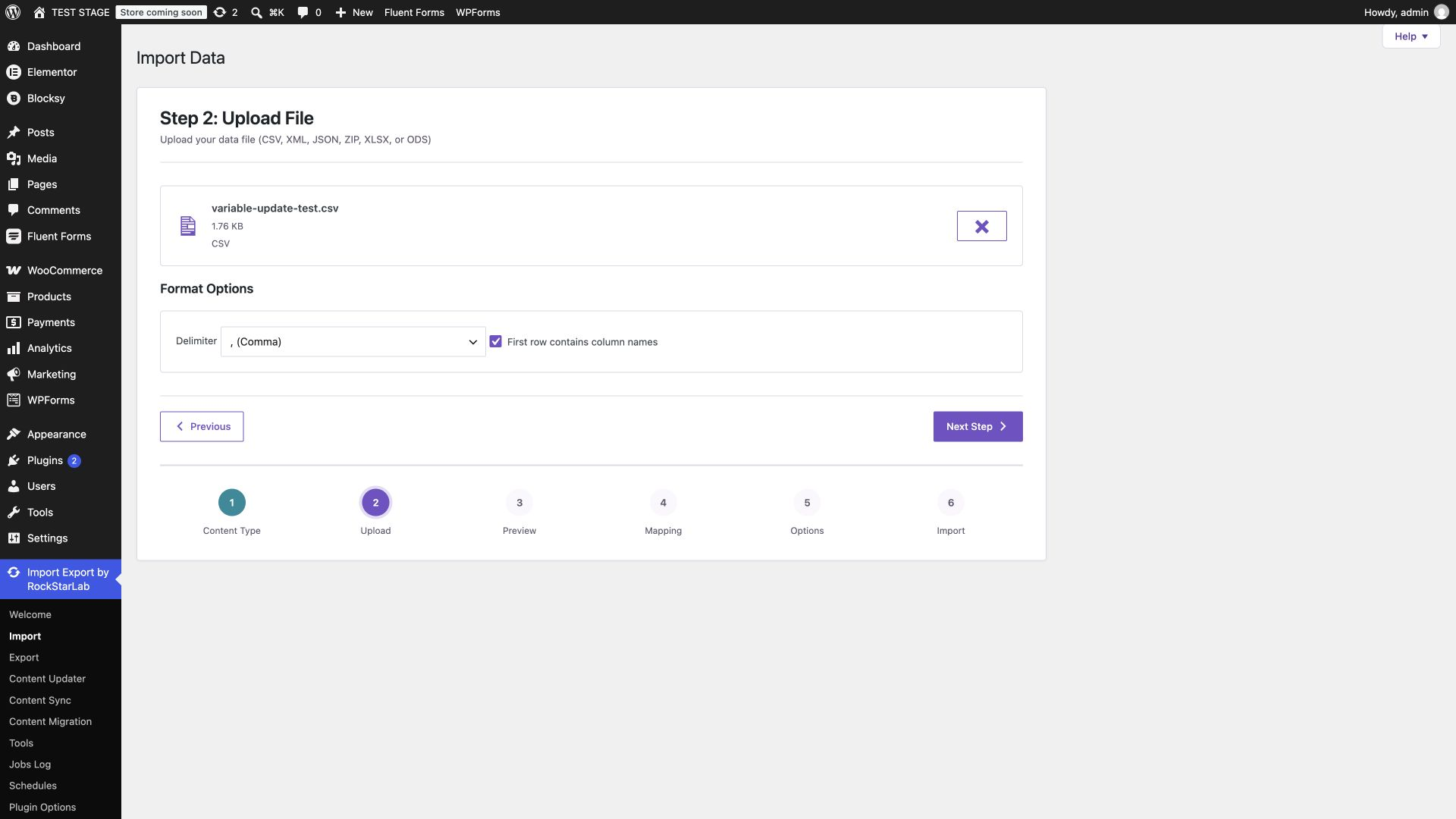
In WordPress, open Import Export by RockStarLab → Import. Choose WooCommerce Products, then continue to Upload File. Select the initial sample when creating the demonstration product, or the update sample when it already exists.
Keep the delimiter set to comma and enable First row contains column names. The screenshots below show a repeat run with the update file, so its filename differs from the initial sample.
Step 2: Inspect the preview
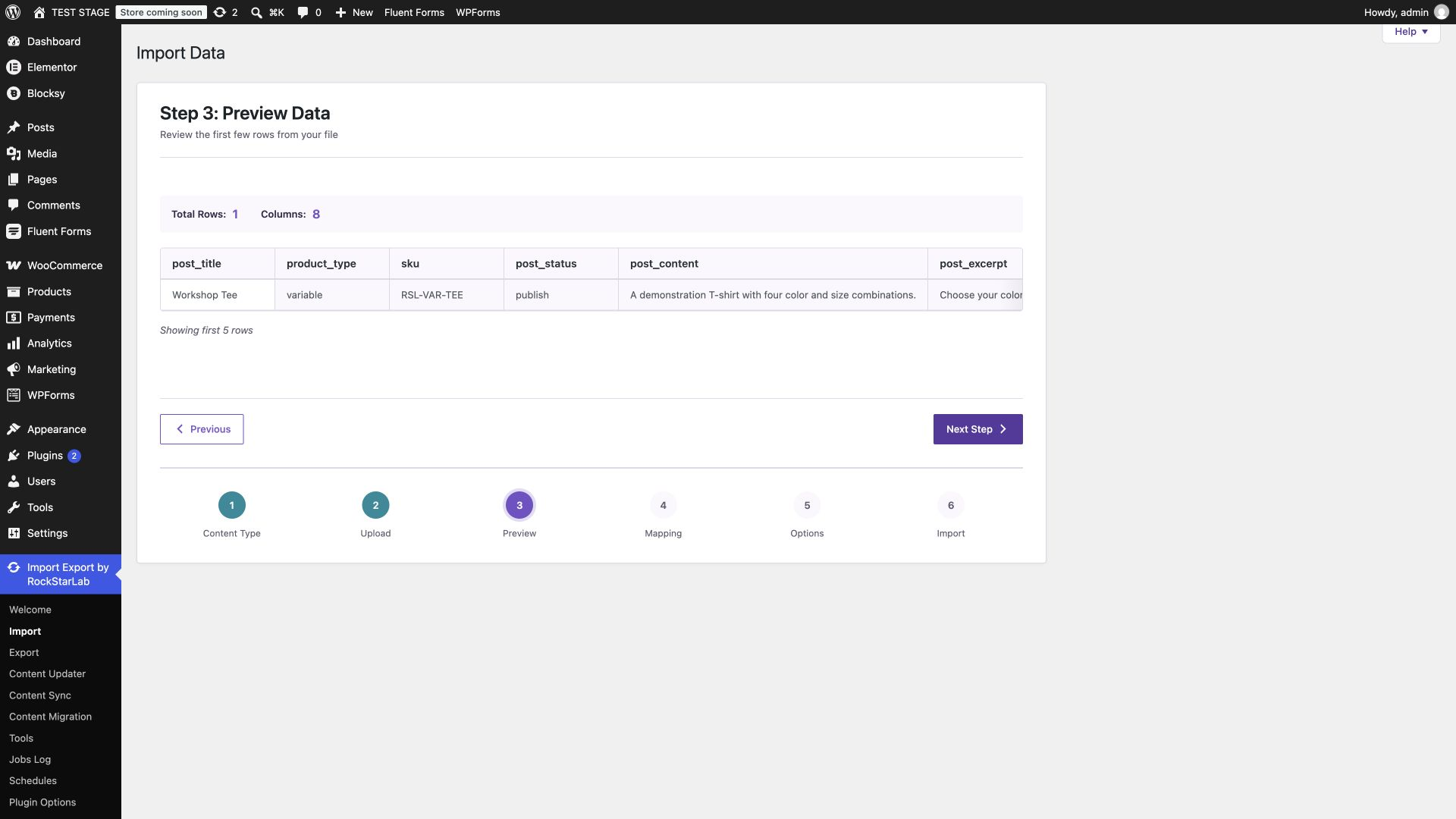
The preview should report one row and eight columns. That is correct even though the product has four variations: those four child records are inside the JSON cell. Check the parent SKU and product type, then confirm that attributes and variations remain in their respective columns.
The preview shortens long cells for display. A shortened JSON preview does not necessarily mean the underlying data is truncated. Inspect the actual file if a value looks incomplete.
Step 3: Map the fields
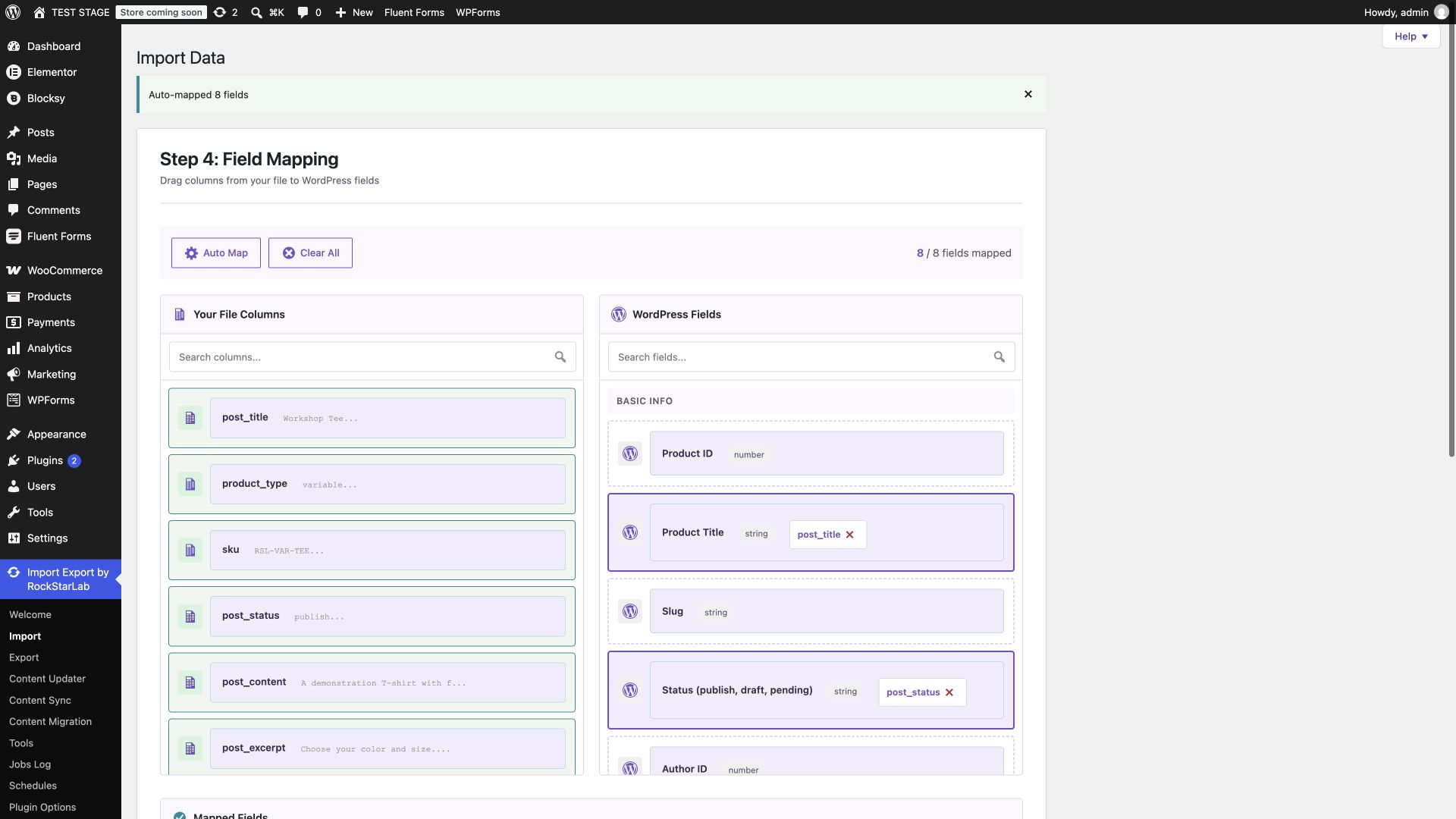
Click Auto Map, then review every mapping. Our headers mapped all eight fields automatically. In particular, map product_attributes to Product Attributes (JSON) and variations to Variations (JSON). These are structured product fields, not generic text descriptions.
Map the top-level sku to SKU and product_type to Product Type. The child SKUs stay inside the variation objects; you do not map each of them separately in the wizard. If your supplier uses different column names, map them manually. The CSV field-mapping guide explains the general process.
Step 4: Choose how existing products are handled
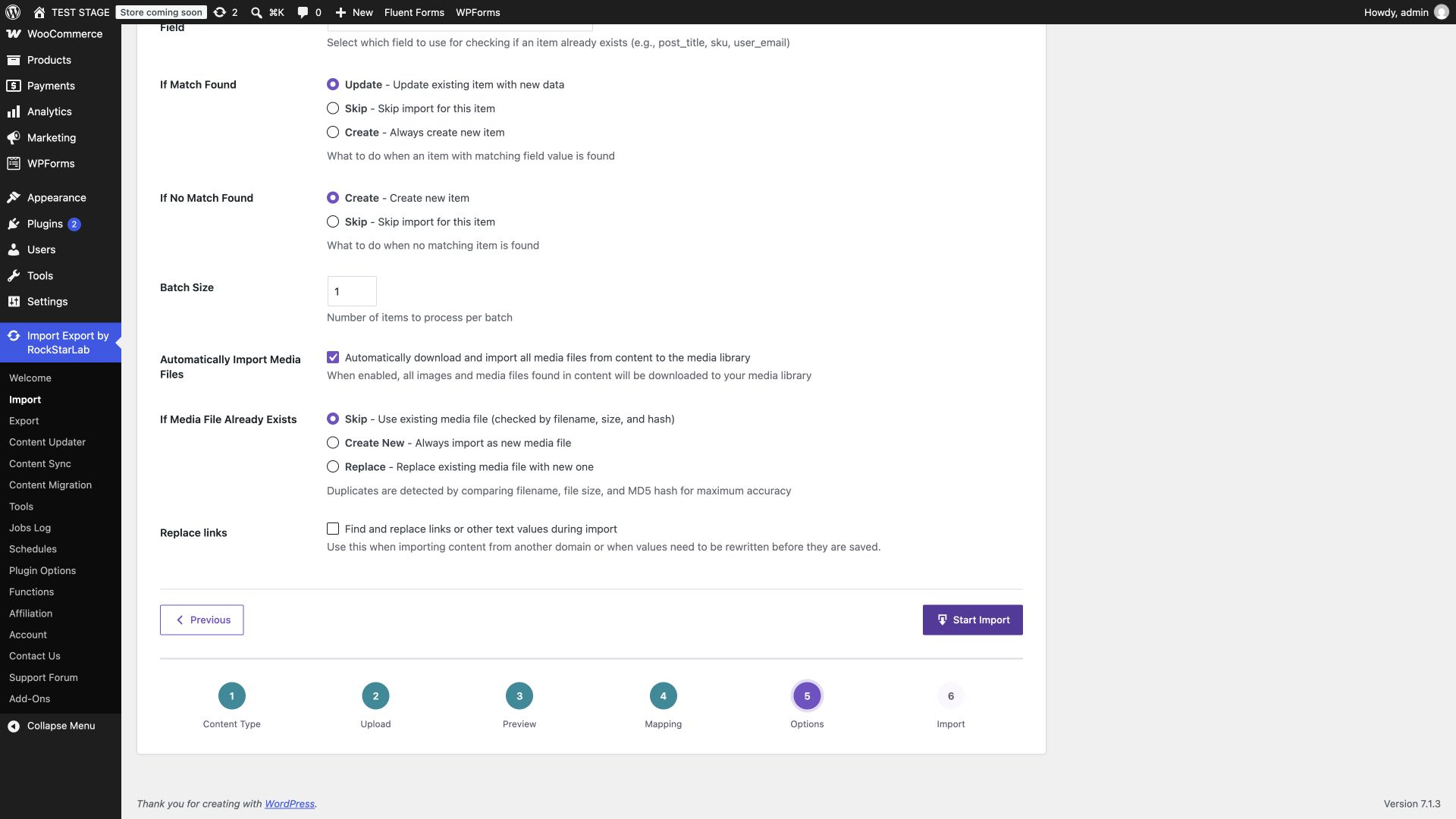
Set Check for Existing Items by Field to SKU. Choose Update when a match is found. For the initial sample, choose Create when no match is found. For an update-only production file, Skip can be more appropriate for unmatched SKUs so an unexpected identifier does not create another product.
This SKU setting matches the parent product. Child variations use the stable source IDs in their JSON objects. Do not assume that a child with the same SKU but a different source ID will be treated as the same variation.
Step 5: Run the import and interpret the counters
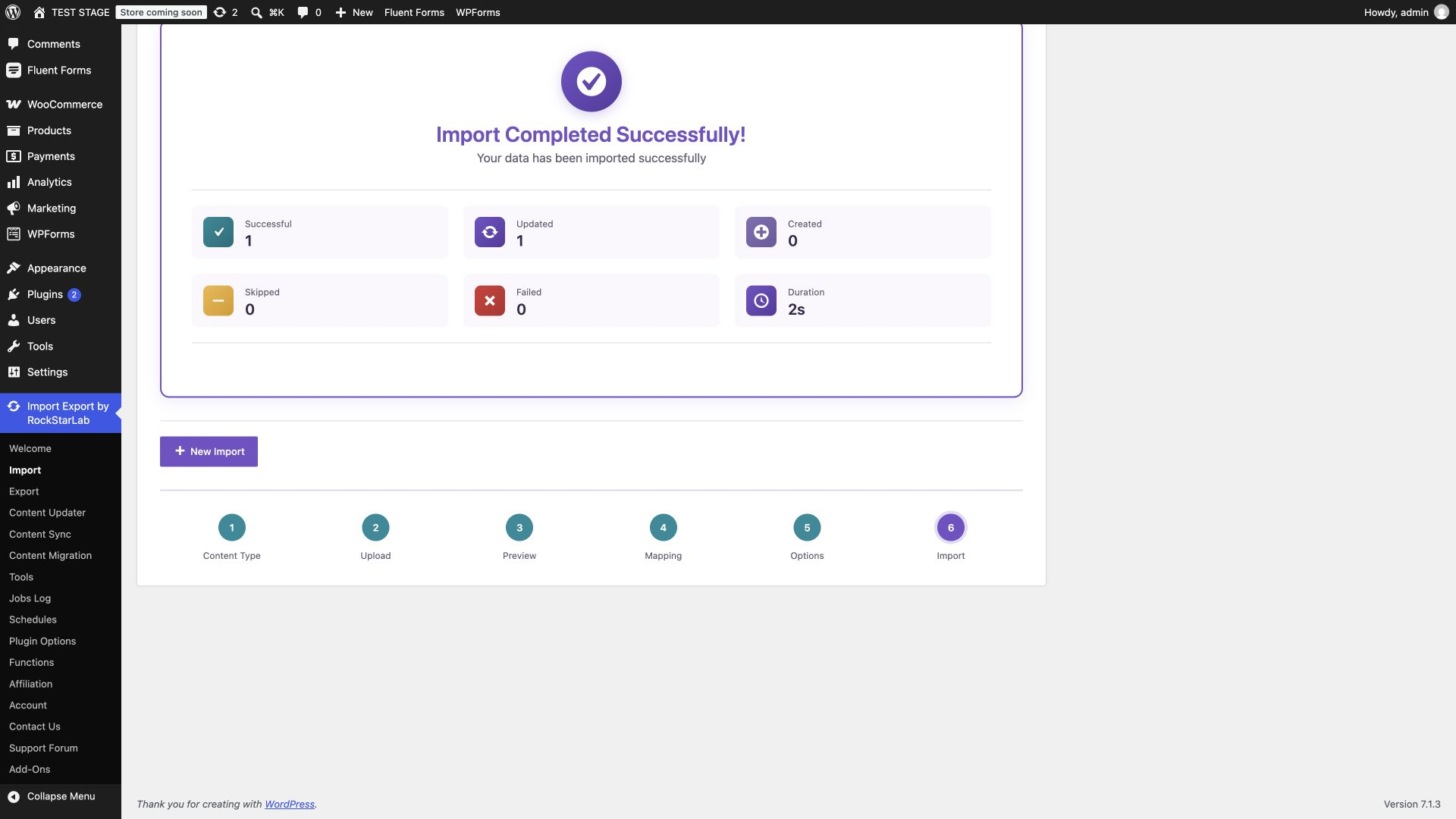
Click Start Import and wait for completion. The original run created one parent with four variations. Our repeat run reported one updated, zero created and zero failed. The wizard counts the parent input row; four child variations do not require a successful-row count of five.
Check failures and skips as well as the completion message. Then open the actual product. A success banner cannot confirm that the correct combinations, stock rules or photos appear to a shopper.
Step 6: Verify the product in WooCommerce
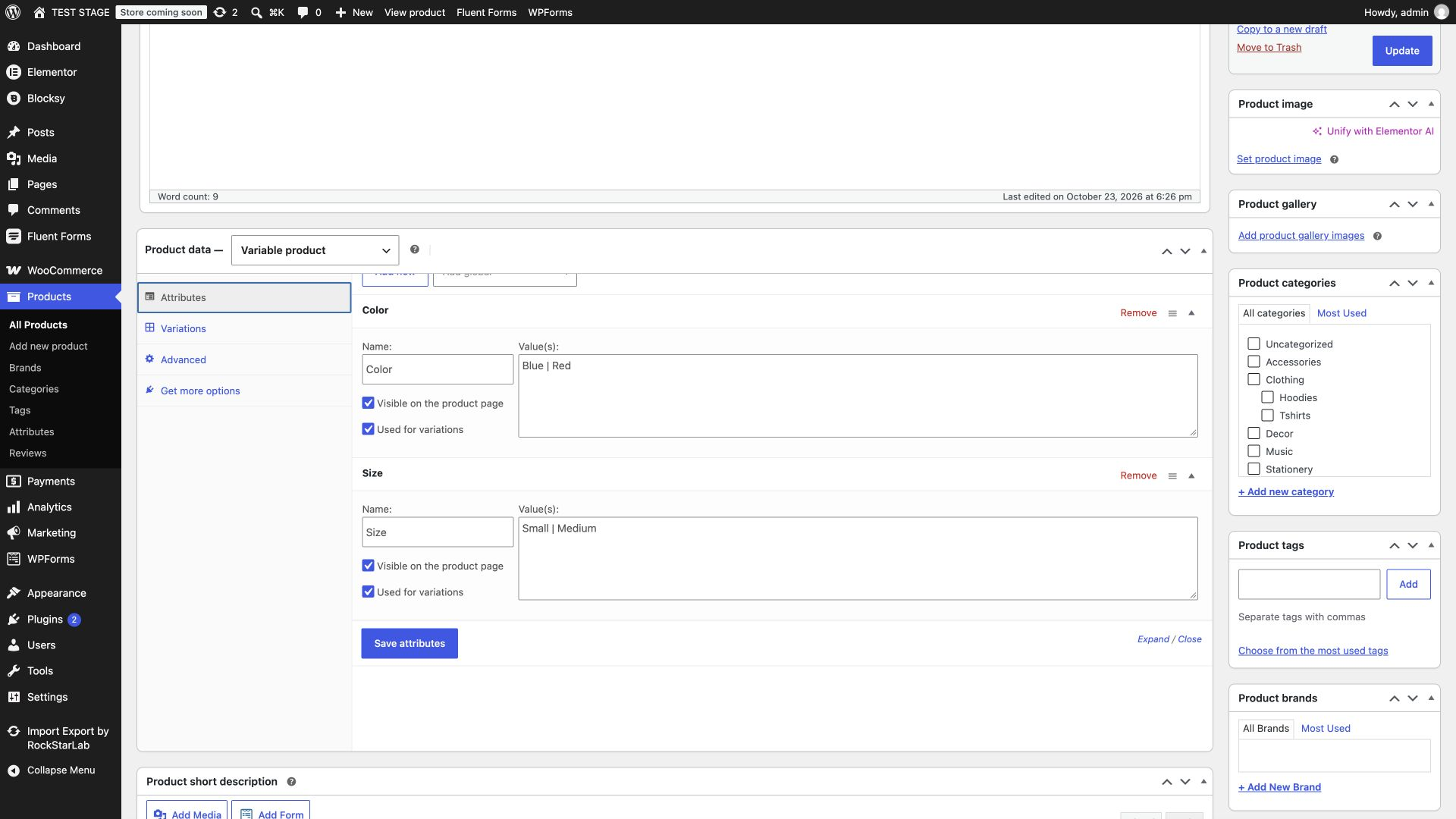
Open Products → All Products → Workshop Tee. Product data should be Variable product. In Attributes, confirm Color has Blue and Red, Size has Small and Medium, and both are enabled for variations.
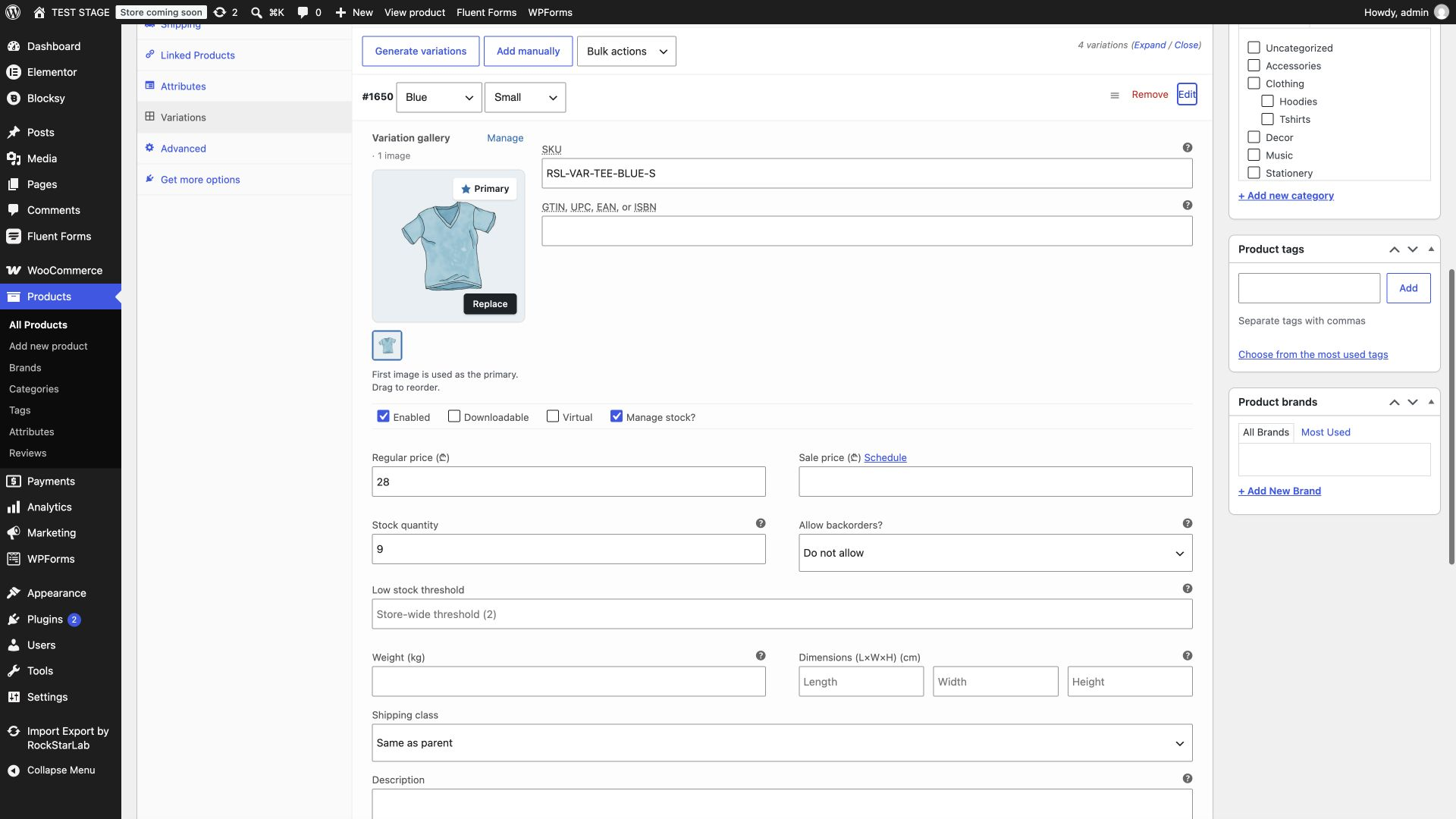
Open Variations. There should be exactly four combinations, not four copies of an unspecified “Any Color / Any Size” variation. Expand one and check its SKU, regular price, stock management, quantity and backorder rule. In the final update state, Blue / Small has price 28, stock 9 and backorders disabled.
On the product page, select actual options rather than checking only the parent’s price range. Blue / Small should resolve to its own SKU and price. Red / Small should show Out of stock. Our browser checks confirmed those cases. The test store uses an authenticated Coming soon preview; checkout and payment processing are outside this tutorial.
Update prices and stock without duplicating variations
Import the update sample with the same parent SKU and the same four source IDs. It changes only Blue / Small from 25 to 28 and from five units to nine. The other three prices and quantities remain unchanged.
Our parent retained ID 1649 and the four children retained IDs 1650–1653. Your destination IDs will be different. The repeatability check is that they remain stable across your own runs.
Keep the full intended variation list in every replacement array. In the tested importer, a nonempty incoming variation array also reconciles existing imported children: previously imported source IDs omitted from that list can be removed. Do not send an array containing only the one variation you edited and assume it is a partial patch. Keep a backup and inspect the complete array before running an update.
For broader catalog maintenance, see bulk updating WooCommerce products. Keep catalog maintenance separate from real-time stock synchronization across stores.
Assign images to variations
A variation image reference belongs inside that variation’s meta object. The portable field supported by this workflow is _thumbnail_url. A destination attachment ID is site-specific, so copying a numeric _thumbnail_id from another store can point to the wrong image.
"_thumbnail_url": "https://your-store.example/uploads/blue-shirt.webp"Replace the illustrative URL with your own accessible image URL. Keep all the other variation fields in the object. For a remote download, the importer must have the relevant image-download option enabled and the server must be able to reach the URL.
Our additional test supplied blue and red image URLs from the source test site. The importer resolved them to existing destination attachments, and the WooCommerce variation editor displayed the expected photos. That verifies image assignment and reuse in this case; it is not a benchmark or proof that every remote host permits image downloading.
Set a parent product image separately if you want a photo before the customer chooses a variation. The downloadable sample has no parent image, so a placeholder before selection is expected. Check your theme’s image-switching behavior on the storefront as well as the image field in the editor.
Import variable products with an AI agent
A connected agent can use the plugin’s WordPress abilities to upload the file, inspect the content schema, propose mappings, validate the request, start the import and monitor its job. The WooCommerce PRO workflow must be available on the connected site. Follow the AI-agent connection and Abilities API guide first.
Discover the abilities and request their current input schemas rather than pasting an old request into an unknown plugin version. For our test the sequence used rsl-ie/get-capabilities, the upload abilities, rsl-ie-pro/import-prepare, rsl-ie-pro/import-validate, rsl-ie-pro/import-start and rsl-ie/job-get. The import type was woo_product.
Prompt: inspect and prepare the file
Connect to my staging WordPress MCP server. Discover the available abilities
and inspect the current WooCommerce product import schemas.
Read the attached variable-product CSV. Confirm one parent row, four
variations, unique SKUs, stable source IDs, matching attribute values,
numeric prices and explicit stock/backorder settings.
Prepare the field mapping and validate the import. Show me the parent
matching rule and the complete variation list. Do not start the import yet.
Prompt: run the approved initial import
Import the validated CSV on staging using WooCommerce Products.
Match parents by SKU, update matches and create unmatched parents.
Preserve the supplied source IDs and all four variation objects.
Use a unique request ID, monitor the returned job until completion,
and report failures, skips and created/updated counts.
Then inspect the product editor and storefront in the browser:
check all combinations, SKUs, prices, stock and backorders.
Prompt: update one combination safely
Use the update CSV for parent SKU RSL-VAR-TEE.
Before importing, compare it with the current product and confirm that
all four variation source IDs remain present. Blue / Small should become
28 with stock 9; keep the other combinations unchanged.
Match the parent by SKU, update existing matches and skip unmatched parents.
Validate, execute and monitor the job. Confirm that the parent and child
IDs are unchanged, then verify Blue / Small and Red / Small in the browser.
Do not delete other products or change store settings.
The agent price/stock update completed as job 85 with one successful row and no failures. Later image-assignment and explicit backorder checks completed as jobs 87 and 88. Browser verification confirmed the updated editor values and Red / Small’s Out of stock message. An agent reporting only “job completed” has not finished the verification step.
Troubleshooting variable-product imports
| Symptom | Check first |
|---|---|
| The product is simple | Map product_type and set its value to variable. |
| Attributes appear but there are no combinations | Map Variations (JSON); check that its array contains actual variation objects. |
| Choices do not match a variation | Compare parent values with attribute_color and attribute_size; check spelling and empty “Any” values. |
| A variation is unavailable | Check price, publish status, stock management, quantity and backorders. WooCommerce requires a variation price. |
| Zero stock still permits ordering | Set the intended _backorders rule explicitly; do not rely only on _stock_status. |
| A repeat changes child IDs | Check that source IDs were retained; parent SKU matching is not child SKU matching. |
| Variations disappeared after an update | Check whether the incoming nonempty array omitted previously imported source IDs. |
| Images are missing | Check URL accessibility, image-download options and destination attachment mapping; distinguish parent and variation images. |
| The CSV preview has extra columns | Repair JSON-cell quoting and confirm the delimiter before importing. |
WooCommerce’s variable-product documentation explains its native attribute, pricing and stock controls. Use that reference for WooCommerce behavior, and this tutorial’s sample for the specific CSV structure tested with Import Export by RockStarLab.
Before importing the rest of your catalog
Test a small representative group first: one in-stock combination, one zero-stock combination, different prices and at least one repeat update. Verify the product editor, the storefront and stable IDs. Only then expand the file. The four-variation test here does not establish a maximum catalog size or performance guarantee.
You can find related workflows in the written documentation and review the available editions on the Free and PRO feature comparison.
Frequently asked questions
Can I import variable products from CSV?
Yes. This tested Import Export by RockStarLab PRO workflow uses one parent row with product_attributes and variations JSON columns. Map those structured fields and verify the resulting combinations.
Is this the same format as the built-in WooCommerce CSV importer?
No. The examples in this guide use nested variation JSON for Import Export by RockStarLab. Use the format required by the importer you choose.
Does matching by SKU also match every variation by SKU?
The wizard SKU rule matches the parent in this workflow. Repeated child imports use stable source IDs inside the variation objects. Preserve those IDs.
Why does the report show one imported item instead of five?
The CSV contains one parent input row. Its four variations are nested child records, so the successful-row counter can be one.
Can I update just one variation in the JSON array?
Edit that variation’s values but keep the full intended array. A nonempty replacement array can remove previously imported variations whose source IDs are omitted.
How do I stop a zero-stock variation accepting backorders?
Set _manage_stock to yes, _stock to 0, _stock_status to outofstock and _backorders to no. Check the resulting WooCommerce editor and storefront.
Can an AI agent run the import?
Yes, when the site exposes the required PRO abilities and the agent has authorized access. Discover schemas, upload, prepare, validate, execute, monitor and verify the results in a browser.
Are global attributes and large catalogs covered by this test?
The sample uses custom product attributes and four variations. Global attribute migration, large-volume performance, checkout and payment processing were not tested here.