
A supplier raises prices. A delivery adds ten units to several products. A new packaging requirement changes the shipping weight of a whole range. Opening every product and editing it by hand is slow, and it is easy to miss one.
Content Updater, available in Import Export by RockStarLab PRO, lets you filter existing WooCommerce products, choose the fields to change, and apply a reusable Function to those fields. You do not need to export a spreadsheet and import it again for these updates.
This guide walks through five practical jobs: increasing regular prices, replenishing stock, setting sale prices, adjusting weight, and adding care instructions. Each example was run on a test store, and the saved WooCommerce values were checked against the expected results.
Before you start
You need WooCommerce, Import Export by RockStarLab with PRO active, and access to the plugin’s Content Updater and Functions screens. Work on a staging copy first and create a current database backup. Content Updater writes to existing products; cancelling a running job is not a way to undo changes already saved.
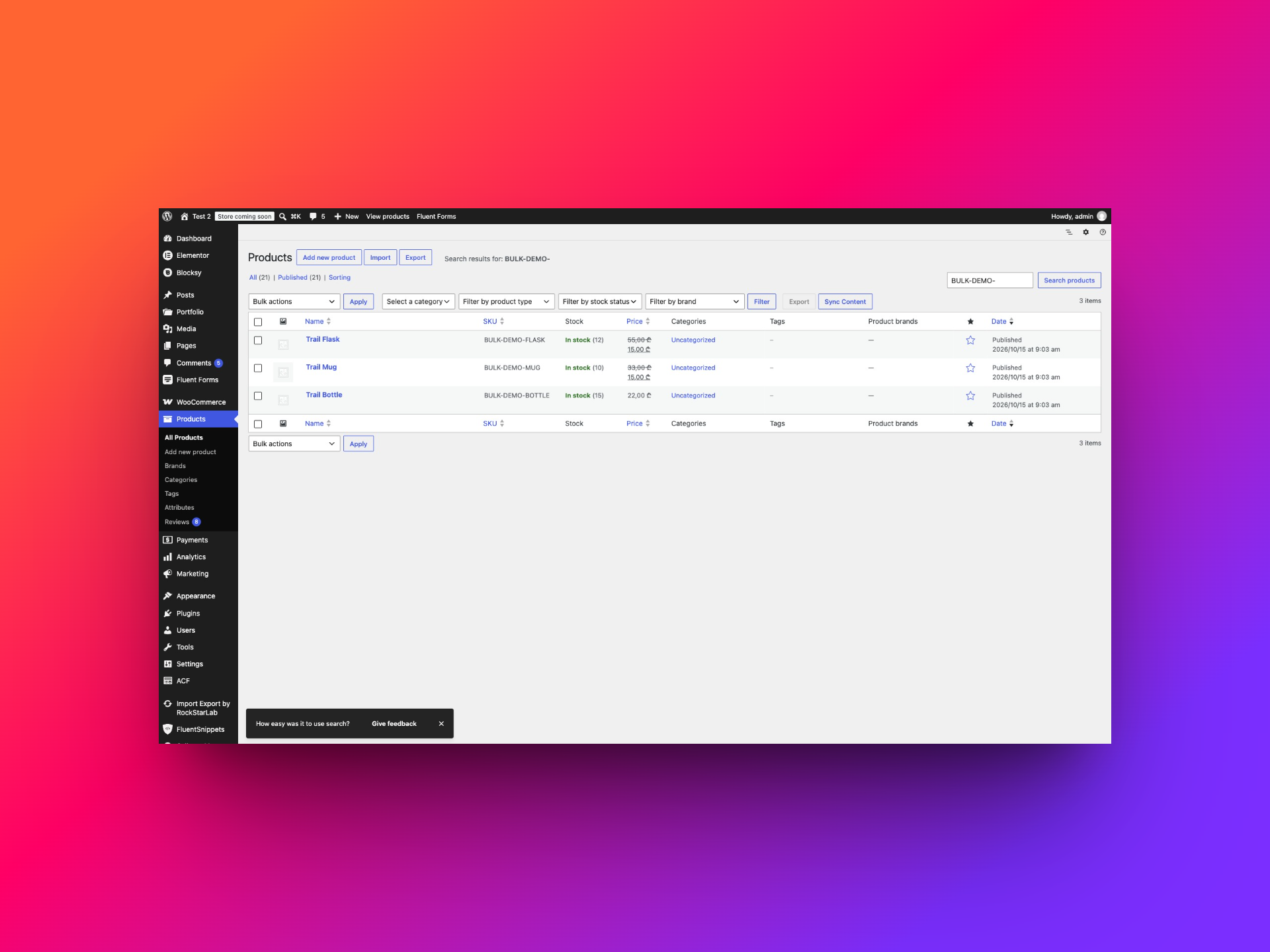
For the examples below, we created three simple products with deliberately different prices, quantities, and weights. They are a small subset of a store containing 21 products. Filtering by their SKU prefix keeps the examples away from the rest of the catalogue.
| Product | SKU | Regular price | Stock quantity | Weight |
|---|---|---|---|---|
| Trail Bottle | BULK-DEMO-BOTTLE | 20.00 | 5 | 0.40 kg |
| Trail Mug | BULK-DEMO-MUG | 30.00 | 0 | 0.30 kg |
| Trail Flask | BULK-DEMO-FLASK | 50.00 | 12 | 0.60 kg |
Stock management is enabled for all three products. Their sale prices are initially empty, and each short description contains Durable outdoor gear.
The test store uses Georgian lari (GEL) and kilograms. Enter numbers in your own store’s currency and weight unit; the Functions do not convert currencies or units.
The examples run in order. For instance, the sale-price example starts after the regular prices have already become 22, 33, and 55. If you follow just one example, calculate its expected results from the current values in your own store.
Create your reusable Functions
A Function takes an existing field value, changes it, and returns the value to save. In the code below, $value means the value of the field you assigned the Function to. For Regular Price, it is the current regular price. For Stock Quantity, it is the current quantity.
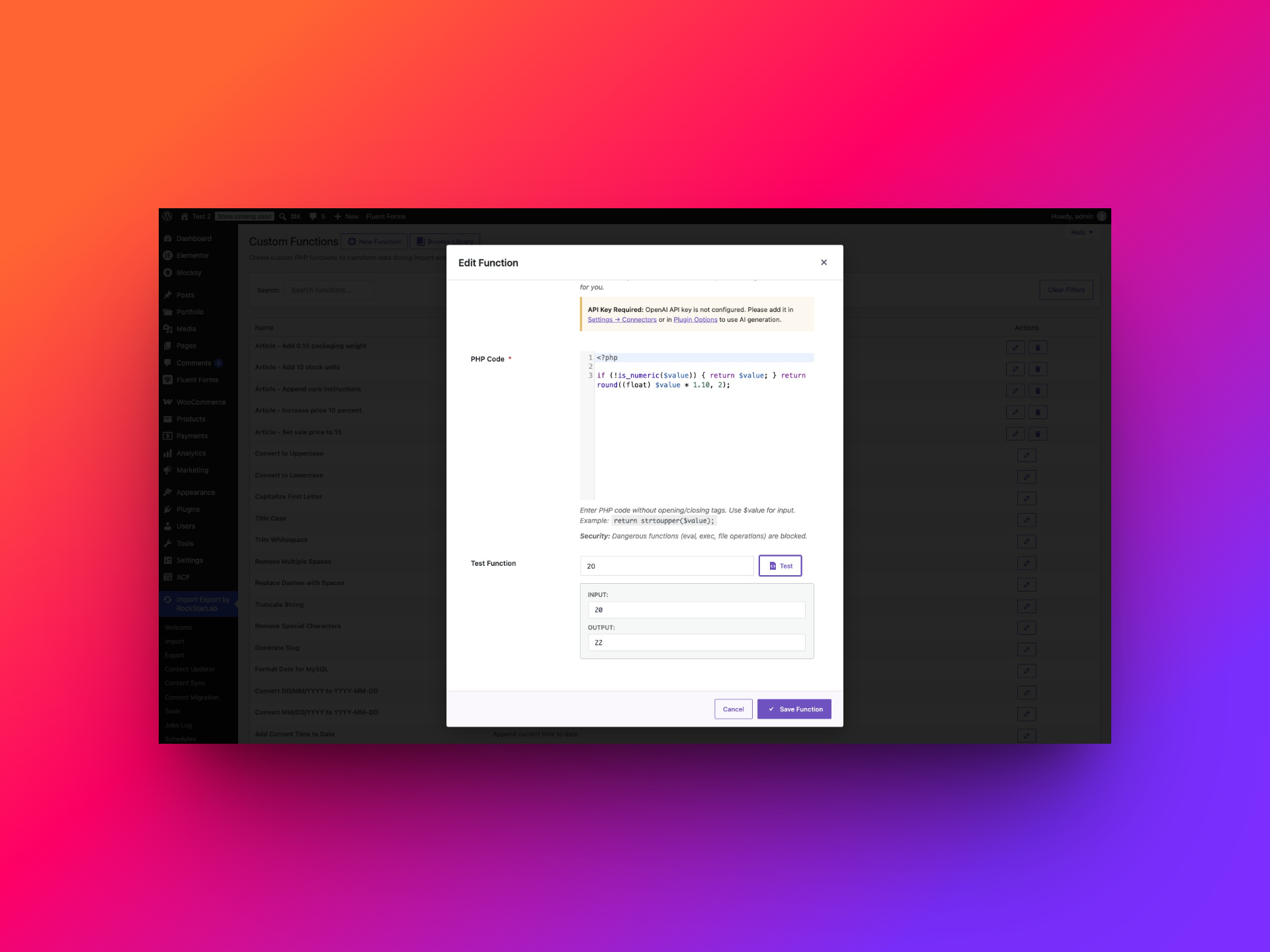
You only need to create each Function once:
- Open Import Export by RockStarLab → Functions.
- Click New Function.
- Enter the name shown in the relevant example below and an optional description.
- Paste the snippet into PHP Code. Paste the code body only; do not add PHP opening or closing tags or wrap it in a named function.
- Enter a representative value in Test Function, then click Test.
- Compare the output with your calculation, then click Save Function.
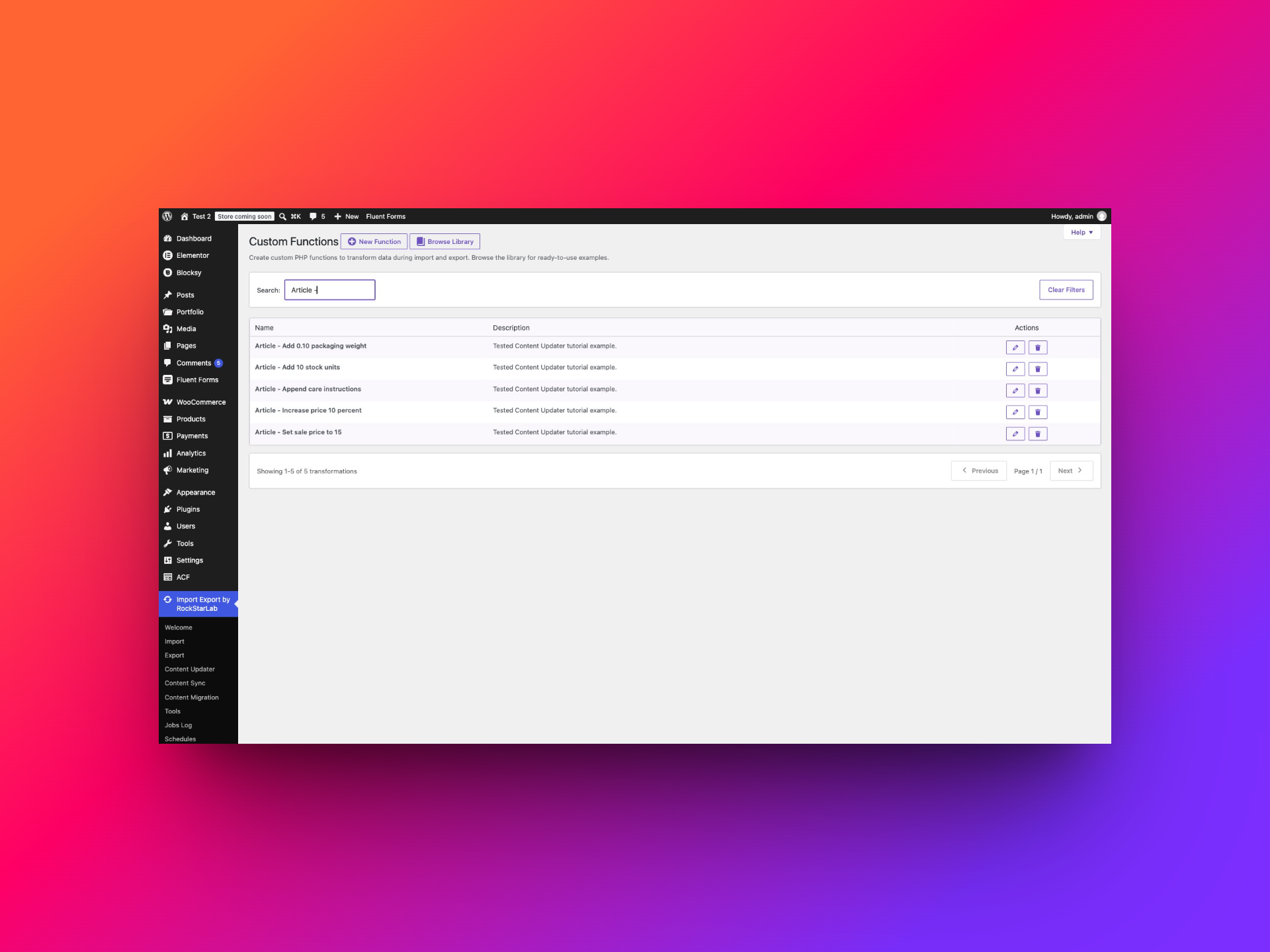
You do not need an OpenAI key to paste, test, or use these snippets. The AI generator is a separate optional feature. The Library also contains ready-made transformations, such as trimming whitespace and rounding numbers. Here we use custom Functions because the exact price increase, replenishment amount, and care text belong to this example.
The Content Updater workflow
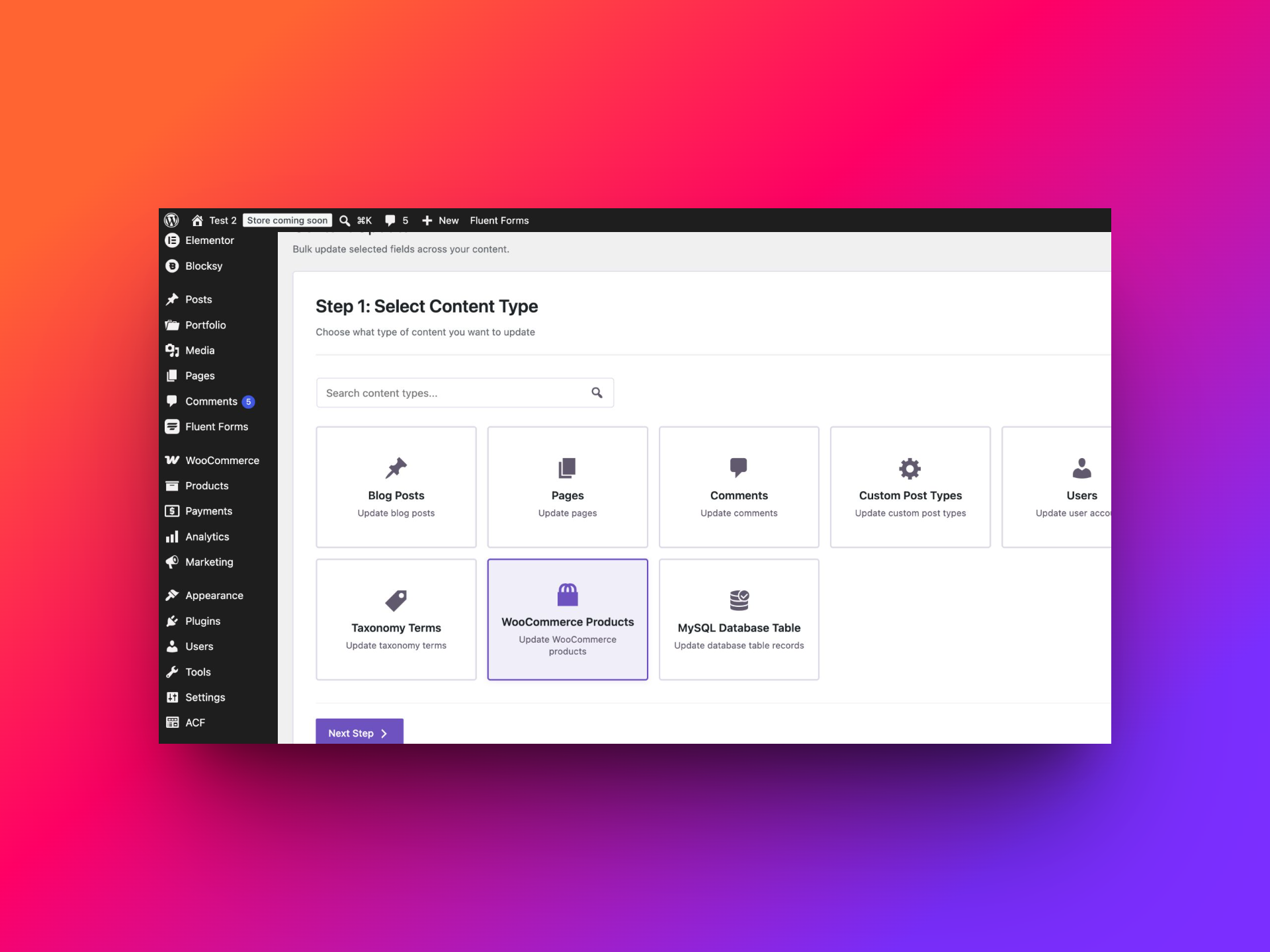
Open Import Export by RockStarLab → Content Updater and select WooCommerce Products. The wizard has five steps:
- Content Type: choose WooCommerce Products.
- Filters: define which products are eligible.
- Select Fields: choose only the fields you intend to change.
- Field Transformations: assign a Function to each selected field.
- Start Update: review the number of products, fields, and transformations, then run the job.
On the transformations step, click Assign Transformations, search for your saved Function, and click Add. Use Test Value and Test Pipeline to check the transformation. Click Apply Transformations to attach it to the field. Testing the Function alone does not update a product.
Several transformations can run in sequence, from top to bottom. Each receives the previous transformation’s output. These examples use one Function per field so the result is easy to calculate and inspect.
Use filters to choose products, not fields
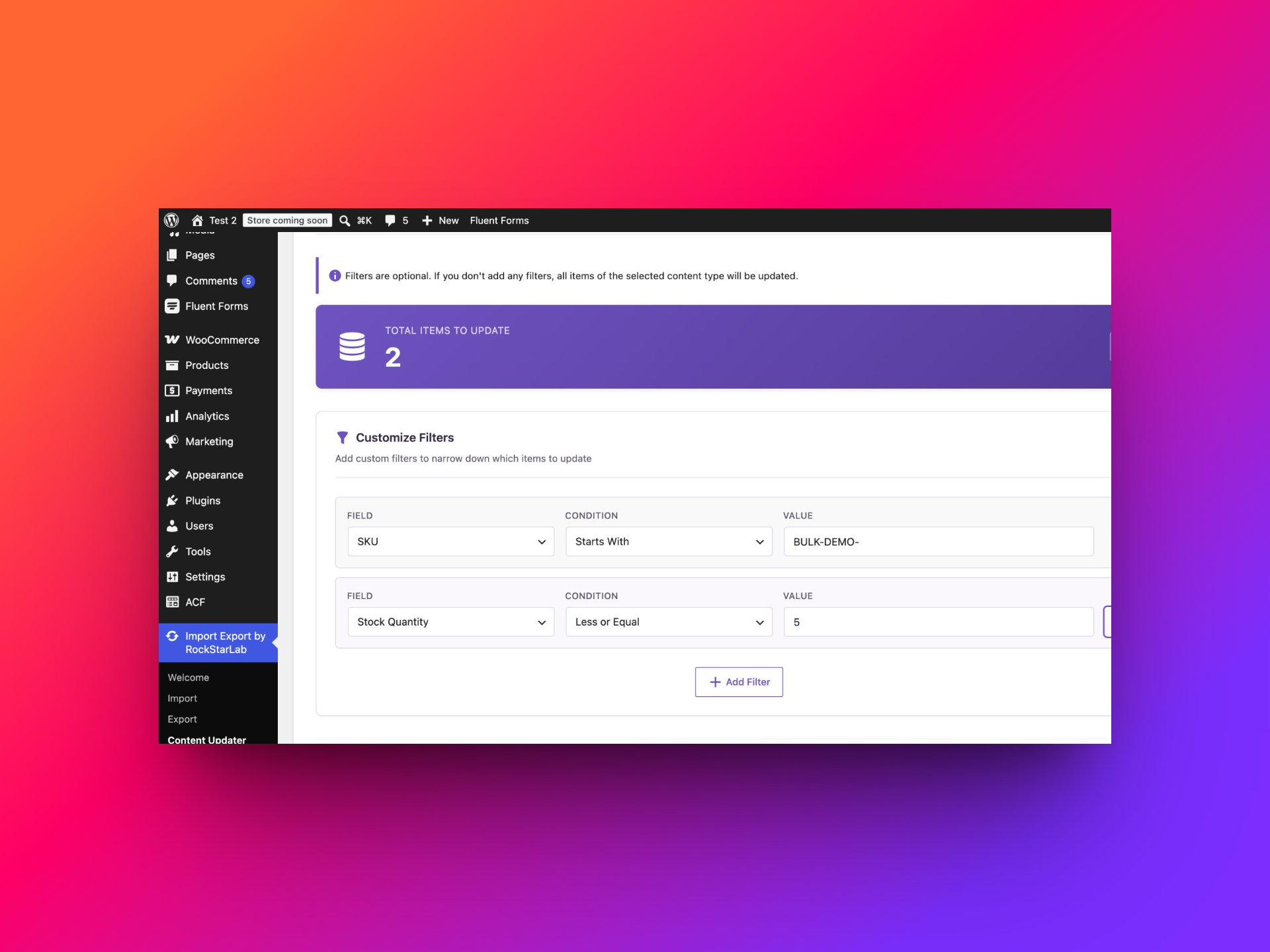
Filters answer which products? Selected fields answer what should change? Filtering by Regular Price does not automatically mean that Regular Price will be updated: you can use price to select products and then change only their Sale Price.
Click Add Filter for each condition. The combined conditions in the examples below narrow the selection: a product must match the SKU condition and the additional condition. For a list of acceptable SKUs, use In (comma-separated) within one filter.
After entering the value, leave the input field and wait for Total Items to Update to refresh. The count loads asynchronously and can briefly show the previous selection. Do not start the job while it still shows an old count or a dash. If you go back to the Filters step, check that your conditions are still present before continuing.
1. Bulk increase WooCommerce regular prices by 10%
Suppose a supplier increases the cost of your Trail range. You want a proportional increase across that range while preserving the differences between individual product prices.
Create the price Function
Name: Article – Increase price 10 percent.
if (!is_numeric($value)) {
    return $value;
}
return round((float) $value * 1.10, 2);
Multiplying by 1.10 adds 10%. The round call keeps two decimal places. This suits our two-decimal test currency; adapt the rounding precision if your store uses another convention. The numeric check leaves empty or nonnumeric input unchanged instead of treating it as zero.
Select the range and apply the update
- Choose WooCommerce Products.
- Add SKU → Starts With → BULK-DEMO-. The expected count is 3, not the whole catalogue of 21.
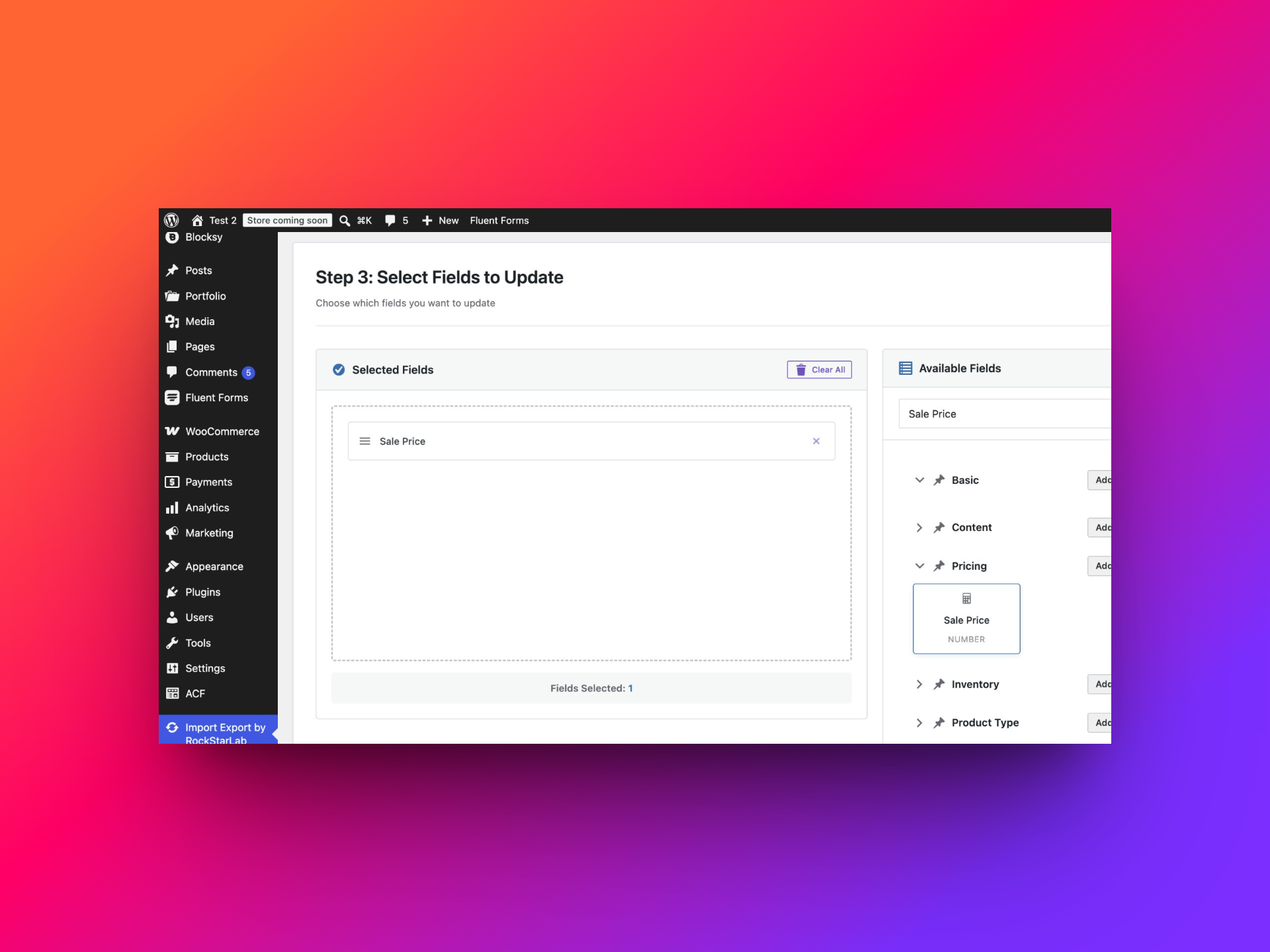
- On Select Fields, expand Pricing and select Regular Price. You can use the field search to find it.
- Assign Article – Increase price 10 percent. Test
20; the output should be22. - On Start Update, check 3 products, 1 field, 1 transformation. We used 10 items per iteration.
- Click Start Update and confirm the backup notice after making your backup.
| Product | Before | Expected | Saved result |
|---|---|---|---|
| Trail Bottle | 20.00 | 22.00 | 22.00 |
| Trail Mug | 30.00 | 33.00 | 33.00 |
| Trail Flask | 50.00 | 55.00 | 55.00 |
All three regular prices matched the calculation. Because these products had no sale price, their active prices also became 22, 33, and 55. Stock, weight, and short descriptions stayed unchanged in our checks.
Regular Price and Sale Price are different fields. If a product already has an active sale, changing its regular price does not mean you have changed that sale price. Check both before applying a pricing rule to discounted products.
This increase is cumulative. Running it twice changes 20 to 22 and then to 24.20. Do not rerun a completed job merely to check its result. Read the product or the job log instead.
2. Bulk update stock for products with low quantities
A delivery contains ten additional units of each low-stock product in the Trail range. You want to add ten to the existing quantities, not replace every quantity with ten.
Filter the products that need replenishment
| Field | Condition | Value |
|---|---|---|
| SKU | Starts With | BULK-DEMO- |
| Stock Quantity | Less or Equal | 5 |
Before this update, Bottle has 5, Mug has 0, and Flask has 12. The combined filter must select two products. Flask is deliberately excluded.
Create and assign the stock Function
Name: Article – Add 10 stock units.
if (!is_numeric($value)) {
    return $value;
}
return (int) $value + 10;
Select Inventory → Stock Quantity and assign the Function. Test 5 to get 15; an input of 0 should become 10. Review a total of two products and start the update.
| Product | Before | Expected and saved | Included? |
|---|---|---|---|
| Trail Bottle | 5 | 15 | Yes |
| Trail Mug | 0 | 10 | Yes |
| Trail Flask | 12 | 12 | No |
The job updated two products with zero errors. Mug changed from out of stock to in stock after its managed quantity became 10. Flask’s quantity remained 12, confirming that the additional filter restricted the update.
Use this example for products that already have stock management enabled. An empty quantity on a product that does not manage stock is a different situation; this Function deliberately leaves a nonnumeric value unchanged. Also, this integer formula is intended for whole units, not a store using a separate fractional-stock extension.
Adding ten and setting a quantity to ten solve different problems. A confirmed warehouse count calls for a replacement value; a delivery quantity calls for an addition. Avoid running additive replenishments twice, and coordinate them with orders and other inventory integrations on a live store.
3. Bulk set a sale price for selected products
For a clearance promotion, set a sale price of 15 on Trail products whose regular price is above 30. This is a fixed-price promotion, not a percentage discount.
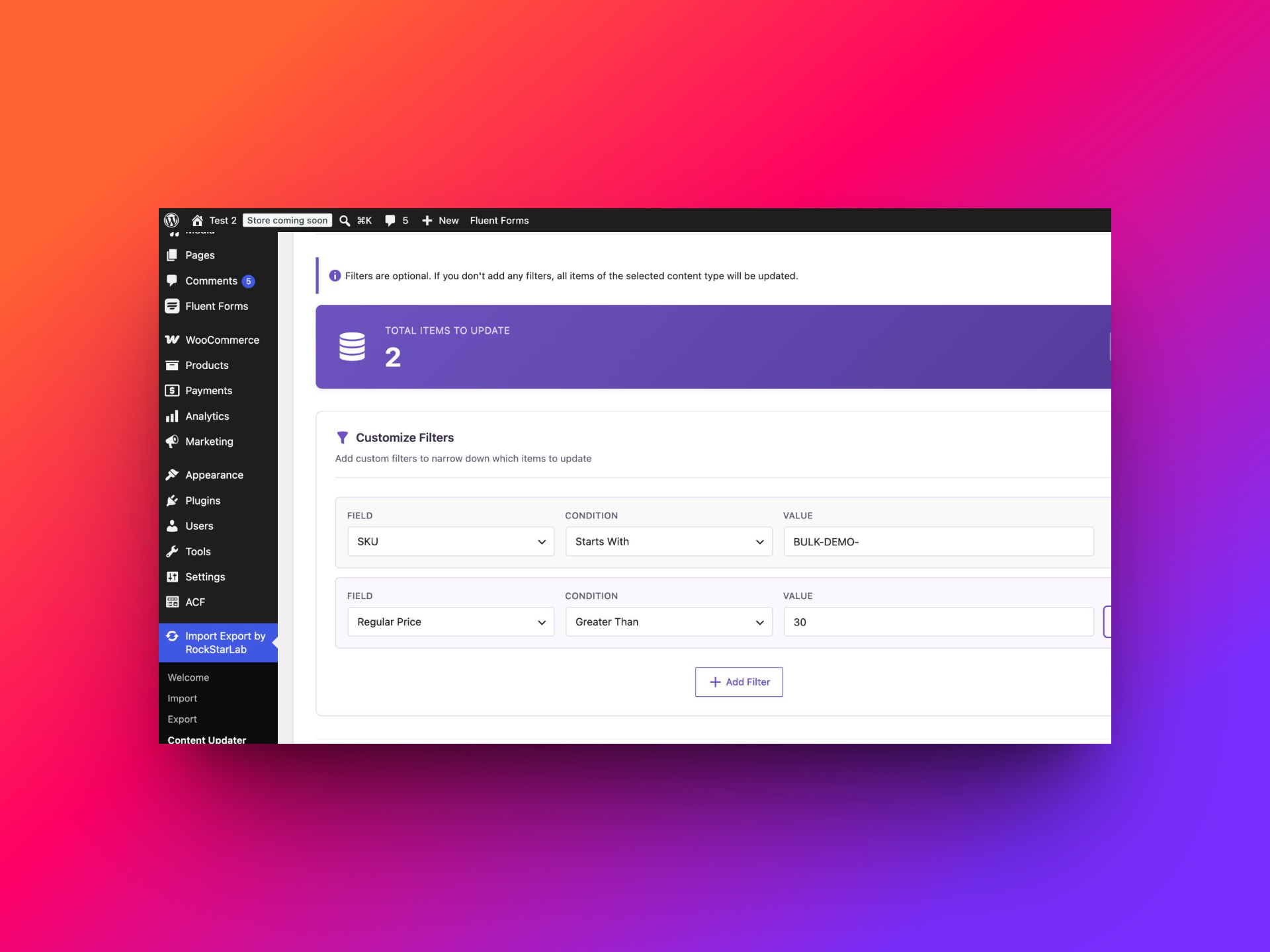
| Field | Condition | Value |
|---|---|---|
| SKU | Starts With | BULK-DEMO- |
| Regular Price | Greater Than | 30 |
After example one, the regular prices are 22, 33, and 55. This filter selects Mug and Flask, leaving Bottle outside the promotion.
Create Article – Set sale price to 15 with:
return 15;On Select Fields, expand Pricing and choose Sale Price. Assign the Function, review two selected products, and run the update. The Function returns 15 regardless of the previous sale price, including an empty one.
| Product | Regular price retained | Saved sale price | Saved active price |
|---|---|---|---|
| Trail Bottle | 22.00 | Empty, unchanged | 22.00 |
| Trail Mug | 33.00 | 15.00 | 15.00 |
| Trail Flask | 55.00 | 15.00 | 15.00 |
The saved results matched the promotion: two sale prices changed, all regular prices stayed intact, and Bottle remained at its regular price. Our test products had no sale scheduling dates. On an existing catalogue, check any sale dates as well as the price before expecting a promotion to become active immediately.
Choose a sale value below the regular prices of the selected products. Also remember that a Function assigned to Sale Price receives the old sale value. Multiplying that input by 0.85 does not calculate 15% off Regular Price. Do not substitute a percentage formula without accounting for the source field.
4. Bulk adjust the weight of lighter products
Your lighter products now ship with an extra protective insert weighing 0.10 kg. Apply the increase only to Trail products below 0.50 kg.
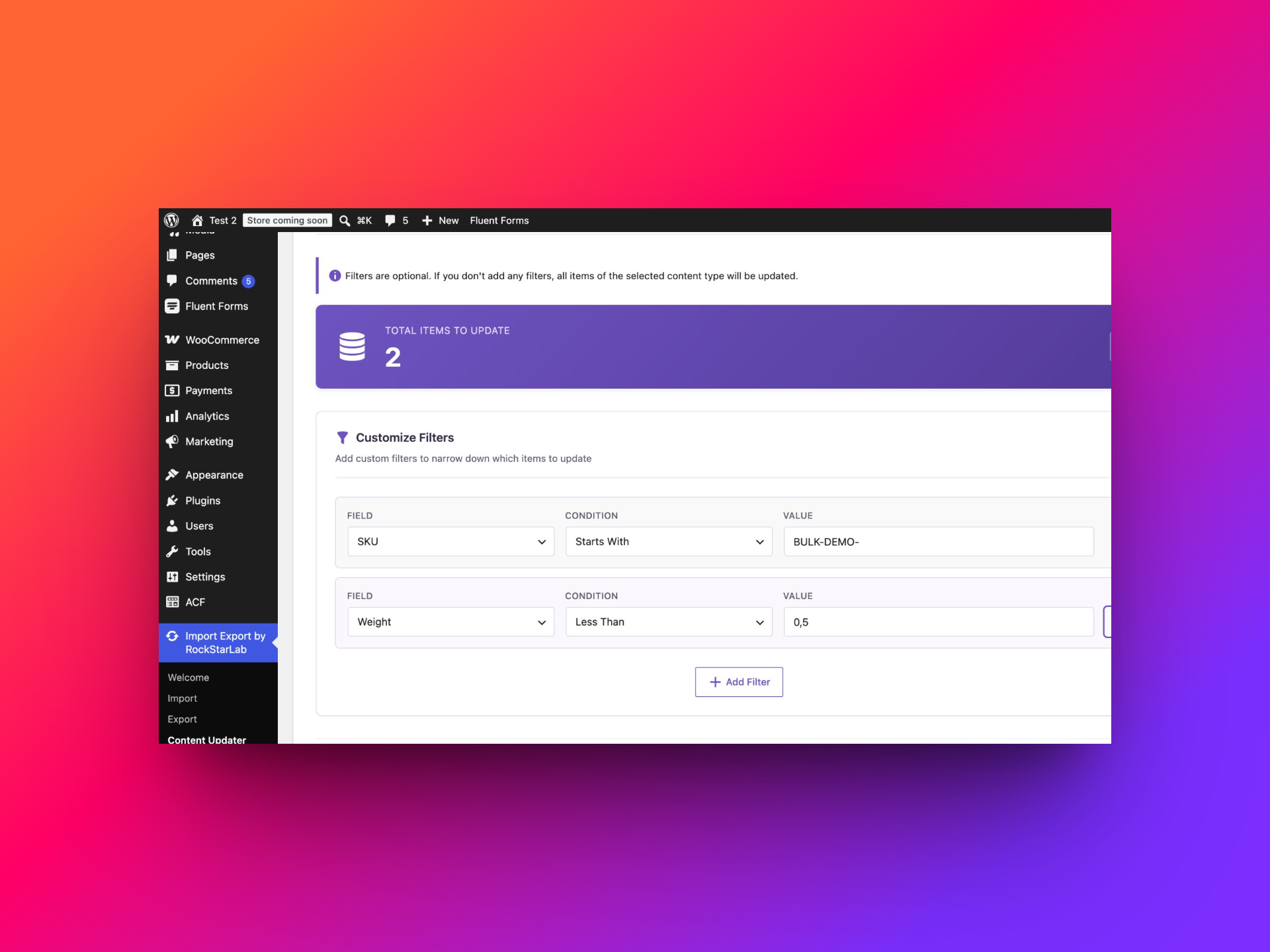
| Field | Condition | Value |
|---|---|---|
| SKU | Starts With | BULK-DEMO- |
| Weight | Less Than | 0.5 |
Bottle (0.40 kg) and Mug (0.30 kg) qualify. Flask (0.60 kg) does not. Wait for the count to settle at two.
Create Article – Add 0.10 packaging weight:
if (!is_numeric($value)) {
    return $value;
}
return round((float) $value + 0.10, 2);
Select Shipping → Weight, assign the Function, and test 0.4. The result should be 0.5. Review the two-product summary, then start the job.
| Product | Before | Expected and saved |
|---|---|---|
| Trail Bottle | 0.40 kg | 0.50 kg |
| Trail Mug | 0.30 kg | 0.40 kg |
| Trail Flask | 0.60 kg | 0.60 kg, unchanged |
Both selected weights matched the calculation. WooCommerce may store 0.50 as 0.5; these represent the same numeric weight. The Function adds 0.10 in the store’s configured unit. It does not know whether that unit is kilograms, grams, pounds, or ounces.
Only use this adjustment if product weight is where your shipping setup expects that packaging allowance. Some shipping integrations add package weight separately. After changing weights, test the relevant shipping rates rather than assuming a particular price change at checkout.
5. Add care instructions to specific product descriptions
Bottle and Mug need the sentence Hand wash only.
added to their short descriptions. Flask should keep its existing description. This is a good case for an explicit SKU list combined with a text filter.
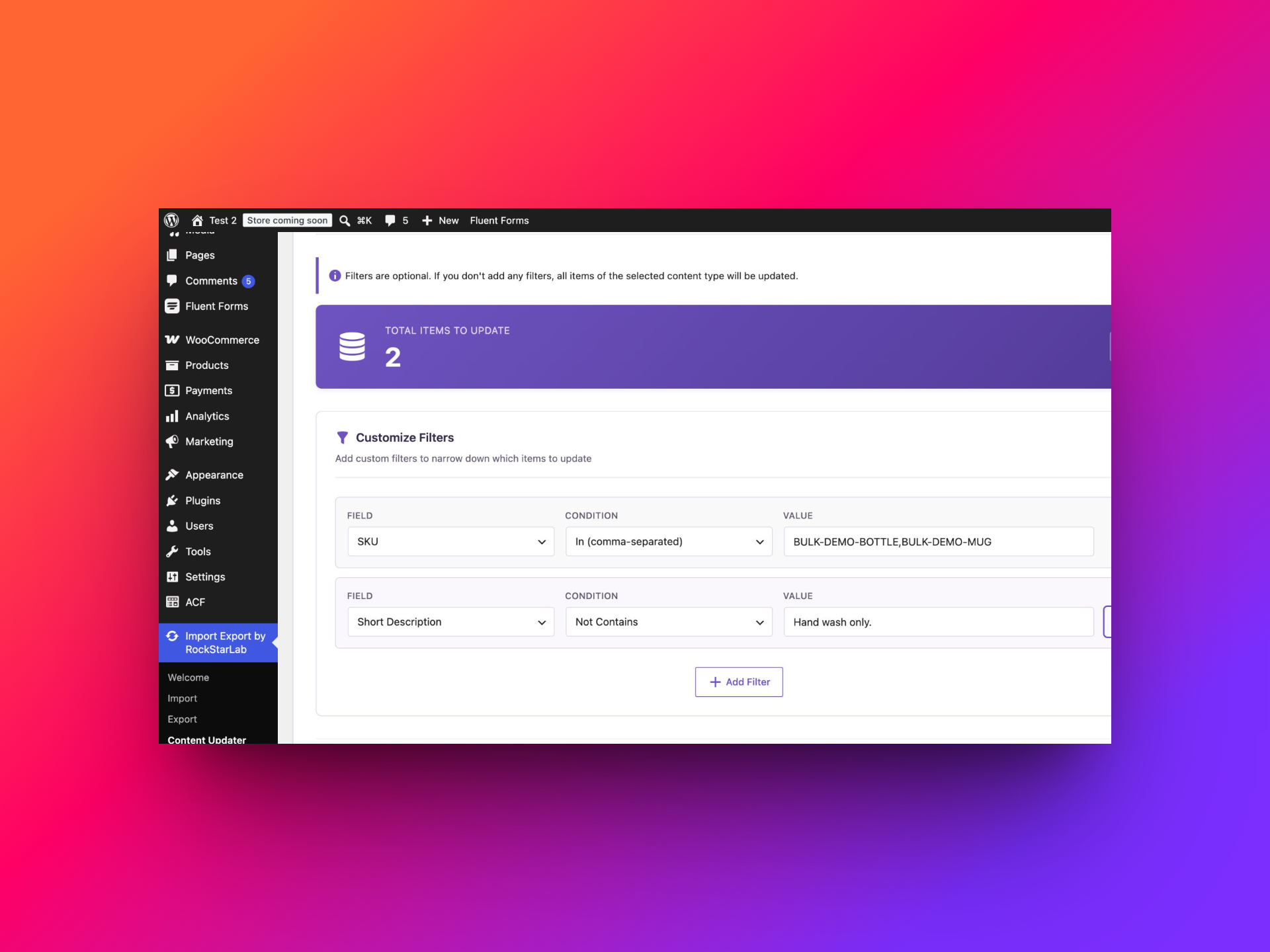
| Field | Condition | Value |
|---|---|---|
| SKU | In (comma-separated) | BULK-DEMO-BOTTLE,BULK-DEMO-MUG |
| Short Description | Not Contains | Hand wash only. |
The SKU list defines which products need the instruction. The second condition excludes descriptions that already contain it. Both chosen products initially match, giving a count of two.
Create Article – Append care instructions:
$note = "Hand wash only.";
return strpos((string) $value, $note) !== false
    ? $value
    : rtrim((string) $value) . " " . $note;
Select Content → Short Description. Assign the Function and test Durable outdoor gear.. The output should be Durable outdoor gear. Hand wash only.
The Function preserves existing text and checks for the exact sentence before appending it. That gives you protection against duplicate additions even if a product reaches the Function again. The check is case-sensitive: differently capitalised wording is not treated as the same sentence by this PHP expression.
After the update, Bottle and Mug both contained Durable outdoor gear. Hand wash only.
Flask still contained only Durable outdoor gear.
Prices, quantities, and weights retained the values established by the earlier examples.
These test descriptions are plain text. If your short descriptions contain HTML, test representative markup before applying an append rule across the catalogue. Adding a sentence after a closing paragraph tag may not produce the formatting you want.
Check the saved results and Jobs Log
A completion message tells you that the job finished. You should also check what customers and store managers will actually see.
- Check Total Processed, Successfully Updated, Skipped, and Errors on the completion screen.
- Open Products and locate the affected SKUs. Verify regular and sale prices, stock, or the field you changed.
- Inspect at least one product deliberately excluded by your filter. Its relevant value should be unchanged.
- For descriptions and shipping fields, open a product to check the saved content and formatting.
- Follow View Job Log or open Jobs Log to inspect the recorded task.
All five test jobs completed without update errors. The regular-price job processed three products; each of the other four processed two. In this tested version, Jobs Log lists Content Updater tasks as Import content_update, with the type shown as IMPORT. Use the job ID and creation time to identify the relevant run.
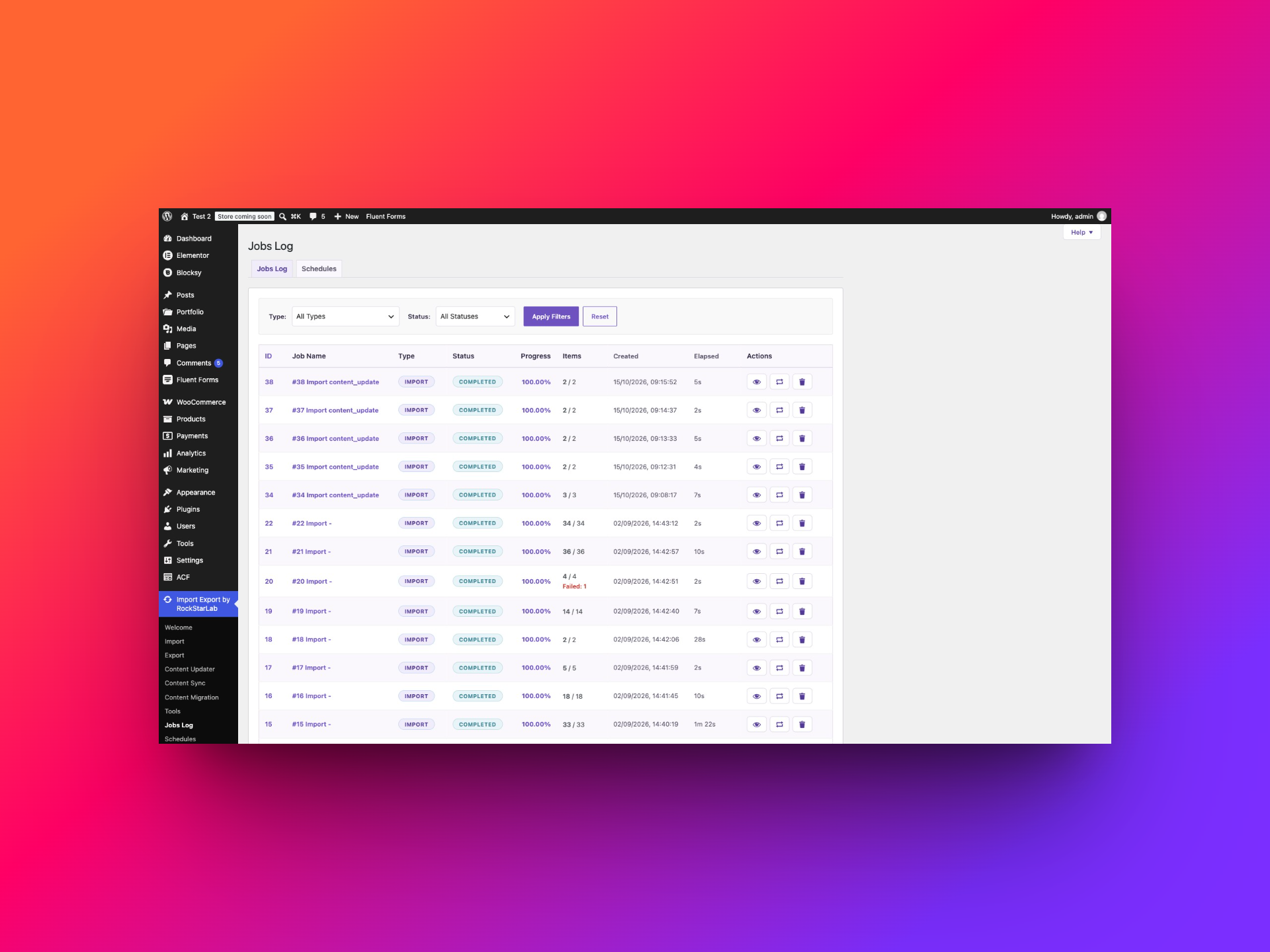
Keep a record of your filters and expected changes alongside the job. A job log is useful for tracing an operation, but it is not a replacement for the backup you need to reverse unwanted changes.
Frequently asked questions
Do I need PRO to use Content Updater?
Yes. Content Updater is available in Import Export by RockStarLab PRO. The examples in this guide use that feature together with saved Functions.
Can I update only a few WooCommerce products?
Yes. Filter by a specific SKU, a comma-separated SKU list, or a SKU prefix. Add conditions such as Stock Quantity, Regular Price, Weight, or Short Description to narrow the group further. Confirm the final count before starting.
Do I need a CSV file?
No CSV file is needed for these examples. Content Updater reads existing product values and transforms the selected fields directly.
Will increasing Regular Price also change Sale Price?
The example selects only Regular Price. It does not assign a transformation to Sale Price. Check existing sale prices and dates separately when planning an increase.
Can I rerun a completed update?
First consider what the Function does. A percentage increase or quantity addition applies again to current values. A constant replacement returns the same number. The care-instruction Function checks whether its exact sentence is already present before adding it.
Were variable products tested in this guide?
No. These five examples were verified on simple products. Do not assume the same selection will update variation-level prices or stock. Test the product and variation behaviour separately before using these rules on a variable catalogue.
How do I undo a bulk update?
Plan recovery before the update and retain a current backup. Do not assume that cancelling the job reverses values already written. For a live store, consider orders and other changes made since the backup before restoring anything.