
A useful WordPress export starts with a question. Which published tutorials need a review? Which articles still mention an old URL? Which products have twelve units or fewer left? Exporting everything and sorting through a spreadsheet can answer these questions, but setting filters first gives you a smaller, more focused file.
This guide walks through seven practical examples in Import Export by RockStarLab. You will combine publication status, dates, content searches, categories, custom fields, stock quantities and sales figures. Each example explains the business task, the exact conditions to enter and what the result does—and does not—tell you.
The screenshots were captured on a test site at 1920 × 1080. The seven selections were checked against the underlying WordPress and WooCommerce records: both the number of matches and the returned record IDs agreed. Your numbers will depend on your own content. The WooCommerce examples require WooCommerce and the plugin’s PRO product export functionality.
Where to add export filters
- Open Import Export by RockStarLab → Export in WordPress.
- Select the content type. Choose Blog Posts for the editorial examples or WooCommerce Products for the stock and pricing examples.
- Click Next Step to open Step 2: Filter Data.
- Click Add Filter, choose a field, choose its condition and then enter a value.
- Add the remaining conditions and wait for Total Items Available to finish updating.
The count updates asynchronously. A dash, an old number or a briefly displayed zero immediately after editing a field is not a reliable final result. Wait for the update before deciding whether the filter matches anything. If necessary, use the refresh button beside the count.
Understand the three parts of a filter
The field is what you want to inspect, such as Modified Date. The condition is the comparison, such as Less Than. The value is your cutoff, such as January 1, 2026. Together, these mean “only include records last modified before January 1, 2026.”
Separate filter rows in the examples narrow the selection together. A post must satisfy the status rule and the date rule and the category rule. Inside a taxonomy filter, however, you can choose whether a post needs any listed term or every listed term.
| Condition | Useful interpretation |
|---|---|
| Equals | Match a specific stored value, such as the post status publish. |
| Contains | Find a text fragment inside a field, such as an old domain in post content. |
| Greater or Equal / Less or Equal | Include the threshold itself when comparing numeric values. |
| Is Empty | Find an empty value without typing the word “empty.” |
| Has Term(s) – IN | Match at least one of the listed taxonomy terms. |
| Has All Terms – AND | Require all the listed taxonomy terms. |
You can switch a taxonomy filter between IN, NOT IN and AND while keeping the entered terms. Check the updated count after changing the operator: the same terms can produce a very different selection.
1. Build a content refresh queue for one topic
An editor has time to review ten tutorials this week. Instead of exporting every post, build a queue of published articles in one topic that have not been modified since a chosen cutoff.
| Field | Condition | Value |
|---|---|---|
| Status | Equals | publish |
| Modified Date | Less Than | January 1, 2026 |
Taxonomy Filter: category |
Has Term(s) – IN | automation |
Select Blog Posts. Add the status and modified-date filters, then add a Taxonomy Filter. Enter category as Taxonomy Name and automation as the term slug. Substitute a real category slug from your site.
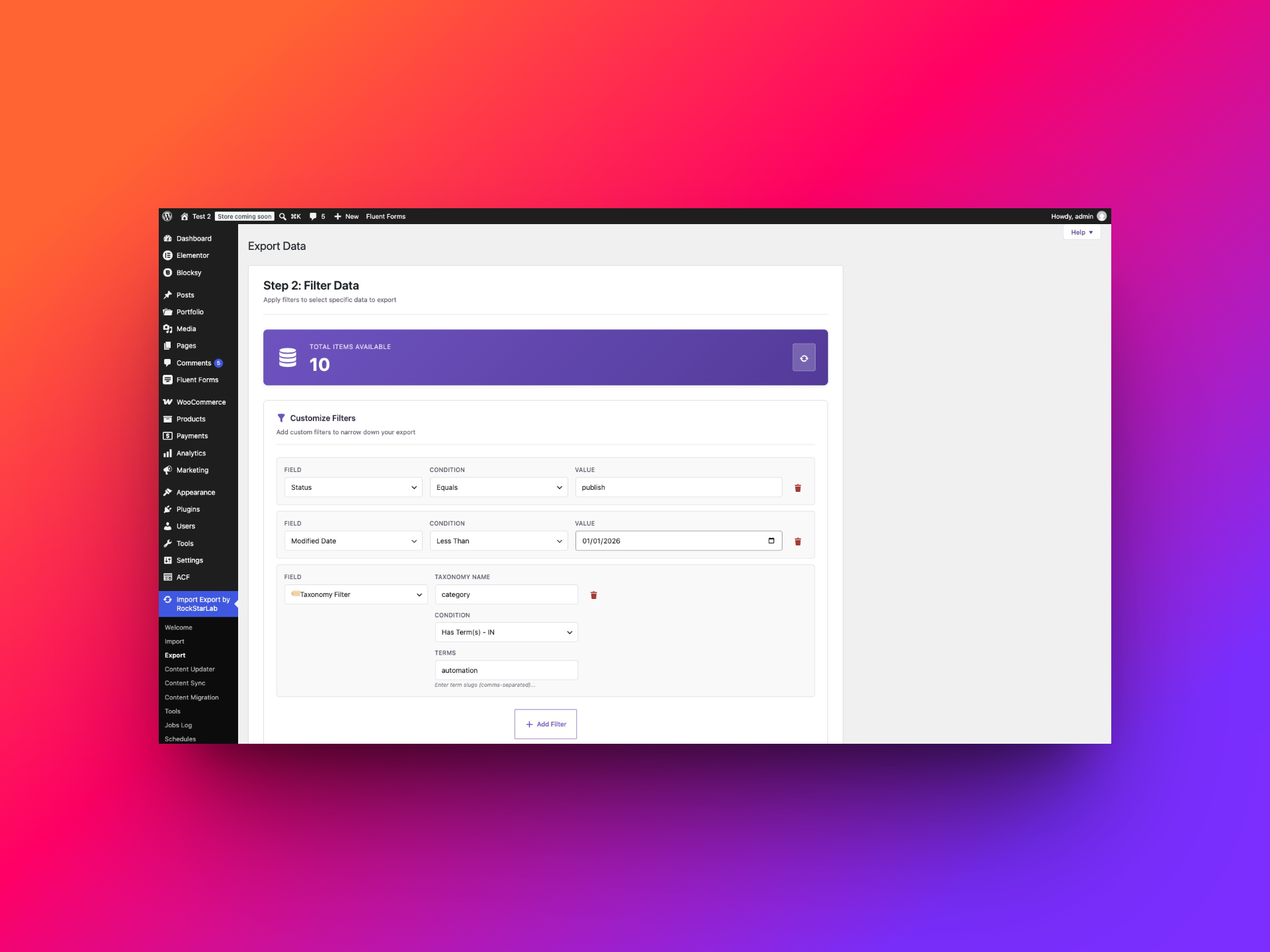
Why Modified Date? A tutorial originally published in 2021 may have been rewritten last week. Filtering by its original publication date would still flag it as old. Modified Date is a better starting point when the task is to find content that has not been touched recently.
Export the post ID, title, slug, modified date, original date and category information. The editor can add review notes in a spreadsheet and work through the list without searching the entire archive. Keep the ID as an identity column even though you are not filtering by ID.
Test result: 10 records matched. This is a review queue, not proof that those articles are inaccurate or performing badly. A small formatting edit can also update the modified date. Combine the export with editorial judgment and, where available, analytics before deciding which pages deserve substantial work.
For a different campaign, change the category and cutoff. A seasonal buying-guide review might use a much shorter window than an archive of evergreen reference material.
2. Find posts that still contain an old HTTP URL
A partner has changed its domain, or you are reviewing old HTTP references. A content filter can produce a shortlist of articles that contain the exact text you need to investigate.
| Field | Condition | Value |
|---|---|---|
| Status | Equals | publish |
| Content | Contains | http://google.com |
Choose Blog Posts, add Status Equals publish, then select Content with the Contains condition. Enter the URL fragment you want to find. The screenshot uses a fragment present in the test content; replace it with your own old URL or domain.
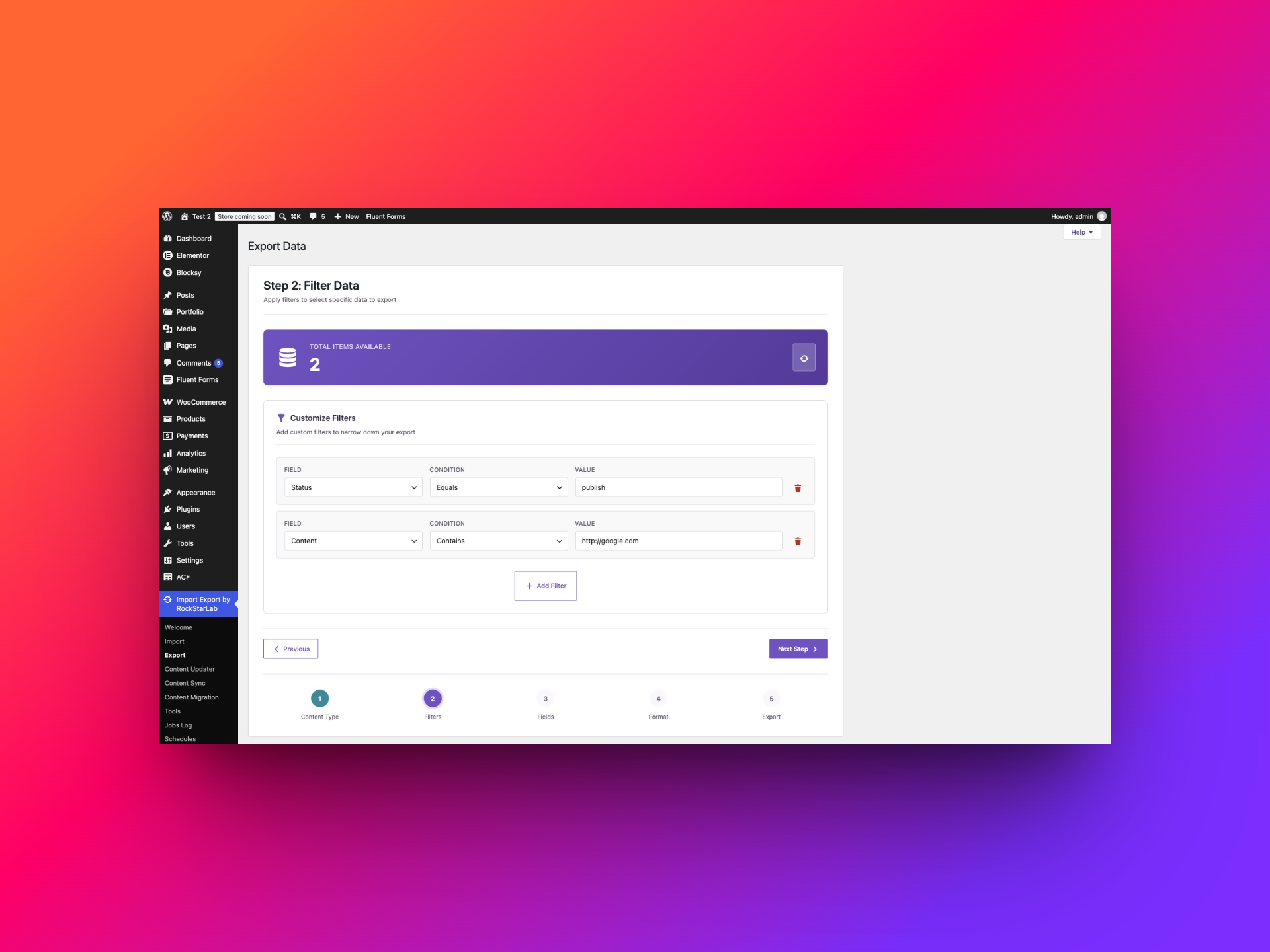
Export ID, title, slug and content. Keeping the content column lets you inspect the surrounding sentence or HTML before deciding how to update it. A bare domain search, such as old-example.com, can cover both HTTP and HTTPS text, while a more specific fragment reduces unrelated matches.
Test result: 2 records matched. This is a search of stored post content. It does not crawl your site, check HTTP response codes or prove that a URL is broken. A match might be a hyperlink, an image source, plain text or an example inside a code block.
It also does not automatically search separate SEO fields, custom fields, menus or every page-builder storage format. If the reference is stored outside Content, select the relevant content type or field instead. Before a replacement operation, inspect representative matches so you do not rewrite historical quotations or code samples that should remain unchanged.
3. Create a featured-image cleanup list within a category
Before redesigning a category archive or preparing article cards for a newsletter, identify posts that do not have a featured-image reference. Restricting the audit to one category makes it manageable for the person responsible for that section.
| Field | Condition | Value |
|---|---|---|
| Status | Equals | publish |
Taxonomy Filter: category |
Has Term(s) – IN | block |
Custom Field (Meta): _thumbnail_id |
Is Empty | Leave empty |
Add the status and taxonomy rules first. Then select Custom Field (Meta), enter _thumbnail_id as the field name and choose Is Empty. Do not enter 0, null or the word “empty” as the value.
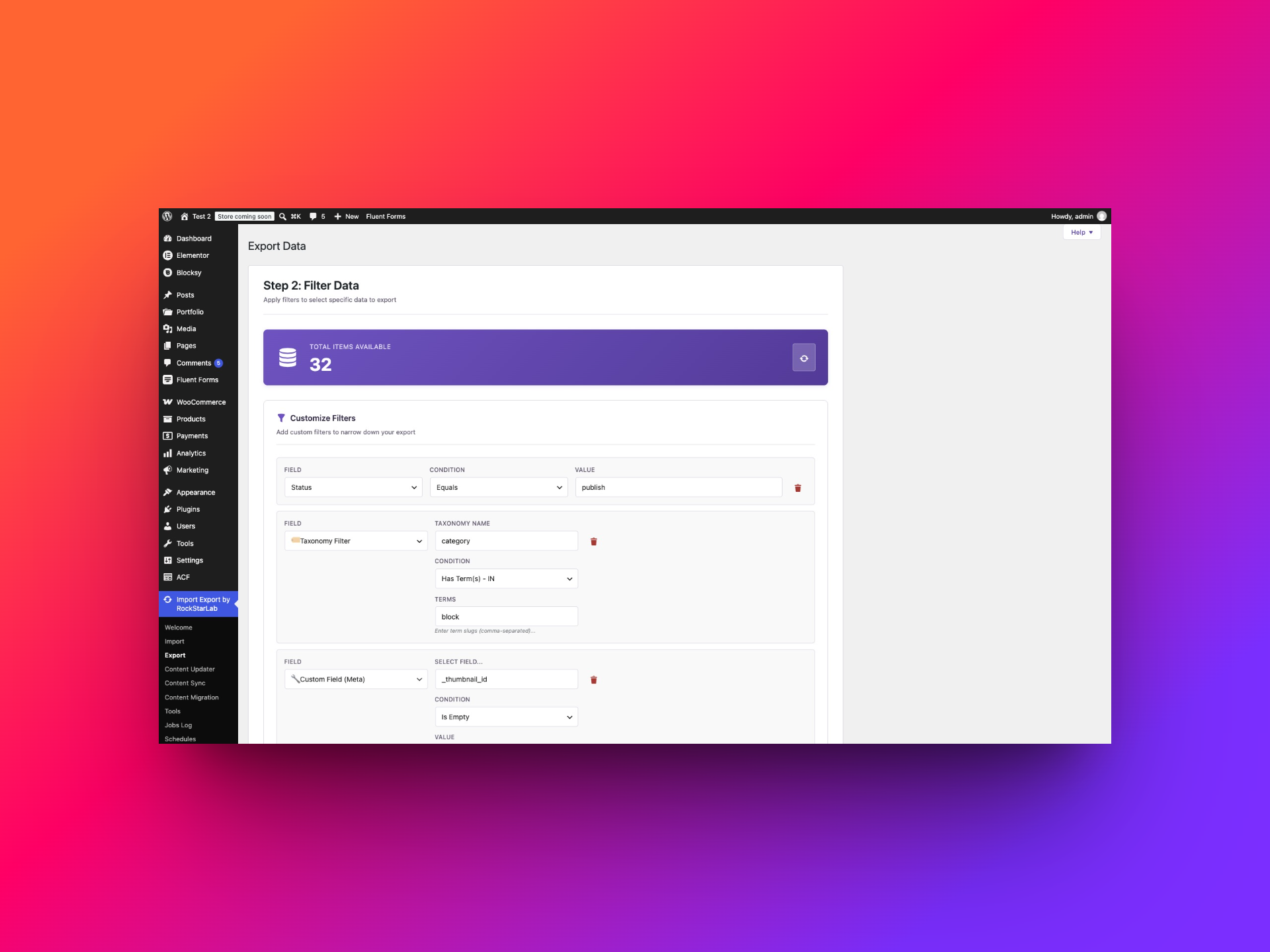
WordPress stores the featured-image attachment reference in _thumbnail_id. This makes it a useful metadata example: the visible editorial requirement—“needs a featured image”—maps to a specific stored field.
Test result: 32 published posts in the selected category matched. Export ID, title, slug, category information and the featured-image reference where available. Assign images only after reviewing what each post needs; the export itself does not modify content.
An empty reference is different from a broken image. A post may have an attachment ID whose file is missing, or display a theme fallback without a featured image assigned. This filter is not a complete image-health audit. Likewise, unusual imported values such as a literal zero should be checked separately rather than assumed to be identical to an empty field.
4. Export articles at the intersection of two topics
You are preparing a campaign about automation for developers. Exporting everything in either topic would create a broad list. Requiring both categories creates a focused editorial package.
| Field | Condition | Value |
|---|---|---|
| Status | Equals | publish |
Taxonomy Filter: category |
Has All Terms – AND | automation,development |
Select Taxonomy Filter and choose Has All Terms – AND. Enter category and the comma-separated term slugs automation,development. Switching the taxonomy condition preserves the entered terms.
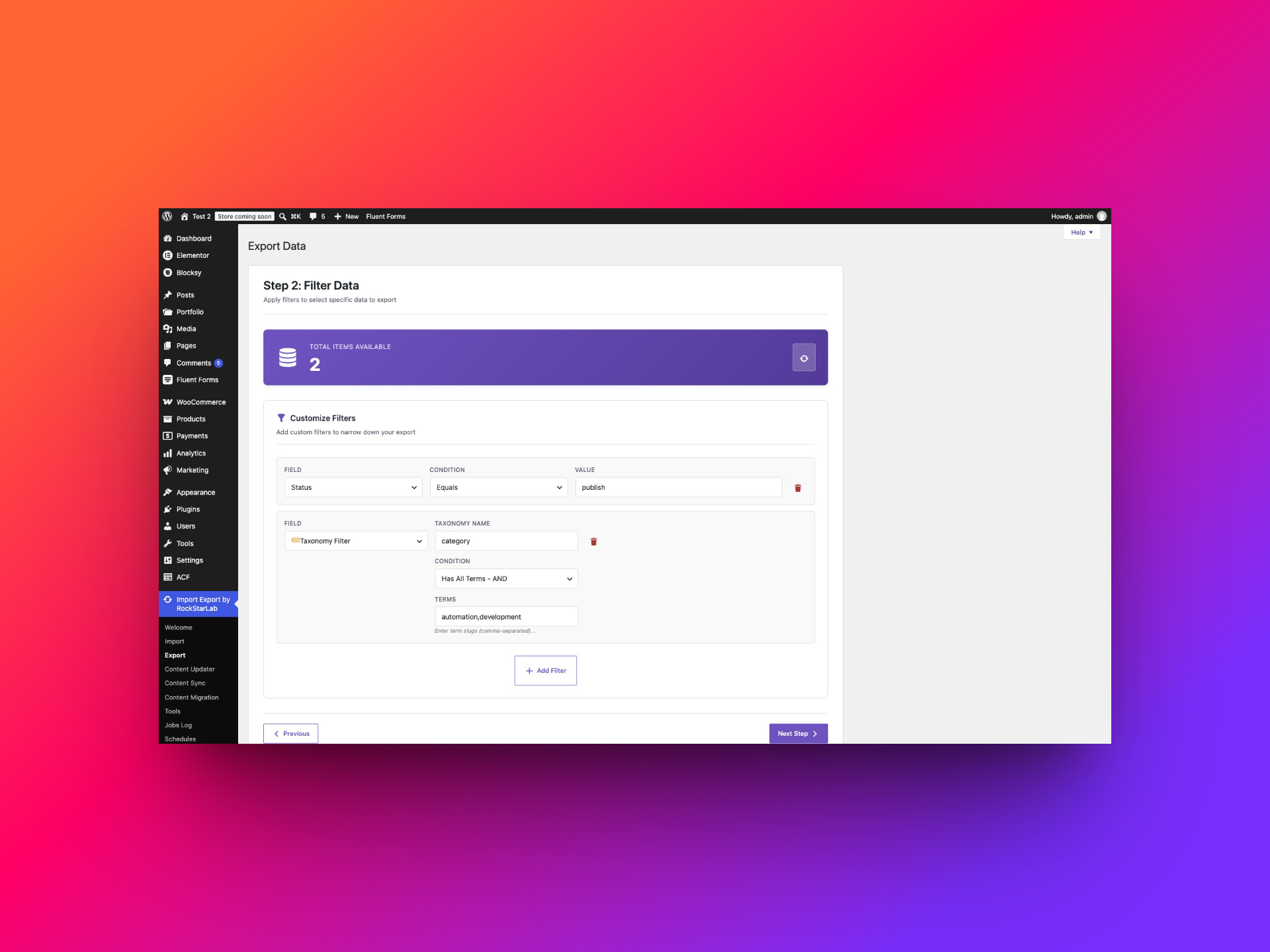
Test result: 2 records matched. Both had the required category assignments. Export ID, title, excerpt, slug and categories to create a useful shortlist for the campaign editor.
The difference between IN and AND matters here. With IN, a post assigned only to automation can qualify, and a post assigned only to development can qualify. With AND, each selected post must satisfy both terms. Use IN for a combined department report; use AND for a topic intersection.
Use term slugs rather than guessing from display names. A category displayed as “Web Development” might have the slug web-dev. The taxonomy name and the term slug are separate values: category identifies the classification system, while automation identifies a term within it.
If you need one category and one tag, use separate taxonomy rows: category for the category rule and post_tag for the tag rule. Do not place a tag slug inside the category field and expect WordPress to treat them as interchangeable.
5. Export a managed-stock replenishment watch list
A purchasing assistant needs a list of products with twelve units or fewer remaining. First restrict the selection to products that actually manage stock quantities; then apply the numeric threshold.
| Field | Condition | Value |
|---|---|---|
| Manage Stock | Equals | yes |
| Stock Quantity | Less or Equal | 12 |
Choose WooCommerce Products. Add Manage Stock Equals yes, then Stock Quantity Less or Equal 12. Enter a number without a currency symbol or a unit suffix.
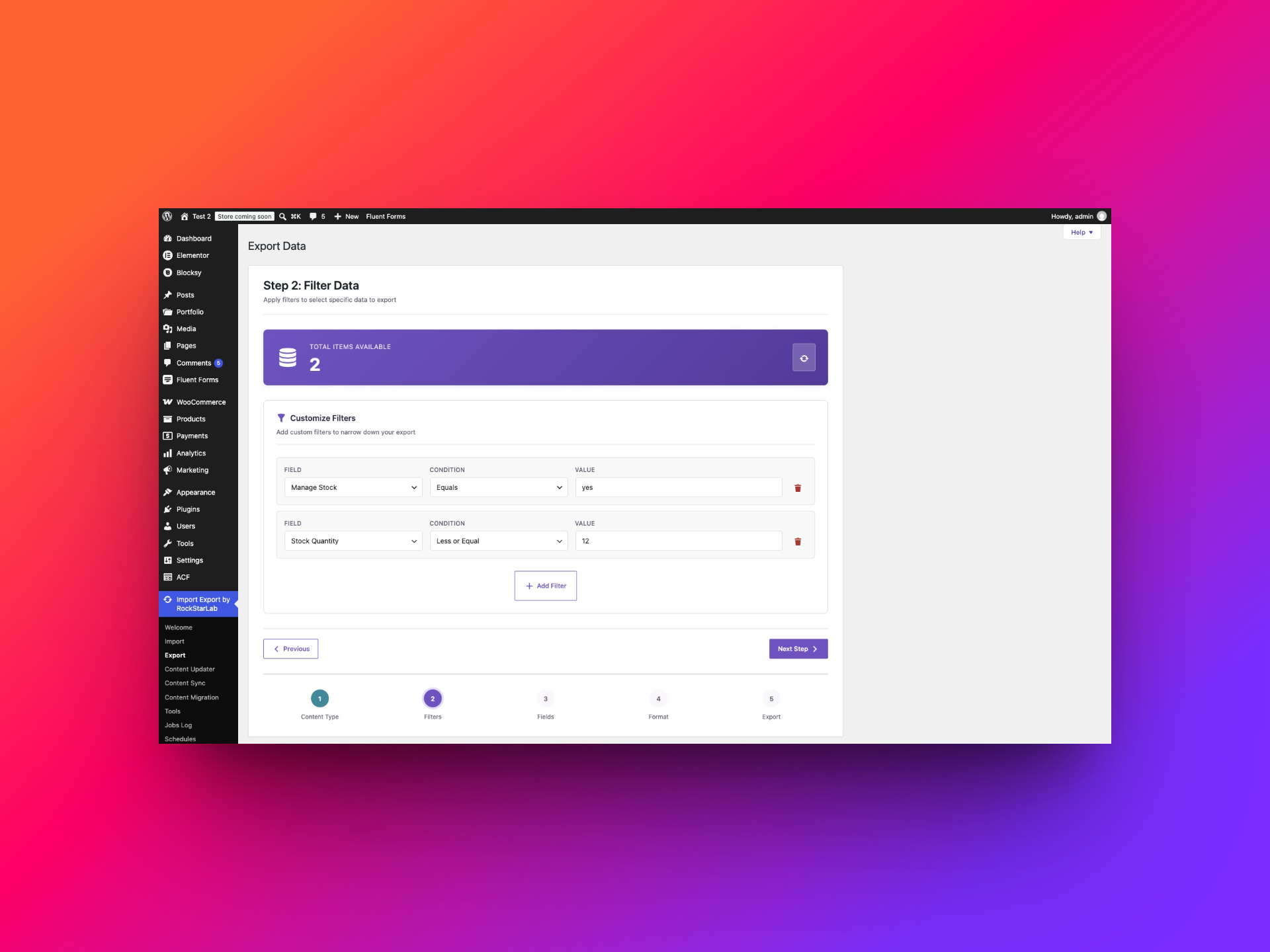
Test result: the two matches had quantities of 10 and 12. A managed-stock product with 15 units was excluded. The inclusive condition matters: Less Than 12 would exclude the product sitting exactly at the chosen threshold.
Export product ID, SKU, product name, stock quantity, stock status and backorder information. The purchasing team can identify each item by SKU and distinguish a low positive quantity from an item already at zero or below.
This is a fixed-threshold watch list, not a prediction of when stock will run out. A product selling once a month and a product selling twenty times a day need different replenishment decisions. Zero and negative quantities also satisfy this condition; add another lower-bound filter if you specifically want positive stock only.
The tested products were simple products. Variable products can manage stock at different levels, so inspect your exported product and variation data before treating a parent-level list as a complete inventory report. Do not assume a blank quantity means the product has zero units available.
6. Shortlist higher-priced products with recorded sales
A merchandising team wants a small selection of higher-priced products that have already sold. Combining a regular-price threshold with a total-sales threshold provides a starting point for a catalogue or promotion review.
| Field | Condition | Value |
|---|---|---|
| Regular Price | Greater or Equal | 40 |
| Total Sales | Greater or Equal | 4 |
Select WooCommerce Products. Set Regular Price Greater or Equal 40 and Total Sales Greater or Equal 4. The price threshold uses the store’s price values; do not type a currency symbol into the numeric field.
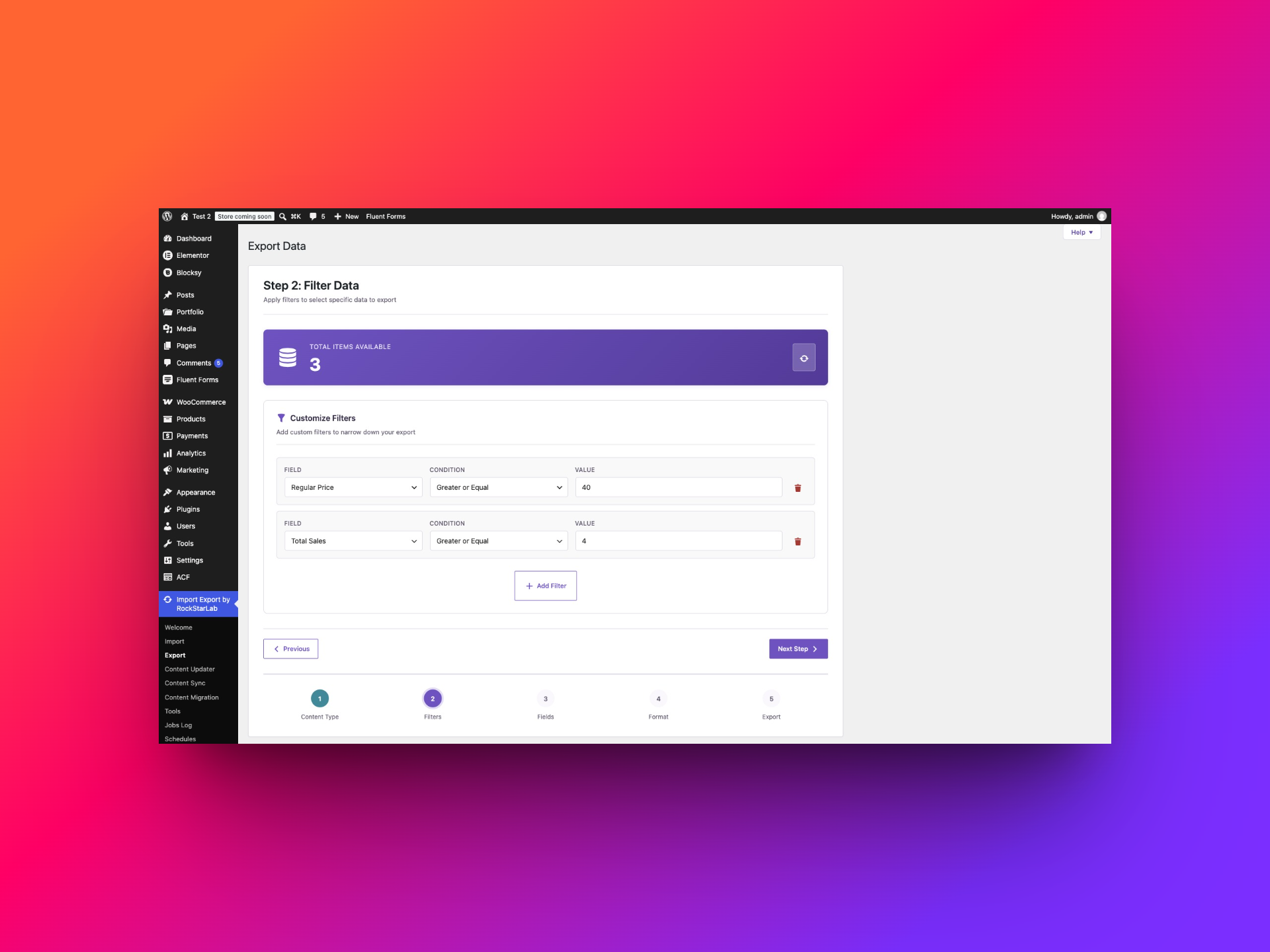
Test result: 3 products matched: Hoodie with Logo (regular price 45, total sales 6), Belt (65, 6) and Hoodie with Zipper (45, 6). A product priced at 90 with only 2 recorded sales did not qualify. A high price alone is not enough to pass both rules.
Export ID, SKU, product name, regular price, sale price, total sales and stock status. These columns help the team avoid featuring an unavailable item or mistaking a regular price for its current promotional selling price.
Total Sales is the stored cumulative product sales figure, not “sales this month.” This filter does not establish recent momentum, revenue, margin or profitability. Regular Price is also different from Sale Price. If the question is about performance during a particular period, use order-level reporting with the relevant date and status rules instead of interpreting this product field as a time-based metric.
Use this export to start a merchandising discussion. Adjust the thresholds to your catalogue rather than copying the sample numbers as universal definitions of “premium” or “popular.”
7. Prepare a complete monthly publication handoff
An agency needs to hand a client all articles published during one calendar month. Two date boundaries are more reliable than trying to guess the final moment of the last day.
| Field | Condition | Value |
|---|---|---|
| Status | Equals | publish |
| Date | Greater or Equal | November 1, 2025 |
| Date | Less Than | December 1, 2025 |
Choose Blog Posts. Add the status rule, then add Date twice: one row for the inclusive start and one for the exclusive beginning of the next month. In the screenshots the browser displays dates in day/month/year order.
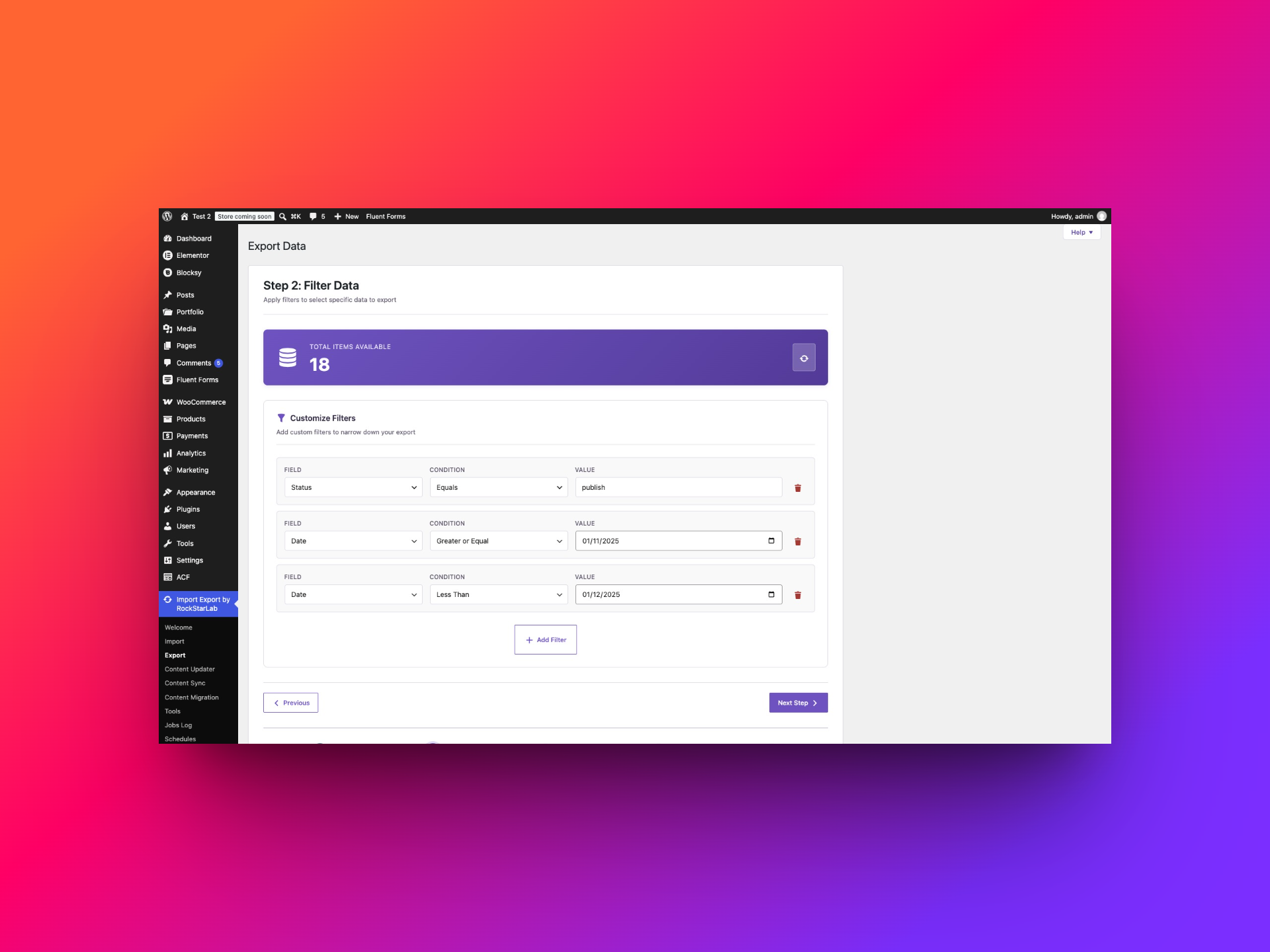
Test result: 18 records matched the November window. Export ID, title, date, slug, author information and excerpt for a readable client handoff. Include content only when the recipient needs the full articles.
The upper boundary is December 1 rather than “November 30 or earlier.” Stored dates can include a time of day; using the start of the following month avoids accidentally excluding records published later on the final day. Use the dates as interpreted by your WordPress installation and verify boundary records when a reporting deadline depends on time zones.
Use Date for a publication-period report and Modified Date for a revision-period report. A post first published in October and edited in November should not enter a November publication report merely because it was revised.
A fixed date range stays fixed. Scheduling this export does not automatically turn November 2025 into “the previous month.” Update the boundaries for each reporting period unless you have explicitly configured and tested a supported dynamic-date workflow.
Turn the filtered selection into a useful export
Once the matching count makes sense, continue to Fields. Filters decide which records qualify; field selection decides which columns appear in the file. You can filter by a category or stock quantity without sending every available field to the recipient.
For an editorial handoff, a compact set of ID, title, slug, dates and relevant editorial fields is often enough. For a product handoff, include SKU as well as product ID. Titles can repeat, and product names can change, so names alone are weak identifiers when someone later needs to find the original record.
Continue through Format and Export to create the file. CSV is convenient for a spreadsheet workflow. Before handing it over, compare its data-row count with the settled selection count and inspect a few included records. Also check a record you expected to be excluded: a stock quantity just above the threshold or a post published on the first day of the following month is a useful boundary check.
If the file looks different from the screen, investigate before importing or updating anything from it. Check whether the data changed between selection and export, whether you chose the intended content type, and whether all required filter values are filled in.
Reuse the workflow without losing the meaning of the filters
The plugin’s Jobs Log helps you review export jobs after they run. Check the job’s completion status and available output rather than assuming that reaching the Export step means a file was successfully created.
For recurring exports, review the plugin’s scheduling options available in your installation. A stock threshold can remain useful across repeated runs because quantities change. A fixed month-long date window is different: repeating the job repeats that same window unless you change it. Recheck the conditions and destination whenever you repurpose an export for a new audience.
Field transformations and Functions serve a separate purpose: they change output values. A transformation that formats a title or prepares a value for another system does not replace the selection rules described here. Keep filtering and output formatting separate in your planning so you can verify each result.
Why does a filter return no results—or too many?
- Check stored values. A published post’s status is
publish. A category name is not necessarily its slug. - Wait for the count. The asynchronous update may still be running after you change a value.
- Check the taxonomy and terms. Enter the taxonomy name and valid term slugs; an incomplete rule may not narrow the selection as intended.
- Check the field being searched. Content searches do not automatically inspect all custom metadata.
- Review the logic. Requiring both categories is stricter than accepting either category. Multiple rows can legitimately narrow the selection to zero.
- Check boundaries. Less Than and Less or Equal produce different results at the threshold.
- Distinguish empty from zero. Missing metadata, a zero quantity and an invalid attachment reference are different situations.
When a result is surprising, start with one rule and add the others back one at a time. Note the expected count and the actual count at each step. That makes it easier to distinguish an incorrect assumption about your data from a reproducible filter problem.
Frequently asked questions
Can I combine date, category and status filters?
Yes. The content-refresh example combines all three. Each selected post must satisfy the configured conditions.
Can I export posts that belong to two categories?
Yes. Use a Taxonomy Filter with the taxonomy name category, select Has All Terms – AND and enter both category slugs separated by a comma. The entered terms remain in place when you switch taxonomy operators.
Do export filters update or delete WordPress content?
No. These filters select records for an export. Editing the resulting file does not change the site by itself; importing or applying updates is a separate operation.
Can I find missing featured images with a custom-field filter?
You can select posts whose _thumbnail_id is empty. This finds missing featured-image references, not every possible broken image or missing media file.
Does the Total Sales filter show sales within a date range?
No. In the product example it compares the stored cumulative total-sales value. Use suitable order reporting when you need sales for a particular period.
Will my export contain the same number of records as these screenshots?
Only if your data happens to match the test site. The conditions are reusable; the sample counts demonstrate the tested selections rather than a required result for every website.