
You want a spreadsheet of last month’s posts. Or you have a CSV containing new pages and want to import them as drafts. Perhaps you need to copy one updated page from staging to your live site, with a backup taken first.
With Import Export by RockStarLab 2.0.0, you can ask an AI agent to carry out these workflows through the WordPress Abilities API. The agent reads the plugin’s available actions, checks what each action needs, and calls the appropriate tools. You describe the task in ordinary language; WordPress still checks permissions and the plugin still processes the job.
This guide starts with the basics, then walks through connecting Codex, Claude Code, Cursor, GitHub Copilot in VS Code and Gemini CLI. You will also find prompts for filtered exports, CSV page imports, individual page sync, downloading completed exports, and creating or restoring UpdraftPlus backups.
What is the WordPress Abilities API?
An ability is a specific action that software can discover and run. For this plugin, examples include counting records for an export, preparing an import, checking a job or listing connected sites.
The Abilities API gives these actions a standard description: their names, what information they accept, what they return, and which permissions they require. It became part of WordPress core in 6.9. Registering an ability does not create an AI assistant; it makes a particular function available through a structured interface.
Imagine asking an assistant to export your published posts. Without an integration, it might explain which buttons to click. With the right connection, it can discover the export tools, count matching posts, show a preview and submit an export job. That is the practical difference: your instruction can become an operation on your site.
Where does MCP fit?
MCP stands for Model Context Protocol. It is the connection format used by compatible agents to discover and call external tools. The official WordPress MCP Adapter bridges WordPress abilities to that format. The plugin supplies the actions; the adapter exposes them to the agent. The WordPress introduction to the MCP Adapter explains this relationship.
The connection looks like this:
Your request → AI agent → WordPress MCP Adapter → plugin ability → WordPress job or result
You do not need to write an API integration to use the examples below. You do need to set up the connection once, give the agent suitable credentials, and tell it which site and records you mean.
Five terms you will see in the setup
| Term | Plain-English meaning |
|---|---|
| Agent | The application that interprets your request and can use tools. |
| Model | The AI behind the agent. Choosing a model does not automatically connect a website. |
| Endpoint | The address the agent connects to. Copy it from the plugin. |
| Schema | The list of accepted inputs for an action, including required fields and allowed values. |
| Job | A saved operation that may continue in the background. It has an ID and a status you can check. |
Abilities do not give the agent unrestricted control over every plugin on your site. It can use the actions that are registered, available to its account and permitted by the installed edition. A request outside that set should produce an explanation or an error, not a claim that the work was done.
Which AI agents can manage your WordPress site?
This guide uses three connection examples: OpenAI Codex, Claude Code and Cursor. The plugin also lists GitHub Copilot and Gemini CLI as examples of MCP-compatible agents. The requirement is more specific than “has AI chat”: the client must support the server’s HTTP transport and the authentication method used by your site, either directly or through a compatible bridge.
| Your situation | Example route | What you configure |
|---|---|---|
| You want to work with an OpenAI agent | Local Codex | A WordPress HTTP MCP server in Codex configuration. |
| You use Anthropic’s command-line agent | Claude Code | An HTTP server with an Authorization header. |
| You already work in Cursor | Cursor’s local agent | A server entry in the MCP configuration. |
| You use another MCP client | Its supported HTTP connection | The endpoint, authentication and a successful discovery test. |
“GPT” is not a WordPress connection setting. You configure the agent application that uses the model. Likewise, a normal chat window with a pasted website address has not been granted access to your dashboard. The setup below uses local clients so that the connection can be configured explicitly.
A local development address such as aie.local is meaningful on the computer running that site. A cloud-hosted agent will not automatically resolve it or reach your local web server. For a public website, use its HTTPS address and verify that the client can reach it. Do not copy the local test address from a screenshot into your own setup.
Enable Abilities API in Import Export by RockStarLab
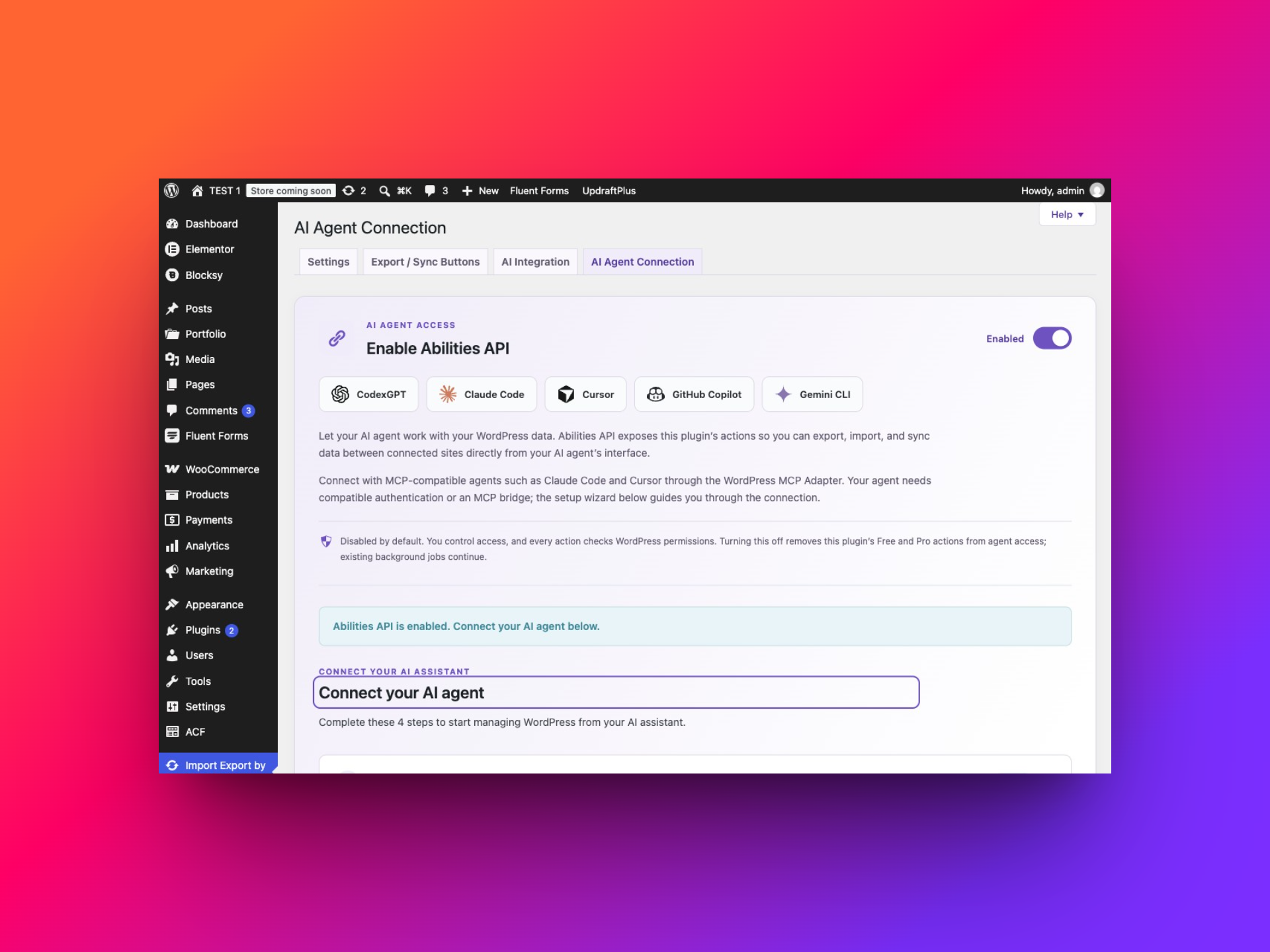
Start in your WordPress dashboard with an administrator account. Open Import Export by RockStarLab → Plugin Options → AI Agent Connection. This is the agent access screen. The separate AI Integration screen serves other plugin features and is not the connection wizard described here.
- Install or update Import Export by RockStarLab to version 2.0.0 or later.
- Open AI Agent Connection.
- Turn on Enable Abilities API. This setting is off by default and saves immediately.
- Expand the site check and make sure it reports Ready.
- Once the MCP Adapter step says Ready, create an Application Password in your WordPress profile. Then follow the detailed client connection instructions below to save the URL and sign-in settings in Codex, Claude Code or Cursor.
Check that WordPress and the adapter are ready
The first check tests the authenticated Abilities REST API. If it fails, resolve the reported problem before continuing. A timeout can be caused by a loopback request or a local certificate problem; it does not necessarily mean that WordPress has disabled REST.
The next step checks for a registered MCP server. If the official adapter is missing, use the wizard’s installation or activation control. If it already says Ready, you do not need another copy. An adapter library being present somewhere in WordPress is not, by itself, proof that an MCP endpoint has been registered.
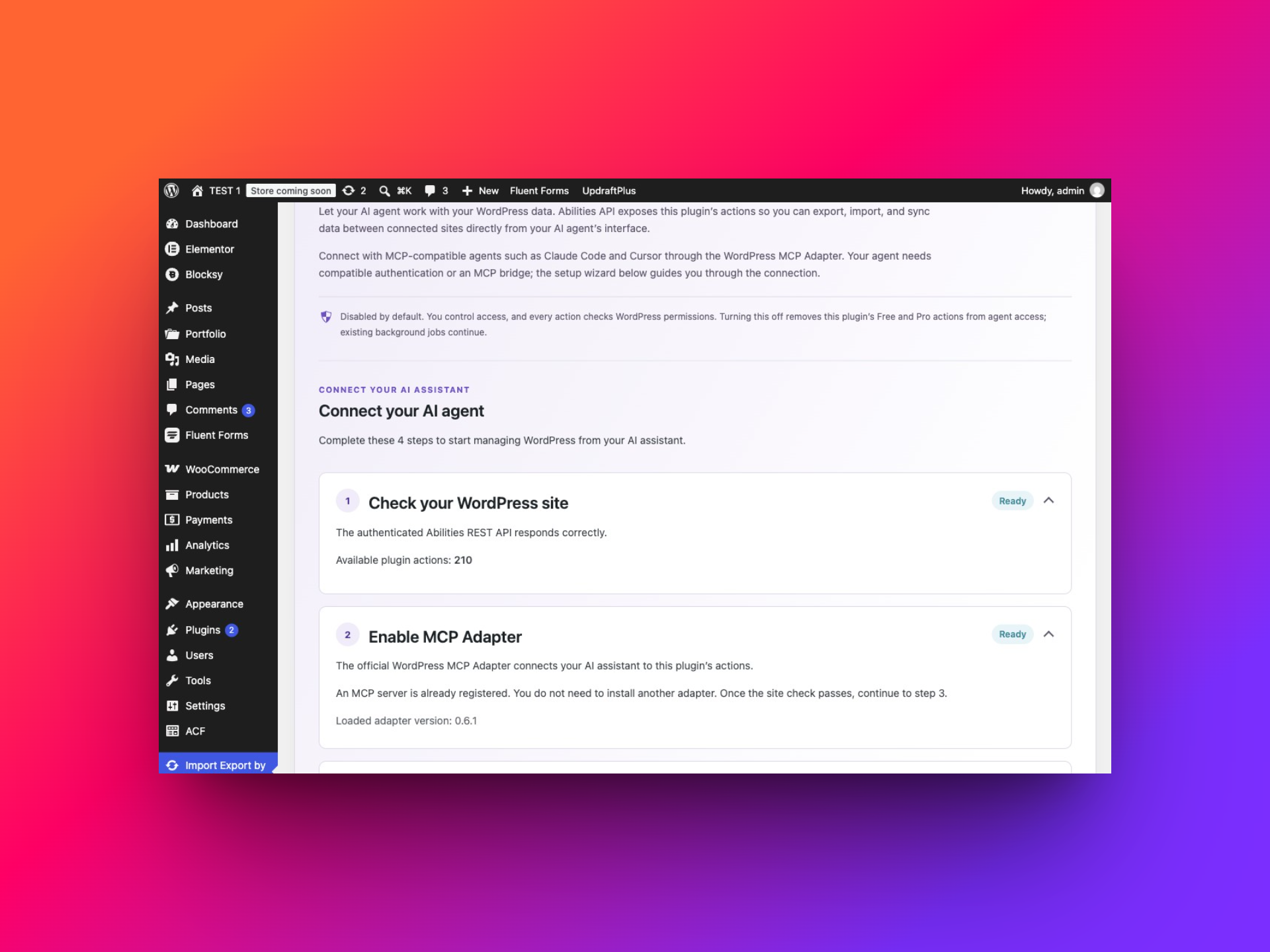
The plugin uses the official WordPress MCP Adapter instead of a separate proprietary transport. The setup screen displays the address actually registered on your installation, including any route customizations.
Create an Application Password for your AI agent
A WordPress Application Password is a dedicated credential for software connecting to your account. It is different from the password you type into the normal WordPress login form. Use a clearly named credential so you can identify and revoke it later.
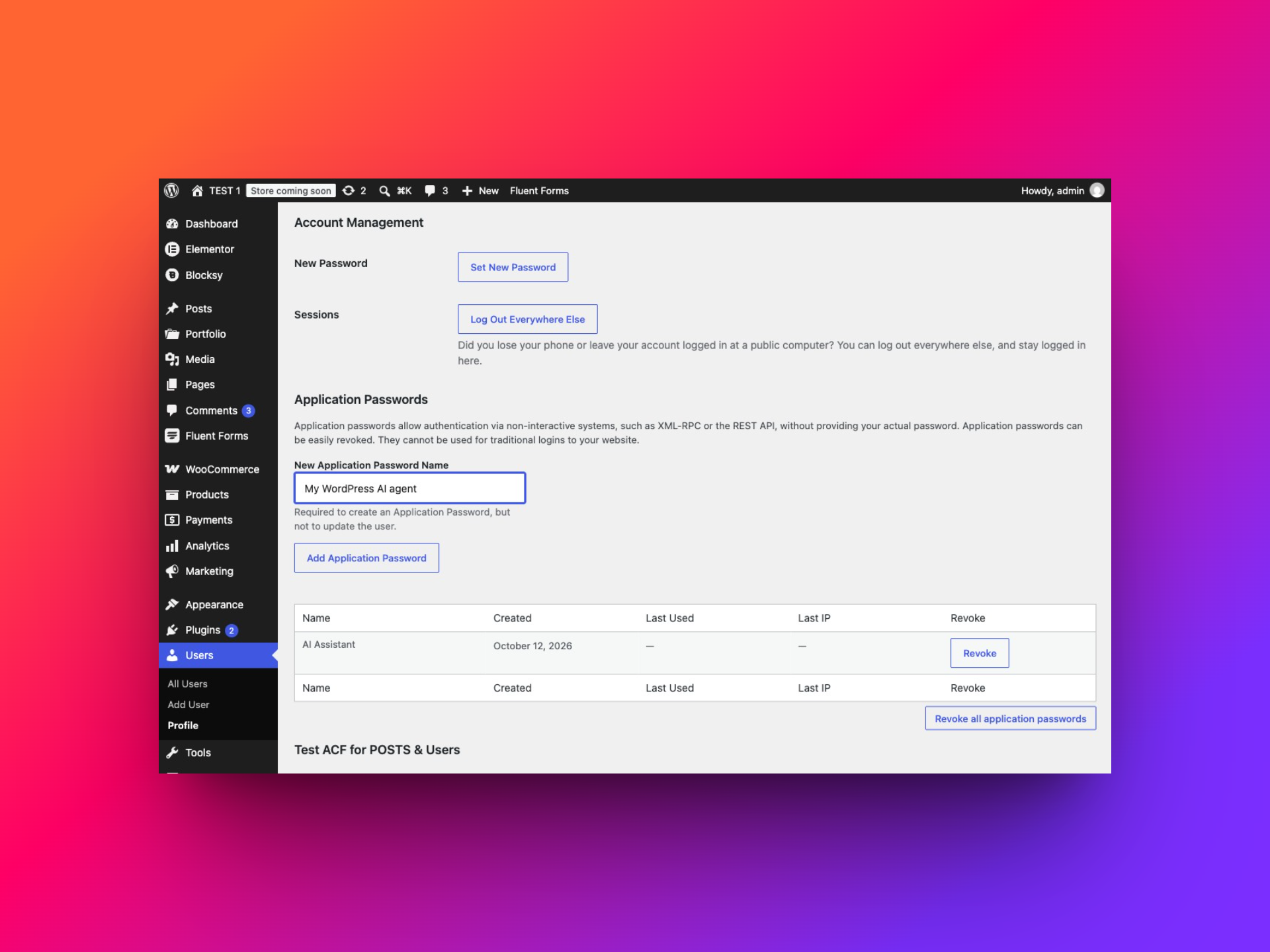
- Click Open profile to create a password in step 3, or open Users → Profile.
- Find Application Passwords.
- Enter a name such as My WordPress AI agent.
- Click Add Application Password or Add New Application Password, depending on your WordPress version.
- Copy the generated password immediately into your private connection setup. WordPress only displays it once.
The account must have manage_options permission for this plugin’s abilities. Merely seeing a list of tools does not mean the account can execute them. On a public site, use HTTPS. If Application Passwords are unavailable, check your WordPress environment and any security policy disabling them.
Do not mix up these credentials
| Credential | Used for |
|---|---|
| WordPress login password | Signing into the dashboard as a person. |
| WordPress Application Password | Authenticating the AI agent’s requests to WordPress. |
| Content Sync site key | Authenticating one WordPress site to another for content synchronization. |
| An AI provider account or API key | Access to the model or agent service, according to that service’s setup. |
You do not need to enter an OpenAI API key into this plugin just to export a CSV through an external agent. Your agent handles its own model access. The plugin’s AI URL Importer is a separate feature with its own provider configuration.
Connect your AI agent to WordPress
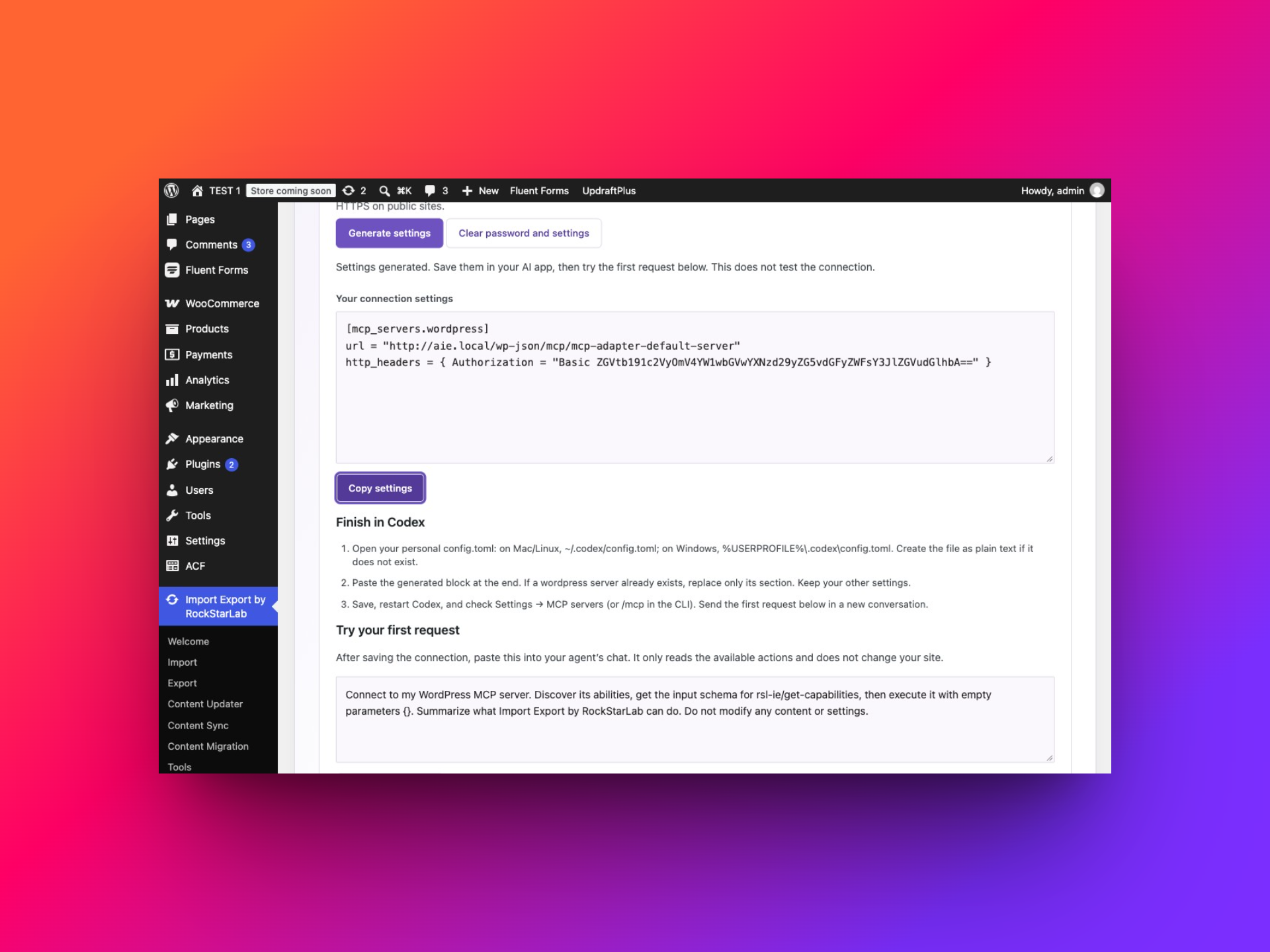
Return to Plugin Options → AI Agent Connection and scroll to step 4, Add this site to your AI agent. This is where you prepare the settings your AI application needs. You do not need a separate tool or a script.
- In AI app, choose Codex, Cursor, Claude Code, GitHub Copilot (VS Code) or Gemini CLI.
- Leave MCP server on the registered server you want to use. Most sites have one option. The plugin includes its full address in the generated settings automatically.
- Check WordPress username. It starts with your current login. If you created the Application Password for another account, use that account’s login here.
- Paste the password you created in step 3 into Application Password. Do not enter your normal WordPress password.
- Click Generate settings. A complete settings block and instructions for your selected application appear below.
- Click Copy settings and follow the appropriate instructions below to save them in your AI application.
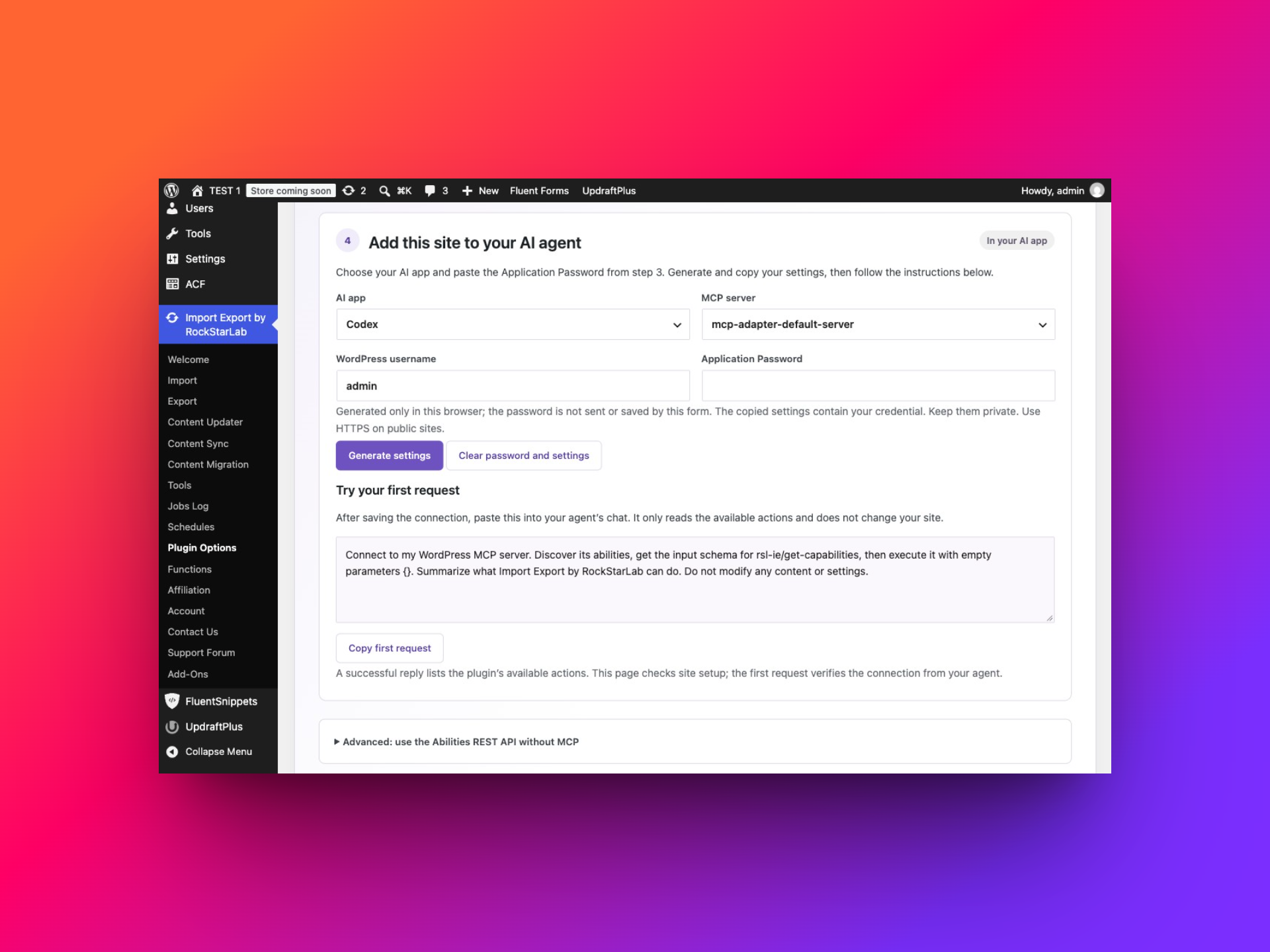
The generator formats the sign-in information in your browser. It does not send or save the password. The generated settings contain a credential, so keep them in your private client configuration. Changing the app, server, username or password clears the previous result; click Generate settings again after a change.
Generating settings does not connect your AI application or check the password. You still need to save the settings in the application, restart it and send the first test request. The steps below explain each part.
Option 1: configure local Codex
Codex reads personal MCP connections from ~/.codex/config.toml. The ~ means your computer’s home folder. We will paste the prepared block into that file so you do not have to assemble connection settings yourself.
- Choose Codex in step 4 of the plugin and click Generate settings → Copy settings.
- Open your home folder. On a Mac, open Finder, choose Go → Go to Folder, enter
~/.codexand press Return. On Windows, paste%USERPROFILE%\.codexinto File Explorer’s address bar. - Open config.toml in a plain-text editor. If it is missing, create a plain-text file with that exact name in the .codex folder; make sure your editor does not add
.txt. On a Mac, TextEdit’s Format → Make Plain Text prevents rich-text formatting. - If this file already has settings, keep them. Scroll to the bottom and paste the generated block on a new line. If it already contains
[mcp_servers.wordpress], replace that server’s section instead of adding a duplicate. Leave all other server sections intact. - Save the file, fully quit your local Codex application and open it again. For Codex CLI, exit and start a new session.
- Open the application’s Settings → MCP servers and look for wordpress. In the IDE extension, use the gear menu → MCP servers; in the CLI, enter
/mcp. - Start a conversation and send the connection test in the next section.
The personal configuration and HTTP-header options are documented in the official OpenAI MCP guide. This file-based route includes the password information; adding only a name and URL in an Add server form would leave that part unfinished. It configures local Codex, not an ordinary ChatGPT browser conversation.
Option 2: configure Cursor
For a personal connection, Cursor reads ~/.cursor/mcp.json. Use this personal location rather than putting a password-containing connection in a shared project.
- Choose Cursor in step 4 of the plugin, click Generate settings, then Copy settings.
- In Cursor, choose File → Open File. On a Mac, press Command+Shift+G in the file picker and enter
~/.cursor. On Windows, enter%USERPROFILE%\.cursorin the file picker’s address bar. - Open mcp.json. If it does not exist, use File → New Text File, paste the generated block and save it as mcp.json in that personal .cursor folder. Create the folder if necessary.
- For a new or empty file, paste the entire generated block. If you already have MCP servers, preserve them: add only the generated wordpress entry inside the existing mcpServers object, separating entries with a comma. Do not paste a second complete document below the first. If merging is unfamiliar, ask your agent to explain the structure using a password-free example before editing.
- Save the file and restart Cursor.
- Open Cursor’s Customize area and inspect its MCP server list. The personal server should appear as wordpress. If your version places MCP under Settings, search Settings for “MCP.”
- Open an Agent conversation and send the connection test below. If Cursor asks to approve the tool call, check that it is the read-only capabilities request for your site.
See Cursor’s MCP documentation for its personal configuration location and HTTP connection format. A syntax error in the settings file can prevent loading; an authentication error means the server loaded but the sign-in needs checking.
Option 3: configure Claude Code
Claude Code is a command-line application, so its setup includes one command. The plugin prepares the connection data; you save it privately and import it. The command below contains a filename, not your password.
- Choose Claude Code in step 4 of the plugin and click Generate settings → Copy settings.
- Open a plain-text editor, paste the block and save it as wordpress-mcp.json in your home folder. On Mac, this is the folder Finder opens when you choose Go → Home. On Windows, open
%USERPROFILE%. Make sure the file is not namedwordpress-mcp.json.txt. - Open your terminal. If you are already inside a Claude Code conversation, exit to the normal terminal prompt first.
- Copy the command for your operating system below, paste it into the terminal and press Enter.
Mac or Linux:
claude mcp add-json --scope user wordpress "$(cat "$HOME/wordpress-mcp.json")"Windows PowerShell:
claude mcp add-json --scope user wordpress (Get-Content -Raw "$env:USERPROFILE\wordpress-mcp.json")- Look for confirmation that the wordpress server was added. If that name already exists, inspect the existing connection first; do not remove an unrelated server to get past the error.
- Start a fresh Claude Code session and enter
/mcp. Inspect wordpress and its connection status. - Send the read-only connection test below.
- After the connection works, delete your temporary wordpress-mcp.json file if you no longer need it. Claude Code keeps the imported connection in its own user configuration.
The Claude Code MCP documentation describes JSON import and status checks. This route is for Claude Code, not Claude’s website or Claude Desktop. If the terminal says claude is not found, Claude Code is not installed or available in that terminal yet.
Option 4: configure GitHub Copilot in VS Code
For this option, use VS Code with GitHub Copilot available and signed in. The generator’s GitHub Copilot (VS Code) option prepares the settings for that editor. A Copilot conversation on GitHub’s website has a different setup.
- Return to step 4 in the plugin. Choose GitHub Copilot (VS Code) under AI app. Check the username and enter your Application Password if the field is empty.
- Click Generate settings, then Copy settings. Generate a fresh block after changing the selected app: the Cursor and VS Code formats are different.
- Switch to VS Code. Press Command+Shift+P on Mac or Ctrl+Shift+P on Windows/Linux to open the Command Palette — the search box for editor commands.
- Type MCP: Open User Configuration and select that command. VS Code opens the mcp.json file for your user profile. This keeps the connection in your personal settings instead of a shared project.
- If the file is empty, paste the complete generated block. If it already contains connections, add the generated wordpress entry inside its existing servers object, separating entries with a comma. Preserve other servers and settings; do not paste a second complete JSON document underneath the first. If a wordpress entry already exists, inspect it before replacing it.
- Save with Command+S or Ctrl+S. Open the Command Palette again and run MCP: List Servers. Select wordpress and choose the action to start it, or restart it if it was already running.
- If VS Code asks you to trust the server, check that the configuration points to your WordPress site before accepting. A trust prompt and approval for an individual tool call are separate steps.
- Open Copilot Chat, choose Agent mode, and send the read-only connection test in the next section. If necessary, open the chat’s tool selector and enable the tools from wordpress. Review any tool approval request.
If the server does not appear, reopen MCP: Open User Configuration and check that you saved the file in the profile you are using. VS Code expects servers at the top level for this configuration. If it appears but fails to start, use MCP: List Servers to inspect its output. A permissions or authentication error needs a different fix from a JSON formatting error. These commands and configuration locations are covered in the official VS Code MCP guide.
Option 5: configure Gemini CLI
This route uses Gemini CLI, the application you run in a terminal. Install it and complete its own sign-in before connecting WordPress. Your Google sign-in gives you access to Gemini; the WordPress Application Password lets Gemini CLI access this particular website.
- In step 4 of the plugin, choose Gemini CLI. Check the username, enter your Application Password, and click Generate settings → Copy settings.
- Open your personal Gemini settings folder. On Mac, open Finder, choose Go → Go to Folder, enter
~/.geminiand press Return. On Windows, enter%USERPROFILE%\.geminiin File Explorer’s address bar. On Linux, the folder is~/.geminiinside your home folder; enable the file manager’s hidden-file display if needed. - Open settings.json in a plain-text editor. If the folder or file does not exist, create it. Keep the exact filename settings.json, without an extra
.txtextension. In TextEdit on Mac, use Format → Make Plain Text. - For an empty file, paste the complete generated block. For an existing file, preserve its settings and merge the generated wordpress entry into mcpServers. If that object does not exist, add the generated mcpServers property inside the file’s outer braces, with a comma separating it from other properties. Do not add a second outer document.
- Save the file. Exit any running Gemini CLI conversation and start a new one by entering
geminiin your terminal. - Inside Gemini CLI, enter
/mcp. Look for wordpress and inspect its connection status and available tools. - Send the read-only connection test below. Review tool approval prompts and check that the answer comes from your WordPress site.
Keep the generated httpUrl field unchanged: it selects Streamable HTTP in Gemini CLI. Replacing it with url selects a different transport and can break the connection. If wordpress is missing, check the filename and JSON structure; if it is disconnected, check the site address, account and Application Password. See the official Gemini CLI MCP documentation for configuration and status checks.
Before you ask the agent to change anything
The connection should be saved, the client restarted and the wordpress server visible. If you see an error, check the complete URL, the username and whether the password is the Application Password. An OAuth “Authenticate” button is not a replacement for the Basic authentication used here.
Click Clear password and settings in the plugin when finished. Clearing the form does not clear a value you already copied to your clipboard. Keep the saved client settings private. Now use the test request below to confirm that the agent can actually read your site.
Your first request: check the connection without changing content
Use this prompt before asking for any changes:
Connect to my WordPress MCP server. Discover its abilities, get the input schema for rsl-ie/get-capabilities, then execute it with empty parameters {}. Summarize what Import Export by RockStarLab can do. Do not modify any content or settings.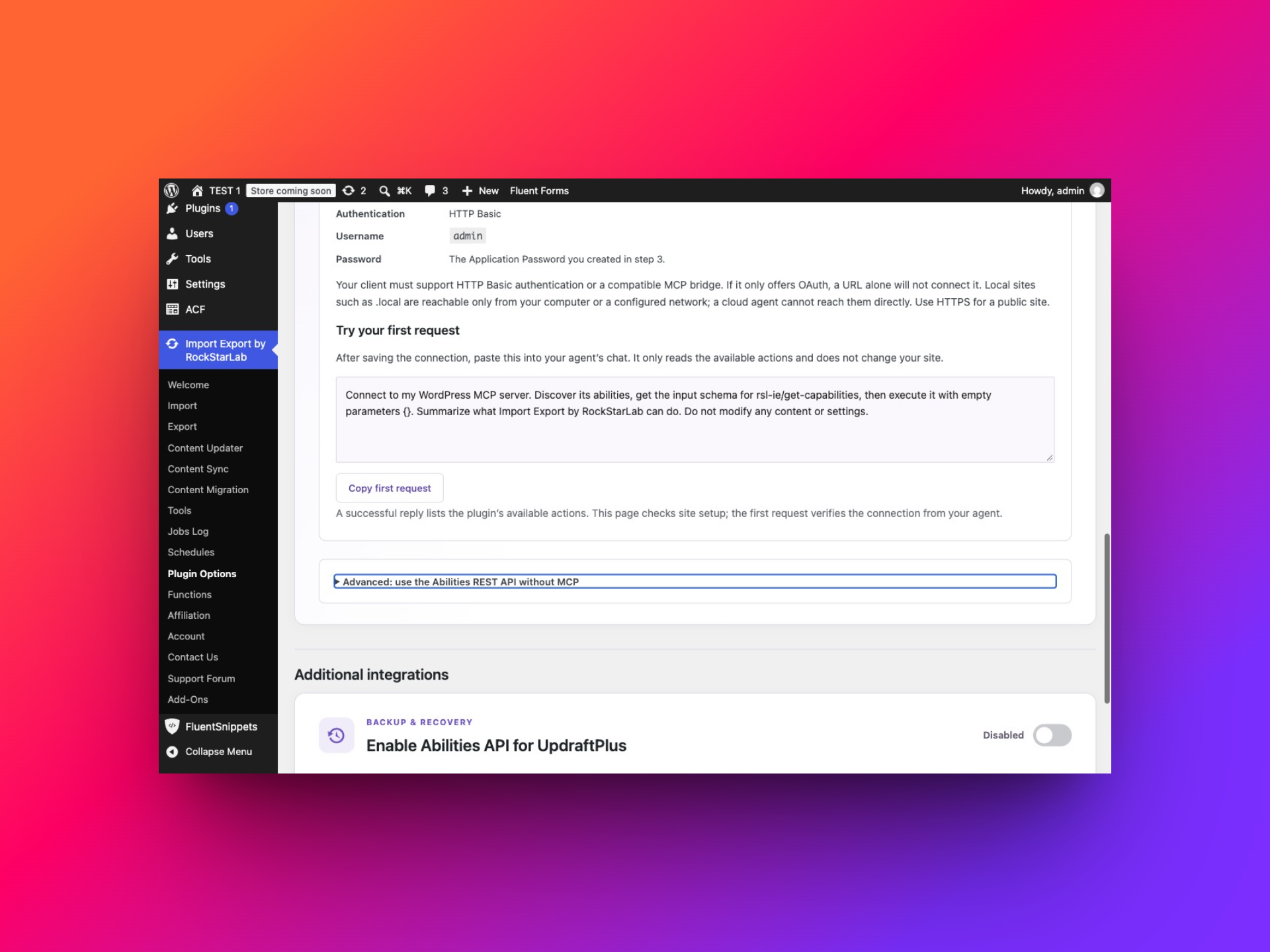
A successful response should be based on a tool result from your site. It should identify the plugin’s available workflows and any edition or integration limitations. A general explanation of WordPress is not evidence that the connection works.
The default adapter may expose just three general tools: discover abilities, get information about an ability, and execute an ability. That is normal. The agent uses those tools to find and run the individual rsl-ie/… or rsl-ie-pro/… actions. It does not need a separate top-level MCP tool for every plugin feature.
For example, the execution tool can receive:
{
  "ability_name": "rsl-ie/get-capabilities",
  "parameters": {}
}
Always let the agent read the current input schema before building requests. Available integrations, field names and permitted options depend on the installed site. This is especially useful for custom fields and PRO content types. An HTTP response arriving successfully is not enough: the agent must also inspect the tool’s success or error result.
A useful working rule for every prompt
Include four things: the site, the records, the intended change and the result you want back. For a change that might overwrite content, ask for a preview first. A clear request is easier to verify than “clean up my website.”
Use only the WordPress server named wordpress. Discover the relevant abilities and schemas first. Show the selected records, destination and proposed changes before writing. After a job starts, retain its ID, monitor that same job to a terminal status and report the actual result, including skipped or failed items. Do not call a queued job completed.Export WordPress posts with an AI agent
Once your connection test succeeds, continue in your AI agent’s conversation. You do not need to open the plugin’s Export wizard for the examples below. Send a request, review the selection returned by the agent, then approve the export and ask for the file.
The prompts below are reusable examples, not transcripts of completed agent sessions. Counts, IDs, previews and completion reports must come from the tools on your own site.
An export has three separate decisions: which records to select, which columns to include, and which file format to generate. State all three in your request. That prevents an agent from returning a list of titles when you actually need a reusable CSV with full content.
Example 1: export published posts to CSV
Start with a simple selection and a useful set of columns:
On the wordpress site, prepare a CSV export of all published blog posts. Include ID, title, slug, publication date, status and full content, in that order. Use a comma delimiter and include column headers. Count matching records and show a preview of five rows before starting. Do not include pages, drafts, private posts or trash. Do not modify any posts.The agent should discover the post export schema, call export-count and export-preview, and show the same selection it plans to export. After you approve it, it can call export-start with a descriptive filename and a unique request ID.
Review the reply, then approve the export
Before approving, look for the site address, the published-post condition, the matching count and up to five actual rows. Check that the preview contains the six requested columns and full content rather than excerpts. If the reply only explains how to export posts, ask the agent to use the connected tools and return the preview.
The preview matches my request. Start the export using exactly those filters, columns and CSV settings. Keep the returned job ID and monitor that job until it reaches a final status. Report the actual exported, skipped and failed counts. Do not start a second job if a status request times out.You should receive a job identifier first and a confirmed result later. “Export started” means the request was accepted; it does not mean your CSV is ready. Continue with the download prompt below once the same job has completed.
If you mean every status, say so. “All posts” can otherwise hide an assumption about published content. Specify whether drafts, pending, scheduled and private records should be included, and whether trash should remain excluded. Ask the agent to check which statuses the current schema accepts.
Example 2: posts with a keyword in the title
A title filter is useful for collecting a series of tutorials or auditing a particular topic. It is narrower than searching the whole article body.
Prepare a CSV export of blog posts whose title contains "WordPress". Apply that condition to the title field, not to the content or excerpt. Show the count and matching titles first. Include ID, title, content, excerpt, date, slug and status. If there are no matches, report that result without removing the filter.Example 3: posts published during a specific month
For date filters, define the boundaries and the timezone. “Last month” becomes ambiguous when someone reruns a prompt later.
Count and preview published blog posts with a publication date on or after 1 September 2026 at 00:00:00 and before 1 October 2026 at 00:00:00, using the WordPress site's timezone. Use publication date, not last modified date. Combine the status and date conditions with AND. Show the resolved boundaries and five sample records before exporting to CSV.The exclusive start of the following month avoids accidentally excluding posts published late on the final day. If the count is zero, compare the requested dates with actual post dates. Do not assume a filter is broken, and do not silently broaden it just to produce a file.
Example 4: category, author and custom-field filters
Categories and authors often have IDs behind their display names. Ask the agent to resolve them instead of guessing. The following are independent examples; change the names to values that exist on your site.
Export published posts in the category "Tutorials". First resolve the actual category and show its ID. Exclude posts outside that category. Include title, slug, date, author and content. Show the count and a preview before starting.Find draft blog posts written by the author "Alex Morgan" and last modified before 1 August 2026. Resolve the author account rather than guessing an ID. Show the matching titles and modified dates. Prepare a CSV only; do not publish, update or delete the drafts.Prepare an export of published posts where the custom meta field editorial_stage equals ready. Check that the field is available in the export schema. Combine this condition with published status using AND. Show sample values and the count. Do not treat a missing field as a match.When combining conditions, explain whether all conditions must match (AND) or any one is sufficient (OR). The agent should use the combinations supported by the current schema. If a request cannot be represented exactly, it should explain the limitation before running anything.
Choose columns deliberately
A content migration file usually needs more than a reporting file. For editorial review, title, slug, status and date may be enough. To reuse the text, include full content. For matching records later, retain a stable identifier such as the source ID or slug, while remembering that IDs on different sites are not interchangeable.
Functions and data transformations
Field transformations are a PRO feature, including when the underlying content type is available in Free. An agent should check both the license and the available Functions before attaching a transformation. For example, you might trim accidental spaces from a title column for a report while keeping the original WordPress post unchanged.
For this export only, check whether an active, approved Function can trim leading and trailing spaces from the title column. If available, preview the original and transformed values for five records and use it only after I approve the preview. Preserve HTML in post_content. Do not create or modify PHP Functions and do not edit the source posts.Preview matters: transformations can affect the resulting data, and configured Functions can execute during preview or validation. Do not ask for arbitrary code execution when a simple, existing transformation will do. Check the output rather than assuming every transformation succeeded.
Download an export from a completed job
Stay in the same conversation so the agent can use the job it just started. You should not have to search through the dashboard to identify it.
Starting an export normally returns a job ID before the file is ready. The agent should keep that ID, check job-get, and wait for a terminal result. When the export is completed, it can inspect job-get-result and request the output through file-get.
Find the completed post export we just created. Use its saved job ID rather than starting another export. Check the result and report exported, failed and skipped counts. Retrieve the output with file-get. If your environment supports authenticated file downloads, save the CSV locally and give me the actual saved file path. Otherwise, explain how to download this exact job from WordPress Jobs Log. Do not invent a public download link.The download URL returned by the plugin is authenticated. It is not a public share link that anyone can open. The client downloading the file must supply valid WordPress authentication and still have access to that operation. A chat tool that can call MCP tools may not also support saving binary files to your computer.
If the agent cannot save the file, open Import Export by RockStarLab → Jobs Log, locate the completed export and use its download action. Inspect job details or logs if the result is unexpected. A completed job with failed or skipped rows needs a closer look even when the progress bar has reached 100%.
Use the specific job ID when downloading an older export:
Inspect export job 12345 on wordpress. Confirm its type, status, creation date and result. If it is a completed export with an available file, retrieve that file. If it is not, report the reason and do not substitute another job or rerun it.Replace 12345 with your real ID. Export files are subject to the plugin’s storage and retention rules, so download important outputs while they are available. A job history entry is not a promise that its file will remain available forever.
Can an agent set up scheduled exports?
The plugin also has a Schedules screen and schedule-related abilities. Ask the agent to discover the current schedule schema and edition requirements, then specify the content selection, format, frequency and timezone. A repeating task needs an explicit schedule; asking for “an export every week” in an ordinary chat is not proof one was saved.
Check whether this installation supports scheduling the published-post CSV export. Prepare a weekly Monday 09:00 schedule in the site's timezone, preserving the reviewed filters, columns and format. Show the exact schedule and any destination settings for approval before creating it. After creation, retrieve it again and report its ID, enabled state and next run if available.Import WordPress pages from CSV with an AI agent
Attach the CSV to your agent, or give a local agent access to its exact file path. The agent handles the upload, field mapping and import through the plugin’s tools; your part is to review the proposed changes before approving them.
Begin with a small file so you can inspect every result. This example contains three ordinary pages, all marked as drafts. It does not include images, page-builder layouts or parent-page relationships.
Download the three-page example CSV. Save a copy on your computer or attach it to an agent environment that supports file access.
post_title,post_name,post_content,post_status
AI Demo About,ai-demo-about,"<p>Learn about our team and our work.</p>",draft
AI Demo FAQ,ai-demo-faq,"<p>Find answers to common questions.</p>",draft
AI Demo Contact,ai-demo-contact,"<p>Contact our team for more information.</p>",draft
Here, post_title is the page title, post_name is its slug, post_content is the body, and post_status controls publication. A slug is the URL-friendly identifier, such as ai-demo-about. The value draft keeps the page unpublished.
Back up before an import that could update content
Ask the agent to confirm a suitable backup before applying an import that updates existing pages. Matching an existing record can overwrite its data. A CSV export of selected content is not equivalent to a database and file backup.
Step 1: make the file accessible to the agent
A path on your laptop is not automatically a file on your web server. The agent needs access to the actual bytes. A local client may read an approved local file; a hosted client may need an attachment or another supported upload mechanism.
Through the plugin, the workflow is upload-create, upload-chunk and upload-complete. The upload returns a file_id used in subsequent steps. For JSON/MCP uploads, each chunk can contain up to 1 MiB of decoded data. The agent should follow the upload schema instead of sending your local filesystem path as an import source.
Step 2: preview the rows and review the mapping
Ask for preparation before execution:
Prepare a page import on wordpress from the attached abilities-api-pages-example.csv. Upload the file through the plugin's supported upload abilities, then use import-prepare for content type page. Treat the first row as headers and use a comma delimiter. Show all three source rows and the proposed field mapping. Do not start the import yet.The agent’s reply should show the three parsed rows, confirm that the destination is Pages, and explain which CSV column goes into each field. An upload acknowledgement alone is not enough. The proposed mapping should be explicit:
| CSV column | WordPress destination |
|---|---|
| post_title | Title |
| post_name | Slug |
| post_content | Content |
| post_status | Status |
Matching header names can help the plugin suggest mappings, but you should still review them. A file with Page Name and Body Text headers needs an explicit association with the destination fields. Do not map an external spreadsheet row number to WordPress ID unless that is deliberately how you intend to match records.
Step 3: decide what happens to existing pages
Duplicate handling has two decisions: what identifies an existing page and what to do when a match is found. For this small example, use the slug, skip a matching page, and create a page when no match exists. That makes a first demonstration easier to review without overwriting existing content.
Validate this mapping. Keep every imported page as draft. Use the slug to check for existing pages if the current schema supports it. Skip matching pages and create non-matching pages. Do not download external media, rewrite links or change existing pages. Show the validated options and any ambiguity before I approve the start.For a real update, explicitly change “skip matches” to “update matches” and review which existing pages will be affected. Hierarchical pages or repeated names can make matching less obvious. Ask the agent to stop on ambiguous matches rather than selecting the first result.
Step 4: start the validated import and verify the result
Start the validated three-page draft import using the same file, mapping and options we reviewed. Use a new stable request ID for this operation. Monitor the returned job until it finishes. Report created, updated, skipped and failed counts, then show the resulting page IDs and statuses. Do not publish the pages.Ask the agent to read back the resulting page IDs, titles, slugs, statuses and body content. Compare those values with the CSV, then open the preview links to inspect the rendered pages. For a larger import, also inspect a sample from the beginning, middle and end of the file. The job counts tell you how processing went; looking at the actual pages tells you whether the mapping produced the content you intended.
For a first run with none of these slugs present, the intended result is three newly created draft pages. On a repeat run with all three already present, the agreed skip rule should leave them unchanged. These are expectations to compare with the actual tool result, not counts to assume in advance.
These four CSV columns do not reproduce an entire Elementor layout, theme configuration or media library. If your pages rely on custom fields or a builder, ask for the relevant content schema and integration requirements before deciding which fields to export or import.
Connect two WordPress sites and sync individual pages
Content Sync is useful when the content already exists on another WordPress site. You select records and a direction, rather than preparing a spreadsheet first. A common example is pushing one reviewed landing page from staging to production.
There are two different connections to configure:
- Agent → WordPress: the MCP endpoint and Application Password let the agent manage a site.
- WordPress → WordPress: a Content Sync connection uses the receiving site’s URL and site key.
Adding two MCP servers to your agent does not automatically create the Content Sync connection between those sites. Conversely, a working Content Sync connection does not automatically give your agent MCP access.
Step 1: identify the source and destination
Name your MCP servers clearly, for example wordpress_staging and wordpress_live. Configure each with its own endpoint and Application Password if you want the agent to manage both. Do not reuse a credential just because the two sites share a username.
For a push from staging, staging is the local site in the sync operation and production is the remote destination. For a pull initiated on production, production is local and staging is remote. Saying both the domain and direction removes a common source of mistakes.
Step 2: prepare the site-to-site connection
Ask the agent to inspect the receiving site’s Content Sync configuration through the available abilities. Its site key is the credential the other WordPress site uses. The abilities include site-key status and management operations; creation or revealing a key should be intentional. Existing connections should be reused when appropriate, and existing keys should not be rotated merely to follow a tutorial.
Prepare a Content Sync connection for staging.example.com to push pages to example.com. First inspect existing connections and the receiver's site-key status. Reuse a suitable active connection if one exists. If a key or connection must be created, explain the exact access being granted and ask for approval. Handle the receiver key privately and do not print it in the conversation. Do not transfer any content yet.The connection needs the destination’s base URL, not its MCP endpoint or wp-admin address. The agent should read the connection-create schema and supply the corresponding values. Then run connection-test and report its result. A saved name alone does not establish a working connection.
Once the agent has shown the proposed connection and explained any required key access, approve that specific setup:
Create the reviewed connection from staging.example.com to example.com using the approved credential access. Do not print the site key in your reply. Test the saved connection and report its ID, destination URL and test result. Do not sync any content yet. Stop if the required credential cannot be supplied securely in this environment.Continue only after the connection test succeeds. If it fails, ask for the reported error; saving a connection is not evidence that the other site accepted it.
Step 3: select one exact page
Titles can repeat, and page IDs differ between installations. Ask the agent to find the source page, inspect possible destination matches and show a mapping before making changes.
On wordpress_staging, find the page with slug summer-offer. Show its ID, title and status. Using the connection to example.com, inspect the intended destination page and propose the exact source-to-destination mapping. Do not choose a page by title alone if there are multiple matches. Do not include child pages or any other pages unless I explicitly approve them. Do not start the sync yet.The relevant abilities include sync-search-local, sync-local-info, sync-browse and sync-auto-map. Automatic mapping uses specific matching rules and can reject ambiguous results. Treat it as a proposal to inspect, not proof that two similarly named pages are interchangeable.
Step 4: back up the destination, then push the page
Updating a page on the destination replaces some existing data. Back up that destination first and review exactly which page will be updated. Content Sync can also handle associated data through its sync engine; a one-page selection should not be interpreted as a guarantee that no related media or metadata will be processed.
The reviewed source and destination page mapping is approved. After confirming the destination backup has completed, push only the selected page from staging.example.com to example.com. Use the background sync ability and a unique request ID. Monitor the returned sync job, report the source and destination IDs and any media results, and show me the destination URL. Stop and report any uncertain or partial outcome rather than retrying automatically.The background operations are sync-push-start and sync-pull-start. They return a queue job ID for sync-job-status. The separate history_job_id identifies the saved content-sync result. The agent should use the right ID for each lookup instead of assuming every ID refers to the same record.
After the sync completes, ask the agent for the source and destination IDs, the final status and any warnings. Then ask it to read the destination page back and provide its URL. This separates a successful job response from confirmation that the intended page now contains the reviewed content.
Pulling a page in the opposite direction
On wordpress_staging, prepare to pull the Privacy Policy page from example.com into its existing staging counterpart. Confirm the remote source ID and local target ID, show the mapping and current statuses, and wait for my approval. Do not push staging content to the live site.For technical readers: the mapping remains local ID → remote ID in both directions. In a push, selected post IDs are local; in a pull, they are remote. Let the agent read the schema and verify coverage rather than reversing mapping keys by intuition.
Single-page sync versus bulk sync
A single-page operation selects one ID. A bulk operation selects several, and deserves a review of every source and target pair. The current background post/page sync selection accepts up to 50 records per operation; that is not a promise that every content type or workflow has the same limit.
For a group of parent and child pages, inspect the hierarchy and include the intended records explicitly. Afterward, check parent links, internal URLs, media and the rendered destination page. Copying page content does not synchronize your entire theme or every plugin’s settings.
If a transfer is interrupted after changes begin, cancellation is not an undo command. Inspect the history and destination before retrying. Reusing the same request ID with identical input prevents an accidental duplicate start; a new ID represents a new operation and must not be used blindly after a timeout.
Enable Abilities API for UpdraftPlus
Import Export by RockStarLab also provides an abilities integration for UpdraftPlus. UpdraftPlus remains the backup engine. The integration lets an agent ask it to create a backup, inspect available backups and follow a checked restore workflow.
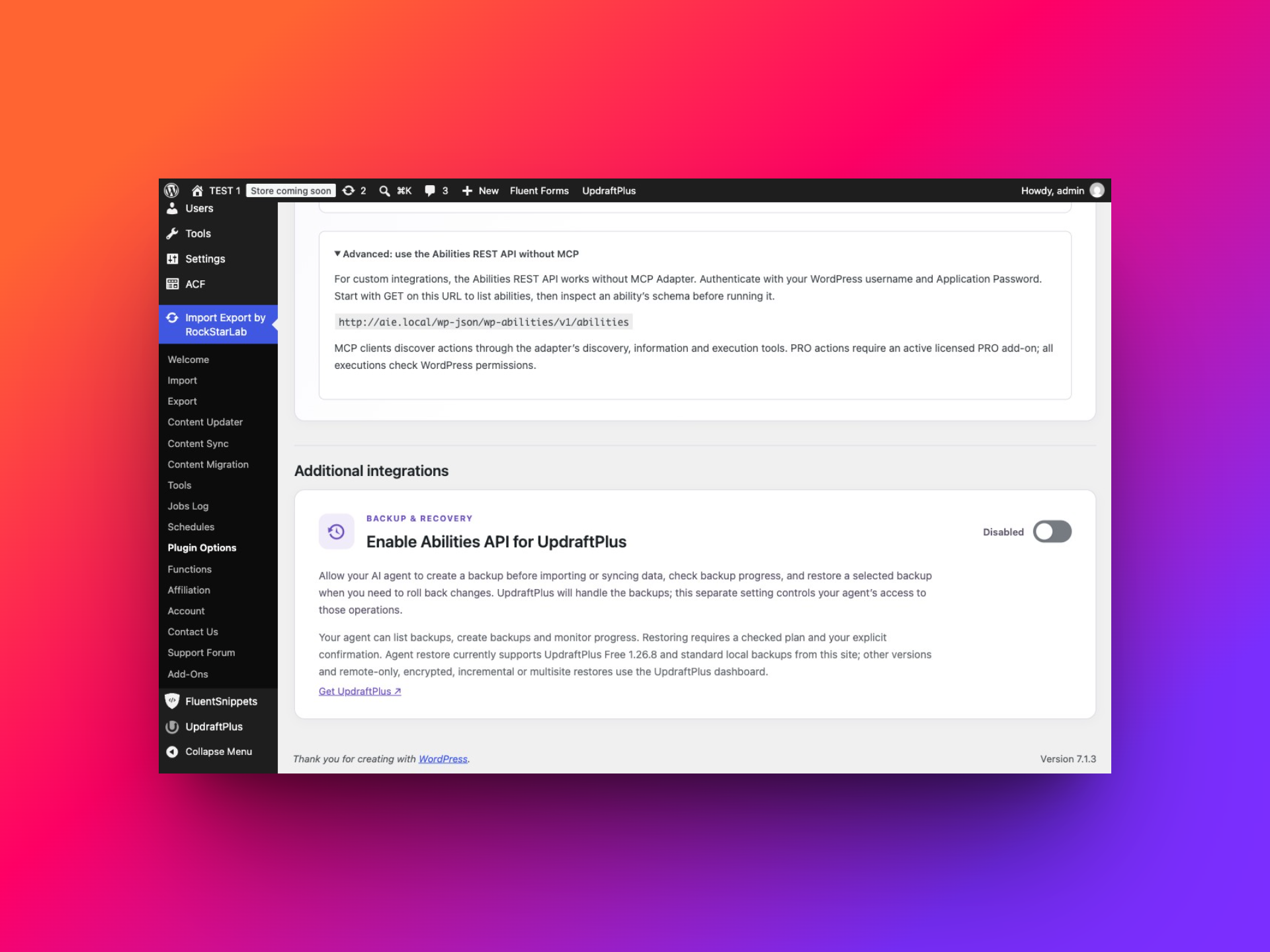
You need both plugins active. Then open Plugin Options → AI Agent Connection, leave the main Enable Abilities API switch on, and scroll to Additional integrations. Turn on Enable Abilities API for UpdraftPlus. This second switch is separate and off by default.
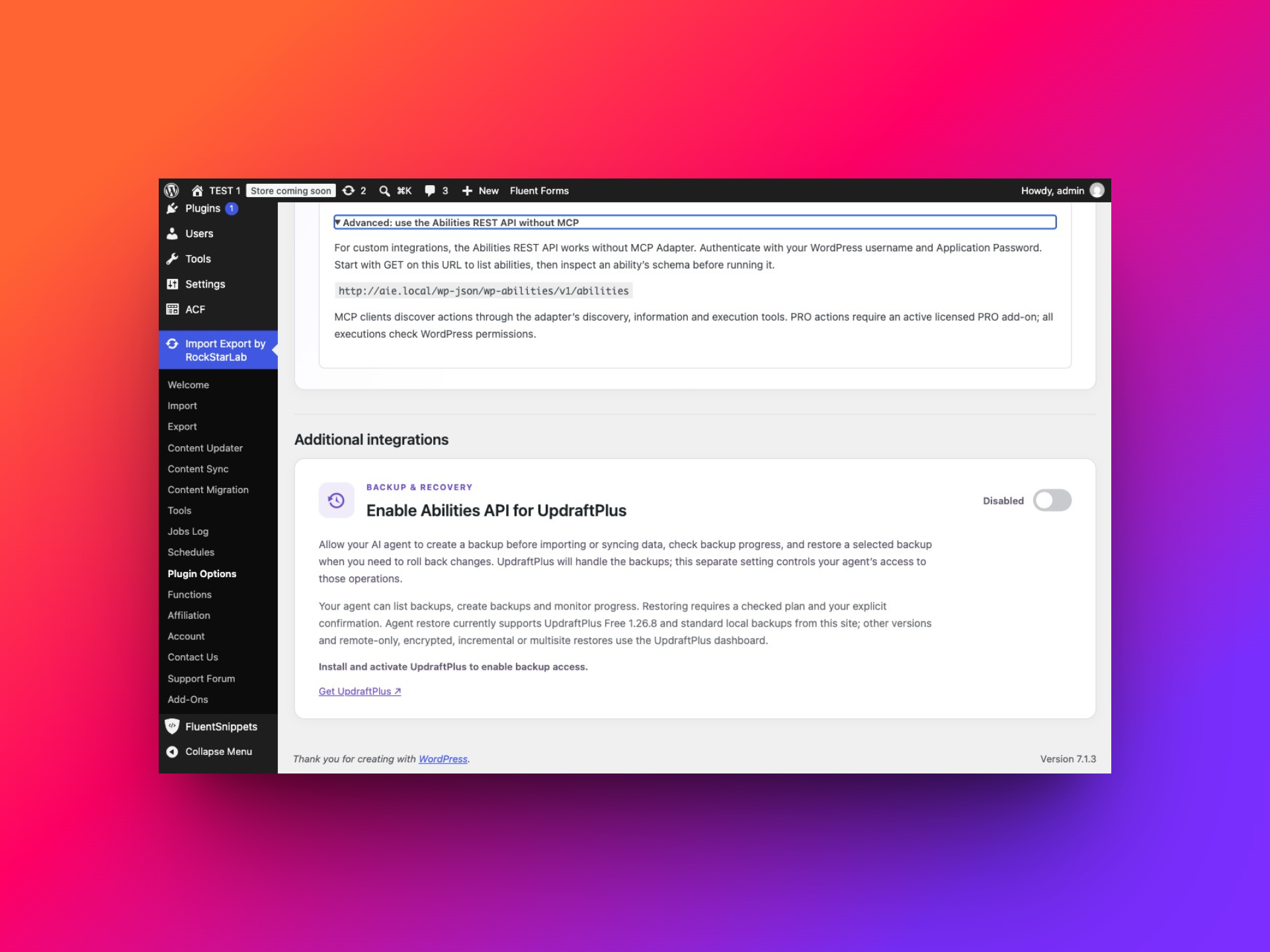
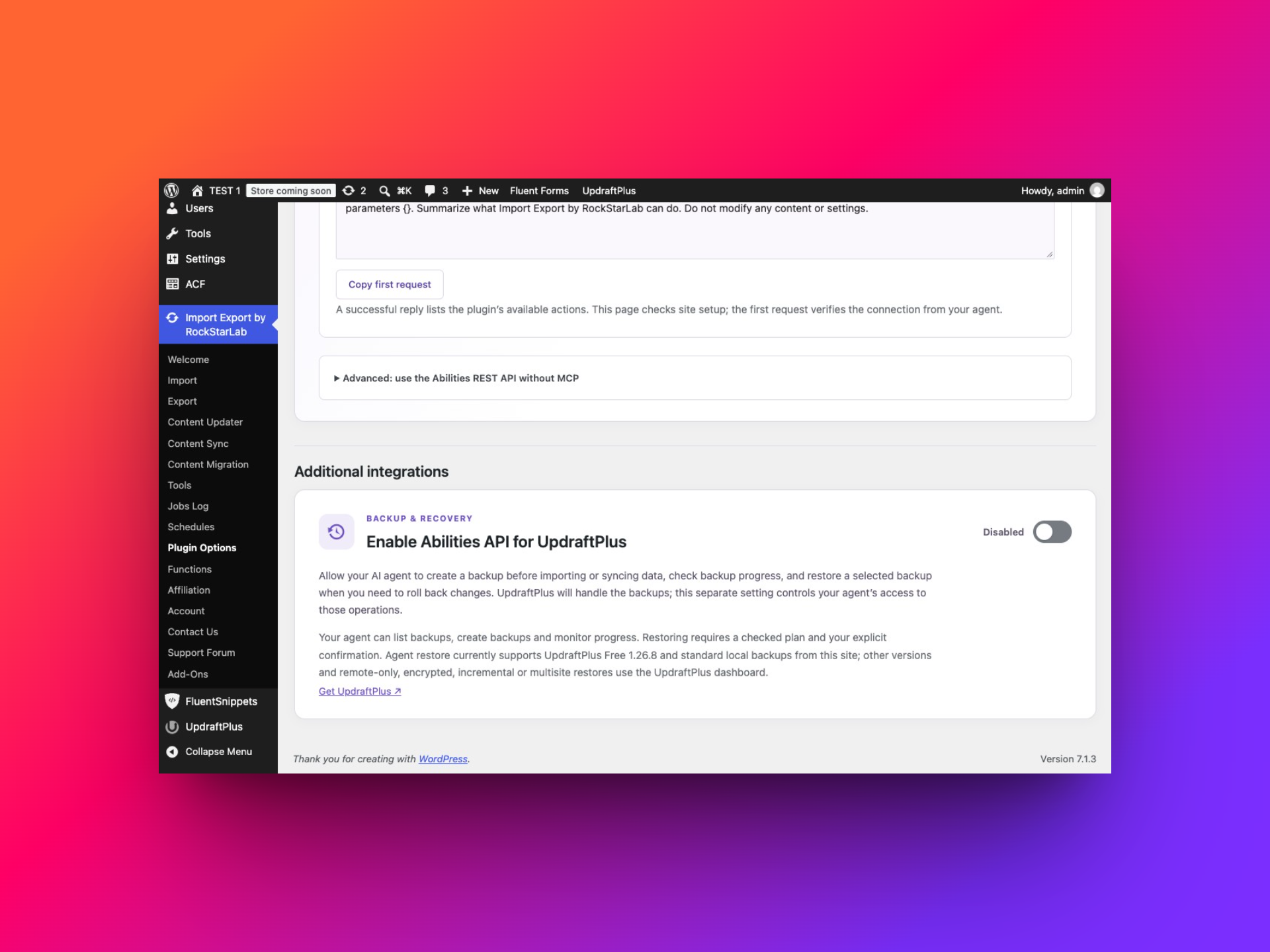
Refresh the agent’s tool discovery after enabling the integration. If it still does not see the backup actions, check both switches, the active plugin and the account permissions. The abilities are supplied by this integration; installing UpdraftPlus alone is not the same as enabling these agent tools.
What can the agent do?
| Task | Ability, prefixed with rsl-ie/ |
|---|---|
| Inspect version, compatibility and activity | updraftplus-status |
| List backup sets | updraftplus-backup-list |
| Inspect one backup’s components and archives | updraftplus-backup-get |
| Start and monitor a backup | updraftplus-backup-start; updraftplus-backup-status |
| Check a proposed restore | updraftplus-restore-plan |
| Start and monitor the approved restore | updraftplus-restore-start; updraftplus-restore-status |
| Continue an eligible paused restore | updraftplus-restore-resume |
The integration does not expose arbitrary PHP execution or a general filesystem browser. It also does not accept or return remote storage credentials. Configure storage, retention and exclusions in UpdraftPlus itself.
Create a WordPress backup through an AI agent
With the UpdraftPlus integration enabled, return to your agent’s conversation. Ask it to check backup availability, start the requested backup and follow its progress. You do not need to use the Backup Now dialog for this workflow.
First decide what you want to protect. Your database contains posts, pages, settings and other records. Your files include uploaded images, plugins and themes. A database-only backup can be appropriate before a text-only import, but it does not contain the image files in your uploads folder.
| Component | Contains | Example reason to include it |
|---|---|---|
| db | WordPress database data | Before importing or updating content. |
| plugins | Plugin files | Before changing plugin code or versions. |
| themes | Theme files | Before theme changes. |
| uploads | Uploaded media files | Before importing or changing media. |
| others | Other files included by UpdraftPlus’s configured scope | When those files form part of the recovery plan. |
Even selecting all five components does not turn this into a full hosting-account image. Review UpdraftPlus’s actual scope and exclusions when deciding whether you also need a hosting backup.
Prompt: back up before importing pages
On wordpress, check UpdraftPlus status and whether a backup is already running. Create a local backup of the database and uploads before the planned page import. Use components db and uploads with send_to_remote false and a unique request ID. Monitor the returned backup job until the integration confirms completion. Report the backup identifier, selected components and any warnings. Do not begin the import if the backup fails or remains unconfirmed.The agent starts updraftplus-backup-start and polls updraftplus-backup-status. It should not conclude that the backup succeeded just because a request was accepted or a history row appeared. Completion requires confirmation from UpdraftPlus.
Prompt: back up all supported components to configured remote storage
Inspect UpdraftPlus status and the configured storage information available through the integration. If remote storage is configured, back up db, plugins, themes, uploads and others with send_to_remote true. Preserve existing retention and exclusion settings. Monitor the backup and report its confirmed result. If remote storage is not configured, explain that and stop rather than claiming an off-site backup was created.The send_to_remote option uses storage already configured in UpdraftPlus. It does not create a new Dropbox, Google Drive or other storage connection. Local backups are useful for testing and recovery, but a copy on the same server is not an independent off-site backup.
What to look for in the agent’s result
The final reply should identify the site, the backup set, its date, included components and confirmed status. For a remote backup, it should distinguish local archive creation from confirmed remote transfer. If the available status does not confirm the transfer, the agent should say so.
Inspect the backup set from this operation. Confirm which requested components are present and report any missing archives or warnings. Tell me whether completion and remote transfer, if requested, are confirmed by the tools. Do not infer success from the start response.What if the backup is still running?
Keep checking the same job at the interval returned by the service. Do not start another backup because the first response took a while. Background work requires a functioning WordPress cron runner. Some hosts use an external cron service; in that case a disabled built-in WP-Cron flag is not automatically an error.
If the worker stalls, inspect the reported diagnostics and the native UpdraftPlus log. A network disconnect may mean the client lost contact while WordPress continued working. “I cannot confirm completion” is a different outcome from “the backup failed.”
Restore an UpdraftPlus backup through an AI agent
The agent restore workflow has separate stages: inspect a backup, prepare a checked plan, obtain your approval and execute that plan. Keep these stages in the conversation so you can see exactly what will be replaced before authorizing it.
A restore replaces selected data with an older copy. Restoring the database can remove content, orders, users and settings created after the backup. It can also replace credentials and the settings that currently allow the agent to connect. Choose the backup and components carefully.
Check the supported restore scope first
In the 2.0.0 implementation covered here, agent restoration is restricted to UpdraftPlus Free 1.26.8, standard unencrypted local archives on the same single-site installation, using WordPress’s direct filesystem method. Premium, other UpdraftPlus versions, multisite, incremental backups, foreign-site migration archives and remote-only restore sets are outside this agent restore path.
This is a limitation of the integration’s verified agent restore workflow, not a claim that UpdraftPlus itself cannot handle other scenarios. Use the native UpdraftPlus workflow for unsupported cases. Do not downgrade a production plugin just to make an agent example fit.
For a backup stored remotely, download the required archives through UpdraftPlus before planning a supported local restore. A files-only agent restore also requires same-site provenance recorded when this adapter created the backup. Database-containing backups can establish origin through database analysis.
Step 1: list and inspect backups
On wordpress, check the UpdraftPlus integration's restore compatibility. List available backup sets with dates and components. Inspect the backup taken before the page import and confirm that its required archives are available locally. Do not restore anything. If this installation or backup is unsupported, explain the reason.Use the actual backup identifier returned by the tools. A date is useful for recognition but may not uniquely identify a set. Confirm whether you need database, files, or both. Restoring a database alone will not restore missing uploaded files.
Step 2: create a checked restore plan
Prepare a restore plan for the exact backup we selected, restoring only the database. Run the integration's preflight checks. Show the backup ID, backup date, selected components, warnings and the data that will be replaced. Stop before restore-start and wait for my explicit confirmation.updraftplus-restore-plan checks the selected archives and prerequisites before returning a plan. These checks include local availability, integrity, origin, writable destinations and estimated free space. The confirmation is tied to the exact plan and administrator, is single-use and expires after ten minutes.
If a plan expires, create a fresh one and review it again. If a file changes after planning, the restore must not proceed as if the previous checks still apply. Do not ask the agent to bypass a failed check.
Step 3: approve the specific restore
Only after reading the plan and confirming that it is the recovery you want, send an explicit approval naming the backup and components:
I approve restoring the database only from backup [the exact backup ID shown in the plan] on [the exact site]. I understand that database changes made after that backup will be replaced. Execute the still-valid checked plan with a new request ID, monitor its status and report the confirmed result. Do not restore any other components.The agent passes the returned plan ID, confirmation token and confirm: true to updraftplus-restore-start. It then monitors updraftplus-restore-status. This approval should follow the actual checked plan, not be bundled into an earlier vague instruction to “fix everything.”
Step 4: handle a paused or interrupted restore correctly
A database restore can bring back older plugin settings or account credentials. If access disappears, sign into WordPress, review the restored state and re-enable the main abilities switch and the UpdraftPlus integration if appropriate. Reconnect using credentials that are valid for the restored site.
For an eligible paused operation, the agent can use updraftplus-restore-resume. The integration continues from a safe completed-archive checkpoint rather than replaying finished archives. An interruption inside an archive or database stage is different: inspect the native log and recovery UI using the returned native job ID. Do not blindly launch a second restore.
After confirmed completion, check the frontend, dashboard login, the restored pages and any business-critical workflow affected by the database. For a store, also verify the intended order data. The operation’s status and the site’s actual behavior both matter.
Troubleshooting: when the agent cannot connect or finish a job
The WordPress site check times out
Read the error, then try Check again once. During preparation of this guide, a local REST check timed out and the next check passed. A persistent failure needs investigation in Site Health, server logs, DNS, certificates or loopback handling. Do not treat a failing check as permission to disable authentication or certificate validation.
Can I use abilities without MCP?
Developers can use the authenticated Abilities REST API directly. Expand the advanced section to find its base address, then discover the actions and inspect their schemas. This is a separate integration route; the normal agent setup in this guide uses MCP. Do not substitute the REST catalog URL for the MCP endpoint in your client configuration.
The server is configured, but execution is unauthorized
Check the endpoint, username and Application Password. Confirm that the client sends a Basic header and that the account has the required WordPress permission. A normal login password, a Content Sync key or a Bearer prefix is not a substitute for this connection’s Application Password authentication.
The agent sees no plugin abilities
Verify the main switch, refresh discovery and inspect the server reported by the plugin. For backup actions, also check that UpdraftPlus is active and its separate switch is enabled. A stale tool list can persist in a client after access changes.
An action is unavailable in Free
Ask the agent to report the installed capabilities and edition requirements. Standard post/page workflows and premium content providers are not interchangeable. Field transformations require PRO. Installing the MCP Adapter does not unlock paid features or bypass license checks.
The filter reports zero records
Ask the agent to inspect the returned count for the exact request. Check status, dates, field names and real data values. A valid empty result should be reported honestly. Ask for a small diagnostic preview without changing the agreed export selection.
The import file exists on my computer, but WordPress cannot find it
Confirm that the agent uploaded the bytes and received a valid file_id. A laptop path and a WordPress server path are different things. Also inspect delimiter, headers, encoding and mapping before starting the job.
A job is queued or running for a long time
Check the same job’s status and logs. Background runners depend on cron and server resources; reading the status does not itself execute the work. Respect the returned polling interval. If a request times out, retrieve its saved result before deciding whether another operation is needed.
The export is completed, but the download fails
Verify authentication on the download request, the account’s permissions and the file’s availability. If the client cannot save the file, use the matching Jobs Log entry in WordPress. Do not remove authentication to turn a private export into a shareable link.
How do I disconnect an agent?
Turn off Enable Abilities API to remove this plugin’s Free and PRO abilities from subsequent discovery and execution. You can independently disable the UpdraftPlus integration. Revoke the relevant Application Password in WordPress and remove the client connection when you no longer need it.
The main switch does not stop already-running background jobs, revoke passwords, deactivate the MCP Adapter or disable existing site-to-site sync transports. Inspect and manage those separately if your intention is to stop an operation or remove every connection.
Frequently asked questions
Do I need programming experience to use Abilities API?
You can give the agent plain-language instructions once the connection is configured. The initial setup involves choosing your AI app and entering your Application Password in the plugin. The built-in generator in step 4 prepares your connection settings, and the client-specific steps explain exactly where to save them.
Does enabling Abilities API automatically connect ChatGPT or Claude?
No. The switch makes this plugin’s abilities available. Your client still needs an MCP connection, compatible authentication and network access to the site. Run the read-only capabilities request to confirm that connection.
Can I export WordPress posts without changing the site’s content?
Yes. Export workflows select records and create an output file without editing the source posts. Specify filters, columns and format, then review the count and preview before starting.
Can an agent import pages without publishing them?
Yes. Use the page import type and explicitly set or map the status to draft. Validate the mapping and duplicate-handling options, then inspect the created pages after the job completes.
Can I sync only one page between WordPress sites?
Yes. Select one exact page and review its destination mapping. Establish a working Content Sync connection first, confirm the direction and inspect the destination after the transfer.
Can any UpdraftPlus backup be restored through the agent?
No. The 2.0.0 integration has a restricted restore compatibility scope, including UpdraftPlus Free 1.26.8 and standard local backups on the same single-site installation. A checked plan and explicit confirmation are required. Unsupported cases use the native UpdraftPlus workflow.
Will an agent automatically deliver an exported CSV as a chat attachment?
Not necessarily. The plugin provides an authenticated file download. Saving or attaching it depends on the agent’s environment. The WordPress Jobs Log provides a browser download alternative.
Where should I begin?
Enable the API, connect one local agent and run the read-only capabilities prompt. Then try a small filtered export. Once you are comfortable inspecting job results, move to a three-page draft import and a carefully mapped page sync. Keep backup and restore as explicit workflows with their own checks.
For more visual walkthroughs of the plugin’s regular interface, visit the Import Export by RockStarLab video tutorials.