
Version 2.0.0 brings AI agent access to Import Export by RockStarLab, alongside a refreshed admin interface and a more convenient place to start your imports. You can connect a compatible AI agent to work with your WordPress data, keep an eye on a running task from its browser tab, and find URL imports and media folder imports on the Import screen.
Here’s what changed, where to find it, and how it fits into your everyday work.
Connect your AI agent with the Abilities API
The biggest addition in 2.0.0 is support for the WordPress Abilities API. It makes the plugin’s supported operations available as actions an AI agent can discover and use. With a compatible client connected through the WordPress MCP Adapter, you can describe a task in a conversation and have the agent carry it out through the plugin.
For example, you could ask your agent to:
- Prepare a CSV export of published posts from a particular month, with a preview before starting.
- Import pages from a CSV as drafts, skipping pages that already exist.
- Sync one reviewed page between connected WordPress sites.
- Check an export job and retrieve its completed file.
- Create a backup through the optional UpdraftPlus integration before changing content.
The agent still needs a clear request. “Export my posts” leaves several choices open: which posts, which columns, and which format? A more useful starting point is:
Prepare a CSV export of all published blog posts. Include title, slug, publication date and full content. Show the matching count and a preview of five rows before starting. Do not modify any posts.You review the selection, approve the export, and ask the agent to follow the job through to its result. The plugin handles the underlying operation, with WordPress permissions and the available Free or PRO features still determining what can run.
A connection screen that prepares your client settings
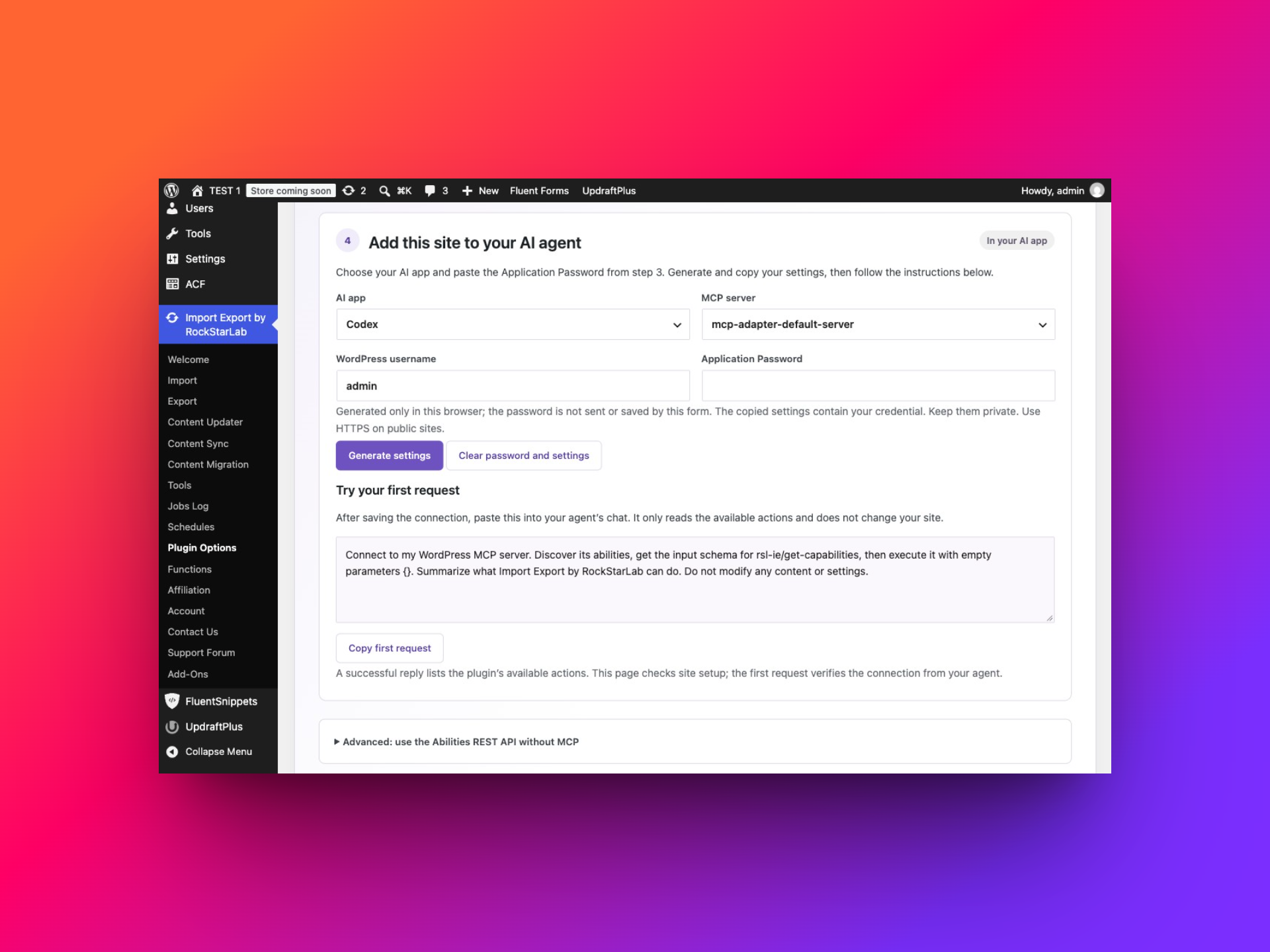
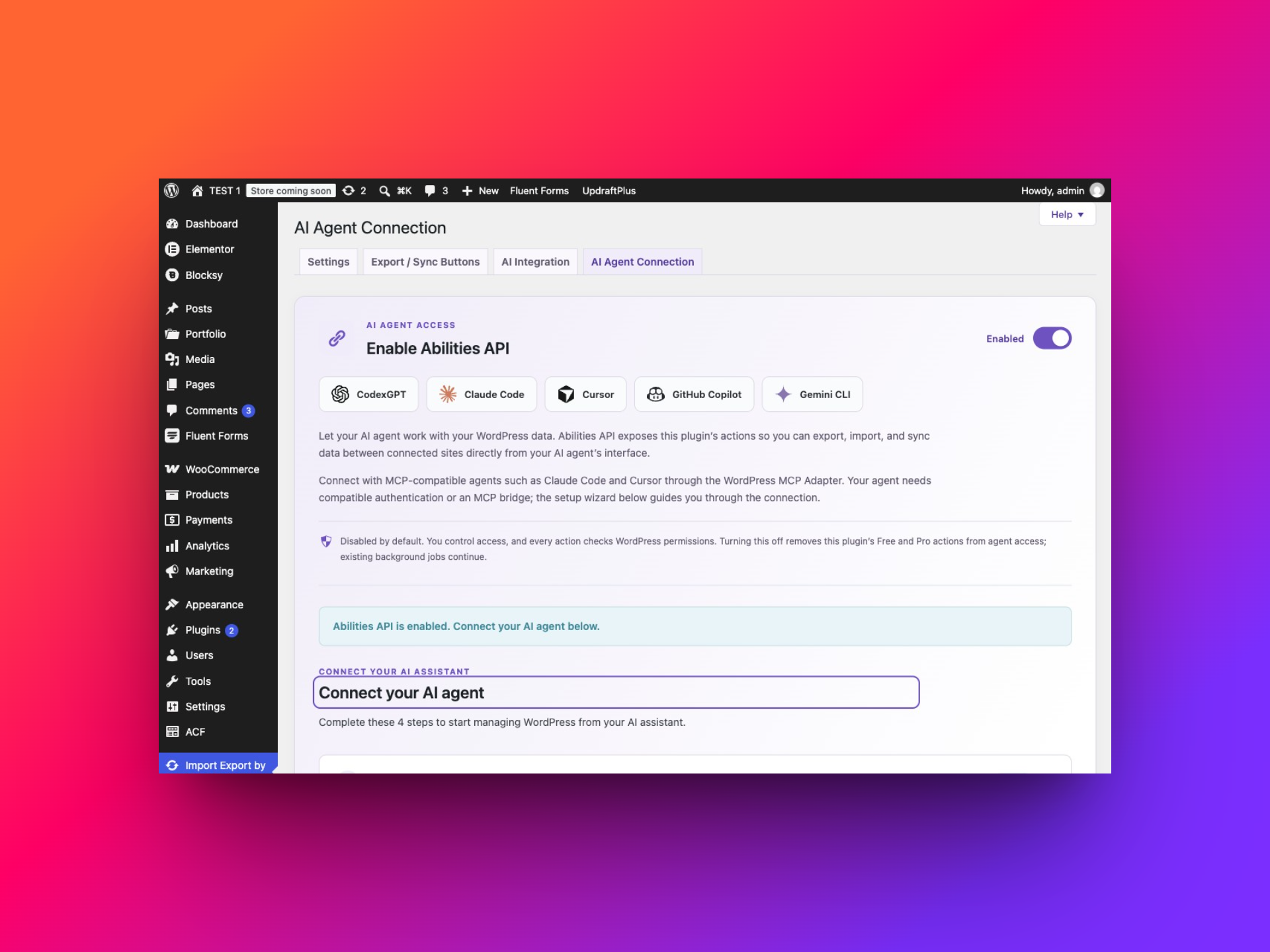
Open Import Export by RockStarLab → Plugin Options → AI Agent Connection. Agent access is off by default. The setup screen guides you through enabling the API, checking the site, enabling MCP Adapter and creating a WordPress Application Password.
The built-in settings generator then prepares the connection settings for Codex, Claude Code, Cursor, GitHub Copilot in VS Code, or Gemini CLI. Choose your application, check the username, enter the Application Password, and copy the generated settings. Instructions below the result explain where to save them in your client.
We’ve covered the complete setup, client-specific steps and practical prompts in our guide to using the WordPress Abilities API with AI agents. Start there if this is your first MCP connection.
New UpdraftPlus abilities: create backups through your AI agent
Alongside the plugin’s own Abilities API, version 2.0.0 adds abilities for UpdraftPlus. You can now ask your connected AI agent to create a WordPress backup, check its progress and report the result. UpdraftPlus performs the backup; our integration gives the agent access to those operations.
For example, before importing pages, you could ask:
Before starting the page import, check whether UpdraftPlus is available and whether a backup is already running. Create a local database backup, monitor it until completion and report the backup identifier and any warnings. Do not start the import until the backup is confirmed as complete.To enable this, install and activate UpdraftPlus, open Plugin Options → AI Agent Connection, and enable the main Abilities API switch. Under Additional integrations, turn on Enable Abilities API for UpdraftPlus. Refresh your agent’s tool discovery so it can see the backup actions.
The separate switch lets you choose whether your agent can access backup operations. The integration also includes a checked restore workflow with specific compatibility requirements, a reviewed plan and explicit confirmation. Our AI agent guide explains backup prompts, restore limits and the setup in detail.
A new color scheme across the admin interface
The plugin has a new visual identity in 2.0.0, with purple accents and lighter panel backgrounds. You’ll notice the change in buttons, cards and setup screens as you move through the admin interface.
The new styling gives the plugin’s screens a more consistent appearance. Existing users will still recognize the main workflows, while the refreshed controls and panels make this release look different from older tutorials and screenshots.
See task progress in your browser tab
Longer jobs no longer require you to keep staring at the progress screen. Version 2.0.0 adds a browser-tab indicator: the tab title shows the operation and its percentage when available, while the tab icon reflects its state.
For example, a running export can appear as “Exporting… 42% — WP Import Export”. When the operation reports completion, the title changes to a completed state. The indicator also distinguishes failed, paused and cancelled states when reported by the workflow.
This is useful when you start a job and switch to another browser tab to continue working. You can glance at the plugin’s tab to see whether it is still processing or needs your attention. Keep the task tab open, and return to its results for the detailed outcome: a percentage alone does not tell you whether individual records were skipped or failed.
The indicator also treats completion separately from reaching 100%, because a job may still need to finish its final processing steps.
AI URL Importer now lives on the Import screen
If you used AI URL Importer before, its new location is Import Export by RockStarLab → Import → AI URL Importer.
It now appears alongside the other import choices, so you can start by deciding where your content is coming from. Choose AI URL Importer when you want to bring in content from URLs using AI.
This is an existing feature with a new location. Its AI provider setup remains separate from connecting an external agent through MCP. Moving it to the Import screen puts the entry point where you would naturally look when bringing content into WordPress.
Media Folder Sync has moved there too
Media Folder Sync is also available from the Import screen, under the label Media Sync. Open Import Export by RockStarLab → Import → Media Sync to import media from server folders.
That makes it easier to distinguish two starting points: importing media records through the regular media import workflow, or working with files already present in a server folder through Media Sync.
If you’re following an older tutorial that sends you elsewhere for Media Folder Sync, start from Import and choose Media Sync instead.
Where to find the changes in 2.0.0
| What you want to do | Where to go |
|---|---|
| Connect an AI agent | Plugin Options → AI Agent Connection |
| Enable agent access to UpdraftPlus | AI Agent Connection → Additional integrations |
| Import content from URLs using AI | Import → AI URL Importer |
| Import media from server folders | Import → Media Sync |
| Check progress while working in another tab | The running task’s browser-tab title and icon |
Try your first agent workflow
A small filtered export is a useful first task after connecting your agent. Ask for a count and preview, inspect the selection, then approve the export and check the resulting file. Once you’re comfortable with that process, move on to draft-page imports or a carefully selected page sync.
Follow our step-by-step AI agent setup guide for connection instructions and prompts you can adapt to your own site.