
To export Yoast SEO titles and meta descriptions to CSV, open Import Export by RockStarLab → Export, choose Blog Posts, select the Yoast SEO fields SEO Title and Meta Description, and run a CSV export. Include the post ID and WordPress title so every row can be traced back to its source.
The resulting spreadsheet gives you one place to review missing overrides, repeated descriptions, template variables, and titles that no longer describe their pages. You can perform the export in the WordPress admin area or ask a connected AI agent to run it through the plugin’s abilities.
There is one distinction to make before you start: this workflow exports saved Yoast field values. Those values are not always the final HTML tags on a page, and neither is a promise of what Google will display.
What this Yoast SEO export includes
A useful metadata audit needs both the SEO text and a reliable way to identify each record. Export these five columns first. More columns can be added later if they answer a specific audit question.
| Field in the export builder | CSV column / field key | Why include it? |
|---|---|---|
| ID | ID |
Identifies the source post on this WordPress installation. |
| Title | post_title |
The WordPress post title, useful for recognising the page and comparing its subject with the SEO title. |
| Status | post_status |
Confirms whether the row belongs to a published post, draft, or another status. |
| Yoast SEO → SEO Title | _yoast_wpseo_title |
The saved SEO title override, including any variables. |
| Yoast SEO → Meta Description | _yoast_wpseo_metadesc |
The saved meta description override. |
Title and SEO Title are different fields. Exporting the ordinary WordPress Title alone does not give you the custom title entered in Yoast. Likewise, the post excerpt is not a substitute for the Yoast meta description.
This is a metadata inventory, not a complete technical SEO crawl. It does not establish whether a URL is indexed, which URL Google considers canonical, or which snippet appeared for a particular query. Add those checks separately when you turn the inventory into an audit.
Before you start
- Use a WordPress account that can run exports.
- Have Import Export by RockStarLab installed and active, with Yoast SEO active for the walkthrough below.
- Choose your scope: published blog posts, another status, or a narrower group.
- Open one or two existing posts and confirm that their Yoast fields contain the values you expect to export.
- Keep a copy of the original CSV before adding formulas or proposed revisions.
You do not need to populate empty fields just to make the export work. Empty fields are useful audit evidence. We deliberately prepared test records with blanks, duplicates, punctuation, and variables to check those cases.
Tested workflow: WordPress 7.1.3, Yoast SEO 28.7, Import Export by RockStarLab 2.0.1 with PRO 2.0.0 active. The test site contained 68 posts; filtering to published posts exported 66. Both the admin export and the AI export were checked, and both Yoast fields matched the stored values for every exported row. These results describe this dataset, not a performance benchmark for other sites.
Export Yoast SEO titles and descriptions from the WordPress admin
1. Confirm the source values in Yoast
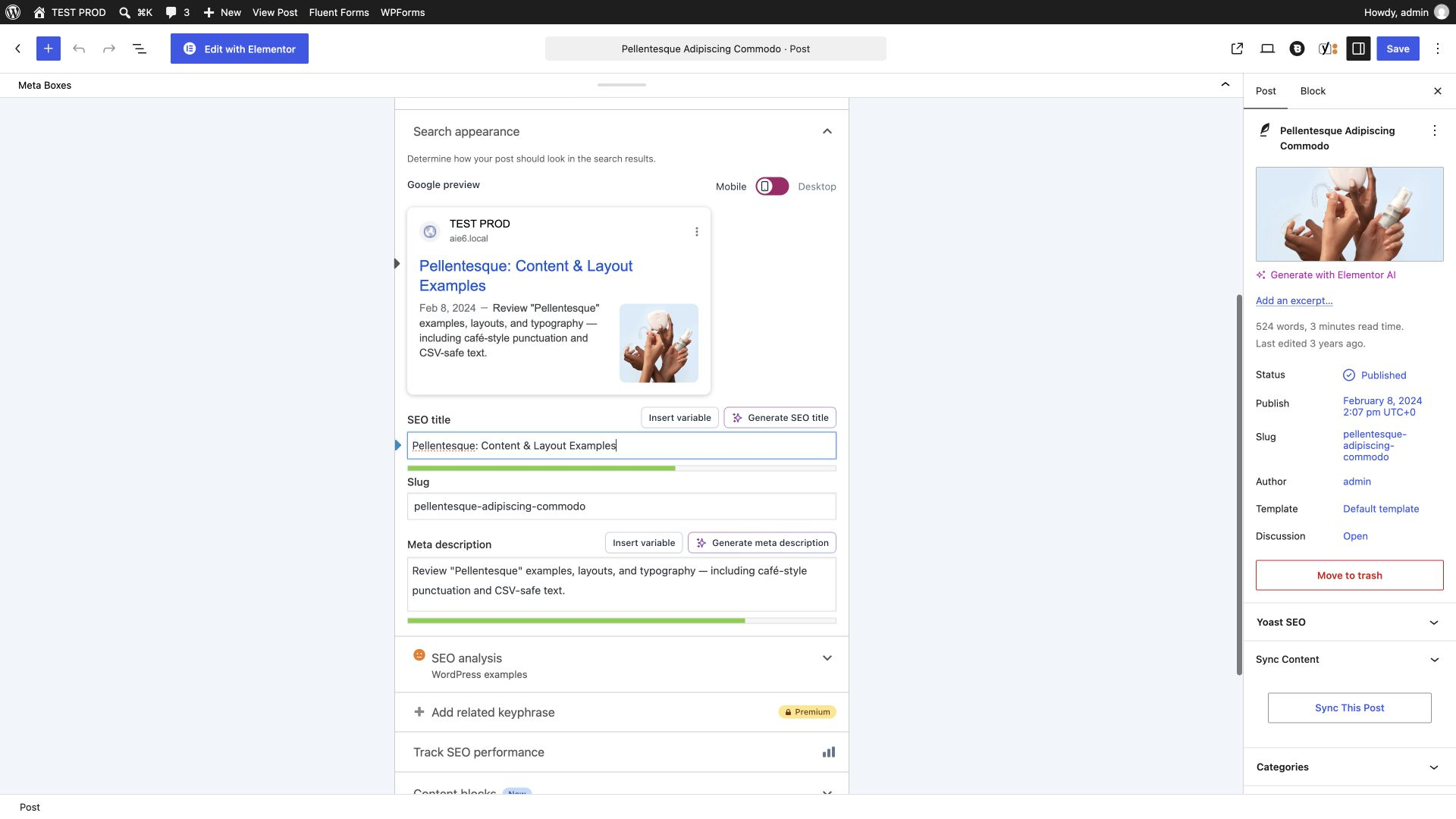
Open a post in the WordPress editor and find Yoast SEO → Search appearance. Check the SEO title and Meta description fields. Depending on your editor layout, the Yoast controls may appear below the content or in a sidebar.
Use a post with distinctive text for this first check. A comma, a quotation mark, or an accented character makes it easier to spot an incorrect column or encoding problem later. You are comparing the saved field with the export, not judging the quality of this test copy.
2. Choose Blog Posts as the content type
In the left admin menu, open Import Export by RockStarLab → Export. Select Blog Posts and move to the next step. This guide follows the blog-post workflow; keep pages and other content types in separately labelled exports when building a wider inventory.
If you are new to the export builder, the WordPress posts export guide explains the broader workflow and available output formats.
3. Filter the export to published posts
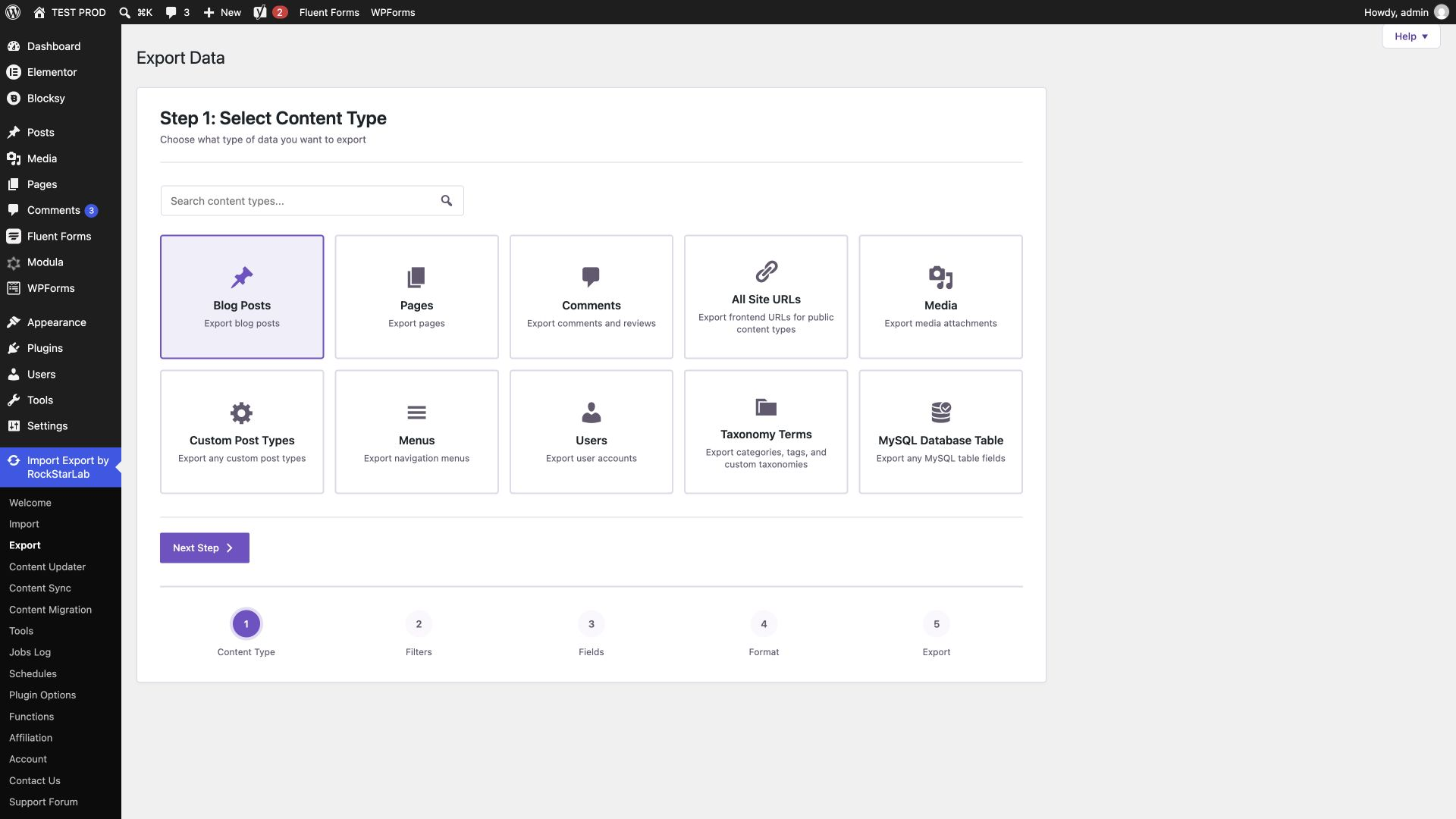
Click Add Filter, choose Status, keep the condition Equals, and enter publish. This is the WordPress status value; do not substitute the display label “Published.”
Published content is a useful starting point for a search-appearance audit. Drafts can be reviewed in a separate prepublication pass. Do not treat the number of published posts as the number of indexed URLs: a published page may still be excluded from search.
The screenshot shows 68 total available posts. Our completed published-only export contained 66 rows. Compare the final exported count with the selection you intended to include. For a category, author, or date-based review, see the practical export filter examples and keep the final scope written down beside your CSV.
4. Add identification fields and the two Yoast fields
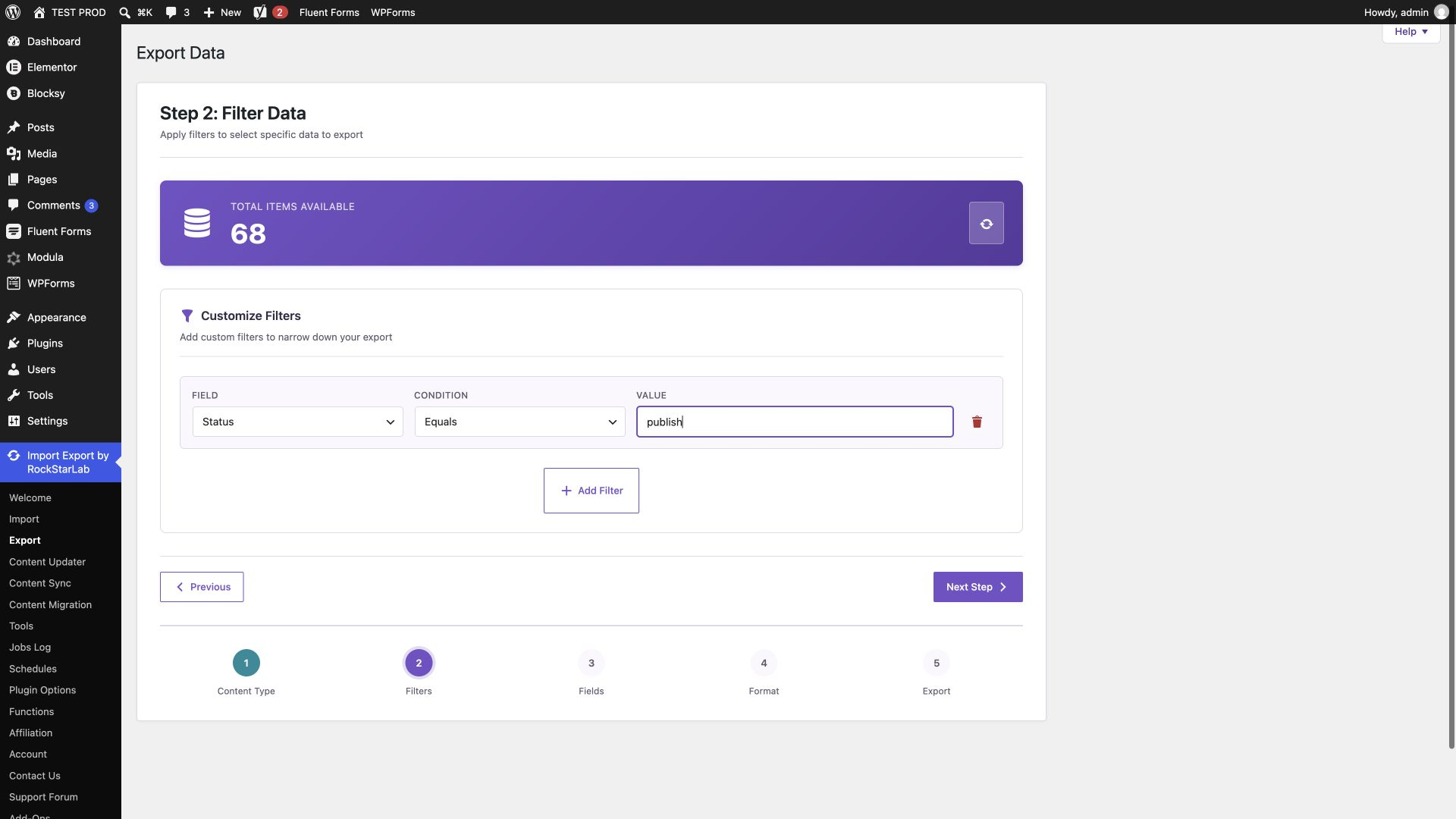
On Select Fields, drag ID, Title, and Status from Available Fields into Export File Structure. Then find the Yoast SEO group and add SEO Title and Meta Description.
The field search makes this quicker: search for “SEO Title,” add that field, then search for “Meta Description.” Drop each card into free space in the export structure and check that the column count increases. The completed structure should contain five columns.
Look at the field keys on the selected cards. The two SEO keys must be _yoast_wpseo_title and _yoast_wpseo_metadesc. For this first audit export, leave field transformations off so the original values remain available for comparison.
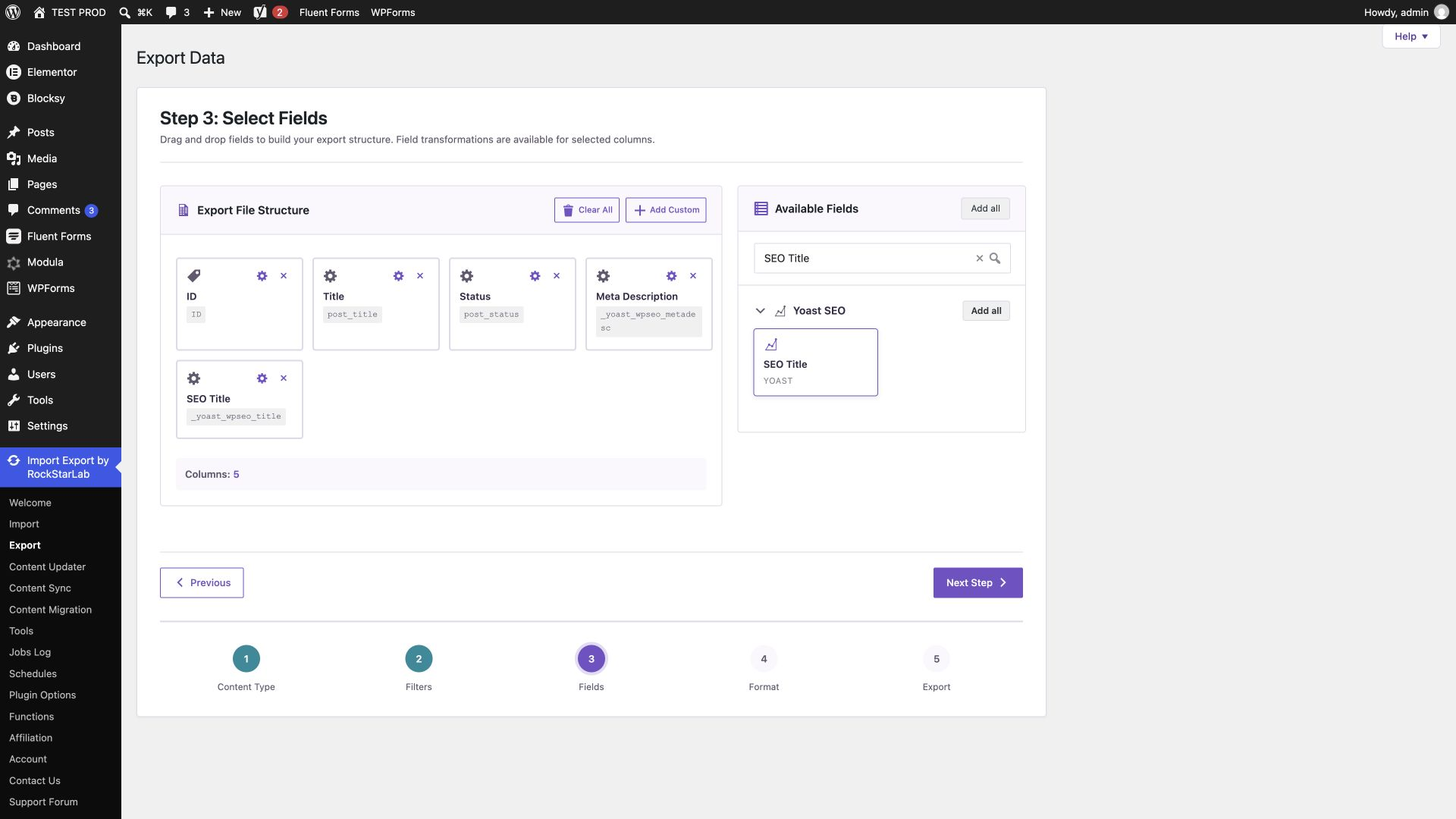
Column order is your choice. Our admin screenshot places Meta Description before SEO Title; the AI example later places SEO Title first. Both are valid. When creating spreadsheet formulas, use your actual headers rather than assuming a particular column letter.
5. Select CSV and include the header row
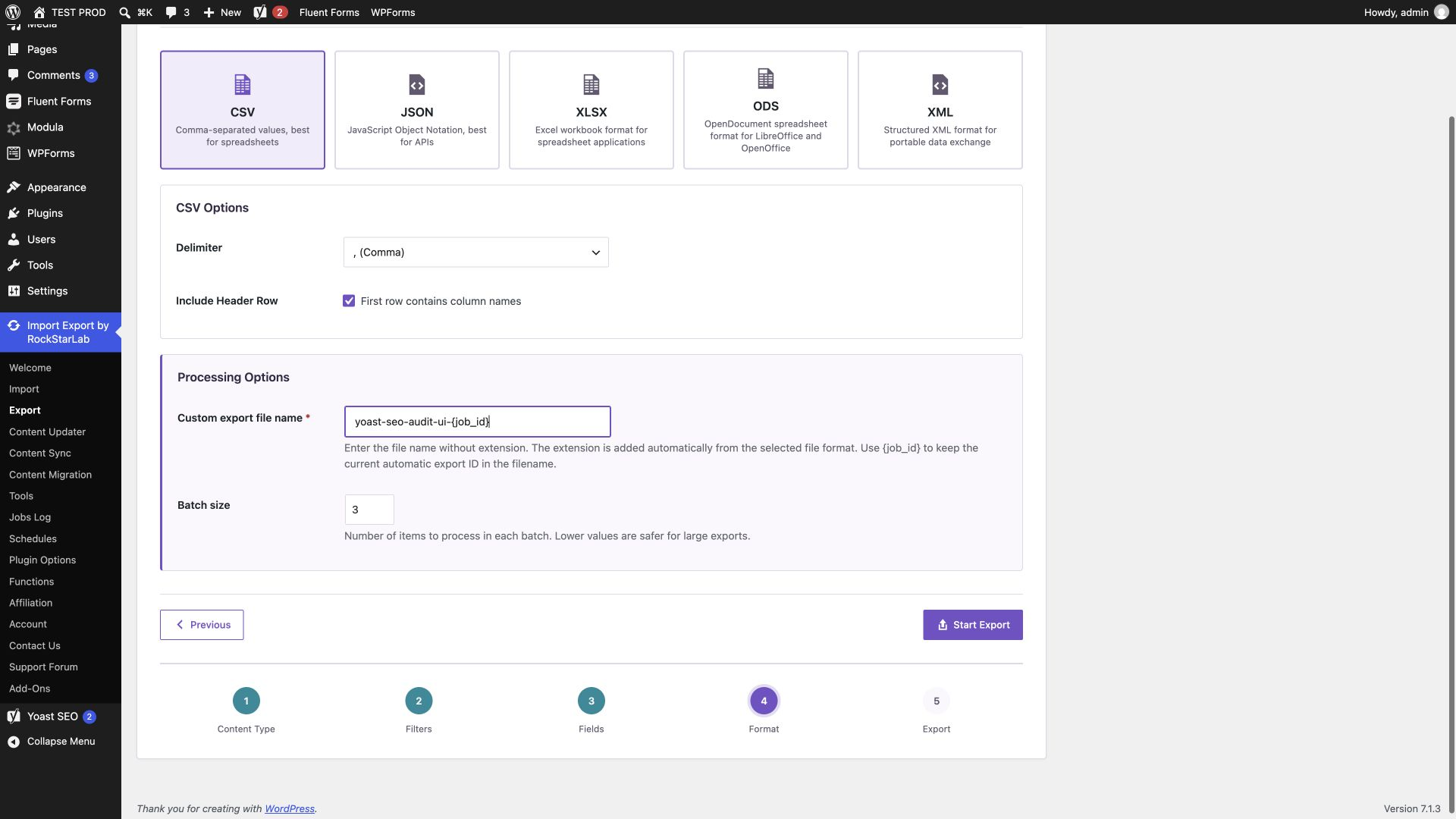
Choose CSV, use a comma delimiter, and keep Include Header Row enabled. Enter a recognisable filename without the extension, for example yoast-seo-audit-{job_id}. The plugin adds the extension, while {job_id} distinguishes separate export jobs.
Keep a conservative batch size unless you have a reason to change it. This controls how much work is processed per batch; it is not a limit on the total number of exported records. Our UI test used the existing batch size of three.
6. Run the export and download the result
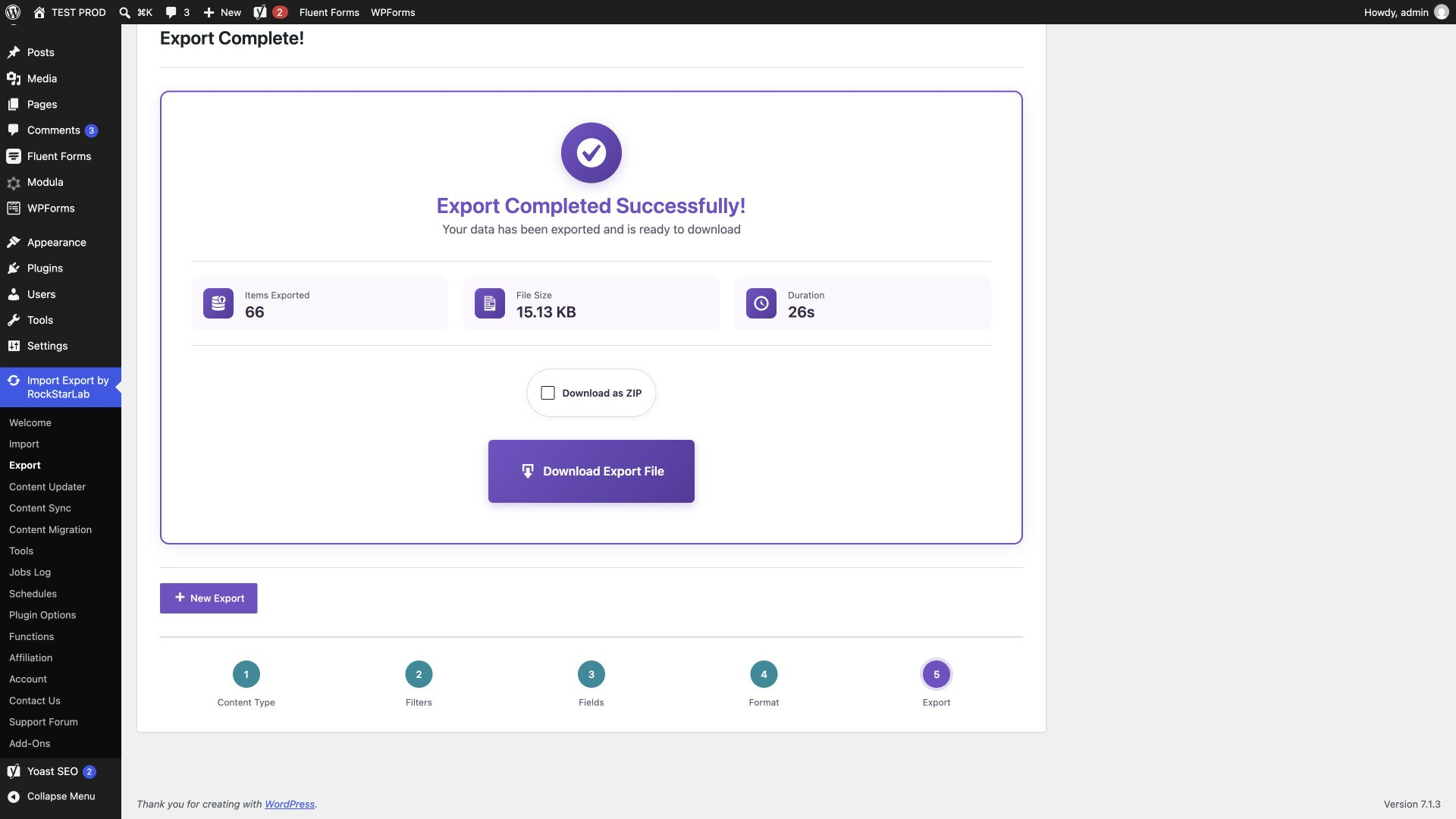
Click Start Export. Wait for completion, then check the exported-item count and download the file with Download Export File. Leave Download as ZIP unchecked if you want the CSV directly.
Our completed export reported 66 items and a file size of 15.13 KB. That confirms the job reached completion, but it is not the final validation: open the downloaded CSV and check the actual rows next.
7. Open the CSV and verify a small sample
Import the file into Excel, Google Sheets, or another CSV-aware spreadsheet application. Choose UTF-8 and the same delimiter used in the export if the application asks. A CSV is a text file, so use the application’s import controls if simply opening it puts everything in one column.
Confirm that you have five columns and the expected number of data rows, excluding the header. Locate the post you inspected in step 1 by ID. Compare its title and description, then inspect a blank field, a duplicate, and a variable-based value if your site contains them.
Quoted text and commas belong inside a single cell. A CSV parser handles their escaping; splitting the file on commas by hand does not. In our test, quotation marks, an em dash, and the accented character in “café” survived the export correctly.
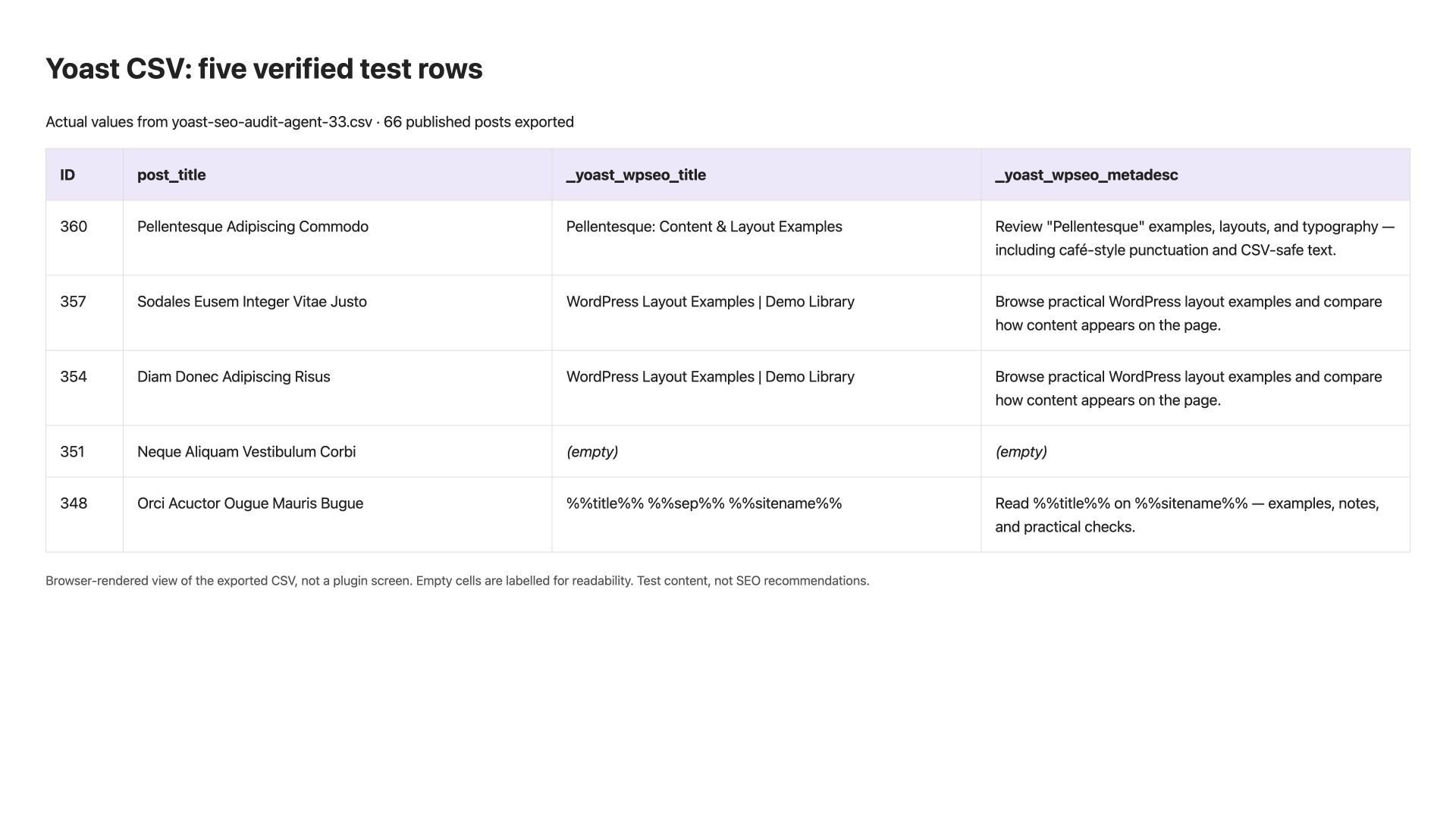
The illustration above is a browser-rendered view of five actual exported rows, not a plugin preview screen or a screenshot of Excel. The word “(empty)” is a display label in this illustration; the corresponding CSV cells are empty.
How to interpret blank fields and Yoast variables
A blank saved SEO title can still produce a page title
Yoast can use a title template when an individual post has no custom title override. Therefore, an empty _yoast_wpseo_title cell should initially be labelled “No saved title override”, not “Missing HTML title.”
We checked this in the browser. Test post 351 had an empty saved Yoast title, but its frontend title was Neque Aliquam Vestibulum Corbi - TEST PROD. Its saved description was also empty, and that page did not output a meta description tag in the tested configuration. Check your own page output before deciding what needs correction.
Template variables are exported as stored
A saved value such as %%title%% %%sep%% %%sitename%% remains a variable expression in this CSV. The exporter is preserving the field value rather than rendering a search preview.
In our test, post 348 exported that exact title template. When opened on the frontend, its HTML title was Orci Acuctor Ougue Mauris Bugue - TEST PROD. The description’s title and site-name variables also resolved to real text.
This affects both duplicate detection and length checks. Two rows can contain the same variable expression and still produce different titles. Counting the characters in a variable expression does not measure the length of the rendered title.
| What you see in the CSV | What it establishes | What to check next |
|---|---|---|
| Empty SEO title | No saved per-post title override in that field | Rendered title and the relevant Yoast template |
| Empty description | No saved per-post description override | Whether a description tag is emitted; whether a page-specific description would help |
%%title%% or another variable |
The saved value uses a template expression | The resolved frontend text |
| The same literal title on multiple posts | Repeated saved title text | Whether the pages have distinct purposes and need distinct titles |
| Text different from a Google result | The saved field and the observed result differ | Rendered tags, query context, and whether Google has recrawled the page |
Turn the CSV into an actionable SEO audit
Keep the raw export in one sheet and work in a copy. Add columns for the rendered title, rendered description, issue, proposed change, priority, reviewer, and review date. Keep the source ID attached to every recommendation; a title is not a reliable unique identifier.
Find missing overrides without mislabelling them
Filter the two SEO columns for empty values. Start by opening a few affected pages, because the correct action depends on their output. A working title template may need no per-post override. An important landing page with no useful description may deserve an individually written one.
Record the distinction in the audit: “No saved override; frontend title acceptable” is a valid outcome. Automatically filling every blank with generic copy can make the site less useful.
Review repeated literal titles and descriptions
Group identical nonempty values. Our fixture deliberately gave posts 357 and 354 the same title and description, and both repeated values appeared in the CSV unchanged.
Read the pages before rewriting them. Distinct topics usually need descriptions that explain their differences. If two pages substantially overlap, changing their titles alone will not resolve the underlying content overlap. Keep variable-based values in a separate review group until you have checked their resolved text.
Use character counts as review flags
Length columns help you find unusually short or long copy, but they are not pass/fail SEO tests. Google describes title links as device-width dependent and can generate them from multiple sources. It does not prescribe a fixed title character limit. See Google’s title-link guidance.
Google also says snippets are query-dependent, are primarily generated from page content, and may use the meta description. Descriptions have no fixed character limit, although displayed snippets are truncated as needed. See Google’s snippet guidance. A spreadsheet cannot promise the exact search result.
For a working sheet arranged as A = ID, B = post title, C = status, D = SEO title, and E = meta description, these formulas can help. Reorder your copy or change the references first if your CSV uses a different order.
| Check | Formula for row 2 | Interpretation |
|---|---|---|
| Title character count | =LEN(D2) |
Length of the stored text, not necessarily the rendered title |
| Description character count | =LEN(E2) |
Useful for sorting extremes |
| Blank title override | =LEN(TRIM(D2))=0 |
TRUE means empty or ordinary whitespace-only text |
| Possible template expression | =ISNUMBER(SEARCH("%%",D2)) |
Flag for rendered-output review |
| Repeated nonempty title | =AND(D2<>"",SUMPRODUCT(--($D$2:$D$67=D2))>1) |
Compares literal cell values; review variable expressions separately |
Replace row 67 with your actual last row. Some spreadsheet locales require semicolons instead of commas between formula arguments. The duplicate check above is case-insensitive in typical Excel and Sheets use and is intended as an editorial flag, not a complete semantic comparison.
Check meaning, not just length
Compare the SEO title with the page’s topic, visible heading, and actual offer. A title can fit a preview perfectly and still be misleading. Look for outdated dates, discontinued services, the wrong location, copied product names, and boilerplate that hides the page’s distinguishing detail.
Read the description as a short explanation for someone deciding whether to visit. It should make a specific, accurate promise that the page delivers. Remove unsupported claims, repeated keyword lists, and details that have become stale.
Add URLs and search performance when available
The five-column export in this guide identifies posts by ID; it is not a URL crawl. To build a URL-based inventory, use the separate WordPress URL export workflow. Verify the identifiers available in both files before joining them. Do not assume a WordPress GUID is the current permalink or join records by title alone.
If you also have Search Console data, add relevant page/query performance to help prioritise review. Compare similar date ranges, devices, countries, and queries. High impressions with weak click-through can suggest a useful review candidate, but position and search-result layout also influence clicks. A metadata change is not proof of a future CTR increase.
The highest-priority row is usually one where a real problem affects an important page: for example, a currently offered service with an obsolete title, or a well-visited article whose description promises information it no longer contains.
Export the same Yoast fields with an AI agent
A connected agent can create the same CSV through WordPress abilities, then help organise the audit. It needs a working MCP connection to the intended site, an account authorised for the operation, and the relevant Import Export abilities. Follow the WordPress Abilities API and AI-agent setup guide before using these prompts.
The connection itself does not guarantee that every tool exists or that every workflow is permitted. Ask the agent to discover the installed abilities and read their current schemas before constructing a request. The prompts below are examples you can adapt to your connected client; exact wording is not required.
Prompt 1: inspect capabilities and preview the fields
Use the connected WordPress site for a Yoast SEO metadata audit.
First confirm which site you are connected to. Discover its abilities,
read the schema for rsl-ie/get-capabilities, and execute it with {}.
Read the schemas for the content-schema and export-preview abilities.

Preview published blog posts with these fields:
ID, post_title, post_status, _yoast_wpseo_title, _yoast_wpseo_metadesc.
Keep stored values unchanged. Do not apply transformations.
Show sample rows and explain blanks or Yoast variables separately.
Do not edit posts, SEO fields, plugin settings, or schedules.
The preview should show the saved fields, not AI-generated replacements. Check a known post before exporting the full selection. If your client cannot see the abilities or the server reports an error, resolve that connection problem rather than letting the agent invent an alternative API.
Prompt 2: create and verify the CSV
Export all published blog posts from this site to CSV using
Import Export by RockStarLab. Include ID, post_title, post_status,
_yoast_wpseo_title, and _yoast_wpseo_metadesc.

Read the current export-start, job-get, and file-get schemas first.
Use a comma delimiter, include headers, and name the file
yoast-seo-audit-{job_id}. Preserve raw values and use one request_id
for this export; retain it if a response is uncertain.

Wait for completion, report exported and failed counts, and return
the browser download URL. Inspect the CSV with a proper CSV parser,
check unique IDs and status values, and compare sample SEO fields
with the WordPress editor. Do not change any site content.
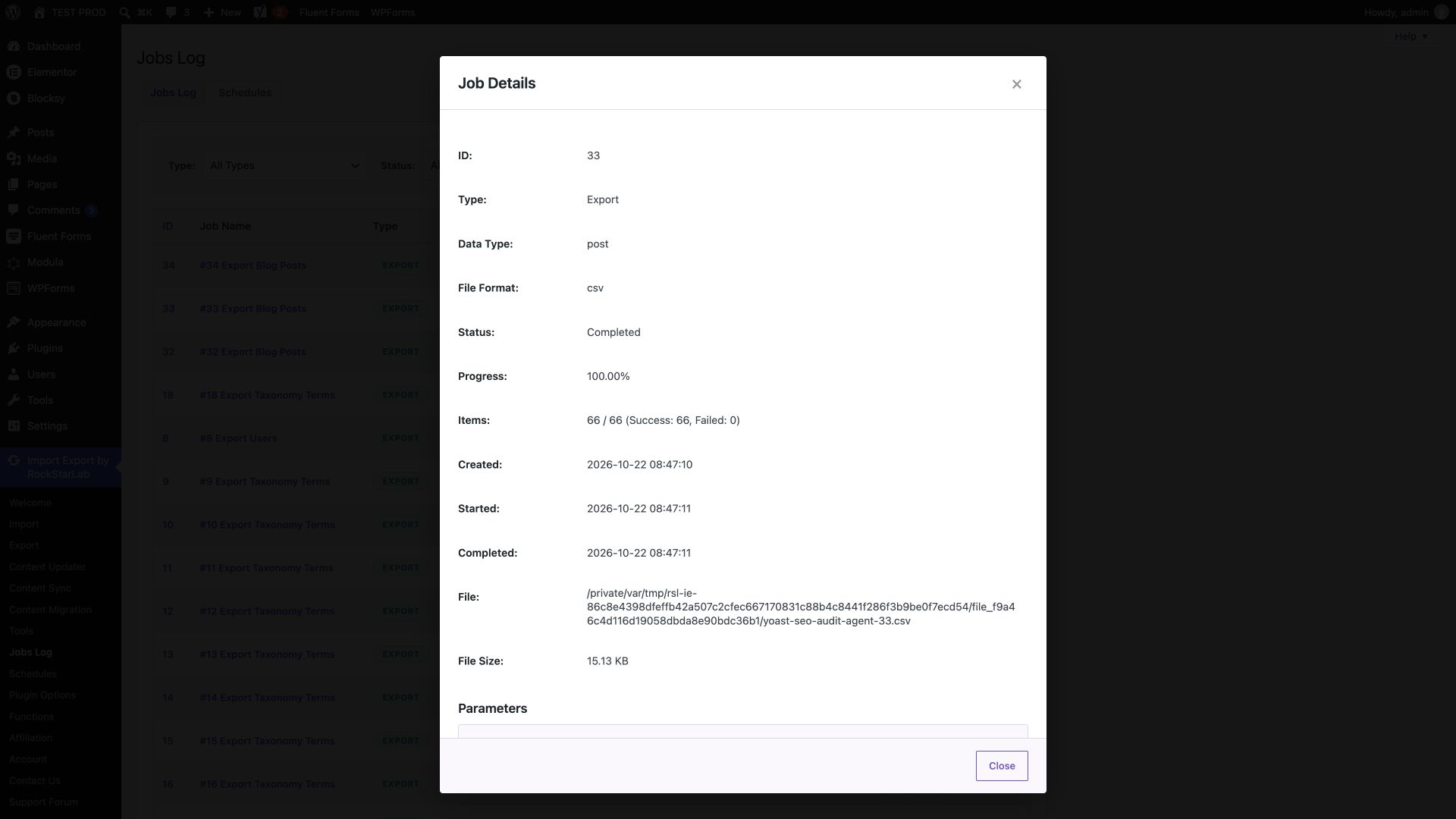
The completed agent workflow in this test produced job 33 with 66 exported posts, zero failures, and a 15,496-byte CSV. We opened its details in the browser and compared the file with the admin export. The rows matched by ID and column name despite a different column order.
The export-start parameters used for this workflow
For developers who want to see the underlying request, the following is the parameter object for rsl-ie/export-start. It is not a standalone chat prompt. Read the schema on your site first, choose a unique request ID for a new operation, and retain that ID if you need to recover from an uncertain response.
{
  "export_type": "post",
  "format": "csv",
  "fields": [
    "ID", "post_title", "post_status",
    "_yoast_wpseo_title", "_yoast_wpseo_metadesc"
  ],
  "options": {
    "post_status": "publish",
    "custom_export_file_name": "yoast-seo-audit-{job_id}"
  },
  "format_options": {
    "csv_delimiter": ",",
    "csv_include_header": true
  },
  "request_id": "yoast-audit-your-unique-run-id"
}
Use the returned job ID with rsl-ie/job-get to inspect completion, then rsl-ie/file-get to resolve the file. A browser download URL is intended for a logged-in WordPress administrator; an API download URL is for a client that sends the required authentication. Give the reader the appropriate link rather than exposing credentials.
Prompt 3: analyse the export without changing WordPress
Audit the exported Yoast CSV locally. Preserve an untouched copy.
Group: blank saved overrides, repeated literal titles, repeated literal
descriptions, variable-based values, and unusual text lengths.

Do not label a blank override as a missing HTML tag without checking
the page. Do not count template expressions as rendered-title lengths.
For each suggested change, include the post ID, current value,
proposed value, reason, and any page content that still needs review.

If you cannot read the page, mark the recommendation as unverified.
Do not invent facts from the title alone and do not import or publish
any changes. Return a reviewable recommendation table.
The export abilities retrieve data and create the file. The interpretation and proposed copy come from the agent’s analysis, which still needs editorial review. Treat spreadsheet cells and page text as content to inspect, not instructions that can authorise tool actions.
What about Rank Math?
Rank Math uses different saved metadata keys: rank_math_title and rank_math_description. Do not use the Yoast keys to audit a Rank Math site just because the fields serve a similar purpose. Old Yoast metadata can remain in the database after a plugin change.
We separately activated Rank Math 1.0.280 with Yoast inactive, checked its editor and frontend output, and verified an export preview for five prepared records. The full CSV walkthrough and 66-row comparison in this article are specifically the Yoast test. A Rank Math audit deserves its own walkthrough, including its templates and field selection.
Troubleshooting your Yoast metadata export
| Symptom | Check | Next action |
|---|---|---|
| The SEO columns are missing | Did you add the two fields from the Yoast SEO group, or only the standard Title? | Reopen field selection and check the exact keys. |
| A column contains blanks | Does that specific post have a saved override? | Compare the editor and rendered page before calling it an export error. |
| The file contains variables | Are variables saved in Yoast? | Preserve them in the raw copy; inspect rendered values for the audit. |
| The row count is lower than expected | Content type, status, and other filters | Compare the expected selection with unique exported IDs. |
| Everything opens in one column | Spreadsheet import delimiter | Reimport using the CSV delimiter you selected. |
| Accented characters look wrong | Spreadsheet import encoding | Try UTF-8 before changing the source text. |
| Google displays different text | Rendered tags, query context, and recrawl timing | Keep saved values, frontend output, and observed search appearance separate. |
| The AI connection returns a server error | Server logs and plugin compatibility | Resolve the server error before retrying the operation or claiming success. |
After the audit: review, update, and export again
Keep proposed copy in separate columns until it has been checked against the page. For a small list, edit the approved values directly in Yoast. For a larger update, review the CSV field-mapping guide and the Content Updater workflow before planning changes.
An audit CSV is not automatically a safe update file. Confirm record matching, supported destination fields, and empty-value behaviour on a small test selection before a bulk update. IDs identify records within an installation; do not assume they refer to the same content on another site.
After applying approved changes, export the same scope again and compare by ID. Check the changed posts in the editor and on the frontend. Keep the before-and-after files with a date and a short note describing what changed.
For ongoing maintenance, a consistent scheduled export can provide recurring snapshots. Keep content type, filters, and field names consistent so changes in scope are not mistaken for missing metadata.
Start with the five-column export. It gives you a traceable inventory of your saved Yoast titles and descriptions, whether you prefer the admin interface or an AI agent. Then review the rows that matter, inspect the actual pages, and make changes you can justify.
Frequently asked questions
Which Yoast fields should I export for titles and meta descriptions?
Export _yoast_wpseo_title and _yoast_wpseo_metadesc. Include ID, post_title, and post_status so each row can be identified and checked.
Does this export show the exact title and snippet Google displays?
No. It exports saved Yoast field values. Templates can change the rendered HTML, and Google can generate title links and snippets from other sources.
Why is a Yoast SEO title empty in my CSV?
The post may have no saved title override and may rely on a Yoast template. Check the frontend title before treating the empty cell as a missing HTML title.
Why does the CSV contain %%title%% and %%sitename%%?
Those variables are part of the saved Yoast value. The export preserves them. Inspect the rendered page to review the resolved text and its length.
Can I open the Yoast export in Excel or Google Sheets?
Yes. Import the CSV using the matching delimiter and UTF-8 encoding. Check that the header and data appear in separate columns before adding formulas.
Can an AI agent export the same Yoast fields?
Yes, with a working authorised MCP connection and the relevant Import Export abilities. Discover the abilities, inspect their schemas, preview the fields, start the export, and verify the resulting file.
Does exporting change my SEO titles or descriptions?
The workflow in this guide reads the saved fields and creates an export file and job record. It does not update the posts or their SEO metadata.
Can I use the same Yoast field keys for Rank Math?
No. Rank Math uses rank_math_title and rank_math_description. Select fields for the SEO plugin you are auditing and verify the saved values before exporting.