
A full site URL export gives you a clean list of every public URL that WordPress can generate on the frontend. With WP Import Export by RockStarLab, you can export all site URLs from Import Export -> Export by choosing All Site URLs, selecting URL sources, and downloading the result as CSV, Excel XLSX, or another supported export format.
This workflow is useful for SEO audits, website migrations, redirect planning, crawl testing, QA, content reviews, and sharing a complete URL inventory with clients, developers, or marketing teams.
Can I export all WordPress URLs to CSV or Excel?
Yes. WP Import Export can export all site URLs to CSV or Excel XLSX from the Export screen. The same All Site URLs exporter can also save URL lists as JSON, ODS, or XML where available in the active setup.
CSV is usually best for SEO tools and simple spreadsheet review. XLSX is best when the file will be opened, edited, filtered, or shared in Microsoft Excel.
Table of contents
- Why export all site URLs?
- Who needs a URL export?
- CSV vs Excel: what is the difference?
- What URLs can be exported?
- How to export all site URLs
- Best practices
- FAQ
Why export all site URLs?
Most WordPress websites contain more public URLs than the team remembers. A site may have posts, pages, product pages, custom post type entries, category archives, tag archives, product category archives, author archives, date archives, media attachment URLs, RSS feeds, Atom feeds, comments feeds, REST endpoints, and post type archive URLs.
Exporting all site URLs creates a practical inventory of those public addresses. That inventory is useful before, during, and after important website work.
SEO audits
SEO managers can use a site URL export as a crawl seed list. Instead of relying only on a sitemap or crawler discovery, the exported file gives the audit a direct list of URLs that WordPress knows how to generate.
This helps answer questions such as:
- Which public URLs exist on the site?
- Are taxonomy archives creating too many crawlable URLs?
- Are author archives, date archives, or attachment pages visible?
- Do product categories, tags, or custom taxonomies need review?
- Which URL groups should be crawled, redirected, indexed, or excluded?
Website migrations
Before a migration, export all site URLs from the old website. After launch, crawl that exported list against the new website. This makes it easier to find missing pages, broken redirects, changed permalinks, and lost archive URLs.
A URL export is also useful when moving from staging to production, changing domains, replacing a theme, rebuilding custom post types, or restructuring WooCommerce categories.
Redirect planning
Redirect maps are easier to build when you start with a complete URL list. Export the current URLs, decide which URLs will stay the same, and map changed URLs to new destinations.
This is especially helpful during redesigns, permalink changes, content pruning, ecommerce catalog rebuilds, and old-to-new website migrations.
QA and launch testing
Developers and QA teams can use exported URLs to test templates, status codes, redirects, caching behavior, canonical tags, structured data, and page rendering after deployment.
For example, a QA checklist may include crawling all exported post URLs, checking important taxonomy archives, and reviewing public custom post type archives before launch.
Content inventory
Content teams can use the exported file to review published areas of the website. A spreadsheet of URLs is easier to sort, filter, tag, and share than a long manual tour through the WordPress admin area.
Who needs a URL export?
| Role | How they use the export |
|---|---|
| SEO manager | Build crawl lists, audit indexable URLs, compare sitemap coverage, and plan redirects. |
| Developer | Test public routes, custom post type archives, REST endpoints, feeds, and deployment changes. |
| Agency team | Prepare migration inventories, share URL lists with clients, and document pre-launch checks. |
| Content manager | Review published content, taxonomy pages, archive pages, and content cleanup targets. |
| WooCommerce store owner | Review product URLs, product archives, product categories, tags, and ecommerce URL structure. |
| QA specialist | Run status-code checks, visual testing, redirect checks, and crawl comparisons before release. |
CSV vs Excel: what is the difference?
CSV and Excel files can both be used for URL exports, but they are not the same format.
What is CSV?
CSV stands for Comma-Separated Values. A CSV file is a plain-text table where each row contains values separated by a delimiter, usually a comma.
For a URL export, CSV is simple and efficient. The file usually contains a column such as url, with one exported URL per row. CSV files can be opened in spreadsheet apps, imported into SEO crawlers, processed with scripts, or shared with almost any tool.
What is Excel XLSX?
XLSX is the modern Microsoft Excel workbook format. It is designed for spreadsheet applications and can preserve workbook-style structure better than plain CSV.
For URL exports, XLSX is useful when the file will be reviewed by people in Excel. Teams can filter rows, add notes, assign owners, mark redirect actions, group URLs by priority, or prepare client-ready audit documents.
CSV vs Excel for URL exports
| Format | Best for | Advantages | Things to know |
|---|---|---|---|
| CSV | SEO crawlers, spreadsheets, scripts, simple URL lists | Lightweight, universal, easy to process, easy to upload into tools | Plain text; formatting and workbook features are not stored |
| XLSX | Excel workflows, client reports, collaborative review | Spreadsheet-native, comfortable for business users, good for filtering and notes | Less universal than CSV for automation, but better for manual Excel review |
When should you choose CSV?
- Use CSV when you want to upload the URL list into an SEO crawler.
- Use CSV when a developer will process the file with a script.
- Use CSV when you want the smallest and most portable file.
- Use CSV when the export only needs a simple list of URLs.
When should you choose Excel XLSX?
- Use XLSX when the file will be reviewed in Microsoft Excel.
- Use XLSX when a client or content team will add notes to the URL list.
- Use XLSX when the export will become a working document for redirects or QA.
- Use XLSX when spreadsheet usability matters more than plain-text portability.
Other supported export formats
The All Site URLs exporter also supports additional formats where available:
| Format | Best for |
|---|---|
| JSON | Developer workflows, automation, APIs, and technical QA scripts. |
| ODS | LibreOffice, OpenOffice, and open-document spreadsheet workflows. |
| XML | Structured data exchange, integrations, and systems that expect XML. |
For most SEO users, CSV and XLSX are the main choices. JSON, ODS, and XML are useful when the exported URL list needs to fit a technical or open-format workflow.
What URLs can be exported?
The All Site URLs export type is designed to collect frontend URLs from public WordPress sources. In the plugin interface, URL sources are grouped so you can select broad groups quickly or fine-tune individual URL types.
Bulk URL groups
The interface includes bulk selection groups such as:
- Posts for public post type URLs and related post type URL sources.
- Taxonomies for category, tag, product category, and custom taxonomy archive URLs.
- REST API Endpoints for supported public REST collection endpoints.
- RSS Feeds for RSS feed URLs.
- Atom Feeds for Atom feed URLs.
- Comments Feeds for comments feed URLs.
On a typical SEO export, you may only need posts, pages, public custom post types, taxonomies, and archives. For technical audits, you may also include feeds and REST API endpoints.
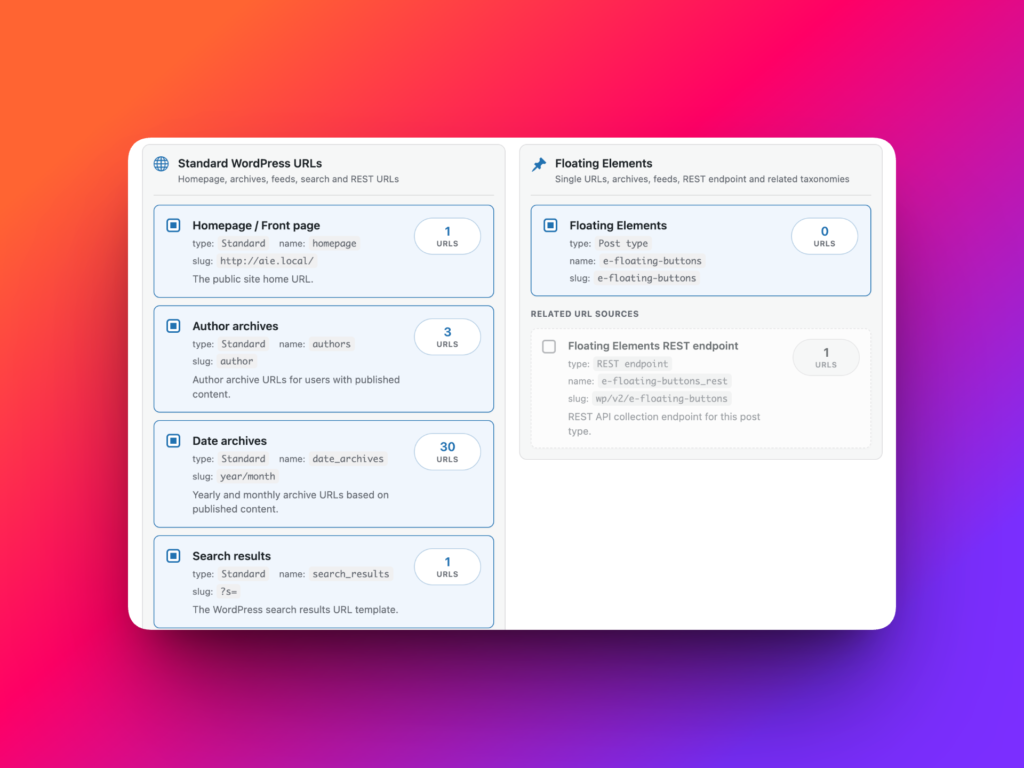
Standard WordPress URLs
All Site URLs can include standard WordPress URLs such as:
- Homepage or front page URL.
- Author archive URLs.
- Date archive URLs.
- Search results URL template.
- Main RSS feed.
- Atom feed.
- Global comments feed.
- REST API root URL.
Post type URLs
The exporter can include public post type URLs such as:
- Blog posts.
- Pages.
- Media attachment URLs.
- Portfolio entries or other custom post types.
- WooCommerce product URLs where WooCommerce is available.
- Post type archive URLs when a post type supports public archives.
- Post type feed URLs where available.
- REST API collection endpoints for supported public post types.
Taxonomy URLs
Taxonomy URL sources can include:
- Categories.
- Tags.
- Product categories.
- Product tags.
- Custom taxonomies registered by the theme or plugins.
How to export all site URLs to CSV or Excel
Follow these steps to generate a full WordPress URL export.
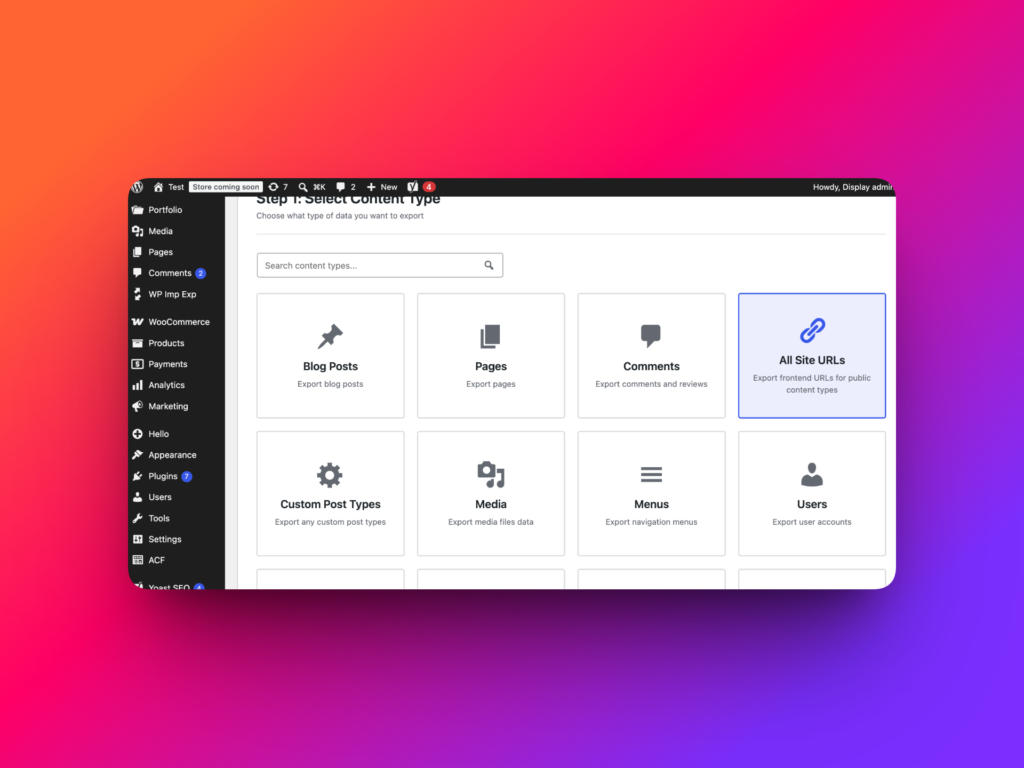
Step 1: Open Export
Log in to WordPress and go to:
Import Export -> Export
The Export screen starts with Step 1: Select Content Type.
Step 2: Select All Site URLs
Choose All Site URLs. The option is described in the interface as Export frontend URLs for public content types.
Click Next Step.
Step 3: Select URL content types
On Step 2: Filter Data, the All Site URLs workflow shows Select URL Content Types instead of normal field filters. Select the groups and individual URL sources you want to include.
For a clean SEO URL inventory, start with public content, taxonomies, and archives. Add feeds, comments feeds, Atom feeds, and REST API endpoints only when your audit needs technical URLs.
Step 4: Choose CSV or Excel XLSX
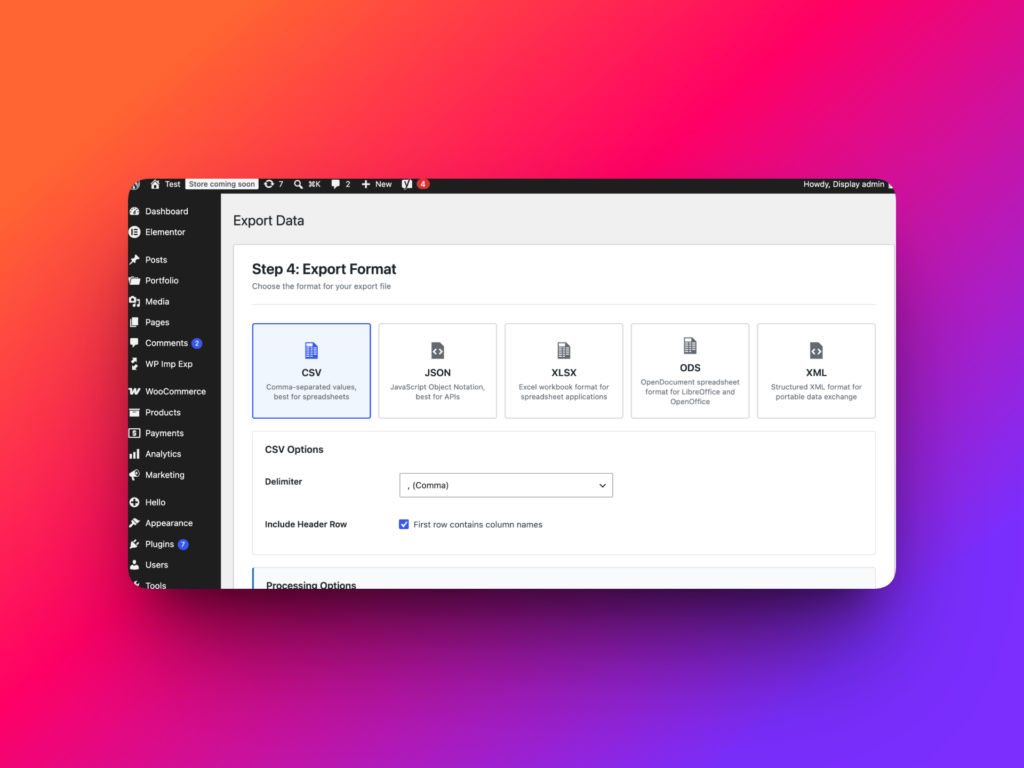
After selecting URL sources, the workflow opens Step 4: Export Format. Choose CSV for a lightweight URL list or XLSX for an Excel workbook.
The same screen also shows JSON, ODS, and XML as available export formats where supported.
Step 5: Configure CSV options if needed
If you choose CSV, review the CSV options. The interface includes delimiter choices such as comma, semicolon, tab, pipe, or custom delimiter. You can also keep the option First row contains column names enabled so the exported file includes a header row.
For SEO tools and spreadsheets, a comma delimiter with a header row is usually the safest default. Use semicolon or tab only when your spreadsheet locale or destination tool expects it.
Step 6: Set processing options
Set Items per iteration based on your hosting environment and site size. A smaller value is safer for regular shared hosting. A larger value may be faster on stronger servers.
For very large sites, conservative processing helps avoid timeouts while the export job builds the URL list in batches.
Step 7: Start the export
Click Start Export. Wait until the export job finishes, then download the generated file.
Completed export jobs are saved in Jobs Log, so the file can be reviewed or downloaded again from the job history when needed.
What does the exported file contain?
A URL export is intentionally simple. The main exported value is the URL itself, so the file can be used by crawlers, spreadsheets, redirect templates, scripts, and QA tools without extra cleanup.
A simple CSV export may look like this:
url
https://example.com/
https://example.com/about/
https://example.com/blog/example-post/
https://example.com/category/news/
https://example.com/product/example-product/
This simple structure is useful because the next tool does not need to understand WordPress internals. It only needs the URL list.
Best practices for exporting all site URLs
Export before major site changes
Create a URL export before changing permalinks, redesigning templates, moving domains, replacing a theme, restructuring WooCommerce categories, or launching a migration. The export becomes a baseline you can compare against after the change.
Keep SEO exports focused
For SEO audits, avoid adding every technical endpoint unless you need it. Feeds and REST endpoints are useful, but they can make a content-focused URL list noisier.
Use Excel for working documents
If the URL export will become a redirect map, QA checklist, or client review document, choose XLSX. Excel files are easier for teams to annotate, sort, filter, and update manually.
Use CSV for tools and automation
If the URL export will be uploaded into an SEO crawler, processed by a script, or imported into another tool, choose CSV. CSV is usually the most portable option.
Save exports in project folders
For migrations and audits, store URL exports with dates in the filename or project folder. This makes it easier to compare pre-launch, launch-day, and post-launch URL inventories.
Common mistakes
Exporting only sitemap URLs
A sitemap is useful, but it may not include every public URL that matters during an audit. An All Site URLs export can reveal public URL sources that are outside the sitemap or not obvious from the admin area.
Forgetting taxonomy archives
Categories, tags, product categories, and custom taxonomies can create many important URLs. Include taxonomy sources when auditing indexable archive pages or planning redirects.
Mixing content URLs with technical endpoints
REST endpoints and feeds are important for technical checks, but they can clutter a standard SEO URL list. Export them separately if the audit needs different workflows for content URLs and technical URLs.
Using the wrong delimiter
If a CSV opens incorrectly in Excel or another spreadsheet tool, the delimiter may not match the app’s expectations. Try comma, semicolon, tab, or pipe depending on the destination tool and locale.
HowTo: Export all site URLs to CSV or Excel
- Log in to your WordPress admin dashboard.
- Go to
Import Export -> Export. - On Step 1: Select Content Type, choose All Site URLs.
- Click Next Step.
- On Step 2: Filter Data, select the URL content types and URL groups you want to include.
- Use bulk groups such as Posts, Taxonomies, REST API Endpoints, RSS Feeds, Atom Feeds, and Comments Feeds when needed.
- Continue to Step 4: Export Format.
- Choose CSV for a simple URL list or XLSX for an Excel workbook.
- Review CSV options, delimiter, header row, and items per iteration where relevant.
- Click Start Export.
- Download the completed CSV or Excel file when the job finishes.
Recommended internal links
FAQ
How do I export all URLs from a WordPress site?
Go to Import Export -> Export, choose All Site URLs, select the URL sources you want to include, choose an export format such as CSV or XLSX, and start the export.
Can I export WordPress URLs to Excel?
Yes. WP Import Export can export all site URLs to XLSX, which is the modern Excel workbook format.
Can I export WordPress URLs to CSV?
Yes. WP Import Export can export all site URLs to CSV. CSV is a good choice for SEO crawlers, spreadsheet review, scripts, and simple URL inventories.
What is the difference between CSV and Excel XLSX?
CSV is a plain-text table format that is lightweight and widely supported. XLSX is an Excel workbook format that is better for manual spreadsheet review, filtering, notes, and client-facing working documents.
Does All Site URLs export include taxonomy URLs?
Yes. All Site URLs can include taxonomy URLs such as categories, tags, product categories, product tags, and public custom taxonomy archives where available.
Does All Site URLs export include custom post type URLs?
Yes. The exporter can include public custom post type URLs, public post type archive URLs, feeds, and REST endpoints where supported by the active site setup.
Should I include REST API endpoints in an SEO URL export?
Include REST API endpoints when you are doing a technical audit or developer QA. For a clean SEO content URL list, you may prefer to export content URLs, taxonomy URLs, and archives separately from technical endpoints.
Is a URL export the same as a sitemap?
No. A sitemap is a search-engine discovery file, while a URL export is a working inventory you can use in spreadsheets, crawlers, redirect maps, QA tools, and migration projects.
Can I use the exported URL list for redirects?
Yes. Exported URLs are useful for redirect planning because they give you a starting list of old URLs that can be mapped to new destinations.
Which format is best for SEO tools?
CSV is usually the best format for SEO tools because it is simple, lightweight, and accepted by many crawlers and data-processing workflows.