
To export Rank Math SEO titles and meta descriptions to CSV, open Import Export by RockStarLab → Export, choose your content type, filter the posts you want to review, and add rank_math_title and rank_math_description to the export. Include the post ID, WordPress title, status, and focus keyword so each row has enough context for an audit.
This guide walks through the WordPress admin workflow first, then shows how to request the same export through an AI agent. The examples come from a test with 66 published posts, including duplicate metadata, empty overrides, punctuation, accented text, and Rank Math variables.
One distinction matters before you start: this CSV contains saved Rank Math field values. A blank cell can still produce a title or description on the live page, and a value containing %title% is a template, not the final rendered title. Keep that distinction in your audit and you will avoid marking working pages as broken.
What this export includes
The goal is a focused metadata inventory: one row per published blog post, with enough information to locate the original content and decide what needs attention. It is useful for an editorial review, a pre-migration snapshot, or a comparison before and after an SEO cleanup.
| Column | What it contains | Why keep it |
|---|---|---|
ID |
The WordPress post ID. | A stable reference on this site, even when titles change. |
post_title |
The saved WordPress content title. | Context for evaluating the separate SEO title. |
post_status |
The publication status. | Confirmation that the export contains the intended records. |
rank_math_title |
The saved Rank Math SEO title override. | Review custom titles, duplicates, and template expressions. |
rank_math_description |
The saved Rank Math description override. | Review descriptions without opening every post. |
rank_math_focus_keyword |
The saved focus keyword field. | Compare the editorial target with the title and description. |
The focus keyword is editorial context; this export does not provide search impressions, clicks, ranking positions, or query performance. It also does not export every Rank Math setting, schema object, redirect, archive page, or rendered meta tag. A post metadata CSV is one part of an SEO audit, not a whole-site crawl.
If you need a URL inventory alongside it, see how to export WordPress URLs to CSV or Excel. Keep a reliable ID-to-URL mapping when combining reports; a post title alone is not a safe join key.
Before you export
You need access to WordPress admin, Import Export by RockStarLab, and existing Rank Math metadata on the site. The screenshots use the block editor with Rank Math active. Keep the SEO plugin that normally controls your site active; do not enable a second SEO plugin just to follow a tutorial.
Our test used WordPress 7.1.3, Rank Math 1.0.280, Import Export by RockStarLab 2.0.1, and its PRO add-on 2.0.0. Rank Math PRO was not installed. Both RockStarLab editions were active, so this test does not establish which steps are available in a free-only RockStarLab installation.
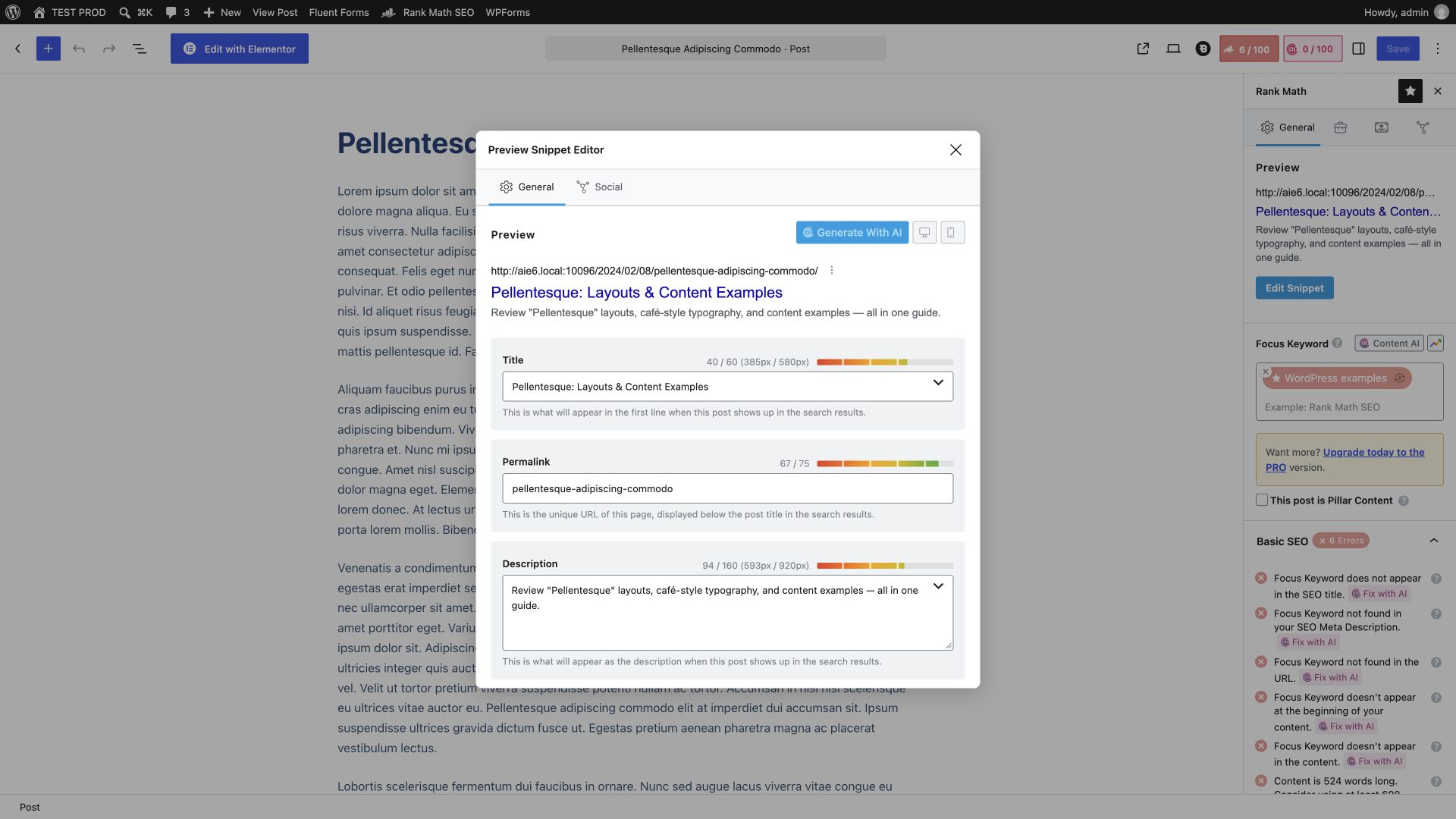
Start with one familiar post. Open it in the WordPress editor, select Rank Math → General → Edit Snippet, and note the Title and Description. This gives you a known example to find in the downloaded file. You do not need to rewrite your metadata before exporting it.
Export Rank Math metadata from WordPress admin
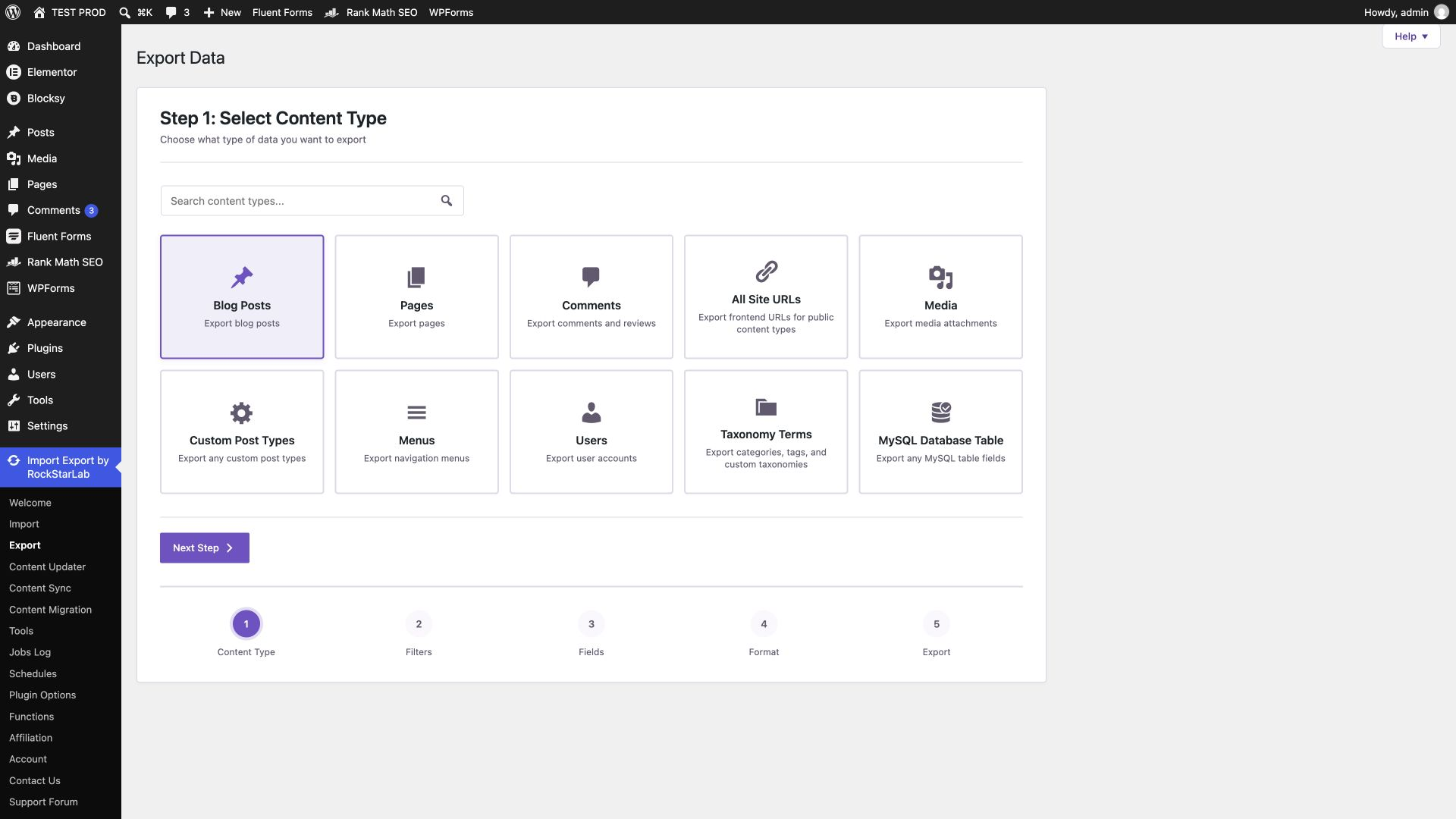
1. Choose Blog Posts
Go to Import Export by RockStarLab → Export. Select Blog Posts, then move to the next step. This tutorial tests blog posts specifically. Pages or products need their own content selection and a fresh check of the available fields; selecting Blog Posts does not include them automatically.
For a broader introduction to the export wizard, see our WordPress posts to CSV tutorial.
2. Filter the export to published posts
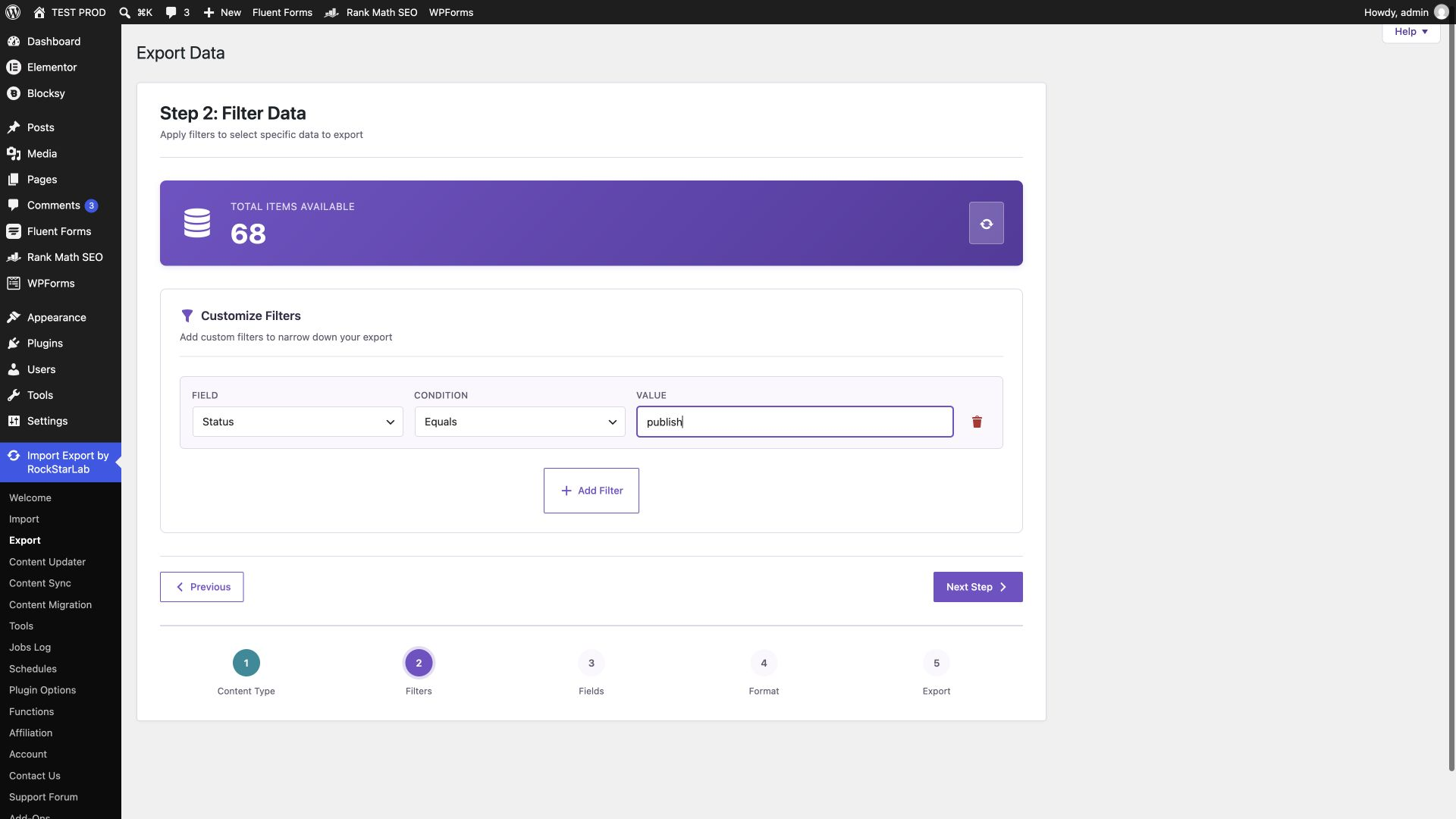
Add a filter with Status as the field, Equals as the comparison, and publish as the value. Continue once the condition is correct.
A published-content audit should not silently mix drafts and scheduled posts into its counts. Conversely, an editorial review before publication may deliberately need those statuses. Define the scope first and record it with the file. On our test site, 68 posts existed, but only 66 were published; the completed export contained those 66.
For more selective reports, consult the export filters guide. When combining conditions, verify a few included and excluded records before treating the result as your audit baseline.
3. Add the six audit fields
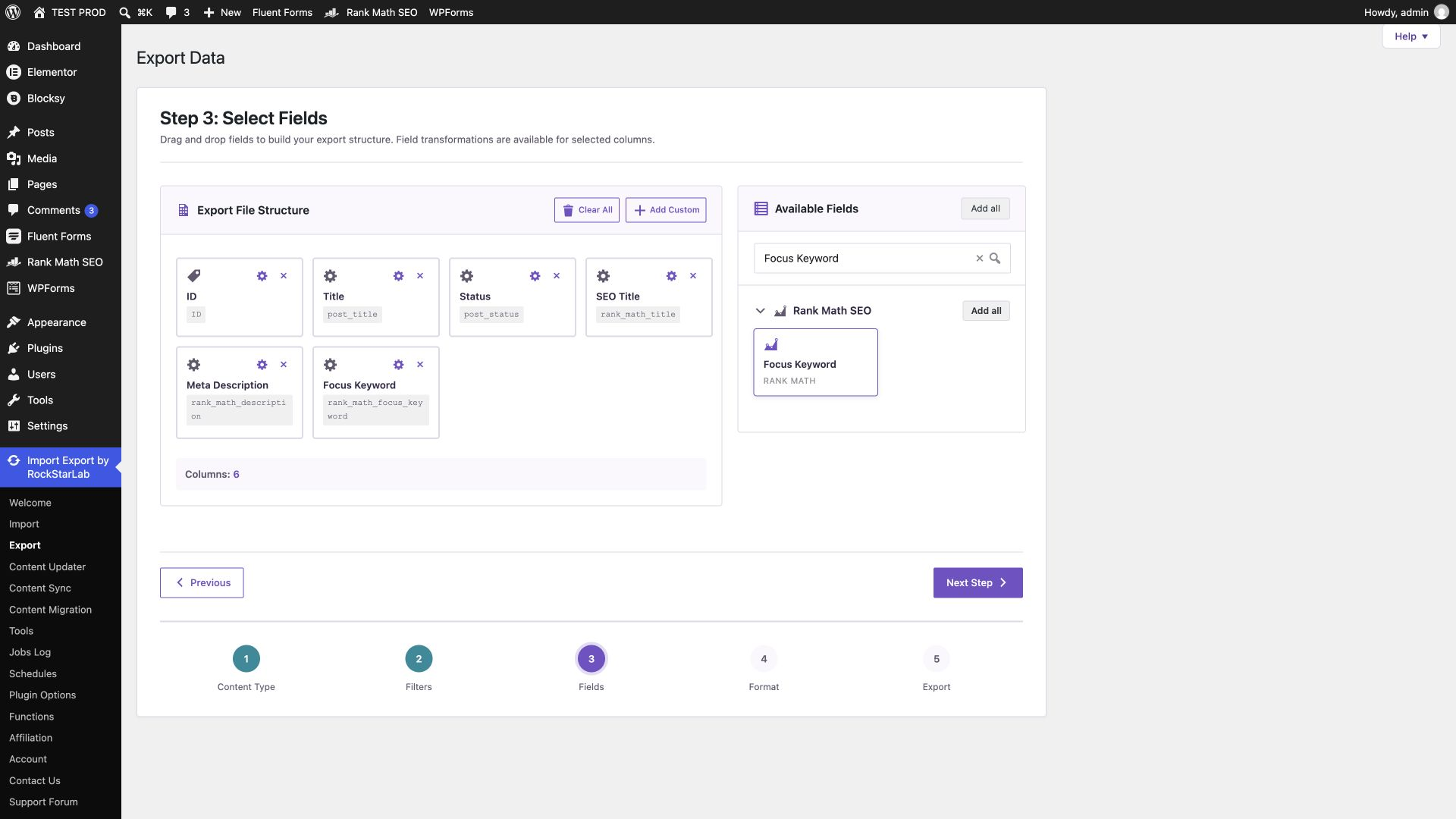
On Select Fields, drag ID, Title, and Status into the export structure. Then find the Rank Math SEO group and add SEO Title, Meta Description, and Focus Keyword.
Use the field search if the list is long. Check the underlying keys on the cards: the ordinary Title is post_title, while Rank Math’s SEO Title is rank_math_title. Selecting only the former will export your content headings, not the SEO overrides you meant to audit.
Arrange the columns in the order shown in the table above. Leave transformations off for the baseline export: trimming, replacing, or otherwise rewriting values would make it harder to compare the file with the original fields. Keep descriptive notes in separate review columns after downloading.
4. Select CSV and keep the header row
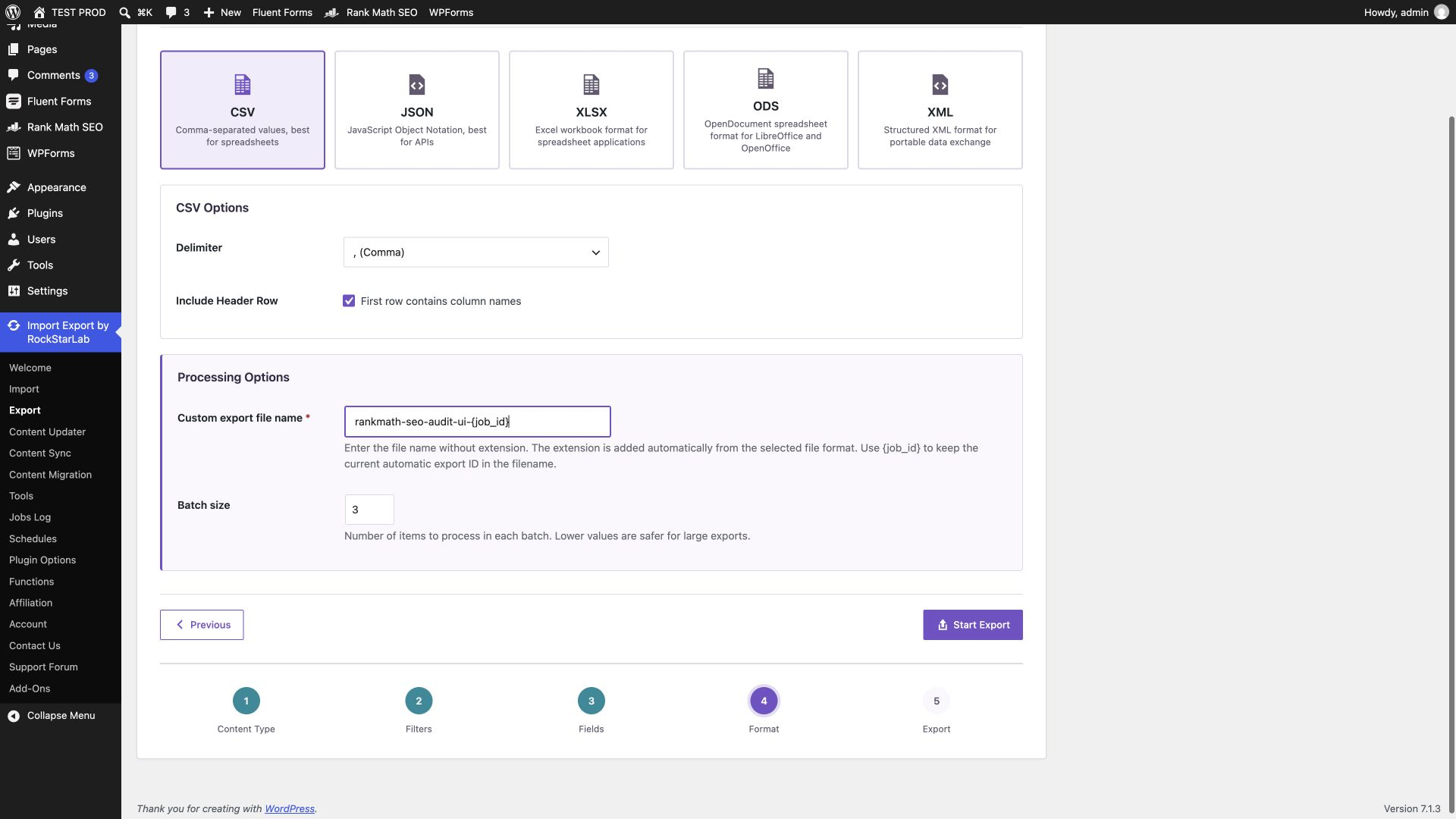
Choose CSV, use a comma delimiter, and enable the header row. Give the file an identifiable name. Our UI test used rankmath-seo-audit-ui-{job_id}, producing a filename containing the completed job’s ID.
CSV is a text format that spreadsheet applications can open; it is not an Excel workbook. If Excel places everything in one column, import the file through its text/CSV import flow and select the comma delimiter and UTF-8 encoding. Do not fix this by deleting commas from descriptions.
Descriptions can legitimately contain commas, quotation marks, and non-ASCII characters. A CSV reader must respect quoted fields. Splitting each line on every comma is not a valid way to check this file.
5. Run the export and download the completed file
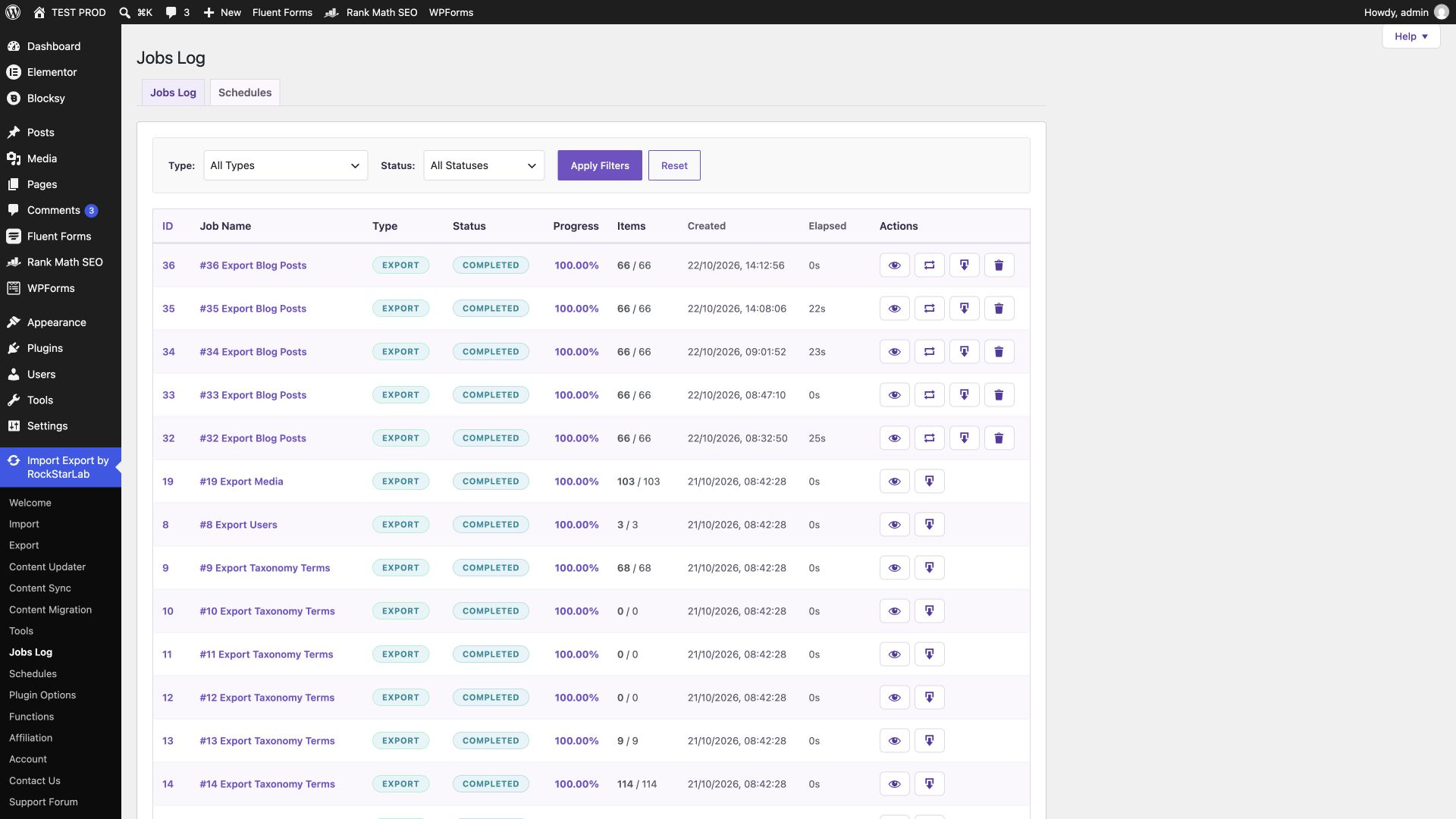
Start the export and wait for completion. Open Jobs Log to review its status and item count, then use the job’s Download action. A completed job is the starting point for validation, not the end of it.
Our admin export was job #35: 66 of 66 records completed. The second job shown below, #36, was created through the AI workflow later in this guide. Each CSV contained 66 unique post IDs, and every row had publish as its status.
6. Check the file against the editor
Open the CSV in your spreadsheet application. Find the post you inspected before exporting and compare its Rank Math title, description, and focus keyword. Check punctuation as well as words: our sample retained the quotation marks around “Pellentesque,” the accented character in “café,” and the em dash.
Then inspect an empty value, a duplicate pair, and a template value if your site has them. Checking only a straightforward row can miss the cases most likely to be misinterpreted during an audit.
| Test case | Expected CSV result | Observed result |
|---|---|---|
| Custom title and description, post 360 | Saved text preserved, including punctuation and Unicode. | Matched the stored values and Rank Math editor. |
| Duplicate metadata, posts 357 and 354 | Two separate rows retaining the same SEO text. | Both rows present; duplicates were not removed. |
| Empty overrides, post 351 | Empty title and description cells. | Both cells empty; the live page still had generated metadata. |
| Variables, post 348 | Literal %title% %sep% %sitename%. |
Template preserved in CSV; variables resolved on the live page. |
| UI versus AI export | The same records and saved values. | All six columns matched across 66 rows. |
We also compared the exported Rank Math fields with their stored values for every included post, not only the illustrated examples. This was a correctness test with 66 published posts; it is not a benchmark for a large site.
Saved Rank Math fields versus rendered metadata
A useful audit keeps three things separate: the saved field, the HTML produced by WordPress, and the text a search engine chooses to display. They can differ without an export error.
Why the CSV contains %title% instead of a finished title
Our variable-based post stored this exact title:
%title% %sep% %sitename%The CSV retained that expression. In the browser, the same post produced this document title:
Orci Acuctor Ougue Mauris Bugue - TEST PRODIts saved description was Explore %title% on %sitename% — examples and editorial notes. The live page resolved the post title and site name there too. That is expected: the export preserves the editable source field, while Rank Math generates the frontend value.
Consult Rank Math’s variable reference when reviewing expressions. Do not copy Yoast’s double-percent syntax into Rank Math fields. If your aim is a rendered-title audit, collect live HTML metadata separately and keep it in additional columns.
Why a blank cell does not prove a missing meta tag
Post 351 had empty saved Rank Math title and description overrides. Its live document title was Neque Aliquam Vestibulum Corbi - TEST PROD, and its description contained text beginning “Lorem ipsum dolor sit amet…”. We checked that output in the browser.
For this record, “no custom description saved” was accurate; “no description tag exists” was not. Your result depends on your content and Rank Math configuration. Inspect the actual page before deciding whether a blank override needs editing.
The reverse check matters too. A non-empty cell tells you something was saved; it does not prove that the current frontend uses it. Inspect the page’s <title> and <meta name="description"> when investigating stale output, cache behavior, or a plugin conflict.
Why a good export may differ from Google’s result
Google can build title links from several sources, and title display is constrained by available width rather than a universal character cutoff. Use concise, descriptive titles rather than treating a spreadsheet length threshold as a pass/fail rule. See Google’s title-link guidance.
Search snippets may come from page content and can vary with the query. A saved meta description is not a promise that Google will display those exact words. Google’s snippet documentation explains that distinction. This CSV cannot tell you what a search result currently shows.
Turn the CSV into a practical SEO review
Keep the original export unchanged and work in a copy. Add columns such as Issue, Rendered title checked, Rendered description checked, Proposed title, Proposed description, and Review status. This preserves the evidence while making the next action explicit.
Separate missing overrides from missing output
Filter empty title and description cells into a review queue. Check a few live pages and the relevant title/description templates before editing. If the same fallback generates appropriate metadata across a content type, filling every blank field manually may add maintenance work without improving the result.
Review duplicate text in context
Group non-empty SEO titles and descriptions to spot repeated values. Our deliberately duplicated records kept their separate IDs, which is exactly what an audit needs. Decide whether each pair represents distinct content that deserves distinct wording.
Repeated variable expressions need a different interpretation. A hundred rows containing %title% %sep% %sitename% may resolve to a hundred different titles. Label those as shared templates, then compare their rendered output before calling them duplicate titles.
Compare wording with the page’s purpose
Read the post title and focus keyword together with the SEO fields. Does the title describe the actual article? Does the description explain what a reader will find? Is an old year, price, offer, or product name still present? Put the correction and its reason in the review copy instead of silently changing the baseline.
Length checks are useful for sorting, especially when one title is much longer than the rest. They are less useful as automatic rewrite instructions. Review the meaning, the template expansion, and the likely truncation point before shortening text.
Prioritize work, then verify the changes
If you have a separate Search Console report, use its page-level information to prioritize relevant URLs. This export does not retrieve Search Console data, and the tutorial’s test did not connect to a Search Console property. Do not infer traffic or ranking impact from the presence of a focus keyword.
After approved edits, export the same scope again and compare records by ID. For a recurring process, see scheduled WordPress exports. Keep the filters and columns consistent so changes in the report reflect content changes rather than a different selection.
Export the same Rank Math fields with an AI agent
An AI agent can ask Import Export by RockStarLab to create the CSV through its WordPress abilities. The agent coordinates the request; the plugin performs the export. You still need to verify the job and file.
First connect your agent to the correct WordPress site using our WordPress Abilities API and AI-agent setup guide. The connected account must have the required permissions. A chat window without that connection cannot inspect your site or create this export.
Prompt for a read-only content audit export
On the connected WordPress site, export published blog posts to CSV
using Import Export by RockStarLab.

First discover the available abilities, inspect the input schema for
rsl-ie/get-capabilities, and execute it with {}. Then inspect the
schemas needed for the export and verify that these fields are available:
ID, post_title, post_status, rank_math_title,
rank_math_description, rank_math_focus_keyword.

Export only posts with post_status publish. Use a comma delimiter
and include headers. Preserve the saved Rank Math values, including
empty strings and variables. Do not rewrite metadata, edit posts,
change settings, or import anything.

Wait for completion, report the job ID and item count, and retrieve
the CSV through the supported file workflow. Verify unique post IDs
and inspect sample values. Open the job in WordPress Jobs Log and
compare a source record in the Rank Math editor. Report any mismatch
or UI error instead of claiming success.
The request creates an export job and file; “do not edit posts” does not mean no job records are created. Explicit scope prevents the agent from turning an inventory request into an unreviewed metadata rewrite.
The export parameters used in this test
After checking the ability schema, we called rsl-ie/export-start with the following parameters. Use a new request identifier for a new intentional export, and inspect the current schema rather than assuming all versions accept the same options.
{
  "export_type": "post",
  "format": "csv",
  "fields": [
    "ID",
    "post_title",
    "post_status",
    "rank_math_title",
    "rank_math_description",
    "rank_math_focus_keyword"
  ],
  "options": {
    "post_status": "publish",
    "custom_export_file_name": "rankmath-seo-audit-agent-{job_id}"
  },
  "format_options": {
    "csv_delimiter": ",",
    "csv_include_header": true
  },
  "request_id": "rankmath-article-20261022-1"
}
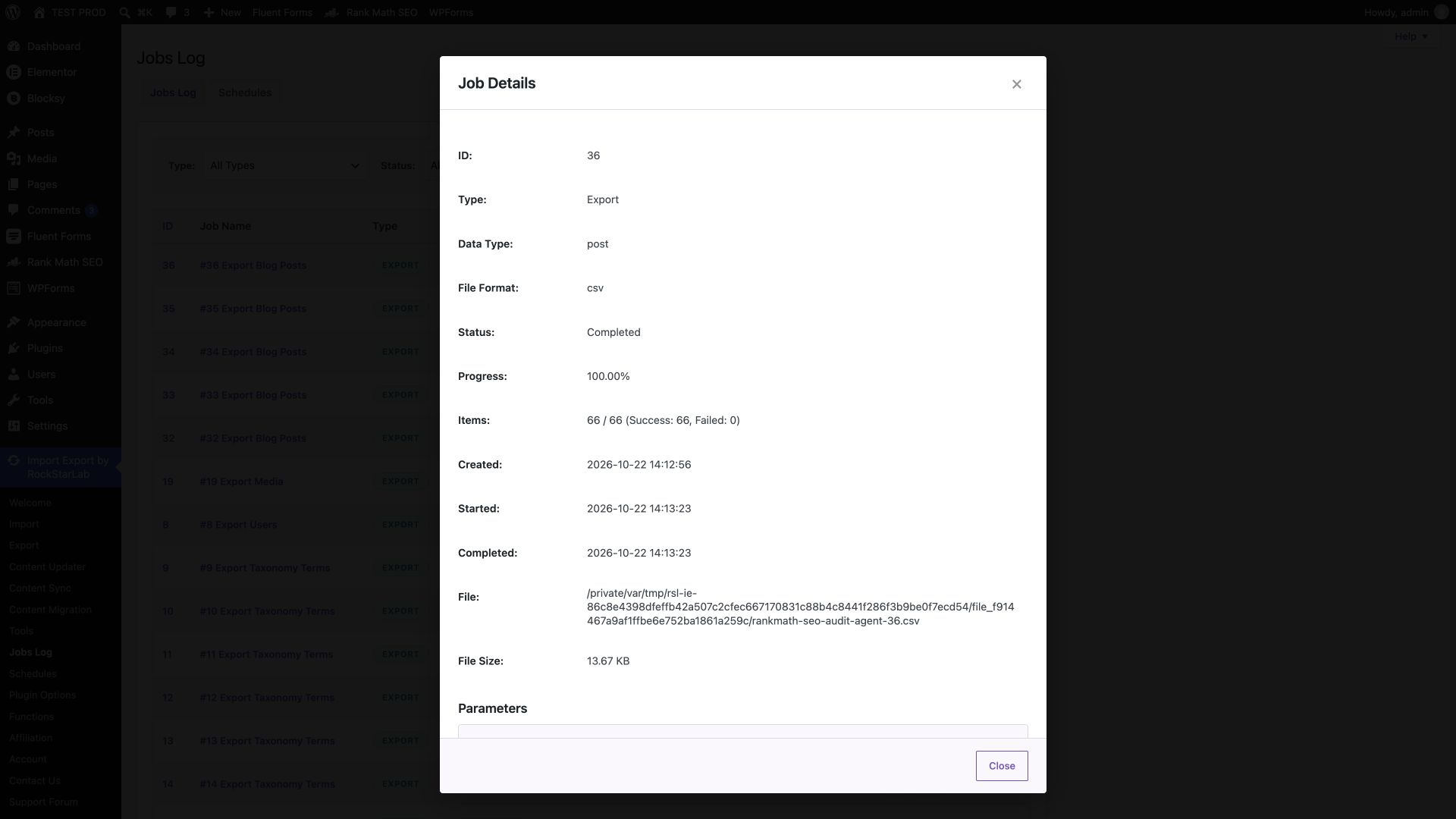
The agent then used rsl-ie/job-get to check completion and rsl-ie/file-get to retrieve the file information. Job #36 completed with 66 successes and zero failures. We opened its details in the browser and compared the downloaded CSV with the admin export: the six columns matched across all 66 rows.
Prompt for reviewing the exported file
Review this Rank Math CSV without changing the website.
Find empty saved title/description overrides, repeated non-empty
literal values, and fields containing Rank Math variables.

Keep those categories separate. Do not call an empty override a
missing frontend tag, or a shared template a duplicate rendered title.
For each issue, retain the post ID and original values, explain what
needs browser verification, and suggest the next editorial action.
Do not invent search traffic, rankings, or performance data.
Return proposed rewrites separately for human review.
If the agent also has browser access, ask it to inspect representative source posts and live pages. Without browser access, its data checks can still be useful, but they cannot establish that the editor and frontend behave correctly.
On this local test site, Modula was disabled because of a previously identified conflict during MCP initialization with Rank Math. With Modula inactive, the agent export completed. That test condition is not evidence that the conflict itself has been fixed.
What about Rank Math’s own CSV export?
Rank Math documents a native metadata CSV workflow under Rank Math SEO → Status & Tools → Import & Export, with the spreadsheet workflow marked PRO. If you already use it and its output meets your needs, it is a reasonable option. See Rank Math’s official bulk metadata guide.
The RockStarLab workflow demonstrated here lets you build a focused file with ordinary WordPress fields beside the saved Rank Math fields, apply an export filter, and request the same export through an agent. Choose the workflow that fits your review process; an extra exporter is not necessary just because a site uses Rank Math.
Keep the file formats distinct. Rank Math’s native importer documents columns such as seo_title and seo_description, while this tutorial’s file uses rank_math_title and rank_math_description. Do not assume a CSV produced by one tool is ready for another tool’s importer without checking its required format and mapping.
Troubleshooting the export
| What you see | What to check next |
|---|---|
| The file contains ordinary post titles only. | Check that you selected Rank Math SEO Title as well as the core Title field. |
| Some metadata cells are empty. | Check the saved override in Rank Math and inspect the live page. A fallback may supply the output. |
| Several rows contain the same template. | Compare resolved frontend titles before classifying them as duplicates. |
| Excel shows one column or garbled accents. | Import the original CSV as UTF-8 with a comma delimiter. Preserve quoted fields. |
| The row count is lower than the total number of posts. | Check the status filter and content type. Our 68-post site correctly produced 66 published rows. |
| Rank Math fields are not visible in the field picker. | Check plugin activation, available integration fields, installed versions, and whether the selected records contain Rank Math data. |
| The agent cannot discover abilities or returns a server error. | Check the MCP connection and server error before starting another job. Do not treat a failed request as an empty export. |
| The browser shows old metadata after an edit. | Compare saved values with actual page output and investigate caching or competing metadata output. |
What to do after the audit
Use the review copy to agree on the changes first. A successful export does not test an import, an update mapping, or empty-value behavior during a write operation.
If the next step is bulk updating, read the Content Updater guide and the CSV field-mapping tutorial. Test the intended update on a small staging selection, verify the Rank Math editor and frontend, and keep a backup before applying it more widely. This article’s verified workflow ends at export and review.
Start with the six-column file shown here. Once its scope and source values are correct, you can decide which URLs need closer inspection and which metadata changes are worth making.
Frequently asked questions
Can I export Rank Math SEO titles and meta descriptions to CSV?
Yes. In Import Export by RockStarLab, choose the content type, add the Rank Math SEO Title and Meta Description fields, and export as CSV. Include the post ID and ordinary title so you can identify each record.
Which Rank Math field keys should I export?
For this audit, use rank_math_title, rank_math_description, and optionally rank_math_focus_keyword. The tested file also includes ID, post_title, and post_status.
Does an empty Rank Math description cell mean the live page has no description?
No. An empty saved override can still produce a frontend description through Rank Math’s fallback behavior. Check the actual page before classifying the tag as missing.
Why does my CSV contain %title% and %sitename%?
The CSV preserves saved Rank Math template variables. Rank Math resolves them when generating the frontend metadata. Use a separate inspection of rendered HTML if you need the final title and description.
Can I open this CSV in Excel or Google Sheets?
Yes. Import it as a comma-delimited UTF-8 CSV with a header row. CSV does not contain the formatting or multiple sheets of an Excel workbook.
Do I need Rank Math PRO for the workflow shown here?
Rank Math PRO was not installed in this test. Rank Math 1.0.280 was used with Import Export by RockStarLab 2.0.1 and its PRO add-on 2.0.0. This does not establish free-only availability for RockStarLab. Rank Math’s own documented spreadsheet export workflow is marked PRO.
Can an AI agent export the same Rank Math fields?
Yes, with a working authorized WordPress abilities connection. The tested agent export produced the same six columns and 66 published records as the admin export. The job and source content were also checked in the browser.
Can I import this CSV directly into Rank Math after editing it?
Do not assume the formats are interchangeable. Rank Math’s native CSV importer uses its own column names and requirements. Verify the destination format, record matching, field mapping, and empty-value behavior before testing any update on staging.
Tested on October 22, 2026. Screenshots show a local test site with deliberately prepared metadata. No production content was changed or published for this tutorial.