
If you run the same WordPress export regularly, rebuilding its settings every time gets old quickly. A schedule lets you reuse a completed export job’s configuration and run it again at a time you choose.
This guide focuses on scheduling—not on repeating the export setup. For a detailed example of exporting Portfolio content, fields, and taxonomies, see our Portfolio export and import walkthrough.
How scheduled WordPress exports work
Import Export by RockStarLab can schedule an export job that has already run. Open Import Export by RockStarLab → Jobs Log → Schedules, then choose the completed export job you want to repeat. Each occurrence creates a new job using the saved configuration; it does not change the original job-log entry.
A schedule reuses the source job’s settings, including the content type, selected fields, filters, and file format. It does not open the export wizard again or automatically include changes you make later. If you need different fields or filters, create and complete a new export job, then use that as the schedule’s source.
Before creating a schedule, run the export once and check that it completes with the results you expect. The completed job will then be available as a source.
How to schedule a recurring WordPress export
- Open Import Export by RockStarLab → Jobs Log, then select the Schedules tab.
- Under Add schedule, enter a descriptive name, such as “Weekly Portfolio Export.”
- In Source Job, search for and select the completed export job whose settings you want to reuse.
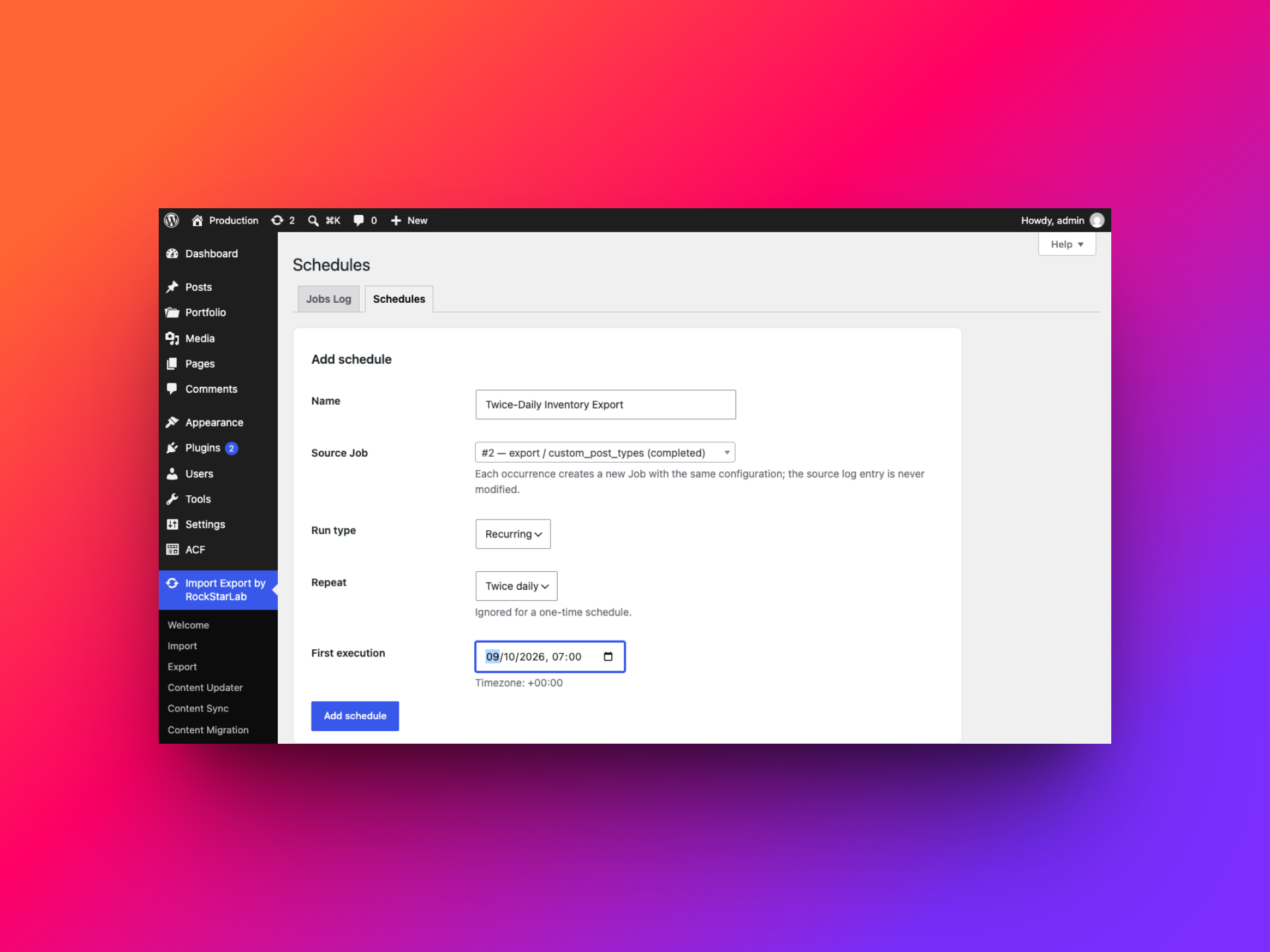
- Set Run type to Recurring, then choose an interval: Hourly, Twice daily, Daily, or Weekly.
- Choose the First execution date and time. The form displays the site’s WordPress timezone, so check it when coordinating with another system or team.
- Select Add schedule. The saved schedule should appear in the table with its next run and status.
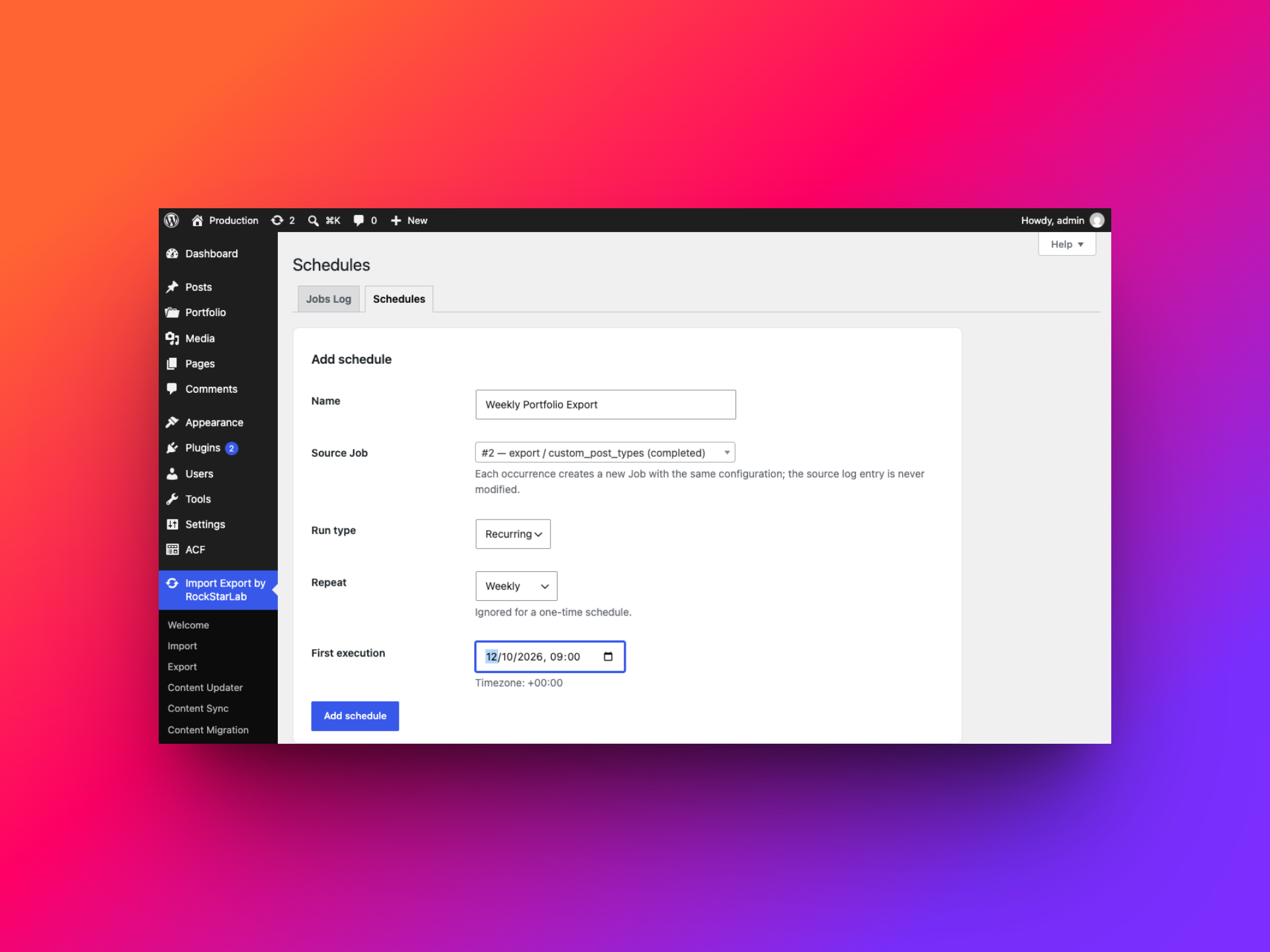
The repeat interval is ignored when Run type is set to One time. Choose that option if you want to run a completed export once in the future rather than repeat it.
Make sure WordPress cron runs reliably
WordPress’s built-in scheduler, WP-Cron, is not a background process that wakes up at an exact time. It checks for scheduled work when WordPress receives a page request. If nobody visits your site around the scheduled time, the cron event may not run until the next visit. This can delay an export on a low-traffic site. WordPress explains this behavior in its guide to hooking WP-Cron into the system task scheduler.
For more dependable timing, ask your hosting provider to set up a server cron task that calls your site’s wp-cron.php on a regular interval. If your host cannot do that, a free external service such as cron-job.org can make the request for you. Its FAQ says the service is free and supports HTTPS requests.
Set up cron-job.org to trigger WordPress cron
- Make sure your WordPress site is publicly reachable over HTTPS. An external service cannot request a local development site or a site available only inside your network.
- Go to cron-job.org, create a free account, and verify your email address.
- In your account, create a new cron job. Give it a clear name, such as Trigger WordPress WP-Cron.
- For the URL, enter your site’s cron endpoint, replacing the example domain with your own:
https://www.example.com/wp-cron.php?doing_wp_cronUse your canonical site URL, with the correct
wwwor non-wwwform. Keep the path/wp-cron.phpand query string?doing_wp_cron. - Set the request method to GET. For a normal public WordPress site, leave the request body, custom headers, and HTTP authentication empty.
- Choose a regular interval. Every five minutes is a practical starting point for most sites; use a shorter interval only if you have a specific need.
- Save and enable the cron job. If the service offers a run-now or test option, use it, then check the execution history to confirm that the request succeeds. Fix any blocked request, redirect loop, certificate issue, or HTTP 403/404 response before relying on it.
- Once the external trigger is working, you can ask your host or developer to disable page-load triggering in
wp-config.phpby adding:define( 'DISABLE_WP_CRON', true );Add it before the “stop editing” line. Do this only after the server cron or external trigger is enabled and tested; otherwise scheduled tasks may stop running.
Do not configure both a hosting cron and an external cron-job.org check unless your host recommends that setup. One reliable trigger is usually enough. If your site uses a firewall, maintenance mode, HTTP authentication, or an allowlist, ask your host how to let the cron request reach wp-cron.php safely. Do not put WordPress administrator credentials or secret tokens in the URL.
cron-job.org is an external service, and its requests still depend on your site being online. Check the service’s execution history, and remember that requests can be delayed or time out. It does not promise exact-to-the-second delivery. For strict timing or business-critical tasks, a host-managed server cron is often the better choice.
Three practical export examples
1. Export a Portfolio report once a week
A content or account team may need a spreadsheet of published Portfolio projects for a regular review. First, create and complete an export with the post type, fields, filters, and file format the team needs. Then select that completed export as the source job, choose Recurring → Weekly, and set a first run time that works for the team.
Each scheduled occurrence creates a new export job. If the team later needs different fields or filters, create and complete a new export with those changes, then schedule that job instead.
2. Export a URL list for a daily SEO review
An SEO team may want a fresh list of public site URLs each morning to check pages, redirects, or indexing changes. Create and complete an export that provides the URL data the team needs, then select it as the source job and choose Recurring → Daily.
The schedule repeats the same export configuration. If the report needs different fields or filters, create a new export job with the updated settings and use that as the source.
3. Export an inventory snapshot twice a day
If another team needs a morning and afternoon inventory snapshot, select a completed inventory export and choose Recurring → Twice daily. Set the first execution time and confirm the WordPress timezone. Each occurrence appears as a separate export job to review and download.
| Frequency | A good fit for | Keep in mind |
|---|---|---|
| Hourly | Frequently refreshed reports when the export is safe to run often. | Consider the processing time and server load before scheduling a large export every hour. |
| Twice daily | Morning and afternoon snapshots for another team or system. | The first execution time anchors the recurring run; check the site timezone. |
| Daily | A daily URL inventory or content report. | The export repeats its saved fields and filters. |
| Weekly | Portfolio reports or content reviews that do not need a daily run. | Use a descriptive name so teammates can identify the schedule. |
Where to check scheduled exports
The Schedules table shows the schedule name, source job, frequency, next run, last run, status, and available actions. Check it to confirm that the schedule is active and see when it is due next.
Each occurrence appears as a separate job in Jobs Log. Review its status and item count after it runs. When an export has completed, use the job’s download option to retrieve that run’s file.
WordPress schedules are driven by WP-Cron. On a low-traffic site, an export may run later than expected because WP-Cron is normally triggered by site visits. If your host cannot configure a server cron, you can use cron-job.org to request wp-cron.php on a regular interval, then monitor both its request history and the plugin’s Jobs Log.
A few checks before you schedule an export
- Test the source job first. Confirm the export’s content type, fields, filters, and output before scheduling it.
- Check the report requirements. If the content, fields, or filters change, create a new export job with the updated configuration.
- Plan how you’ll retrieve each file. Every occurrence creates a separate job; check its status and download the completed export.
- Consider server load. Large or frequent exports may use significant resources. Choose an interval that suits the size of the job and your hosting environment.
- Use a descriptive schedule name. Names such as “Weekly Portfolio Export” are easier to recognize in the schedule list and job history.
Scheduling works best when the same export configuration is meant to run again. If the content type, fields, or filters need to change, build and test a new export job before attaching it to a schedule.
Automate the repeat export, not the setup
Create and verify an export once, then use Schedules to decide when that same job should run again. A weekly Portfolio report, a daily URL list, and twice-daily inventory snapshots are all useful examples—provided the source job still produces the data you need.
For the Portfolio export setup and the related field and taxonomy workflow, see How to Export and Import Custom Post Types with Custom Taxonomies and ACF Fields.