
To sync WooCommerce products between two WordPress sites, connect the sites in Import Export by RockStarLab → Content Sync, select the products on the source site, choose Sync Content → Push to Site, and review how each product maps to the destination. Use a new destination record for an initial transfer and the existing destination record for subsequent updates.
This tutorial follows that workflow with a simple product and a variable product. It covers the first transfer, product images and variations, a repeat update to price and stock, and an alternative workflow through an AI agent. You do not need to build a CSV file for this site-to-site operation.
The distinction that matters is which site owns the data. A deliberate product push can copy a catalog change. It does not, by itself, establish continuous inventory reconciliation between two stores taking orders.
What we tested: two products, three variations, and a repeat update
We used two separate local WordPress installations: aie6 as the source and aie7 as the destination. The source contained sample products; the destination started with no WooCommerce products. Both ran WordPress 7.1.3, WooCommerce 11.2.1, Import Export by RockStarLab 2.0.1, and its PRO add-on 2.0.0. The screenshots show these test sites, not a production storefront.
| Product | Source ID | Destination ID | What we checked |
|---|---|---|---|
| V-Neck T-Shirt | 1865 | 1500 | Variable type, parent SKU, Color and Size attributes, three child variations, featured image, gallery, and storefront selection. |
| Hoodie with Logo | 1867 | 1504 | Simple type, SKU, image, description, price, and managed stock. |
The first transfer created two top-level products and three variation records. We then changed the hoodie’s source price from 45 to 49 and enabled stock management with a quantity of 12. A second push updated the existing destination product. Its ID remained 1504, and the variable product retained the same three destination variation IDs.
This is a selected-products tutorial. Orders, customer accounts, refunds, store settings, payment gateways, and the site’s theme were outside the test. Likewise, these results do not establish compatibility with every subscription, bundle, booking, or custom product extension.
Before you connect the stores
Install and activate WooCommerce and Import Export by RockStarLab on both sites, with the PRO functionality required for this WooCommerce workflow. Match the plugin versions before testing. Our receiving site initially had PRO installed but inactive; it was activated before the transfer.
Choose one source for the operation and write down the destination. For example, a merchandising site might hold approved product descriptions and photography, while a second site receives selected catalog changes. For a production-to-staging copy, production is the source. Reversing that direction later is a separate decision because the staging copy may contain old prices or stock quantities.
Start with a small, representative selection: one simple product and one variable product are more informative than two simple products. Record their SKUs, prices, stock settings, images, and variation count. On the destination, check whether matching products already exist. An empty catalog and a populated catalog need different mapping choices.
If you need a reviewable spreadsheet instead of a direct transfer, follow how to export WooCommerce products to CSV, Excel, or XML. A product export is useful as a data reference; it should not be confused with a complete site backup.
1. Connect the destination in Content Sync
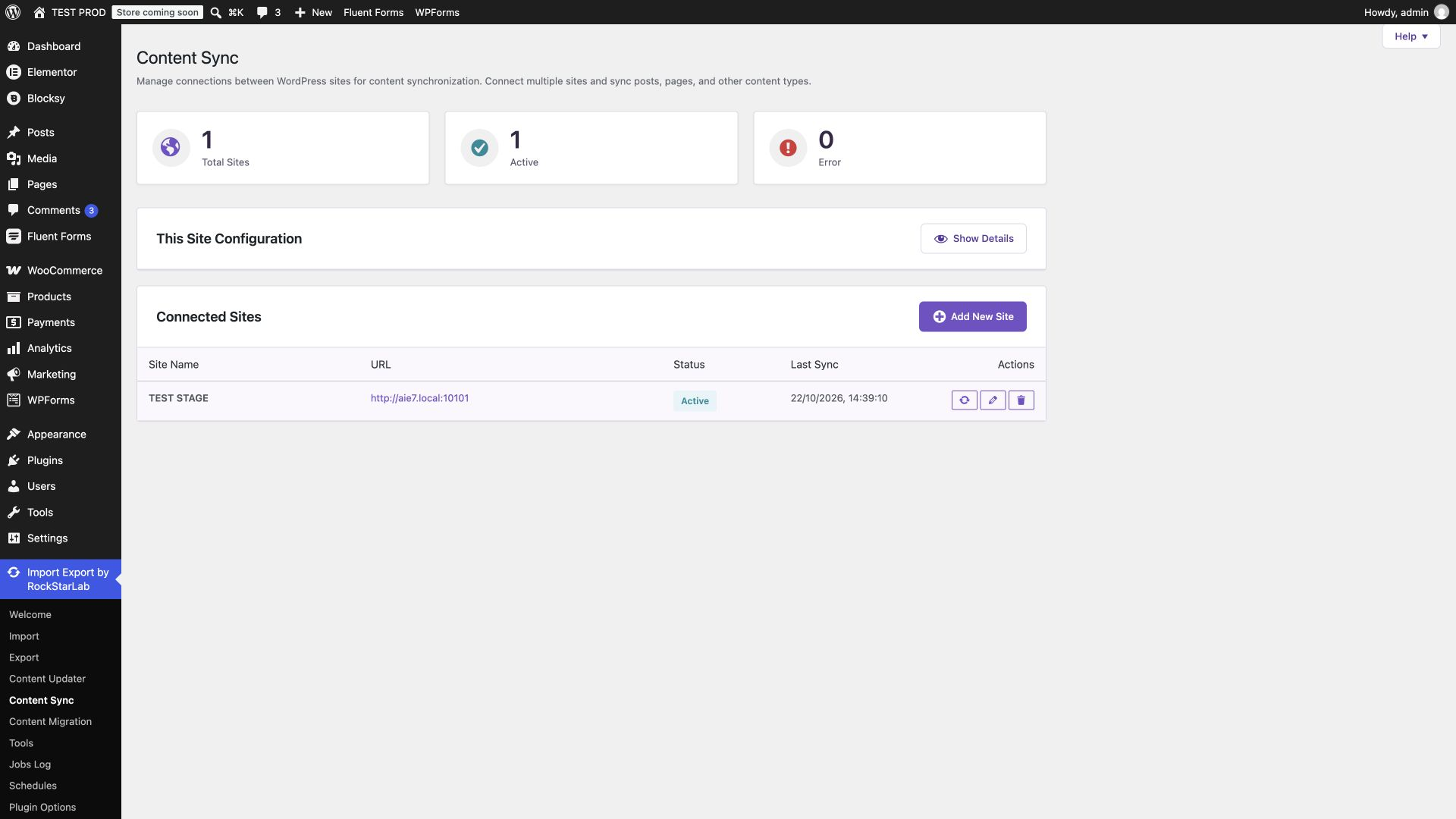
Open Import Export by RockStarLab → Content Sync. Use the receiving site’s connection details to add it to the sending site, then test the connection. The remote URL must point to the intended WordPress installation. Local test sites may include a port; do not drop it when copying the address.
For the complete connection setup, including where to obtain the receiving site’s API key, follow the WordPress site-to-site Content Sync guide. Keep connection keys private. They are not product data and do not belong in screenshots, shared prompts, or article examples.
Our source already had a connection named TEST STAGE. We tested that connection before selecting products. The connection supported both directions, but every transfer in this tutorial was a push from aie6 to aie7. A bidirectional connection does not mean every change is automatically replicated in both directions.
2. Select the WooCommerce products to sync
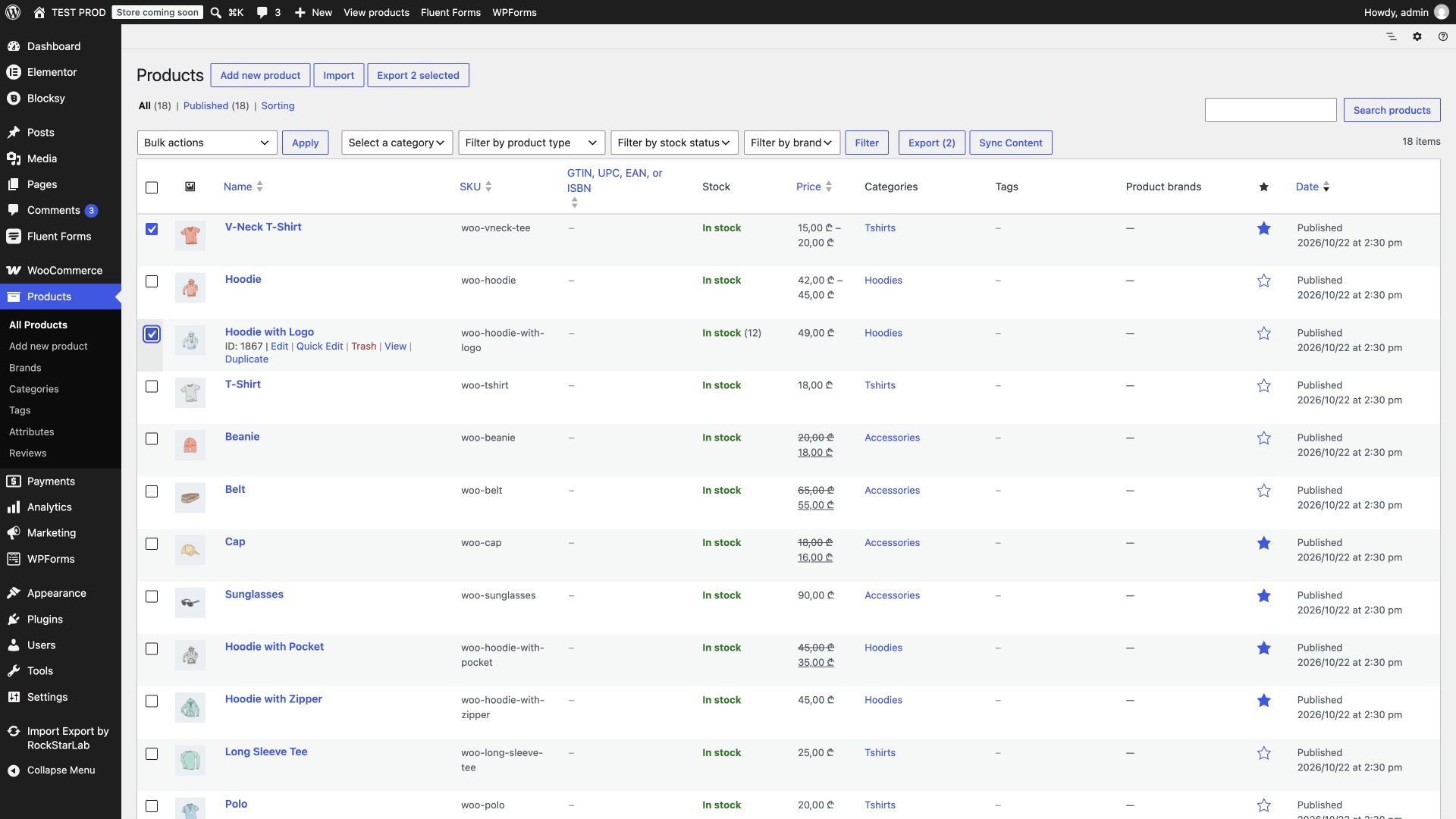
On the source site, open Products → All Products. Select the checkboxes for the products you want to transfer, then click Sync Content. In our example, the selection contained V-Neck T-Shirt and Hoodie with Logo.
Select the variable parent product in the products list. After the transfer, verify its children on the destination; a parent appearing in the list is not enough to prove that its variations arrived correctly. The parent SKU and each variation SKU also need separate checks.
Keep the selection narrow for the first run. You should be able to account for every selected product by name and SKU. If you have several products with the same title, note their IDs before proceeding: a familiar name alone is not sufficient evidence that a proposed match is correct.
3. Choose Push to Site and review the mapping
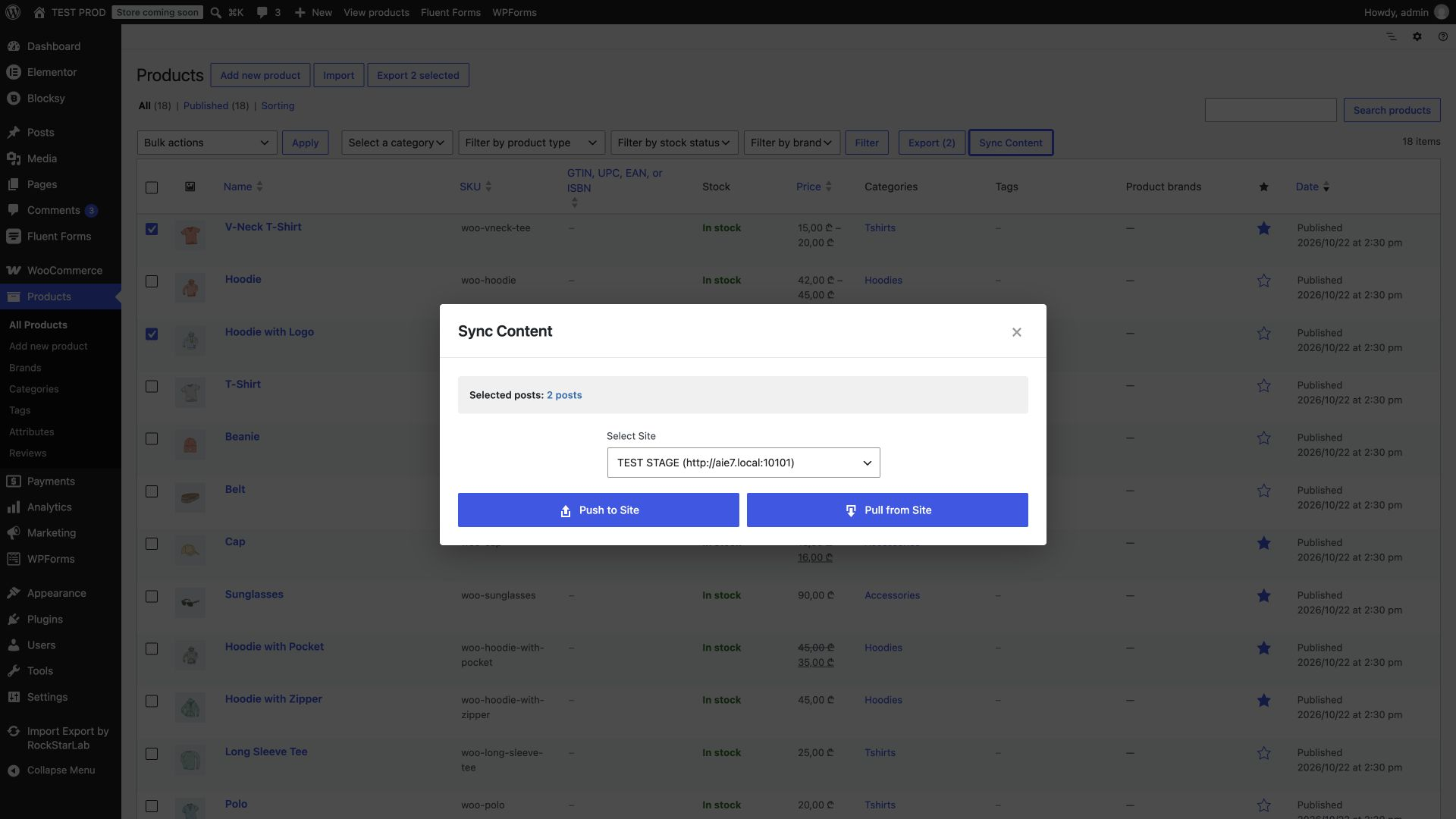
In the sync dialog, choose the destination connection and select Push to Site. Push sends the selected local products to the remote site. Check the connection name again before confirming; the site where you opened the products list is the source for this operation.
For the first transfer into an empty catalog
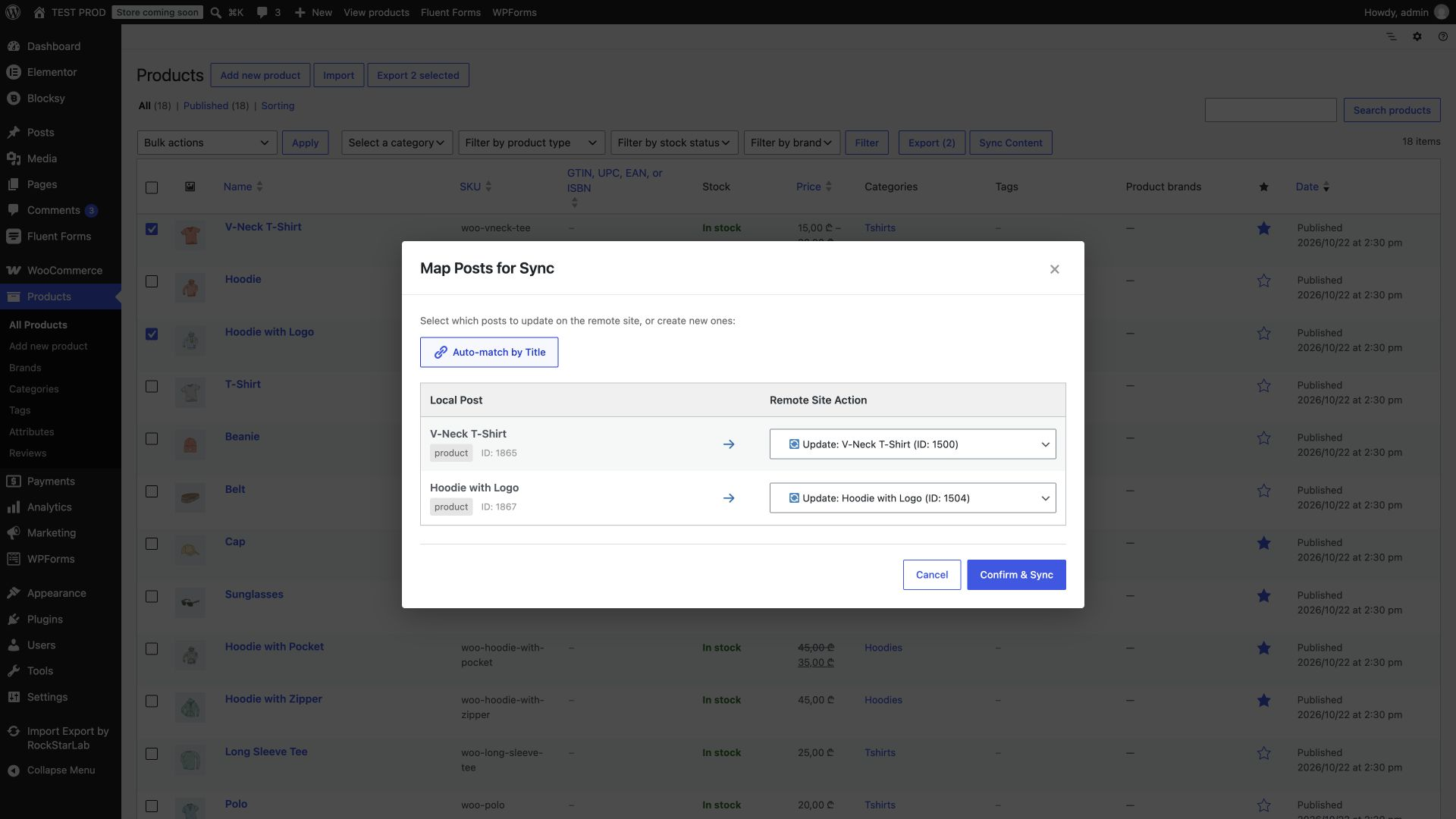
The Map Posts for Sync screen lets you decide what happens to each selected record. For our empty destination, we used Create New Post for both products and then clicked Confirm & Sync. Although the dialog uses the WordPress term “Post,” the selected records here are WooCommerce products.
Creating a new record is appropriate when the product is absent from the destination. If it already exists, identify and choose the existing product instead. Do not deliberately select Create New Post for a record you intend to update.
For a destination that already contains products
Review every proposed match. In our repeat run, we used Auto-match by Title, which matched source 1865 to destination 1500, and source 1867 to destination 1504. We checked those records against their SKUs and previous transfer results before confirming.
Preserving a SKU is different from matching by SKU. This test confirmed that the product and variation SKUs were preserved. It did not demonstrate that the UI automatically chooses destination products by SKU. The mapping screen we used explicitly identified title-based matching.
If titles are duplicated, changed, or translated, inspect the destination product directly and select the intended record. Keep the source-to-destination ID mapping with your transfer notes. IDs do not need to be equal across sites, and an ID from the source must not be assumed to identify the same product on the destination.
4. Wait for completion and inspect the destination
After confirming, let the transfer finish. Check Import Export by RockStarLab → Jobs Log for its final status. A transfer starting, uploading content, or returning a queued job ID is not the same as completion. If the request is interrupted, inspect the job and destination before starting another transfer.
Next, open Products → All Products on the receiving site. Our initial result was two products. Open each product in the editor, then use its storefront preview. The test sites were in Coming soon mode, so the storefront screenshots show an authenticated preview rather than proof of public availability.
| Check | Expected result in this example | Where to verify |
|---|---|---|
| Product identity | The expected title, type, and SKU. | Destination products list and editor. |
| Descriptions and category | The transferred text and the appropriate product category. | Editor and product page. |
| Images | Hoodie featured image; T-shirt featured image and two gallery images. | Editor image panels and storefront gallery. |
| Variable product | Color and Size controls, three existing variation records, and a valid selectable combination. | Product data → Attributes/Variations and storefront. |
| Price and stock | Values agree with the source selected for this transfer. | General/Inventory settings and storefront. |
Image attachment IDs changed during transfer, as expected for separate WordPress databases. The T-shirt’s source image IDs 1890, 1891, and 1892 mapped to destination IDs 1496, 1497, and 1498. The hoodie’s image 1896 mapped to 1499. The important result is that the correct local attachments are assigned and displayed, not that numeric IDs remain identical.
Check the variable product beyond its parent record
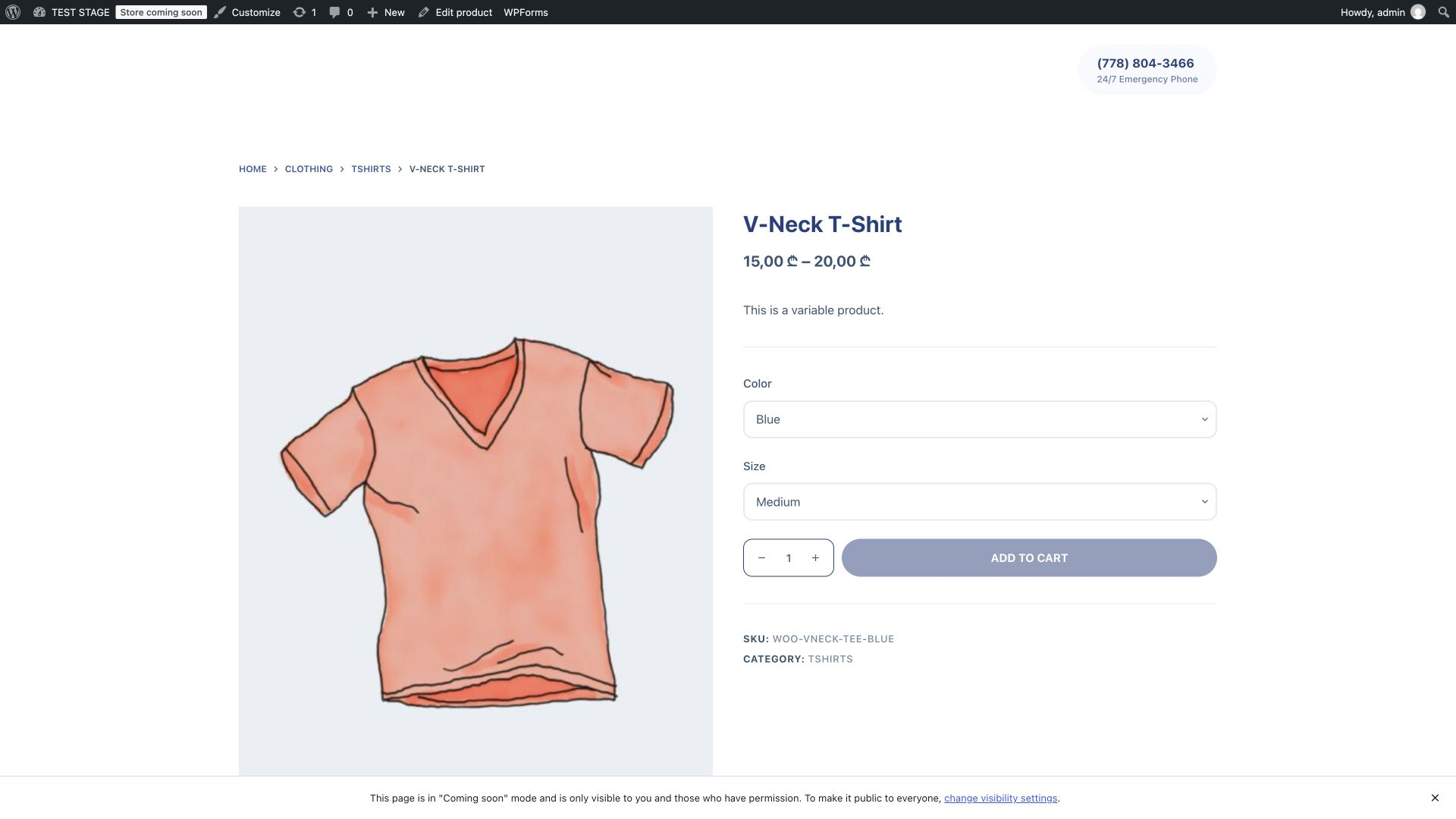
Our V-Neck T-Shirt contained three variations, with separate red, green, and blue SKUs. Its Size attribute offered Small, Medium, and Large, while the stored variations used an “any size” value. That is three variation records, not nine separate color-and-size records.
On the destination, we opened the variable product editor and checked the attributes and three variations. In its storefront preview, selecting Blue and Medium produced the variation SKU woo-vneck-tee-blue. The gallery and Add to cart control were present. No checkout or payment was performed as part of this test.
For products with a different variation model, repeat the check with your actual combinations. WooCommerce’s variable product documentation explains the relationship between parent attributes and individual variations. A transferred parent with empty or unusable variation choices is not a finished verification.
5. Sync a price and stock change without creating another product
The second run is the useful test for an ongoing catalog workflow. Change a known value on the source, save it, and push the same product to its existing destination record.
- Open the source simple product. In Product data → General, update its regular price.
- In Inventory, enable product-level stock management if that is the intended setup and enter the new quantity. Save the product.
- Return to the products list, select the product, and open Sync Content.
- Choose the same destination and Push to Site.
- Map to the existing destination product and confirm the sync.
- Check the completed job, then reopen the destination editor and storefront. Confirm both the changed fields and the unchanged product identity.
For our fixture, the source hoodie was prepared with regular price 49, stock management enabled, and quantity 12. These test values were set programmatically before the UI transfer; the transfer and mapping were performed through the admin interface. The original source values were saved separately for reference.
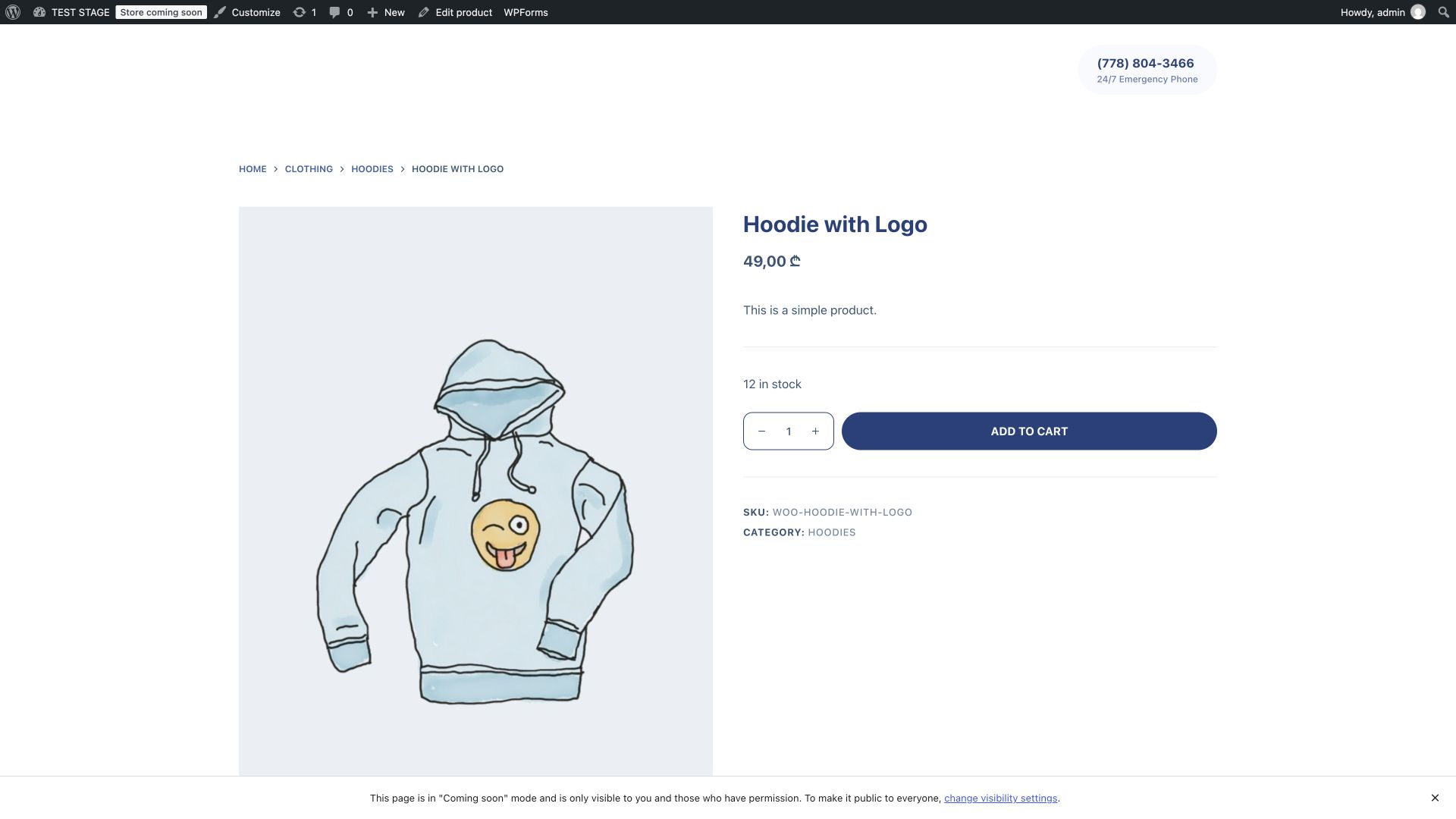
The destination then displayed 49.00 GEL and 12 in stock. Product 1504 was updated, not replaced by a new product. The catalog still contained the same two top-level products and three child variations, and the image mappings remained stable.
If your task is to edit many prices or stock quantities on one site before transferring them, the WooCommerce bulk update guide covers that separate preparation step. Do not assume that a whole-product sync is a field-only update: verify what the chosen operation sends before using it on a live catalog.
Product sync versus shared inventory between stores
Copying a stock quantity once is straightforward to verify: source 12, destination 12. Keeping two independently selling stores correct requires more than that snapshot. Orders, cancellations, refunds, and manual adjustments can change inventory after a product transfer.
Consider a staging copy containing 12 units. Production sells three, leaving nine. Pushing the stale staging product back with quantity 12 can reintroduce stock that has already been sold. Choose a stock authority and define which direction is allowed to update inventory before making this part of a production workflow.
The procedure above demonstrates selected, on-demand product pushes and repeat updates. We did not test automatic change detection, real-time order-driven stock reconciliation, conflict resolution, scheduled product pushes, or a continuous two-way inventory service. A connection’s push/pull options should not be read as evidence of those behaviors.
Sync WooCommerce products with an AI agent
An AI agent can request the same product operation through the plugin’s WordPress abilities. First connect your agent to the intended WordPress MCP server using the WordPress Abilities API and AI-agent setup guide. The source still needs the working Content Sync connection and access to the required PRO abilities. Connecting an agent does not replace the site-to-site connection.
Have the agent discover the installed abilities and read their current input schemas. It should check capabilities and list connected sites before making changes. Product IDs and connection IDs are site-specific; the values below are evidence from our test, not defaults to copy into another store.
Prompt 1: inspect the selection and destination first
Inspect my source WooCommerce site without changing content or settings.
Discover the available abilities and read the relevant input schemas.
Run rsl-ie/get-capabilities with {} and list the Content Sync connections.
Identify V-Neck T-Shirt and Hoodie with Logo by title, ID, type, and SKU.
Check the TEST STAGE destination and identify any existing matching products.
Report the proposed source-to-destination mapping, variation count, images,
price, and stock. Do not start a transfer yet. Flag ambiguous matches.
The agent needs an authorized way to inspect the destination as well. In this test both local sites were available through MCP and the browser. If it cannot inspect a destination product, it should report that gap instead of inventing a matching ID.
Prompt 2: execute the reviewed update
Push source products 1865 and 1867 to the verified TEST STAGE connection
(site_id 1), updating destination products 1500 and 1504 respectively.
Use the current rsl-ie-pro/sync-push-start schema and an explicit post_mapping.
Do not create duplicate top-level products or transfer unrelated content.
Use a unique request_id and retain the returned job ID.
Poll rsl-ie/sync-job-status until the full operation reaches a terminal state.
If it fails, pauses, or reports an uncertain transfer, stop and report it;
do not blindly create another job.
After completion, verify destination IDs, SKUs, price, stock, images,
attributes, and all three variations. Open the destination product pages
in the browser and test a variation selection. Report any mismatch.
For the tested update, the parameters passed to rsl-ie-pro/sync-push-start were:
{
  "site_id": 1,
  "post_type": "product",
  "post_ids": [1865, 1867],
  "post_mapping": {"1865": 1500, "1867": 1504},
  "woo_product_mapping": {},
  "request_id": "woo-sync-article-agent-20261022-1"
}
post_mapping identifies the existing destination parents. The empty woo_product_mapping in this request supplied no additional linked-product mappings; this example does not demonstrate grouped-product, upsell, or cross-sell transfer. For a new operation, use a new request ID. If a response is lost, first inspect the original request/job rather than generating a new request and assuming the first one did nothing.
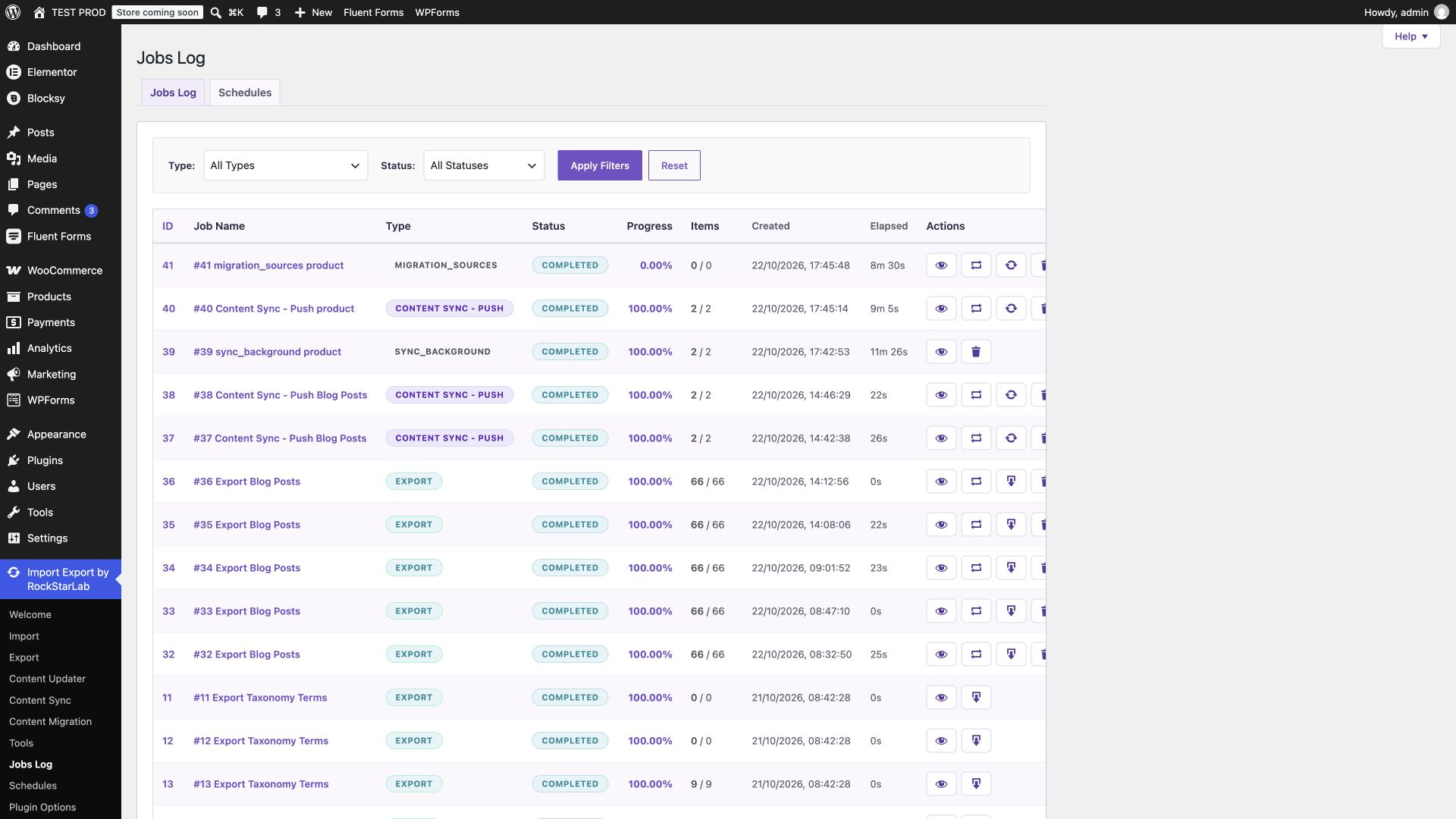
The start call returned background job 39. Its associated transfer history was job 40. The worker processed parent products and variation work in stages, so a message about two transferred parents was not yet proof that the whole operation had finished. Polling the original background job is the way to follow the complete request.
On this local setup, we also advanced due WP-Cron events through WP-CLI while testing the background workflow. That is an environment detail, not an extra product-selection step. A site using these background abilities needs a working cron runner; an agent that can submit a job but cannot get its worker scheduled has not completed the transfer.
Verified result: background job 39 finished with status Completed, 2 of 2 products processed, and zero reported failures. Both existing destination products were updated; no new parent products were created. The final variation mapping was 1879 → 1501, 1880 → 1502, and 1881 → 1503. The hoodie still showed price 49 and stock 12, and a fresh browser check of Blue/Medium on the T-shirt resolved to the expected variation SKU.
Prompt 3: audit an existing sync without changing it
Audit the last product sync without making changes.
Compare source products 1865 and 1867 with destination products 1500 and 1504.
Check parent and variation SKUs, product types, regular prices, stock settings,
featured images, gallery, attributes, and variation parent relationships.
Count the destination products and variations to detect duplicates.
Verify the hoodie price/stock and select Blue/Medium on the T-shirt page
in the browser. Distinguish confirmed matches from checks you could not run.
Return a concise expected-versus-actual report.
Troubleshooting a product sync
| Symptom | What to check next |
|---|---|
| The destination is unavailable. | Verify the remote URL, including any local port, and test the Content Sync connection. Confirm both sites are running and reachable from the sending WordPress server. |
| WooCommerce sync or a PRO ability is unavailable. | Check WooCommerce and the required PRO add-on are active on the intended sites. Discover the actual capabilities instead of relying on an old example. |
| A proposed destination match is wrong. | Inspect its ID, SKU, and title. Correct the mapping before confirming. The tested UI used title-based automatic matching. |
| A background job remains queued or processing. | Inspect its stage and worker/cron execution. A queued response only acknowledges the request. Do not submit repeated new jobs just to make the page appear busy. |
| The parent is present but variations look incomplete. | Wait for the full background job, then compare child count, attributes, prices, and parent relationships. Open a valid combination on the storefront. |
| The editor is correct but the storefront looks old. | Check the exact destination URL and applicable cache. Reopen the product and verify the underlying fields before repeating the sync. |
| You see duplicates after a repeat transfer. | Review whether Create New Post was selected instead of the existing record. Compare IDs and SKUs before deleting or merging anything. |
For stores that add ACF data or other custom structures to products, use a separate representative test. The custom post type, ACF, and taxonomy sync guide provides useful background, but it does not replace checking your WooCommerce extension’s actual fields and relationships.
Frequently asked questions
Can I sync WooCommerce products without exporting a CSV file?
Yes. This workflow uses a Content Sync connection and a product push between the two WordPress sites. No CSV file was prepared for the tested transfers.
Can I update products that already exist on the destination?
Yes. Map each source product to its existing destination record before confirming. Our repeat push updated the hoodie price and stock while retaining product ID 1504; it did not create another top-level product.
Does this workflow automatically match products by SKU?
Do not assume that it does. The tested mapping screen showed Auto-match by Title. SKUs were preserved and used for verification, while the update mapping explicitly identified destination product IDs.
Were variable products and images included in the test?
Yes. The tested variable product retained three child variations, Color and Size attributes, a featured image, and two gallery images. We checked its editor and selected Blue and Medium in the destination storefront preview.
Is this real-time stock synchronization between two selling stores?
That was not established by this test. It verified on-demand product transfers and a repeat stock update. Continuous order-driven inventory reconciliation and conflict handling require a separately verified workflow.
Will syncing products migrate my entire WooCommerce store?
This selected-products workflow is not a complete store migration. Orders, customers, refunds, payment settings, theme configuration, and extension-specific data were outside the tested scope.
Can an AI agent perform the product sync?
Yes, when it has access to the required abilities, the site connection, and the correct product mapping. The tested workflow used rsl-ie-pro/sync-push-start and followed the returned background job through rsl-ie/sync-job-status. Its result must still be checked on the destination.
Why do product and image IDs differ between the sites?
The destination creates or uses records in its own WordPress database. Different IDs are expected. Verify the recorded source-to-destination mapping, product identity, and displayed media rather than requiring equal numeric IDs.
Build a repeatable product transfer
Start with one simple product and one representative variable product, record the destination mapping, and verify a second update before expanding the selection. That gives you evidence for creation, relationships, media, and repeat behavior on your own catalog. Explore Import Export by RockStarLab’s site sync workflow when you are ready to connect your sites.