
WordPress has no “undo” button for imports. Once an import has overwritten your posts or added a pile of duplicates, the changes are saved to the database. You can still get back to where you were, and how depends on what went wrong and what you prepared before the import.
In this guide we break a small blog on purpose: one import overwrites two posts and creates two duplicates. Then we roll it back three ways. We used WordPress 7.1 and the free Import Export by RockStarLab 2.1.20.
Which Rollback Do You Need?
| What went wrong | How to undo it | What you need |
|---|---|---|
| The import created posts you did not want (duplicates, test rows) | Find the posts that job created and trash them | Nothing prepared. The plugin marks them for you. |
| The import overwrote fields in existing posts | Re-import the old values by ID | An export of those fields made before the import |
| You are not sure what changed, or many things went wrong | Restore the database backup | A backup made right before the import |
The first method works even if you prepared nothing. The other two only work if you took a few minutes before the import, so start there.
Before You Import: Two Safety Nets
1. A backup
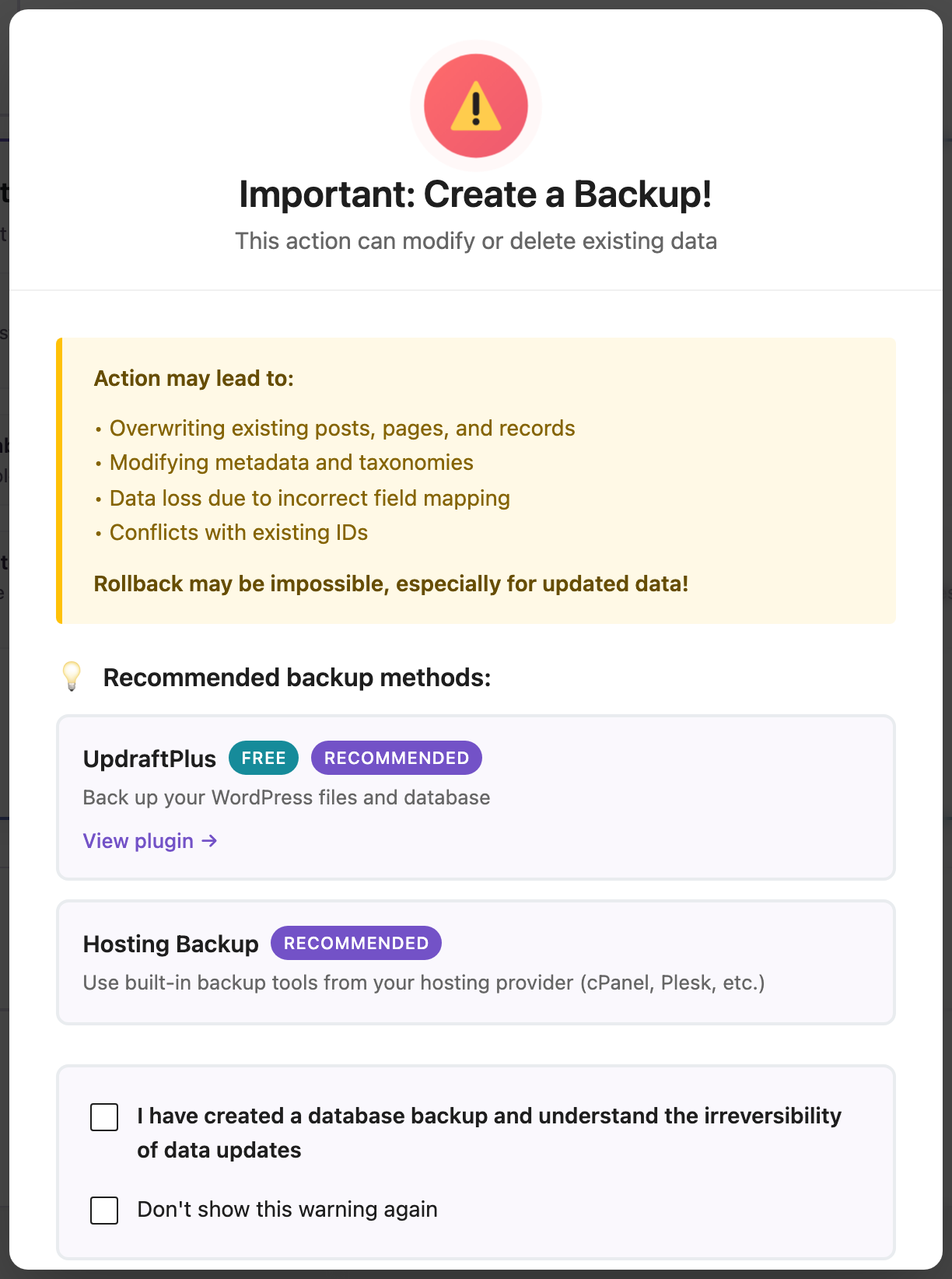
Make a full backup right before the import. In UpdraftPlus click Backup Now, or use your host’s backup tool. The import wizard reminds you every time and says plainly: “Rollback may be impossible, especially for updated data!” For the full backup and restore process, see How to Create a WordPress Website Backup and Restore It.
2. An export of the fields you are about to change
A backup restores the whole site. A small export lets you restore only what the import changed. Go to Import Export → Export, choose the content type, and add ID plus every field the import will write. For our test that was Title, Content and Excerpt of all blog posts. Save the CSV somewhere safe. It takes a minute and is the most useful file you will have if something goes wrong.

The Bad Import
Our goal was to add short summaries to four blog posts. The spreadsheet had two columns, Title and Content, and the Content column held the summaries. We made two common mistakes:
- Wrong column. Auto Map matched the column named Content to the post content. The summaries replaced the full articles instead of going into the excerpt.
- Weak match key. Posts were matched by title. Two titles in the sheet were slightly different from the site, “Five Single Origin Coffees to Try” without the hyphen and “Cold Brew Coffee at Home” instead of “Cold Brew at Home”. With “If No Match Found: Create” those rows became new posts.
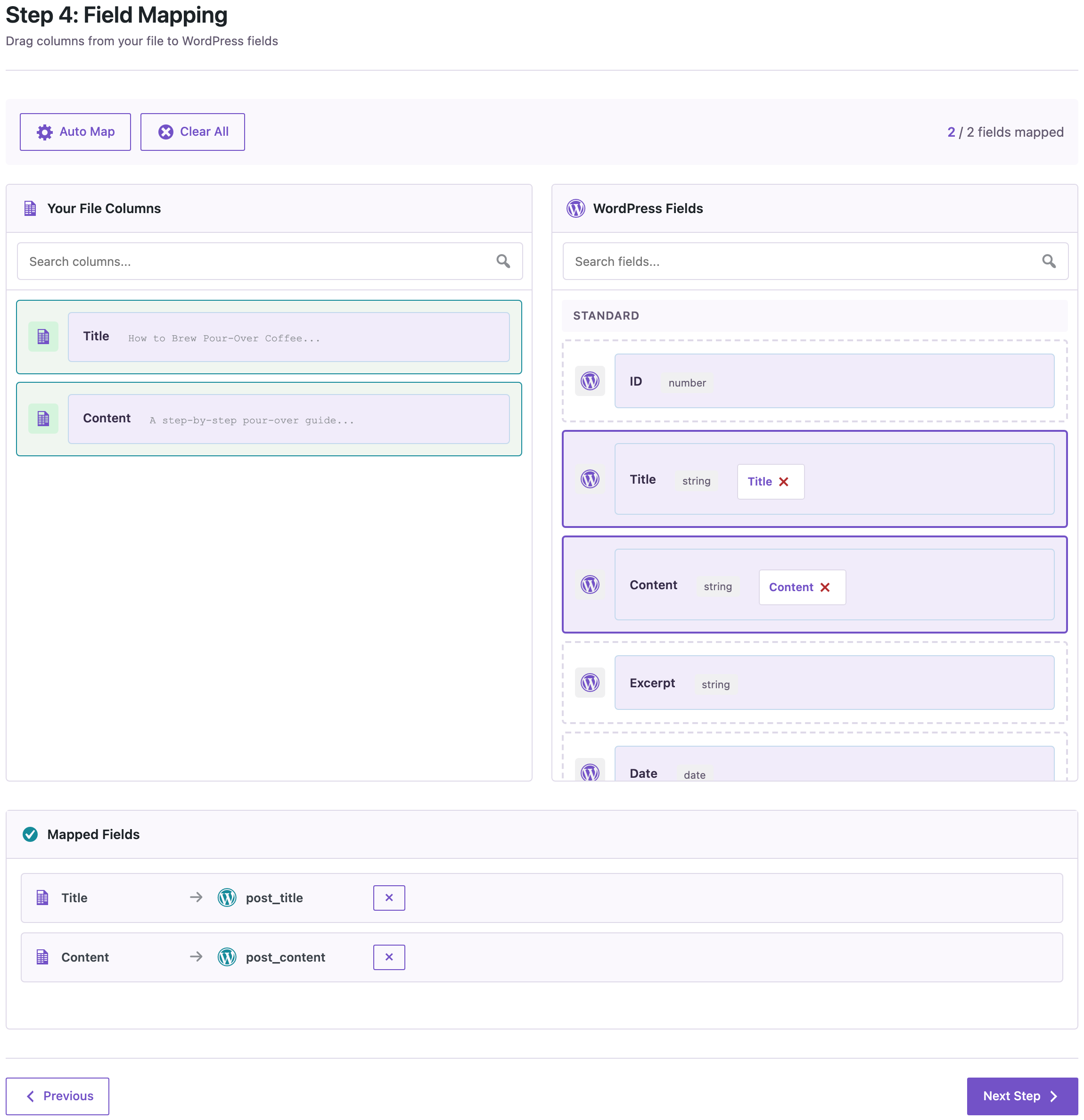
The result screen showed the damage right away: 2 updated, 2 created. Two published articles now had one sentence of text, and two duplicate drafts had appeared.

Do not run more imports or edits until you have decided how to roll back. Every new change makes the rollback harder.
Undo 1: Remove the Posts the Import Created
Import Export by RockStarLab marks every post, page or custom post type item that an import creates or updates with two hidden custom fields:
_rsl_ie_import_job_id: the ID of the import job;_rsl_ie_import_job_action:createdorupdated.
The fields store the last import that touched the post. If a later import changes the same post, its job ID replaces the earlier one. That is why it pays to roll back before you import anything else.
Step 1. Find the job ID. Open Import Export → Jobs Log. Our bad import was job 19.

Step 2. List what the job created. Start an export of the same content type. On the Filter Data step, add two filters with Custom Field (Meta):
- Custom field name
_rsl_ie_import_job_id, condition Equals, value19; - Custom field name
_rsl_ie_import_job_action, condition Equals, valuecreated.
The counter showed 2 items, exactly the two duplicates. Change the second value to updated to list the posts the job overwrote. Export the list with ID, Title, Status and Date, so you have the exact IDs in a file. You can use the same filters to narrow any export.

Step 3. Trash them. In Posts, select the posts with those IDs and choose Move to Trash. In our case they were easy to spot: new posts from an import are saved as drafts by default and belong to the user who ran the import.
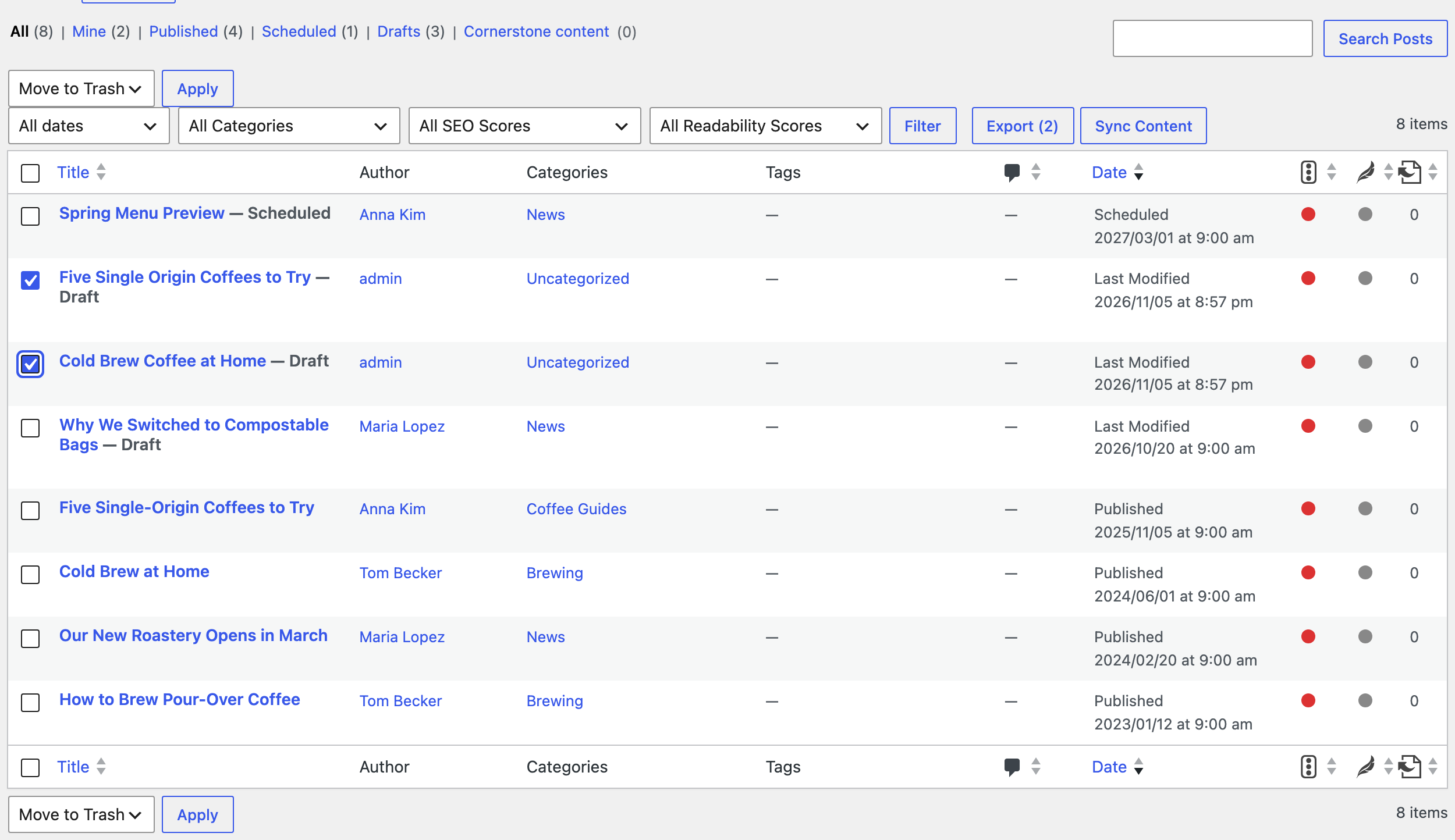
Keep them in the Trash until you have checked the site. WordPress deletes trashed posts permanently after 30 days.
Undo 2: Put Back the Overwritten Fields
Duplicates are the easy part. Overwritten content is harder, because the old text is no longer in the post.
Why revisions may not help
WordPress keeps revisions of post content, so it is worth checking the post’s Revisions panel. But a revision is saved when a post is updated, and it stores the new version. If a post had no revisions before the import, which is common for posts that were themselves imported or created by code, the only revision is the overwritten text. That was the case on our test site. Revisions also usually do not cover custom fields, SEO fields or taxonomies.
Re-import the export you made before
This is where the export from the safety step pays off.
- Open the export CSV in a spreadsheet.
- Keep the ID column and only the columns you want back. We kept ID and Content.
- Keep only the rows the bad import updated. You can get their IDs from the filter with
updatedshown above. Restoring other rows would not change their values, but it would update their modified dates. - Import the file. On the options step set Check for Existing Items by Field to ID, If Match Found to Update and If No Match Found to Skip.

The import updated 2 posts and created none. Both articles had their full text back, with the same length as before the bad import. In update mode, only the columns in the file change. Title, status, author, slug, dates and everything else that is not in the file stay as they are. WordPress records a new modified date, as it does for any edit.
The same method works for any field you exported: excerpts, prices, SEO titles and meta descriptions, custom fields. For more on safe bulk updates, see How to Bulk Update Existing WordPress Posts Without Creating Duplicates.
Undo 3: Restore the Backup
Restore the database backup when:
- you did not export the fields before the import;
- the import touched many posts and types of data, such as taxonomies, media, users or comments, and you cannot tell what changed;
- a later import or sync already overwrote the job markers.
In UpdraftPlus open Settings → UpdraftPlus Backups → Existing backups, click Restore next to the backup from before the import and choose Database. If the import also downloaded images, restore Uploads too, or delete the new media files afterwards.
A database restore takes the whole database back to the moment of the backup. Orders, comments, form entries and edits made after it are lost too. That is why the backup should be made right before the import, and why the restore should happen soon after. On a busy store or membership site, prefer Undo 1 and Undo 2 when they are enough.
If you use an AI agent with the plugin, it can create and restore UpdraftPlus backups as well, with your confirmation before any restore. See Letting an AI Agent Edit WordPress Content Safely.
Rolling Back a Bad Sync
Content Sync pushes posts and pages from one site to another, so the receiving site is the one that changes. The same rules apply there:
- Back up the receiving site before the push.
- Export the pages you are about to overwrite from the receiving site, with ID and the fields that will change. To undo, import that file back in update mode by ID.
- If the old version still exists on the other site, you can sync it again in the other direction.
- If nothing else works, restore the receiving site’s backup.
The job markers from Undo 1 are written by imports, not by Content Sync. For safer pushes from staging, see How to Push WordPress Staging to Live Without Overwriting the Database.
How to Avoid the Next Bad Import
- Match by ID or slug, not by title. A title with one character changed does not match, and with “If No Match Found: Create” it becomes a new post.
- Set “If No Match Found” to Skip when you only want to update existing content.
- Check the mapping. Auto Map matches by column name, so a column called Content goes to the post content.
- Test with a few rows first, or on a staging copy. See how to refresh staging with live content.
- Read the result screen. If it says “Created” when you expected only updates, stop and roll back right away.
FAQ
Is there an undo button for imports in WordPress?
No. WordPress does not keep a record of what an import changed, so there is nothing to undo with one click. You need a backup, an export made before the import, or a way to find the posts the import created.
Can I find posts created by an import if I don’t know the job ID?
Yes. Filter by the custom field _rsl_ie_import_job_action equals created and look at the dates in the result, or check the Jobs Log for imports around the time the problem appeared.
Will trashing imported posts delete their images?
No. Media files stay in the Media Library. If the import downloaded images you don’t need, delete them from the Media Library separately.
Does re-importing old values create duplicates?
Not when you match by ID and set “If No Match Found” to Skip. Rows without a matching ID are skipped.
What if I already deleted the trashed posts and need them back?
Then only a backup can bring them back.
Related Guides
- Bulk Find and Replace in WordPress Posts (With a Preview First)
- How to Bulk Update Yoast SEO Titles and Meta Descriptions from CSV
- WordPress Import Created Duplicate Posts? Why It Happens and How to Fix It
- How to Create a WordPress Website Backup and Restore It
- How to Bulk Update Existing WordPress Posts Without Creating Duplicates
- WordPress Export Data Filters: Examples
- How to Use Jobs Log and Schedule Import and Export Jobs
- Letting an AI Agent Edit WordPress Content Safely

Comments 0
Have a question or a tip to share? Leave it below.