
Writing meta descriptions one post at a time in the Yoast box is fine for five posts and painful for two hundred. A spreadsheet is faster: export the SEO titles and meta descriptions, fill them in, and import the file back. A CSV can update Yoast SEO titles and meta descriptions without touching anything else on the posts, as long as you avoid one spreadsheet habit that wipes descriptions you wanted to keep.
Every step was run on a test store with the free Import Export by RockStarLab 2.1.23, Yoast SEO 28.8 and WordPress 7.1. Rank Math works the same way with different column names.
Short Answer
- Import Export → Export: Blog Posts (or Pages), filter Status Equals publish, fields ID, Title, SEO Title and Meta Description, format CSV.
- Open the file in a spreadsheet, write the new titles and descriptions, and delete every row you did not change.
- Save as CSV UTF-8.
- Import Export → Import: Blog Posts, upload the file, map only ID,
_yoast_wpseo_titleand_yoast_wpseo_metadesc. - Options: match by ID, If Match Found Update, If No Match Found Skip. Start the import and check one page.
All of this is in the free version.
Where Yoast and Rank Math Store the Values
Both plugins keep the per-post SEO title and description as custom fields of the post. These are the column names you will see in the export and map in the import:
| Value | Yoast SEO | Rank Math |
|---|---|---|
| SEO title | _yoast_wpseo_title |
rank_math_title |
| Meta description | _yoast_wpseo_metadesc |
rank_math_description |
| Focus keyphrase | _yoast_wpseo_focuskw |
rank_math_focus_keyword |
An empty SEO title means the post uses the template from Yoast SEO → Settings → Content types. An empty description means Yoast outputs none, unless the template sets one.
Step 1: Export the Current Titles and Descriptions
Go to Import Export → Export, choose Blog Posts, and on the filter step add Status Equals publish. The test store had 76 posts, 74 of them published. On the field step, add ID, Title, and from the Yoast SEO group SEO Title and Meta Description. Focus Keyword is optional. Permalink helps you recognize posts while you edit, but you will not import it.
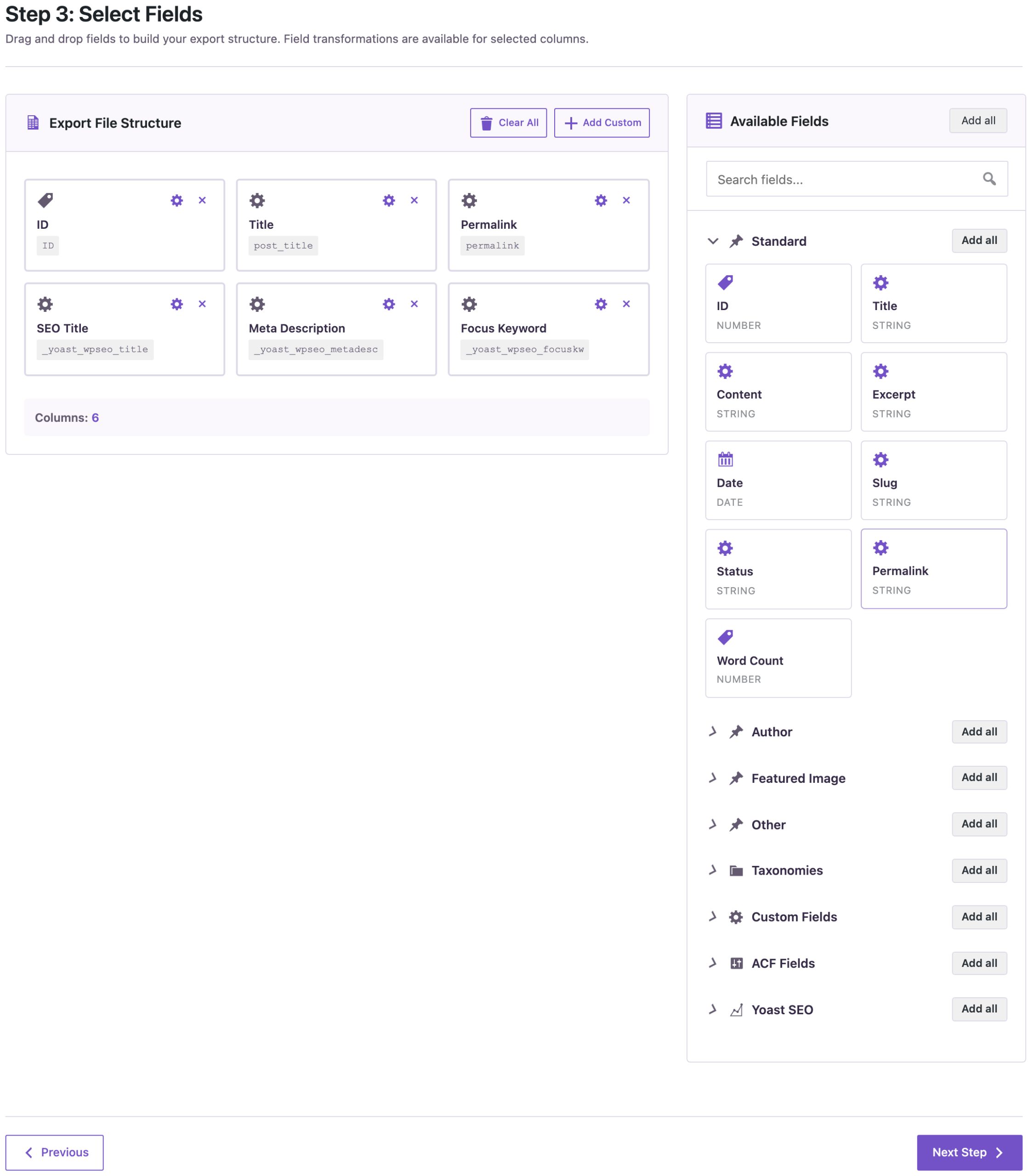
Choose CSV and download the file. If you want the export for an audit first, for example to list posts without a description, see How to Export Yoast SEO Titles and Meta Descriptions to CSV for an SEO Audit. For Rank Math: How to Export Rank Math SEO Titles and Meta Descriptions to CSV.
Step 2: Edit the File, and Keep Only Changed Rows
Open the CSV in Excel, Google Sheets or LibreOffice and write the new values. A few rules make the result better:
- Length. Add a helper column with
=LEN(D2)next to the descriptions. Yoast’s length check is happy with roughly 120 to 156 characters. Delete the helper column before saving, or leave it unmapped. - Variables. Yoast variables work in the file exactly as in the Yoast box:
%%title%% %%sep%% %%sitename%%becomes “Post Title – Site Name”. Rank Math uses single percent signs:%title% %sep% %sitename%. - Special characters. Dashes, accents and curly quotes survive if you save as CSV UTF-8. Excel’s plain “CSV (Comma delimited)” saves in the computer’s local encoding, which breaks accents and dashes. See CSV Import Shows Broken Characters? Fix UTF-8, Excel and Accents.

The most important rule: delete every row you did not change. An empty cell in an update import is not “leave it alone”. It means “this field is empty now”, and the import removes the existing value.
We checked this on purpose. A post got a new meta description after the export was made. Then the full 74-row file, with that post’s cell still empty, was imported. The result screen said 74 updated, and the new description was gone. With only the three edited rows in the file, the same import updated exactly three posts and left the fourth alone.
| File | Result | Description added after the export |
|---|---|---|
| All 74 exported rows | 74 updated | Deleted |
| Only the 3 edited rows | 3 updated | Kept |
The same behavior is useful when you do want to clear values: leave the cell empty, keep the row, and the description is removed.
Step 3: Make a Backup
The import changes live data, so make a backup first. With UpdraftPlus, click Backup Now; the plugin also shows a backup reminder before every import. An AI agent can do it for you with the rsl-ie/updraftplus-backup-start ability. Details: How to Create a WordPress Website Backup and Restore It.
Step 4: Import and Map Only the SEO Columns
Go to Import Export → Import, choose Blog Posts and upload the file. On the mapping step click Auto Map. It maps ID and the Yoast columns to the fields with the same names. Then remove the mapping for post_title with its × button. Leaving it mapped would write the titles from your file back to the posts; harmless when nobody renamed a post since the export, a silent revert when somebody did. Remove permalink too if your file has it: the import does not need it.

On the options step:
- Check for Existing Items by Field: ID. The ID came from the same site, so it always points to the right post.
- If Match Found: Update.
- If No Match Found: Skip, so a wrong ID can never create an empty post.

Click Start Import. Three rows took one second: 3 updated, 0 created, 0 failed.
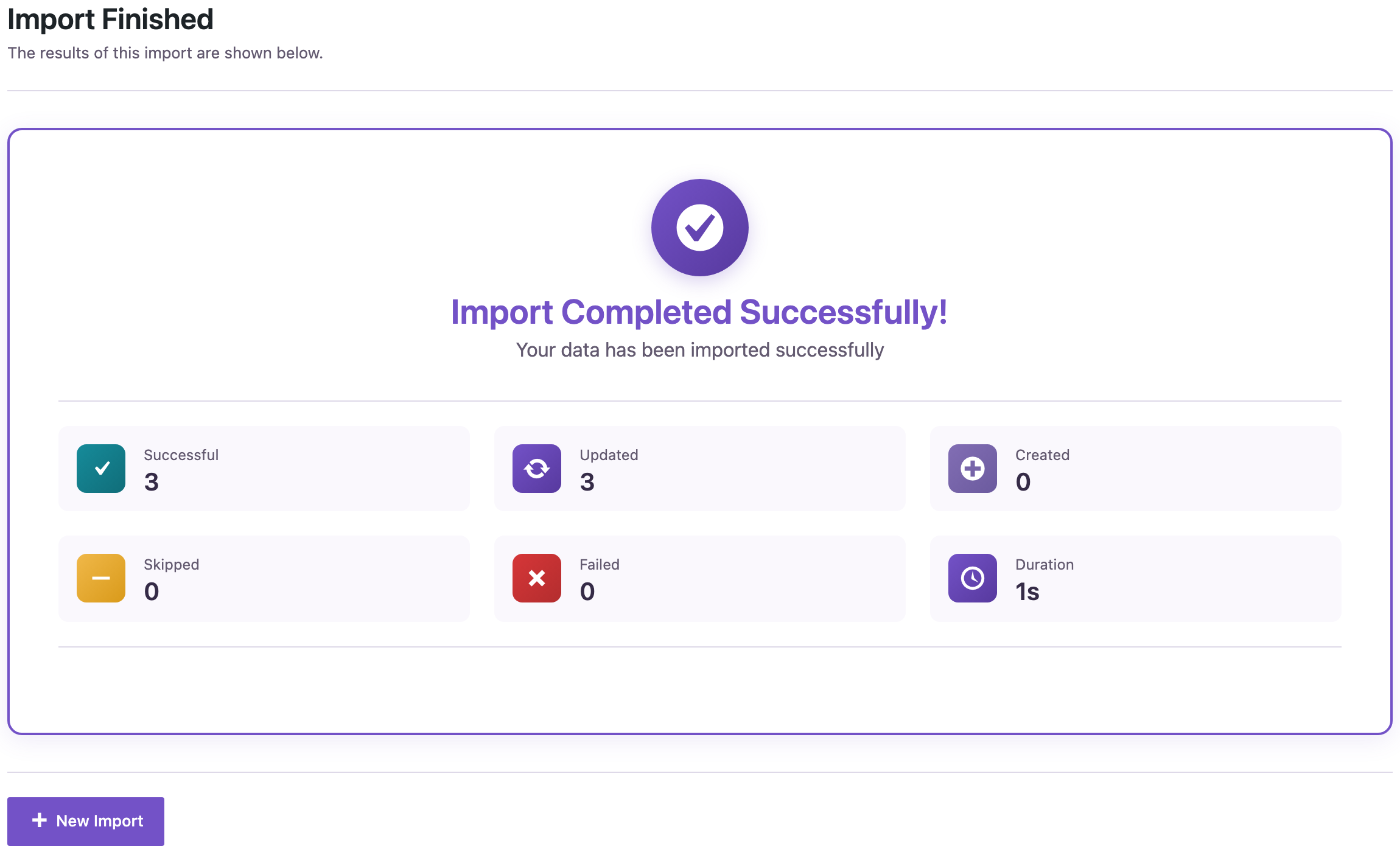
Moving the file between sites? IDs differ between sites, so match by slug instead. See How to Bulk Update Existing WordPress Posts Without Creating Duplicates.
Step 5: Check the Result on the Page
Open one of the posts and view the page source, or look at the Yoast box in the editor. In the test, all three posts showed the new title tag and description right away, and Yoast replaced the variables on output.

What did not change: post content, titles, slugs, authors, categories and the “last modified” date. The modified date matters for SEO, because it feeds the sitemap and the “updated” date in search results. An update that only touches SEO fields keeps it.
On real sites Yoast also stores a copy of these values in its own table (indexables) to build pages faster. We tested with indexables turned on: the import updated them along with the fields, so no re-indexing was needed.
Rank Math
The process is the same. Export rank_math_title and rank_math_description, edit, and import with the same options. In our test Auto Map picked both columns and the import wrote them to the post. Use Rank Math’s single-percent variables, and check one page source after the first import.
With an AI Agent (Free)
An AI agent connected through the WordPress MCP Adapter can write the descriptions and import them itself. We ran the whole chain through the plugin’s abilities:
rsl-ie/export-previewreturned the current SEO title and description of the selected posts straight into the chat.- The agent wrote a two-column CSV,
IDand_yoast_wpseo_metadesc, and uploaded it withrsl-ie/upload-create,rsl-ie/upload-chunkandrsl-ie/upload-complete. The upload check showed the header and the first row, including the accented “café”. rsl-ie/import-startwith the mapping ID → ID and the description column, optionsduplicate_check: ID,duplicate_mode: update,if_not_exists: skip.rsl-ie/job-getreported 1 processed, 1 success. The description changed; the post’s modified date did not.
The import job runs through WP-Cron, so on a quiet site it starts with the next page load. Prompts:
List published posts that have no Yoast meta description, with ID, title and
permalink. Do not change anything yet.
For the posts you listed, write a meta description of 120-156 characters
based on each post's content. Show me the table first. After I approve it,
import only the ID and _yoast_wpseo_metadesc columns: match by ID, update
matches, skip rows that do not match. Then tell me how many posts were updated.
Ask the agent for a backup before the import, and approve the table before it writes anything. More on safe agent edits: Letting an AI Agent Edit WordPress Content Safely. To give a chat assistant your content for writing descriptions, see How to Export WordPress Content to JSON for AI and LLMs.
Common Mistakes
- Re-importing the whole export. Empty cells delete values. Keep only the rows you changed.
- Leaving the title column mapped. The post titles in the file overwrite the current ones.
- Using an old file. Export right before you edit, not last month.
- Saving as plain CSV in Excel. Use CSV UTF-8 to keep dashes and accents.
- Matching by title. One changed hyphen and the row creates a new post or misses. Match by ID on the same site. More in WordPress Import Created Duplicate Posts?
- Mixing up variable syntax. Yoast uses double percent signs (
%%title%%), Rank Math single ones (%title%).
FAQ
Can I update pages and custom post types the same way?
Yes. Choose Pages or the custom post type on the first step of both the export and the import. The Yoast fields are the same for every content type.
Can I update WooCommerce product meta descriptions?
Products store the Yoast fields the same way, but product import is part of the PRO add-on. See How to Bulk Update WooCommerce Products.
Can I undo the import?
Restore the backup, or import the original export file for the same rows. See How to Roll Back a Bad WordPress Import or Sync.
Does the import change the post’s “last updated” date?
No, not when only SEO fields are in the file. A change to the title or content does update it, as in the editor.
Do I need to re-index Yoast after the import?
No. In our test Yoast’s indexables showed the new values right after the import.
Related Guides
- Bulk Find and Replace in WordPress Posts (With a Preview First)
- How to Export Yoast SEO Titles and Meta Descriptions to CSV for an SEO Audit
- How to Export Rank Math SEO Titles and Meta Descriptions to CSV
- How to Bulk Update Existing WordPress Posts Without Creating Duplicates
- CSV Import Shows Broken Characters? Fix UTF-8, Excel and Accents
- How to Export WordPress Content to JSON for AI and LLMs
Get the free plugin on WordPress.org.

Comments 0
Have a question or a tip to share? Leave it below.