
A CSV file looks fine in Excel, but after the import into WordPress, “Café” reads “Caf?”, Cyrillic titles are rows of question marks, or the whole file lands in one column. The data is not damaged in the file. The importer read it in a different character encoding, or with a different separator, than the program that saved it.
Each symptom points to a cause. Below: how to tell them apart, how to save a CSV that any importer reads correctly, and what the importer in Import Export by RockStarLab does with Excel files since version 2.1.10. Six test files with the same text were saved the way common programs save them and imported one by one.
Short Answer
Save the file as CSV UTF-8 before importing: in Excel, choose CSV UTF-8 (Comma delimited) in the Save As dialog; Google Sheets and Numbers export UTF-8 by default; LibreOffice asks for the character set when saving. If the file arrives from someone else and you cannot re-save it, an importer that detects the encoding avoids the problem: Import Export by RockStarLab 2.1.10 and later reads Windows-1252, Windows-1251, UTF-16 and semicolon-separated files as they are, and lets you pick the encoding by hand for the rest.
What the Symptoms Mean
| What you see after the import | What happened |
|---|---|
Caf?, ????? or � instead of letters |
The file is in a regional code page (Windows-1252, Windows-1251) and was read as UTF-8. Characters that are not valid UTF-8 are replaced, and the original letters are lost. |
Café, ü, “ |
The reverse: a UTF-8 file was read as Windows-1252 somewhere, often when it was opened in Excel and saved again. |
| Column names with odd spaces or symbols, no columns found | The file is UTF-16, which Excel writes as “Unicode Text”. |
All values in one column, separated by ; |
The file uses semicolons, as Excel does in many European locales, and the importer expected commas. |
| The first column cannot be mapped although it looks right | An invisible byte order mark (BOM) stuck to the first column name. |
The Test Files
Each file contained the same kinds of text: French and German accents, curly quotes, an en dash and the euro sign, Cyrillic, Greek and emoji. Windows-1252 and Windows-1251 can only hold their own alphabets, so those files carried only the Western or only the Cyrillic rows.
| File | Saved by | Before 2.1.10 | 2.1.10 |
|---|---|---|---|
| UTF-8 | Google Sheets, Numbers, LibreOffice | Correct | Correct |
| UTF-8 with BOM | Excel “CSV UTF-8” | Correct | Correct |
| Windows-1252 | Excel “CSV (Comma delimited)” on Western Windows | Every accented letter, quote and € became ? |
Correct |
| Windows-1251 | Excel “CSV (Comma delimited)” on Cyrillic Windows | All Cyrillic letters became ? |
Correct |
| UTF-16 with tabs | Excel “Unicode Text” | No columns recognised | Correct, emoji included |
UTF-8 with ; |
Excel in many European locales | One column, unless ; was chosen by hand |
Correct without changing the delimiter |
The dangerous rows are the second and third. The import reported success, and the question marks were saved in the posts. Nothing can bring the letters back afterwards; the file has to be imported again in the right encoding.
Fix 1: Save the File as UTF-8
UTF-8 holds every alphabet and emoji, and every importer reads it. How to get it:
- Excel (Windows and Mac): File → Save As, and choose CSV UTF-8 (Comma delimited) as the file type. The plain “CSV (Comma delimited)” type uses the system code page instead.
- Google Sheets: File → Download → Comma-separated values. The file is UTF-8.
- Numbers: File → Export To → CSV, with Unicode (UTF-8) as the text encoding.
- LibreOffice Calc: File → Save As → Text CSV, tick Edit filter settings, then choose Unicode (UTF-8) as the character set and a comma as the field delimiter.
Avoid opening a UTF-8 CSV in Excel by double-clicking it and saving it again. Excel may read it in the system code page, and the next save turns the letters into é for good. Use Data → From Text/CSV and choose UTF-8 instead.
Fix 2: Let the Importer Detect the Encoding
When the file comes from a supplier, a client or an old system, re-saving every copy is error-prone. The importer in Import Export by RockStarLab (Free) checks each CSV file before reading it, starting with version 2.1.10:
- A UTF-8 file, with or without a BOM, is read as it is. The BOM is removed from the first column name.
- A UTF-16 file is recognised by its byte order mark, or by the empty bytes between ASCII characters.
- Any other file that is not valid UTF-8 is treated as a Windows code page: Windows-1251 when the special characters form whole words, as in Cyrillic text, otherwise Windows-1252.
Files that are not UTF-8 are converted once into a UTF-8 copy, and the import reads that copy. The preview already shows the converted text, so a wrong guess is visible before anything is imported.

The Windows-1252 test file, uploaded with File encoding left at Detect automatically:

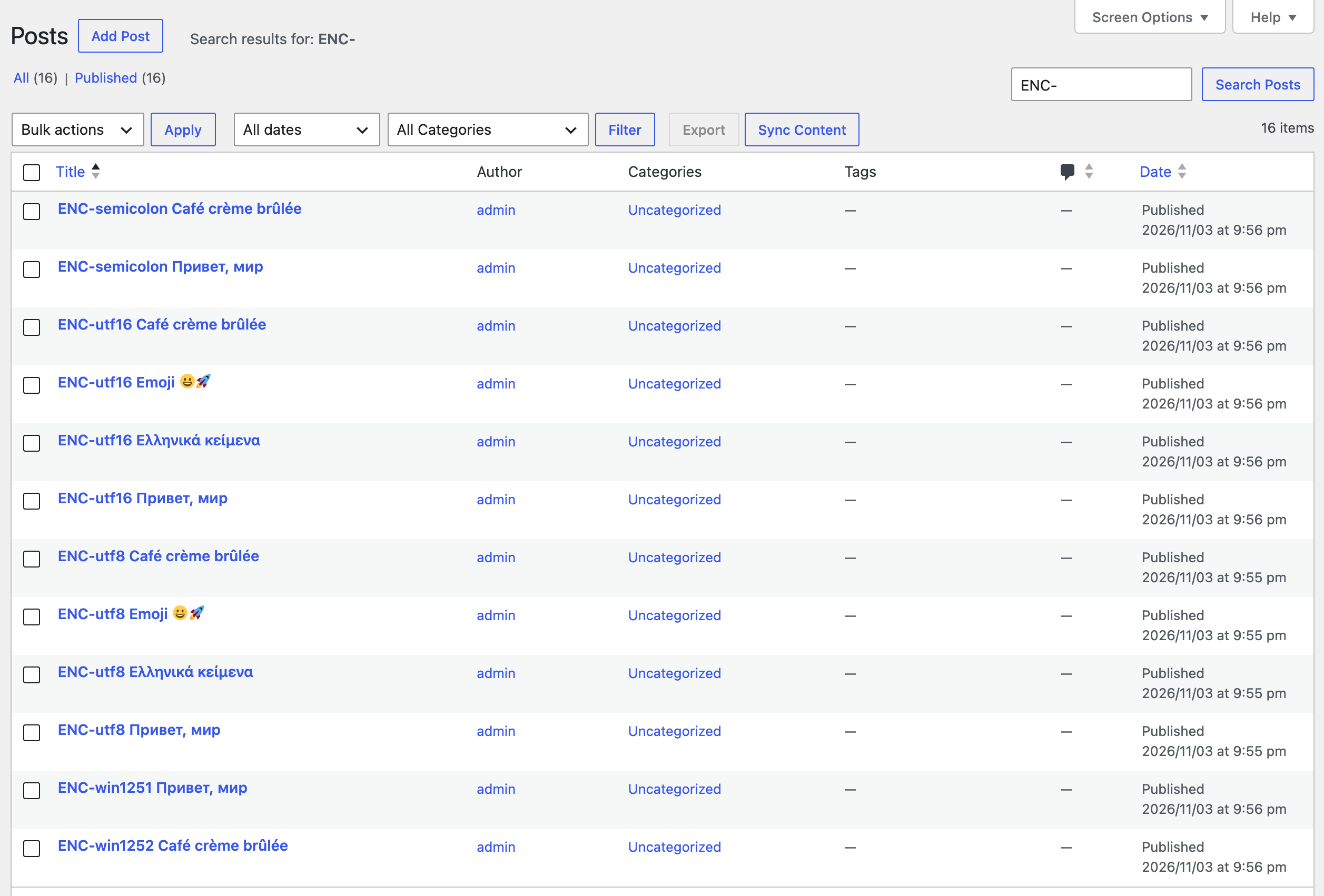
After the import, the titles from every test file were intact on the site, from French accents to Greek and emoji:
Fix 3: Choose the Encoding by Hand
Automatic detection covers the encodings Excel writes most often. Other code pages look alike at the byte level and cannot be told apart reliably. A Czech file saved in Windows-1250 is the typical case: detected as Windows-1252, “Příliš žluťoučký kůň” turns into “Pøíliš žluouèký kùò” in the preview.
When the preview shows wrong letters, go back to the upload step and choose the encoding under File encoding in Format Options. The list offers UTF-8, Windows-1250, Windows-1251 and Windows-1252, ISO-8859-1, -2 and -15, and UTF-16. The preview reloads with the chosen encoding, and the import uses it.


Fix 4: Check the Delimiter
Excel uses the list separator of the operating system. In many European locales that is a semicolon, so a “CSV” from Excel there has no commas at all. When the delimiter is left at the default comma and the first row contains no comma, the importer in 2.1.10 takes the separator the first row does contain: semicolon, tab or pipe. A delimiter you choose yourself in Format Options is always used as chosen.

Import With an AI Agent
The same detection applies when an AI agent imports a file through the plugin’s Abilities API, because the agent uses the same importer. An agent can also set the encoding and the delimiter itself: parser_options.encoding and parser_options.delimiter in rsl-ie/import-prepare, or encoding and delimiter in rsl-ie/import-start; values the agent chose during the preview are reused when the import starts. In the test, each of the six files was also uploaded, previewed with rsl-ie/import-prepare and imported with rsl-ie/import-start, the abilities an agent calls through the MCP Adapter. The preview returned by rsl-ie/import-prepare already contained the correct letters for every file. The setup is described in the Abilities API guide.
Import supplier-posts.csv as blog posts. Show me the first row of the preview before you start,
so I can check that accents and special characters look right.
For a file whose encoding is known:
Import czech-posts.csv as blog posts. It was saved by Excel on Czech Windows, so read it as Windows-1250.
In the test, the Windows-1250 file previewed and imported correctly with encoding set to Windows-1250, both when it was given to rsl-ie/import-prepare and when it was given directly to rsl-ie/import-start. An encoding that is not in the list is rejected with the list of supported values.
Common Problems and Fixes
Question marks are already in the posts
The characters were lost during the earlier import. Import the original file again with Update as the action for existing items, matched by ID or slug, so the posts are corrected in place.
The preview still shows wrong letters
The file uses a code page that automatic detection cannot recognise, such as Windows-1250. Choose it under File encoding. If no choice gives the right letters, the file probably mixes encodings, for example rows pasted from different sources; re-save it as CSV UTF-8 from the program that created it.
Emoji turn into question marks only on one site
The database tables use the older utf8 character set, which cannot store emoji. Current WordPress installations use utf8mb4; Tools → Site Health shows the database details.
The first column will not map
Some older tools keep the BOM in the first column name. Re-save the file as UTF-8 without BOM, or rename the first column in the file. The importer in Import Export by RockStarLab removes the BOM itself.
FAQ
Is UTF-8 with BOM a problem?
Not for this importer, which removes the BOM. It is the format Excel’s “CSV UTF-8” option writes, and it helps Excel itself recognise the file as UTF-8 later.
Why does the file look fine in Excel but not after the import?
Excel reads the file in the same code page it saved it in, so it shows the right letters. An importer that expects UTF-8 reads the same bytes differently.
Can I import Excel files directly instead?
Yes. XLSX and ODS files store text in UTF-8 internally, so they have no encoding problem at all. The importer accepts both.
Related Guides
- How to import WordPress blog posts from CSV or Excel
- “Maximum upload file size exceeded” on WordPress import
- How to bulk update existing WordPress posts without creating duplicates
- How to use the WordPress Abilities API with AI agents
Import Export by RockStarLab is free on WordPress.org.

Comments 0
Have a question or a tip to share? Leave it below.