
A spreadsheet is the quickest way to prepare a batch of posts: one row per post, a column for the title, one for the text and one with the address of the featured image. The import should then create the posts, download every image into the Media Library and attach it as the featured image, with its alt text. In practice, image addresses come in many shapes, and a few of them quietly break imports.
The example imports 13 posts from an Excel file with Import Export by RockStarLab (Free). Each row uses a different kind of image URL, from a plain link to a redirect, a file name with spaces and an Excel HYPERLINK formula, so the results show what works and what to watch.
Short Answer
Put the image address in a featured_image column, and optionally the image title, caption and alt text in featured_image_title, featured_image_caption and featured_image_alt. In WordPress, open Import Export by RockStarLab → Import, choose Blog Posts, upload the XLSX file, click Auto Map, keep Automatically Import Media Files on and start the import. Use version 2.1.11 or later: earlier versions downloaded featured images only from other WordPress sites.
The Spreadsheet
| Column | What goes in it |
|---|---|
post_title |
The post title |
post_content |
The post text; HTML is allowed, including <img> tags |
post_status |
publish, draft or future |
featured_image |
The full address of the image, starting with https:// |
featured_image_title |
Title of the image in the Media Library |
featured_image_caption |
Caption of the image |
featured_image_alt |
Alt text of the image |
The column names can be anything; Auto Map recognises these names, and other names can be dragged onto the right fields on the mapping step. Categories, tags, excerpts and custom fields can be added as further columns; the CSV and Excel import guide lists them.
Step 1: Upload the File and Check the Preview
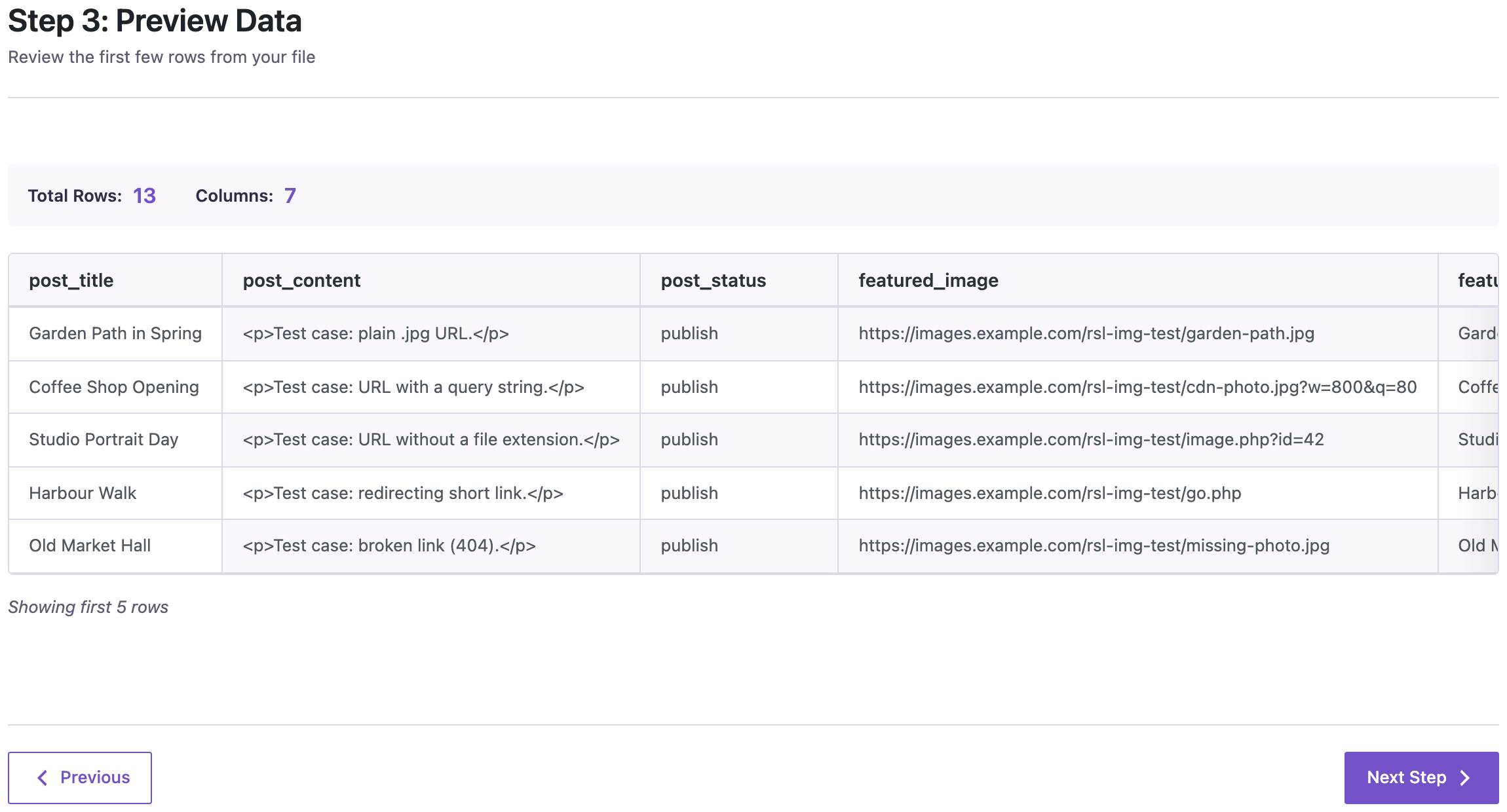
Choose Blog Posts as the content type and upload the XLSX file. The preview shows the rows as the importer reads them, so a column that came out empty or shifted is visible before anything is created.
Step 2: Map the Columns
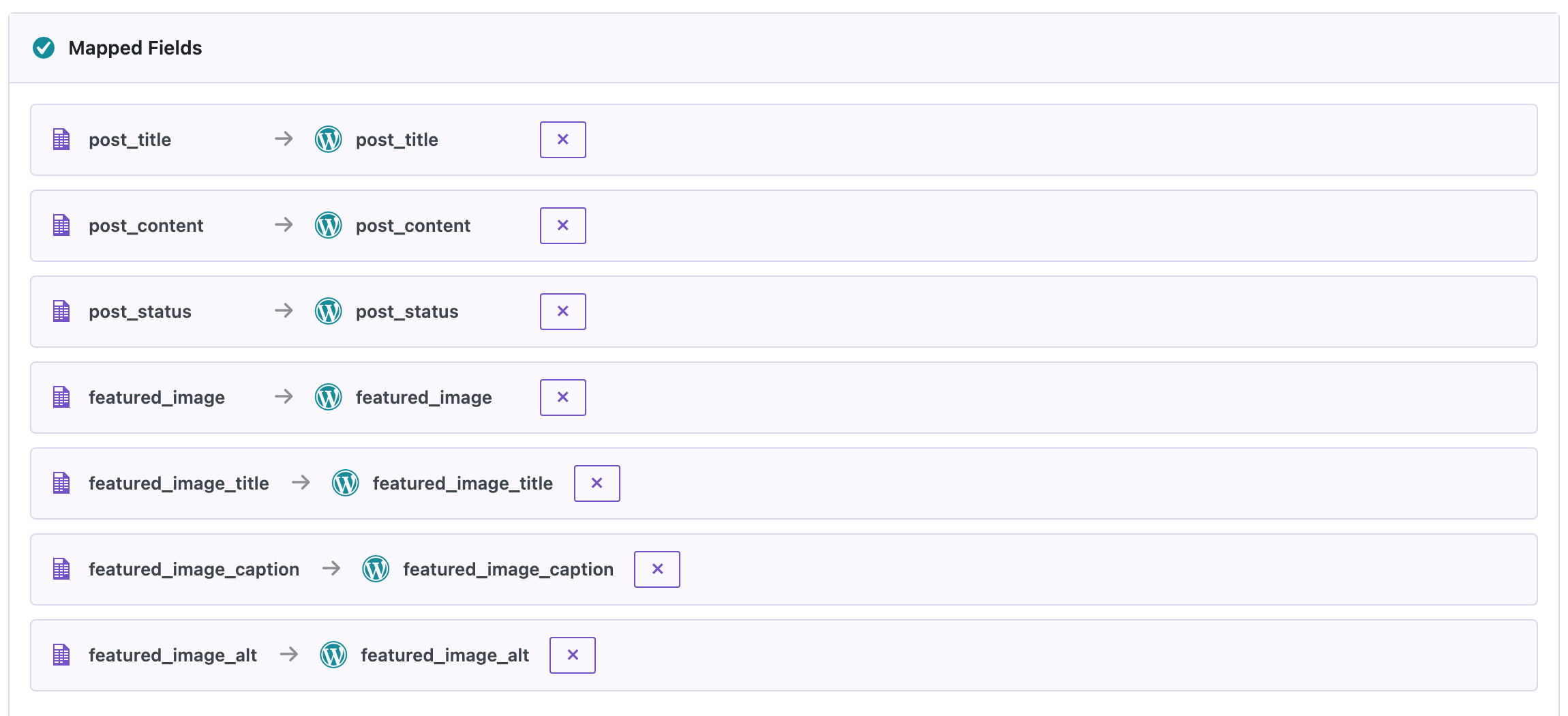
Click Auto Map. With the column names above, all seven columns were mapped, including the alt text.
Step 3: Keep Automatic Media Import On
On the options step, Automatically Import Media Files downloads the featured images and the images inside the post text into the Media Library. If Media File Already Exists decides what happens when the same file is already there; the default, Skip, reuses it.

Step 4: Read the Result
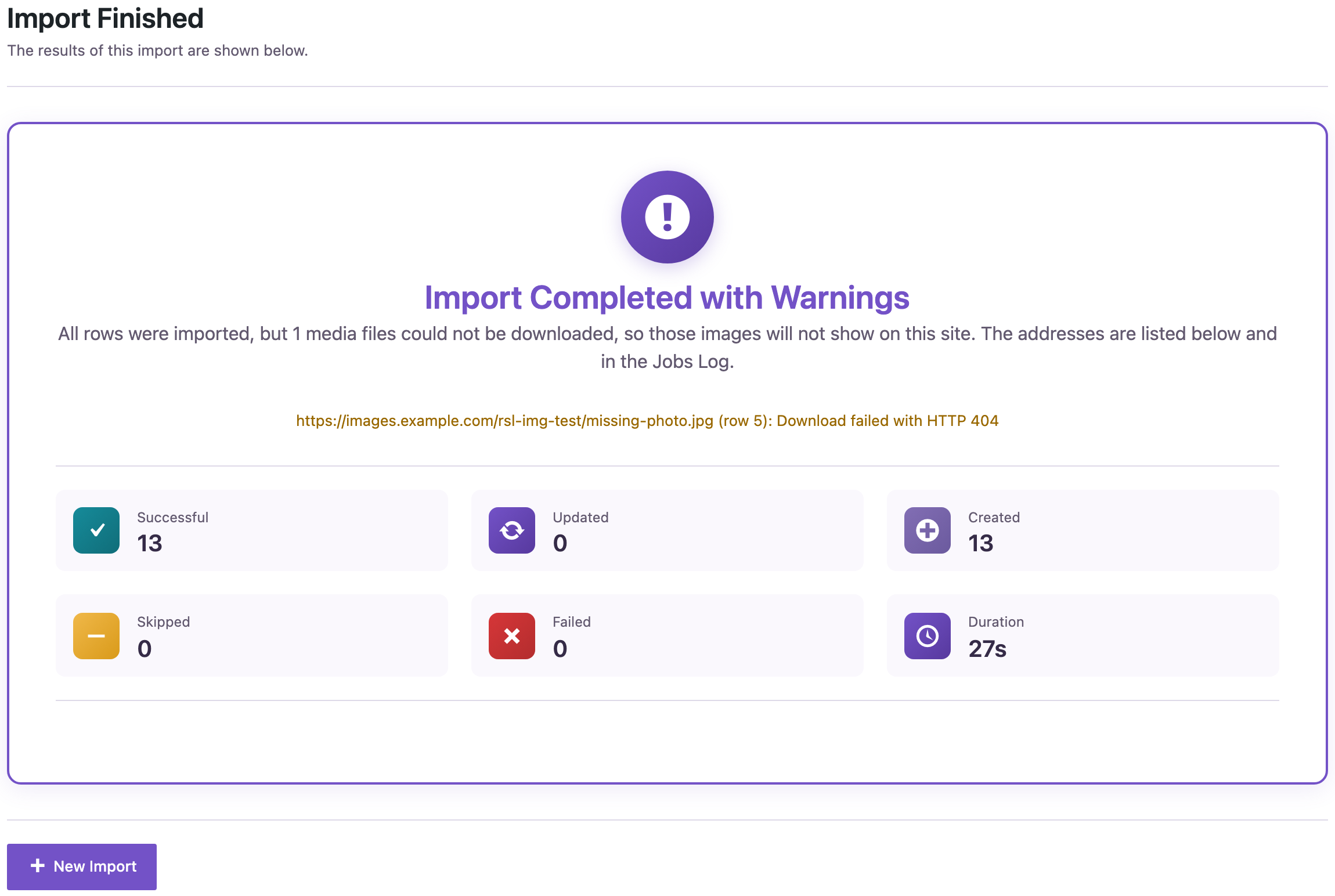
All 13 posts were created in about 30 seconds. One image address was broken on purpose, and the result screen says so, with the address, the row and the reason. The post itself was imported without a featured image.
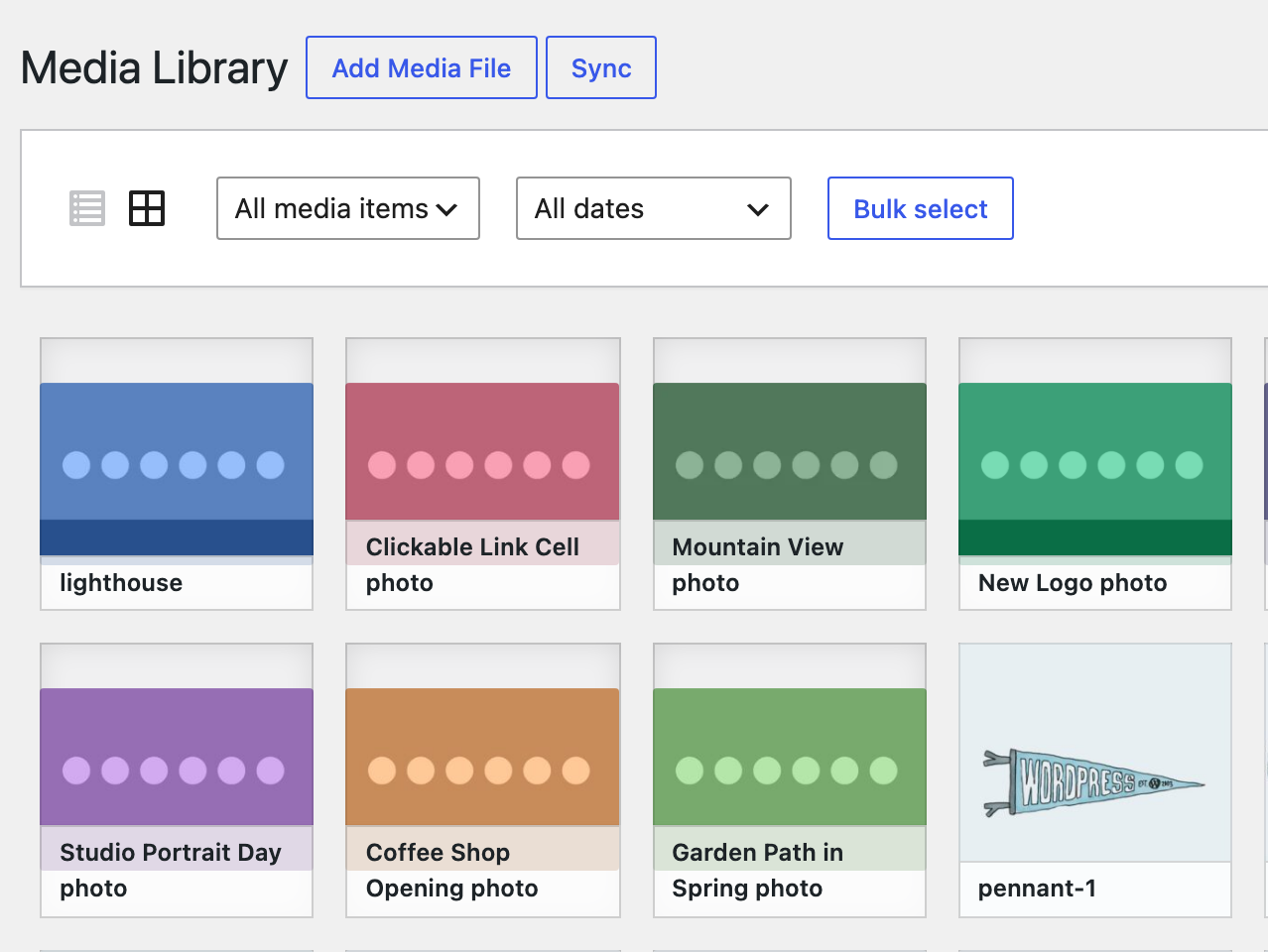
The downloaded images appear in the Media Library with the titles from the spreadsheet:
What Each Kind of Image URL Did
| Image address in the spreadsheet | Result |
|---|---|
Plain .jpg link |
Imported |
Link with a query string, such as photo.jpg?w=800&q=80 from a CDN |
Imported as photo.jpg |
Link without a file extension, such as image.php?id=42 |
Imported; the file is named after its real type (image.jpg) |
| Short link that redirects to the image | Imported; the file is named after the short link (go.jpg) |
| Space in the file name, typed as is | Imported as summer-menu.jpg |
Accented file name, such as café-terrace.jpg |
Imported as cafe-terrace.jpg |
| The same address in two rows | One file in the Media Library, used by both posts |
| PNG and WebP images | Imported |
Excel formula =HYPERLINK("https://…/photo.jpg","Open photo") |
Imported from the link target |
| Link that returns 404 | Not imported; listed on the result screen with “Download failed with HTTP 404” |
<img> inside the post text |
Downloaded, and the text points to the copy on this site |
A link that returns a web page instead of an image is rejected with “The address did not return an image file” and listed on the result screen, so a share link to a gallery page does not end up as a broken featured image.
Good to Know
- One image, one set of texts. When two rows use the same image address, both posts share one Media Library file. Its title, caption and alt text come from the row imported last.
- Links inserted with Excel’s “Insert Link”. Those cells store the visible text separately from the address. Put the address itself in the cell, or use the
HYPERLINKformula, which the importer reads. - Images in the text are downloaded when their address ends in an image extension (JPG, PNG, GIF, WebP, AVIF). Avatars from Gravatar and WordPress emoji images are left as they are.
- The image host must allow downloads. Some services block requests from servers. The result screen then shows the HTTP code, such as 403.
Common Problems and Fixes
The posts have no featured image
Check the result screen and the Jobs Log: each failed image is listed with the reason. Versions before 2.1.11 skipped images that were not stored in another WordPress site’s uploads folder, and reported the import as successful; update the plugin and import again.
The featured image is a broken page instead of a photo
The address leads to a page that shows the image, not to the image file. Open the image itself in the browser and copy that address, or use the direct download link the file host offers.
Alt text is missing
The alt column was not mapped. Map it to Featured Image Alt Text on the mapping step, or name it featured_image_alt so Auto Map picks it up.
The images exist twice in the Media Library
If Media File Already Exists was set to Create New. Keep Skip to reuse files that are already there.
FAQ
Does it work with CSV instead of Excel?
Yes. The columns and the steps are the same. The guide to CSV encodings explains how to keep accented characters intact in CSV files.
Can I use images that are already in the Media Library?
Yes. Put the attachment ID or the address of the file on this site in the featured_image column; the existing file is used and nothing is downloaded.
How large can the spreadsheet be?
Large files are uploaded in parts and imported in batches. For thousands of rows, raise Batch Size on the options step; the upload limit guide has measurements.
Related Guides
- How to import WordPress blog posts from CSV or Excel
- CSV import shows broken characters? Fix UTF-8, Excel and accents
- WordPress Importer not importing images: causes and fixes
- How to import WordPress Media Library files
Import Export by RockStarLab is free on WordPress.org.

Comments 0
Have a question or a tip to share? Leave it below.