
Moving posts from a spreadsheet into WordPress is only half done if every post lands in “Uncategorized”. Categories and tags carry the structure of a blog: archive pages, menus and related posts depend on them. A CSV import should assign existing categories, create the missing ones in the right place in the hierarchy, and leave the category list free of near-duplicates.
This guide imports posts with categories and tags from a CSV file with Import Export by RockStarLab (Free). Nine test posts cover the cases that usually go wrong: different spelling, parent and child categories, several values in one cell, an ampersand, accents and empty cells.
Short Answer
Add a categories column and a tags column to the CSV. Separate several values with a comma or a |, and write a subcategory as Parent > Child. Import the file as Blog Posts and click Auto Map: both columns are mapped to the category and tag taxonomies. Use version 2.1.12 or later; earlier versions did not map these columns and ignored taxonomies added by hand on the mapping step.
The CSV Layout
| Column | Example | Meaning |
|---|---|---|
categories |
News, Events |
Two categories |
categories |
Recipes > Cakes |
Cakes as a subcategory of Recipes |
categories |
Recipes > Tarts | News |
Tarts under Recipes, plus News |
tags |
WordPress, Import |
Two tags |
Columns named category or tag are recognised as well. Columns with other names, such as Section or Keywords, are mapped by hand, as shown below.
What the Test Import Did
The site already had the categories News, Food & Drink and Recipes with the subcategory Desserts, and the tag WordPress.
| Value in the CSV | Result |
|---|---|
News, Events |
Existing News assigned, Events created |
news (lower case) |
Existing News assigned, no duplicate |
Recipes > Cakes |
Cakes created as a subcategory of the existing Recipes |
Tips|Guides |
Two categories, Tips and Guides |
Food & Drink |
Existing category assigned, no duplicate |
Café Culture |
Created with the accent intact |
Desserts |
Existing subcategory assigned |
| Empty cell | The new post was placed in Uncategorized, as WordPress does by default |
Recipes/Pies |
One category named “Recipes/Pies”; a slash is not a hierarchy separator |
A deeper path works the same way: Food & Drink > Coffee > Espresso created Coffee under the existing Food & Drink and Espresso under Coffee. Running the same path again reused the existing categories instead of creating new ones.
Step 1: Upload the CSV
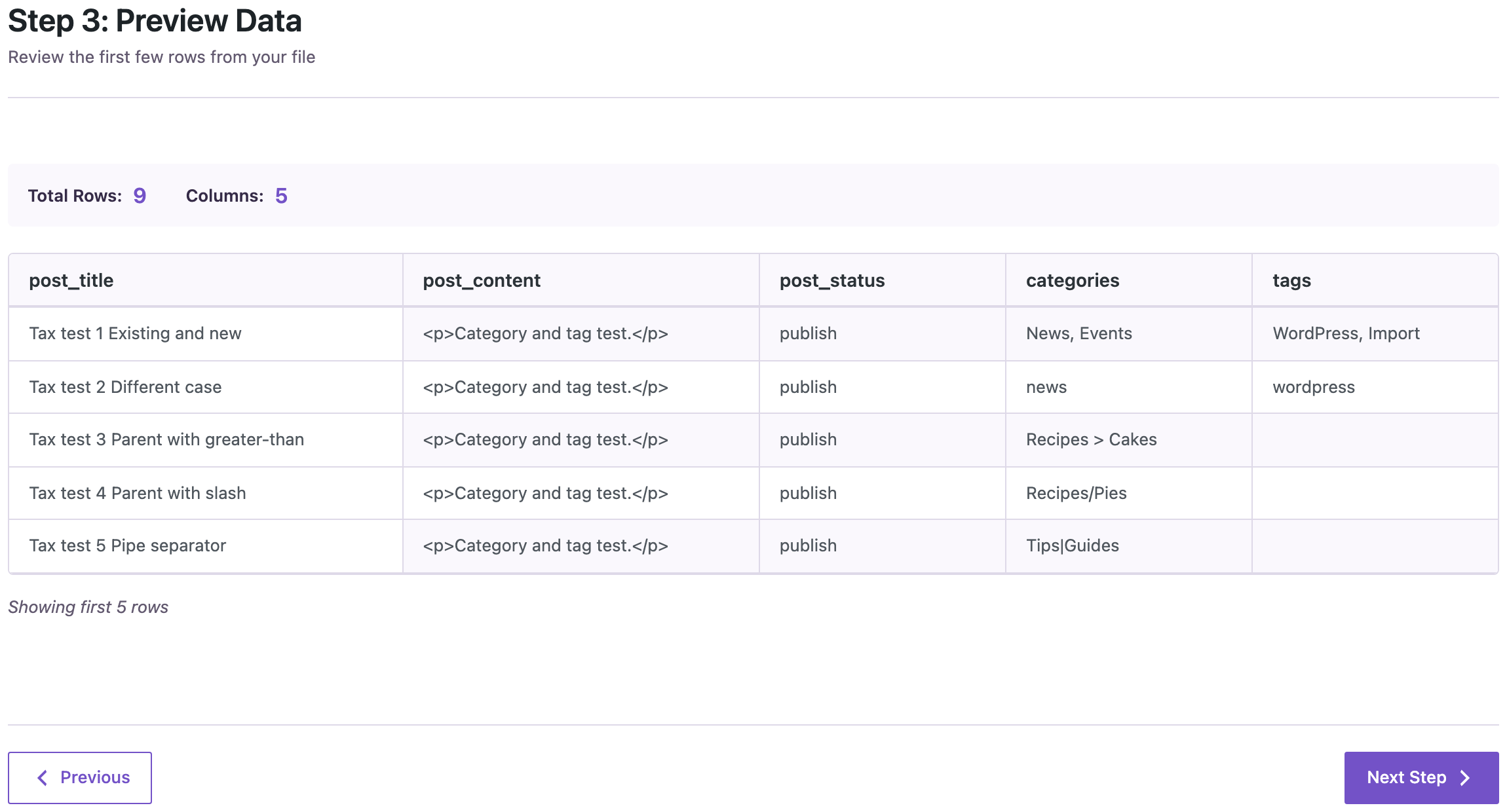
Open Import Export by RockStarLab → Import, choose Blog Posts and upload the file. The preview shows the category and tag cells as they will be read.
Step 2: Map the Columns
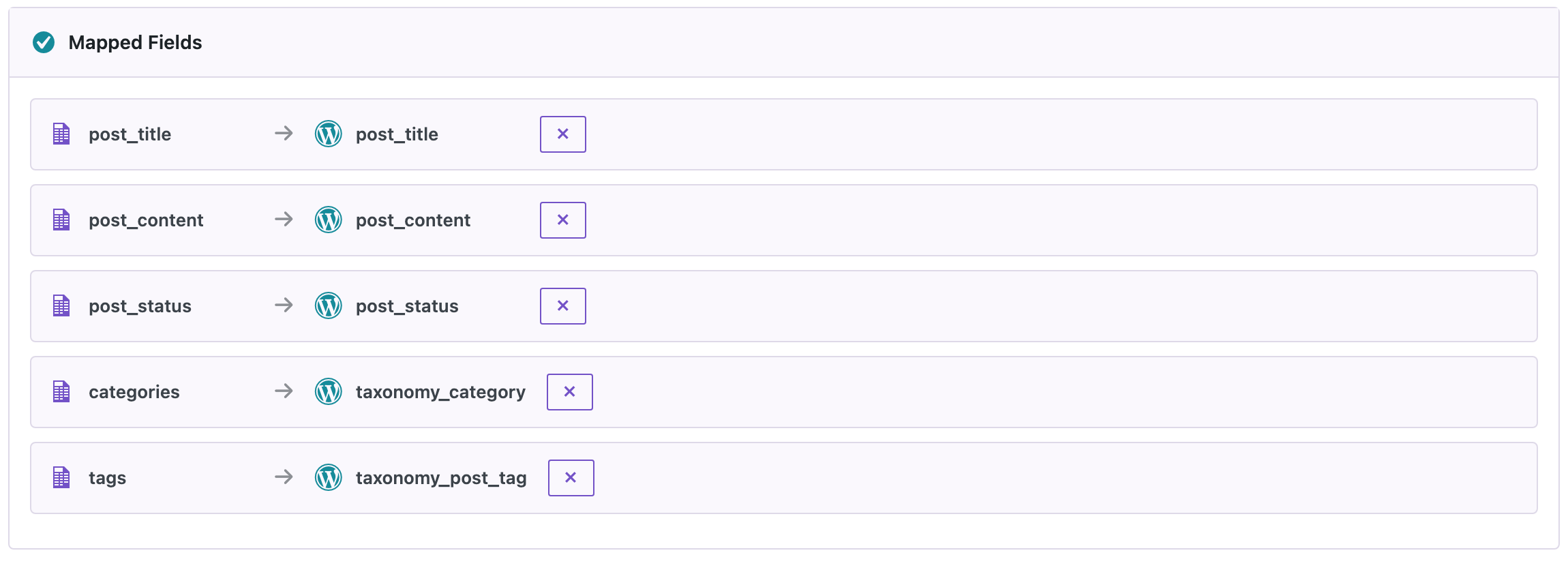
Click Auto Map. The categories column is mapped to taxonomy_category and tags to taxonomy_post_tag, both read as term names.
Columns with other names
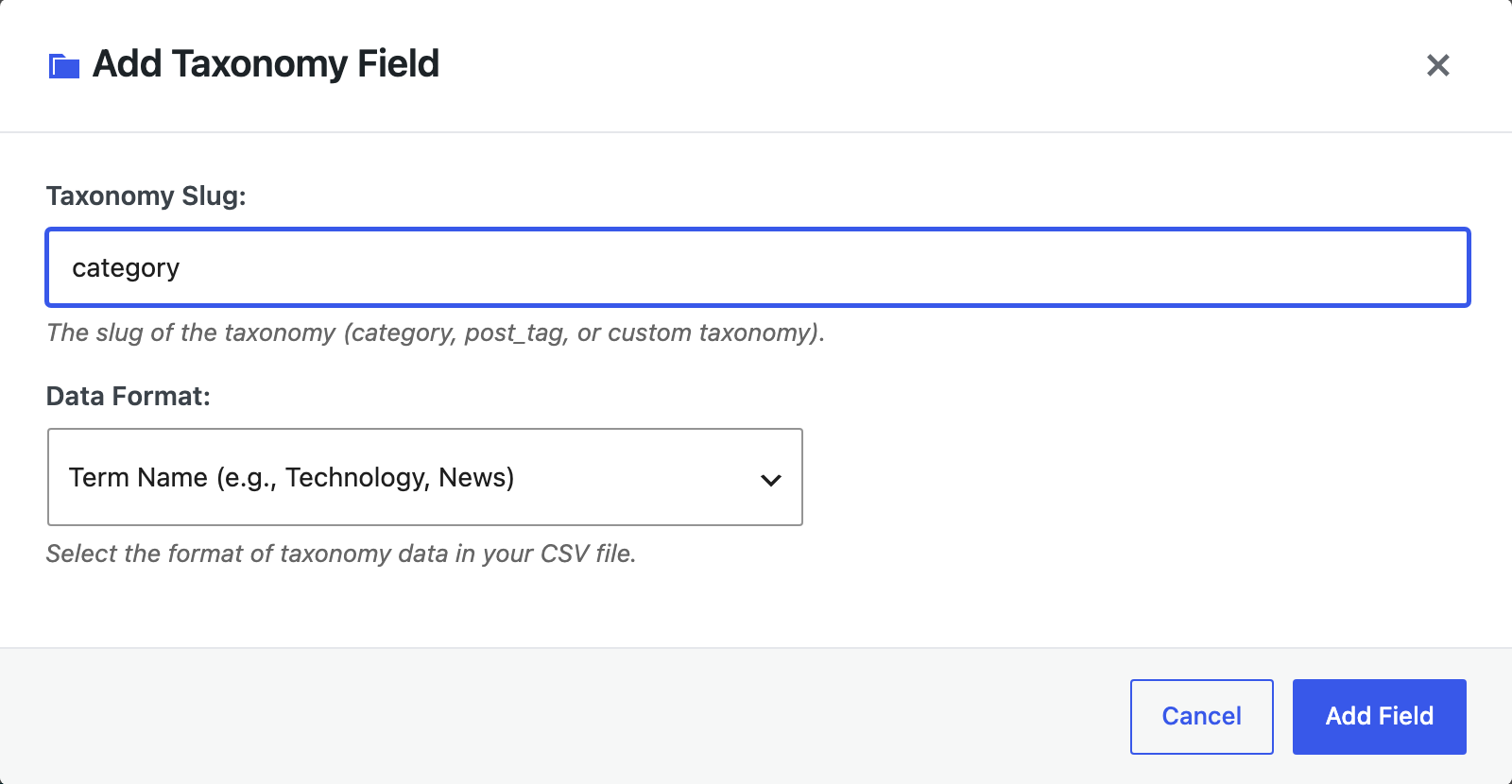
For a column such as Section, scroll to Taxonomies in the list of WordPress fields and click + Add. Enter the taxonomy slug, category for categories or post_tag for tags, and choose how the cells identify the terms: by name, by slug or by ID. Then drag the column onto the new field.
Custom Taxonomies
Taxonomies added by a theme or a plugin, such as Topics or Locations, are imported the same way and are included in the free version, as long as they are registered for posts. A column named taxonomy_ followed by the taxonomy slug is mapped by Auto Map; for any other column name, add a taxonomy field with + Add and enter the slug. The slug is shown in the address bar on the taxonomy’s admin page, after taxonomy=.
In the test, the site had a hierarchical taxonomy Topics (slug topic) and a flat one, Moods (slug mood). The value Travel > Europe > Italy created three nested topics, and Calm, Curious two moods:

The > hierarchy only applies to hierarchical taxonomies, like categories. In flat ones, like tags, it stays part of the name.
Several Columns for One Taxonomy
Spreadsheets often spread categories over several columns, such as “Category 1” and “Category 2”, or “Topic” and “Subtopic”. Map each of them to the same taxonomy field: the importer combines their values and skips empty cells. In the test, a taxonomy_topic column and a Subject column mapped to the same taxonomy gave each post the terms from both.
Step 3: Import and Check
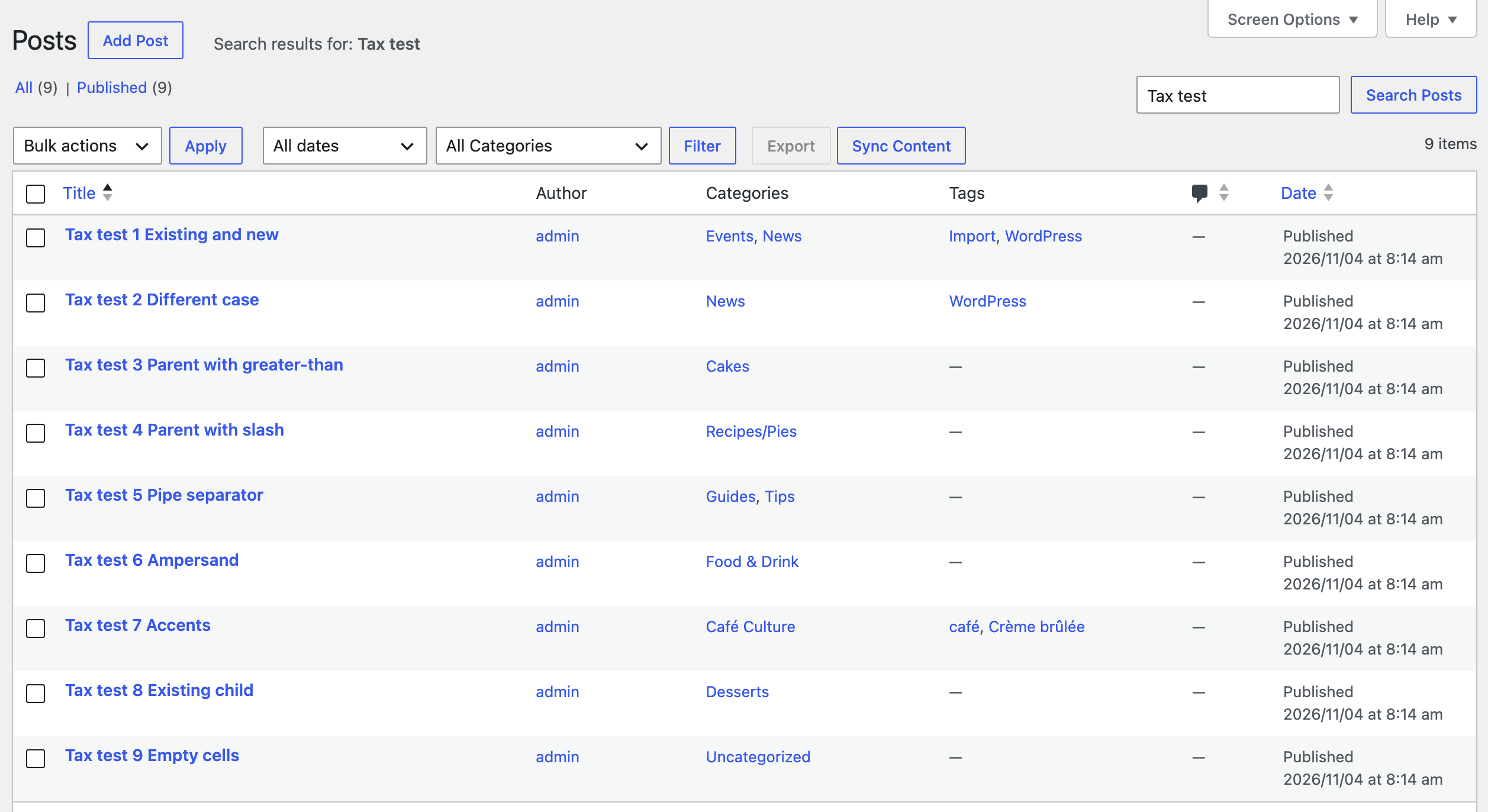
Start the import. All nine posts were created in 12 seconds. The Posts list shows the assigned categories and tags:
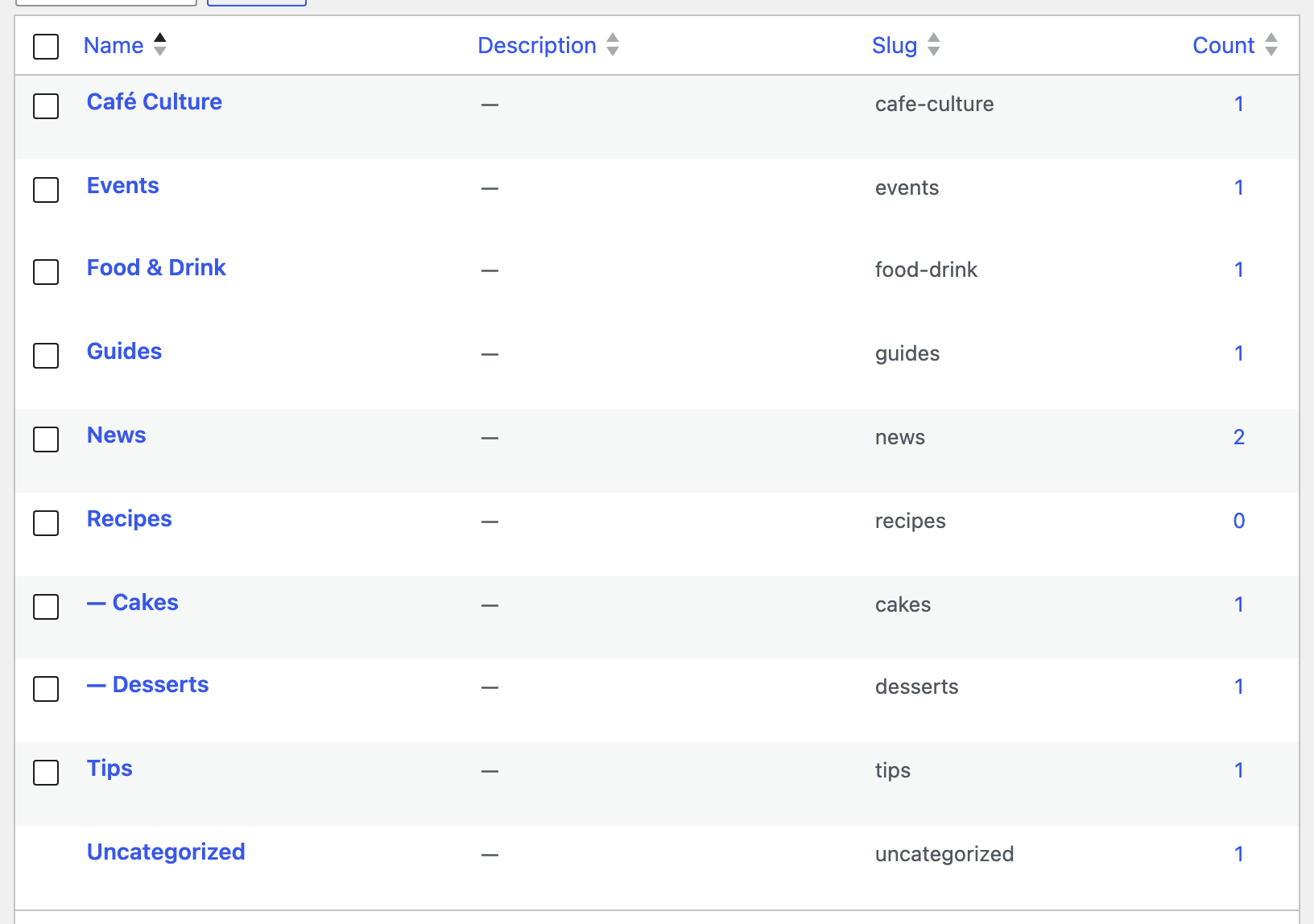
Under Posts → Categories, the new subcategory Cakes sits under Recipes next to the existing Desserts:
Updating Categories of Existing Posts
To change categories later, import a CSV with the same post titles or slugs and set If Match Found to Update. The categories and tags in the file replace the ones the post had; they are not added to them. In the test, a post that had News and Events was updated to Recipes > Desserts and afterwards had only Desserts.
Common Problems and Fixes
All posts end up in Uncategorized
The category column was not mapped. Check the mapping step: the column must point to a taxonomy field. Versions before 2.1.12 mapped neither categories nor taxonomy fields added with + Add, and still reported the import as successful; update the plugin and import again with Update.
“Parent > Child” became one long category name
The file was imported with a version before 2.1.12, or the separator was a slash. Delete the combined category under Posts → Categories and import again with > between the levels.
A category exists twice
The names differ in more than letter case, for example an extra space or a different dash. Matching ignores case and decodes &, but other differences create a new category. Rename the duplicate or use the exact name from Posts → Categories.
A category name contains a comma
Commas and | separate values. Identify such a category by its slug instead: choose Term Slug as the format when adding the taxonomy field.
FAQ
Are missing categories created automatically?
Yes. A name or slug that does not exist yet is created, including missing parent levels in a Parent > Child path.
Can I use category IDs?
Yes. Add the taxonomy field with Term ID as the format. IDs only work for categories that already exist on the target site.
Does it work with Excel files?
Yes. The columns are the same in XLSX files. The Excel import guide covers featured images in the same file.
Related Guides
- How to import WordPress blog posts from CSV or Excel
- How to import posts from Excel with featured images by URL
- How to export and import WordPress categories, tags and custom taxonomies
- CSV import shows broken characters? Fix UTF-8, Excel and accents
Import Export by RockStarLab is free on WordPress.org.

Comments 0
Have a question or a tip to share? Leave it below.