
The WordPress Importer, and most other import screens, start by uploading a file. When that file is larger than the server allows, the import stops before it begins, with a message about upload_max_filesize or with the confusing “File is empty”. We reproduced the error on a test site with a 2 MB limit. Below: which setting is responsible, and four ways around it, from raising the limit to imports that never hit it.
Short Answer
The limit comes from PHP, not from WordPress. Raise upload_max_filesize and post_max_size in php.ini, .user.ini or the hosting control panel, or ask the host to do it. If that is not possible, import from the server’s disk with WP-CLI (wp import), which involves no upload, or use an importer that uploads in small chunks, such as the one in Import Export by RockStarLab.
The Error, Reproduced
The test site had upload_max_filesize = 2M and post_max_size = 8M, a common hosting default. The Tools → Import screen of the WordPress Importer shows the limit next to the file field:
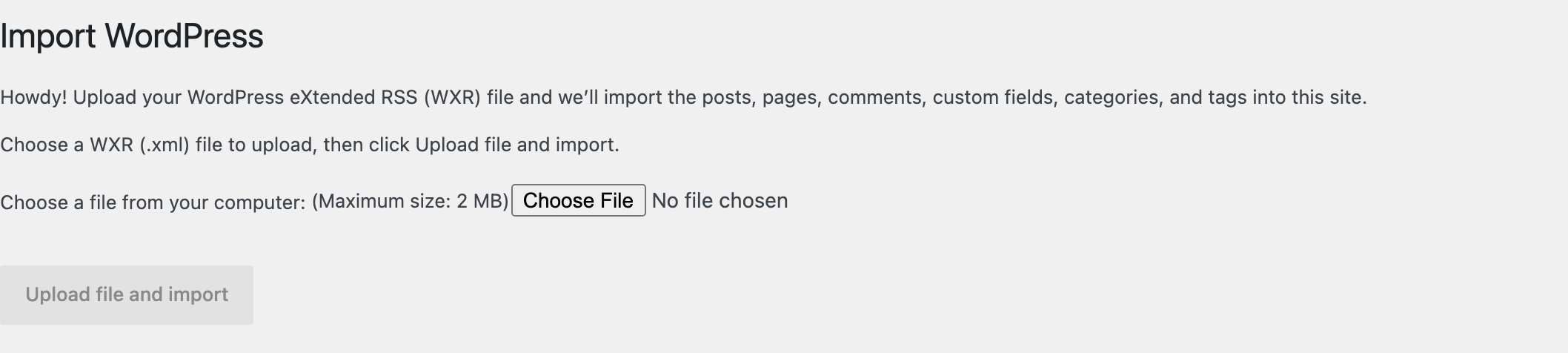
Uploading a 2.2 MB export file from another site was rejected right away:

The message, “The uploaded file exceeds the upload_max_filesize directive in php.ini”, names the setting that blocked it.
Which Setting Sets the Limit
Two PHP settings decide how large an uploaded file may be:
upload_max_filesize: the largest single file PHP accepts.post_max_size: the largest whole request, file included.
WordPress shows the smaller of the two as “Maximum size”. During the test, one PHP process still had post_max_size = 1M from an earlier setting, and the import screen said “Maximum size: 1 MB” although upload_max_filesize was 2 MB.
When a file is larger than post_max_size, PHP discards the whole request, and WordPress cannot tell that a file was sent at all. The message is then “File is empty. Please upload something more substantial”, followed by a hint that post_max_size may be smaller than upload_max_filesize. It is the same problem with a misleading first sentence.
Fix 1: Raise the Limits
Where the settings live depends on the server:
- Hosting control panel: many hosts offer a “PHP settings” or “MultiPHP INI Editor” page. This is the safest place.
php.inion servers you manage yourself, followed by a restart of PHP..user.iniin the WordPress folder, on hosts that run PHP as PHP-FPM or CGI:
upload_max_filesize = 64M
post_max_size = 64M
Two things the test showed about .user.ini. First, PHP reads it only every five minutes by default (user_ini.cache_ttl = 300), so the new limit can take up to five minutes to appear, and different PHP processes switch over at different moments. Second, PHP also reads .user.ini files in subfolders: a file in /wp-admin/ overrides the one in the site root for every admin page, including the import screens. In the test, a forgotten /wp-admin/.user.ini kept the import screen at 1 MB long after the root file said 8 MB.
On Apache with mod_php, the same settings go into .htaccess as php_value upload_max_filesize 64M and php_value post_max_size 64M. On other setups that line causes an error 500, so try .user.ini first.
Fix 2: Import With WP-CLI
When the export file is already on the server, or can be copied there by SFTP, WP-CLI imports it from the disk. No upload takes place, so the upload limit does not apply. With the WordPress Importer plugin active:
wp import site-export.xml --authors=skip
On the test site, the 2.2 MB file that the upload form rejected was imported this way in 39 seconds, posts and media included. Use --authors=create or --authors=mapping.csv to control who the posts belong to.
Fix 3: Split the Export
Tools → Export can export one content type at a time, and posts by category or date range. Several smaller files, each below the limit, import one after the other. It works, but authors, terms and media are spread across the files, and a mistake in one part is easy to miss.
Fix 4: Use an Importer That Uploads in Chunks
The importer in Import Export by RockStarLab (Free) sends a file to the server in parts of 1 MB and puts it back together there. The upload limit applies to each part, not to the whole file.
For the test, all 868 posts of the old site were exported with the plugin as one JSON file of 3.89 MB, almost twice the 2 MB limit. On the new site, the file uploaded in 5 seconds and the preview showed all 868 rows.

The import of all 868 posts then finished in 1 minute 51 seconds with no failures.

For large files, raise Batch Size on the import options step. It sets how many rows are processed per step. With the default of 1, the same import ran at about one post every two seconds and would have needed close to half an hour; with 50, it took under two minutes.
Two limits remain. post_max_size still has to be larger than one part, so a host with post_max_size below about 1.1 MB needs Fix 1 anyway. And the chunked upload is for the plugin’s own files (CSV, JSON, XML, Excel, ODS and its migration packages). A WordPress Importer file (WXR) uploads, but is read as plain XML rather than as posts; import those with WP-CLI. For a whole site, the plugin’s Content Migration packs the content into a compressed ZIP: in another test, 2 MB of posts and pages became a 170 KB package.
Common Problems and Fixes
The limit did not change after editing .user.ini
Wait five minutes, then reload. If it is still the old value, look for another .user.ini in /wp-admin/, and check that the host runs PHP as FPM or CGI; with mod_php the file is ignored.
“File is empty. Please upload something more substantial”
The file is larger than post_max_size. Raise post_max_size to at least the value of upload_max_filesize.
The upload works but the import stops halfway
That is a different limit: max_execution_time or memory_limit. The WordPress Importer processes the whole file in one request. WP-CLI has no time limit by default, and importers that work in background batches avoid it as well.
Error 500 after adding php_value to .htaccess
The server does not run PHP as an Apache module. Remove the lines and use .user.ini or the control panel instead.
FAQ
Can a plugin raise upload_max_filesize?
Not directly. It is a PHP setting that is fixed before WordPress starts. Plugins that offer to raise it usually write to .htaccess or .user.ini, which only works on servers that read those files.
What values are reasonable?
For imports, 64 MB for both settings covers most sites. Set post_max_size equal to or larger than upload_max_filesize.
Does the limit also affect exports?
No. Downloading an export file is not an upload. The limit only matters on the site that receives the file.
Related Guides
- WordPress Importer not importing images: causes and fixes
- WordPress Tools > Export limitations
- How to migrate only posts and pages to a new WordPress site
- How to import WordPress blog posts from CSV or Excel
- How to use the Jobs Log and schedule import and export jobs
Import Export by RockStarLab is free on WordPress.org.

Comments 0
Have a question or a tip to share? Leave it below.