
A redesign or a move to a new host often starts with a clean WordPress install: a new theme, new settings, sometimes a shop that is already set up. What should come over from the old site is the content, the blog posts and the pages, and nothing else. A full-site migration would bring the old theme settings, plugins and users along and overwrite what was already built.
The free Content Migration tool in Import Export by RockStarLab moves only posts and pages from an old WordPress site to a new one. Below: what arrives, what stays behind and how pages that already exist on the new site are protected. At the end, the same migration is done by an AI agent.
Short Answer
On the old site, open Content Migration, choose Create export file and Choose content to migrate, tick only Post and Page, and download the ZIP. On the new site, choose Upload export file, keep Skip it and keep the version on this site selected, add a Replace URLs rule from the old address to the new one and start the migration. Keep the old site online until the import is done, because images are downloaded from it.
What Moves and What Stays
The test used an old blog with 68 posts, 32 pages, 75 media files and 34 comments. The new site already had its own theme, a WooCommerce shop with five shop pages (Shop, Cart, Checkout, My account, Refund and Returns Policy), 23 product images and no posts.
| Item | Result on the new site |
|---|---|
| Posts | All 68 arrived, with categories, tags, dates and status (one scheduled post stayed scheduled) |
| Pages | 27 created; 5 skipped because pages with the same slug already existed on the new site |
| Images used in posts and pages | Downloaded from the old site and added to the new Media Library, featured images included |
| Links to the old domain | 309 replaced with the new domain |
| Authors | Matched to existing accounts on the new site by email address |
| Comments | Not moved, because Comment was not selected |
| Theme, settings, menus, users, plugins | Not part of the package; the new site keeps its own |
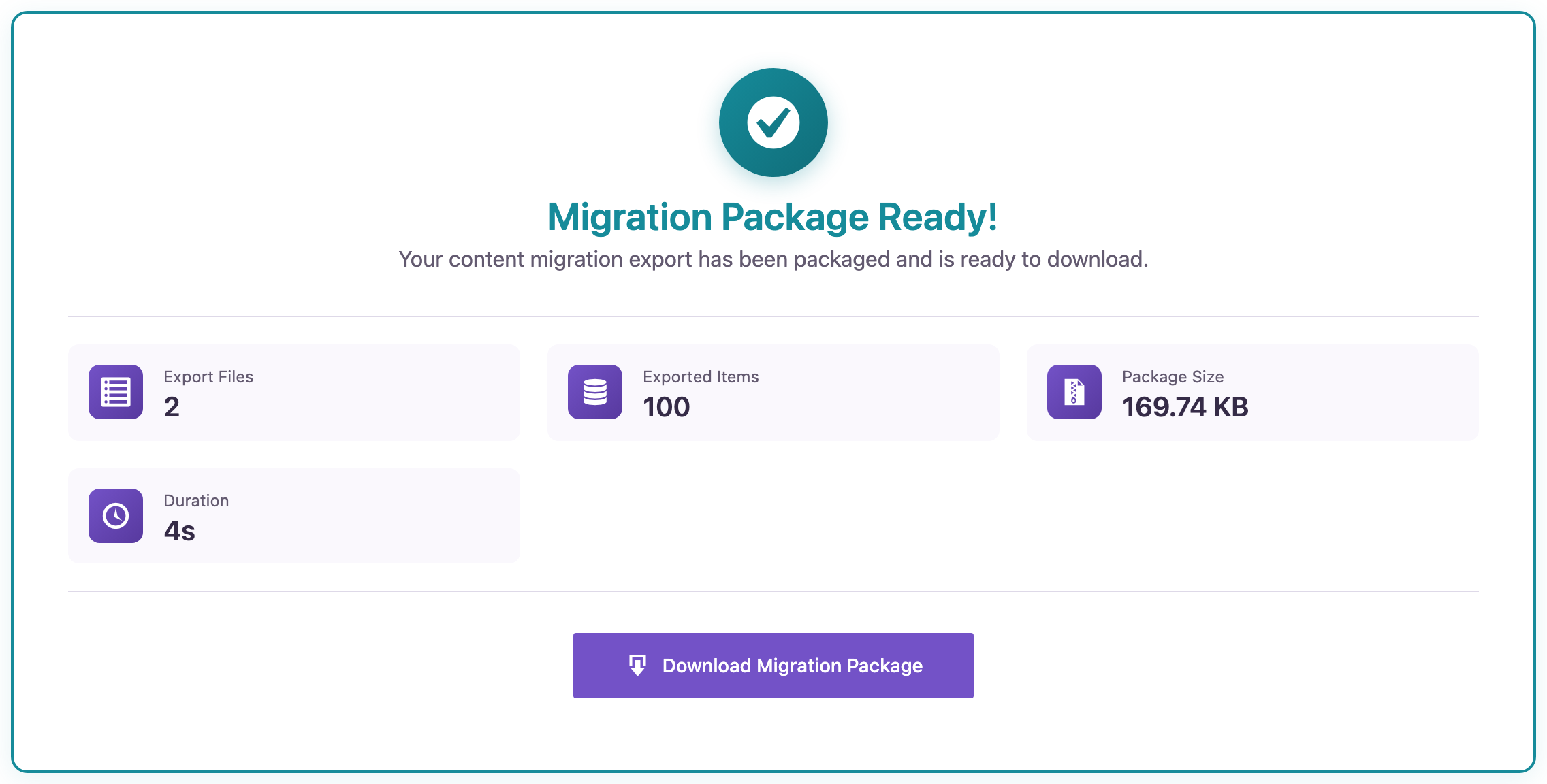
The export took four seconds and produced a 170 KB ZIP. The import on the new site took 59 seconds.
What You Need
- Import Export by RockStarLab (Free), version 2.1.5 or later, on both sites. The installation guide covers the first setup.
- The old site online and reachable from the new one during the import. The ZIP holds the content, not the image files.
- Administrator access to both sites, and a backup of the new site if it already has content. The backup guide shows how to make one with the same plugin.
Posts, pages, media and comments are migrated by the free version. Custom post types, menus, users, taxonomy terms and WooCommerce data need the PRO addon.
Step 1: Create the Package on the Old Site
On the old site, open Import Export by RockStarLab → Content Migration and select Create export file. Under Content to migrate, switch from Migrate full content to Choose content to migrate. The content types are grouped: open Posts & media and tick Post and Page, and leave Media and, under People & discussion, Comment unticked.
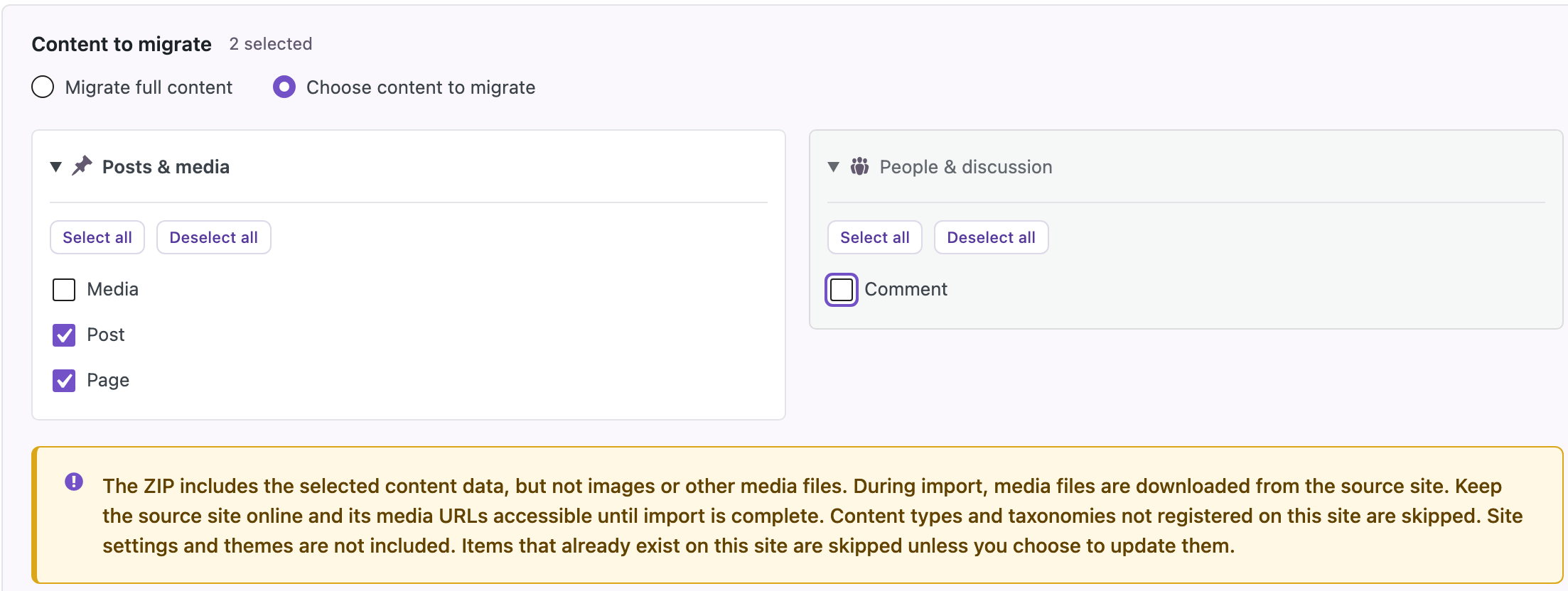
Media is not needed for images that posts and pages actually use: those are downloaded during the import anyway. Ticking it moves the whole Media Library, including files that no post uses. In the test, 69 of the 75 media files came over without it, because they appear in posts or pages.
Click Start migration. When the package is ready, download it.
Step 2: Import on the New Site
On the new site, open the same screen and select Upload export file. Upload the ZIP. Three settings matter here.
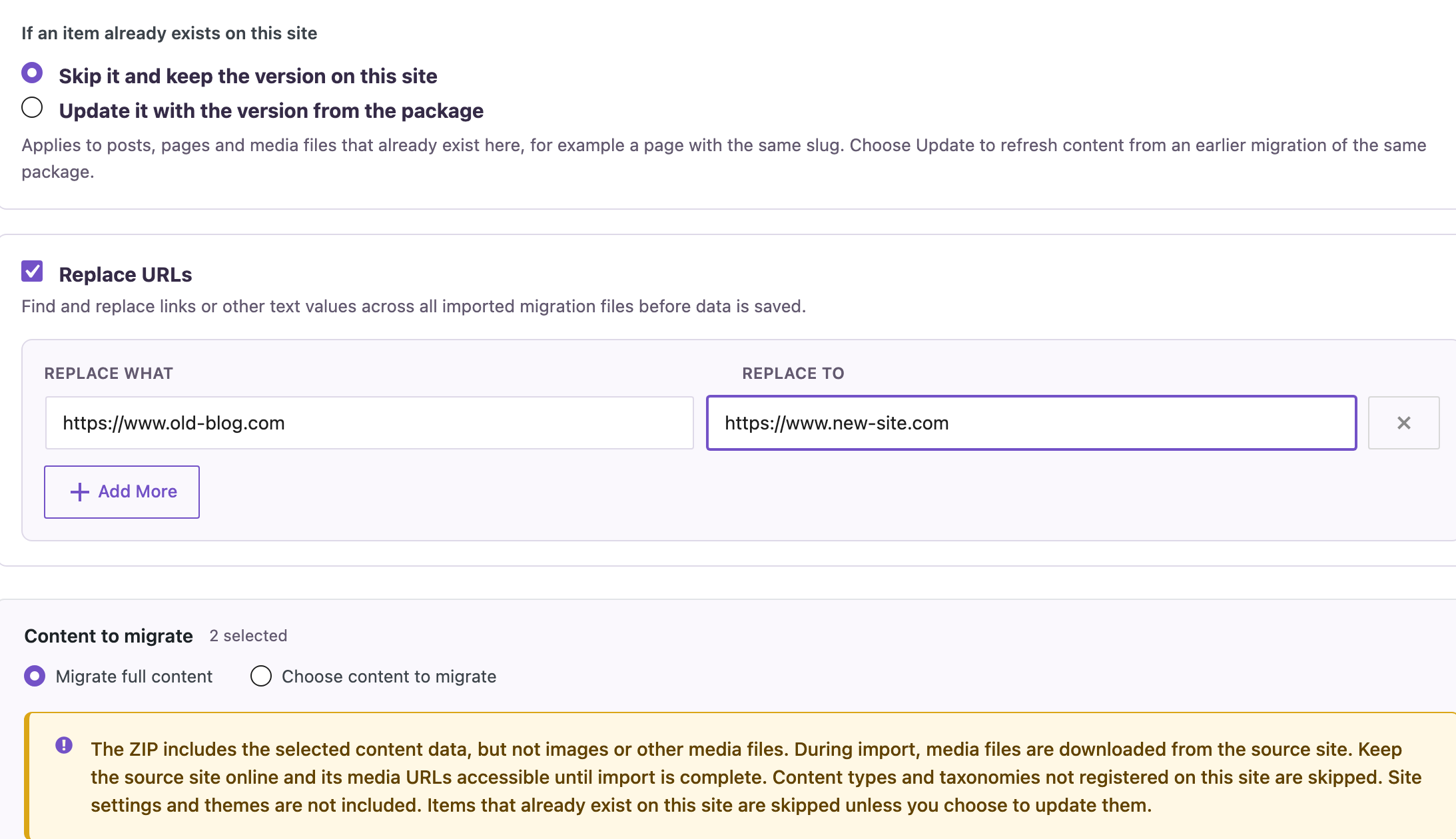
If an item already exists on this site. The default, Skip it and keep the version on this site, protects pages the new site already has. A page with the same slug on both sites, such as Shop or Privacy Policy, is left as it is. Update it with the version from the package is meant for running the same migration again after the old site changed.
Replace URLs. Enter the old address in Replace what and the new one in Replace to. Links between posts and image addresses then point to the new site.
Content to migrate. The package already contains only posts and pages, so Migrate full content imports everything in it.
Click Start migration and keep the page open. The result reports created, updated and skipped items separately.
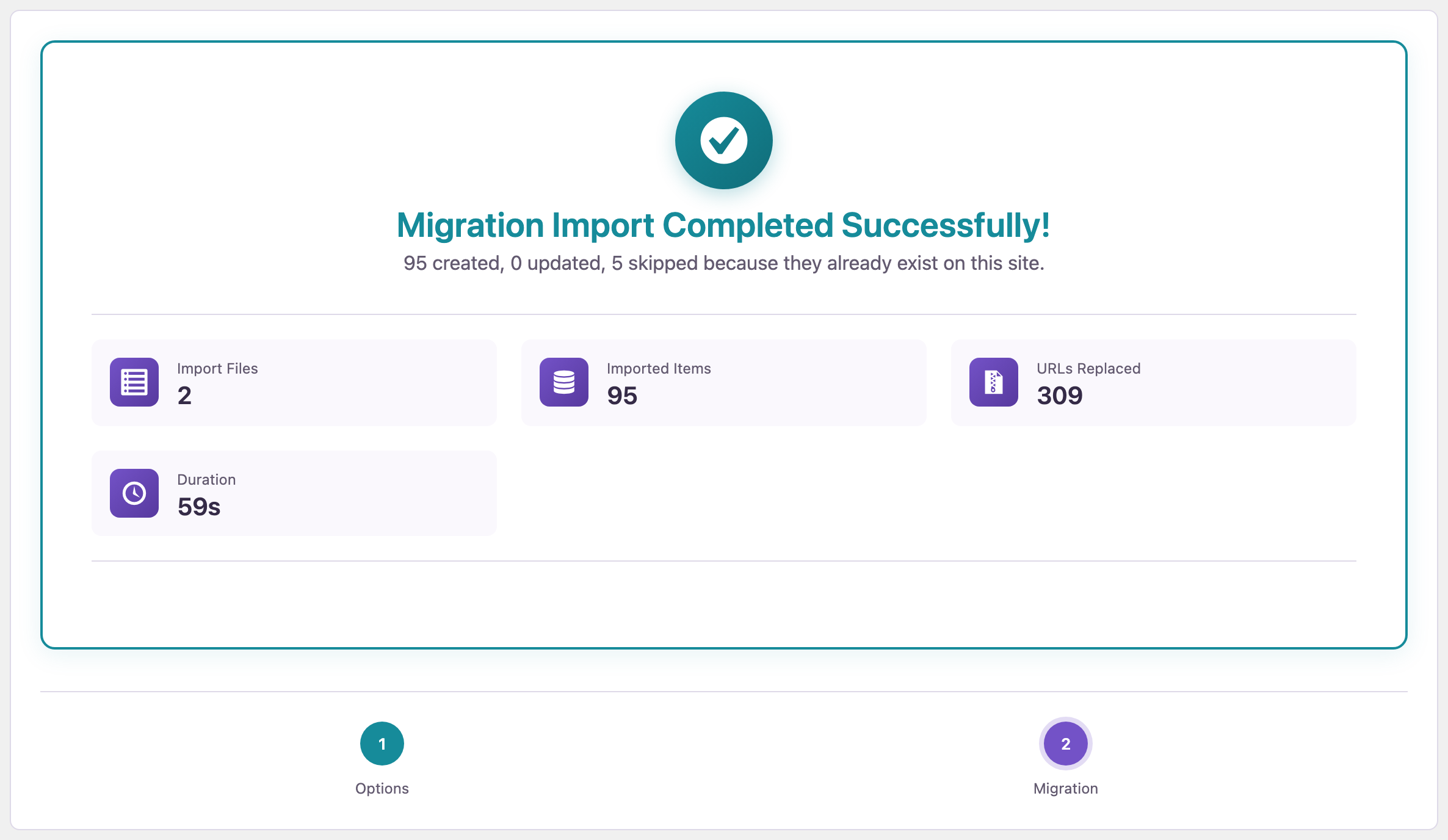
The five skipped items were the new site’s shop and policy pages. Before version 2.1.3, the migration screen always updated items that already existed, so these pages would have been replaced with the old site’s versions without any notice.
Step 3: Check the New Site
In the Pages list of the new site, the shop pages still have their own creation date from the new site, next to the pages that came from the old blog.

The posts arrived with their authors, categories and tags. The authors already existed on the new site with the same email addresses, so each post was assigned to the right person even though the user IDs on the two sites were different.

Things worth checking by hand afterwards:
- Menus: they are not migrated in the free version, so pages have to be added to the new site’s menus.
- Comments: if they should come along, tick Comment in Step 1 together with posts and pages.
- Authors that do not exist on the new site: create their accounts with the same email address before the import.
Running the Migration Again
If the old site stays live for a while and gets new content, the same steps can be repeated. With Skip, posts and pages that are already on the new site are left alone and only new ones are added. With Update, everything in the package overwrites its copy on the new site. In the test, a second run with Update reported 0 created and 100 updated in 14 seconds, without duplicates.
Migrate Posts and Pages With an AI Agent
Content Migration is also available as WordPress Abilities. With the Abilities API (WordPress 6.9 and later) and the MCP Adapter plugin on both sites, an agent such as Claude Code, Cursor, Codex, GitHub Copilot or Gemini CLI can run the migration. Enable Enable Abilities API under Plugin Options → AI Agent Connection on both sites and connect the agent to both. The setup is described in the Abilities API guide.
The prompts below were run by an AI agent (Claude) connected to the old and the new test site. It used rsl-ie/migration-plan, rsl-ie/migration-start, rsl-ie/file-get on the old site and rsl-ie/upload-create, rsl-ie/migration-prepare, rsl-ie/migration-import-start and rsl-ie/migration-get on the new one.
1. Create the package on the old site
On the old site, create a content migration package with only posts and pages.
Give me the download link when it is ready.
2. Upload it to the new site and check it
Upload migration.zip to the new site and tell me which content types and how many items it contains.
Do not import anything yet.
The agent reported two entries: 68 posts and 32 pages.
3. Import
Import the package on the new site. Skip anything that already exists there and replace
https://www.old-blog.com with https://www.new-site.com. Report created, updated and skipped items.
The result matched the admin screens: 95 created, 0 updated, 5 skipped, 309 URLs replaced. Through the Abilities API, skipping existing items is the default, so the prompt only confirms it.
Two practical notes from the run. The migration is processed by WP-Cron, so on a site without visitors, such as a local copy, it waits until something triggers cron. And an agent that talks to WordPress through WP-CLI (wp mcp-adapter serve) needs version 2.1.5 or later: earlier versions could not finish preparing a package or complete an upload sent in chunks from that kind of session.
Common Problems and Fixes
Images are missing on the new site
The import downloads images from the old site. If the old site was offline, password-protected or blocked the new server, the posts arrive without them. Make the old site reachable and run the migration again with Update.
Links still point to the old domain
The Replace URLs rule was missing or did not match exactly. Check the protocol and the www part: http://old.com does not match https://www.old.com. Add a rule for each variant used on the old site.
A page from the old site did not arrive
A page with the same slug already exists on the new site, and Skip kept the new site’s version. Rename one of them, or run the migration with Update if the old version should win.
Posts are assigned to the wrong author
Authors are matched by email address. An author whose account does not exist on the new site cannot be matched; create the account with the same email first.
The migration stays at 0%
Background processing runs through WP-Cron. Keep the migration screen open, or make sure the site gets visits or has a real cron job. The Jobs Log shows each step.
FAQ
Does this change the theme or settings of the new site?
No. The package contains only the selected content. Theme, customizer settings, widgets, plugins and site options stay as they are on the new site.
Are categories and tags created?
Yes. Categories and tags used by the migrated posts are created on the new site if they do not exist yet, and matched if they do.
Can the old site be switched off right after the export?
Not before the import has finished. The ZIP contains text and settings of each item, while images are downloaded from the old site during the import.
What about a few posts instead of all of them?
For a handful of posts between two live sites, Content Sync is quicker: tick the posts and push them. Content Migration suits moving all posts and pages at once.
Related Guides
- How to sync WordPress posts and pages between multiple sites
- How to copy only new posts from staging to production
- LocalWP to live site: push content without a full migration
- How to export and import WordPress media files without duplicates
- How to use the WordPress Abilities API with AI agents
Import Export by RockStarLab is free on WordPress.org.

Comments 0
Have a question or a tip to share? Leave it below.