
In this tutorial, you will learn how to sync WordPress posts and pages between multiple websites using the Content Sync feature in Import Export by RockStarLab.
This workflow is especially useful when you manage both a staging website and a production website. Instead of copying content manually, exporting files, importing them again, or rebuilding pages by hand, you can connect two WordPress websites and move approved content changes in just a few clicks.
Why WordPress Content Sync Is Useful
Many agencies, developers, freelancers, and content managers work with two versions of the same website:
- Production — the live website that visitors can see.
- Staging — a test version where changes are prepared before going live.
A common workflow looks like this: you create or update content on the staging site, show it to the client, get approval, and then need to move those changes to the production site.
Without a content sync tool, this usually means copying text manually, uploading images again, checking formatting, updating custom fields, and making sure everything still looks correct. For complex pages, this can take a lot of time and create unnecessary mistakes.
With Import Export by RockStarLab, you can sync posts and pages between WordPress websites directly, without using a traditional import/export file workflow.
What You Will Learn in This Lesson
- How to connect two WordPress websites for content synchronization.
- How to sync content between staging and production websites.
- How to pull a new page from a remote site.
- How to push updates from staging to production.
- How to sync multiple posts or pages at once.
- How images are transferred and updated automatically.
- How Content Sync works with custom fields, ACF fields, and ACF Repeater fields.
Content Sync vs Import and Export
Traditional WordPress import/export workflows are still useful, especially for large migrations, backups, data transfers, and structured content movement. But when you only need to move a few updated pages from staging to production, direct content sync is often faster and easier.
| Workflow | Best For | Main Benefit | Possible Limitation |
|---|---|---|---|
| Manual Copy and Paste | Very small text changes | No plugin setup required | Easy to miss images, formatting, metadata, or custom fields |
| Import and Export | Large migrations and structured data transfers | Good for moving many records in bulk | Requires generating and importing files |
| Content Sync | Staging-to-production updates | Move selected posts or pages in a few clicks | Requires both sites to be connected |
| Database Migration | Full site duplication | Copies a large part of the website state | Can overwrite unrelated live changes |
Step 1: Install the Plugin on Both Websites
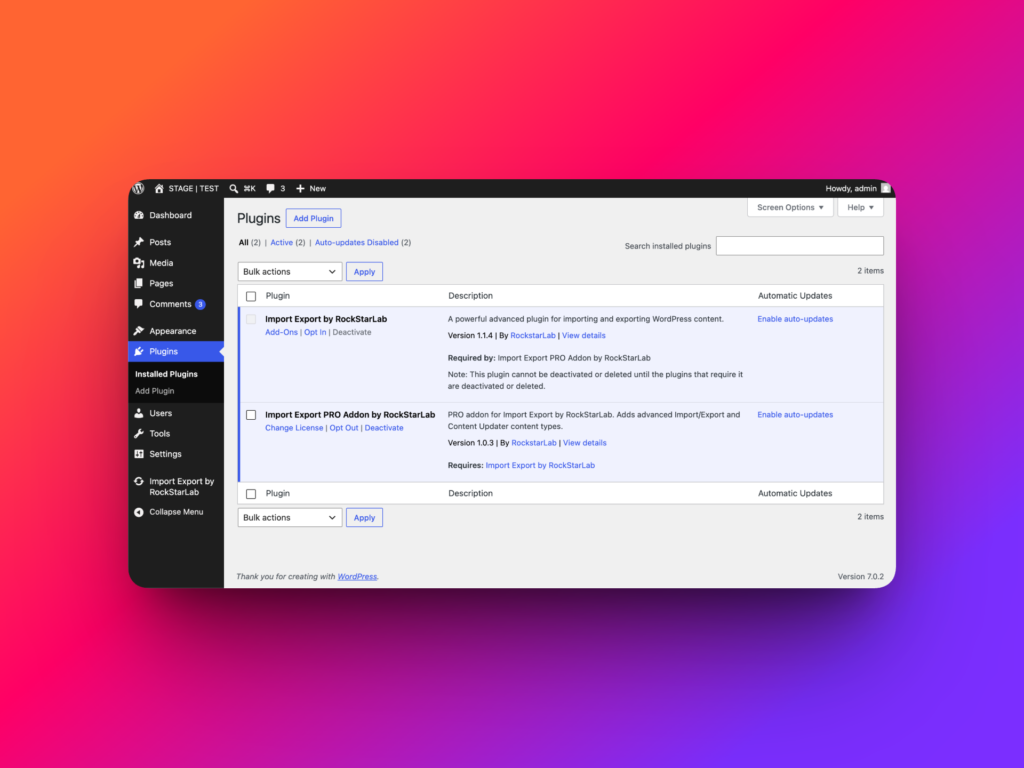
To use Content Sync, install Import Export by RockStarLab on both WordPress websites that you want to connect.
For example, if you have a staging website and a production website, the plugin should be installed and active on both of them.
You can download the free version from WordPress.org:
Download Import Export by RockStarLab
Step 2: Open the Content Sync Screen
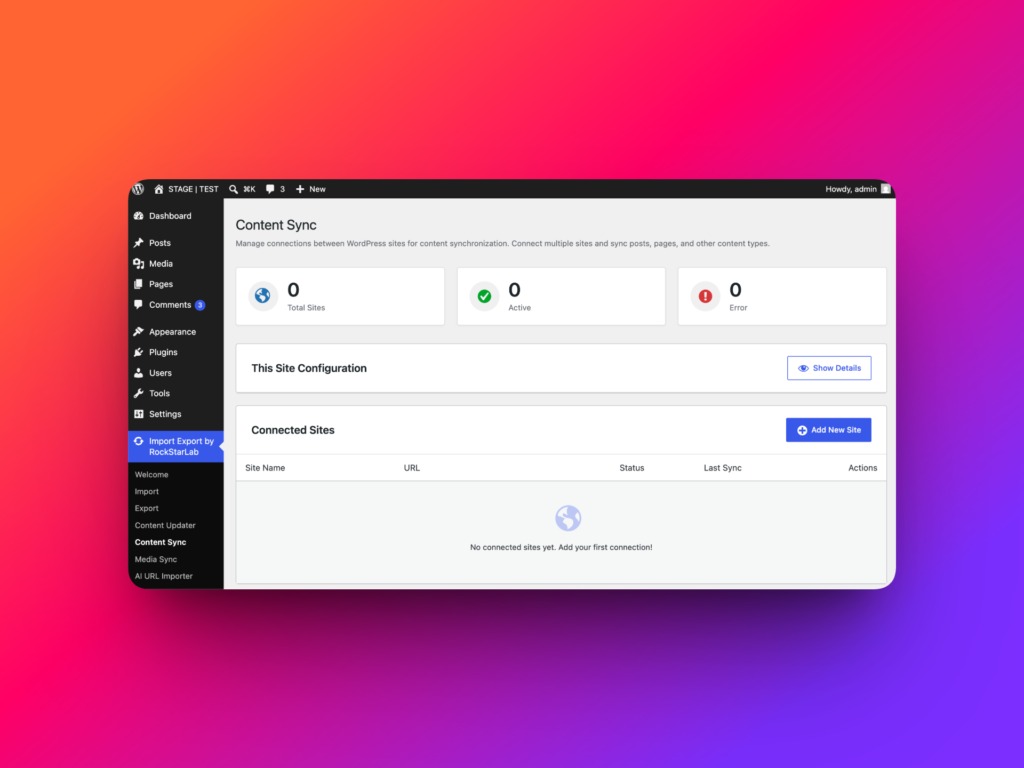
In the WordPress admin dashboard, go to:
Import Export by RockStarLab → Content Sync
This screen is where you configure connected sites and manage synchronization between them.
Step 3: Connect Production and Staging Sites
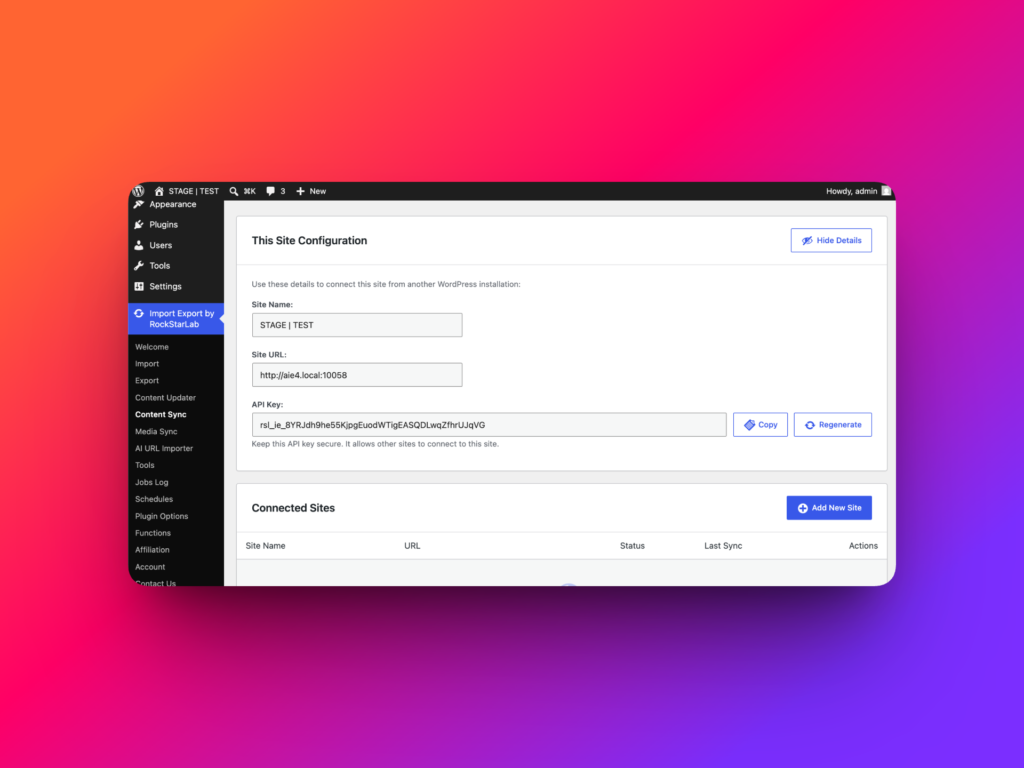
To connect two websites, open the Content Sync screen on the first site and find the This Site Configuration section.
Click Show Details. The plugin will show the current site URL and a unique API key. Copy this information and use it on the second website.
On the second website, go to the Connected Sites section and click Add New Site. Enter a name for the connection, paste the remote site URL, paste the API key, and save the connection.
For a two-way workflow, repeat the same process in the opposite direction. This allows you to push content from staging to production and also pull content from production to staging when needed.
Step 4: Pull a New Page From Staging to Production
Once both sites are connected, you can pull content from one site to another.
For example, imagine that you created a new page on your staging website and now want to move it to production.
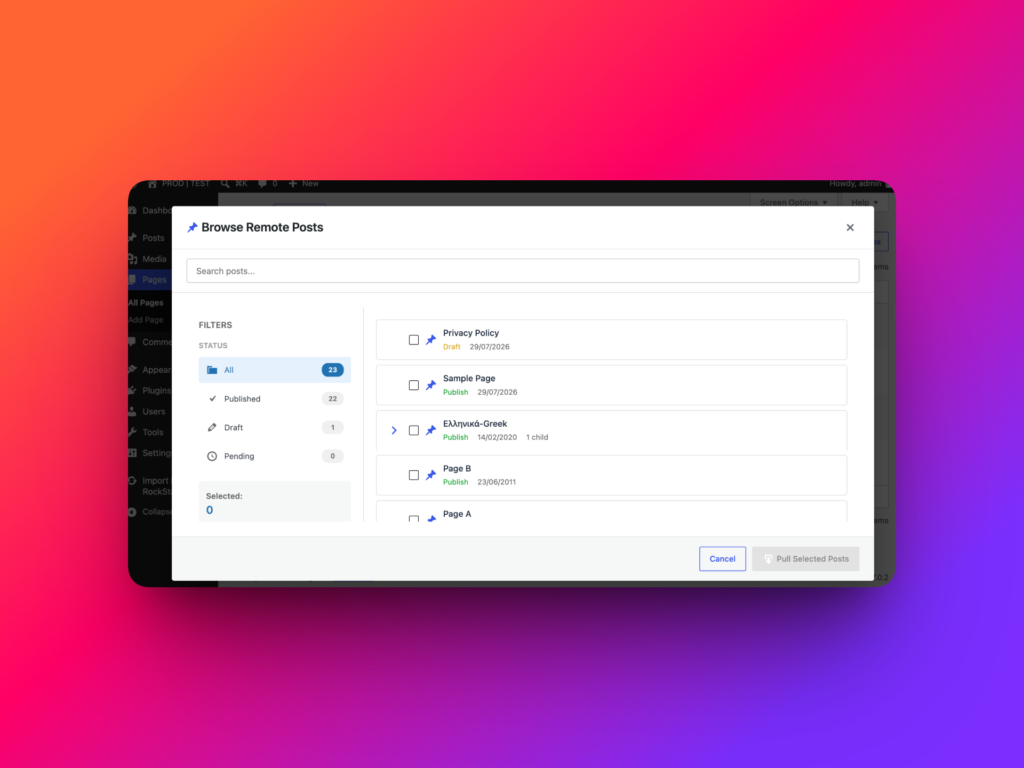
On the production website, go to the Pages list and click Sync Content. Select the staging website as the remote site, browse the available remote posts, choose the page you want to sync, and click Pull Selected Posts.
The plugin will create the selected page on the production website and copy the content from staging.
Step 5: Sync Pages With Images Automatically
Content Sync is not limited to plain text. If the page contains images, the plugin can transfer media files and update image references automatically.
This is important because manually copying a page from one site to another often breaks image URLs or leaves media files missing from the destination website.
With Content Sync, you can sync a page that includes images, and the plugin will copy the required media files to the destination site during synchronization.
Step 6: Push Updates From Staging to Production
Content Sync is also useful when the same page already exists on both websites, but the staging version has newer changes.
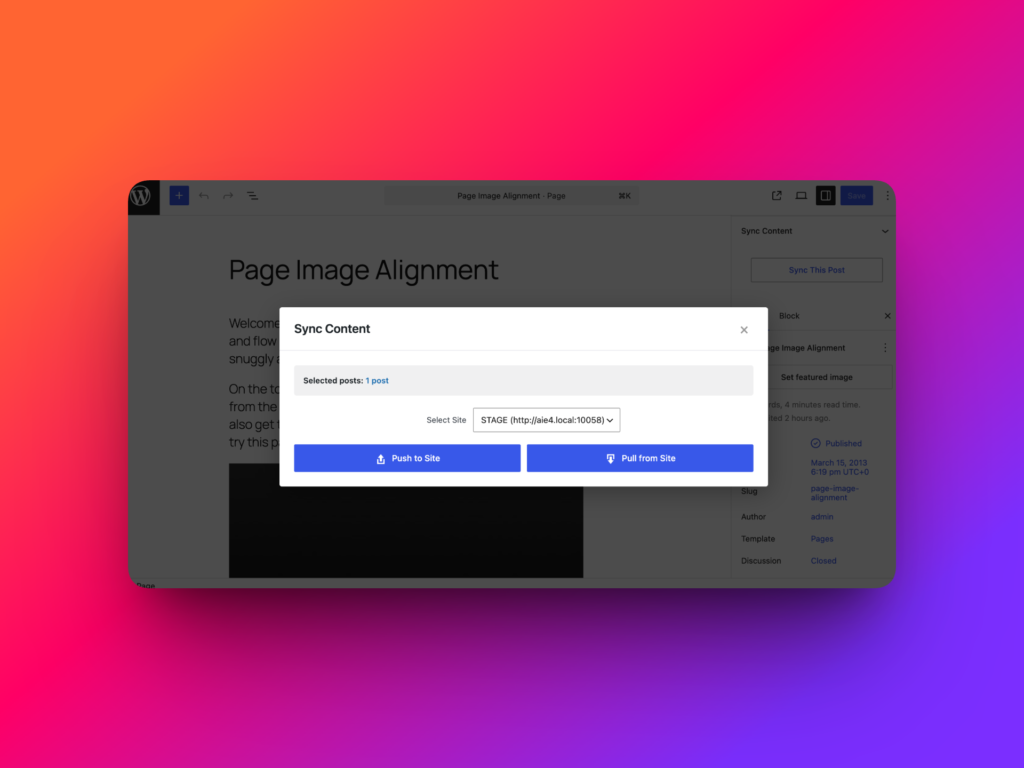
Open the page on the staging website, make your edits, and save the page. Then use the Sync This Post action.
Choose the production website as the destination and click Push to Site. The plugin will ask you to map the current staging page to the correct production page. You can select the matching page manually or use automatic matching by title when appropriate.
After confirmation, the staging version will be pushed to the production site.
Step 7: Sync Multiple Posts or Pages at Once
You can also synchronize multiple posts or pages in one workflow.
From the WordPress posts or pages list, select several items using checkboxes, then click Sync Content. Choose the remote site and decide whether you want to push the selected content to that site or pull content from it.
During mapping, each selected item can be connected to an existing remote post or created as a new post on the destination website.
Supported WordPress Data
The Content Sync feature is designed for real WordPress content workflows, including more than just the main title and content fields.
| Data Type | Supported in Content Sync | Why It Matters |
|---|---|---|
| Post title and content | Yes | Sync the main visible content of posts and pages |
| Featured images | Yes | Move visual content without re-uploading images manually |
| Inline media references | Yes | Keep image references working after sync |
| Custom fields | Yes | Useful for custom WordPress themes and advanced content structures |
| ACF fields | Yes | Sync structured content created with Advanced Custom Fields |
| ACF Repeater fields | Yes | Important for flexible layouts, repeated blocks, FAQs, tables, team sections, and complex page data |
Best Use Cases for Content Sync
Content Sync is a strong fit for websites where content changes need to be reviewed before they go live.
- Agency websites: prepare changes on staging, get client approval, then push them live.
- Corporate websites: update landing pages, service pages, and structured content safely.
- Content teams: move approved posts or pages between environments without copy-paste errors.
- Developer workflows: test content-heavy changes before syncing them to production.
- ACF-powered websites: sync complex page structures with custom fields and repeater data.
Important Recommendation: Create a Backup First
Before syncing important content on a live website, it is always a good idea to create a fresh backup.
Content Sync is designed to make the workflow faster, but production content should always be handled carefully. A recent backup gives you a restore point if you accidentally update the wrong page or sync content in the wrong direction.
Conclusion
Content Sync in Import Export by RockStarLab helps you move WordPress posts and pages between connected websites without traditional import/export files.
It is especially useful for staging-to-production workflows, client approval processes, and complex WordPress websites that use images, custom fields, ACF fields, or ACF Repeater fields.
If you regularly manage content across multiple WordPress websites, this feature can save time, reduce manual mistakes, and make your publishing workflow much cleaner.
Learn more about the WordPress import export plugin
FAQ
Can I sync WordPress pages without exporting a file?
Yes. With Content Sync in Import Export by RockStarLab, you can connect two WordPress websites and sync selected posts or pages directly.
Can I use Content Sync between staging and production websites?
Yes. This is one of the most useful workflows. You can prepare content on staging, approve it, and then push or pull it to production.
Does Content Sync support images?
Yes. The plugin can copy media files and update image references during synchronization.
Does Content Sync support ACF fields?
Yes. Content Sync supports custom fields, ACF fields, and ACF Repeater fields, which is useful for advanced WordPress websites.
Can I sync multiple posts or pages at once?
Yes. You can select multiple posts or pages from the WordPress admin list and sync them in one workflow.