
A staging site starts as a copy of the live site and then drifts. Developers change pages, write drafts and test a redesign, while the live site keeps publishing posts and collecting comments. After a few weeks, staging shows old content, and testing a new design against it says little about how the live site will look.
The usual fix, cloning live over staging again, throws away the work done on staging. Instead, pull only the new and changed content from the live site into staging with Import Export by RockStarLab. Drafts, unfinished pages and settings on staging stay as they are. At the end, an AI agent does the same refresh.
Short Answer
On staging, connect the live site under Content Sync. For new posts, open the Posts list without selecting anything, click Sync Content, choose the live site and pick the posts in Browse Remote Posts. For pages that changed on live, tick them on staging, click Sync Content → Pull from Site and map each one to its live version. Comments on older posts come through Comments → Sync. Do not pull pages that are being edited on staging.
The Situation in the Test
Staging was cloned from live. Then both sides changed:
| Live site, after the clone | Staging, after the clone |
|---|---|
| Two new posts with featured images | A draft post with campaign notes |
| Opening hours added to About Us | A new draft page, New Pricing |
| A line added to Services | A redesign of Services in progress |
| Four new comments, one of them pending | Site title changed to Staging |
The goal: bring the new posts, the About Us change and the comments to staging, and keep everything in the right column.
What You Need
- Import Export by RockStarLab (Free), version 2.1.6 or later, on both sites. The installation guide covers the first setup.
- A Content Sync connection on staging that points to the live site, created with the live site’s API key. If staging was cloned from live, it starts with the live key and a connection to itself; the staging-to-live guide shows how to clean that up.
Posts, pages and comments are part of the free version. Pulling custom post types or WooCommerce products needs the PRO addon. A pull only reads from the live site; nothing is changed there.
Step 1: Pull New Posts From Live
On staging, open Posts, leave every row unticked and click Sync Content. After choosing the live site, the dialog switches to Browse Remote Posts: a list of the live site’s posts with search and status filters (All, Published, Draft, Pending and Scheduled), newest first. Tick the new posts and click Pull Selected Posts.
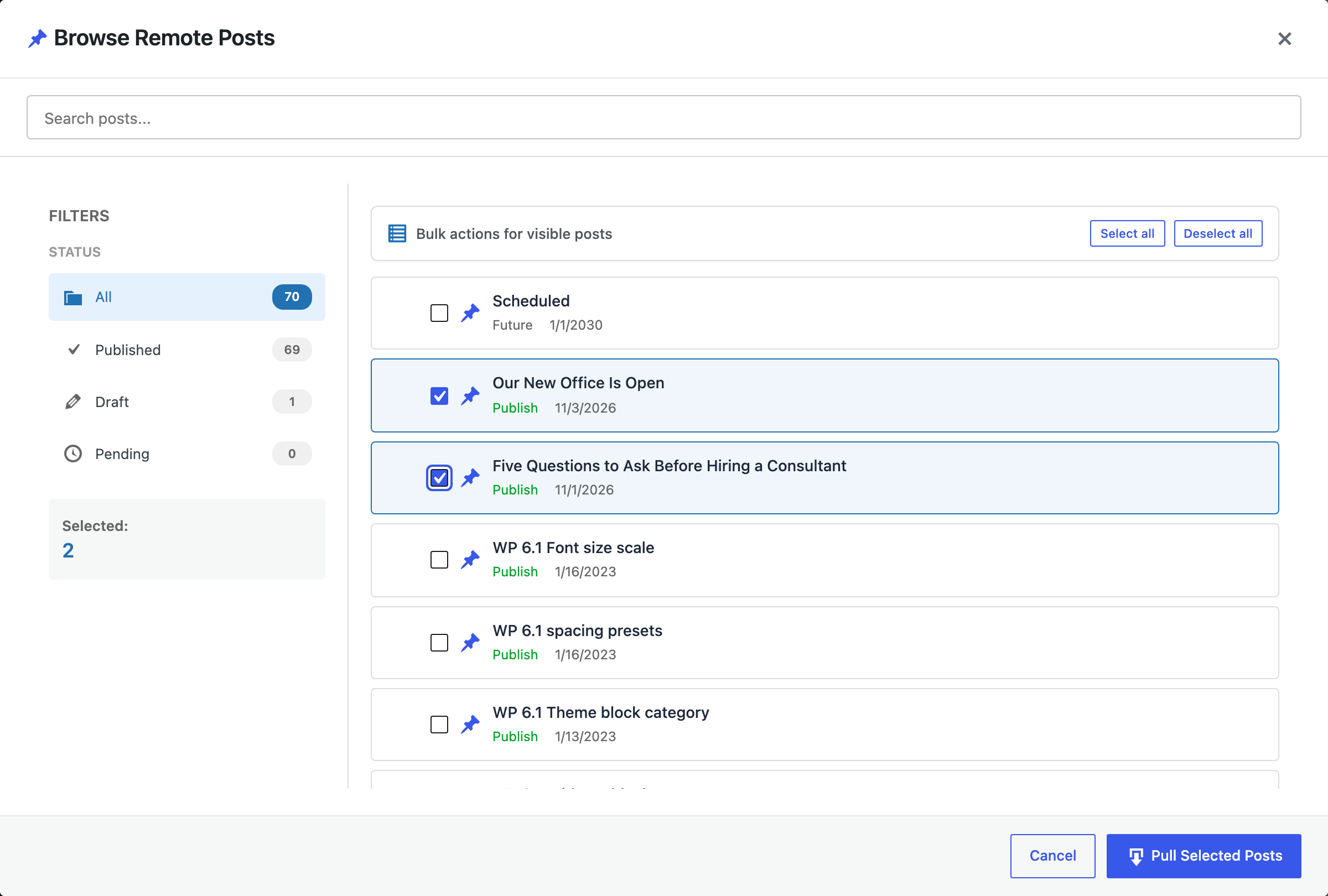
Both posts were created on staging in about 13 seconds.
They arrived with their category, tags and featured images, and the image inside the text points to the staging address. Their comments came along as well, with their status: two approved comments stayed approved, and the pending one is still waiting for moderation on staging. Drafts and scheduled posts keep their status, so nothing becomes public on staging that was not public on live.
Step 2: Refresh Pages That Changed on Live
About Us got new opening hours on the live site. To bring them over, tick About Us in the staging Pages list, click Sync Content, choose the live site and click Pull from Site. The dialog loads the list of live pages and matches them by title on its own; the Auto-match by Title button stays locked until the list is there. If a page is matched to the wrong live page, pick the right one in the dropdown.
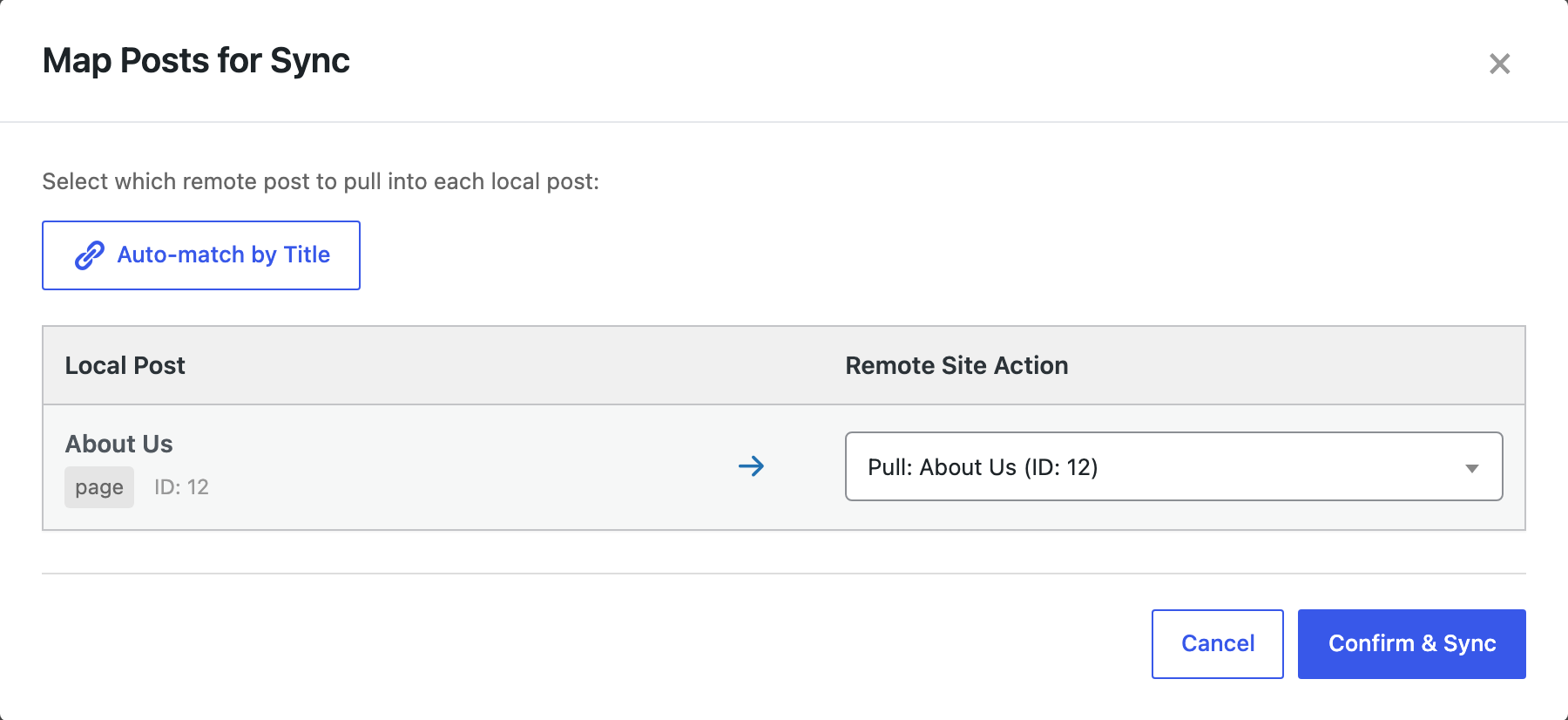
Confirm & Sync replaces the staging copy with the live version. It took 20 seconds, mostly for checking the page’s three images, which already existed on staging and were reused.
Leave pages that are being edited on staging
Services was changed on both sides: live added a line, staging is in the middle of a redesign. Pulling it would replace the redesign with the live version. So Services was not selected, and the redesign on staging stayed exactly as it was.
The live change to Services is now missing on staging. Before the redesign goes live, copy that line into the staging version by hand. Otherwise pushing the redesign later would remove it from the live site. A short list of pages that changed on both sides helps here.
Step 3: Pull Comments on Older Posts
Comments on the new posts came with them in Step 1. A comment left on an older post that already exists on staging has to be pulled separately. Open Comments on staging, click Sync, choose the live site and click Browse remote comments. Tick the comment and click Automap: it finds the staging post with the same title. Then click Pull selected comments.
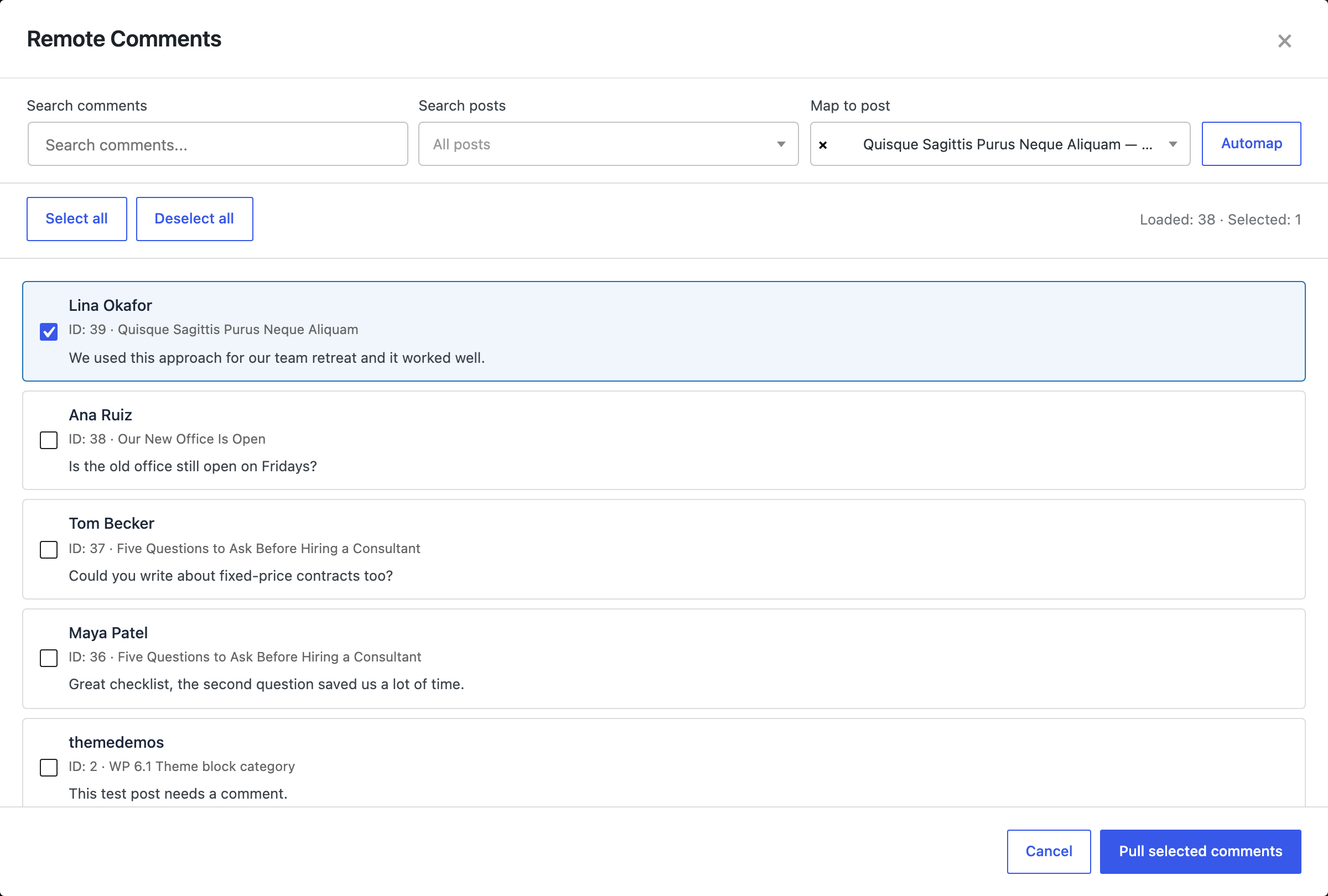
The comment appeared on the right post on staging. Pulling a comment that is already on staging updates it instead of adding a copy: in the test, a second pull of an existing comment reported 0 created and 1 updated.
Step 4: Check Staging
The Posts list on staging now shows the new posts from live next to the draft written on staging.
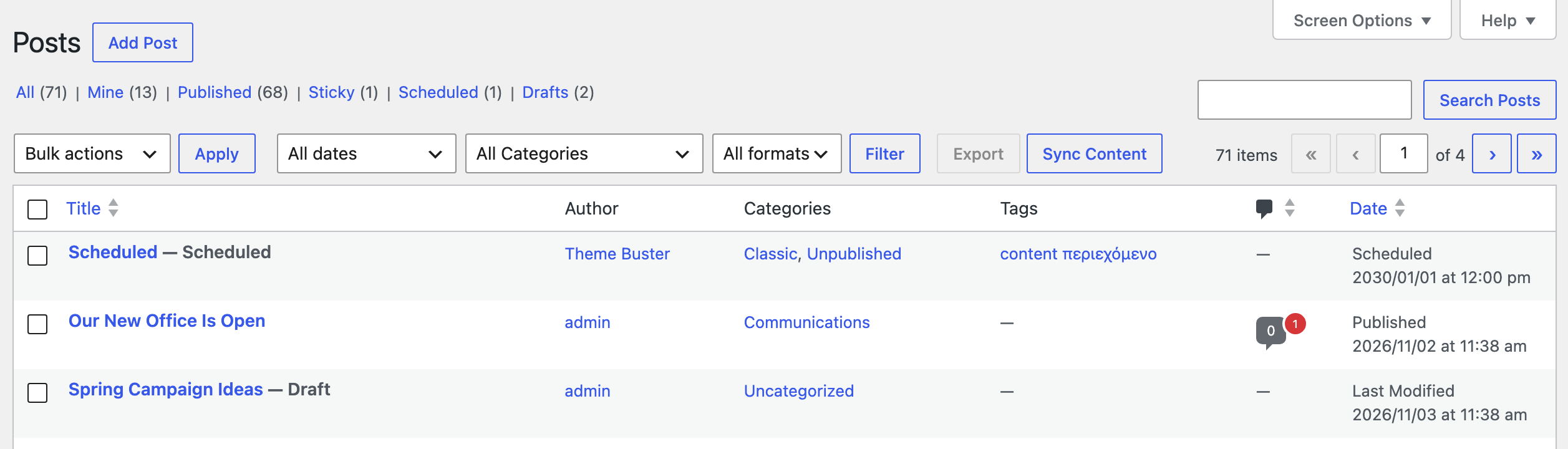
What stayed as it was on staging: the draft post, the New Pricing draft page, the Services redesign and the site title. What changed: two posts and their comments were added, About Us was refreshed, and one comment was added to an older post. Posts and comments now match the live site, so the redesign can be tested against current content.
Refresh Staging With an AI Agent
The same steps are available as WordPress Abilities. With the Abilities API (WordPress 6.9 and later) and the MCP Adapter plugin on staging, an agent such as Claude Code, Cursor, Codex, GitHub Copilot or Gemini CLI can do the refresh. Enable Enable Abilities API under Plugin Options → AI Agent Connection on staging. The setup is described in the Abilities API guide. The connection to live from the steps above is reused, so the agent needs no access to the live site of its own.
The prompts below were run by an AI agent (Claude, connected to the staging site) starting from the same state as the screenshots. It used rsl-ie/sync-browse, rsl-ie/sync-search-local and rsl-ie/sync-pull.
1. Find what is new on live
Show the posts published on the live site in the last 7 days that do not exist on this staging site yet.
Do not change anything.
The agent listed the two new posts. It also saw an old test post scheduled for 2030 at the top of the list and left it out, because it is scheduled, not published.
2. Pull them
Pull these two posts into staging, with their comments.
Result: 2 posts created, 2 images transferred, 3 comments with their original status.
3. Refresh one page, protect another
Refresh the About Us page on staging from the live site.
Do not touch Services, it is being redesigned on staging.
The agent pulled About Us with an explicit mapping to the live page and left Services alone. The staging site ended up exactly as after the steps in the admin screens. Pulls are marked as destructive in the Abilities API, so MCP clients ask for confirmation before they run.
Common Problems and Fixes
Auto-match finds no live page
The page has a different title on the live site, so matching by title finds nothing. Choose the live page in the dropdown by hand.
Work on a staging page disappeared
The page was pulled from live. The staging version is still in the page’s Revisions. Restore it there, and leave the page out of future pulls until the work is finished.
Images in pulled posts are missing
The staging site downloads them from the live site during the pull. If staging cannot reach the live site’s uploads, for example because of a firewall rule, the posts arrive without them.
FAQ
Does pulling change anything on the live site?
No. A pull reads content from the live site and writes only on staging.
Are users, settings or plugins copied?
No. Only the selected posts, pages and comments, with their terms, images and custom fields.
How often should staging be refreshed?
Before testing anything that depends on content, such as a redesign of the blog templates. Pulling a handful of posts takes seconds, so it can be done whenever staging feels out of date.
Is this better than cloning live again?
When staging has no work worth keeping, a fresh clone is simpler. When it has drafts, unfinished pages or configuration changes, pulling only the content keeps that work.
Related Guides
- WooCommerce Staging to Live Without Losing Orders
- How to push WordPress staging to live without overwriting the database
- How to copy only new posts from staging to production
- LocalWP to live site: push content without a full migration
- How to sync WordPress posts and pages between multiple sites
- How to use the WordPress Abilities API with AI agents
Import Export by RockStarLab is free on WordPress.org.

Comments 0
Have a question or a tip to share? Leave it below.