
Staging exists so changes can be checked before visitors see them. The risky part comes afterwards, when the finished changes have to reach the live site. Plenty of tools do that by replacing the live database with the staging database, and that also replaces everything that happened on the live site since the copy was made.
Content Sync in Import Export by RockStarLab works the other way around. Only the posts and pages selected on staging are written to production, and everything else on production stays as it is. Below is one complete push with screenshots, what changed on both sites and what didn’t, and the same push repeated through an AI agent.
Short Answer
Install the free plugin on staging and production, connect staging to production with production’s API key, tick the changed posts or pages on staging, click Sync Content, choose Push to Site and confirm the mapping. Existing items are updated, new items are created, and nothing outside the selection is touched: comments, users and settings on production stay as they were.
Why a Database Push Is the Wrong Tool for Routine Updates
A database push copies every table from one site to the other. Posts and pages travel together with comments, users, plugin settings, form entries and, on shops, orders and customers. Afterwards the live site looks exactly like staging did at the moment it was copied.
That is a problem whenever the live site keeps working during the staging cycle. A visitor leaves a comment, a customer places an order, an editor publishes a news post straight on production: all of it disappears with the push.
A database push is still the right choice in a few cases, for example when a brand-new site goes live for the first time, or when nothing has been added on the live side since the staging copy was made. For ongoing updates, moving only the changed items is the safer route.
What You Need
- Two WordPress sites that can reach each other over HTTP or HTTPS. The staging site calls the REST API of the production site.
- Import Export by RockStarLab, free from WordPress.org, active on both sites. The installation guide covers the first setup.
- An administrator account on both sites.
Posts and pages are included in the free version. Custom post types, WooCommerce products, menus, users and taxonomy terms need the PRO addon (see syncing custom post types and syncing WooCommerce products).
The screenshots were taken with plugin version 2.1.0 on two local test sites. Hostnames and the API key are replaced in the images.
Step 1: Connect Staging to Production
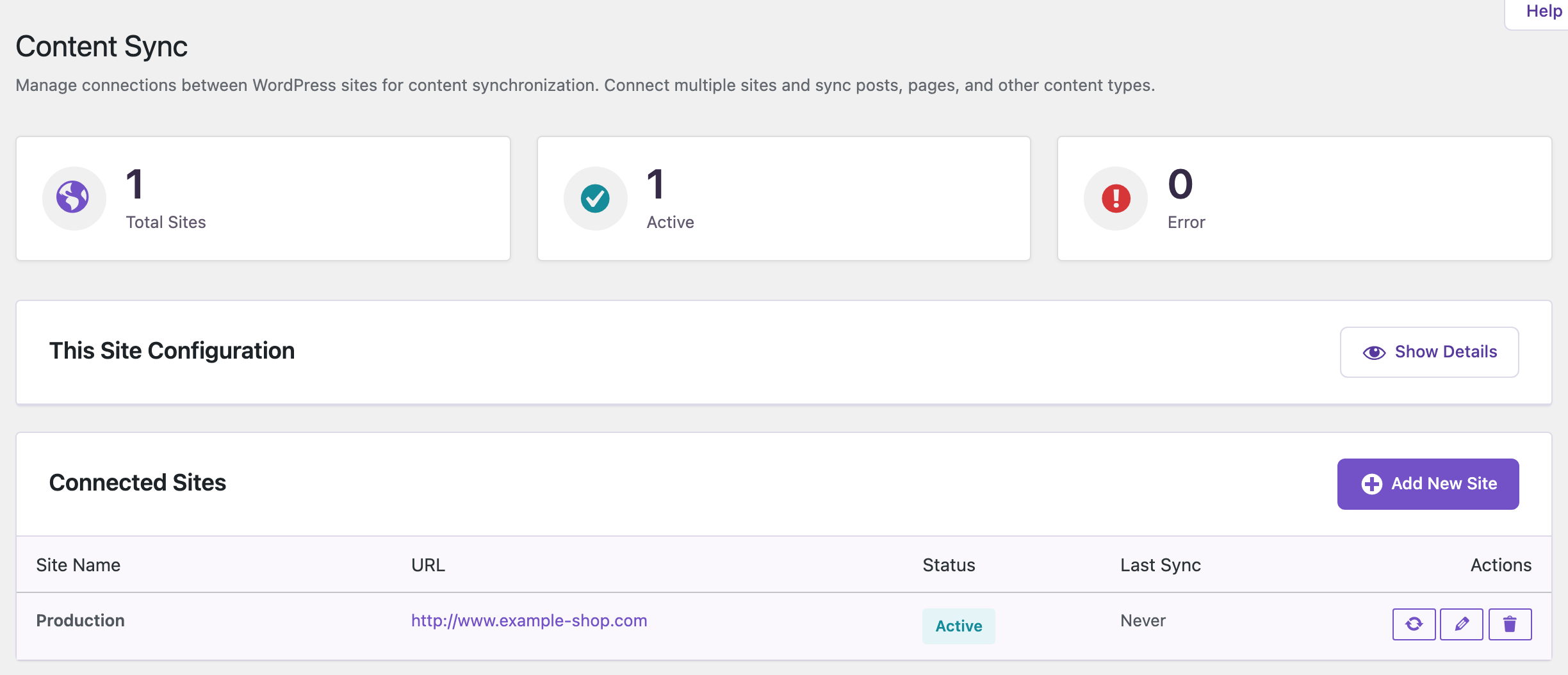
After activation, the Import Export by RockStarLab → Content Sync screen lists the connections of the current site. A push needs one connection, created on the site that sends the content. For staging to production that is the staging site. Production does not need a connection back: the push in this guide also worked after the connection list on production had been emptied.
Copy the production API key
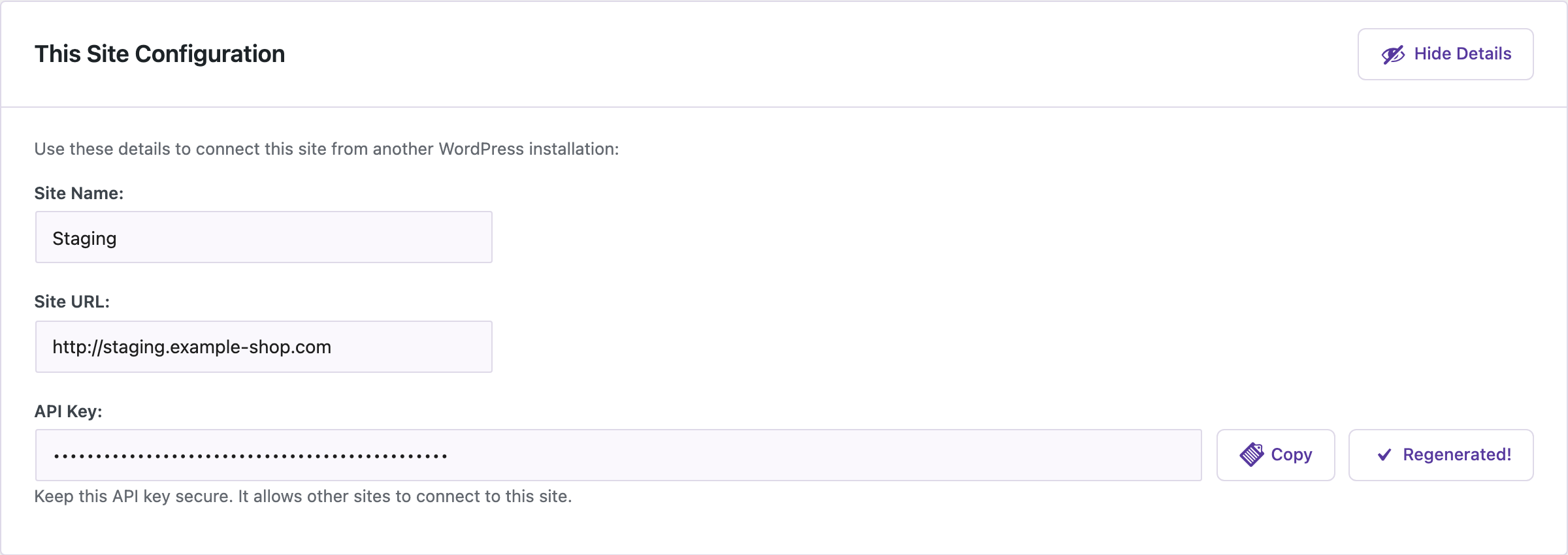
Open Content Sync on the production site, click Show Details in the This Site Configuration box and copy the API key. The key lets another site write content to this one, so it should be handled like a password.
Check what the clone brought along
Most hosts create a staging site by copying production, and the plugin settings are copied with it. Two leftovers matter here: the staging site starts with the same API key as production, and it lists a connected site that points back to itself.

Neither breaks anything on its own, but two sites sharing one key make it easy to confuse which site is which. On staging, click Show Details, then Regenerate next to the API key. The plugin asks for confirmation because the old key stops working. After that, delete the self-referencing connection with the trash icon.
Add production as a connected site
Click Add New Site, enter a name, the production URL and the production API key copied earlier, and save.

When the connection works, production appears in the list with the status Active.
Step 2: Select What Changed
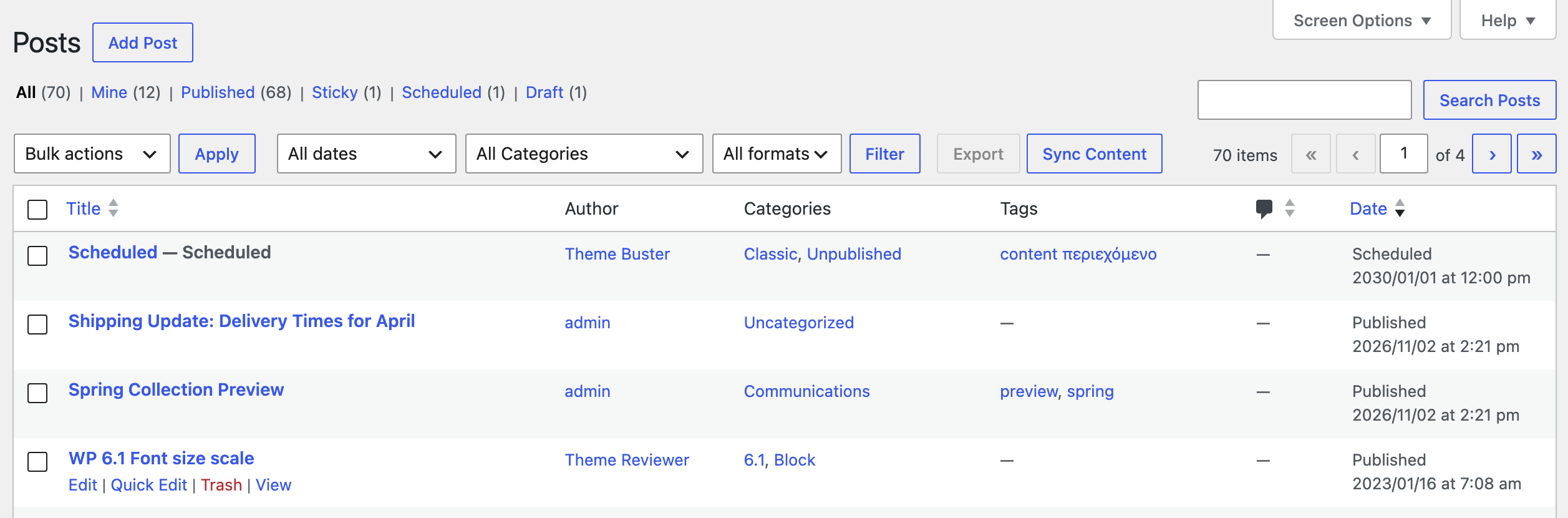
Open the Posts list on staging. In this example the staging site has one edited post and one new post, both in the Communications category. Tick them. The Sync Content button above the table works on the ticked rows, and the Export button next to it uses the same selection.
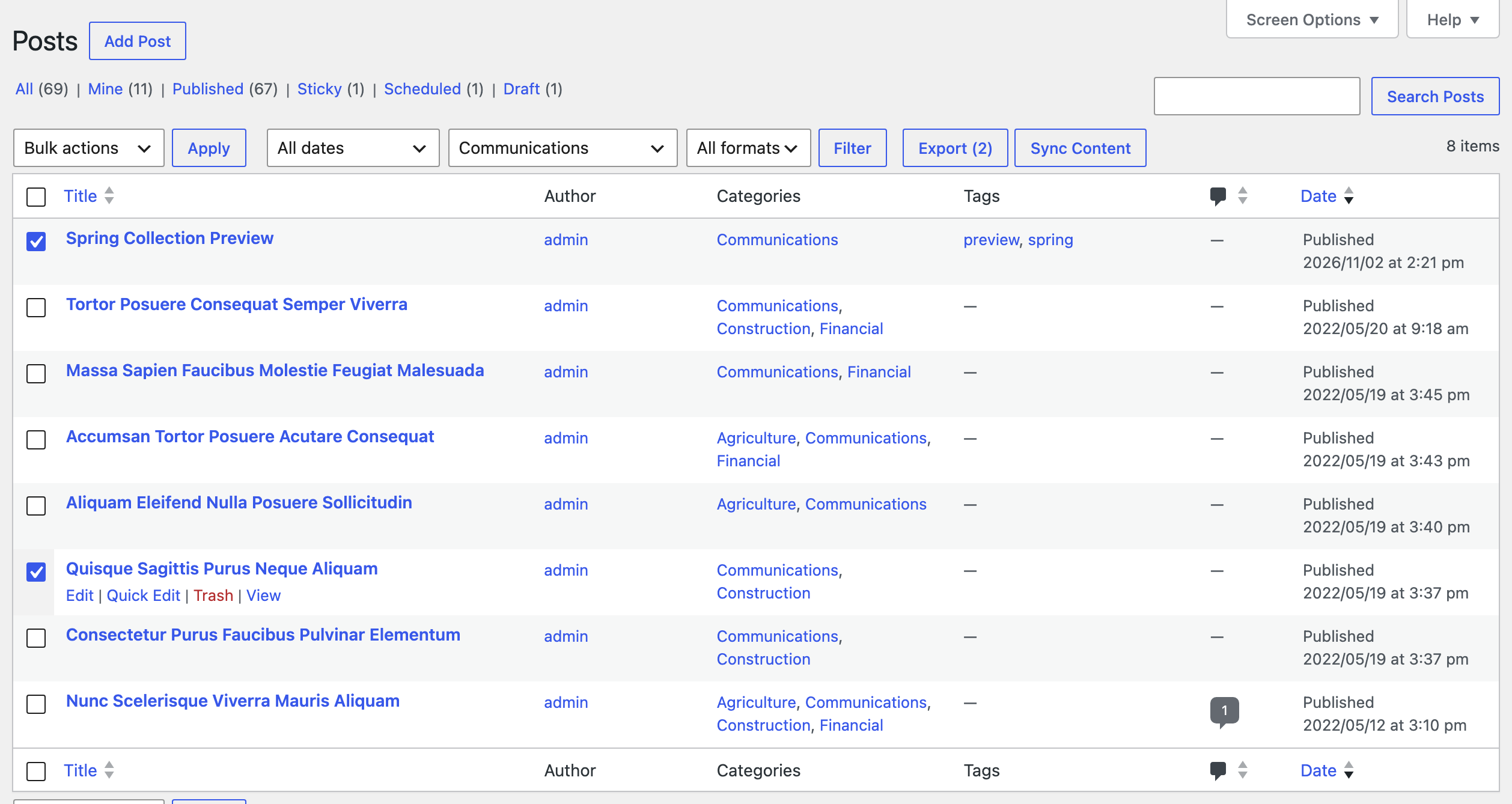
The same buttons are available on the Pages, Categories, Tags, Media Library and Comments screens. Under Import Export by RockStarLab → Plugin Options → Export / Sync Buttons, each screen can be switched on or off.
Step 3: Choose the Site and Map the Posts
Click Sync Content, pick the production site in the dropdown and click Push to Site. Pull from Site works in the opposite direction.

The next dialog decides, post by post, what happens on production. Every row has a dropdown. Create New Post adds a post, while choosing an existing production post updates that one. A click on Auto-match by Title fills the dropdowns by comparing titles with the posts on production.
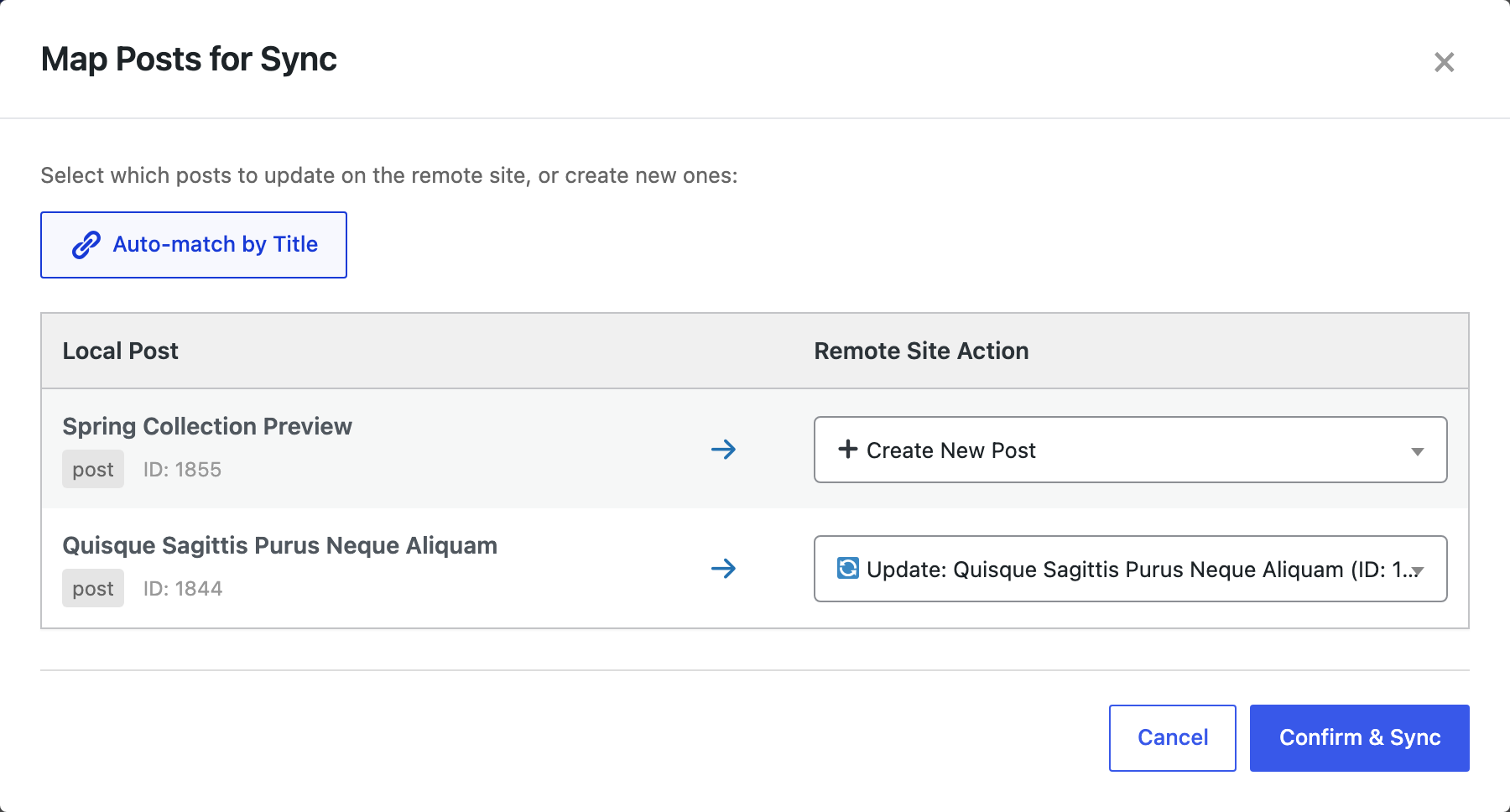
In the example, the edited post was found on production and set to update, with the production ID shown in the dropdown. The new post has no counterpart, so it stays on Create New Post.
Matching works on the title alone. A post that was renamed on staging finds no partner and stays on Create New Post, and confirming that would add a second copy to production. For renamed posts, pick the production post by hand in the dropdown.
Step 4: Push and Check the Result
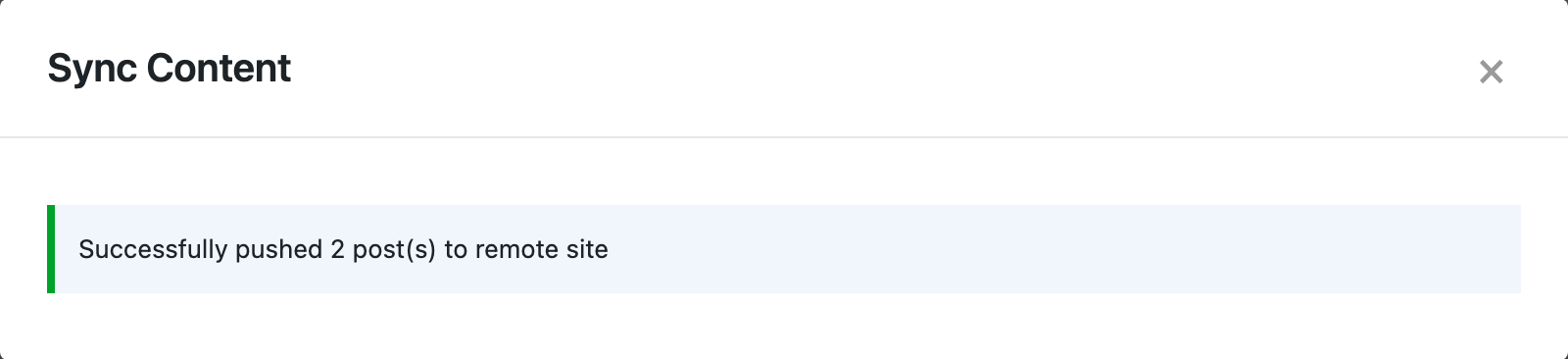
Confirm & Sync starts the transfer. The dialog shows Uploading content… while the posts and the new featured image are sent, and then reports how many posts were pushed.
Each push is stored in the Jobs Log (Import Export by RockStarLab → Jobs Log). Filtering by Content Sync – Push shows the status, the item count and the duration. In the screenshot below, pushing the two posts with the new image took 14 seconds and pushing the two pages 40 seconds, so the duration depends on the server and on the size of the content.

The eye icon opens the job details, which list how many items succeeded and failed.

Step 5: Push Pages the Same Way
Pages follow the same path: tick them in the Pages list, click Sync Content, choose Push to Site, run Auto-match by Title and confirm. The two edited pages in this example, About Us and Services, were both matched to their production versions and updated.

What Changed on Production and What Did Not
To check that nothing outside the selection moved, the numbers on both sites were compared before and after the push.
| Item | Production before | Production after | Staging |
|---|---|---|---|
| Published posts | 67 | 68 | 67 |
| Published pages | 30 | 30 | 30 |
| Comments | 36 | 36 | 34 |
| Comments awaiting moderation | 4 | 4 | 3 |
| Media files | 75 | 76 | 76 |
Production has more comments than staging because two comments arrived there while staging was being edited, one of them still pending. It also has one post that exists only on production. None of this was touched.
Comments that belong to a pushed post do travel with it. In a separate test, a comment added to a post on staging appeared on production after that post was pushed, next to the comment a reader had left there. Pushing the same post again did not create duplicates.
On production after the push:
- The edited post and both edited pages contain the new text from staging.
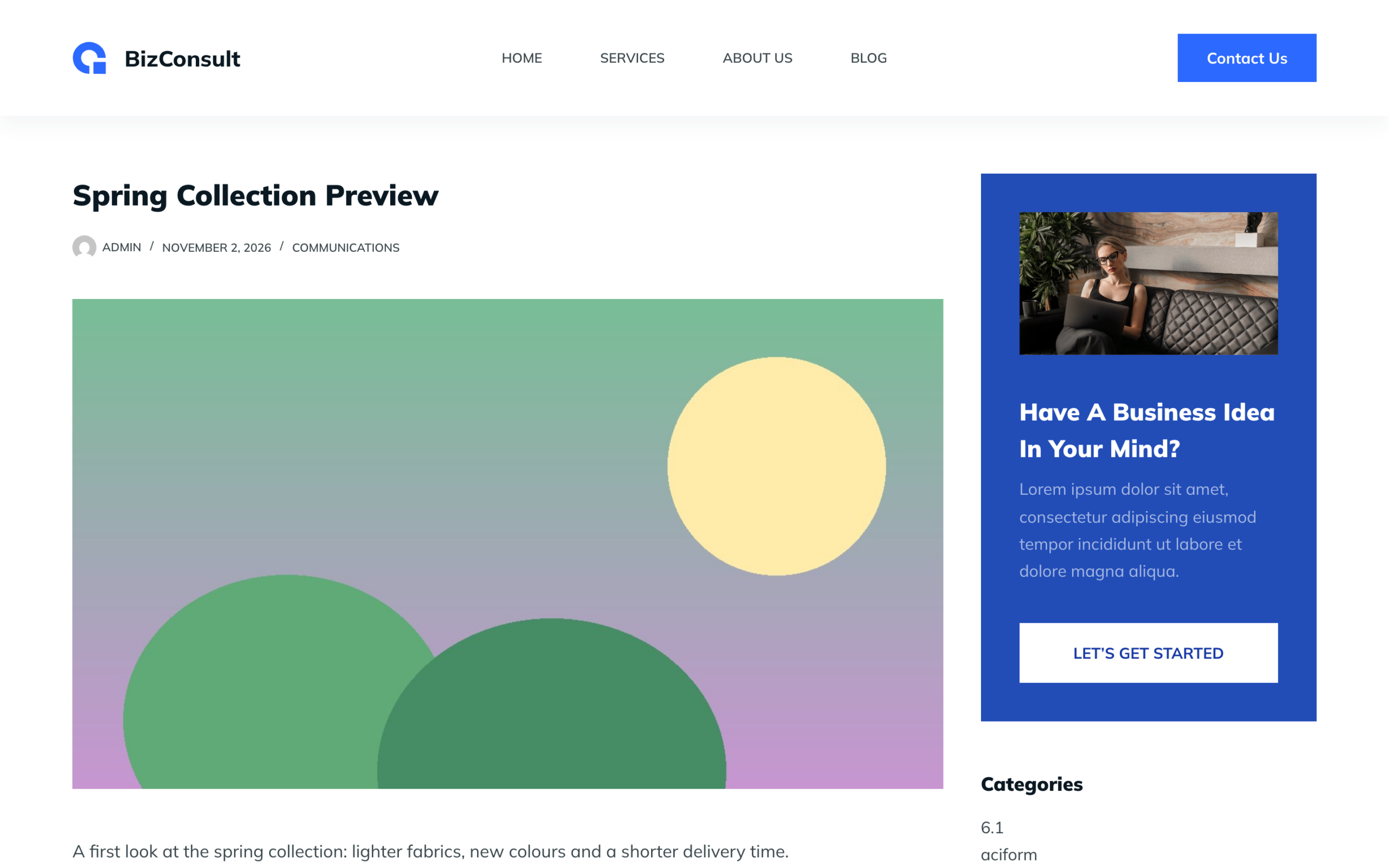
- The new post exists with its category, tags and featured image. The media count went up by exactly one file, the new image, and its alt text arrived with it. The image does not show a parent post in the Media Library; it is listed as unattached there.
- The post that was published only on production is still there.
- The pending comment on About Us and the approved comment on Template: Sticky are still in place.

What Happens When the Same Page Was Edited on Both Sites
A push replaces the content of every item that is mapped to an existing production post. To see what that means in practice, the Contact Us page was edited on production and, separately, on staging. After pushing it from staging, the production page contained the staging text and the production edit was no longer on the page.
The older version was not lost, though. The update goes through the normal WordPress post update, so the production text was still listed in the page’s Revisions. The practical rule: items that were also edited on production should stay out of the selection, or be compared first and merged by hand.
Push Staging Changes to Live With an AI Agent
The Content Sync actions are also published as WordPress Abilities. With the Abilities API (WordPress 6.9 and later) and the WordPress MCP Adapter, an AI agent such as Claude Code, Cursor, Codex, GitHub Copilot or Gemini CLI can run the same steps from a prompt. The full setup is described in the Abilities API guide.
Switch it on
- Open Import Export by RockStarLab → Plugin Options → AI Agent Connection on the staging site and enable Enable Abilities API. It is off by default.
- Install and activate the MCP Adapter plugin and connect the agent to the staging site. The wizard on the same page lists the supported agents.
- The connection to production is the one created in Step 1. The agent does not need its own access to production for a push.
For Claude Desktop on the machine that hosts the staging site, the MCP server can run through WP-CLI, which needs no password:
{
  "mcpServers": {
    "staging": {
      "command": "wp",
      "args": ["mcp-adapter", "serve", "--server=mcp-adapter-default-server", "--user=admin", "--path=/path/to/staging"]
    }
  }
}
A site on a remote host is reached over HTTP instead, at /wp-json/mcp/mcp-adapter-default-server, with an application password for an administrator account.
Prompts for the push
The five prompts below were given to an AI agent (Claude, connected to the staging site through the MCP Adapter) on the same two test sites as the walkthrough above. The agent picked the abilities by itself: rsl-ie/connection-list, rsl-ie/connection-test, rsl-ie/sync-search-local, rsl-ie/sync-auto-map, rsl-ie/sync-push and rsl-ie/sync-comments-browse. Their names do not have to appear in the prompt.
1. Check the connection
List the connected sites of this WordPress site and test the connection to "Production".
Report the status and do not change anything.
2. Find the items to push
On this staging site, find the posts "Spring Collection Preview" and
"Quisque Sagittis Purus Neque Aliquam" and the pages "About Us" and "Services".
Use exact title matches only; a search can return several similar titles.
Show their IDs, post types and status.
3. Preview the mapping without writing anything
Suggest a mapping of these four items to the "Production" site by title.
For every item tell me whether it would update an existing production post or be created
as a new one. If a title matches more than one production post, stop and ask me.
Do not push yet.
4. Push after approving the mapping
The mapping looks right. Push these four items to "Production" with exactly that mapping.
Afterwards report how many items were created and updated, with the production IDs.
5. Verify production
For the production page "About Us", list its comments and confirm that the pending comment
from Tomas Reed is still there. Do not approve, edit or delete any comment.
What the agent run showed
The search is broad. “About Us” returned 16 pages, drafts such as Privacy Policy and a page called About The Tests among them, and the post title returned nine posts. Because of the exact-match line in the prompt, the agent kept only the four items with identical titles.
The mapping preview came back as expected: Spring Collection Preview had no partner on production and would be created, the other three were paired with their production versions. Posts and pages went out as two separate pushes, one per post type. The post push created 1 item, updated 1 and carried 2 images; the page push updated 2 pages and carried 10 images used in their content. Both appeared in the Jobs Log as normal Content Sync jobs.
The last prompt read the comments of About Us on production through the same connection. The comment from Tomas Reed was still there and still pending. Production ended up with the same counts as after the push from the admin screens: 68 published posts, 30 pages, 36 comments with 4 pending, 76 media files.
Three details make this safer than it sounds. The mapping step only reads data, and when a title matches more than one production post it returns an error instead of guessing. The actions that write are marked as destructive in the Abilities API, which is the signal MCP clients use to ask for confirmation. One call handles up to 50 posts or pages; larger selections can be queued with rsl-ie/sync-push-start and are processed in the background by WP-Cron. On a site without visitors the queue only moves when something triggers WP-Cron, for example any page load.
Common Problems and Fixes
Production rejects the connection
The key on staging has to match the current key on production. If the key was regenerated on production, open the connection on staging with the pencil icon and paste the new key.
A warning says the REST API cannot be reached
Content Sync communicates through the WordPress REST API. If the Content Sync screen warns that the plugin REST API is disabled or unreachable, a security plugin, a firewall rule or an HTTP authentication layer in front of the site is usually blocking it. Allowing the plugin’s REST routes (or the staging server’s address) fixes it.
“This connection is already in use. Try again later.”
Another sync request is still running over the same connection. Check the Jobs Log, wait for the running job to finish and start the push again.
Renamed posts show up twice
Auto-match compares titles, so a post renamed on staging finds no partner on production and would be created as a new post. Choose the production post by hand in the dropdown before confirming.
The same image appears more than once
Content Sync recognises identical files through a hash index of the Media Library. Running Import Export by RockStarLab → Tools → Media Hash Index → Start scan once on both sites lets it match files that have different names or URLs.
FAQ
Does Content Sync overwrite the production database?
No. It creates or updates only the posts and pages selected on staging, together with their terms, custom fields, media and the comments attached to them. Other content, users and settings on production are not part of the transfer, and existing comments on production are kept.
Can the push go the other way, from production to staging?
Yes. On the staging site, use Pull from Site in the same dialog, or add a connection on production and push from there. It is a handy way to refresh staging with the latest live content before a new round of work.
Should production be backed up before the first push?
Yes, once before the first push is a sensible habit, because a push replaces the content of every mapped item. The backup and restore guide shows how to do it with the same plugin.
What about menus, users, products and custom post types?
They need the PRO addon. The guides on navigation menus, users and WooCommerce products use the same connection described here.
Related Guides
- WooCommerce Staging to Live Without Losing Orders
- How to sync content between two WordPress websites without export files
- How to sync WordPress posts and pages between multiple sites
- How to sync WordPress comments between sites
- How to use the Jobs Log and schedule import and export jobs
- How to use the WordPress Abilities API with AI agents
Doing this for client sites? Use the staging to production checklist for freelancers.

Comments 0
Have a question or a tip to share? Leave it below.