
You cloned the shop to staging, changed prices, rewrote descriptions and added a product. Meanwhile the live shop kept selling. Now the staging work has to go live, and the host’s “Push to live” button would copy the whole staging database over the live one, including its old list of orders. The changes can go live without losing orders, customers, reviews or stock levels, if only the changed content moves.
We tested it with two stores, live and staging, using Import Export by RockStarLab 2.1.23 with the PRO add-on 2.1.3, WooCommerce 11.2 and WordPress 7.1. Pushing WooCommerce products is a PRO feature; pages and posts can be pushed with the free version.
Short Answer
- Connect staging to live once in Import Export → Content Sync.
- Back up the live store.
- On staging, go to Products, tick the products you changed or added, and choose Sync Content.
- Select the live site, click Push to Site, then Auto-match by Title. Check that each existing product says Update and each new one Create New Post.
- Click Confirm & Sync. Orders, customers and reviews are not part of the push, and live keeps its own stock levels.
Why a Database Push Loses Orders
Staging is a copy of the live database at the moment you made it. Everything that happens on live after that moment exists only on live. In our test, by the time the staging work was done, live had:
- 8 orders, staging 7;
- 6 customers, staging 5;
- 6 product reviews, staging 4;
- 13 Beanies in stock and 7 sold, while staging still showed 20 in stock and 2 sold.
A database push replaces all of that with the staging numbers: one order, one customer and two reviews disappear, and the stock count jumps back up, so the shop sells items it does not have. A test order you placed on staging to check the checkout would appear on live as a real order.
The fix is to move content, not the database. Product names, prices, descriptions, images and categories belong to staging. Orders, customers, reviews, stock and sales counts belong to the store that takes the orders.
What Changed on Staging
- Beanie with Logo: sale price 16 and a new short description.
- Logo Mug: price 14 → 15. This product was added on staging and on live separately, so it has ID 2014 on staging and 2017 on live.
- Cold Brew Set: a new product, price 34, 50 in stock.
Step 1: Connect Staging to Live
If the sites are not connected yet, add the live site in Import Export → Content Sync on staging with the live site’s key. It takes a minute and is done once. Step by step: How to Push WordPress Staging to Live Without Overwriting the Database.
Then make a backup of the live store: UpdraftPlus Backup Now, your host’s backup, or ask an AI agent to run rsl-ie/updraftplus-backup-start. See How to Create a WordPress Website Backup and Restore It.
Step 2: Select the Products and Push
On staging, open Products, tick the products you want on live, and choose Sync Content from the bulk actions. Select the live site and click Push to Site.

Push only what you changed. A product you did not touch has nothing new to send, and leaving it out keeps the job small.
Step 3: Check the Mapping
Click Auto-match by Title. For each product the plugin looks for a product with the same title on live:
- Beanie with Logo → Update live product 1980.
- Logo Mug (ID 2014 on staging) → Update live product 2017. The IDs differ, and the match still found the right product instead of creating a second mug.
- Cold Brew Set → Create New Post, because live has no product with that name.
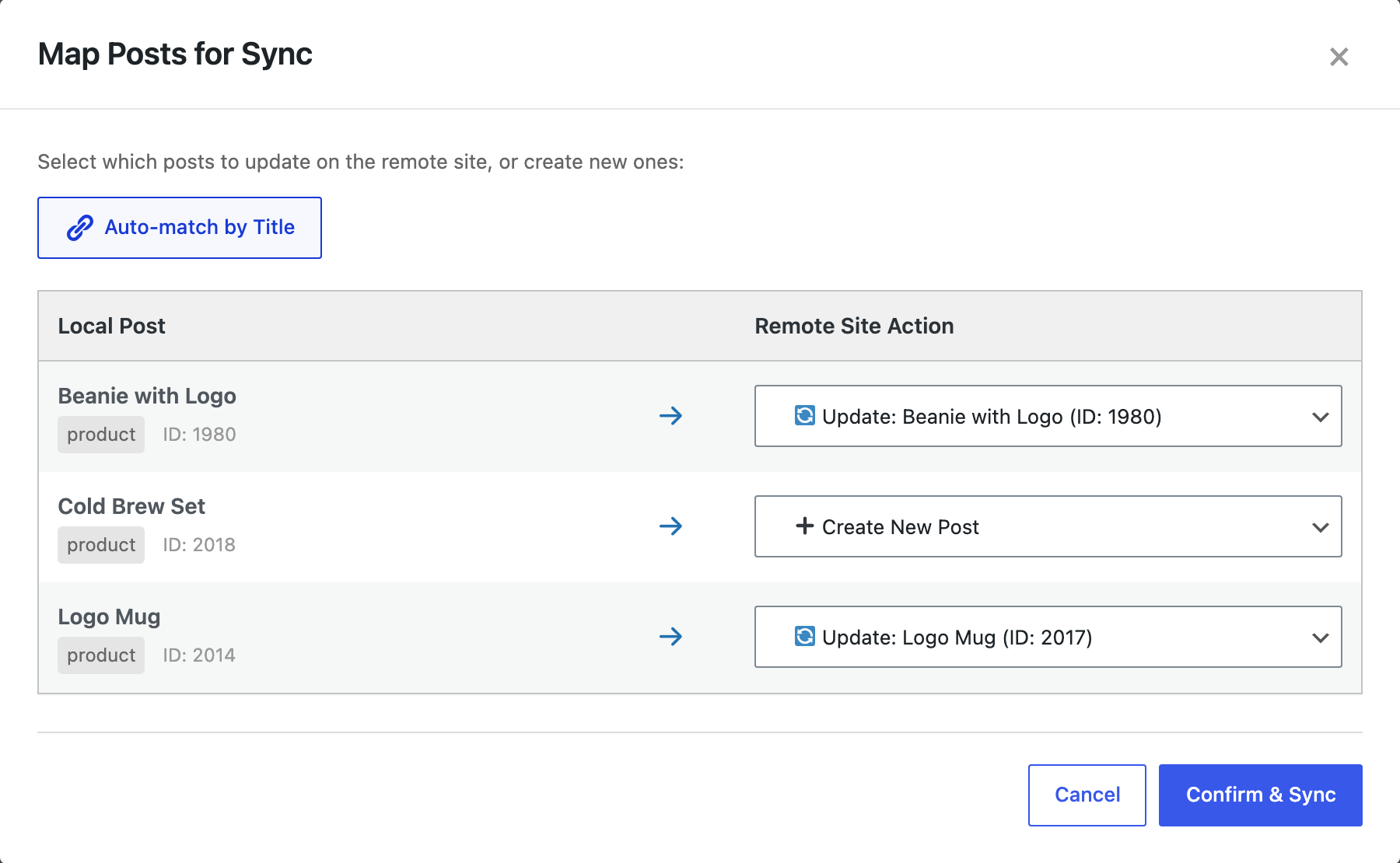
You can change any row by hand. If two live products share a title, pick the right one in the list; the agent version of auto-match refuses to guess and reports the conflict.
Step 4: Confirm and Check Live
Click Confirm & Sync. The three products were pushed.
The live store before and after:

- From staging: the Beanie’s sale price and description, the Mug’s new price, and the new Cold Brew Set.
- Kept from live: all 8 orders, 6 customers and 6 reviews, the Beanie’s stock of 13 and its 7 units sold. Stock, stock status, units sold, average rating and review count belong to the store that takes the orders, so an update never overwrites them.
- New products take their stock from staging: the Cold Brew Set arrived with 50 in stock, because live had no count of its own.
- The staging-only test order did not travel. Orders are not part of a product push.
Open one updated product on live and one product page in the shop to check the price and the description before you announce anything.
Pages, Posts and Menus
A new collection usually comes with a landing page or a blog post. Push them the same way from Pages or Posts on staging; that part works in the free version. Blog posts written on staging: How to Copy Only New Posts from Staging to Production.
Push products before the pages that link to them, so the links point to products that already exist on live.
With an AI Agent (PRO)
An agent connected to staging through the WordPress MCP Adapter can do the push with two abilities. We changed the Cap’s price on staging from 18 to 19 while live had sold three caps (stock 17), and asked the agent to push it:
rsl-ie-pro/sync-auto-mapwithsite_id,post_type: productand the Cap’s ID returned the mapping to the live Cap.rsl-ie-pro/sync-pushwith that mapping reported 1 updated, 0 created, 1 image synced.- On live the Cap cost 19 and still had 17 in stock.
On staging, list the products modified in the last 7 days with their price and SKU.
Do not push anything yet.
Make a backup of the live site. Then push these products from staging to Live:
Beanie with Logo, Logo Mug, Cold Brew Set. Show me the auto-match first and wait
for my OK. Do not sync orders, customers or coupons.
More on agent connections and safe edits: Letting an AI Agent Edit WordPress Content Safely.
Common Mistakes
- Using the host’s staging push for a live shop. It replaces orders, customers and stock with the staging copy.
- Re-cloning live to staging after you started editing. That erases the staging work. To refresh staging without losing it, see How to Refresh Staging with Live Content Without Overwriting Your Work.
- Testing checkout on staging with real payment details. Use the gateway’s test mode; staging orders stay on staging, but a real charge does not.
- Renaming a product on staging. Auto-match compares titles, so a renamed product shows up as “Create New Post”. Pick the live product by hand in the mapping.
- Pushing every product “to be safe”. Push what changed. It is faster and easier to check.
FAQ
Does the push change stock on live?
Not for products that already exist on live: stock quantity, stock status and units sold stay as live has them. A product created by the push takes its stock from staging.
What about product images and categories?
They are pushed with the product: the push sends taxonomy relationships and media along with it. In the agent run the Cap’s product image was reported as synced.
Can I push orders or customers too?
There are separate tools for that, but for a staging deploy you should not. Orders and customers are created on live.
Do I need PRO?
For WooCommerce products, yes. Pages and posts sync with the free version. If you would rather move products with a file, see How to Sync WooCommerce Products Between Two WordPress Sites.
Related Guides
- How to Import WooCommerce Orders from CSV
- How to Push WordPress Staging to Live Without Overwriting the Database
- How to Sync WooCommerce Products Between Two WordPress Sites
- How to Refresh Staging with Live Content Without Overwriting Your Work
- How to Migrate WooCommerce Store Data to Another Site
Get the free plugin on WordPress.org.

Comments 0
Have a question or a tip to share? Leave it below.