
The SSL certificate is installed and the site loads over HTTPS, but the padlock still shows a warning on older posts. The reason is in the content: links and images written years ago point to http:// addresses of your own domain. WordPress does not rewrite them when you change the site address. You can fix those addresses in bulk, for free, without touching links to other sites that still use plain HTTP.
Every step was run on a test coffee shop with the free Import Export by RockStarLab 2.1.23 on WordPress 7.1, plus a PRO alternative at the end.
Short Answer
- Make sure Settings → General uses
https://for both addresses, and back up the site. - Import Export → Export: Blog Posts, filters Content Contains
http://and Content Contains your domain, fields ID, Title, Content, CSV. - Import Export → Import the same file: map only ID and Content, match by ID, Update, Skip new.
- Turn on Replace links with one rule per form of your old address:
http://www.yourdomain.com→https://www.yourdomain.com, andhttp://yourdomain.com→https://www.yourdomain.com. - Start the import, then check with one filter per old address form, for example Content Contains
http://www.yourdomain.com: it should find 0 posts.
Why Old Posts Keep http:// Links
When you add a link or an image in the editor, WordPress stores the full address in the post content. Switching the site to HTTPS changes the address for new content, but the old text stays as it was. The result:
- Mixed content. An HTTPS page that loads an image over
http://loses the padlock, and browsers block or upgrade insecure resources. - Extra redirects. Every internal
http://link goes through a 301 redirect before the visitor reaches the page, and search engines keep seeing the old address in your links.
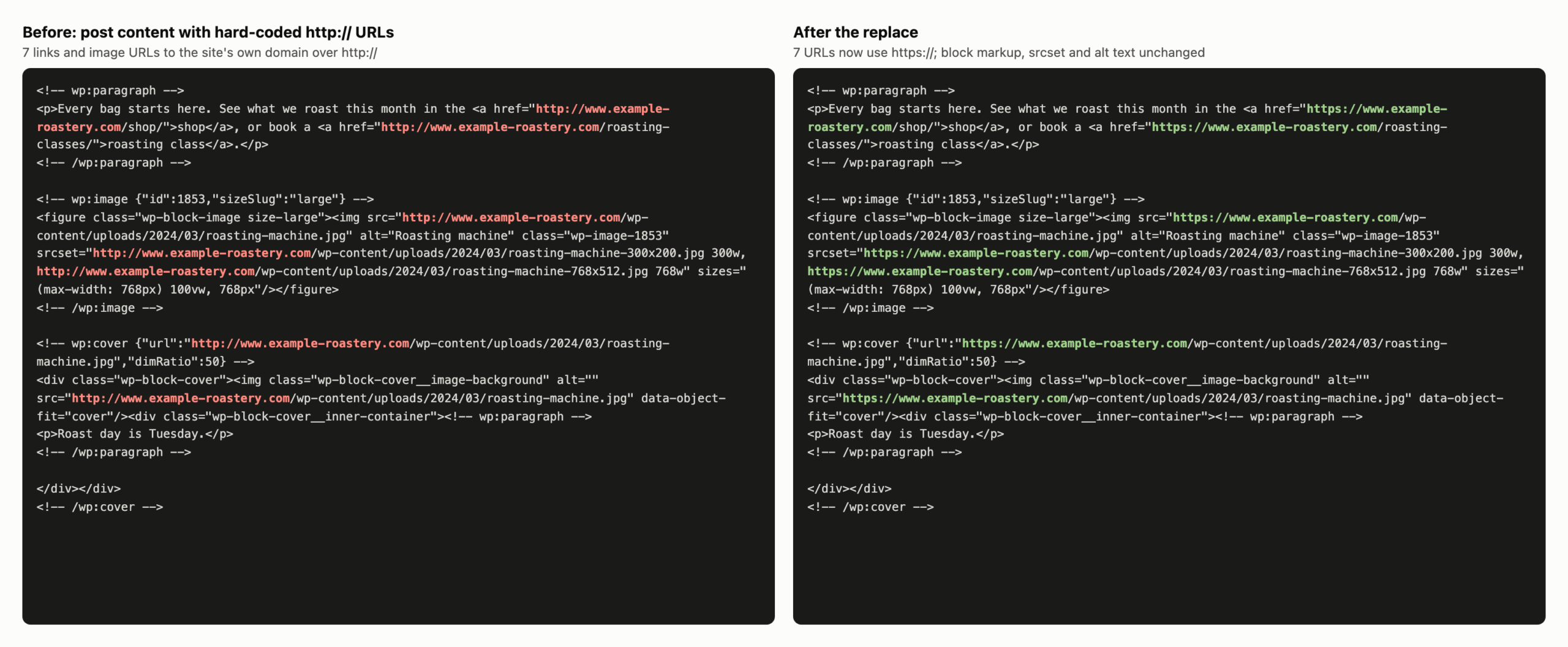
In the test, three posts written before the switch had 11 http:// addresses of the site’s own domain: links in paragraphs, an image src and two srcset entries, a Cover block background stored in the block’s settings, and links to the bare domain without www. One post also linked to an external association whose site still runs on plain HTTP. That link had to stay.
Before You Start
- Site address. In Settings → General, both WordPress Address and Site Address start with
https://, and the server redirectshttp://tohttps://. - Backup. The import rewrites post content. Click Backup Now in UpdraftPlus, or ask an AI agent to run
rsl-ie/updraftplus-backup-start. See How to Create a WordPress Website Backup and Restore It. - Every form of the old address. Search your content for
http://www.andhttp://withoutwww. Old posts often mix both.
Step 1: Find the Posts with http:// Links
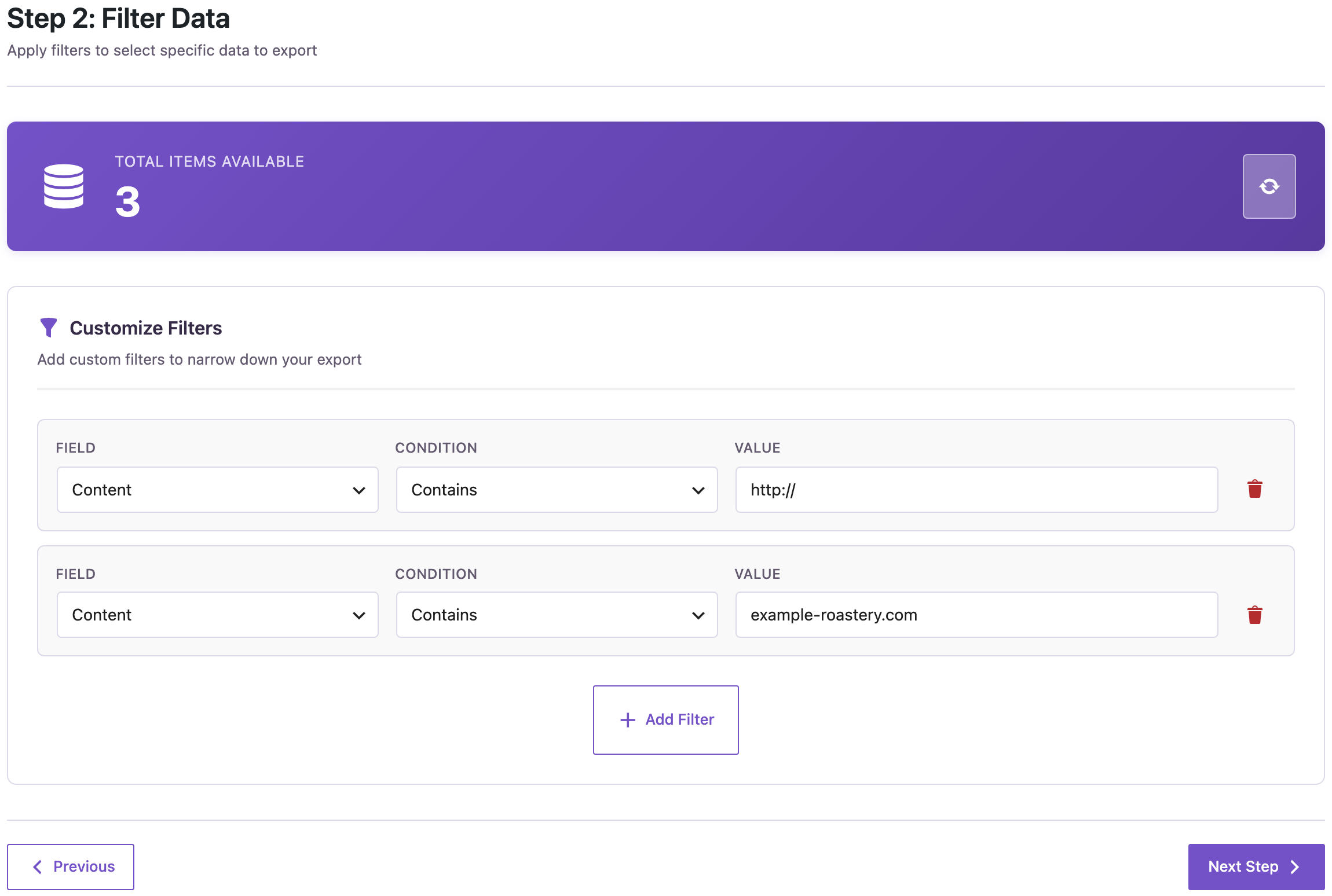
Go to Import Export → Export, choose Blog Posts, and add two filters: Content Contains http://, and Content Contains your domain. Both must match, so posts that only link to other sites over HTTP are left out. On the test site, the first filter alone also matched sample posts that only link to other sites; together the filters matched the 3 posts that needed fixing.
Remove the Status filter if drafts and scheduled posts should be fixed too. Repeat the whole process for Pages and any custom post type.
Step 2: Export ID, Title and Content
On the field step add ID, Title and Content, choose CSV, and download the file. You do not need to open or edit it. The title is only there so you can recognize the posts if you look.
Keep a copy of this file. It is also your undo: imported back by ID without replace rules, it restores the original content.
Step 3: Import with Replace Links Rules
Go to Import Export → Import, choose Blog Posts and upload the file. On the mapping step click Auto Map, then remove the post_title mapping so only ID and Content are imported.

On the options step:
- Check for Existing Items by Field: ID; If Match Found: Update; If No Match Found: Skip.
- Turn on Replace links and add one row per old address form. We used
http://www.example-roastery.com→https://www.example-roastery.comandhttp://example-roastery.com→https://www.example-roastery.com. The second rule also moves bare-domain links to thewwwaddress the site uses, which saves one more redirect. - Use the full domain in every rule. A rule of plain
http://→https://would also rewrite links to sites that have no HTTPS and break them.

The rules work on the text of the file while it is imported, so the same option also helps when you move content to a new domain: Changed Domain? How to Replace Old URLs in Content During Import.
Click Start Import. Three posts took one second: 3 updated, 0 created.

What Changed
- All six links to the site’s own pages now use
https://www., including the three bare-domain links. - The external link to the association’s
http://site stayed exactly as it was. - Images inserted as Image or Cover blocks carry their Media Library ID. The importer pointed them to that Media Library file at the site’s current address and removed the old
srcset. WordPress adds a freshsrcsetfor Media Library images when it displays the page, so responsive images keep working. - Afterwards no post contained
http://www.example-roastery.comorhttp://example-roastery.com.
Leave Automatically Import Media Files unchecked for this job: the images are already in your Media Library, and nothing needs to be downloaded.
Check the Pages
Open two or three of the fixed posts in the browser and look at the padlock. In the developer tools console, mixed content shows up as warnings that name the insecure URL. If a post still has one, the address is usually somewhere this import does not cover:
- Custom fields such as ACF URL or image fields: export and import them the same way, with the field columns instead of Content.
- Page builders. Elementor keeps its layout in the
_elementor_datafield, where slashes are escaped ashttp:\/\/. A rule forhttp://does not match that form. - Menus, widgets and theme settings with custom links: fix them in Appearance or the Customizer.
Leave the guid column alone. It is an identifier for feeds, not a link visitors follow.
PRO Alternative: Content Updater
With the PRO add-on you can do the same without a file. Create a function in Import Export → Functions:
return str_replace(
	[ 'http://www.example-roastery.com', 'http://example-roastery.com' ],
	[ 'https://www.example-roastery.com', 'https://www.example-roastery.com' ],
	$value
);
Then in Content Updater filter Blog Posts by Content Contains your domain, select Content, assign the function and start the update. It is a pure text replacement: in the test it changed all 11 addresses in the 3 posts, including both srcset entries and the URL inside the Cover block settings, and left the external link alone. The before-and-after image above is from that run. A full walkthrough with preview: Bulk Find and Replace in WordPress Posts (With a Preview First).
With an AI Agent
An agent connected through the WordPress MCP Adapter can run the PRO path with abilities. In our run:
rsl-ie/export-countwith the filterpost_content contains "http://www.example-roastery.com"returned 3 posts; with the bare domain, 1.rsl-ie-pro/function-createsaved thestr_replacefunction above.rsl-ie-pro/update-startwithfields: ["post_content"], the domain filter andfield_functions: {"post_content": [id]}queued the job;rsl-ie-pro/update-statusreported 3 processed, 3 updated, 0 errors.- The same counts afterwards returned 0 and 0.
On the free version, rsl-ie/import-start takes the same rules as replace_links: true and replace_links_rules: [{"search": "...", "replace": "..."}] in its options.
Count published posts and pages whose content contains http://www.example-roastery.com
or http://example-roastery.com. Do not change anything yet.
Make a backup. Then replace http://www.example-roastery.com and
http://example-roastery.com with https://www.example-roastery.com in the content
of those posts only. Do not touch links to other domains. When it is done,
count again and tell me what is left.
More on safe agent edits: Letting an AI Agent Edit WordPress Content Safely.
Common Mistakes
- Replacing every
http://. External sites without HTTPS stop working. Always include your domain in the rule. - Forgetting the bare domain.
http://yourdomain.comandhttp://www.yourdomain.comneed separate rules. - Fixing content before the site address. Change Settings → General and the server redirect first.
- Only fixing posts. Pages, products and custom post types have their own content.
- No undo. Keep the exported file and the backup until you have checked the pages.
FAQ
Do I need a search-replace plugin for the whole database?
For a domain move, often yes: the address also sits in options, widgets and plugin settings. For http to https in content, a targeted import changes only the posts you selected and shows you the file first.
Will this fix images in the Media Library?
Media Library files get their address from the site settings, so they follow the switch to HTTPS on their own. The fix here changes the copies of the address written into post content.
Does the import change anything else in the posts?
No. Only the mapped columns are written. Title, author, categories and slug stay the same.
Can I run it again later?
Yes. Posts that are already fixed no longer match the filter, so a second run only picks up what is left.
Related Guides
- Changed Domain? How to Replace Old URLs in Content During Import
- Images Still Point to the Old Domain After Migration? How to Fix Them
- Bulk Find and Replace in WordPress Posts (With a Preview First)
- How to Bulk Update Existing WordPress Posts Without Creating Duplicates
Get the free plugin on WordPress.org.

Comments 0
Have a question or a tip to share? Leave it below.