
A product gets a new name, a phone number changes, a brand drops a word. Now the old text sits in dozens of posts. WordPress has no find and replace for content, and a database search-replace tool changes everything it finds without showing you the result post by post. The safer way is a preview first: find the posts, test the rule on real content, then update only those posts.
Everything below was run on a test coffee shop with Import Export by RockStarLab 2.1.23 and the PRO add-on 2.1.3 on WordPress 7.1. The Content Updater and transformation functions are PRO features. Free alternatives are at the end.
Short Answer
- Back up the site and export the ID and Content of the posts you will change.
- Import Export → Functions → New Function: write the replace rule, for example
return preg_replace( '/\bold name\b/i', 'New Name', $value );. - Import Export → Content Updater: Blog Posts, filter Content Contains the old text, select the Content field.
- Assign the function and click Test Pipeline with a real paragraph from one of the posts.
- Check the summary and click Start Update.
The Test Case
The shop renamed its “Cold Brew Kit” to “Cold Brew Set”. Three posts mentioned it nine times in different forms:
| Where | Text in the post | Should change? |
|---|---|---|
| Paragraphs, heading, caption, button, link text, image alt | Cold Brew Kit | Yes |
| Start of a sentence, typed in lowercase | the cold brew kit has been our best seller | Yes |
| Plural | Cold Brew Kits ship in a gift box | Yes, to “Cold Brew Sets” |
| Emphasis in capitals | the COLD BREW KIT saves you the straining | Yes |
| Product link | /product/cold-brew-kit/ |
No, the product URL did not change |
| Image file | cold-brew-kit.jpg |
No, the file keeps its name |
The last two rows matter most. If a replace touches them, the link and the image break.
Step 1: Back Up and Save the Original Text
The Content Updater writes straight to the posts. In our test it did not create a WordPress revision for the change, even with revisions enabled, so the post’s revision history is not your undo. Make a backup with UpdraftPlus (Backup Now) or ask an AI agent to run rsl-ie/updraftplus-backup-start. See How to Create a WordPress Website Backup and Restore It.
Also export the posts you are about to change with two columns, ID and Content, using the same filter as in Step 3. If something goes wrong, import that file back with matching by ID and the original text returns. Details: How to Roll Back a Bad WordPress Import or Sync.
Step 2: Write the Replace Rule
Go to Import Export → Functions and click New Function. A function receives the field’s value as $value and returns the new value.
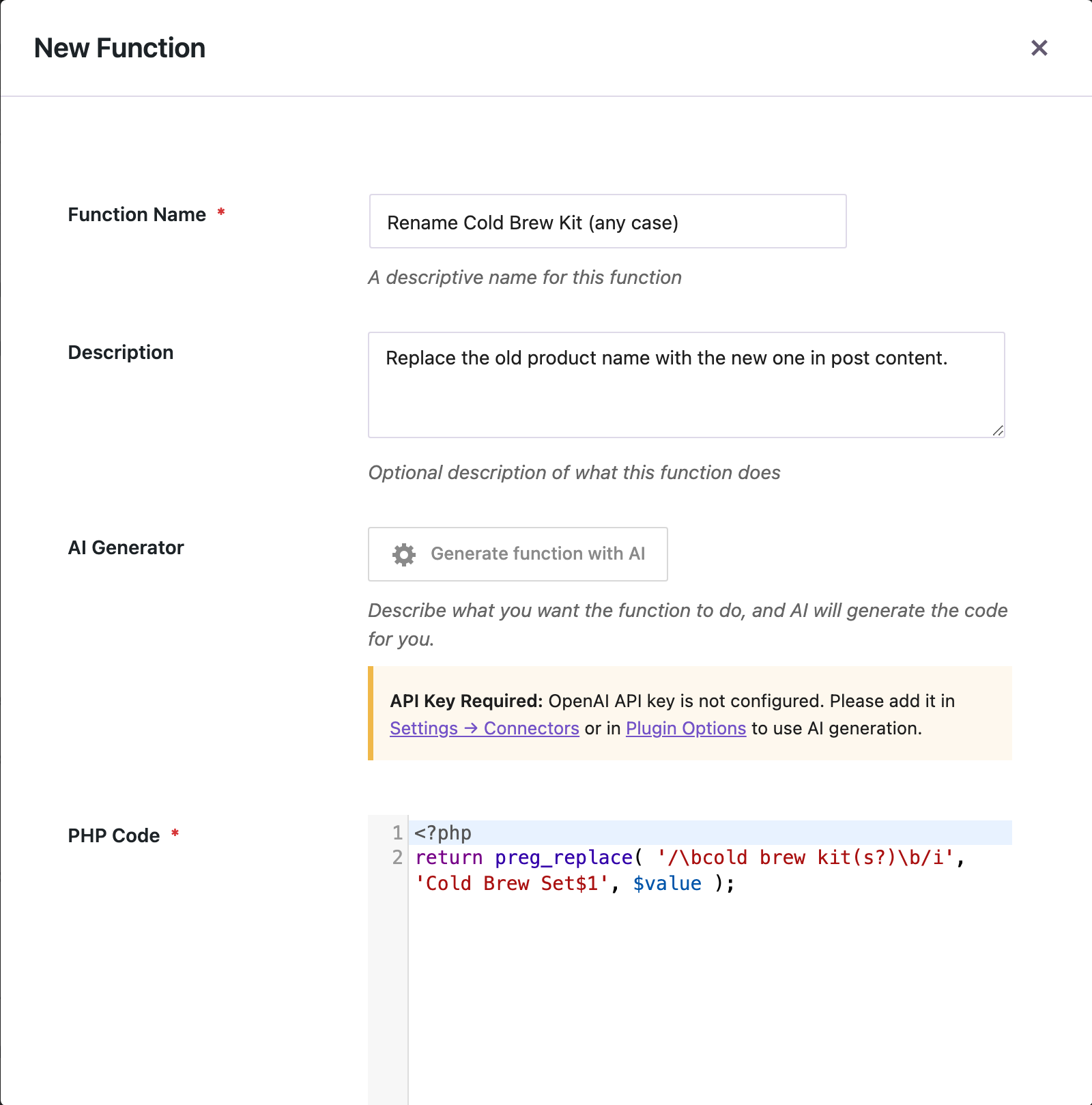
The obvious rule is an exact replace:
return str_replace( 'Cold Brew Kit', 'Cold Brew Set', $value );
It is case-sensitive. In our posts it changed 7 of the 9 mentions and skipped “the cold brew kit” and “COLD BREW KIT”. The rule we used instead:
return preg_replace( '/\bcold brew kit(s?)\b/i', 'Cold Brew Set$1', $value );
iat the end ignores letter case.\bon both sides matches whole words only, so “kitchen” can never become “Setchen”.(s?)and$1keep the plural: “Cold Brew Kits” becomes “Cold Brew Sets”.- The pattern has spaces, so the hyphenated
cold-brew-kitin the product URL and the image file name does not match.
Every match becomes “Cold Brew Set” with capitals, including the lowercase one at the start of a sentence and the all-caps one. For a product name that is what you want; for ordinary words, check the preview.
Not comfortable with regular expressions? The Generate function with AI button writes the code from a plain description when an OpenAI key is set in Plugin Options. Test it the same way before using it. More examples: Content Transformation Functions for WordPress Import and Export.
Step 3: Find the Posts
Open Import Export → Content Updater, choose Blog Posts, and on the filter step add Content, Contains, cold brew kit. The match ignores letter case: the counter showed 3, including the post where the name appears only in capitals.
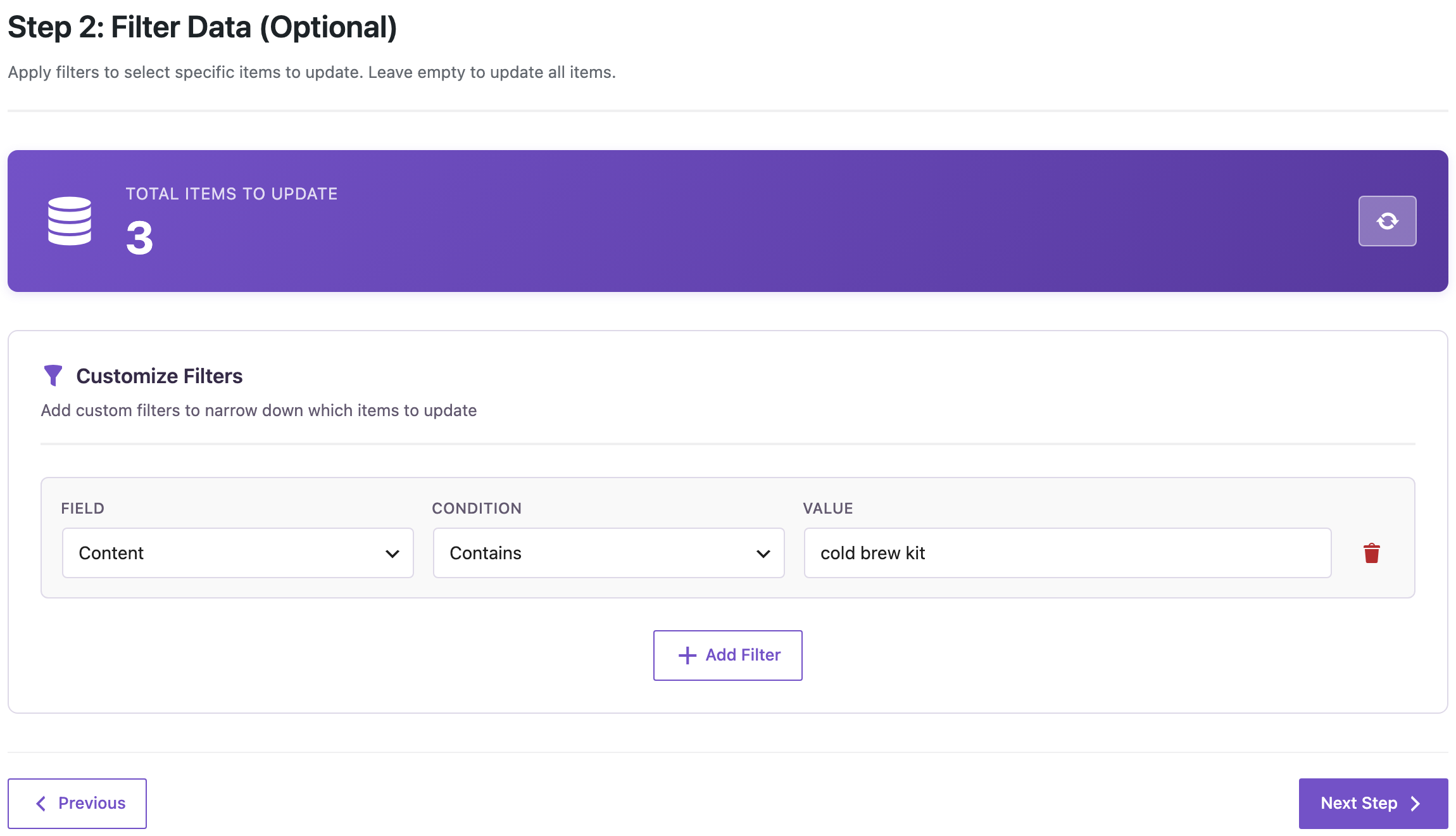
Without a filter the updater runs on every post. The function would leave posts without the phrase unchanged, but a filter keeps the job small and the summary honest. Add Status Equals publish if drafts should stay as they are.
On the next step click Content to add it to Selected Fields. Excerpt and Title can be added too if the old name appears there.
Step 4: Preview the Replacement
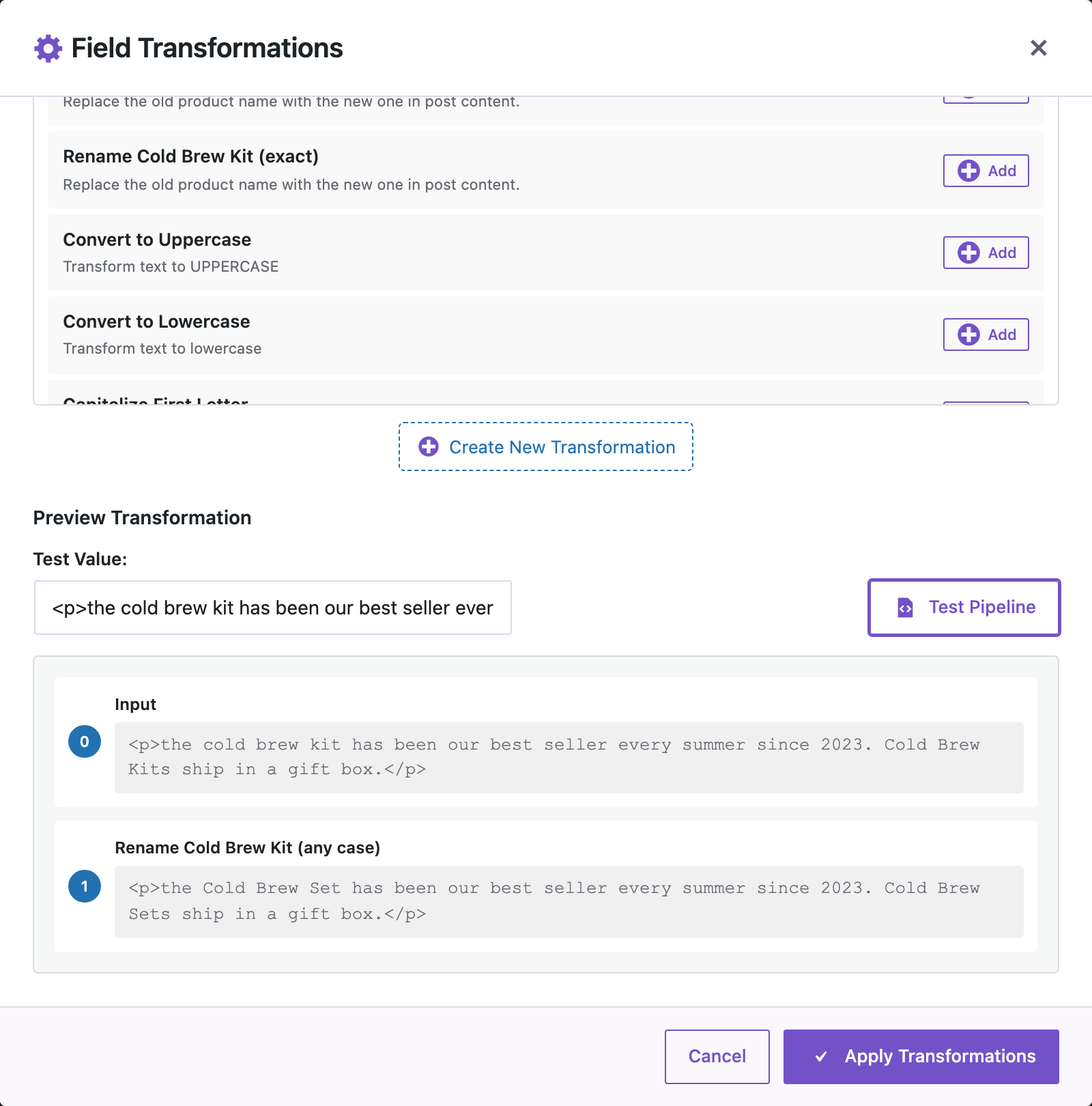
On Field Transformations click Assign Transformations next to Content and add your function. Under Preview Transformation, paste a real paragraph from one of the posts, with its HTML, and click Test Pipeline.
This is where the exact replace showed its gap. “Cold Brew Kits” changed, “the cold brew kit” did not:

The case-insensitive rule changed both and left the <p> tags as they were:
Test more than one sample: a paragraph with a link, an image block, a heading. If a URL or file name contains the phrase with spaces (rare, but possible in captions or alt text), you will see it here.
Want to see the result for every post before writing? Run an Export with the same filter, add Content, click the gear icon on the Content column and assign the same function. The exported file contains the new text for every matching post, and nothing on the site changes. In our dry run the three posts had 9 replacements and the image and product URLs were untouched.
Step 5: Run the Update
Click Apply Transformations, then Next Step. The summary shows what will run: 3 posts, 1 field, 1 transformation.
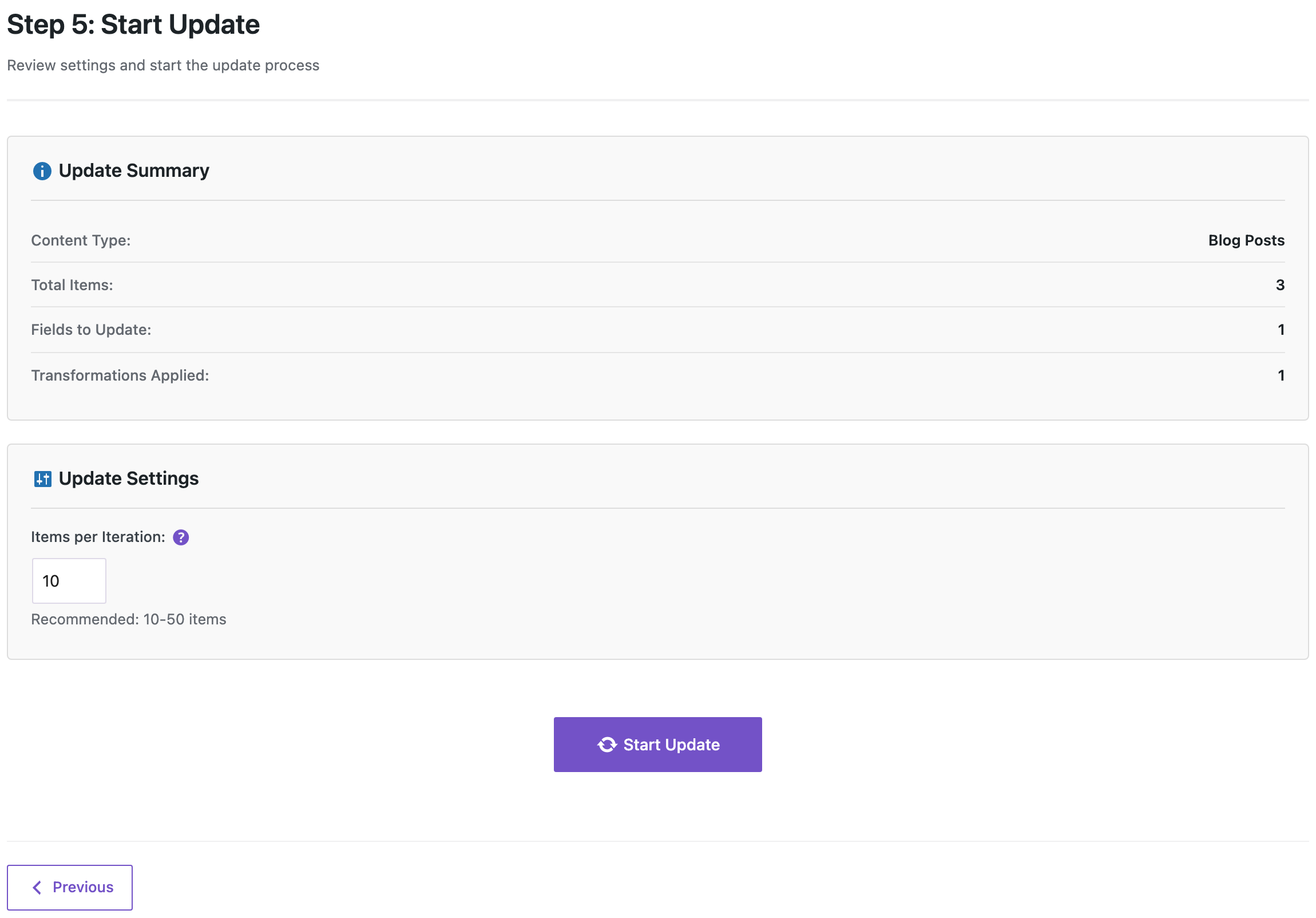
Click Start Update. The plugin asks once more to confirm you have a backup.
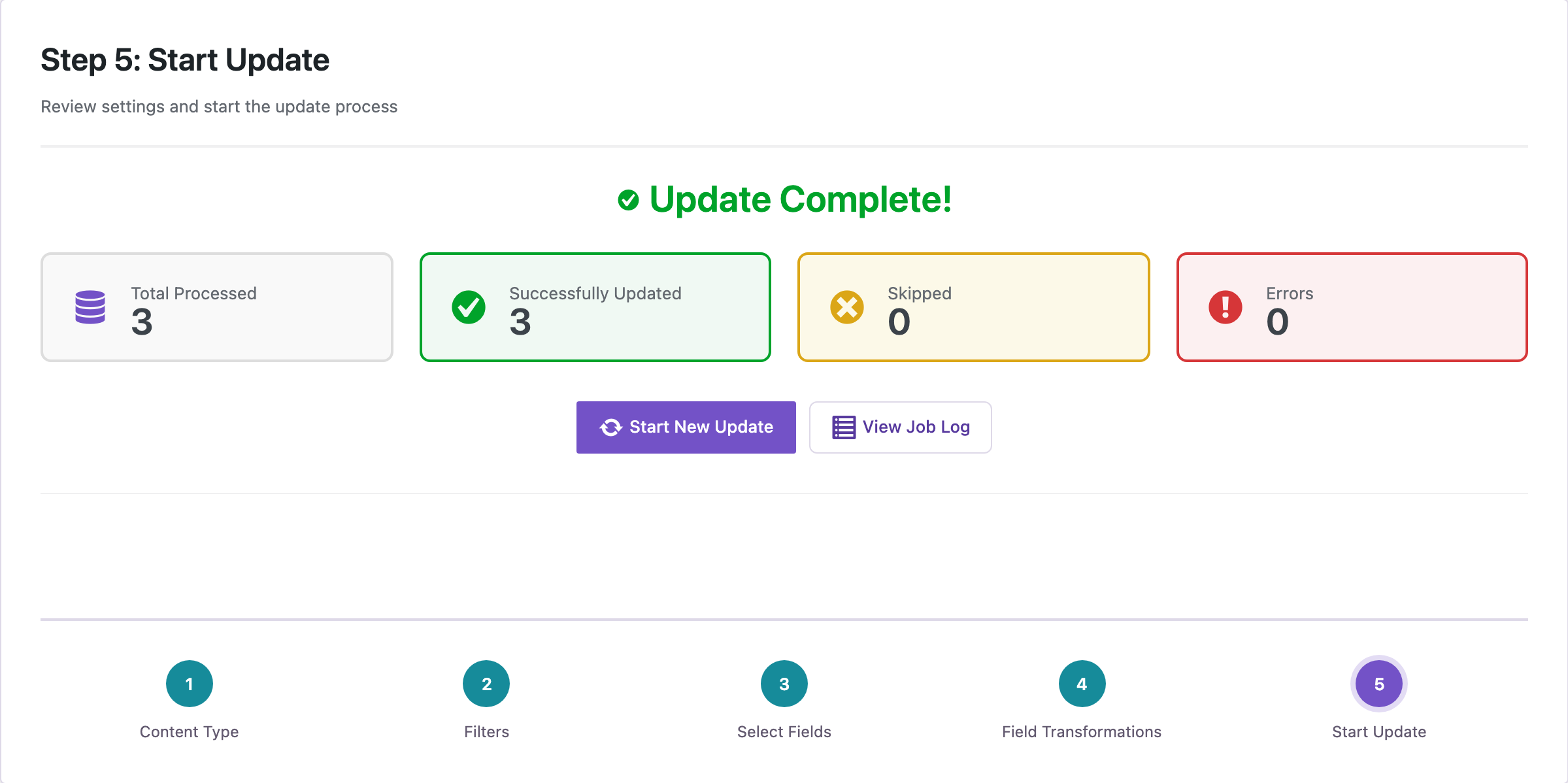
After the update all nine mentions read “Cold Brew Set”, none of the old name was left, and the image and product links still returned 200. The posts’ “last modified” dates did not change. Open two or three posts on the front end to check the result, and clear your page cache if you use one.
With an AI Agent (PRO)
An agent connected through the WordPress MCP Adapter can do the same with abilities. We had it rename “Tasting Flight” to “Tasting Trio”:
rsl-ie-pro/function-createsaved the rulepreg_replace( '/\btasting flight(s?)\b/i', 'Tasting Trio$1', $value ).rsl-ie/export-countwith the filterpost_content contains "tasting flight"found 1 post.rsl-ie/export-previewwithfield_functions: {"post_content": [3]}returned the post’s new content without saving it: the dry run.rsl-ie-pro/update-startwith the same fields, filter and function queued the update;rsl-ie-pro/update-statusreported 1 processed, 1 updated, 0 errors.
Prompts:
Find published posts whose content contains "cold brew kit" in any letter case.
Show me how many there are and their titles. Do not change anything.
Create a transformation that replaces "Cold Brew Kit" with "Cold Brew Set" in any
letter case, keeps plurals, and does not touch hyphenated URLs or file names.
Show me the new content of those posts as a dry run first. After I approve,
make a backup and run the update on the post content only.
Keep the approval step: the dry run is the moment to catch a rule that is too broad. More on safe agent edits: Letting an AI Agent Edit WordPress Content Safely.
Content Updater vs a Database Search-Replace Plugin
| Content Updater (PRO) | Database search-replace plugins | |
|---|---|---|
| Scope | Selected fields of filtered posts, pages, products, terms or users | Whole database tables |
| Preview | Test on sample text; dry run through export shows the result per post | Usually a dry run that counts changes per table |
| Rules | Any PHP transformation: regex, word boundaries, plurals, several steps in a row | Plain text, sometimes case-insensitive |
| Best for | Changing wording in content | Moving a site to a new domain |
For domain and http-to-https changes, a database-wide replace is the right tool. For wording in content, the narrower tool is safer.
Free Alternatives
- Edit in a spreadsheet. Export ID and Content with the free plugin, use your spreadsheet’s find and replace, delete the rows you did not change, and import back by ID with “If No Match Found: Skip”. See How to Bulk Update Existing WordPress Posts Without Creating Duplicates. Spreadsheet find and replace is usually case-insensitive and ignores word boundaries, so check the result.
- Replace links during import. The free importer has a Replace links option for rewriting URLs and other text while a file is imported.
Common Mistakes
- Exact replace on mixed-case text. It silently skips “the cold brew kit”. Use a case-insensitive rule.
- No word boundaries. Replacing “kit” alone would also change “kitchen” and “kitten”.
- Replacing slugs together with names. A rule for
cold-brew-kitalso rewrites image file names and links that still point to the old URLs. - Testing on plain text only. Paste real HTML from a post into the preview.
- No undo plan. The updater does not create revisions. Keep the backup and the ID + Content export.
FAQ
Can I replace text in pages, products or custom post types?
Yes. Choose the content type on the first step. The same function works for any text field.
Can I replace text in the title or excerpt too?
Yes. Select those fields on the Select Fields step and assign the function to each.
Does it work with page builders?
Block editor content is stored in Content, so it works. Builders that keep their layout in custom fields, such as Elementor, store the text in those fields instead; test on a copy first.
Is the find case-insensitive?
The Contains filter is. The replacement follows your function: str_replace is case-sensitive, str_ireplace and a regex with i are not.
How do I undo a replace?
Import the ID + Content export you made before the update, matching by ID, or restore the backup.
Related Guides
- How to Fix http to https Links in WordPress Post Content in Bulk
- Bulk Content Update in WordPress with Content Updater
- Content Transformation Functions for WordPress Import and Export
- How to Bulk Update Yoast SEO Titles and Meta Descriptions from CSV
- How to Roll Back a Bad WordPress Import or Sync
Get the free plugin on WordPress.org.

Comments 0
Have a question or a tip to share? Leave it below.