
In this tutorial, you will learn how to use Content Transformation Functions in Import Export by RockStarLab to clean, format, and transform WordPress data during import, export, and bulk content update workflows.
This feature is available in the PRO version of the plugin. You can activate PRO for free for your first month, with no credit card required, and test professional workflows before deciding whether you need them for your website.
What Are Content Transformation Functions?
Content Transformation Functions let you automatically modify field values before they are imported, exported, or updated in bulk.
Each function receives the current field value, transforms it, and returns the final value. This makes it possible to clean messy data, normalize formats, prepare WooCommerce product fields, generate slugs, validate values, and adjust content without editing every record manually.
For example, a function can take a value like $1,299.99 and return 1299.99. Another function can take a title like My New Product Launch! and return a clean URL slug like my-new-product-launch.
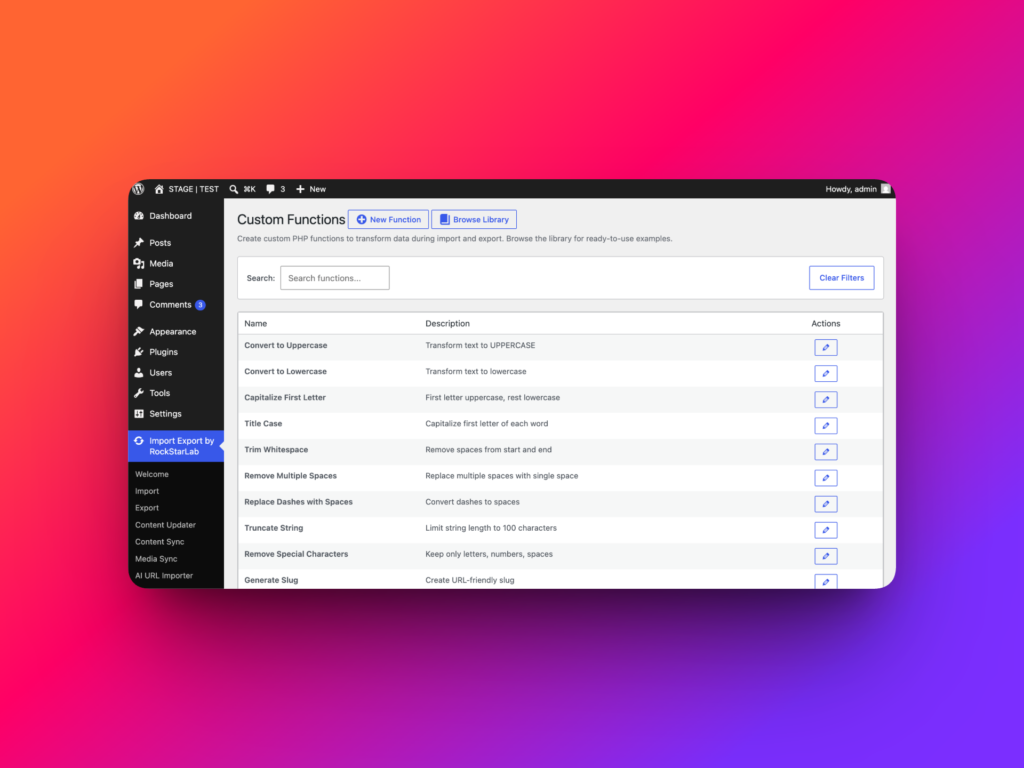
Where to Find the Functions Screen
In the WordPress admin dashboard, go to:
Import Export by RockStarLab → Functions
This opens the Custom Functions screen.
At the top of the screen, you will see two main buttons:
- New Function — create a custom transformation function.
- Browse Library — open the ready-made function snippet library.
The table below shows saved functions with their name, description, and available actions. You can search functions, clear filters, and manage your transformation library from one place.
Built-In Function Library
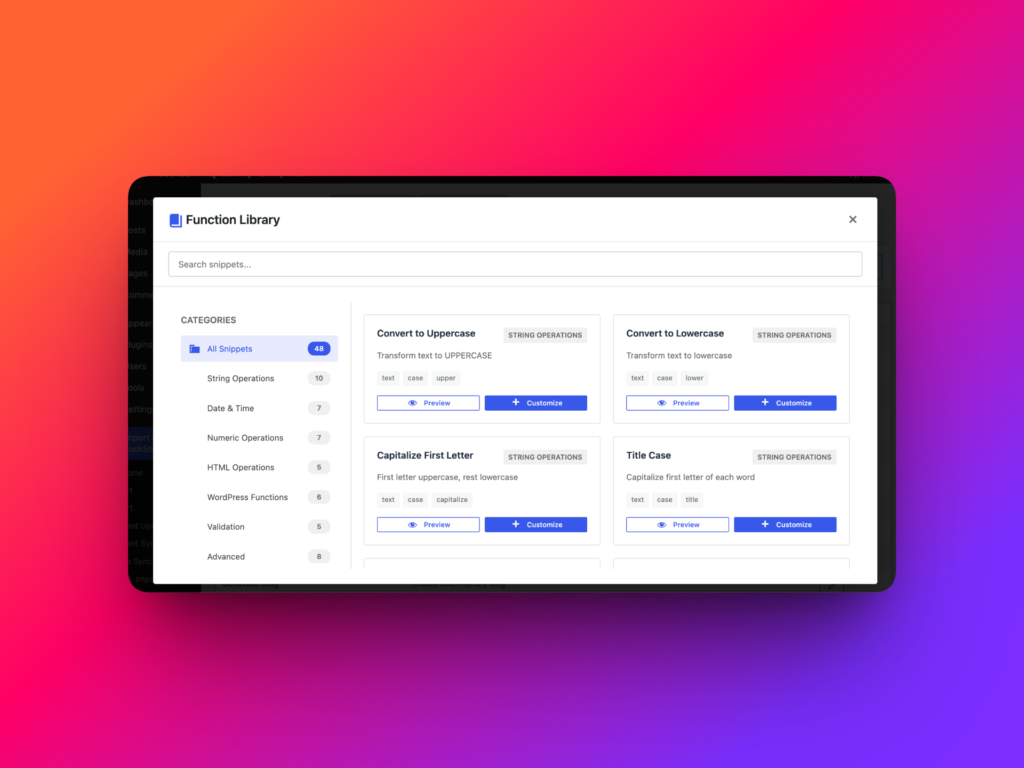
The plugin includes a library of ready-to-use function snippets. These snippets are organized into categories so you can quickly find the transformation you need.
| Category | Example Functions | Common Use Case |
|---|---|---|
| String Operations | Convert to Uppercase, Title Case, Trim Whitespace, Generate Slug | Clean titles, slugs, names, and text fields |
| Date & Time | Format Date for MySQL, Convert DD/MM/YYYY, Extract Year | Normalize imported dates for WordPress or database fields |
| Numeric Operations | Clean Price, Convert to Float, Round to 2 Decimals | Prepare WooCommerce prices, numbers, discounts, and stock values |
| HTML Operations | Strip HTML Tags, Decode HTML Entities, Sanitize Text | Clean imported content from old websites, feeds, or external systems |
| WordPress Functions | Find User ID by Email, Find Term ID by Slug, Create Category if Not Exists | Convert readable values into WordPress IDs or create missing categories |
| Validation | Validate Email, Validate URL, Require Non-Empty | Check imported data before saving or exporting it |
| Advanced | Add Prefix, Add Suffix, Map Values, Extract from JSON, Split by Delimiter | Handle custom migration rules and structured data cleanup |
Each snippet can be previewed or customized. This means you can start from a ready-made example and adjust it for your own import, export, or content update workflow.
How a Transformation Function Works
A transformation function receives the current field value as input. Inside the PHP code, that value is available as $value.
The function then returns the transformed result.
For example, a simple uppercase function could return an uppercase version of the field value:
return strtoupper($value);If the original value is hello world, the transformed value becomes HELLO WORLD.
This same idea works for many other transformations: cleaning prices, formatting dates, stripping HTML, validating emails, generating slugs, mapping values, and more.
Creating and Editing Functions
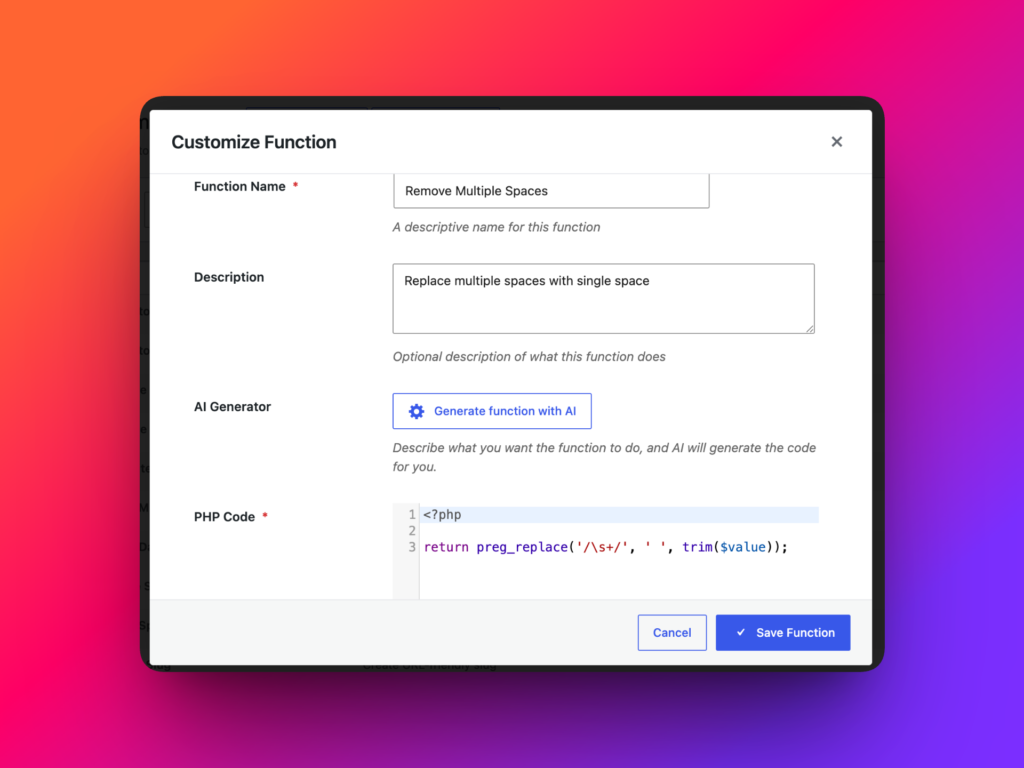
When you create or customize a function, the editor includes several important areas:
- Function Name — a descriptive name for the function.
- Description — an optional explanation of what the function does.
- AI Generator — generate PHP code from a natural-language description.
- PHP Code — the actual transformation code.
- Status — set the function as active or inactive.
- Test Function — test the function with a sample input value before using it.
For security, dangerous PHP operations such as eval, command execution, and file operations are blocked.
Using the AI Function Generator
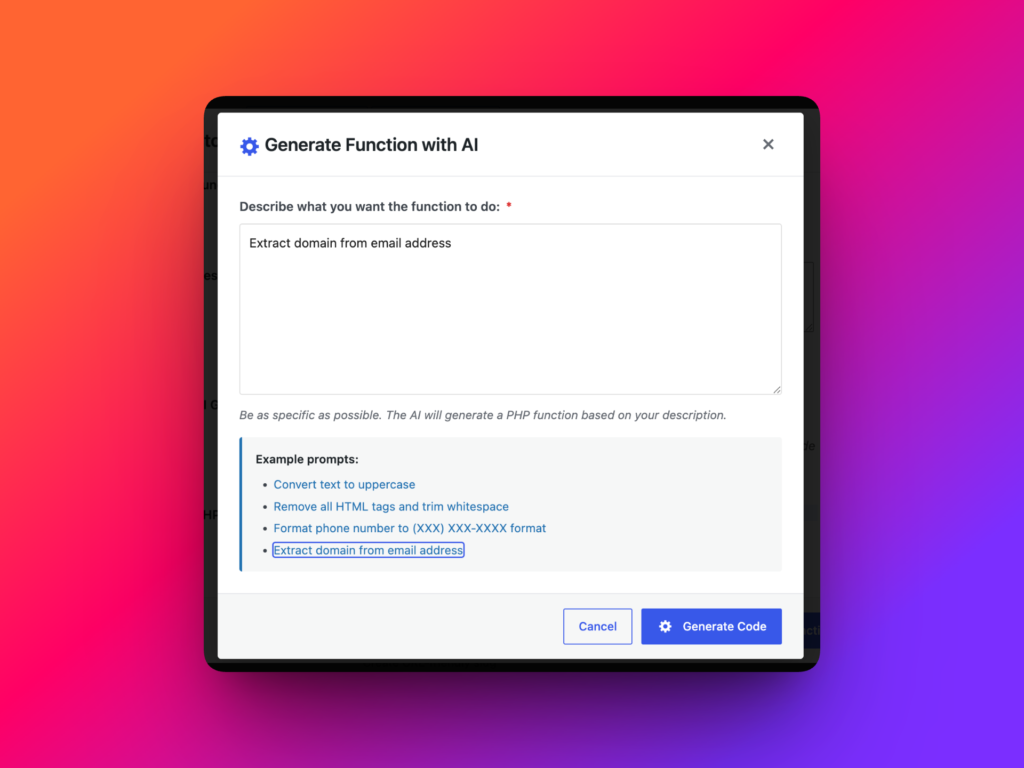
If you do not want to write PHP manually, you can use the AI Generator to create a function from a description.
To use this option, you need to connect your OpenAI API key first. If you have not done that yet, open the connector settings, install the OpenAI connector, create an API key in the OpenAI platform, paste it into WordPress, and save the settings.
Once the API key is connected, open the function editor and click Generate function with AI. Then describe what you want the function to do.
Example prompts:
- Remove all HTML tags, decode HTML entities, trim whitespace, and return clean plain text.
- Convert a price value into a decimal number. Remove currency symbols, spaces, commas, and return the value with two decimal places.
- Take a comma-separated list of category names, trim each item, remove empty items, and return the cleaned list separated by commas.
After AI generates the code, review it, edit it if needed, test it, and save the function.
Testing a Function Before Using It
The function editor includes a testing area where you can enter a sample value and see the output immediately.
This is especially important before running a real import, export, or bulk update job.
For example, if your function cleans prices, test values like:
- $1,299.99
- USD 49.90
- €89,50
If your function formats dates, test several date formats. If it cleans content, test values with HTML tags, encoded entities, and extra spaces.
Function Chains: Multiple Transformations on One Field
You can assign more than one transformation function to the same field. The functions will run one by one, in the order you assign them.
This makes it possible to build a clean transformation chain.
| Field | Function Chain | Example Result |
|---|---|---|
| Post Title | Trim Whitespace → Remove Multiple Spaces → Title Case | Messy imported titles become clean and readable |
| Slug | Strip HTML Tags → Remove Special Characters → Generate Slug | Clean URL-friendly slugs are generated automatically |
| WooCommerce Price | Clean Price → Convert to Float → Round to 2 Decimals | Supplier price values become WooCommerce-ready numbers |
| Content | Decode HTML Entities → Strip HTML Tags → Trim Whitespace | Imported content becomes cleaner before saving |
Where Transformation Functions Can Be Used
Transformation Functions can be used in three main workflows inside Import Export by RockStarLab.
| Workflow | How Functions Help | Example |
|---|---|---|
| Import | Clean and prepare incoming data before it is saved into WordPress | Convert supplier prices into clean WooCommerce price values |
| Export | Transform data before it is written into an export file | Format dates or convert IDs into readable values for another system |
| Content Updater | Bulk update existing WordPress content using transformation logic | Clean titles, remove unwanted HTML, normalize custom field values |
Real Examples
1. Clean WooCommerce Prices Before Import
Supplier files often contain price values in different formats, such as USD 49.99, $129.00, or €89,50. WooCommerce usually needs a clean numeric value.
A transformation function can remove currency symbols, normalize decimal separators, and return a clean price value before the product is imported.
2. Generate SEO-Friendly Slugs
If you import posts from a spreadsheet, the title may include uppercase letters, special characters, or extra spaces.
A function chain can clean the text and generate a URL-friendly slug automatically. For example, My New Product Launch! can become my-new-product-launch.
3. Clean Imported Content
Imported content can include HTML tags, extra spaces, encoded characters, or formatting that you do not want to keep.
Functions like Strip HTML Tags, Decode HTML Entities, Trim Whitespace, and Remove Multiple Spaces can clean that content before it is saved into WordPress.
Best Practices
- Start with the built-in Function Library before writing a function from scratch.
- Customize existing snippets when your workflow needs small changes.
- Use AI Generator when you can clearly describe the transformation you need.
- Always test functions with realistic sample values.
- Use function chains for multi-step cleanup.
- Create a backup before running large imports or bulk content updates.
Conclusion
Content Transformation Functions give you much more control over WordPress import, export, and bulk update workflows.
Instead of manually cleaning spreadsheets or editing imported content after the fact, you can prepare values automatically before they are saved, exported, or updated.
With the built-in snippet library, custom PHP functions, AI function generation, testing tools, and function chains, Import Export by RockStarLab makes advanced WordPress data transformation much easier to manage.
Learn more about the WordPress import export plugin
FAQ
What are Content Transformation Functions?
Content Transformation Functions are custom PHP functions that modify field values during import, export, or bulk content update workflows.
Are Transformation Functions available in the free version?
No. Transformation Functions are available in the PRO version of Import Export by RockStarLab. You can activate PRO for free for your first month with no credit card required.
Can I use AI to generate transformation functions?
Yes. If your OpenAI API key is connected, you can describe the function you need and generate PHP code with the AI Generator.
Can I test a function before using it?
Yes. The function editor includes a testing area where you can enter a sample value and see the transformed output before using the function in a real workflow.
Can I assign multiple functions to one field?
Yes. You can assign multiple functions to the same field. They will run one by one in the order you assign them.