
The migration looks finished. The posts are on the new site and the images show up. Then you open the page source, or the old hosting account expires, and it turns out the images were never moved: every <img> still loads from old-domain.com. The Media Library on the new site is empty, and the featured images are blank. As soon as the old domain goes offline, every image in those posts breaks.
First find the posts that still use images from the old domain, then move those images into the new site’s Media Library. Missing featured images are covered too. You need only the new site, as long as the old image addresses still load. Every step was tested on two local WordPress 7.1 sites with Import Export by RockStarLab 2.1.15 (free).
Short Answer
On the new site, export the affected posts with a filter Content contains old-domain.com. Then import the same file back with:
- Check for Existing Items by Field: Slug
- If Match Found: Update
- Automatically Import Media Files checked
The import downloads every image from the old domain into the new Media Library and rewrites the image addresses and IDs in the posts. If featured images are missing too, export the slug and the featured image URL from the old site and import that file the same way.
Why the Images Still Point to the Old Domain
An image in a post is just an address in the HTML: <img src="https://old-domain.com/wp-content/uploads/2026/11/farm-visit.jpg">. Moving the posts moves that address, not the file. The images stay on the old site when:
- the posts were moved with Tools > Export and the WordPress Importer, but the export contained only posts, or the importer could not download the attachments;
- the content was copied and pasted, or moved with a tool that copies only post content;
- only the database was moved, without the
wp-content/uploadsfolder.
In our test, four posts with eight images in image blocks were moved with the built-in exporter and the WordPress Importer. The posts arrived intact, but every image still loaded from the old domain, the new Media Library got no files, and the featured images pointed to attachment IDs that did not exist on the new site.
First, Check Which Case You Have
Open one of the image addresses with the new domain instead of the old one, for example https://new-domain.com/wp-content/uploads/2026/11/farm-visit.jpg.
- The image opens. The files were copied, and only the addresses are wrong. You only need to replace the domain in the content, as described in Changed Domain? How to Replace Old URLs in Content During Import.
- The page says “not found”. The files are not on the new site. Follow the steps below to download them into the Media Library.
Before You Start: Make a Backup
The fix updates existing posts, so make a backup of the new site first. With UpdraftPlus, click Backup Now. An AI agent working through the WordPress Abilities API can start one with rsl-ie/updraftplus-backup-start and check it with rsl-ie/updraftplus-backup-status. Both ways are described in How to Create a WordPress Website Backup and Restore It.
Step 1: Find the Posts with Images on the Old Domain
On the new site, go to Import Export by RockStarLab > Export and choose Blog Posts (repeat for Pages if they have images too). On the Filter Data step, click Add Filter and set:
- Field: Content
- Condition: Contains
- Value: the old domain, without
https://(for exampleold-domain.com)
The counter at the top shows how many posts still contain the old domain. In our test it found all four.

On Select Fields, click Add all next to Standard. The file then has the ID, title, content, excerpt, date, slug and status. Choose CSV and download the export. This file is also a copy of the current content, in case you want to compare later.
Step 2: Import the Same File in Update Mode
Still on the new site, go to Import, choose Blog Posts, upload the CSV and click Auto Map. On Import Options:
- Check for Existing Items by Field: Slug
- If Match Found: Update
- If No Match Found: Skip, so nothing new is created
- Automatically Import Media Files: checked
- If Media File Already Exists: Skip

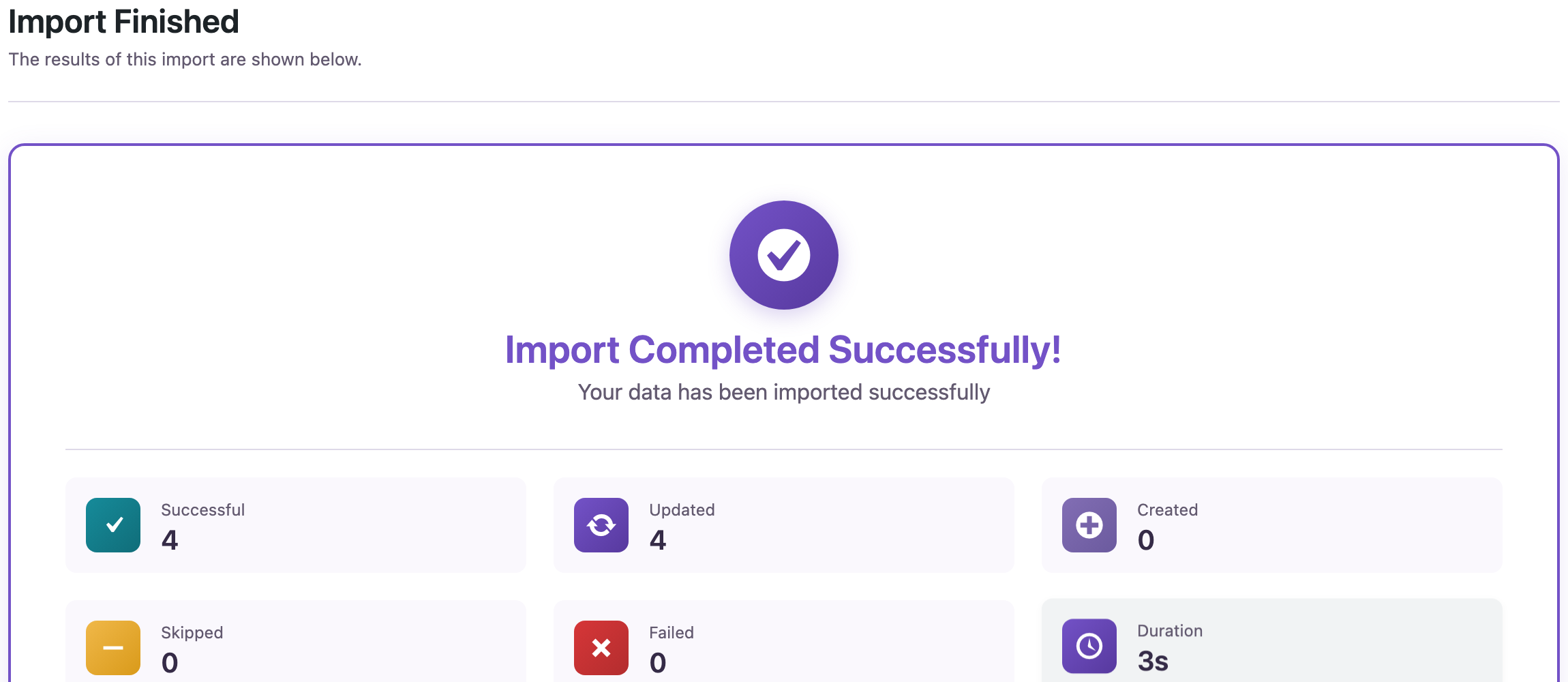
Start the import. The plugin downloads every image whose address is not on the new site, adds it to the Media Library and replaces the address in the post. In our test the four posts were updated in 3 seconds.
Step 3: Check the Result
The eight images are now in the new site’s Media Library, each attached to the post that uses it:

In the posts, the image address, the wp-image- class and the block’s id all point to the new Media Library item. This is one image block before and after:
Before:
<!-- wp:image {"id":1862,"sizeSlug":"large"} -->
<img src="https://old-domain.com/wp-content/uploads/2026/11/farm-visit.jpg" class="wp-image-1862"/>

After:
<!-- wp:image {"id":1865,"sizeSlug":"large"} -->
<img src="https://new-domain.com/wp-content/uploads/2026/11/farm-visit.jpg" class="wp-image-1865"/>
The ID matters as well as the address: with the right ID, WordPress can serve smaller image sizes (srcset) and the block editor links the image to its Media Library entry. Run the export from Step 1 again: the filter should now find 0 posts.
Fix Missing Featured Images
A featured image is stored as an attachment ID, not as an address in the content, so Step 2 cannot see it. If the featured images are blank after the migration, you need their addresses from the old site:
- On the old site, export the posts with three fields: Title, Slug and Featured Image URL (in the Featured Image group).
- On the new site, import that file with the same options as in Step 2: match by Slug, Update, media import on.

In our test all four featured images were set. The featured image of each post was also one of its content images, already downloaded in Step 2, so the import reused those files: the Media Library still had eight new files, not twelve. If you don’t have access to the old admin but know the image addresses, a spreadsheet with post_name and featured_image_url columns works the same way. For other ways to fill the column, see Import Posts from Excel with Featured Images by URL.
When the Old Domain Is Already Offline
The plugin can only download images that still load. If an image address no longer works, the post is still updated, the import finishes with a warning, and the screen lists every address that failed. The same list is kept in the Jobs Log. The post keeps the old address, so nothing breaks further than it already was.

For these images, find the files in a backup of the old site (the wp-content/uploads folder) and upload that folder to the new site. Then replace the domain in the content, as described in the guide to replacing old URLs.
What This Does Not Cover
- ACF image and gallery fields store attachment IDs, like featured images. Move them with an export from the old site, as described in How to Import ACF Image and Gallery Fields from URLs.
- Page builder layouts and theme settings keep image addresses in their own data, outside the post content. Check them separately after the fix.
- Links to other pages on the old domain are not images and are not downloaded. Replace them with the Replace links option.
FAQ
Will this create duplicate images?
Not with If Media File Already Exists: Skip. Before downloading, the plugin compares the file name, size and content with the Media Library and reuses a file it already has. In our test the content images and the featured images shared files, and each was stored once.
Can I fix only some posts?
Yes. Add more filters in Step 1 (for example a category or a date range), or delete rows from the CSV before importing. Posts that are not in the file are not touched.
Does it work for pages and other post types?
Pages work the same way in the free version. Custom post types and WooCommerce products need the Pro add-on.
How do I check the whole site for leftovers?
Run the export from Step 1 for every content type with the old domain as the filter value. A count of 0 means no content still contains it.
Related Guides
- How to Fix http to https Links in WordPress Post Content in Bulk
- Changed domain? How to replace old URLs in content during import
- WordPress Importer not importing images: causes and fixes
- How to migrate only posts and pages to a new WordPress site
- How to import ACF image and gallery fields from URLs
Import Export by RockStarLab is free on WordPress.org.

Comments 0
Have a question or a tip to share? Leave it below.