
You have a spreadsheet of posts with image addresses in it, and you want those images in your ACF fields: one in an Image field, several in a Gallery, maybe a PDF in a File field. Typing an address into an ACF image field does nothing, because ACF stores the ID of a Media Library item and not an address. The images have to be downloaded into the Media Library first, and their new IDs saved in the fields.
Import Export by RockStarLab (free) does it in one import. The plugin downloads every file once, fills the image, gallery and file fields, and keeps the Media Library free of duplicates. Everything below was tested with five recipe posts, 13 images from another server, one image already in the Media Library and 5 PDFs, on a WordPress 7.1 site with ACF PRO 6.8 and version 2.1.15 of the plugin.
Short Answer
- Name the spreadsheet columns after your ACF fields, for example
hero_image,photo_galleryandrecipe_card. - Put one address in an image or file cell, and several addresses separated by commas or
|in a gallery cell. - Upload the file in Import Export by RockStarLab > Import and click Auto Map.
- Keep Automatically Import Media Files checked and If Media File Already Exists set to Skip, then start the import.
Each file is downloaded into the Media Library and its ID is saved in the field. An address used in several rows is downloaded only once.
What Goes in Each Cell
The test used an ACF field group called “Recipe media” with four fields. The table shows what each cell can contain:
| ACF field type | Example column | What to put in the cell |
|---|---|---|
| Image | hero_image |
One image address, or the ID of an image already in the Media Library |
| Gallery | photo_gallery |
Several image addresses separated by commas, or by | if an address contains a comma. You can mix in Media Library IDs. |
| File | recipe_card |
One file address, for example a PDF |
| WYSIWYG | brewing_notes |
HTML. Images in <img src="..."> tags are downloaded and their addresses replaced. |
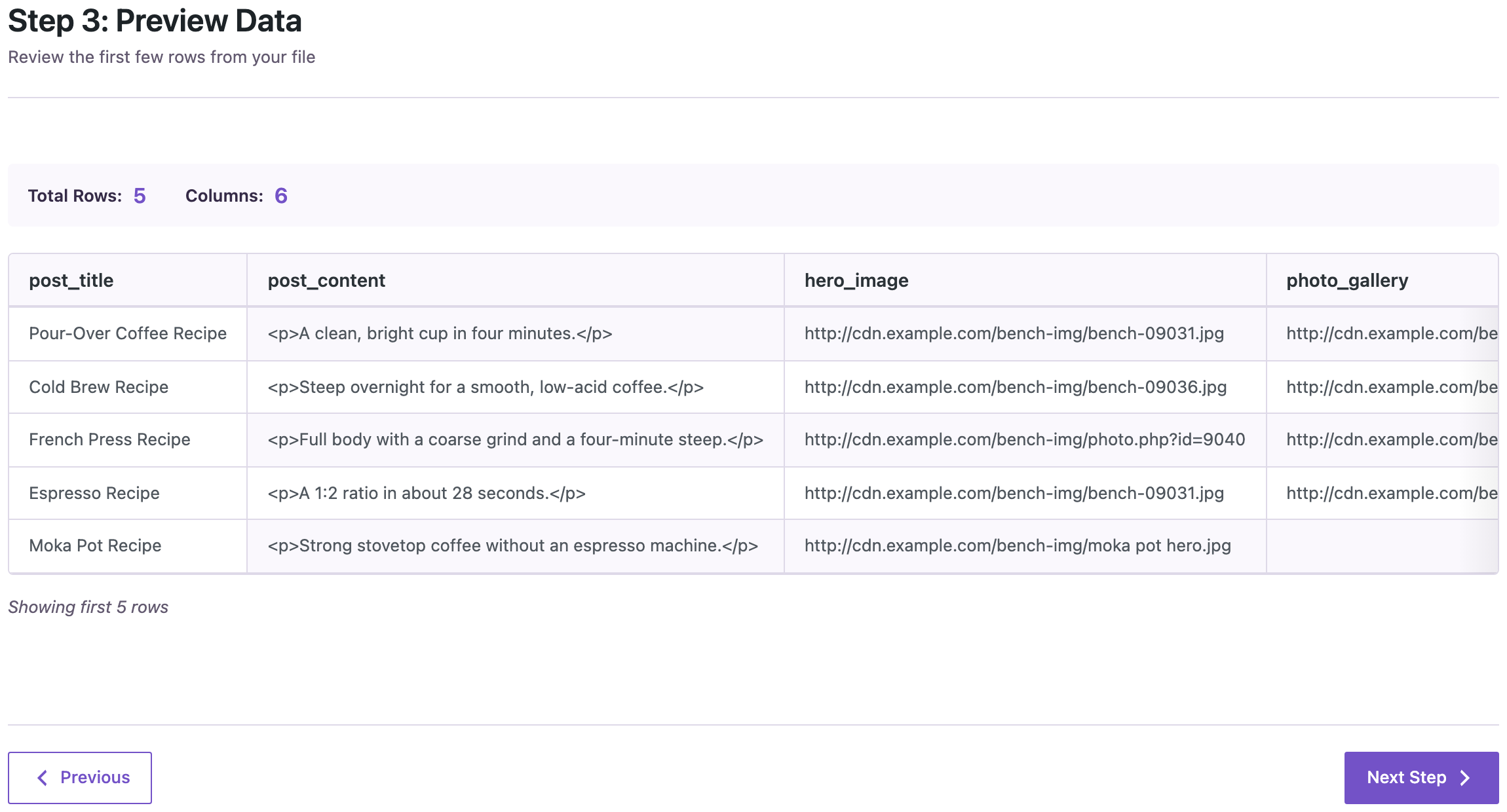
These are the five rows we imported, shortened. The image host in the screenshots is shown as cdn.example.com:
post_title,hero_image,photo_gallery,recipe_card
Pour-Over Coffee Recipe,https://cdn.example.com/bench-09031.jpg,"https://cdn.example.com/bench-09032.jpg, https://cdn.example.com/bench-09033.jpg, https://cdn.example.com/bench-09034.jpg",https://cdn.example.com/pour-over-recipe-card.pdf
Cold Brew Recipe,https://cdn.example.com/bench-09036.jpg,https://cdn.example.com/bench-09037.jpg | https://cdn.example.com/bench-09038.jpg,https://cdn.example.com/cold-brew-recipe-card.pdf
French Press Recipe,https://cdn.example.com/photo.php?id=9040,"https://cdn.example.com/bench-09041.jpg, 997",https://cdn.example.com/french-press-recipe-card.pdf
Espresso Recipe,https://cdn.example.com/bench-09031.jpg,"https://cdn.example.com/bench-09032.jpg, https://cdn.example.com/bench-09042.jpg",https://cdn.example.com/espresso-recipe-card.pdf
Moka Pot Recipe,https://cdn.example.com/moka pot hero.jpg,,https://cdn.example.com/moka-pot-recipe-card.pdf
The rows include a few cases that often cause trouble:
- An image address without a file extension (
photo.php?id=9040), as image services and CDNs often use. The plugin checks that the download really is an image and names the file after its type (photo.jpg). - An address with spaces (
moka pot hero.jpg), as you get when you copy a file name from a folder. The spaces are encoded before the download. - A gallery that mixes an address with an existing image (
997is the ID of an image already in the Media Library). The existing image is used as it is. - The same image in two rows. The Espresso hero image and one of its gallery images are also used by the Pour-Over post.
Use direct links to the files. A sharing page from Google Drive or Dropbox is an HTML page, not an image, and the image field stays empty. File fields need an address that ends with the file’s extension (.pdf, .docx, .zip).
Before You Import: Make a Backup
An import adds posts and Media Library files at once, so make a backup first. With UpdraftPlus, click Backup Now. An AI agent working through the WordPress Abilities API can start one with rsl-ie/updraftplus-backup-start and check it with rsl-ie/updraftplus-backup-status. Both ways are described in How to Create a WordPress Website Backup and Restore It.
Step 1: Upload the Spreadsheet
Go to Import Export by RockStarLab > Import, choose Blog Posts (or Pages) and upload the CSV or Excel file. The preview shows the first rows, so you can check that the addresses are in the right columns.
Step 2: Map the Columns to the ACF Fields
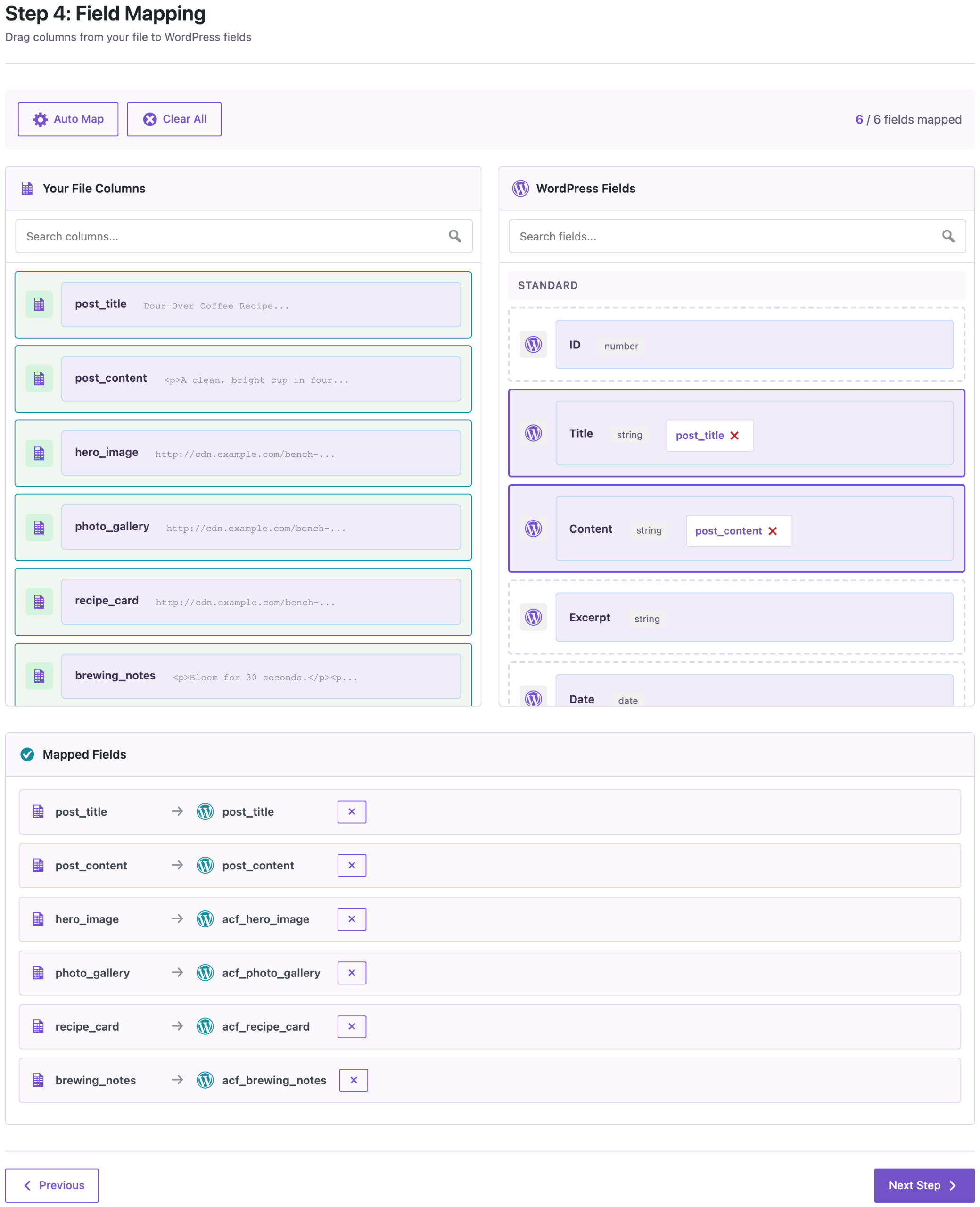
Click Auto Map. Columns named like an ACF field are mapped to that field: hero_image goes to acf_hero_image, photo_gallery to acf_photo_gallery, and so on. If your column names are different, drag each column onto its field in the ACF Fields section on the right.
Step 3: Check the Media Options
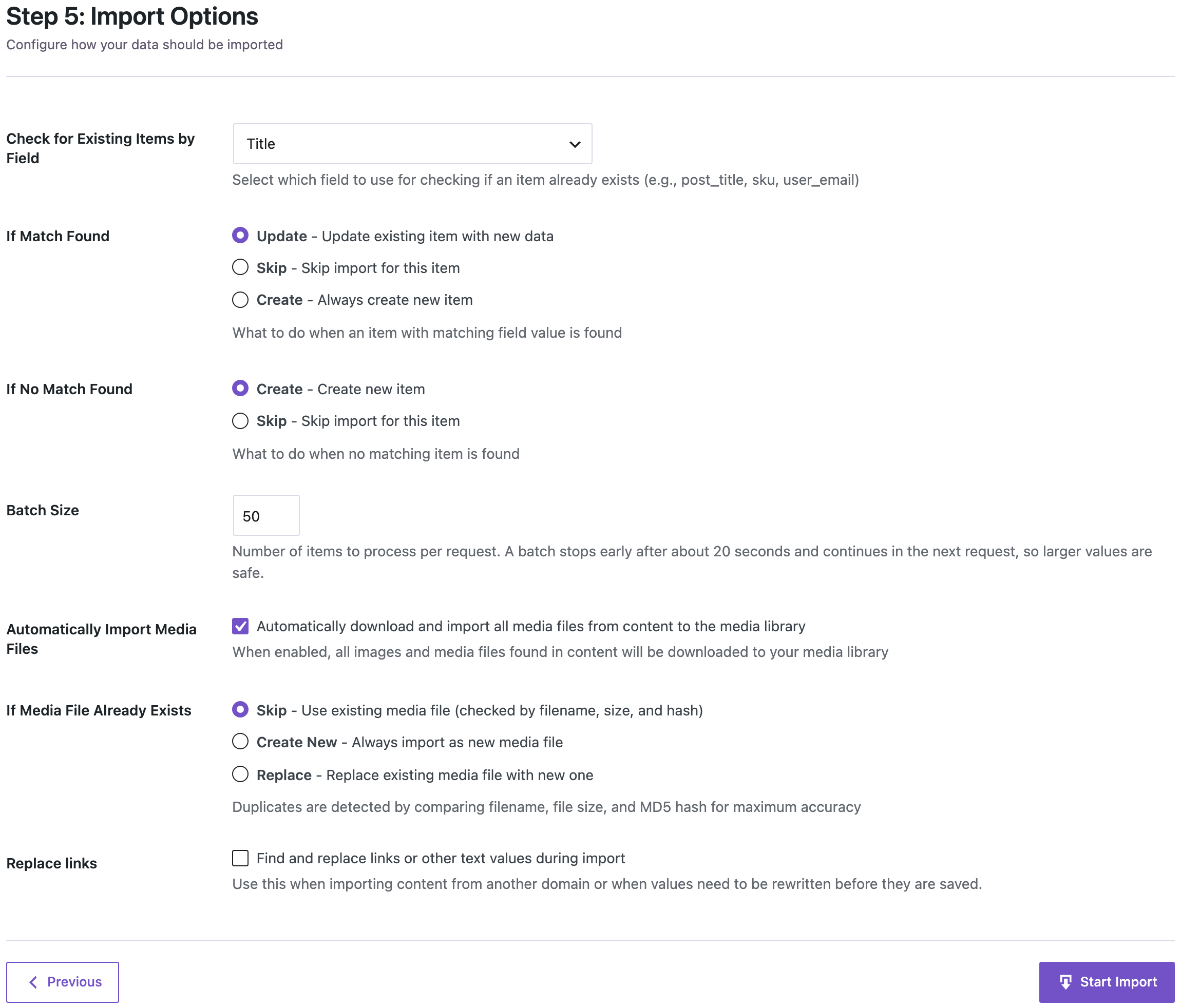
On Import Options, two settings decide what happens to the images:
- Automatically Import Media Files must be checked. If it is off, the addresses are not downloaded and the image fields stay empty.
- If Media File Already Exists: Skip reuses a file that is already in the Media Library, and the import compares the file name, size and content (MD5 hash) to find it. Create New always adds a copy, and Replace overwrites the existing file.
The posts were created as drafts, because the file has no status column. Add a post_status column with publish if they should go live right away.
Step 4: Run the Import and Check the Fields
Click Start Import. The five posts took 6 seconds on our test site, including the downloads.

Every field was filled: the hero images (including the address without an extension and the one with spaces), all galleries, all five PDFs in the file field, and the images inside the WYSIWYG field. These now point to the copies in the Media Library instead of the original host.

The Media Library got 18 new files: 13 different images and 5 PDFs. The Espresso post reuses two images of the Pour-Over post instead of creating copies, and the gallery in the French Press post kept the existing image 997.
What About Repeaters, Groups and Flexible Content?
A spreadsheet cell holds one value, so it cannot describe several repeater rows on its own. When you move posts with image or gallery fields inside repeaters, groups or flexible content from one WordPress site to another, export them with the plugin first. The export writes every image as its address, including the ones inside repeater rows. On import, the plugin downloads them and saves the new IDs, just like in this guide.
In our comparison of free import plugins, a migration of 20 posts with image, gallery and repeater-with-gallery fields came through with all 29 images and no duplicates. If your ACF fields also link posts, pages or users, see ACF Relationship Fields Break After Import? How to Fix the IDs.
Common Problems
The image field is empty after the import
- Check that Automatically Import Media Files was on.
- Open the address in a private browser window. If it asks for a login or shows a page instead of the image, the server cannot download it either.
- Some image hosts block downloads from other servers (hotlink protection). Download the images yourself, upload them to the Media Library, and put their IDs in the cells instead.
The Media Library has duplicate copies of the same image
If Media File Already Exists was set to Create New. Set it to Skip and import again in update mode (match by Title or Slug). Then delete the extra copies in the Media Library.
The gallery shows only one image
Check the separator. Use commas between addresses, or | when an address itself contains a comma. Spaces around the separators do not matter.
Large files with thousands of images
Downloading and resizing images is the slowest part of any import. On our test machine, 10,000 posts with one image each took about 28 minutes. The batch size and time limits are covered in How to Import a Large CSV (100,000 Rows) into WordPress.
FAQ
Do I have to use full URLs, or can I use file names?
Use full addresses (starting with http:// or https://) or Media Library IDs. A bare file name does not say where to download the file from.
Does it work with Excel files?
Yes. XLSX and ODS files are read the same way as CSV, and an Excel HYPERLINK() formula in a cell is turned into its address.
Which return format should the ACF image field use?
Any. ACF always stores the attachment ID, and the return format (array, URL or ID) only changes what your theme receives from get_field().
Can I set the featured image from the same spreadsheet?
Yes. Add a featured_image column with an address, as described in Import Posts from Excel with Featured Images by URL.
Related Guides
- ACF relationship fields break after import? How to fix the IDs
- How to import posts, pages and custom post types with ACF PRO fields
- Import posts from Excel with featured images by URL
- Free WordPress CSV import plugins compared
Import Export by RockStarLab is free on WordPress.org.

Comments 0
Have a question or a tip to share? Leave it below.