
A CSV with a few hundred rows imports in seconds. With 100,000 rows the problems are different: the upload limit rejects a 95 MB file, a single request runs into the PHP time limit, memory runs out, or the import slows down the further it gets until it never finishes. The site itself should stay usable for visitors the whole time.
We imported a CSV with 100,000 posts with Import Export by RockStarLab (Free) and measured each stage: how long it took, how much memory a request used and how fast the front end responded during the import. The 100,000-row test used version 2.1.13; the test with 10,000 image posts below used 2.1.14.
Short Answer
Upload the CSV on Import Export by RockStarLab → Import; it is sent in 1 MB chunks, so the PHP upload limit does not matter. Turn off Automatically Import Media Files if the file has no image URLs, keep the default Batch Size of 50 (or raise it to 100–200 for plain text rows) and start the import. The file is split into stored rows first, then imported in batches; each request stays short and uses about 20 MB of memory. In the test, 100,000 posts with categories and tags took 1 hour 20 minutes from Start Import to the final report on a local test site, and the front end kept responding in 1–3 seconds.
The Test File
The CSV had 100,000 rows and 7 columns, 94.9 MB in total:
| Column | Example |
|---|---|
post_title |
Bulk post 000001: Flow review |
post_content |
About 900 characters of HTML |
post_excerpt |
One sentence |
post_status |
publish |
post_date |
2024-03-14 09:30:00 |
categories |
Travel > Asia |
tags |
topic 12, topic 30 |
The site ran on LocalWP on a laptop with PHP 8.2 and a 256 MB memory limit. Every request on this setup spends about 1.1 seconds just loading WordPress, which is slower than typical hosting with OPcache, so the times below are on the pessimistic side.
Before You Start: Make a Backup
A 100,000-row import changes a lot of data at once, and undoing it by hand is not realistic. Make a backup first: in the admin with UpdraftPlus → Backup Now, or by asking an AI agent to run a backup through the plugin’s abilities. The plugin also asks you to confirm a backup before the first import step. The backup and restore guide shows both ways.
Step 1: Upload the File
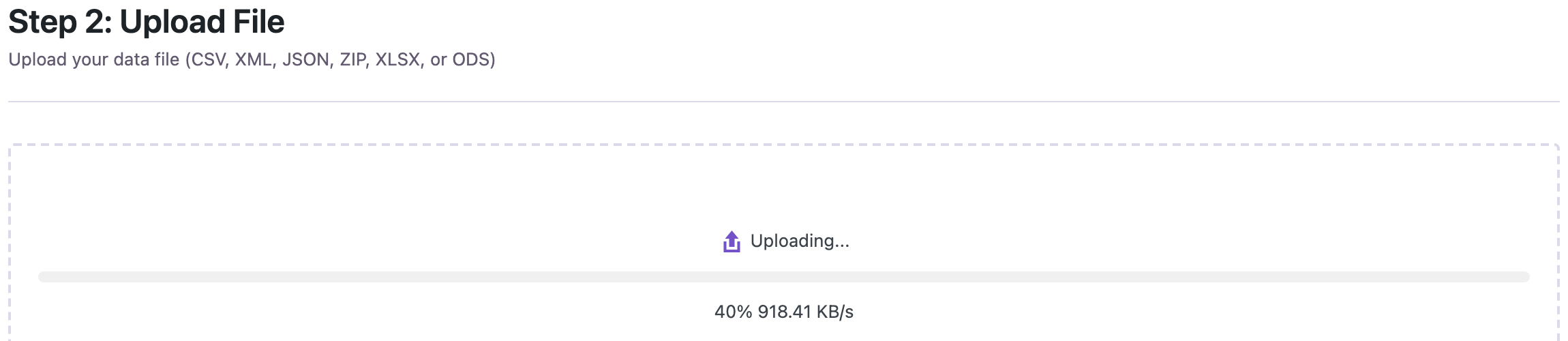
Choose Blog Posts and select the CSV. The file is uploaded in 1 MB chunks, so upload_max_filesize and post_max_size do not limit it; the 94.9 MB file took 112 seconds over the local network. If a smaller limit still blocks you, the guide to the upload size error lists the other options.
The preview reads only the beginning of the file, so it opened in 1.6 seconds and still reported the full row count.

Step 2: Map the Columns
Click Auto Map. With these column names everything is mapped automatically, including categories and tags; the categories and tags guide covers other column names and Parent > Child paths.
Step 3: Choose the Batch Size
Batch Size is the number of rows imported per request. Each request loads WordPress once, so bigger batches mean fewer requests. A batch also stops by itself after about 20 seconds and continues in the next request, so a large value does not run into the PHP time limit.

| Rows in the file | Batch Size |
|---|---|
| Text only (no image URLs) | 50 (default) to 200 |
| With image URLs to download | 5 to 20 |
| Very slow or shared hosting | 20 to 50 |
Turn off Automatically Import Media Files when the file has no image URLs. If it does, see importing featured images by URL.
Step 4: Start the Import
The import runs in two stages. First the file is read in slices of up to 1,000 rows or 1 MB and stored in the database; nothing is imported yet. Then the stored rows are imported batch by batch. Progress is saved after every row, so a stopped request continues from the next row without gaps or duplicates.

The finished job in the Jobs Log: 100,000 of 100,000 rows, no failures.

The Numbers
| Stage | Time |
|---|---|
| Upload (94.9 MB, chunked) | 112 s |
| Preview | 1.6 s |
| Preparation (100,000 rows stored) | 2.5 minutes |
| Import (100,000 posts, Batch Size 50) | 75 minutes, plus 3 minutes of final checks |
| Peak memory per request | 20 MB of 256 MB |
| Front page response during the import | 1.1–2.9 s (1–4 s before the import started) |
The import speed stayed level from the first post to the last: about 1,600 posts per minute with the default batch size, and around 1,300 on average because other tests were running on the same laptop for part of the time. A shorter extra run with a Batch Size of 100 imported about 2,600–3,000 posts per minute on the same site.

Why the Site Stays Responsive
- Short requests. Each batch is a separate request that stops after about 20 seconds and does not start a row that is unlikely to finish in time.
- Constant memory. The job keeps exact counters, the last 200 rows and up to 500 error messages, so memory per request stays the same at row 100 and row 100,000.
- One duplicate check per batch. Post titles of a whole batch are checked with a single query instead of one query per row.
- Fewer recounts. Category and tag counts are updated once per batch, not after every post.
- Safe resume. The source file is checked for changes on every slice and in full before the first row is imported, and progress is saved after every row.
Rows with Images and ACF Galleries
Text rows are cheap; images are not. Every image is downloaded and WordPress creates several resized copies of it. In our comparison of free CSV import plugins, a 12.9 MB CSV with 10,000 posts, a featured image URL in every row (10,000 different 1000×667 JPEGs) and five ACF fields (text, number, select, true/false, date) imported in 27 minutes 41 seconds with the default Batch Size of 50. All 10,000 images were downloaded and resized, every ACF value was linked to its field, memory stayed at 20 MB per request, and the longest request took 26 seconds.
Larger images and galleries cost more. In another test, 60 posts with a featured image, an ACF image field and a 5-image ACF gallery (420 images of 2000×1333 pixels) imported at about 5 posts per minute. A batch still stopped after about 20 seconds, so no request ran into the time limit, and memory stayed at 18 MB per request.
A gallery cell can list image URLs separated by commas, or by | if the URLs themselves contain commas, and can mix in IDs of images that are already in the Media Library:
https://example.com/a.jpg, https://example.com/b.jpg
https://example.com/c.jpg|https://example.com/d.jpg|1234
One row is never split between requests, so a single row with dozens of large images can still take longer than a hosting time limit allows. For large files with images, import the text first and the images in a second pass, or split the file so each part can be checked.
Why Some Importers Fail on Large Files
Not every importer works in batches. Some read and import the whole file in one page load, which works on a local site with no time limit and fails on hosting. In the same comparison, Really Simple CSV Importer imported the 10,000-row file in a single request of 1,292 seconds. With the PHP time limit set to 120 seconds, a common hosting value, the request stopped after 1,238 posts and the page showed no error message. The rest of the file was simply not imported.
If an import leaves you with only part of the posts and no error, check the time limit first: PHP time limit under Tools → Site Health → Info → Server (the max_execution_time setting), and use an importer that splits the work into short requests.
Can I Close the Tab?
Yes. A closed tab does not cancel the job: it continues in the background through WP-Cron, and its progress is shown in the Jobs Log. WP-Cron only runs when someone opens a page of the site, so the speed then depends on traffic. In a test with one page view per minute, a 5,000-row import continued at about 900 rows per minute after the tab was closed and finished in under seven minutes.
On a site with no visitors, such as a new staging site, keep the tab open or set up a real server cron job that calls wp-cron.php every minute.
Common Problems and Fixes
The import stops with a timeout or a 500 error
Lower the Batch Size, especially when images are downloaded, and use version 2.1.13 or later, where a batch stops after about 20 seconds. The job can be resumed from the Jobs Log; rows already imported are not imported again.
“Allowed memory size exhausted”
The import itself used about 20 MB per request. Memory errors usually come from image processing, so lower the Batch Size for files with image URLs, or import the images in a second pass.
The site is slow for visitors during the import
Each batch is a normal PHP request. On small hosting plans with few PHP workers, keep the default Batch Size and run large imports outside peak hours.
FAQ
Should I split the CSV into smaller files?
No. The file is read in slices, so one 100,000-row file works and keeps a single job and report. Splitting only helps if you want to check the result of a first part before importing the rest.
Does it work with Excel files?
Yes. XLSX and ODS files are prepared the same way, in resumable slices.
Can an AI agent run a large import?
Yes. The plugin’s abilities upload the file in chunks and start and monitor the job, as described in the Abilities API guide.
Related Guides
- Free WordPress CSV import plugins compared: 10,000 posts, images and ACF fields tested
- “Maximum upload file size exceeded” on WordPress import: 4 fixes
- How to import posts with categories and tags from CSV
- CSV import shows broken characters? Fix UTF-8, Excel and accents
- How to import WordPress blog posts from CSV or Excel
- How to Fill a WordPress Test Site with 1,000 Realistic Posts
Import Export by RockStarLab is free on WordPress.org.

Comments 0
Have a question or a tip to share? Leave it below.