
Member profiles that live on two sites drift apart: a new biography on one, an updated photo on the other. With Import Export by RockStarLab you select the accounts on the Users screen and push them to the connected site. Existing accounts are matched by email first, then username, so repeating the push updates the profiles instead of creating a second account for each person.
The example sends two subscribers one way, with names, biographies, roles and ACF fields including a profile image. After the admin steps come prompts for doing the same through a connected AI agent.
What user synchronization transfers
User sync is useful when preparing a second site for an existing community, moving selected member profiles, or keeping profile information consistent across sites you manage. It sends account data through the connection between the sites, without an intermediate CSV download.
| Data | Behavior |
|---|---|
| Email and username | Used to identify an existing destination account. A new account is created when neither matches. |
| First name, last name, display name, website and biography | Copied to the destination profile; later transfers update these values. |
| WordPress roles | Recognized destination roles can be assigned to the account. Custom role definitions must already exist there. |
| ACF profile fields | Compatible field definitions are required on both sites. This example includes text, true/false and an image. |
| Password, login sessions and application passwords | Excluded from the transfer. Existing destination passwords stay unchanged. |
| Posts, orders and membership subscriptions | Not transferred merely by selecting a user. Handle related content through its own workflow. |
This is account-data synchronization, not single sign-on. It does not share login sessions or make the source password work on the second site. Newly created accounts receive a generated password; arrange a password-reset or onboarding process on the destination when those people need to sign in.
If you need a spreadsheet-based transfer instead, use the separate guide to exporting and importing WordPress users with ACF fields. For store migrations that also need orders, products and customer relationships, see WooCommerce store data migration.
Prepare the source and destination
Install and activate Import Export by RockStarLab and its PRO add-on on both sites. User synchronization is a PRO workflow. Use PRO 2.0.4 or later for the user-list ACF image workflow shown here, with a compatible current free plugin.
You need administrator access to configure the connection and manage the selected users. Both WordPress sites must be reachable from one another through their REST API. A hosting login wall or a rule that blocks every unauthenticated REST request can prevent the plugin’s own connection authentication from running.
Choose which site is authoritative for these profiles. In this guide, the source sends information and the destination receives it. If someone edits a biography on both sites, a later push can replace the destination wording with the source wording. Agree on the editing direction before using repeated transfers.
Review destination accounts before the first sync. Because email is checked before username, an email address already attached to a different account deserves attention. Do not use a transfer to guess which of two conflicting accounts belongs to a person. Keep a recoverable backup of the destination before bulk changes.
Prepare matching ACF field definitions
For custom profile data, activate ACF on both sites and make the same field group available on user forms. Transfer the field definitions through ACF’s tools or your normal deployment process so that field keys and types stay compatible. Recreating a label alone does not guarantee the same field definition.
| Example field | Type | Example value |
|---|---|---|
| Department | Text | Member support |
| Show in directory | True / False | Yes |
| Profile image | Image | An attachment selected from the Media Library |
The Profile image here is a custom ACF field. It does not replace WordPress’s standard profile-picture behavior or create a public member-directory design. Your theme or directory feature decides how these fields appear to visitors.
Step 1: Connect the two WordPress sites
On the destination, open Import Export by RockStarLab → Content Sync. Expand This Site Configuration with Show Details and obtain its API key. Keep the key private.
On the source, open the same Content Sync screen and click Add New Site. Enter a descriptive name, the destination’s full WordPress URL, and the destination API key. Save the connection and confirm that it is active. If an active connection already exists for that destination, reuse it.
The destination must be reachable from the source server, not only from your own browser. For the full connection walkthrough and common setup issues, see connecting WordPress sites for Content Sync.
Step 2: Select the users on the source
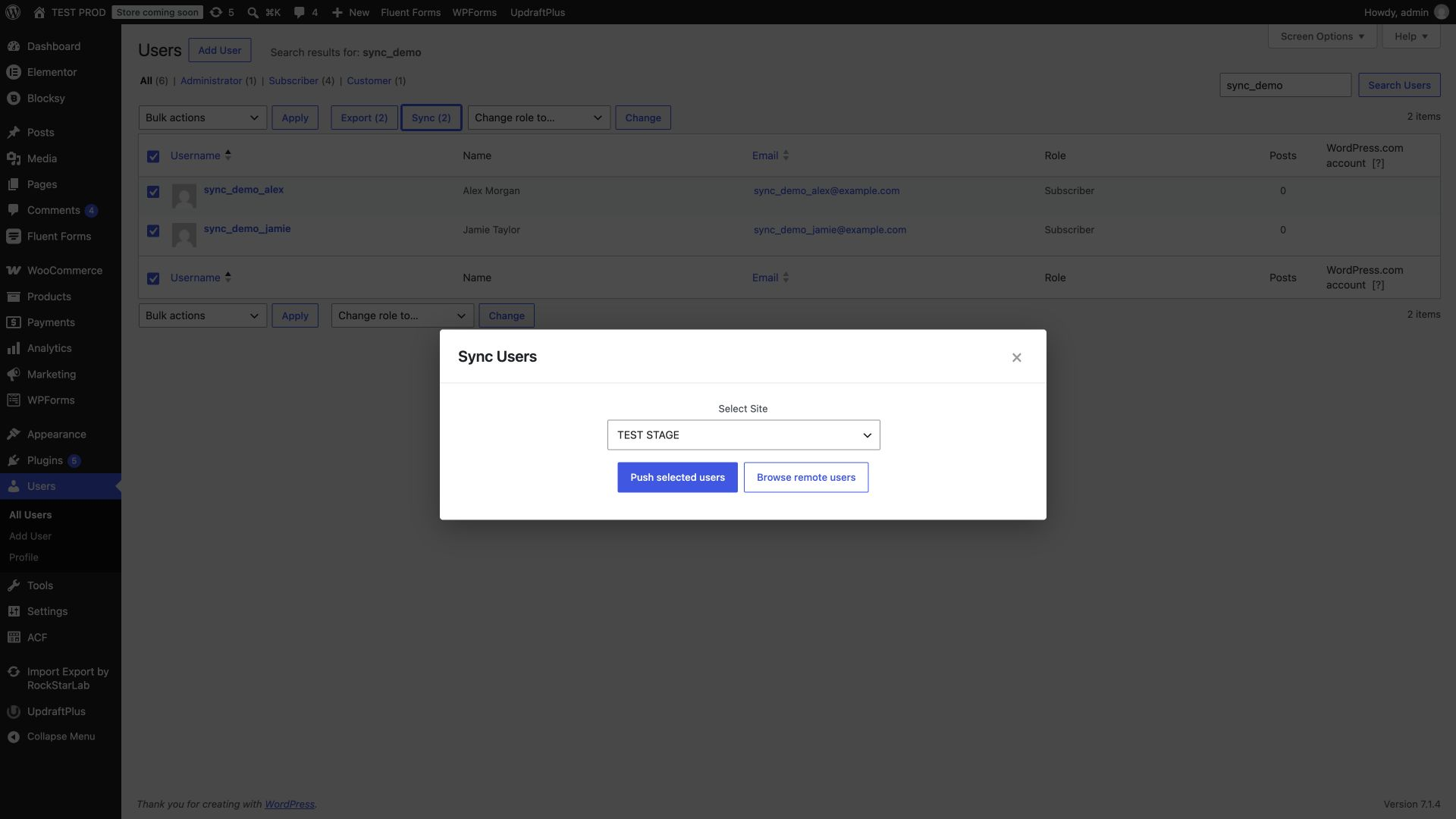
Go to Users → All Users on the source site. Search for the accounts you want to transfer and check their rows. This example selects Alex Morgan and Jamie Taylor, both with the Subscriber role.

Click Sync (2). The number reflects your selection. Select individual accounts deliberately; do not include your administrator account just because it appears on the same page.
Review roles before sending the accounts. A role controls what the person can do on the destination, and a later sync can change that role again. The WordPress roles and capabilities reference explains the standard roles. If your site uses a custom role supplied by another plugin, establish that role on the receiving site first.
Step 3: Push the selected users
In the Sync Users dialog, choose the intended destination under Select Site. Click Push selected users and wait for the result.
The dialog reports how many accounts were created or updated. When the two example accounts do not yet exist on the destination, the result is Created: 2, Updated: 0.
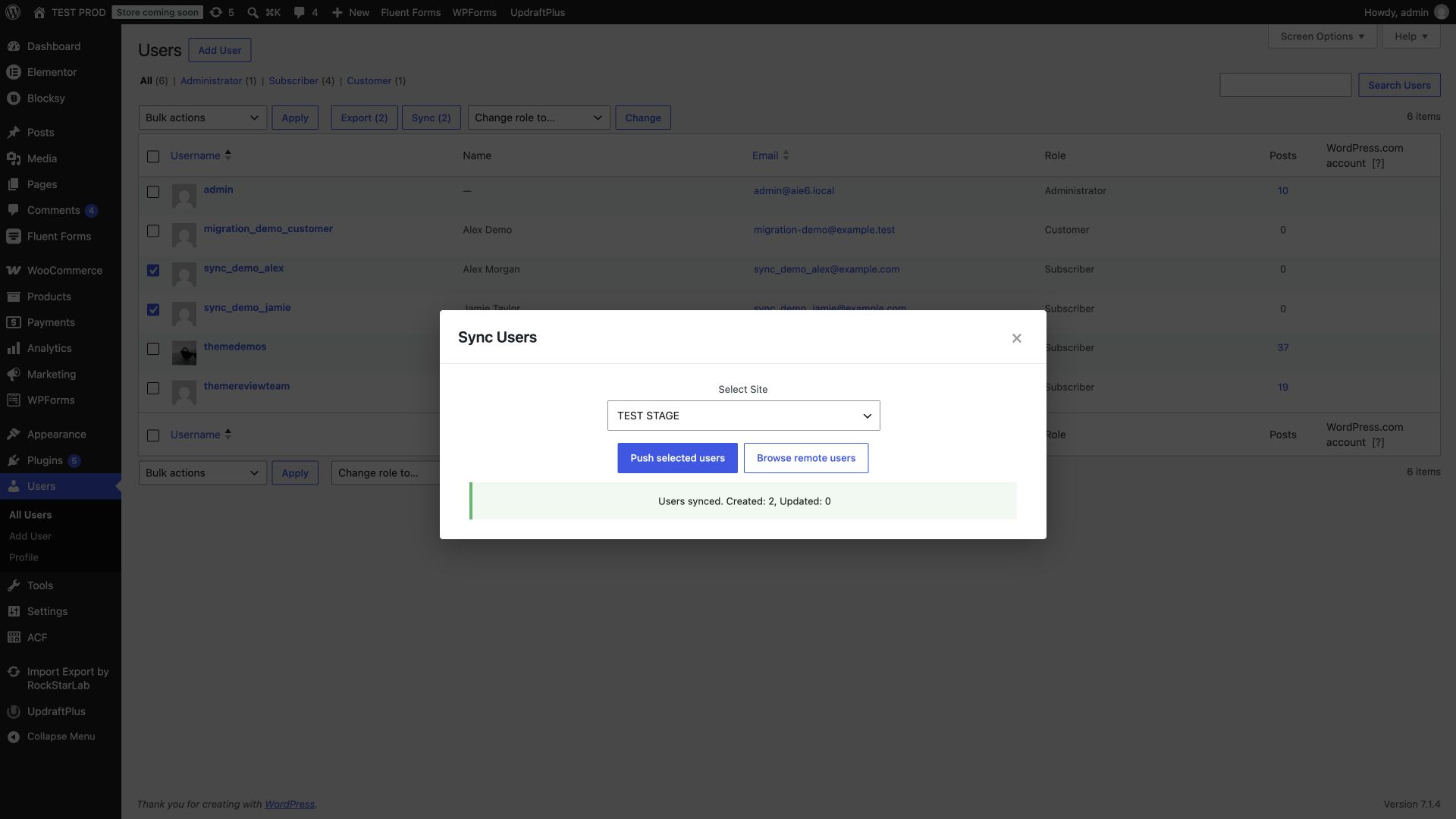
Matching is automatic: the receiving site looks for the email address first and falls back to the username if it finds no email match. Numeric user IDs are local to each WordPress installation and are not the matching rule. Do not expect an account to receive the same ID on both sites.
If the browser request times out, inspect the destination before clicking Push again. A timeout does not prove that no accounts were written. Reconcile the actual result before repeating the operation.
Step 4: Check the destination profiles
Open Users → All Users on the receiving site and search for the transferred accounts. Check the username, name, email and role for each person.

Open a profile and check the first and last name, display name and biography. Continue to your ACF field group. The department, directory switch and selected image should reflect the source values.
An ACF image is more than an integer stored in a field. Its attachment reference must point to the correct file on the receiving site. Inspect the image preview and, when necessary, open the attachment in the destination Media Library. The resulting file URL should belong to that site.
When a matching file already exists on the destination, it can be reused. The attachment ID may therefore differ from the source ID without indicating a problem. Check the actual image rather than comparing the numeric IDs alone.
Update existing profiles without duplicating users
Edit Alex’s department on the source from Member support to Member success, and revise the biography. Save the source profile, select the same users, and repeat the push.
For accounts that still match by email or username, the receiving site updates the existing records. You should see Created: 0, Updated: 2, retain the same destination user IDs, and find the revised department and biography in Alex’s profile.

Keep identity changes deliberate. Changing both the email and username removes the identifiers used to recognize the old destination account. Conversely, a username match can update an existing account’s email when no email match exists. Resolve conflicting identities before synchronizing.
The transfer updates profile values; it is not a field-by-field merge interface. A blank source biography can replace the destination biography. Review the source before sending a repeat update, especially when destination editors maintain additional profile information.
Sync WordPress users through an AI agent
Connect your agent to the source WordPress site using the Abilities API and MCP setup guide. The account used by the agent needs the relevant permissions and active PRO access. Reuse the existing Content Sync connection; do not paste its private key into public prompts or documentation.
Start with a scoped instruction that names both the destination and the selected users:
Discover the available RockStarLab abilities and read the schema for user synchronization. Find the existing connection to my destination site. Sync only sync_demo_alex and sync_demo_jamie from this site to that destination. Confirm the source user IDs before executing. Preserve compatible ACF profile values and enable verified ACF media transfer. Do not include other users or change plugin settings. Report created, updated and failed counts and the source-to-destination user mapping.The direct push ability is rsl-ie-pro/sync-users-push. It takes the existing site_id and selected user_ids. For ACF image fields, set acf_media_references to true. The agent must discover the current input schema rather than assume that every installation exposes identical operations.
For a repeat update, use a prompt that includes the expected outcome:
Push the same two selected users to the same connected destination. Alex's Department should now be Member success and the biography should read Helping members plan their next project. Enable acf_media_references. Verify that both existing destination accounts are updated, no new users are created, their roles remain Subscriber and the profile image references the correct destination attachment. Do not reset passwords or send emails. Open the destination profiles to check the result.The response includes created, updated and failed counts plus a user_mapping from source IDs to destination IDs. Use that mapping to inspect the intended accounts. A successful response should be followed by a profile check, particularly when custom fields or images are involved.
The direct operation accepts up to 50 selected users. Keep this example focused on a small selection. Do not treat it as evidence of an unlimited-volume migration or an automatic two-way identity service.
ACF relationship fields need their own mapping
Text and a profile image are straightforward examples. ACF fields that reference another user, post or taxonomy term need compatible definitions and the appropriate reference options. Do not assume that copying a raw ID will point to the same object on another site.
For a relationship-heavy profile, ask the agent to inspect the field definitions and current sync schema first, identify the referenced objects, and explain the required destination mappings before executing. The walkthrough above demonstrates text, true/false and an image; it does not require those additional relationship fields.
Troubleshooting user synchronization
| Symptom | What to check |
|---|---|
| The destination does not appear | Check Content Sync connections on the site from which you are pushing. Confirm the destination URL and active status. |
| The connection is rejected | Check the destination key and server reachability. Inspect hosting or security rules that can block the REST endpoint before plugin authentication runs. |
| An account was updated instead of created | Look for an existing matching email or username. Existing-account updates are intentional. |
| An ACF value does not appear in the editor | Confirm the field group is present, assigned to user forms and uses compatible keys and field types. |
| A custom role is absent | Register the role on the destination. Sync transfers assignments, not the plugin or code that defines a custom role. |
| The source password does not work on the destination | Passwords are excluded. Use the destination’s existing password or its reset process. |
| A public directory does not show the transferred image | Check the saved ACF field first, then the theme or directory integration that displays it. |
When the next part of your move involves site content, continue with the guides to syncing taxonomy terms and ACF images or syncing WordPress menus with ACF fields.
Frequently asked questions
Can I sync WordPress users between separate sites?
Yes. Connect the sites in Content Sync, select users on the source Users screen, and push them to the destination with the RockStarLab PRO add-on.
How are existing users matched?
The destination checks email first, then username. A matching account is updated; a new account is created when neither identifier matches.
Does user sync copy passwords?
No. Source passwords, sessions and application passwords are excluded. Existing destination passwords remain unchanged, and newly created accounts receive a generated password.
Is this single sign-on?
No. User synchronization copies account data. It does not share login sessions or provide a common sign-in across sites.
Can ACF user fields and profile images be synchronized?
Yes, with compatible ACF definitions on both sites. This walkthrough covers text, true/false and an image. Use PRO 2.0.4 or later for the illustrated user-list image workflow.
Does synchronization install custom roles?
No. Custom role definitions must already exist on the destination. Review the resulting role assignment after transfer.
Can an AI agent perform the same user sync?
Yes. A connected agent with the required permissions and PRO access can use the user-sync abilities. Specify selected users, the destination and verified ACF media transfer, then inspect the resulting profiles.
Does selecting a user also move their posts or orders?
No. Selecting an account does not automatically transfer its posts, orders or subscriptions. Plan the related content transfer separately.

Comments 0
Have a question or a tip to share? Leave it below.