
You have finished organizing a section of your WordPress site: the categories make sense, their descriptions are ready, and the parent categories are in the right order. Now the same structure needs to exist on another site. Recreating every term by hand is slow, and copying names alone leaves room for mismatched slugs and missing parents.
To sync WordPress categories or tags between sites, connect the sites in Import Export by RockStarLab, select the terms in their WordPress admin list, click Sync, choose the destination, and use Push selected terms. You can repeat the operation to update existing terms. Standalone taxonomy synchronization requires PRO.
This guide covers the admin workflow first, followed by prompts and an Abilities API example for an AI agent. The main example transfers a three-level category branch. Tags and WooCommerce product categories use the same principle, with a few differences explained below.
Choose term sync when you want to move the taxonomy structure
A taxonomy is a grouping system, such as Categories, Tags, or Product categories. A term is an individual entry in that system: Field Guides, Trail Planning, or Trail Equipment.
Transferring these entries is useful when you maintain a shared editorial structure across client websites, prepare a new category branch on staging, or want a second store to use the same product-category names. It lets you move a focused selection without replacing the destination database.
| Your goal | Choose this workflow |
|---|---|
| Copy or update selected categories and their descriptions | Standalone term sync, covered here |
| Edit a list of terms in a spreadsheet before importing | Taxonomy CSV export and import |
| Move posts together with their category assignments | Post or custom post type Content Sync |
| Transfer products, images, and product relationships | WooCommerce product sync |
| Copy an entire website, including plugins and settings | A website backup and restoration workflow |
For a file-based approach, follow how to export and import WordPress categories, tags, and custom taxonomies. For posts and their assignments, use the guide to syncing custom post types with ACF and taxonomies.
What to prepare on both WordPress sites
- Install and activate Import Export by RockStarLab and PRO on both sites. The receiving site must support the term operation as well as the sending site.
- Use an administrator account with access to the relevant taxonomy. An agent also needs the appropriate permissions and enabled abilities.
- Register the same taxonomy on both sites. Categories and Tags are built into WordPress. For a custom taxonomy, activate the plugin, theme, or code that defines it on the destination first.
- Check the taxonomy identifier. Two taxonomies labeled Topics are not necessarily the same taxonomy. Their registered names must agree.
- Choose one source of truth. Decide which site’s names and descriptions should win before updating existing terms.
- Back up the destination before changing an established structure. See the WordPress backup and restore guide if you need a recovery workflow.
Keep the destination’s existing terms in mind. A matching slug may identify a term that already exists there. Read its description before deciding whether replacing that content is appropriate.
Step 1: Connect the source and destination
Open Import Export by RockStarLab → Content Sync. Add the destination using its site URL and incoming Content Sync API key, then check that the connection works. The remote server must be reachable from the source server; opening both sites in your own browser is not enough if hosting restrictions block requests between them.
The Content Sync connection guide explains the connection setup. Treat the API key as a credential and keep it out of screenshots, article content, and shared prompts.
Throughout this tutorial, source means the site holding the terms you want to send, and destination means the site receiving them. The example screenshots label these sites TEST PROD and TEST STAGE. Choose the actual destination by its URL rather than assuming that a familiar site label proves the direction.
Step 2: Select the categories you want to send
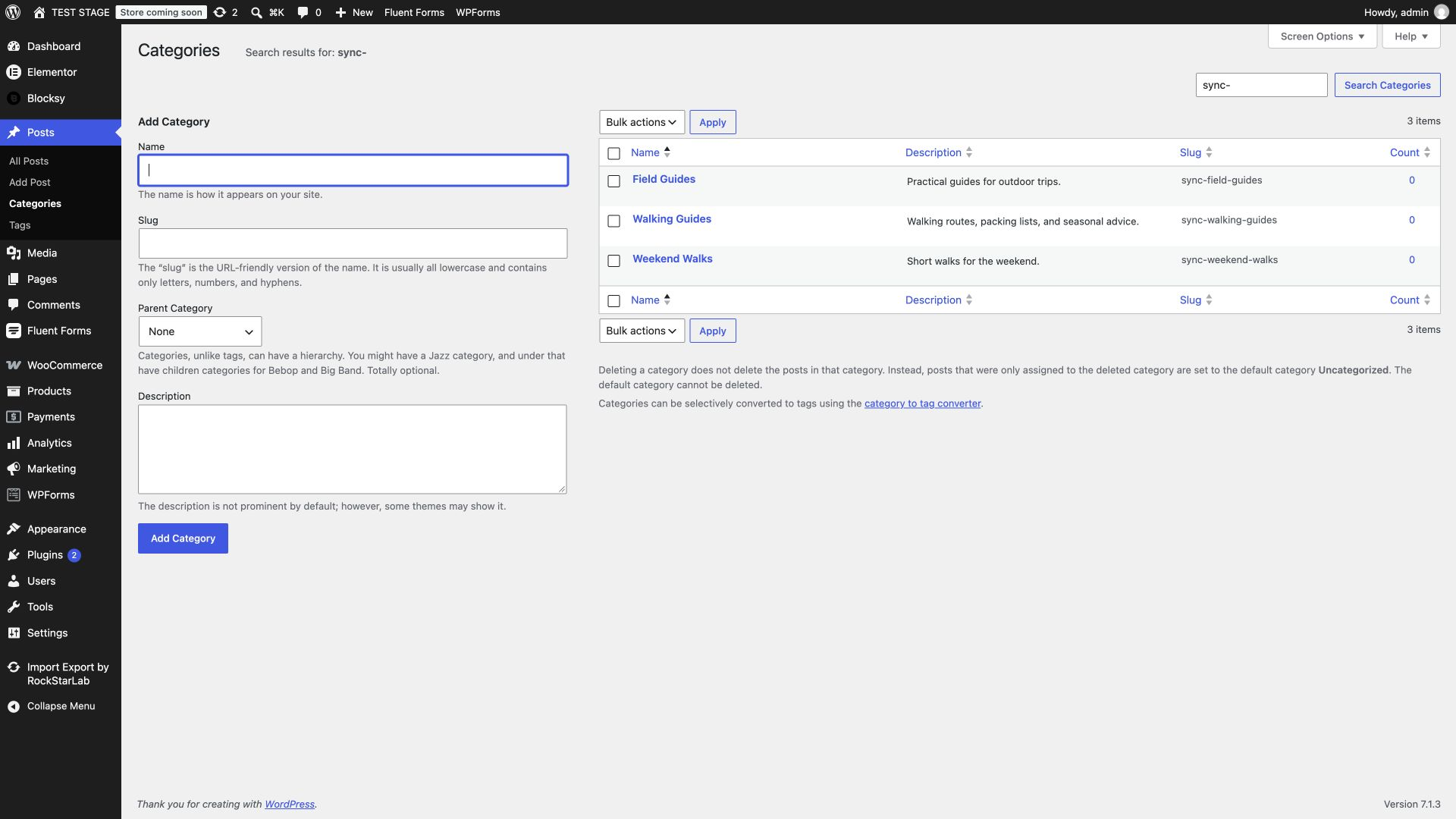
On the source, open Posts → Categories. Search for the relevant entries if the list is long, then select their checkboxes. Our branch contains:
Field Guides
└── Walking Guides
    └── Weekend Walks
Select all three terms for the initial transfer. Including the complete branch gives the operation the parent records it needs to establish the destination hierarchy. Selecting a parent does not mean you should assume every descendant is selected: review the checked rows and the number on the Sync button.
Names, slugs, and descriptions serve different purposes. The name is the visible label; the slug identifies the term in URLs and is used for matching; the description is the text stored for the category. The destination theme decides whether to display that description on an archive page.
Step 3: Push the selected terms
Click Sync above the term list. When three entries are selected, the button shows Sync (3). The dialog displays the selected-term count and a Select Site dropdown.
Choose the destination, check its URL, and click Push selected terms. This sends the selection from the site you are currently using to the connected site. The separate Pull / update selected terms button works in the other direction; it is not the action to use for this source-to-destination walkthrough.
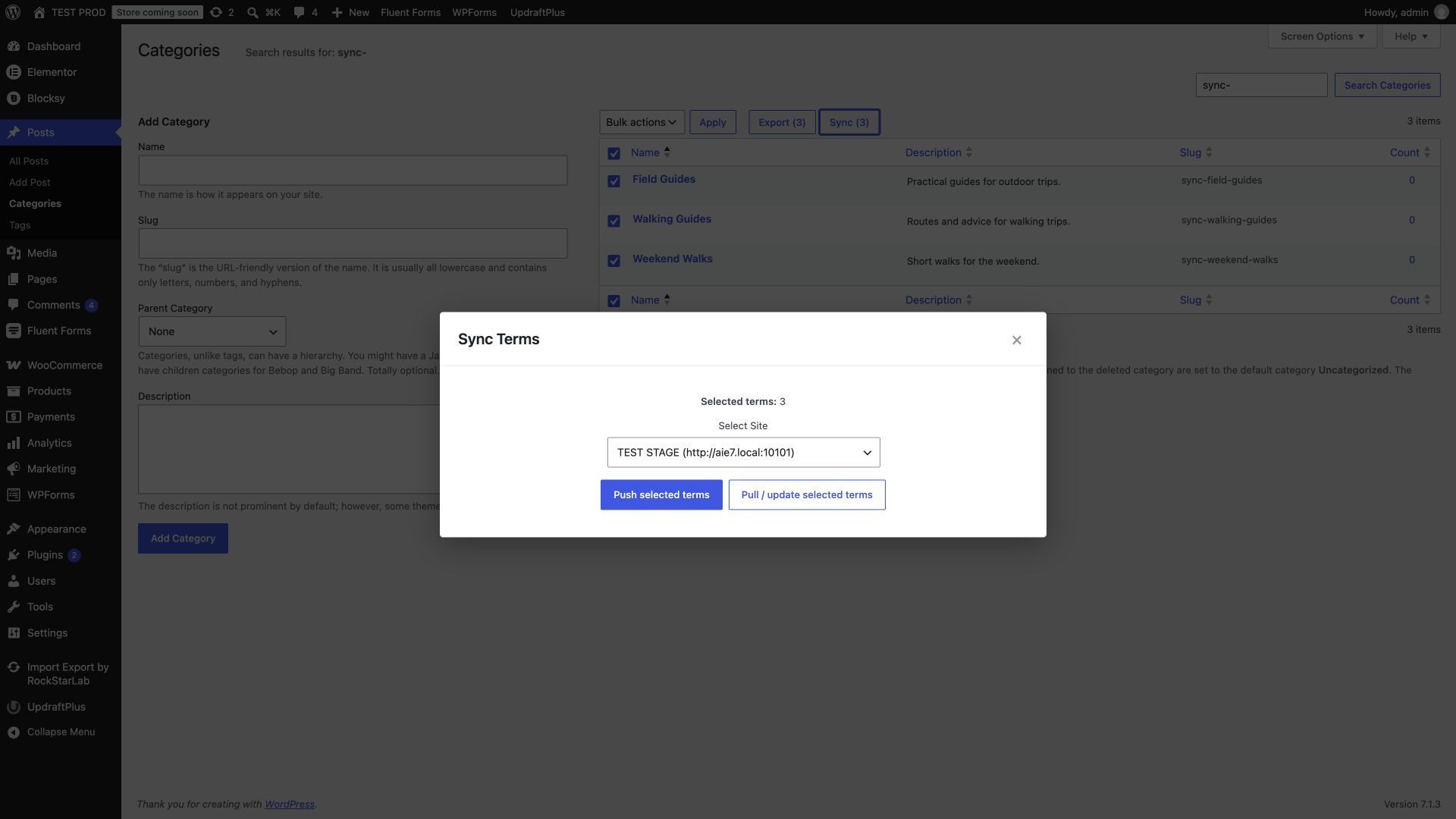
Wait for the completion message before closing the dialog. For a branch that does not exist on the destination, the result can read Terms synced. Created: 3, Updated: 0. A subsequent run should normally update matching entries rather than create another copy of the same structure.
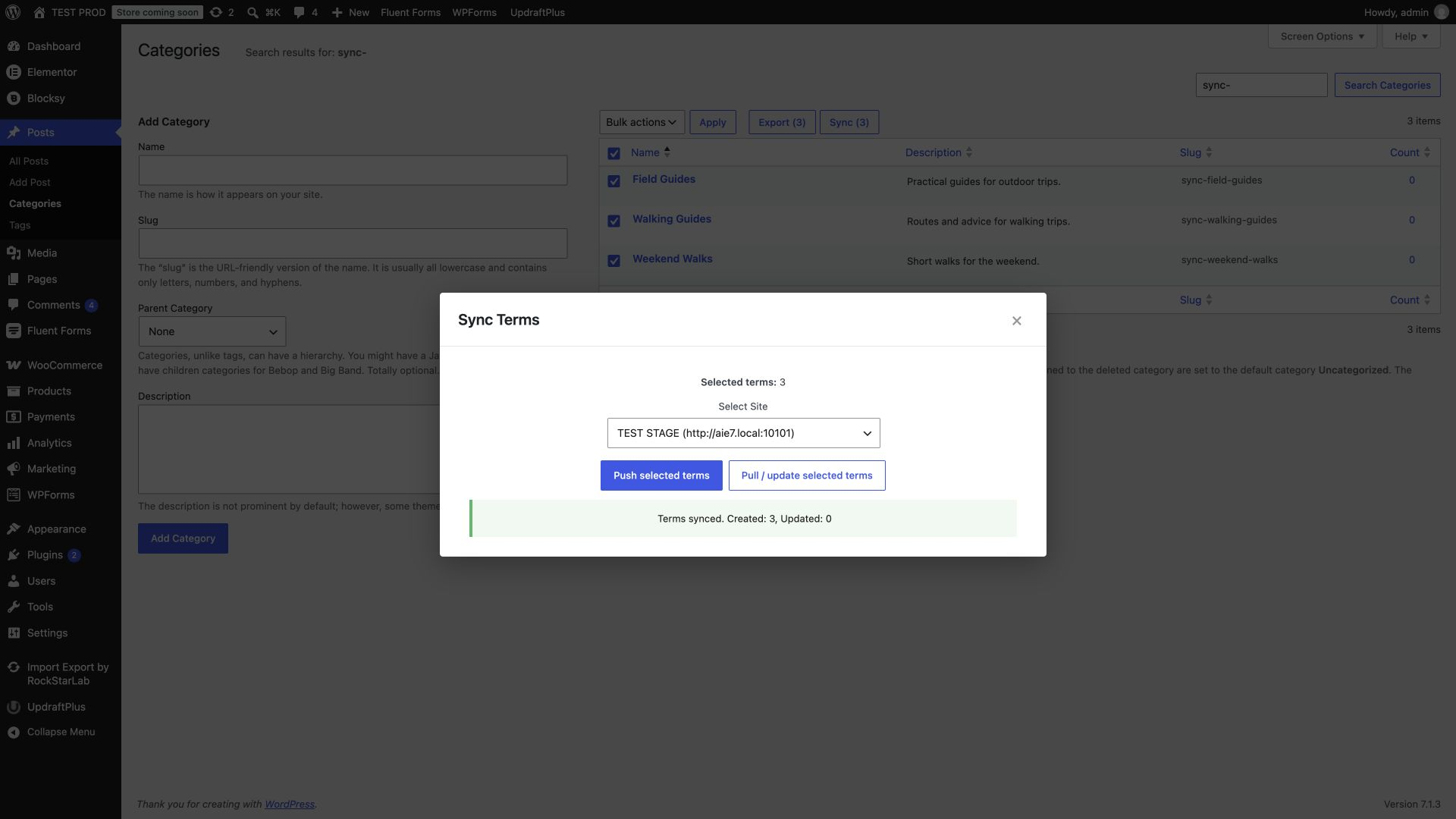
If the request times out, inspect the destination before clicking Push again. A lost response does not establish that the receiving site made no changes.
Step 4: Check the destination hierarchy
Open Posts → Categories on the destination and find the transferred branch. Check the names, slugs, and descriptions, then open the deepest child in its editor.
For Weekend Walks, Parent Category should be Walking Guides. Walking Guides should in turn belong to Field Guides. Verify the selected parent in the editor when a filtered list makes indentation difficult to read.
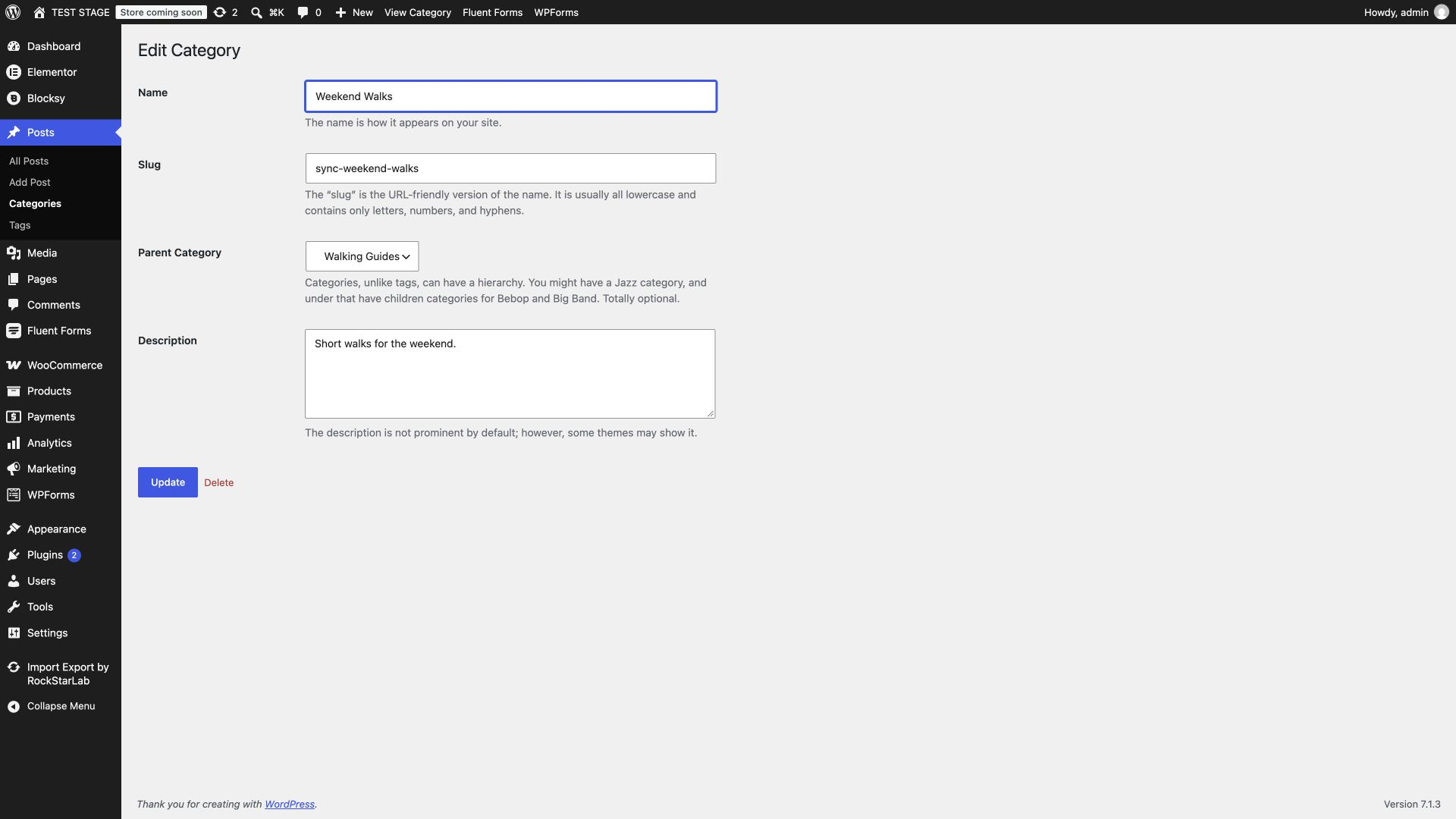
The destination creates its own term IDs. Different numbers on the two sites are normal. What matters is that each child points to the appropriate destination parent, not that its numeric ID matches the source.
The category’s Count may be zero even when the transfer succeeded. Standalone term sync creates or updates terms; it does not copy the posts assigned to them. To populate an archive, transfer the relevant posts and their taxonomy relationships using the corresponding content workflow.
Step 5: Update descriptions without creating duplicates
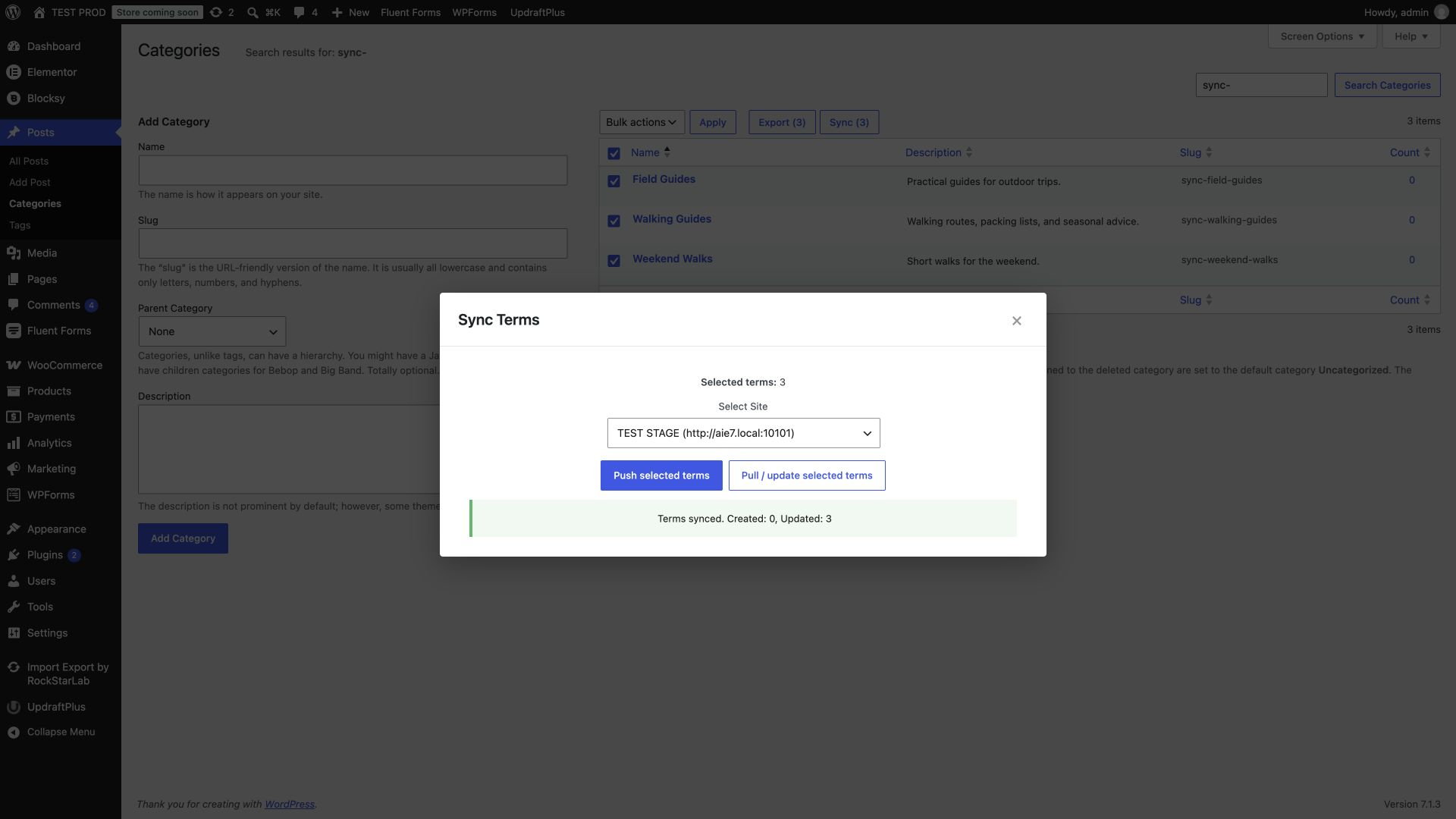
Suppose Walking Guides needs a more useful introduction. Edit its description on the source to Walking routes, packing lists, and seasonal advice. Save it, return to the category list, select the branch, and push to the same destination again.
With the same slugs and existing destination entries, the result should show updates. In the example, the second operation reports Created: 0, Updated: 3. Open Walking Guides on the destination and confirm that the new description is present.
Keep slugs stable for routine updates. Changing a slug also changes the identity used by automatic matching and can change archive URLs. If you intend to rename slugs or merge an existing destination structure, establish explicit term mappings and a separate redirect plan before applying those changes.
Use one direction for each editorial update. Sending an older destination copy back to the source can replace newer text. Content Sync is a controlled transfer, not automatic conflict resolution between independently edited sites.
Sync WordPress tags
For tags, open Posts → Tags on the source, select the entries, and use the same Sync → Select Site → Push selected terms sequence. WordPress tags are flat, so there is no Parent Category field to compare.
Check the destination tag’s name, slug, and description. For example, Trail Planning uses the slug sync-trail-planning and the description Planning routes and preparing equipment. Its post count remains independent of the source site’s count.
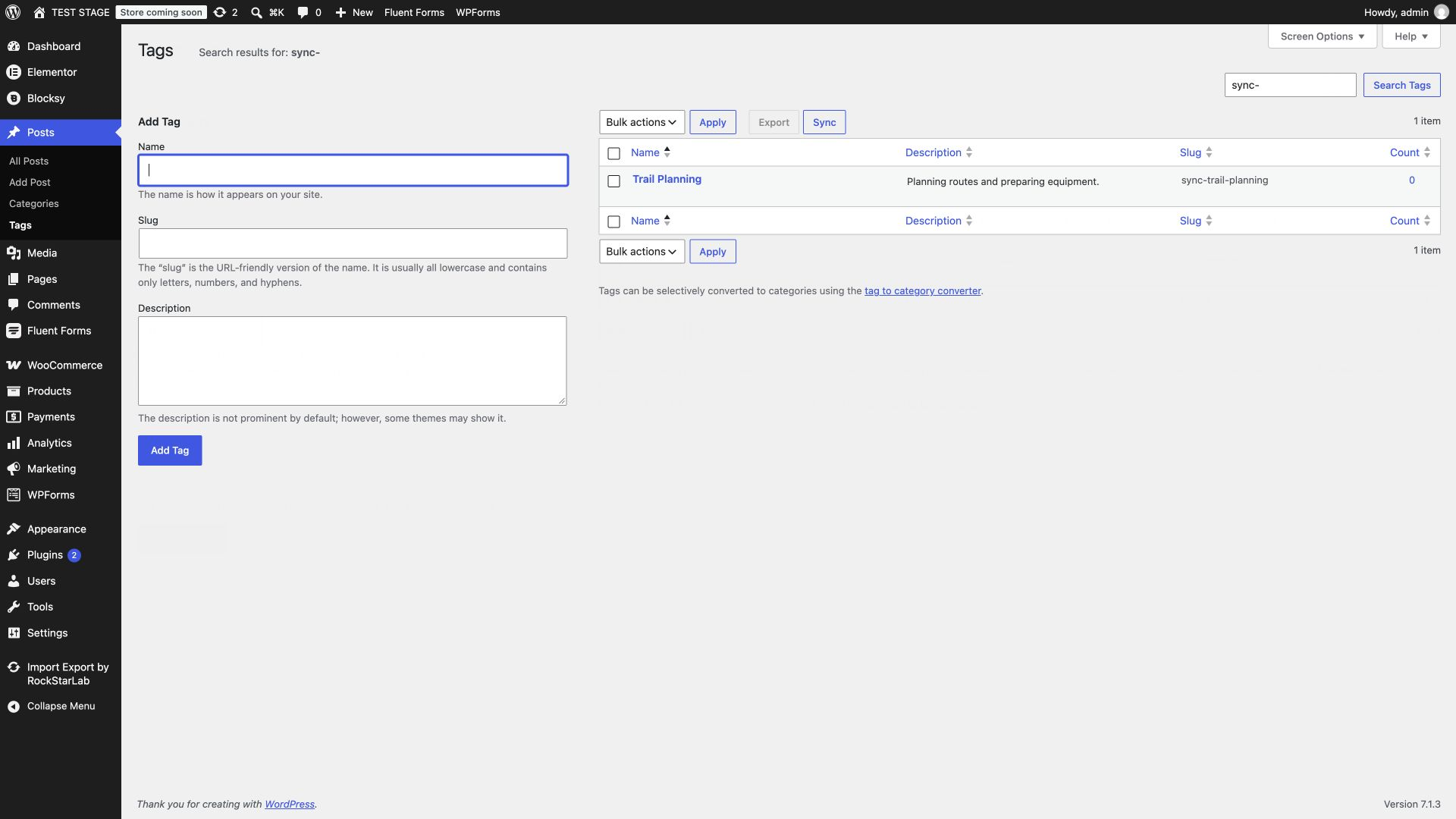
Run categories and tags as separate selections. A category and a tag can have similar names without being interchangeable; the taxonomy determines where the incoming term belongs.
Sync custom taxonomies and WooCommerce product categories
For a registered custom taxonomy, open its term-management screen and select the terms there. Its menu location depends on the plugin or theme that registers it. Confirm that the destination provides the same taxonomy before sending anything.
| Term group | Taxonomy identifier | Where to find it |
|---|---|---|
| Post categories | category |
Posts → Categories |
| Post tags | post_tag |
Posts → Tags |
| WooCommerce product categories | product_cat |
Products → Categories |
| Your custom taxonomy | The name registered by your site code or plugin | Its own term-management screen |
WooCommerce product categories are a practical example of a taxonomy supplied by a plugin. With WooCommerce active on both sites, you can transfer a term such as Trail Equipment and check its name, slug, and description under Products → Categories on the destination.
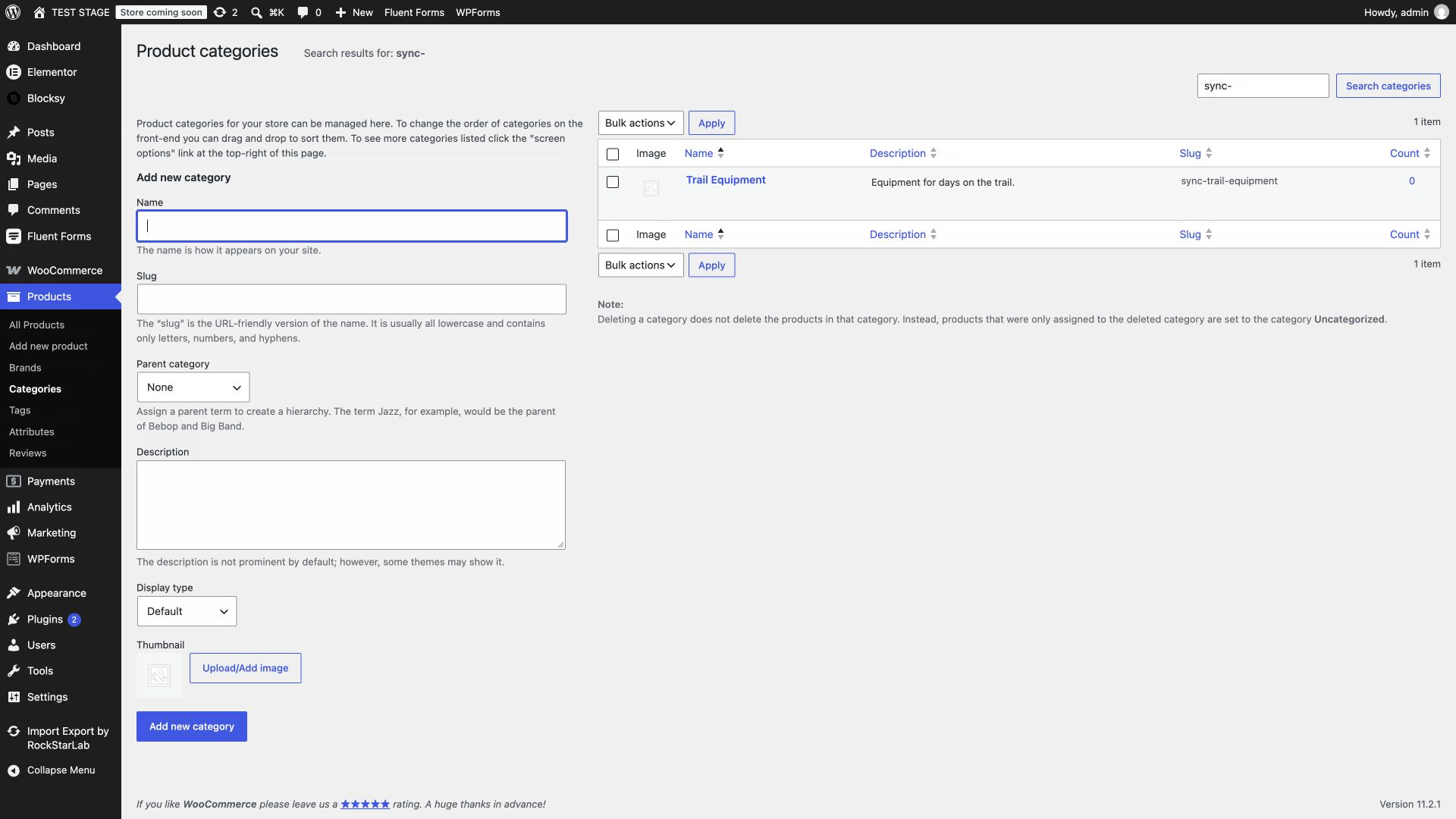
Moving a product category does not move its products, prices, variations, or stock. Use WooCommerce product synchronization when those records need to travel together.
Sync ACF Fields and Category Images Between Sites
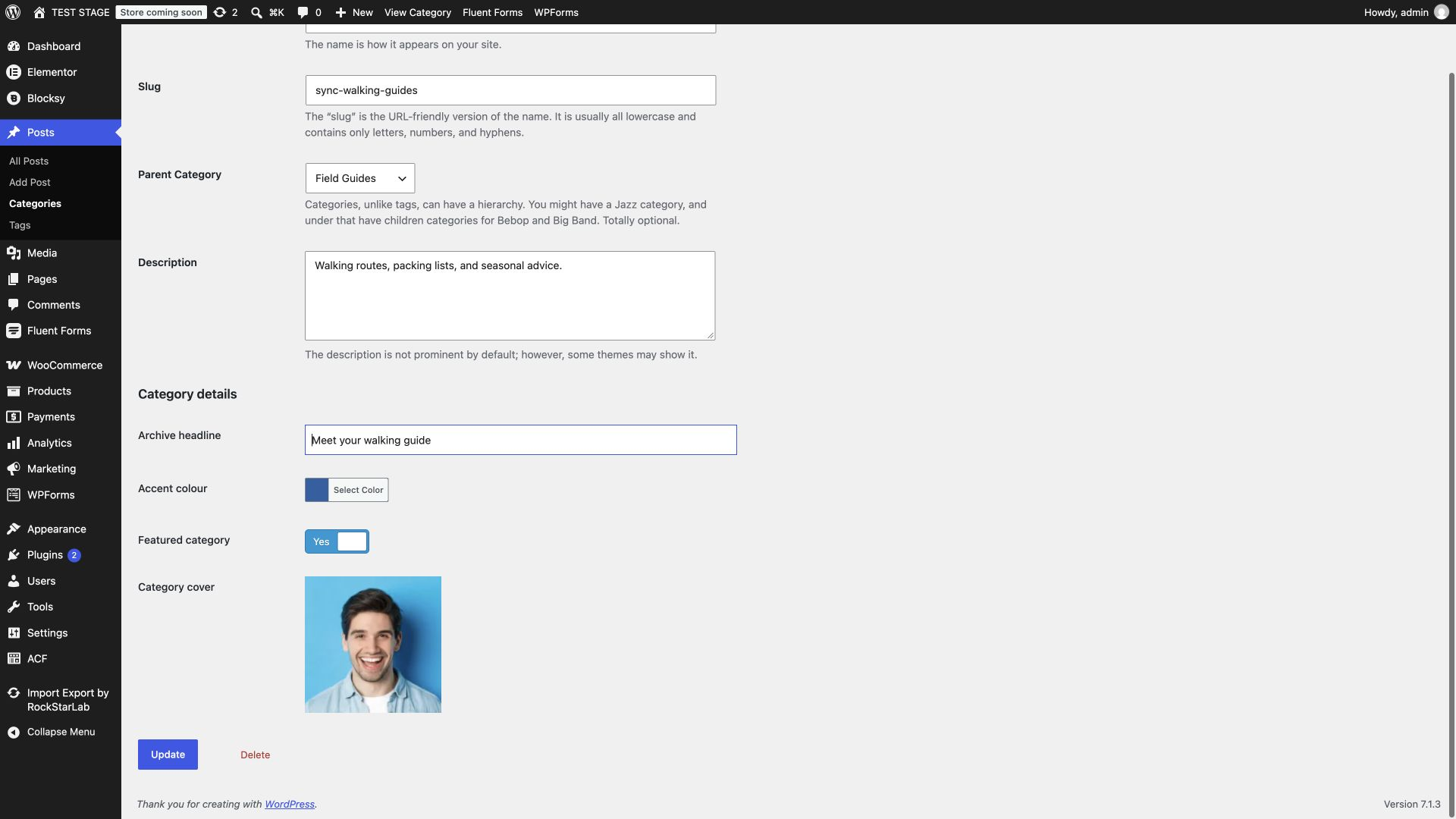
A category can hold much more than a name and description. An editorial site might store an archive headline, an accent colour, a featured-category switch, and a cover image in ACF. Those values belong to the term itself and can travel with it during synchronization.
Prepare matching ACF field definitions
Activate ACF on both sites and make the same field group available on the destination before syncing values. Use ACF Tools or your existing field-group deployment process to keep field keys, names, types, and location rules compatible. Transferring term values is not a replacement for deploying the field definitions.
For this example, create a group named Category details with the location rule Taxonomy is equal to Category:
| Label | Field name | ACF type | Example value |
|---|---|---|---|
| Archive headline | rsl_term_headline |
Text | Plan your next walking adventure |
| Accent colour | rsl_term_colour |
Color Picker | #26856a |
| Featured category | rsl_term_featured |
True / False | Yes |
| Category cover | rsl_term_image |
Image | An image selected from the Media Library |
Set the Image field’s return format to Image ID for this example. Open Field Guides under Posts → Categories, fill in the fields, choose a cover, and click Update.
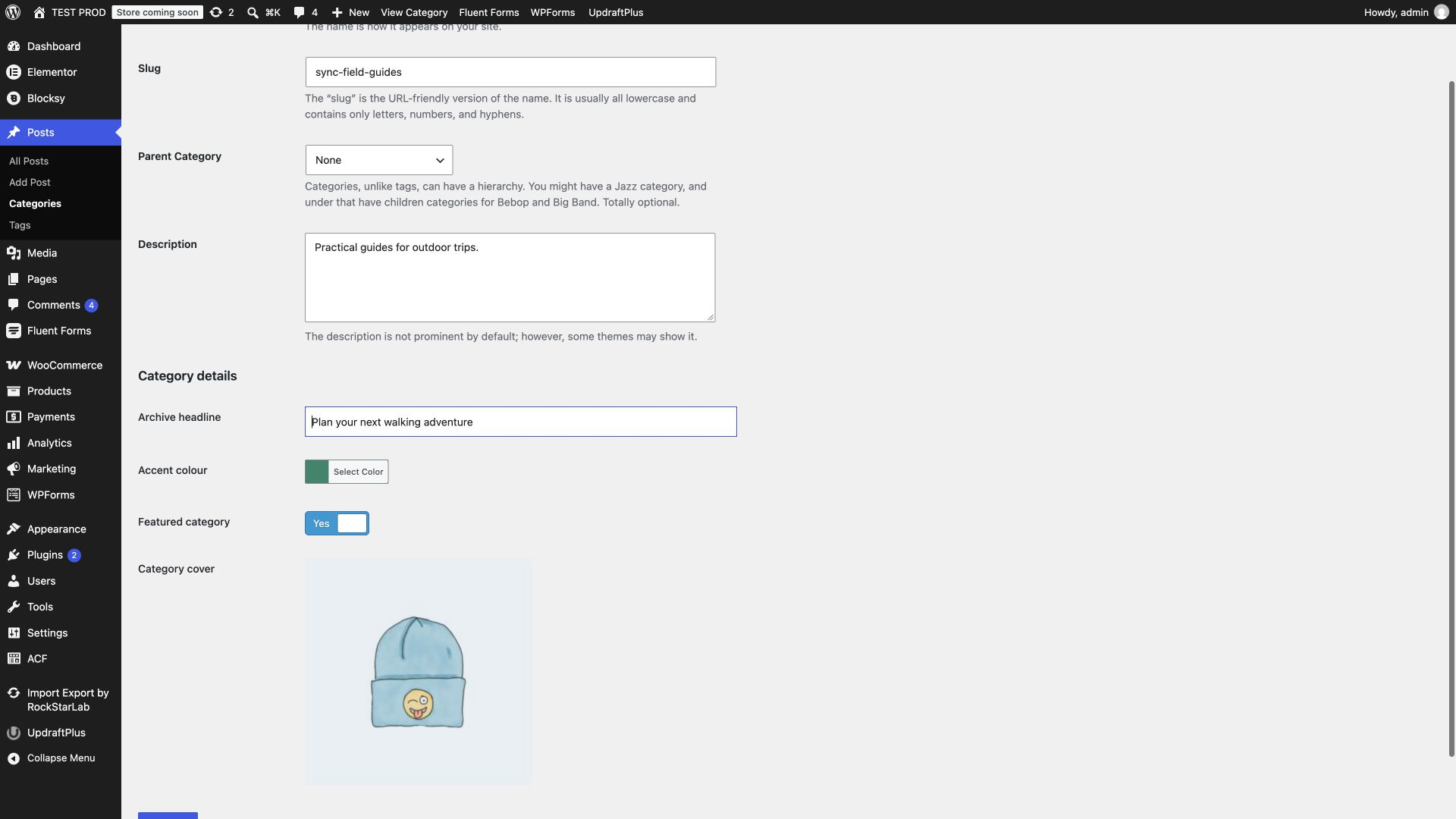
Send the category and check its custom fields
Return to Posts → Categories, select Field Guides, and use Sync → Select Site → Push selected terms. Open the matching category on the destination. The headline, colour, switch, and selected cover should be populated in the Category details group.
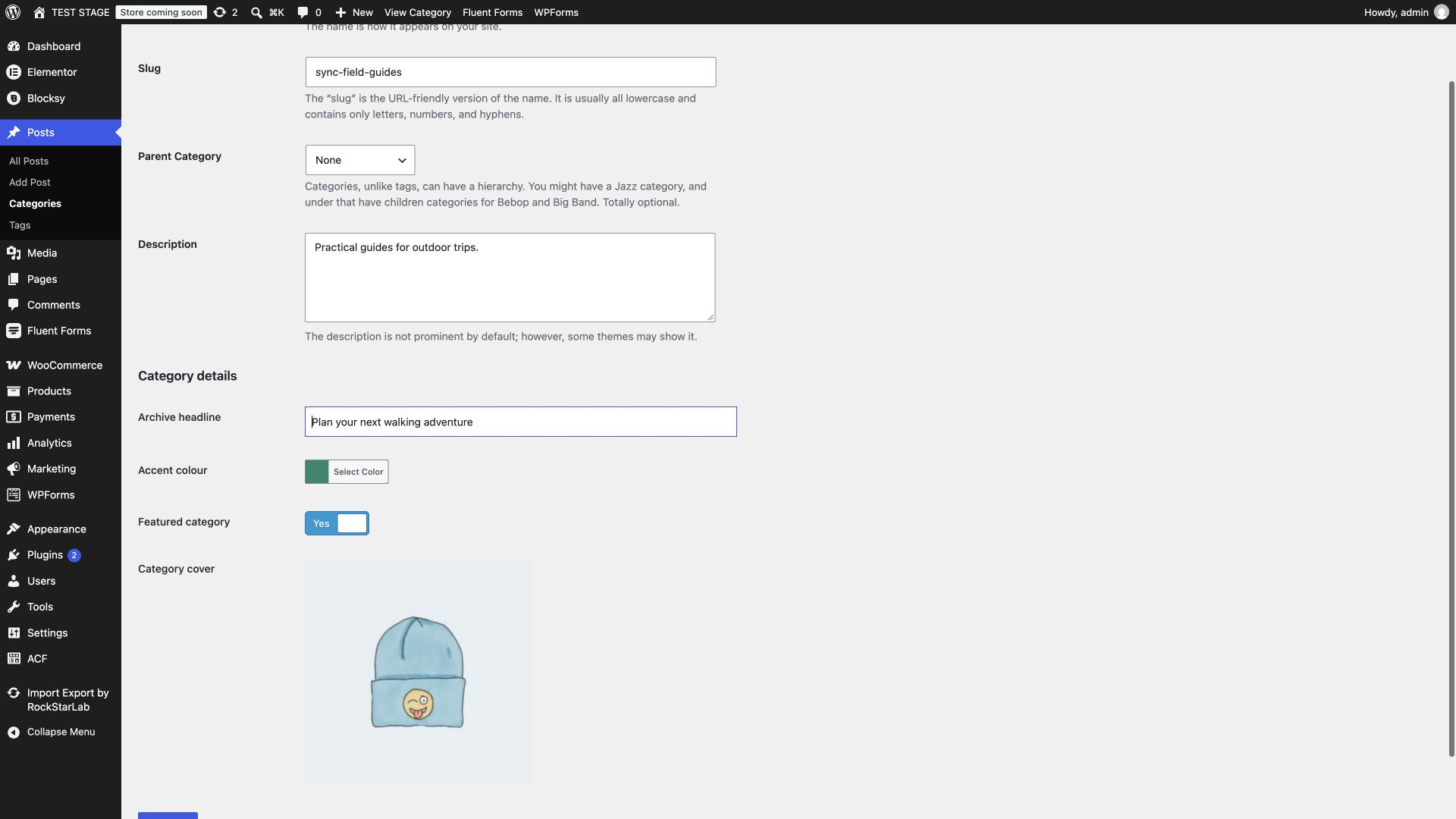
What automatic image mapping means
Image IDs are local to each WordPress database. Copying the source attachment number directly would risk selecting an unrelated destination image. The transfer resolves the image to a destination attachment and assigns that destination ID to the ACF field.
A matching image already available on the receiving site can be reused. When the required image is absent, the media-enabled transfer can copy the file into the destination Media Library and map the field to the newly created attachment. You do not need to manually replace the image ID in the category editor.
After syncing, open the selected image and check that its file URL belongs to the receiving site. Also check that the thumbnail loads in the ACF field. Different attachment IDs are expected; an unchanged source-site URL is not proof that a local copy was created.
ACF values do not automatically change the archive design. Your destination theme must render the headline, colour, switch, and image where you want them to appear. Likewise, an ACF Image field is distinct from WooCommerce’s built-in product-category thumbnail; do not treat the two fields as interchangeable.
Sync taxonomy terms through an AI agent
An AI agent can run the same focused transfer through the plugin’s WordPress abilities. First follow the AI-agent and MCP connection guide. The agent must discover the abilities available on your installation and read their input schemas before executing them.
For standalone terms, the relevant operations use the rsl-ie-pro namespace. The source’s site_id identifies an existing Content Sync connection; it is not a term ID or a WordPress multisite blog ID. Ask the agent to inspect that connection and resolve the selected terms before writing.
Prompt 1: Inspect the selection without changing content
Inspect the existing Content Sync connection from our source site to our
staging site. Do not change content or settings yet.

Find the category branch Field Guides → Walking Guides → Weekend Walks.
Show each source term's ID, slug, description, and parent. Inspect the
destination for matching terms and identify any conflicts. Confirm that
PRO term-sync abilities and the category taxonomy are available.
Prepare the exact source-to-destination selection for my review.
This separates discovery from the transfer. It is particularly useful when both sites already contain categories with similar names. An agent should resolve actual records, not invent IDs from names.
Prompt 2: Transfer the approved branch
Push the approved Field Guides category branch from the source site to
the connected staging site using Import Export by RockStarLab.
Include all three categories and preserve their parent relationships.
Use the reviewed destination mappings for terms that already exist.
Do not transfer posts, delete terms, or change unrelated categories.

Report created, updated, and failed counts and the source-to-target
term mapping. Then check names, slugs, descriptions, and parents on
the destination. If a request times out, inspect the result before retrying.
The synchronous push ability is rsl-ie-pro/sync-terms-push. It accepts one taxonomy and up to 50 selected term IDs. The following is an illustrative request shape; replace every connection and term ID with values discovered on your own sites:
{
  "taxonomy": "category",
  "site_id": 1,
  "term_ids": [101, 102, 103],
  "term_mapping": {
    "101": 501,
    "102": 502,
    "103": 503
  }
}
term_mapping maps source IDs to existing destination IDs. Omit it for an initial transfer when no explicit destination matches are required. Do not use zero or fabricated IDs as placeholders. Review automatic slug matches, because an existing destination term may already contain text you want to retain.
The response provides created, updated, and failed counts plus the resulting mapping. A successful transport response alone is not enough: inspect the operation’s result and the destination values. This term operation is synchronous; do not assume that it returns a resumable background job.
Prompt 3: Repeat a controlled update
The Walking Guides description has been updated on the source site.
Synchronize the previously approved category branch to staging again,
using the confirmed source-to-destination mappings.

Check that existing destination IDs are retained, the new description
appears, and Field Guides → Walking Guides → Weekend Walks remains
intact. Report any unexpected new terms or failures. Do not reverse
the sync direction or modify unrelated content.
For tags, specify post_tag and the approved tag selection. For WooCommerce product categories, specify product_cat. Keep each taxonomy in a separate request and discover the permitted inputs again if your installed version exposes a different schema.
Prompt 4: Include ACF fields and their images
Sync the approved category branch to the connected destination,
including its ACF archive headline, accent colour, featured flag,
and Category cover image.

Inspect the installed ability schema and matching ACF field definitions
on both sites first. Enable acf_media_references for the term push.
Resolve image references automatically to destination attachments;
copy missing image files and reuse matching destination images.
Do not copy source attachment IDs directly into destination fields.

After the operation, open the destination category editors and verify
all four fields, the selected images, their destination URLs, and the
parent relationships. Report any failed terms or missing media.
For rsl-ie-pro/sync-terms-push, add "acf_media_references": true to the request shown above. This enables the explicit ACF Image, File, and Gallery transfer path; both peers must support it and the account needs permission to upload files. For the single Image example, no hand-written attachment-ID map is required.
Other reference fields, such as ACF User, Post Object, Relationship, and Taxonomy, have their own mapping requirements. Do not assume that automatic image resolution also establishes every other relationship.
Troubleshooting taxonomy synchronization
| Symptom | What to check |
|---|---|
| The Sync button is missing | Check the active plugin editions, permissions, and the button visibility options for the relevant admin screen. |
| The destination is not listed | Open Content Sync and check that the site connection has been configured on the site from which you are working. |
| Invalid taxonomy | Activate the taxonomy’s defining plugin or code on the destination and compare the registered taxonomy names. |
| A child appears under the wrong parent | Inspect the destination editor. Include the complete source branch for an initial transfer and review existing destination mappings before another run. |
| The archive is empty | Term transfer does not transfer posts or products. Check their assignments separately. |
| A repeat creates an unexpected term | Compare taxonomy names and slugs. Review slug changes and use confirmed mappings when updating known destination terms. |
| The description is saved but not visible on the website | Check the archive template and its display settings; storage and frontend presentation are separate. |
| The request times out | Read the destination first. Confirm which terms were created or updated before deciding whether to retry. |
Before treating the transfer as finished, open one parent and one child in the destination admin, compare their descriptions, and check a repeat update. This small review is more useful than judging the result from a total count alone.
Frequently asked questions
Can I sync categories without exporting a CSV file?
Yes. Content Sync sends selected terms directly between connected WordPress sites. Select them in the category list, choose the destination in the Sync dialog, and push the selection.
Does standalone taxonomy sync require PRO?
Yes. Standalone taxonomy-term synchronization uses PRO functionality. Enable the required plugins and permissions on both the source and destination.
Will syncing a category also copy its posts?
No. Standalone term sync transfers the category record, not the posts assigned to it. Use post Content Sync when you need posts and their taxonomy relationships.
Can I preserve parent and child categories?
Include the complete category branch in the initial transfer, then check the parent selection in the destination editors. Destination term IDs can differ from source IDs.
Will a repeated sync create duplicates?
Existing terms can be updated using matching slugs within the taxonomy or confirmed explicit mappings. Keep slugs stable for routine updates and review conflicts before transferring.
Can I sync WooCommerce product categories?
Yes. With WooCommerce and the required PRO functionality available on both sites, use the product_cat taxonomy. This does not transfer products, prices, variations, or stock.
Does this create a custom taxonomy on the destination?
No. The taxonomy must already be registered there by the appropriate plugin, theme, or site code. Matching display labels alone do not establish matching taxonomy identifiers.
Can I sync ACF fields and images attached to categories?
Yes. Prepare compatible ACF field definitions on both sites, then transfer the term values. ACF images are resolved to destination attachments rather than retaining source attachment IDs. For an agent-driven term push, enable acf_media_references and verify the selected image and destination file URL after completion.
Can an AI agent synchronize the terms?
Yes. A connected agent can discover and execute the PRO term-sync abilities. It should inspect the selection and destination mappings, run the approved transfer, and verify the resulting terms.
Once the structure is in place, use the written tutorial library to choose the next content workflow, or compare the available editions on the Free and PRO feature table.

Comments 0
Have a question or a tip to share? Leave it below.