
In this tutorial, you will learn how to export WordPress users to a CSV or Excel file and then import those users into another WordPress website using
Import Export by RockStarLab.
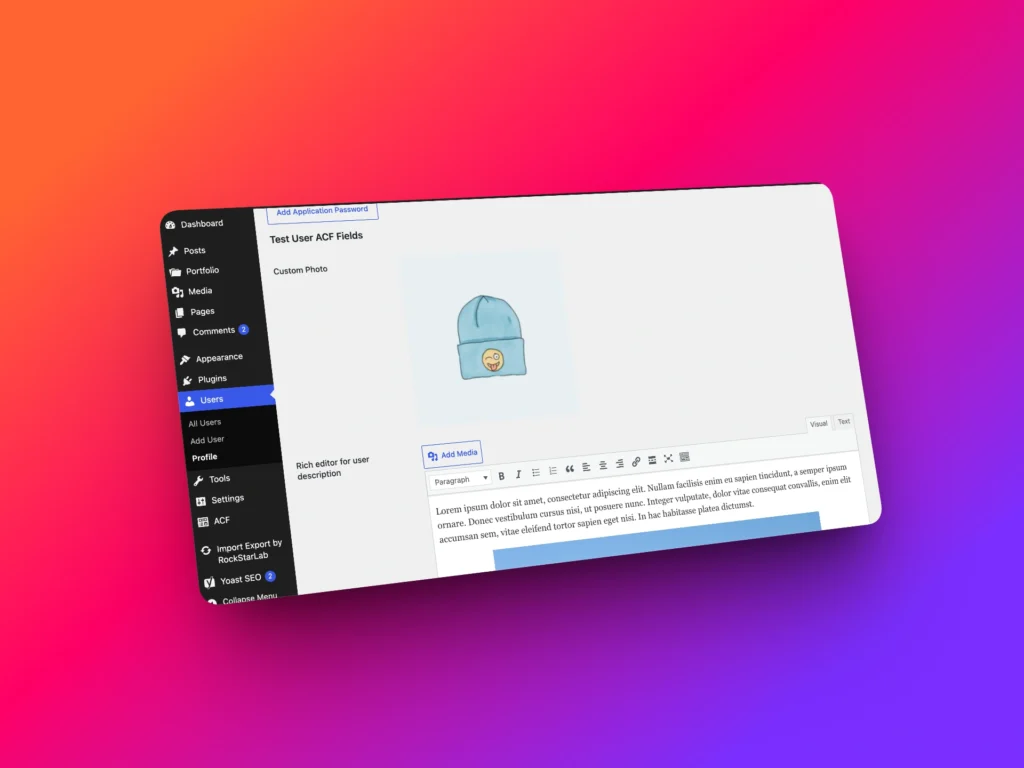
This workflow is especially useful when your user profiles contain more than standard WordPress fields. In the example below, the users include standard profile data,
such as email, login, display name, website URL, and bio, plus custom fields created with Advanced Custom Fields.
Some ACF fields may contain text, while others may contain images. Default WordPress export tools are not designed for this kind of complete user migration, but Import Export by RockStarLab can export and import users together with custom fields and media files.
When Do You Need to Export and Import WordPress Users?
Exporting and importing users is useful when you need to move user accounts between websites, migrate author profiles, copy membership data, prepare data for editing in a spreadsheet, or rebuild a site while keeping user metadata.
This becomes even more important when your website stores extra profile information in ACF fields, such as avatars, company details, social links, membership levels, biographies, or other structured user data.
Exporting WordPress Users
To begin, open your WordPress dashboard and go to Import Export by RockStarLab → Export.
On the first step, choose Users as the content type and click Next Step.
The plugin will prepare the export workflow for WordPress users. If your website has Advanced Custom Fields enabled for user profiles, those fields will also become available in the export field list.
Filtering Users Before Export
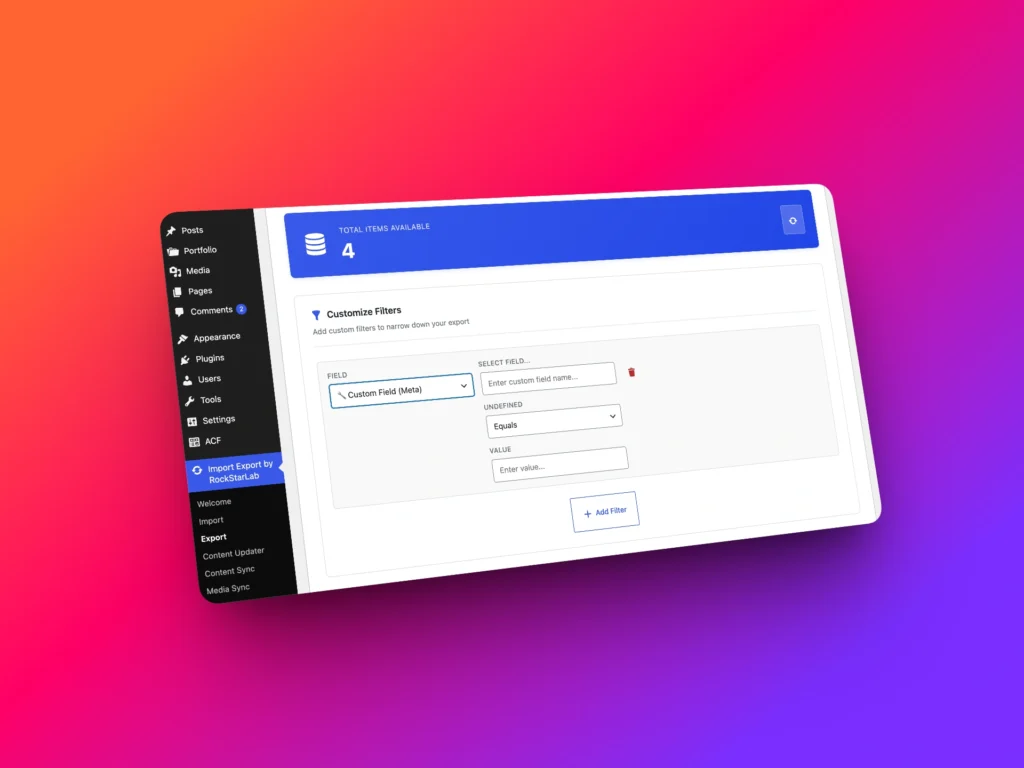
On the filters step, you can decide whether to export all users or only a specific segment of your user database.
For example, you can export only administrators, editors, authors, or subscribers. You can also filter users by post count, email, registration date, or custom field values.
This is useful when you have a large user database but only need to migrate a specific group, such as active authors, members from a certain plan, or users whose ACF profile fields match a specific value.
Selecting User Fields for Export
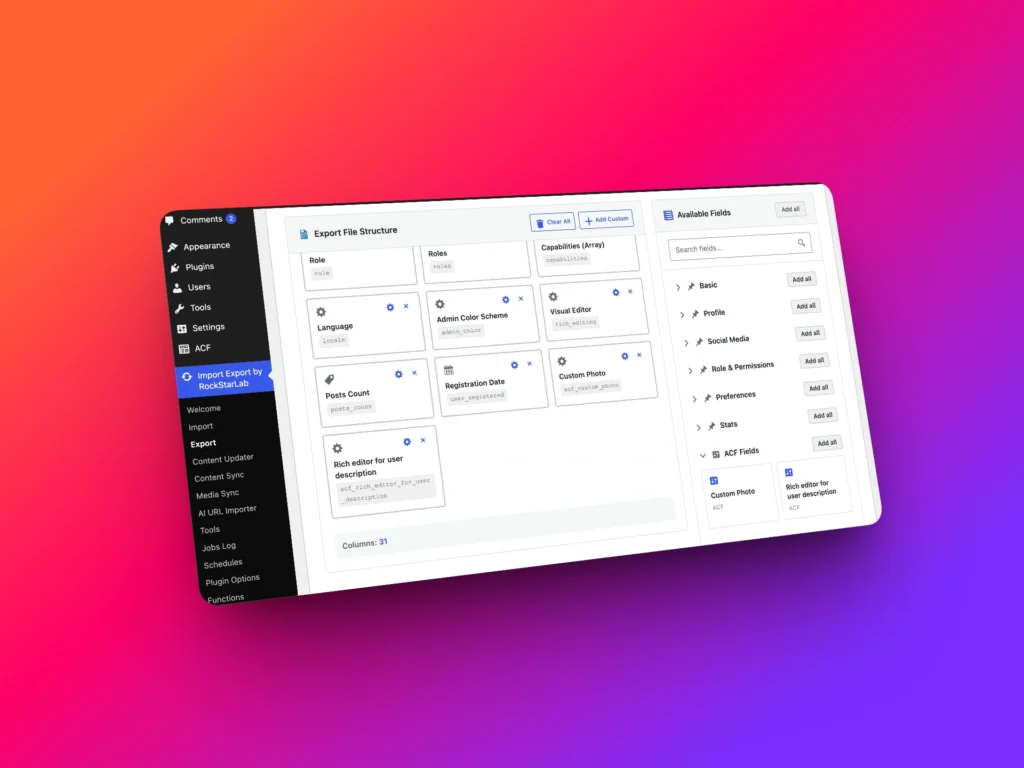
On the fields step, you can choose exactly which data should be included in the export file.
Available fields include standard WordPress user fields such as user email, user login, display name, first name, last name, description, and website URL.
If ACF is active, the plugin also displays the registered ACF user fields. You can drag only the fields you need into the export structure, or click Add All to include all available user data.
Export Formats
Import Export by RockStarLab supports multiple export formats, including CSV, Excel, JSON, XML, and ODS.
CSV is a good option for migration between websites. Excel is convenient when you want to review or edit user data manually, share it with a client, or prepare a user audit.
| Format | Best For |
|---|---|
| CSV | Moving users between WordPress websites |
| XLSX | Reviewing, editing, or sharing user data in Excel |
| JSON | Developer workflows and structured data exchange |
| XML | Integrations and system-to-system migrations |
| ODS | LibreOffice and OpenDocument workflows |
Importing Users into Another WordPress Website
After downloading the export file, switch to the second WordPress website where you want to import the users.
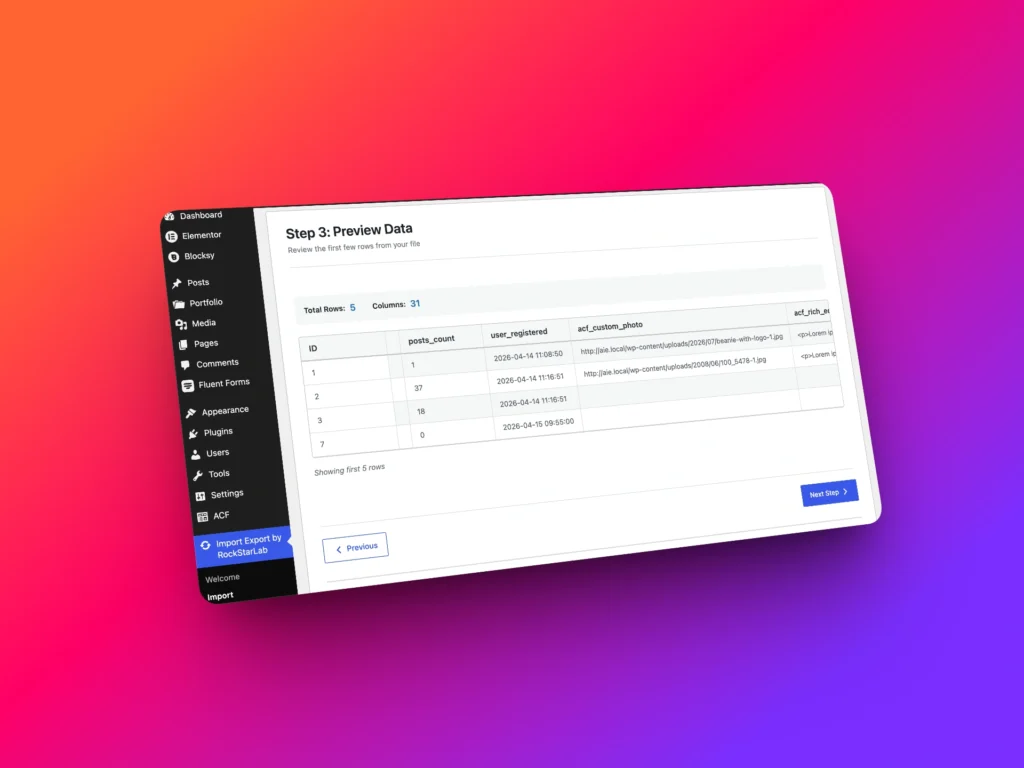
Go to Import Export by RockStarLab → Import, choose Users as the content type, upload the export file, and continue to the preview step.
The preview screen shows the first rows from the file, so you can confirm that the file was detected correctly before importing anything into the database.
Mapping User Fields
The field mapping step connects columns from your import file to WordPress user fields.
If you are importing a custom CSV file, you can map the fields manually by dragging file columns into the correct WordPress fields.
If the file was exported with Import Export by RockStarLab, you can click Auto Map. The plugin will automatically detect the correct connections for standard WordPress fields and supported custom fields, including ACF user fields.
Preventing Duplicate Users
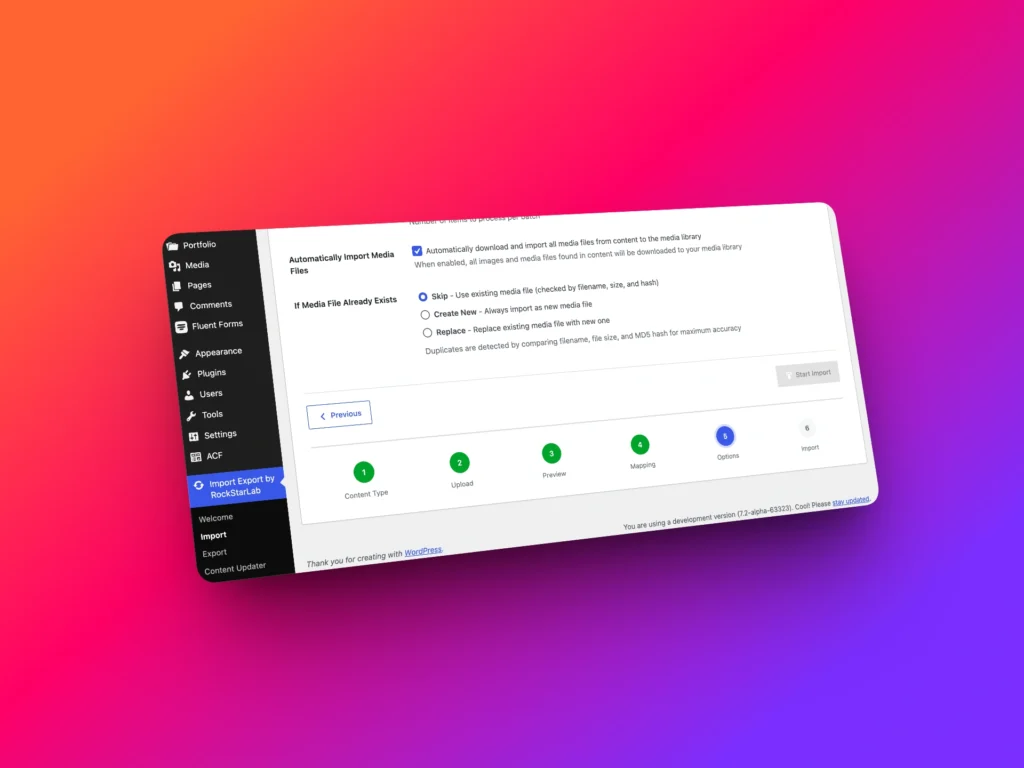
On the import options step, it is important to select the field used to detect existing users.
For WordPress users, the best choice is usually Email, because email addresses are unique for user accounts.
This allows the plugin to detect whether a user already exists. Depending on your import settings, it can update the existing user instead of creating a duplicate.
Importing ACF Images and Media Files
If your ACF user fields contain images, enable the option to Automatically Import Media Files.
With this option enabled, the plugin can detect image references inside the imported data, download those images, add them to the WordPress media library, and connect them to the correct ACF fields on the imported user profiles.
Verifying the Imported Users
Once the import is complete, open the WordPress Users screen on the destination website.
You should see the imported users in the list. Open one of the user profiles and scroll down to the ACF fields to confirm that text fields and image fields were imported correctly.
You can also check the WordPress media library to make sure the images from the imported ACF fields were added to the destination site.
Free vs PRO User Import and Export
User import and export is part of the PRO version of Import Export by RockStarLab. New users can activate the PRO version free for one month with no credit card required.
| Feature | Free Version | PRO Version |
|---|---|---|
| Import and export posts and pages | Yes | Yes |
| CSV, JSON, XML, XLSX, and ODS export formats | Yes | Yes |
| User import and export | No | Yes |
| ACF user field export | No | Yes |
| Automatically import media from ACF fields | No | Yes |
| Transformation functions during import and export | No | Yes |
FAQ
Can I export WordPress users to CSV?
Yes. Import Export by RockStarLab allows you to export WordPress users to CSV and other formats, including Excel, JSON, XML, and ODS.
Can I import WordPress users from another website?
Yes. You can export users from one WordPress website and import them into another website using the plugin’s user import workflow.
Can I export ACF fields attached to users?
Yes. If Advanced Custom Fields are registered for user profiles, Import Export by RockStarLab can include those fields in the user export file.
Can the plugin import images from ACF user fields?
Yes. When the automatic media import option is enabled, the plugin can download images, add them to the WordPress media library, and connect them to the imported ACF user fields.
How should I prevent duplicate users during import?
The recommended option is to check existing users by email, because WordPress user email addresses are unique.