
Easy Accordion keeps its FAQ items as a custom post type, so a CSV of questions and answers imports like posts. In Import Export by RockStarLab, select Custom Post Types, choose All FAQ Items, and map each question to Title and each answer to Content. A stable slug lets later imports update the same items, and a status column keeps unfinished answers as drafts.
The example is a small appointment FAQ: the spreadsheet, the import, a check of the saved answers, an update without duplicates and the instructions an AI agent needs to run that update.
Before you start
Install and activate Easy Accordion by ShapedPlugin. Its free edition provides the individual FAQ items used here. Also activate Import Export by RockStarLab and the RockStarLab PRO add-on: custom post type imports require PRO.
Open Easy Accordion → All FAQ Items to confirm that the destination exists. Each item is a separate WordPress record: its title holds the question, its content holds the answer, and its status determines whether it is published or a draft. The underlying post type is sp_accordion_faqs.
You do not need to edit database tables or write SQL. The import wizard writes the records through the plugin. Have administrator access and a reviewed source file ready. Before updating an existing library, keep a recoverable copy of its current content; our WordPress backup guide covers that preparation.
Prepare a CSV with one FAQ per row
Download the Easy Accordion FAQ sample CSV. It contains three fictional appointment questions. Replace the sample policies with your actual answers before using them on a public website.
| CSV column | WordPress destination | What to enter |
|---|---|---|
post_title |
Title | The complete question, such as How can I reschedule my appointment? |
post_content |
Content | The answer, including any intended HTML formatting. |
post_name |
Slug | A unique identifier such as faq-reschedule-appointment. |
post_status |
Status | publish for an approved answer or draft for an unfinished one. |
The sample includes two published items and one draft. The rescheduling answer says to contact the team at least 24 hours before the appointment. The first-appointment answer asks the customer to bring a booking confirmation. The evening-appointment answer remains a draft.
Use a stable slug for each question
A slug gives the importer a consistent matching value. For example, keep faq-reschedule-appointment even if you later rewrite the title to “How do I change my appointment?” Matching by title would make that revised wording harder to recognize as the same question.
Use each slug once in the file and keep it unchanged in later updates. When updating existing FAQs, copy their actual slugs from WordPress. Do not assign a new sample slug to an old question and expect it to match automatically.
Keep full answers in a single CSV cell
Save your spreadsheet as UTF-8 CSV with the column headings in the first row. Avoid blank introductory rows, merged cells or a report title above the headers. Each question and its complete answer should occupy one record.
For a formatted answer, the content cell can contain:
<p>Contact our team at least <strong>24 hours</strong> before your appointment.</p>Let your spreadsheet application handle CSV quoting when an answer includes commas, quotation marks or line breaks. HTML tags belong inside the answer cell; they do not need their own columns. Our CSV field-mapping tutorial explains the general file preparation and preview process.
Step 1: Upload the CSV as Custom Post Types
Go to Import Export by RockStarLab → Import. Select Custom Post Types, click Next Step, and upload the sample using Select File.
For this file, use comma as the delimiter and keep First row contains column names enabled. Continue to Preview Data. You should see three rows and four columns, with the headers above the rows rather than included as an FAQ.
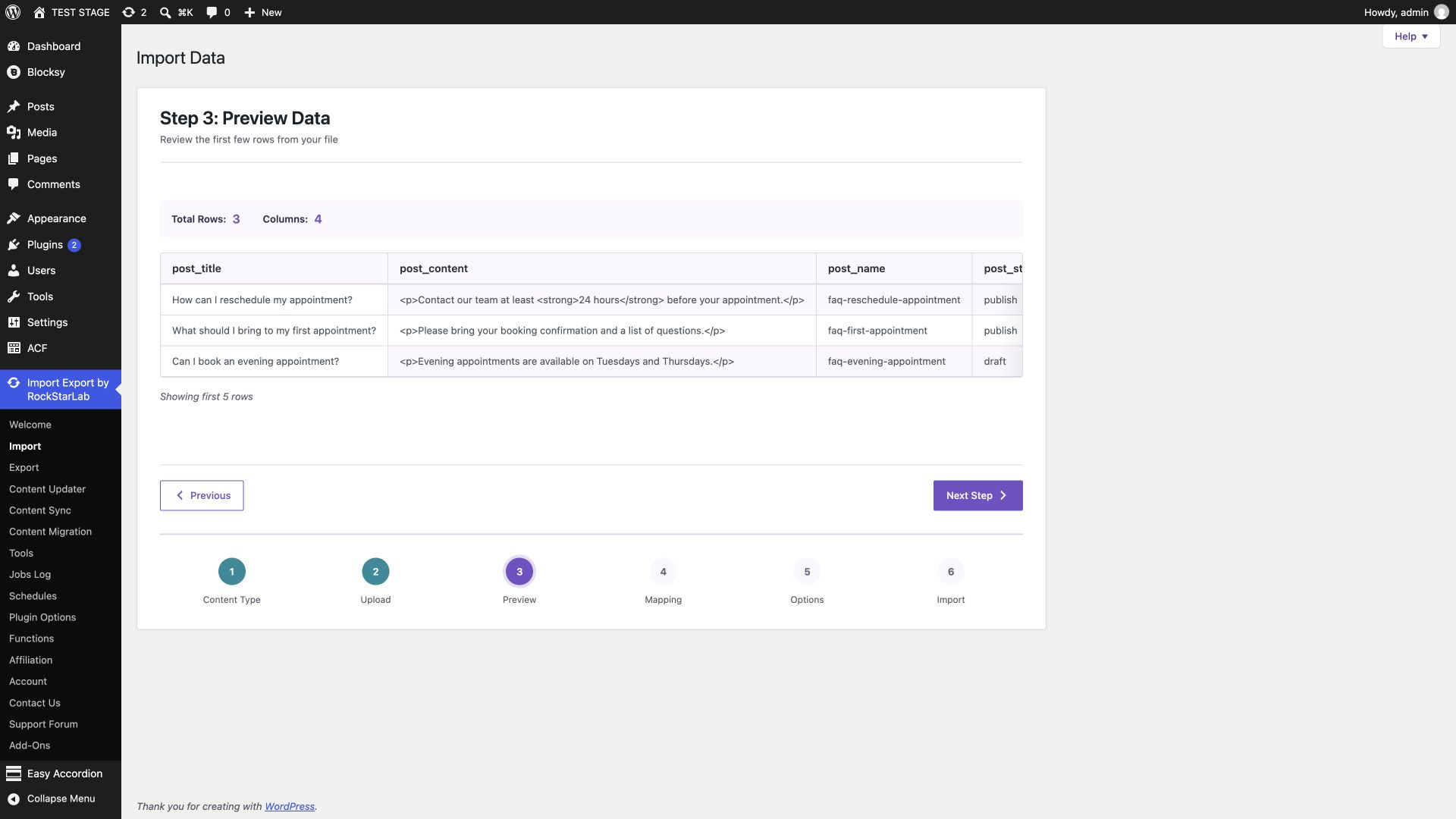
Read the answer column carefully. A comma inside an answer should not push part of the text into the slug column. Check the status values too: the evening question must say draft, while the other two say publish. Correct parsing or source-file problems before continuing.
Step 2: Choose All FAQ Items and review Auto Map
On Field Mapping, select All FAQ Items from Choose post type. This selects the FAQ records registered by Easy Accordion.
Click Auto Map. The four sample headers map directly to their matching WordPress fields:
post_title → post_titlefor the question.post_content → post_contentfor the answer.post_name → post_namefor the matching slug.post_status → post_statusfor publication status.
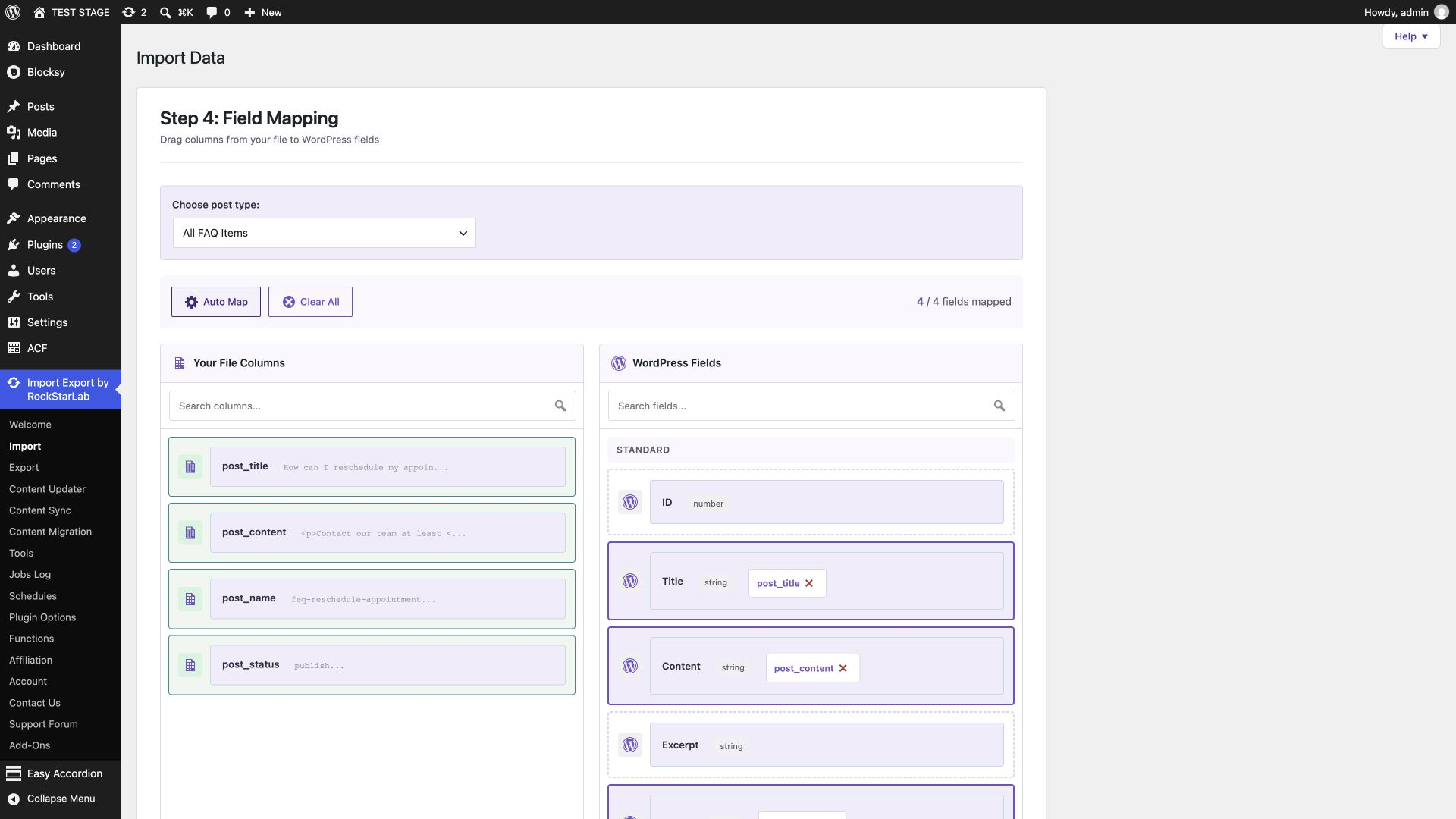
Check both the selected post type and the mapping count. Four matches are only useful when they point to the intended fields. If your own file uses headers such as Question and Answer, map those source columns to Title and Content manually rather than renaming the destination fields.
The sample needs no extra custom fields. Keep the mapping focused on the values you intend to write. Selecting another destination post type would create content outside the Easy Accordion FAQ library.
Step 3: Set matching rules and import
Under Check for Existing Items by Field, choose Slug. For the initial file, leave If Match Found set to Update and If No Match Found set to Create.
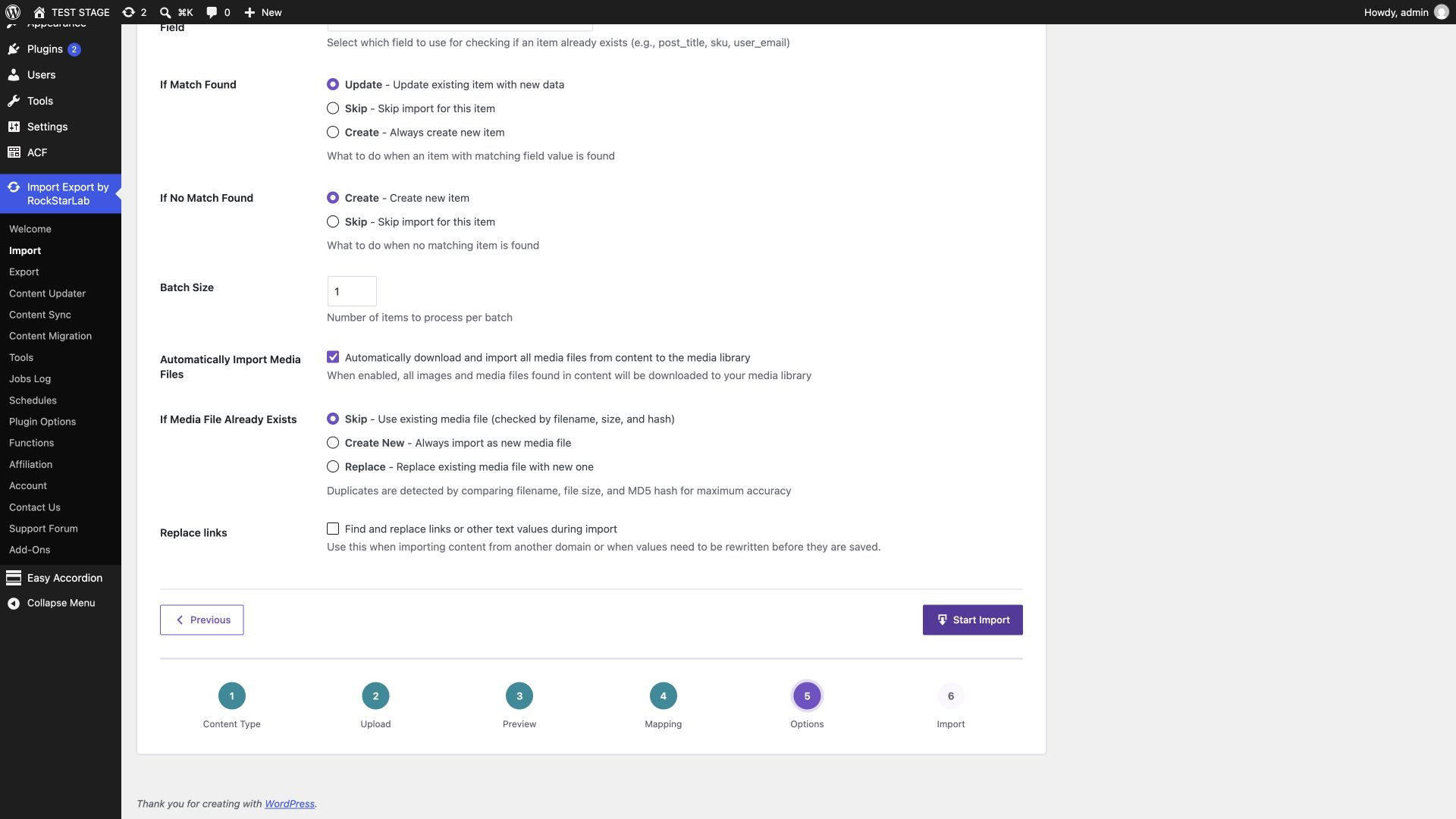
These settings let the same file add new questions and revise questions that already have matching slugs. Choosing Always Create would defeat that matching behavior and can produce duplicates on repeated runs.
The status column is part of the update too. A mapped draft value can return an existing published FAQ to draft. Keep that value intentional rather than copying a whole status column without reviewing it.
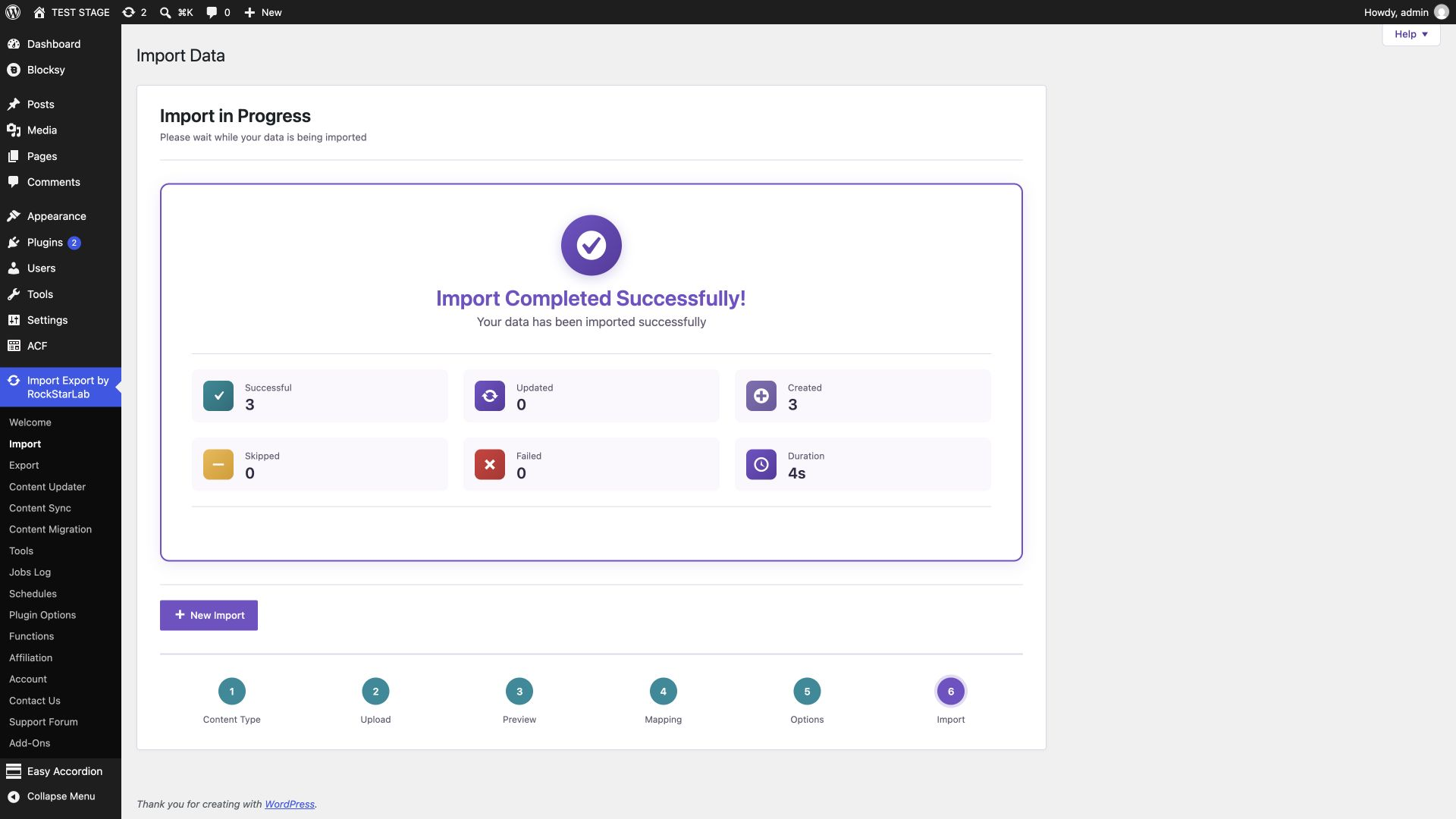
Click Start Import. Wait for completion and review the Created, Updated, Skipped and Failed counts. When none of the sample slugs exists yet, the expected result is three created items and no failures.
Step 4: Verify questions, answers and statuses
Return to Easy Accordion → All FAQ Items. The three sample questions should appear once each. The evening-appointment question should have the Draft label, and the other two should be published.

Open How can I reschedule my appointment?. Confirm that the answer is complete and that 24 hours retains its bold formatting. Check the slug and publication status alongside the content.
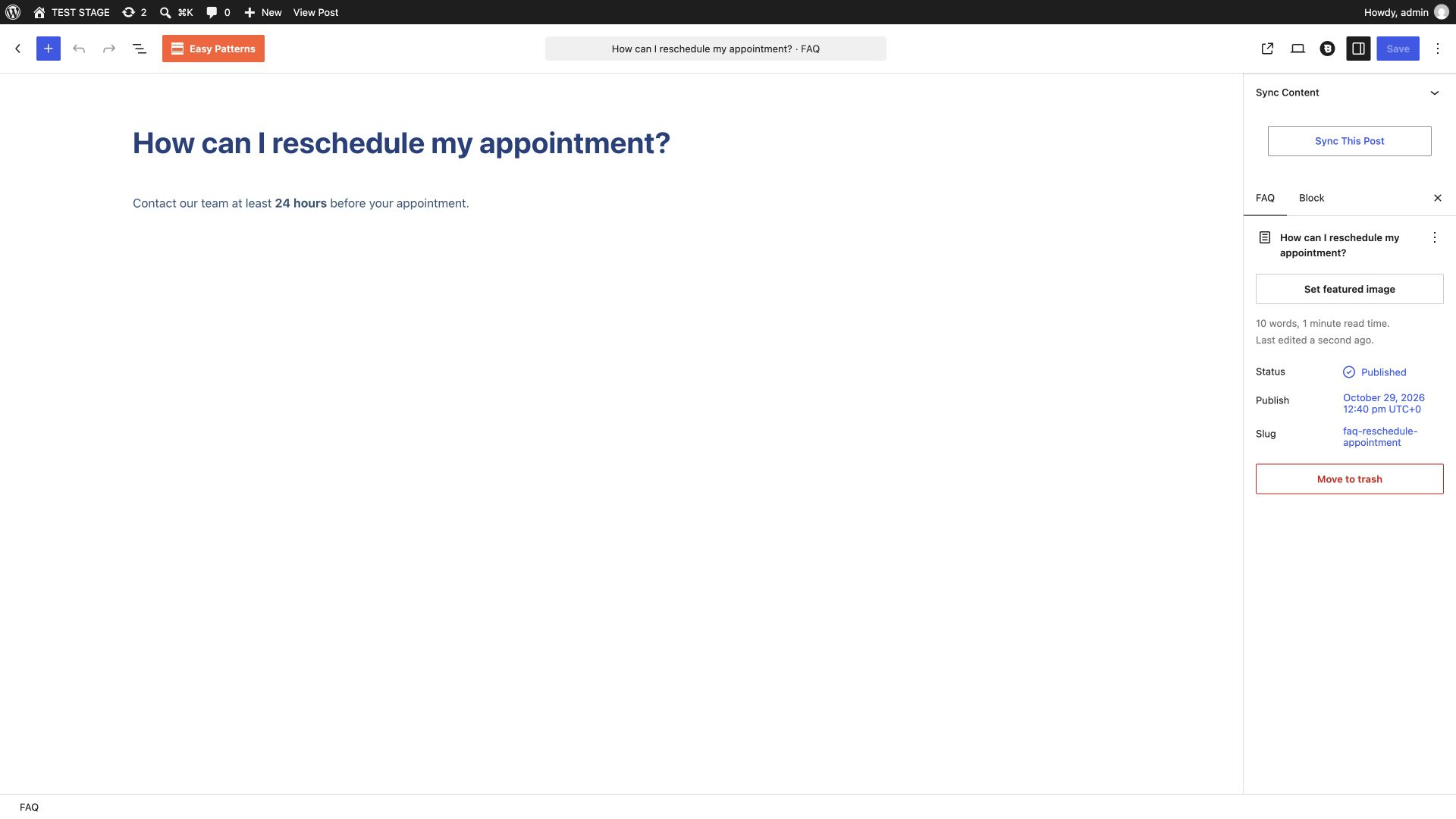
Also inspect the other answers, especially if your own file contains longer paragraphs or punctuation. The completed import count confirms processing; opening the records confirms that the saved wording is what you intended. The result of this workflow is a populated FAQ item library in WordPress.
Update existing Easy Accordion FAQs without duplicates
Download the FAQ update CSV. It uses the same titles, slugs and statuses, but changes the rescheduling notice from 24 hours to 48 hours.
Upload the update file, choose All FAQ Items again, and use the same four field mappings. Match by Slug, select Update for matches, and select Skip when no match exists. This keeps a maintenance file from creating a new question because of an incorrect slug.
| Your goal | If Match Found | If No Match Found |
|---|---|---|
| Add new FAQs and revise existing ones | Update | Create |
| Update only the questions already in the library | Update | Skip |
After the update, the library should still contain the same three records. The rescheduling answer should now say 48 hours, and the evening question should remain a draft. You can compare the record ID in its edit-page URL before and after an update to confirm that you are viewing the same item.
This sample sends complete values for all four mapped fields. Do not assume an empty answer cell means “keep the old answer.” Review every mapped value before running an update. For the matching principles behind this workflow, see updating WordPress records without duplicates.
Use an AI agent to import or update the FAQ library
Connect your agent to WordPress using the Abilities API and MCP setup guide. Easy Accordion and the required RockStarLab PRO access must be active on the destination site.
For a first import, attach the reviewed CSV and use this prompt:
Discover the available Import Export by RockStarLab abilities and read their input schemas. Prepare this CSV for importing into Easy Accordion FAQ items. Use custom_post_types with options.post_type set to sp_accordion_faqs. Map post_title, post_content, post_name and post_status to their matching fields. Show the preview and mapping before starting. Match by slug, update matches and create unmatched items. Preserve the HTML answers and each row's status. Do not change other content types or plugin settings.For the update sample, be explicit that new records are not wanted:
Update existing Easy Accordion FAQ items from the attached CSV. Inspect the current PRO import schema and use post_type sp_accordion_faqs. Match by post_name, update matches and skip unmatched rows. Map the four supplied fields, preserving HTML and publish/draft status. Wait for completion and report successful, failed and skipped rows. Verify that the same three FAQ IDs remain, the rescheduling answer says 48 hours, and the evening question is still a draft. Do not create new FAQs or alter site settings.The agent prepares the CSV through rsl-ie/upload-create, rsl-ie/upload-chunk and rsl-ie/upload-complete. It inspects the destination with rsl-ie-pro/get-content-schema, starts the import with rsl-ie-pro/import-start, and checks progress with rsl-ie/job-get. It should read the available schemas instead of guessing tool parameters.
Once the job completes, reopen the changed FAQ in WordPress. The editor should show 48 hours in bold while keeping the original slug and status.
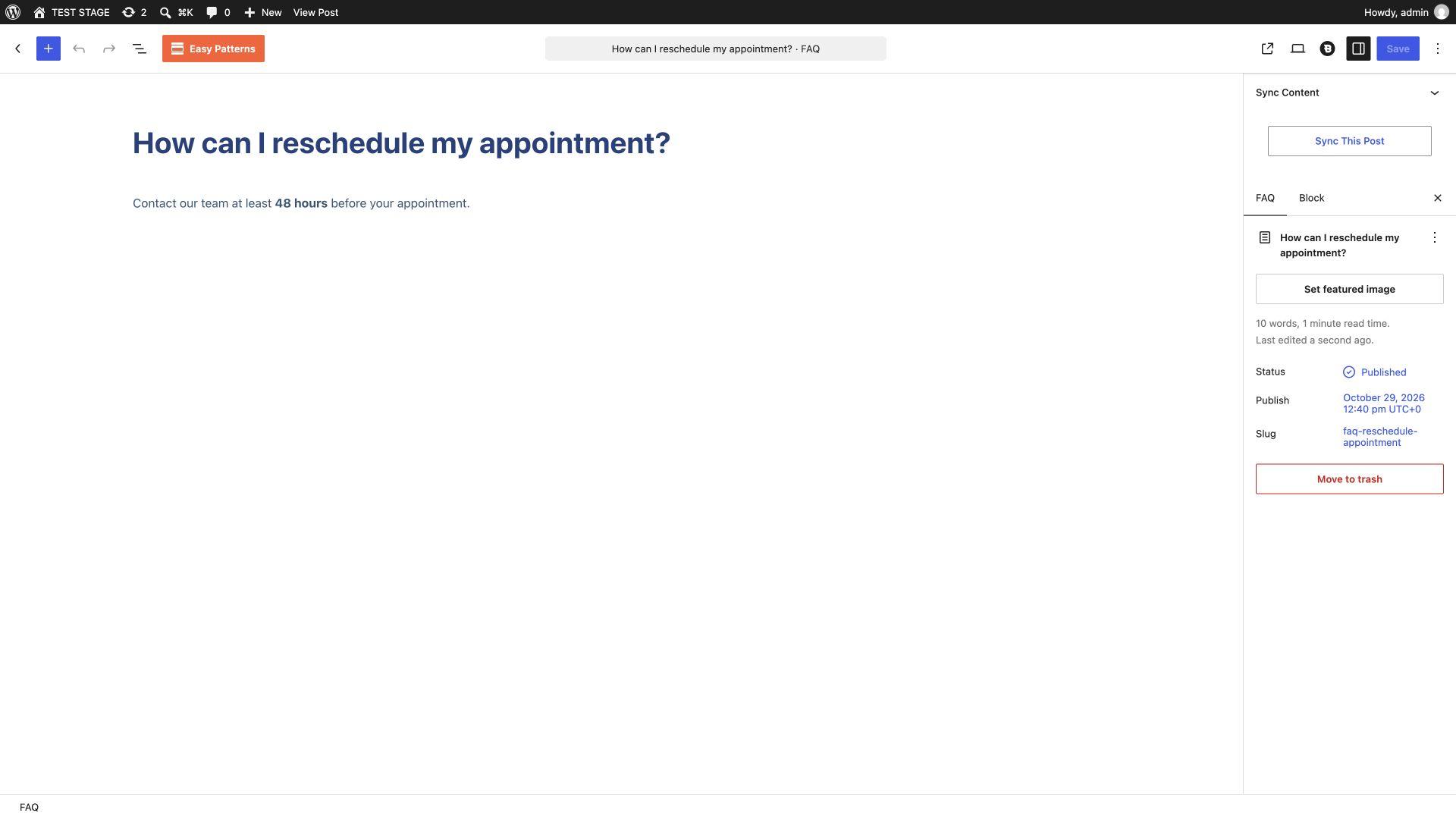
This prompt imports approved answers from your file. If you also ask an agent to draft new policies or rewrite answers, review that wording before allowing it to publish the changes.
Troubleshooting
| Problem | What to check |
|---|---|
| All FAQ Items is missing | Activate Easy Accordion, reopen the import wizard, choose Custom Post Types, and confirm RockStarLab PRO is active. |
| The preview has the wrong columns | Check the delimiter, header option and CSV quoting. Each complete answer must remain in one cell. |
| A repeated import creates duplicate questions | Check Slug matching and stable post_name values. Avoid Always Create for an update. |
| An update skips a question | Compare its actual WordPress slug with the file. Update/Skip deliberately ignores unmatched records. |
| An approved question becomes a draft | Review the mapped post_status value. Status applies to existing records as well as new ones. |
| Formatting appears as literal HTML text | Check whether the source contains escaped entities instead of the intended HTML tags. Inspect the saved answer in the editor. |
Using Ultimate FAQ instead? Follow our separate Ultimate FAQ CSV import guide, which uses that plugin’s own destination fields and taxonomies.
Frequently asked questions
Can I import Easy Accordion FAQ items from CSV?
Yes. Choose Custom Post Types, select All FAQ Items, and map questions to Title and answers to Content in Import Export by RockStarLab.
Do I need Easy Accordion Pro?
The individual FAQ items in this guide are available in Easy Accordion free. RockStarLab PRO is required because this workflow imports a custom post type.
What is the Easy Accordion FAQ post type?
Individual FAQ items use sp_accordion_faqs. Their questions are stored in post_title and their answers in post_content.
Can I import a mixture of published and draft FAQs?
Yes. Map post_status and use publish or draft for each row. The sample creates two published items and one draft.
Can FAQ answers contain HTML?
Yes. Paragraph and strong tags can be included in the answer cell. Keep the CSV quoting valid and review the saved answer in WordPress.
How do I update FAQs without creating duplicates?
Keep existing slugs unchanged, match by Slug, update matching records and skip unmatched rows for an update-only import.
Can an AI agent update Easy Accordion FAQs?
Yes. A connected agent with the required PRO access can prepare the CSV, inspect the schema and run a custom post type import for sp_accordion_faqs. Specify matching, status and update rules in the prompt.

Comments 0
Have a question or a tip to share? Leave it below.