
You imported a spreadsheet to update a few posts, and now the Posts screen shows each of them twice. The import did not fail. It did exactly what it was told: it did not recognize the existing posts, so it created new ones.
Below: why it happens, how to find and remove the duplicates, and how to set up the next import so it only updates. We reproduced every case on a test blog with the free Import Export by RockStarLab 2.1.21 and WordPress 7.1.
Why an Import Creates Duplicates
Before it writes a row, an importer looks for an existing post that matches it. If it finds one, it updates it or skips it. If it does not, it creates a new post. Duplicates appear when that match fails, or when the import is told to create a post anyway. In practice there are four causes.
| Cause | What you see | Fix |
|---|---|---|
| “If Match Found” is set to Create | Every row becomes a new post | Set it to Update or Skip |
| Posts are matched by title, and a title in the file differs | Some rows update, some create | Match by slug or ID |
| The same file is imported twice with “If No Match Found: Create” | New rows from the first run come back | Use “If No Match Found: Skip” for updates |
| IDs or slugs come from another site | Rows match the wrong posts, or nothing | Match by slug, and only by ID on the same site |
Cause 1: “If Match Found: Create”
The import options decide what happens to a row that matches an existing post. Update changes the existing post, Skip leaves it alone, and Create always adds a new post. Create is meant for content that is supposed to exist twice, which is rare.

We imported a file of six summaries for six existing posts with Create selected. The result: 6 created, 0 updated.

In Posts, sorted by title, every post now had a twin. The copies were easy to recognize: they were drafts, their author was the admin who ran the import, and their category was Uncategorized. New posts from an import are saved as drafts unless the file has a status column, so the copies did not go live.

Cause 2: Matching by Title
Matching by title is the most common setup, because a spreadsheet usually has a title column. It is also the most fragile one. In our test the file had six titles for six existing posts. The import updated five posts and created one.

What matched and what did not:
- “our new roastery opens in march” in lowercase matched “Our New Roastery Opens in March”. On most WordPress databases, title matching ignores letter case.
- “Cold Brew at Home “ with a trailing space matched too.
- A draft and a scheduled post matched by title as well. Posts in the Trash do not match.
- “Five Single Origin Coffees to Try” did not match “Five Single-Origin Coffees to Try”. One missing hyphen was enough to create a new post. The same happens with curly and straight quotes, a different dash, or a word changed by an editor.
There is a second side effect. When you match by title, the title column is also written to the post. The lowercase row above changed the post title to lowercase. And if two posts share the same title, only one of them can be matched.
Use title matching only when the titles in the file were exported from the same site and nobody edited them.
Cause 3: Importing the Same File Twice
A file that creates posts is not safe to run twice. If the first run created a post because no match was found, a second run with “If No Match Found: Create” creates it again, unless the second run can find the post from the first run. This often happens when an import times out, someone clicks Start again, or a scheduled import repeats with the wrong settings.
Set “If No Match Found” to Skip whenever the goal is to update existing posts. Then a rerun can only update, never add.
Cause 4: IDs and Slugs from Another Site
Post IDs are only unique within one site. Post 1004 on your staging site may be a different post on live, or a page. Matching by ID is the most reliable method on the same site and the most dangerous one between sites.
The plugin refuses the worst case. When we imported blog posts by ID and the file contained the ID of a page, the import stopped before writing anything: “An ID in the file belongs to another content type. When matching by ID, every ID must be an item of the content type you are importing. Nothing was imported.”
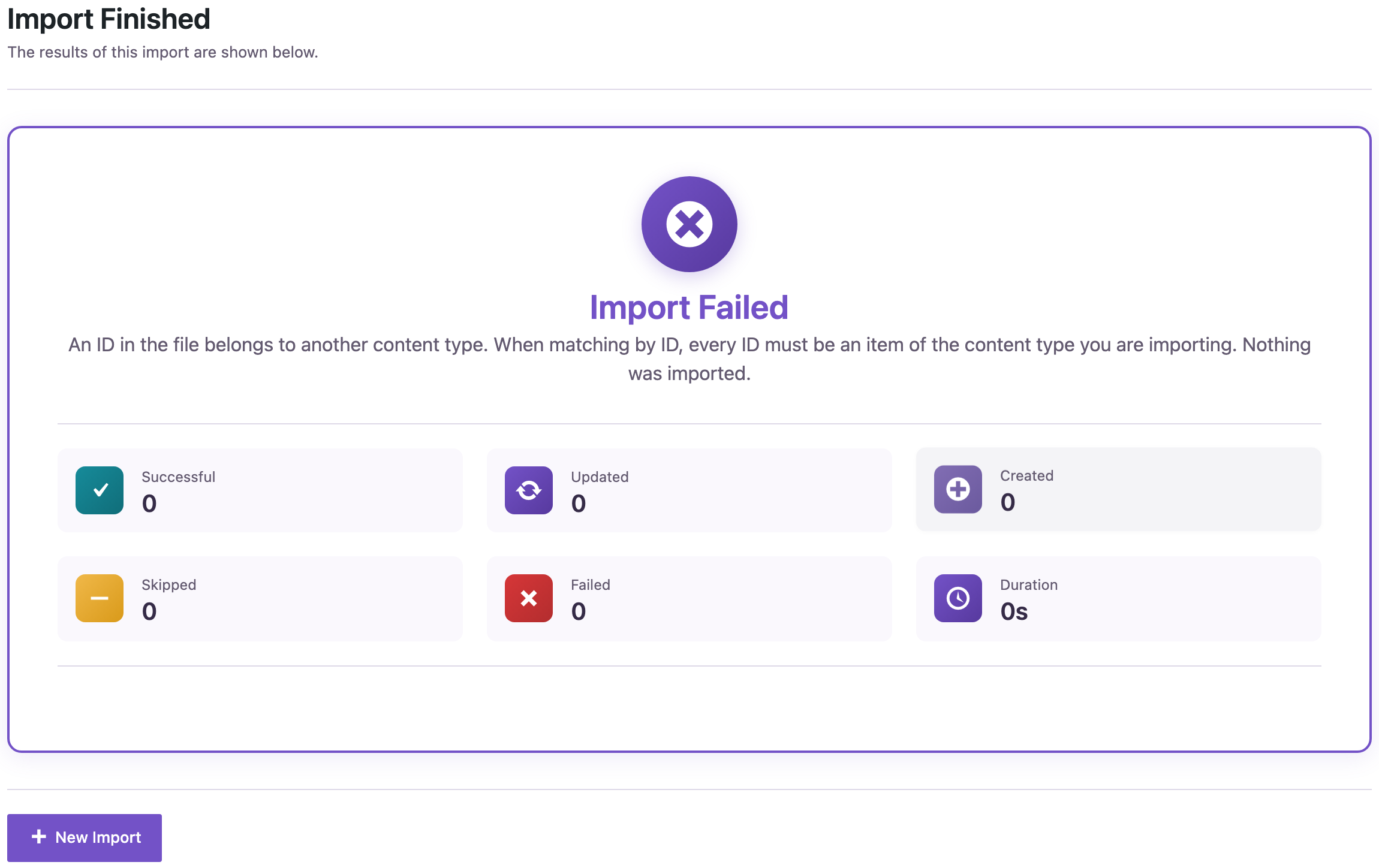
An ID that belongs to an unrelated post of the same type cannot be detected that way, because for the database it is a valid match. So between sites, match by slug. Slugs are part of the URL, they rarely change, and they are the same on staging and live when one site was copied from the other.
How to Find the Duplicates
Sort the Posts screen by title
Click the Title column header in Posts. Copies appear next to their originals. Check the status, author, category and date columns to tell them apart. If both copies are published, the newer one usually has a slug that ends in -2.
List exactly what the import created
Import Export by RockStarLab marks each post it creates or updates with two hidden custom fields: _rsl_ie_import_job_id holds the job number, and _rsl_ie_import_job_action holds created or updated. To list the posts an import created:
- Go to Import Export → Export and choose the same content type.
- On the Filter Data step, add a filter with Custom Field (Meta), custom field name
_rsl_ie_import_job_action, condition Equals, valuecreated. - To limit it to one import, add a second filter for
_rsl_ie_import_job_idwith the job number from Jobs Log.
The counter showed 7 posts: six from the Create run and one from the title mismatch. Export them with ID, Title, Status and Date, and you have an exact list to delete.

The markers store the last import that touched a post. If you run more imports on the same posts, earlier markers are replaced, so check right after the problem appears.
How to Remove Them Safely
- Make a backup first. In UpdraftPlus click Backup Now, or use your host’s backup. See How to Create a WordPress Website Backup and Restore It.
- Decide which copy stays. Keep the post with the original URL, date, author, comments and links from other posts. That is almost always the older one.
- Move the copies to the Trash. Select them in Posts and choose Bulk actions → Move to Trash. Trashed posts stay restorable for 30 days.
- Check the originals. If the import also changed them, for example the lowercase title above, fix those fields by hand or put the old values back. See How to Roll Back a Bad WordPress Import or Sync.
How to Import Without Creating Duplicates
We repeated the same update with a safer file and safer options.
1. Put a stable key in the file. The simplest way is to export the posts first with ID, Title and Slug, add your new column, and import that file back. We used two columns: Slug to find the post and Excerpt with the new text. Leave out the title column unless you want to change titles.

2. Choose the matching field and rules. Set Check for Existing Items by Field to Slug (or ID on the same site), If Match Found to Update, and If No Match Found to Skip. With Skip, a row that does not match is ignored instead of becoming a new post.

3. Check the result screen. The import updated 6 posts and created 0. When you only meant to update, any number other than 0 under Created is a warning sign.

In update mode only the columns in the file change. Title, status, author, dates and categories of the matched posts stay as they were. For more examples, see How to Bulk Update Existing WordPress Posts Without Creating Duplicates.
Checklist Before the Next Import
- Back up the site.
- Match by slug, or by ID on the same site. Use title only for unedited titles from the same site.
- Set “If No Match Found” to Skip when you are updating.
- Never use “If Match Found: Create” for an update.
- Test with two or three rows first, then import the rest.
- Read the Created and Updated numbers on the result screen.
FAQ
Does the built-in WordPress Importer create duplicates too?
The built-in importer reads WordPress export (WXR) files and skips a post when one with the same title and date already exists. Duplicates still appear when titles or dates changed between the two sites. It cannot update existing posts at all, so for updates use a CSV or Excel import with a matching field.
Why did a post match even though the letter case was different?
Title matching compares titles in the database, and most WordPress databases compare text without regard to letter case and trailing spaces. Punctuation, dashes and quotes still have to be identical.
Can I match by a custom field such as SKU or an external ID?
Posts and pages are matched by ID, slug or title. WooCommerce products can be matched by SKU with the PRO add-on, see how to update WooCommerce prices and stock by SKU.
Will deleting duplicate posts delete their images?
No. Trashing or deleting a post leaves its media in the Media Library.
Related Guides
- How to Bulk Update Yoast SEO Titles and Meta Descriptions from CSV
- How to Roll Back a Bad WordPress Import or Sync
- How to Bulk Update Existing WordPress Posts Without Creating Duplicates
- How to Export and Import WordPress Media Files Without Duplicates
- How to Import CSV Files into WordPress with Field Mapping

Comments 0
Have a question or a tip to share? Leave it below.