
To update WooCommerce prices and stock from a CSV, match each row to an existing product by its SKU, map the price and inventory columns, choose Update for matching products, and choose Skip when no match exists. This lets you load a supplier price list or a warehouse stock count without creating new products for mistyped SKUs.
This tutorial uses Import Export by RockStarLab PRO to update existing simple products by SKU. You will map price and stock columns, update matching products and skip unknown SKUs.
Use PRO 2.0.3 or later for partial product updates. Unmapped descriptions, publication status, slug and author remain unchanged.
Choose CSV updates or Content Updater
| Task | Recommended workflow |
|---|---|
| Set a different price or stock count for each SKU | The CSV import workflow in this article |
| Increase selected prices by 10% or add ten units to current stock | Content Updater with reusable Functions |
| Create a new catalogue | Import WooCommerce products from CSV or Excel |
| Transfer changes between two WordPress sites | Product synchronization between sites |
A CSV stock value is an absolute quantity. Importing 9 sets the quantity to nine; it does not add nine to the current stock. That distinction matters when choosing between a warehouse count and a delivery adjustment.
Before you change the catalogue
Activate WooCommerce, Import Export by RockStarLab and its PRO addon. Product imports require PRO. Start on a staging copy and retain a current database backup. An import completion screen is not an undo mechanism.
Check that every target product has a unique SKU. Treat SKUs as text in your spreadsheet so leading zeros are not lost. Use current names and product types from the destination catalogue. In the product importer, Product Title and Product Type are required, so the working file contains these alongside SKU and the fields being updated. Do not invent replacement titles just to satisfy validation.
For live inventory, coordinate the import with orders and other stock integrations. A CSV prepared yesterday can overwrite quantities reduced by orders today. Repeating the same file replaces current values with the values in that file.
Prepare a CSV with explicit values
The example products start with the values below. Prices use the store currency; the file does not convert currencies.
| Product | SKU | Regular price | Sale price | Quantity |
|---|---|---|---|---|
| Trail Bottle | SKU-AUDIT-BOTTLE | 20 | 15 | 5 |
| Trail Mug | SKU-AUDIT-MUG | 30 | Empty | 0 |
| Trail Flask | SKU-AUDIT-FLASK | 50 | 40 | 12 |
The sample updates Bottle and Mug. Flask stays outside the file as a control. The last row uses an unknown SKU to verify the skip setting.
post_title,product_type,sku,regular_price,sale_price,manage_stock,stock_quantity,stock_status,backorders
Trail Bottle,simple,SKU-AUDIT-BOTTLE,24,18,yes,9,instock,no
Trail Mug,simple,SKU-AUDIT-MUG,33,,yes,0,outofstock,no
Unknown SKU example,simple,SKU-AUDIT-UNKNOWN,10,,yes,5,instock,no
Download the CSV sample. Replace its demonstration SKUs and titles with your own existing product values before using it. With unknown-SKU skipping enabled, a store without these demo products should skip the rows rather than create the fixtures.
| Column | Meaning and example |
|---|---|
| post_title | Current product name. Mapped names are written to matched products. |
| product_type | simple for this example. Do not label a variable product as simple. |
| sku | Existing unique SKU used for matching. |
| regular_price | New regular price, without a currency symbol. |
| sale_price | New sale price. Blank does not remove an existing sale in this workflow. |
| manage_stock | yes enables product-level quantity tracking. |
| stock_quantity | Final quantity, including an explicit 0. |
| stock_status | instock or outofstock in this example. |
| backorders | no prevents these products from accepting backorders. |
Save as UTF-8 CSV. Use a decimal point for prices and quote text containing commas. Avoid currency symbols, thousands separators and formula expressions in the values you import. The example is mapped for this plugin; it is not a claim that every importer accepts identical column names or blank-field behaviour.
1. Select WooCommerce Products and upload the file
- Open Import Export by RockStarLab → Import.
- Select WooCommerce Products and continue.
- Choose the CSV file and wait for the upload to finish.
- Keep the comma delimiter and First row contains column names for this sample.
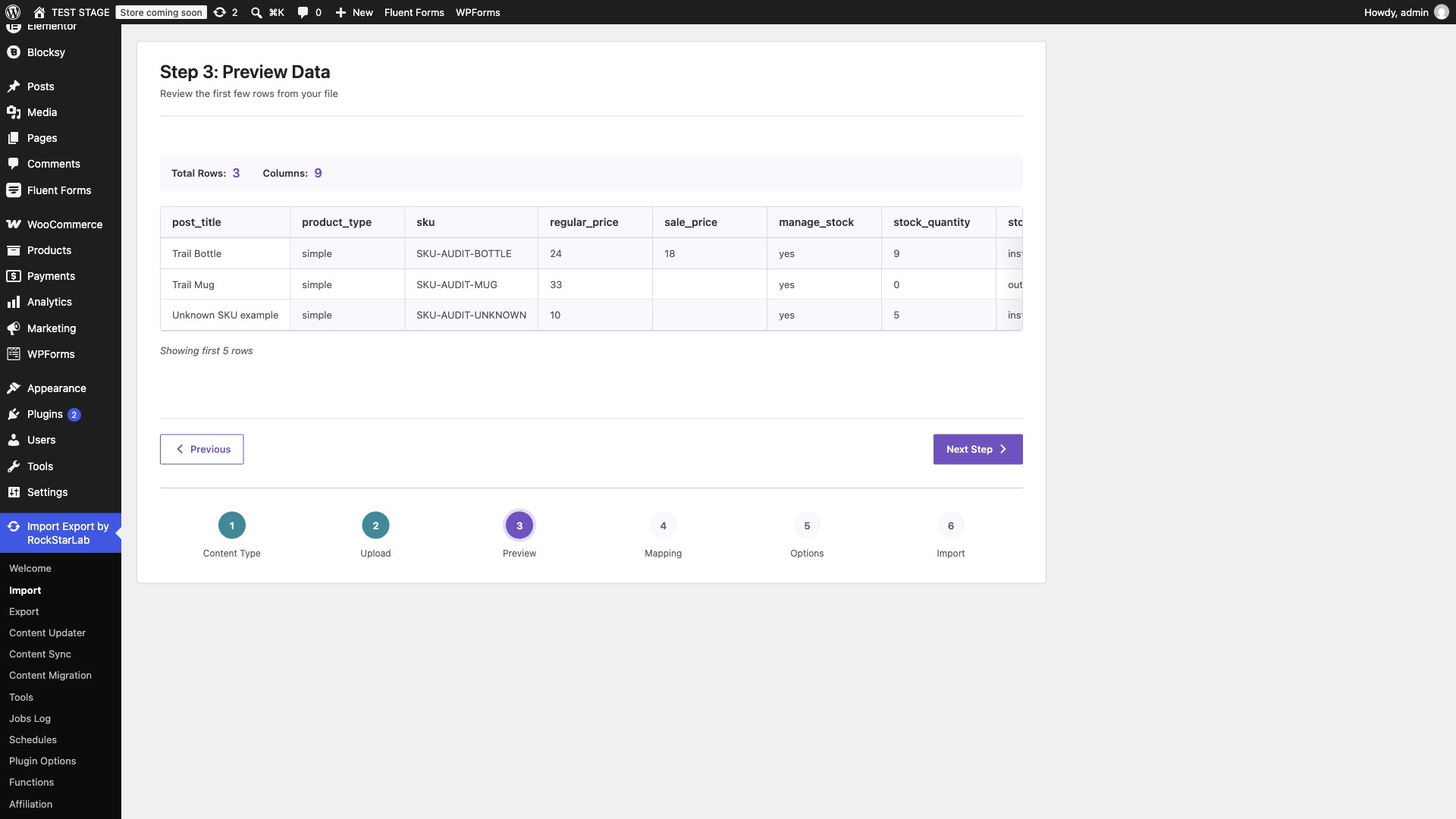
- Open Preview Data and check the actual parsed rows.
The preview should show three rows and nine columns. Confirm that SKU values, decimal prices and the zero quantity have not shifted into neighbouring columns. A blank sale-price cell should remain blank rather than becoming a currency symbol, dash or formula.
2. Map only the fields you intend to write
Click Auto Map, then inspect every mapped pair. Map the nine columns to Product Title, Product Type, SKU, Regular Price, Sale Price, Manage Stock, Stock Quantity, Stock Status and Backorders.
Do not map Description, Short Description, images or categories when the job is only a price and stock update. With PRO 2.0.3 or later, omitted post fields remain unchanged. Mapped text fields with empty values can intentionally clear their content; omission and an explicit empty value are different operations.
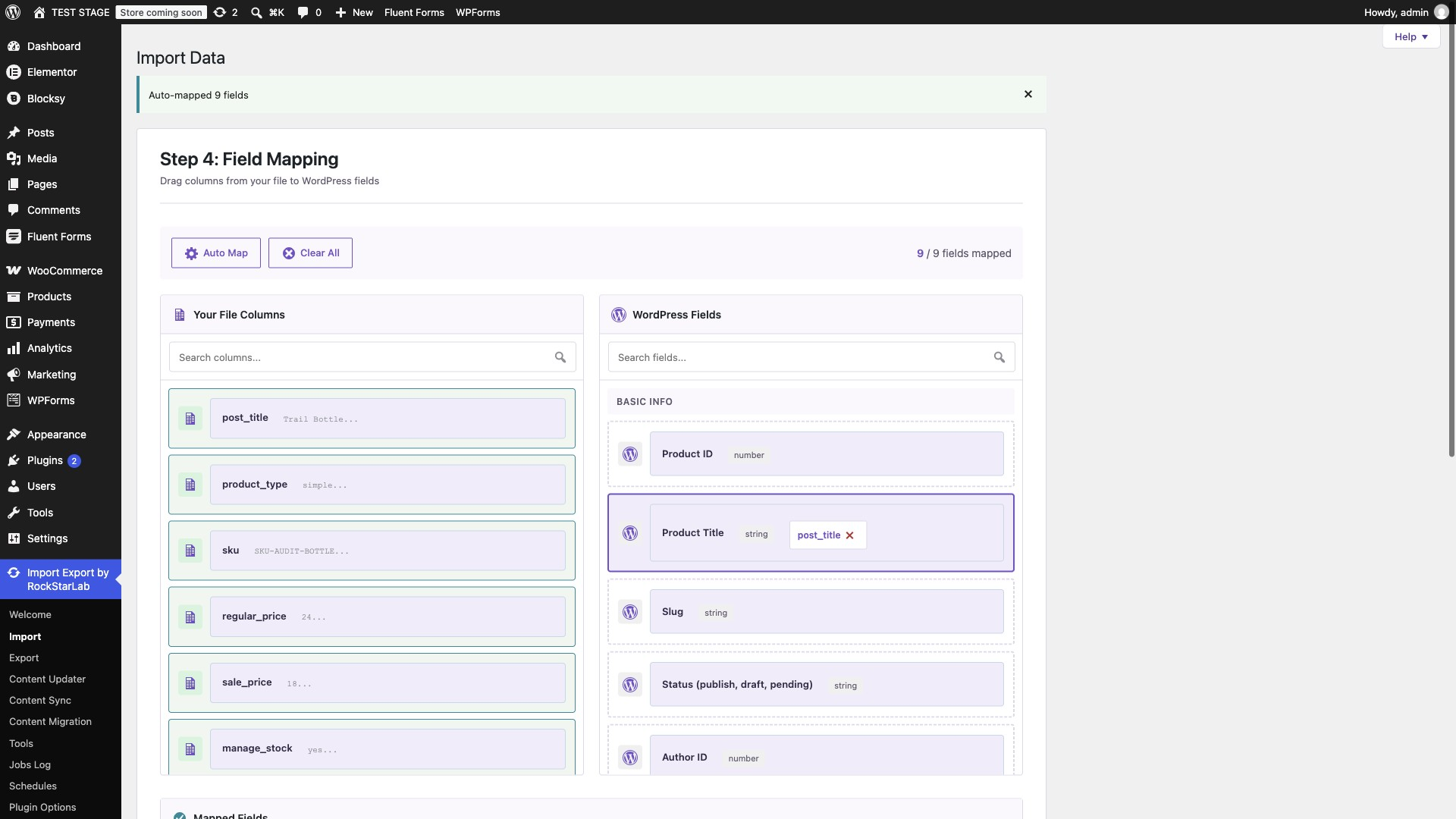
For a price-only file, omit inventory columns. For a stock-only file, omit price columns. Keep the required name/type columns and the matching SKU. Smaller mappings are easier to review than a full catalogue export containing unrelated data.
3. Match by SKU and skip products that do not exist
| Option | Setting | Purpose |
|---|---|---|
| Check for Existing Items by Field | SKU | Match the destination SKU, not the product title. |
| If Match Found | Update | Write the mapped values to the existing product. |
| If No Match Found | Skip | A mistyped or new SKU must not create a product. |
| Batch Size | 1 for this example | Processes one row at a time; choose an appropriate batch size for your catalogue. |
| Automatically Import Media Files | Off | No images are being imported. |
| Replace links | Off | No domain or text replacements are needed. |
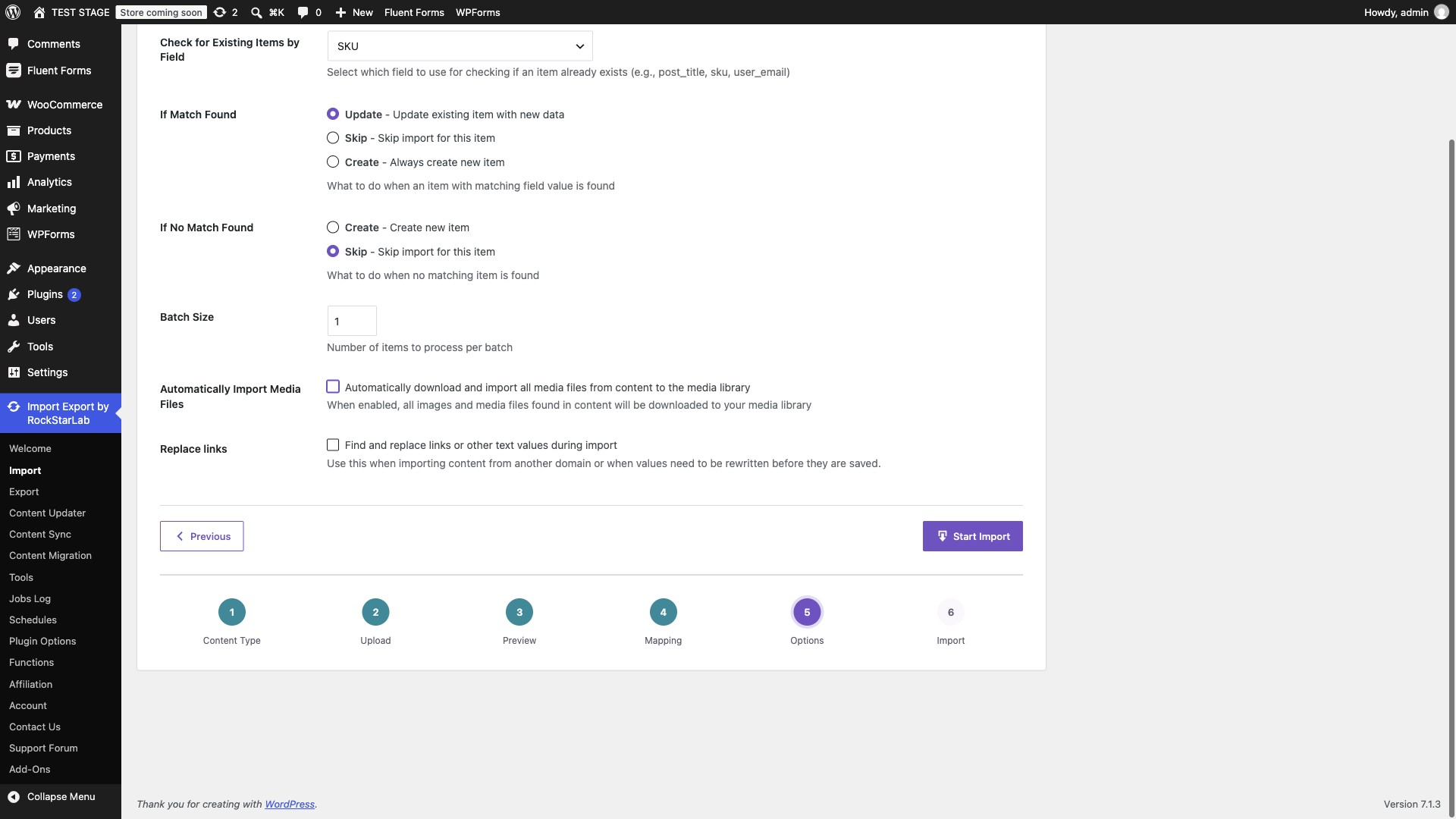
The two duplicate settings solve different problems. Choosing Update does not automatically prevent new products: you must also choose Skip under If No Match Found. Avoid including source-site IDs in this SKU-only update file; the sample deliberately contains no ID column.
4. Run the import and inspect the products
Start Import and wait for completion. For this example, the expected result is two updated products, one skipped SKU and no new products.
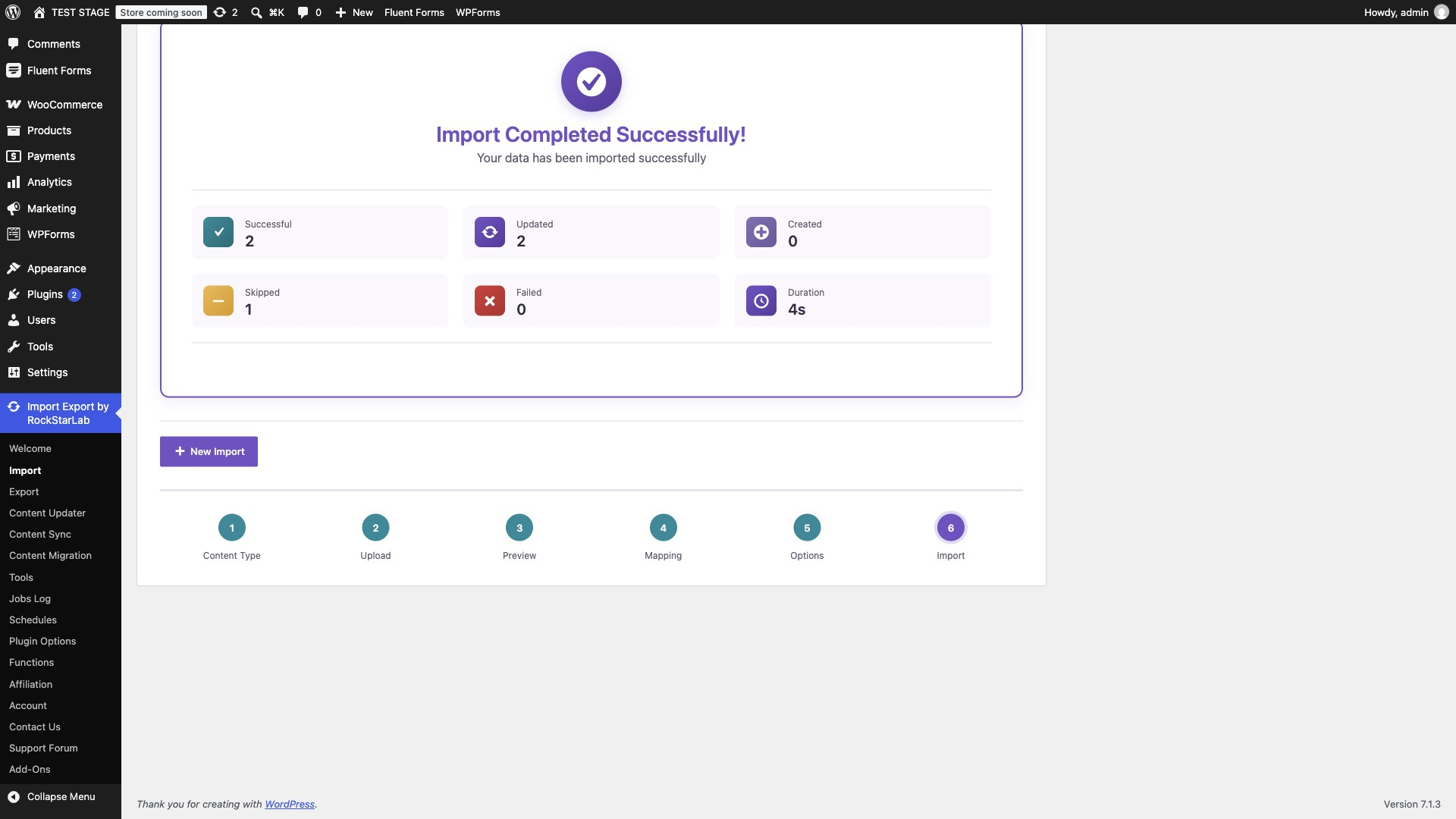
| SKU | Expected result | Result |
|---|---|---|
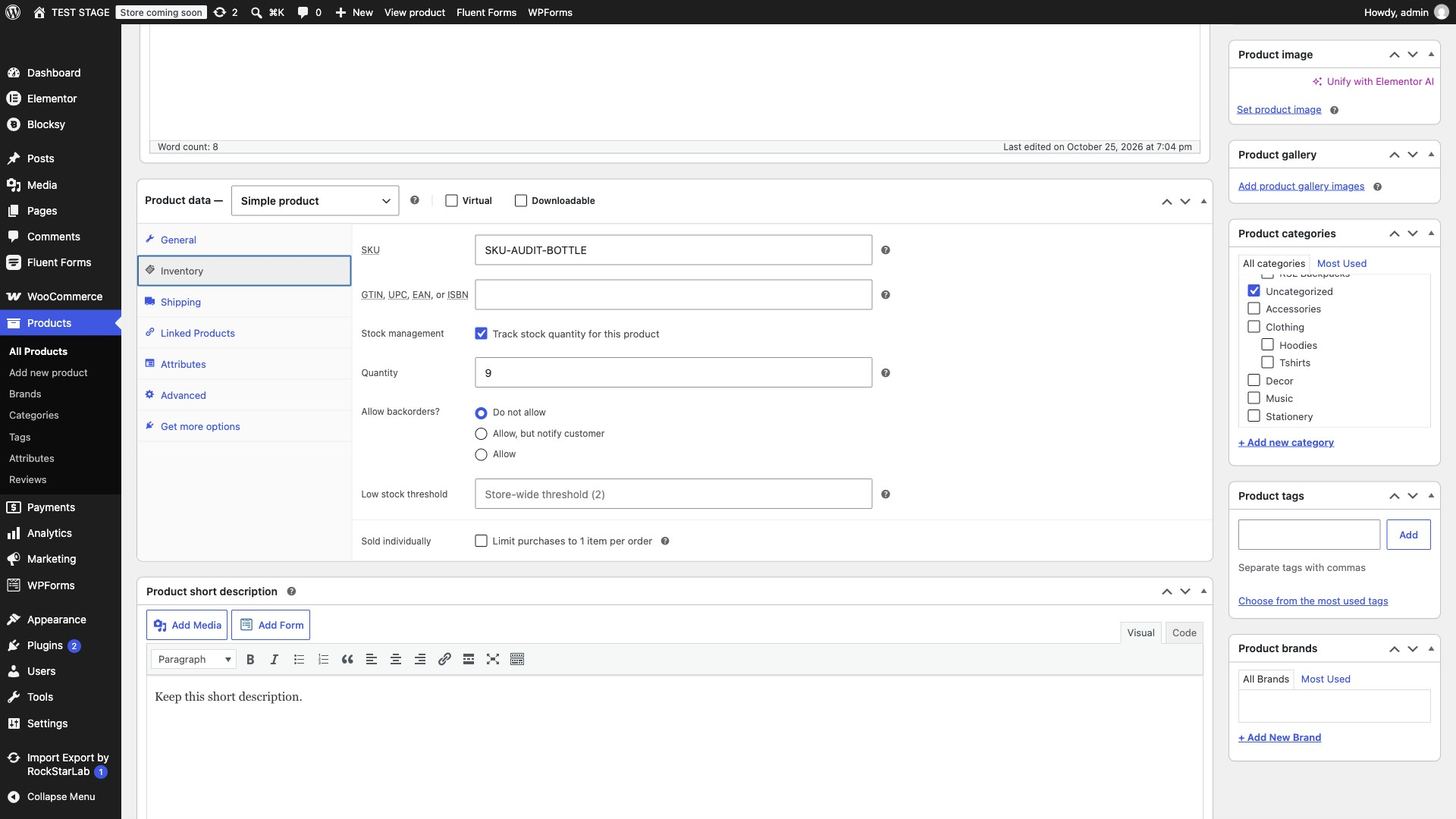
| SKU-AUDIT-BOTTLE | Regular 24, sale 18, stock 9 | 24 / 18 / 9; active price 18 |
| SKU-AUDIT-MUG | Regular 33, no sale, stock 0 | 33 / empty / 0; out of stock |
| SKU-AUDIT-FLASK | Not in file; unchanged | 50 / 40 / 12 |
| SKU-AUDIT-UNKNOWN | Skipped | No product created |
Open a matched product in the WooCommerce editor. Check General for regular and sale prices, and Inventory for SKU, quantity tracking, quantity and backorders. Also check fields you deliberately left unmapped. Confirm that full and short descriptions remain intact.
Compare product IDs before and after importing to confirm that matching products were updated rather than duplicated.
Blank cells, zero values and existing sales
Do not use an empty cell as a universal instruction to delete a value. The product importer ignores empty Regular Price, Sale Price and Stock Quantity values. An explicit numeric zero is different: quantity zero is written as zero. An explicit zero sale price can represent a free sale price, so it is not a safe way to mean “remove the discount.”
If you want to remove an existing sale, use the product editor or an appropriate clearing workflow. The sample’s empty Mug sale cell preserves its already-empty sale price. It does not demonstrate removal of an existing discount.
A product can retain a sale price while its regular price changes. The active selling price also depends on the sale dates and whether the sale is valid. Review the sale price and schedule together when checking the storefront.
For inventory, specify consistent values. Our zero-quantity row uses manage_stock=yes, stock_status=outofstock and backorders=no. Do not assume that a positive or zero quantity alone expresses your complete stock policy.
What about variable products?
The CSV above is for simple products. A variation has its own SKU and can have its own price and stock. Do not put a variation SKU into a row marked simple and assume it will be handled like an ordinary product.
Use the variable-products import guide for the parent-and-variation structure. The simple-product mapping above is not a variation-update template. Test variation relationships and the storefront selection before applying a supplier file to variable products.
Repeat the update with an AI agent
Connect your agent using the WordPress Abilities API and MCP setup guide. The agent needs access to the intended site, the upload file and the PRO import abilities. Discover the current abilities and input schemas rather than guessing operation names or copying another site’s IDs.
You can run the same update through an AI agent using the reviewed CSV, SKU matching and the same update-and-skip settings. Stock quantities are absolute values: importing nine units sets the quantity to nine rather than adding nine.
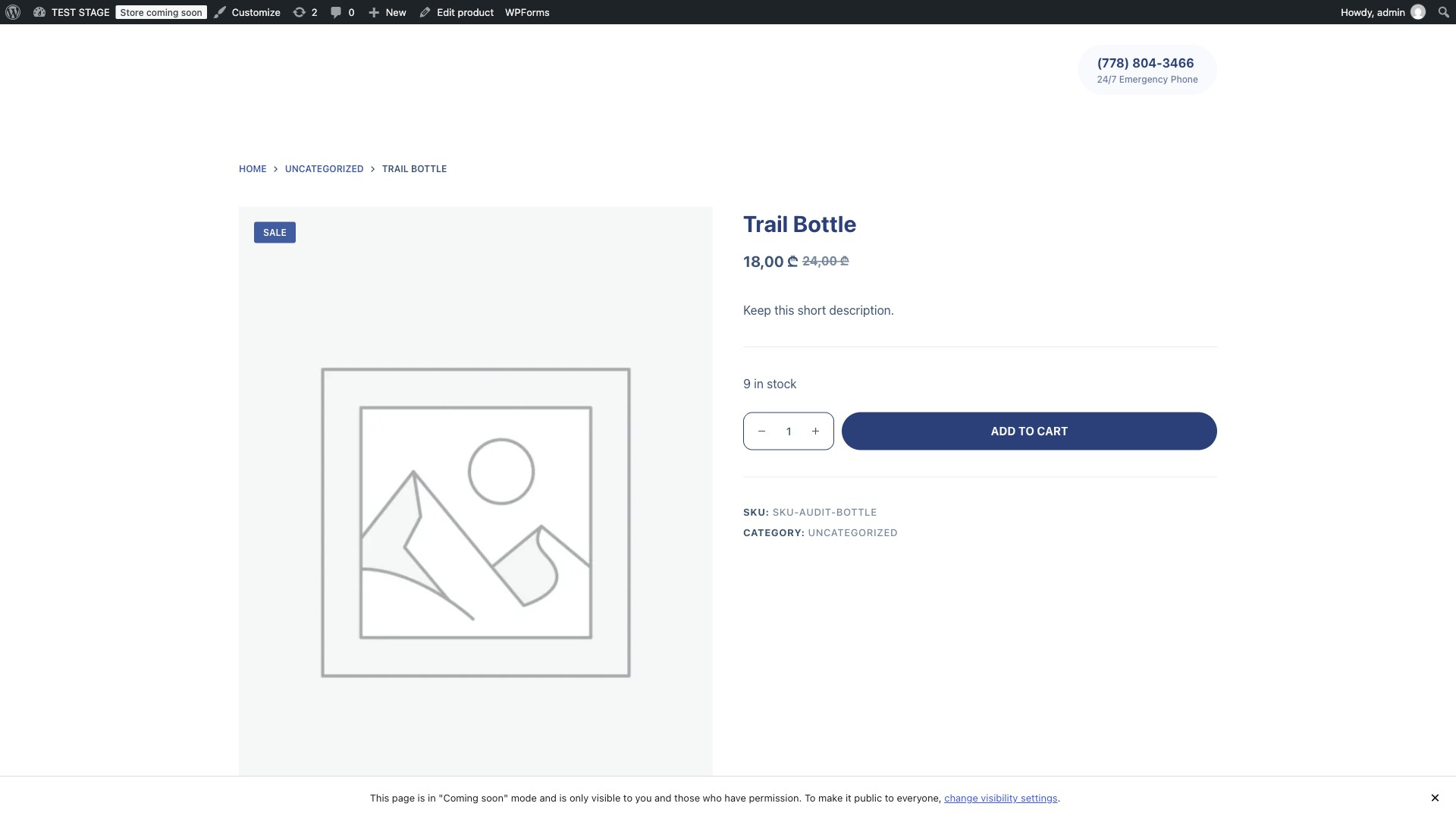
Open each affected product on the storefront and check its displayed price and stock availability.
Prompt: inspect the file before starting
On the connected staging store, inspect the attached WooCommerce CSV.
Discover the available PRO product import abilities and their schemas.
Check the SKU, current product name and product type for every row.
Prepare a mapping for the supplied price and stock fields only.
Match by SKU, update matches, and skip unknown SKUs.
Do not create products or map descriptions, images or categories.
Show the proposed mapping and expected changes before starting.
Prompt: run the reviewed import
Run the reviewed CSV import on this staging site.
Use SKU matching, Update for matches and Skip for unmatched rows.
Disable media downloading and link replacement. Use batch size 1.
Validate first, then start with a unique request ID and poll the job.
Report the job ID and the final row outcomes.
Do not retry with a different request ID just because a response is delayed.
Prompt: verify the actual outcome
Verify the imported products against the CSV and the before snapshot.
Confirm stable IDs, regular and sale prices, active price, stock quantity,
stock status and backorders. Confirm that the unknown SKU was not created.
Check the excluded control product and unmapped descriptions.
Open the affected products in the browser and inspect the displayed fields.
Report any mismatch instead of relying only on the completed status.
The operation sequence is upload-create, upload-chunk, upload-complete, PRO import-validate, PRO import-start, then job-get. The upload operations use the rsl-ie/ namespace; product validation and start use rsl-ie-pro/. Request schemas determine the exact parameters. A request ID identifies one operation; it is not a replacement for checking whether the previous operation completed.
Troubleshooting price and inventory updates
| Symptom | What to check |
|---|---|
| All rows are skipped | Check destination SKUs, whitespace and spreadsheet formatting. Sample SKUs do not create their own demo products. |
| A new product was created | Check If No Match Found. This tutorial requires Skip. |
| The product still has a discount | A blank Sale Price cell preserves the existing value. Inspect the saved sale and its dates. |
| Stock became the CSV value instead of increasing | This is replacement, not addition. Use Content Updater for additive adjustments. |
| The expected product cannot be purchased | Inspect stock management, status, backorders and publication status. Test the relevant storefront separately. |
| The same file changed live inventory again | Check orders or integrations since the first run. A repeated snapshot can overwrite newer stock. |
Keep a record of each update
Retain the exact CSV, mapping, import options, job ID and before/after values. Include at least one excluded control product and an intentional unmatched row in the staging test. Once the result is correct, apply the same reviewed approach to your intended catalogue range.
For related tasks, see bulk updates with Functions, the full product import tutorial, and the documentation hub.
Frequently asked questions
Can I update prices without creating new products?
Yes. Match by SKU, select Update for matches, and select Skip when no match exists. Test an unknown SKU before using the workflow on a larger catalogue.
Does stock_quantity add stock or replace it?
It replaces the saved quantity with the CSV value. A value of 9 means a final quantity of nine, not nine additional units.
Will an empty sale-price cell remove a sale?
No. The importer preserves an existing sale price when the mapped cell is empty. Do not use zero as a substitute for removing a discount.
Can I leave descriptions out of the file?
Yes, with PRO 2.0.3 or later. Unmapped descriptions remain unchanged. Explicitly mapped empty text fields can clear their content.
Do I need PRO for this workflow?
Yes. This tutorial uses the WooCommerce product importer and PRO product import abilities in Import Export by RockStarLab.
Can I update variation SKUs with this sample?
This sample is for simple products. Use the separate variable-products guide for its verified parent-and-variation structure; do not mark variation rows as simple products.
Can an AI agent perform the same import?
Yes, through the available PRO import abilities after connecting the agent. Validate the mapping, use update-and-skip options, poll the job and verify the resulting products.
Is it safe to run the same file twice?
A repeat can overwrite newer prices or stock changes. Compare current values before reusing an older CSV.
To repeat this update automatically from a file your supplier publishes, see Automatic Supplier Feed Import for WooCommerce.

Comments 0
Have a question or a tip to share? Leave it below.