
When you sell a supplier’s products, their prices and stock change every day. Updating them by hand means you sell things that are out of stock or at last week’s price. Most suppliers publish a feed for this: a CSV or XML file at a fixed address that they update on their side. The setup below downloads the feed every hour or every day and updates your products by SKU.
We tested it with Import Export by RockStarLab 2.1.27 and the PRO add-on 2.1.7, WooCommerce 11.2 and WordPress 7.1. Importing WooCommerce products is a PRO feature; schedules are in both versions.
Short Answer
- Go to Import Export → Import → WooCommerce Products.
- Paste the feed address in Or import a file from a URL and click Fetch File.
- Map the columns, match by SKU and run the import once.
- Open Import Export → Schedules, pick that import as the Source Job, choose Recurring and Hourly (or Daily) and save.
- Every run downloads the current feed and updates prices and stock. Check the Jobs Log after the first runs.
What You Need from the Supplier
- A direct address of the file, for example
https://supplier.example.com/feeds/prices.xml. Opening it in a browser should show or download the file itself, not a login page. - A stable SKU per product. It connects the feed rows to your products, so it must not change between feeds.
- A format the plugin reads: CSV, XML, JSON, XLSX or ODS. For XML feeds, see How to Import WooCommerce Products from an XML Supplier Feed; that guide uses the same feed as this one.
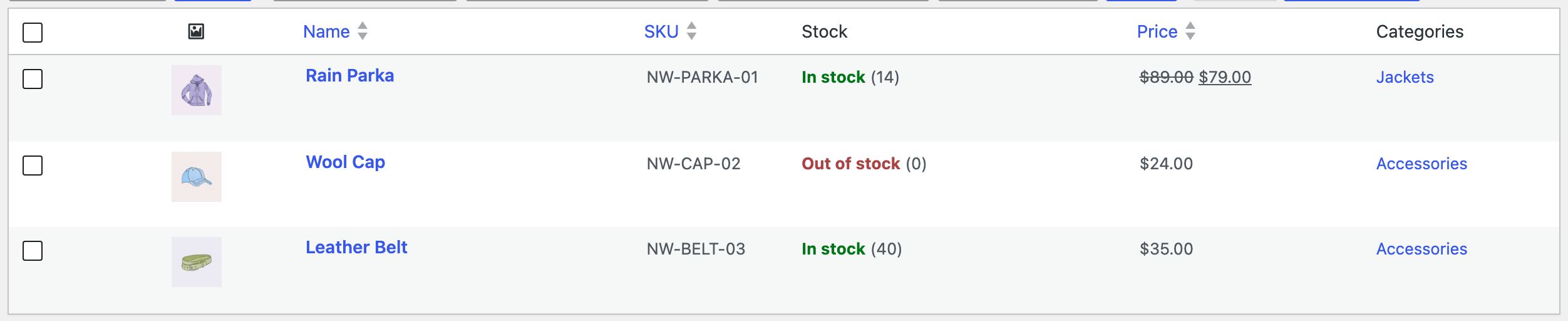
Our example feed has three products with SKU, title, price, sale price, stock, category and images. In the morning the Rain Parka is on sale at $79 and the Wool Cap is out of stock.
Step 1: Back Up the Site
A scheduled import changes products without anyone watching. Make a backup before you set it up: UpdraftPlus Backup Now, your host’s backup, or ask an AI agent to run rsl-ie/updraftplus-backup-start. See How to Create a WordPress Website Backup and Restore It. Regular automatic backups are a good idea for any store that imports on a schedule.
Step 2: Import the Feed from Its URL
Open Import Export → Import and choose WooCommerce Products. Below the upload area, paste the feed address in Or import a file from a URL and click Fetch File:

The server downloads the file and checks it like an upload. The file card shows where it came from:

Go to Field Mapping and click Auto Map; drag any column it did not recognize to its field. Then, on Import Options, set Check for Existing Items by Field to SKU, keep If Match Found: Update, and choose what new SKUs should do: Create adds new supplier products to your store, Skip updates only products you already sell.

Start the import. This first run creates or updates the products and becomes the template for the schedule:

Our products after the first run, with the sale on the Rain Parka and the Wool Cap out of stock:
Step 3: Schedule the Import
Open Import Export → Schedules and fill in Add schedule:
- Name: something you will recognize, such as “Supplier feed: prices and stock”.
- Source Job: the import you just ran. Search by its number from the result screen or the Jobs Log.
- Run type: Recurring.
- Repeat: Hourly, Twice daily, Daily or Weekly. Ask the supplier how often the feed changes; there is no point in fetching it more often.
- First execution: when the first run should happen.

Click Add schedule. Each run creates a new import job with the same mapping and options. Because the source job was imported from a URL, every run downloads the feed again, so it always works with the supplier’s current file.
Step 4: Check the Scheduled Runs
In the afternoon our supplier changed the feed: the Rain Parka sale ended and the regular price became $84, 25 Wool Caps arrived, and the Leather Belt went up to $37. At the next run the schedule list shows the time of the last run, the job it created and the next run:

The new job is in Import Export → Jobs Log, next to the first one. Open it to see what was updated and any warnings, such as images that could not be downloaded:

And the products follow the feed: the parka has no sale price anymore, the cap is back in stock with 25 pieces, and the belt costs $37:

Make the Schedule Run on Time
Schedules run through WP-Cron, which WordPress starts when someone visits the site. On a store with little traffic, an hourly import can start late. For exact timing, ask your host to call wp-cron.php every few minutes from a real server cron job, and add define( 'DISABLE_WP_CRON', true ); to wp-config.php so WordPress does not also start it on visits.
Keep Only What the Feed Should Control
The mapping of the source job is used for every run. If you edit product titles, descriptions or images in WooCommerce, remove those columns from the mapping before you schedule the import; otherwise the next run writes the supplier’s version back. A typical price-and-stock feed needs only:
- SKU to find the product,
- Regular price and Sale price (an empty sale price ends a sale),
- Stock (a number turns on stock management; 0 makes the product out of stock).
To change the mapping later, run a new import from the same URL with the new mapping, then edit the schedule and select the new job as the Source Job.
Common Mistakes
- A link that needs a login. The server cannot log in to the supplier’s portal. Ask for a public feed address, often with a key in it (
?key=…), and keep that address private. - Scheduling before checking the first import. Look at a few products after the manual run. A wrong mapping repeated every hour spreads quickly.
- If No Match Found: Create on a full catalog feed. If the supplier lists 20,000 products and you sell 300, every run would add the rest. Use Skip to update only your products.
- Two schedules for the same feed. They would update the same products twice. Keep one schedule per feed.
- Products dropped from the feed. The import does not delete or hide products that are no longer in the feed. Check them from time to time, or ask the supplier to keep discontinued items with stock 0.
FAQ
Can I import a feed from FTP or Google Drive?
The URL import uses HTTP and HTTPS. Google Sheets can publish a sheet as CSV at a public address (File → Share → Publish to web → CSV), which can be used as the feed address. FTP addresses and drive share pages that open a preview do not.
Does it re-download product images every time?
No. An image is downloaded once; later runs reuse it as long as the link stays the same.
How do I stop the automatic import?
Delete the schedule in Import Export → Schedules. The products and the past jobs stay as they are, and you can add the schedule again later from the same source job.
Do I need PRO?
For WooCommerce products, yes. With the free plugin you can import posts and pages from a URL and schedule those imports the same way.
Related Guides
- How to Import WooCommerce Products from an XML Supplier Feed
- How to Update WooCommerce Prices and Stock by SKU from CSV
- How to Import WooCommerce Product Images from URLs
- How to Import WooCommerce Products from CSV or Excel
Get the free plugin on WordPress.org.

Comments 0
Have a question or a tip to share? Leave it below.