
Suppliers rarely send product photos as files. You get a spreadsheet with a column of image links, often on the supplier’s own server or CDN. Uploading those images one by one and attaching them to products takes hours. Below: the product image and the gallery for new products, new images for products you already have, and what happens when a link is broken.
We tested it with Import Export by RockStarLab 2.1.27 and the PRO add-on 2.1.7, WooCommerce 11.2 and WordPress 7.1. Importing WooCommerce products is a PRO feature.
Short Answer
- Put the image links in one Images column, separated by commas. The first link becomes the product image, the others the gallery.
- Back up the site.
- Go to Import Export → Import → WooCommerce Products, upload the file and click Auto Map.
- On Import Options, match by SKU and keep Automatically Import Media Files turned on.
- Start the import and check the warning list for links that could not be downloaded.
The Spreadsheet
Our supplier file has six rows: four new products and two that already exist in the store (Polo and Sunglasses), which should get new photos:

- SKU identifies the product. A row whose SKU is already in the store updates that product; a new SKU creates one.
- Name, Type and Regular price are needed for new products. For products that exist they are optional.
- Images holds one or more links separated by commas. The Sherpa Hoodie has two: the front view becomes the product image, the back view goes to the gallery.
Each link must open the image file itself (ending in .jpg, .png, .webp and so on). A link to a page that shows the image, such as a shared folder in a cloud drive, does not work. The Wool Scarf link in our file is broken on purpose, to show what happens.
The column layout is the same as in WooCommerce’s own product CSV, so a file exported from another WooCommerce store works too.
Step 1: Back Up the Site
The import creates and changes products and adds images to the media library. Make a backup first: UpdraftPlus Backup Now, your host’s backup, or ask an AI agent to run rsl-ie/updraftplus-backup-start. See How to Create a WordPress Website Backup and Restore It.
Step 2: Upload and Map the Columns
Open Import Export → Import, choose WooCommerce Products and upload the CSV. On Field Mapping, click Auto Map. All five columns were recognized, and Images went to product_images:
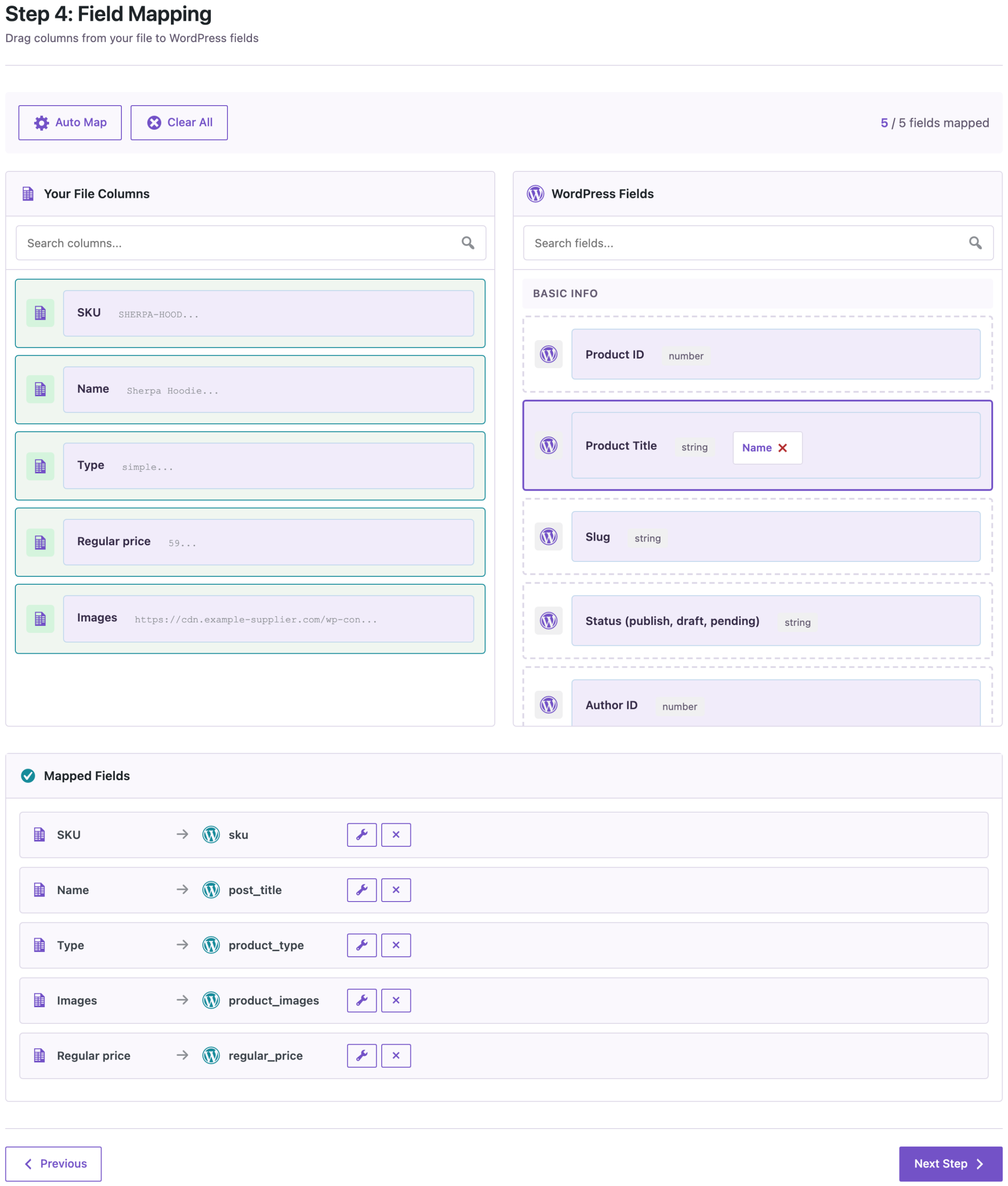
If your column has another name, drag it to Images (comma-separated URLs: first = featured) by hand. If the main image is in a column of its own, map that column to Featured Image URL.
Step 3: Match by SKU and Download the Images
On Import Options:
- Check for Existing Items by Field: SKU, so rows for existing products update them.
- If Match Found: Update and If No Match Found: Create.
- Automatically Import Media Files turned on. Without it, images from other sites are not downloaded.
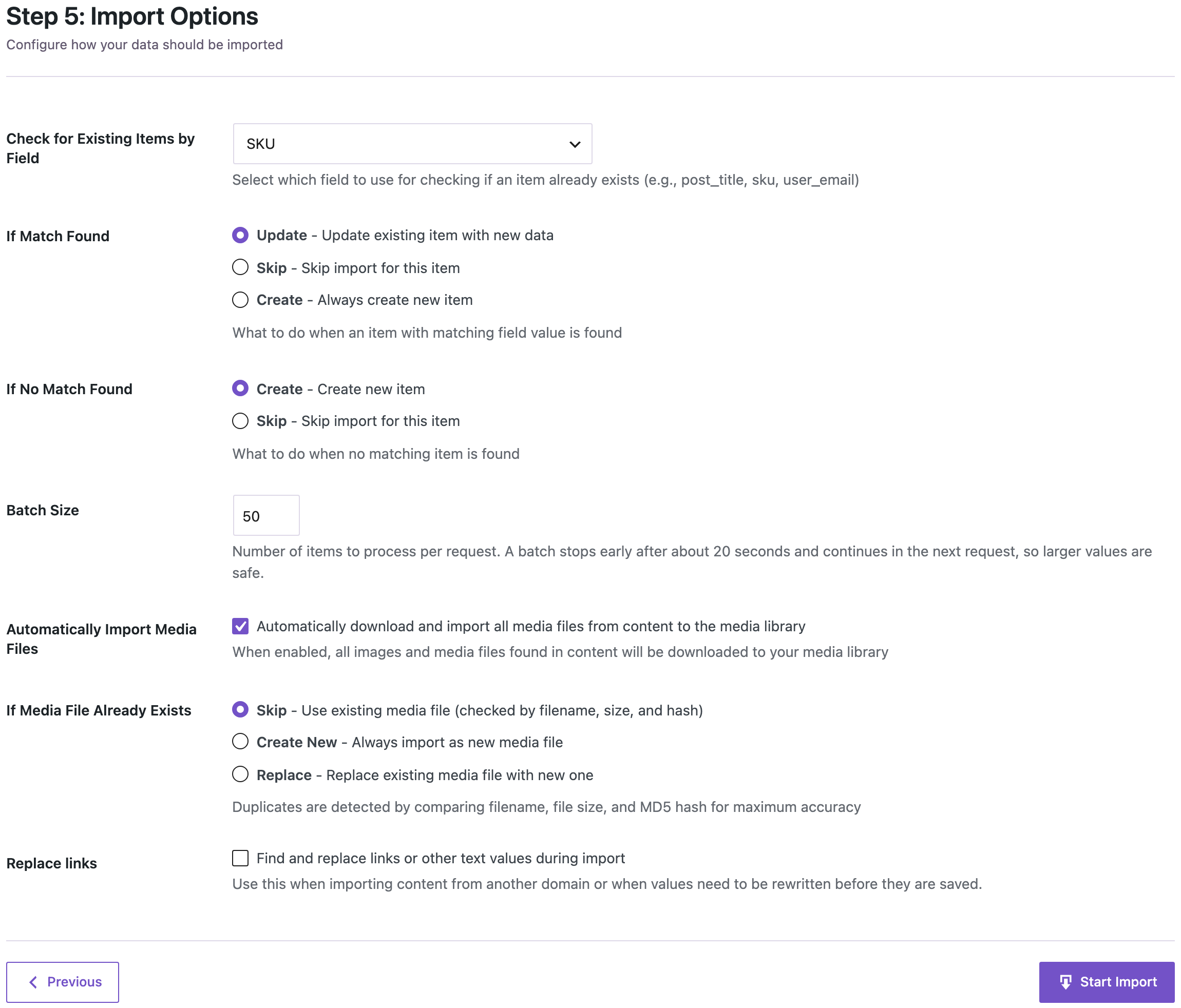
Each link is downloaded once. When a later import has the same link, the image already in the media library is used again, so running the file twice does not create duplicates.
Step 4: Run the Import and Read the Warnings
Start the import. Four products were created and two were updated. One link could not be downloaded, so the result says Import Completed with Warnings and lists the address with its row number and the reason:
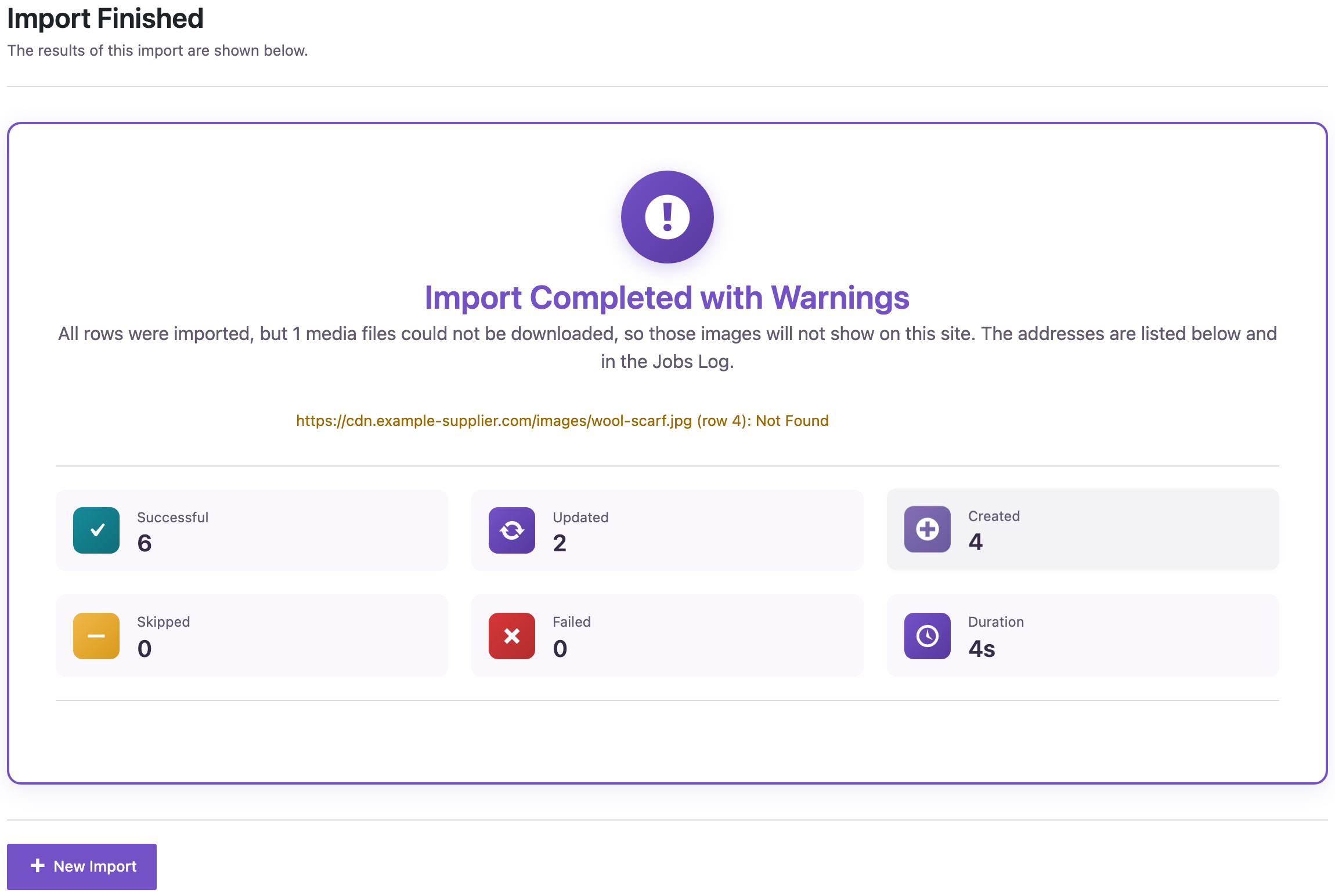
The Wool Scarf was still created, just without a picture, and the same message is in Import Export → Jobs Log. Other typical reasons are a link that needs a login, a server that blocks downloads, or a file that is not an image.
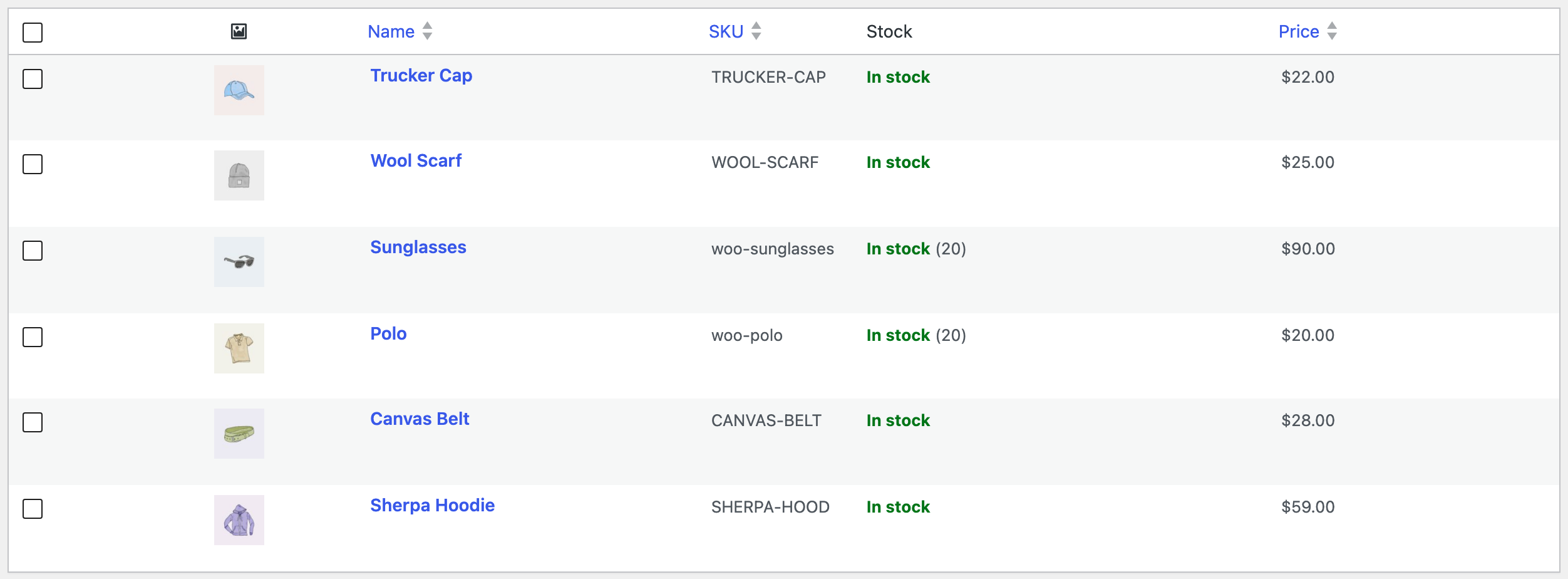
Open Products. The new products have their photos, and Polo and Sunglasses show the supplier’s new images:
On the product page, the Sherpa Hoodie has the front view as the main image and the back view in the gallery below it:
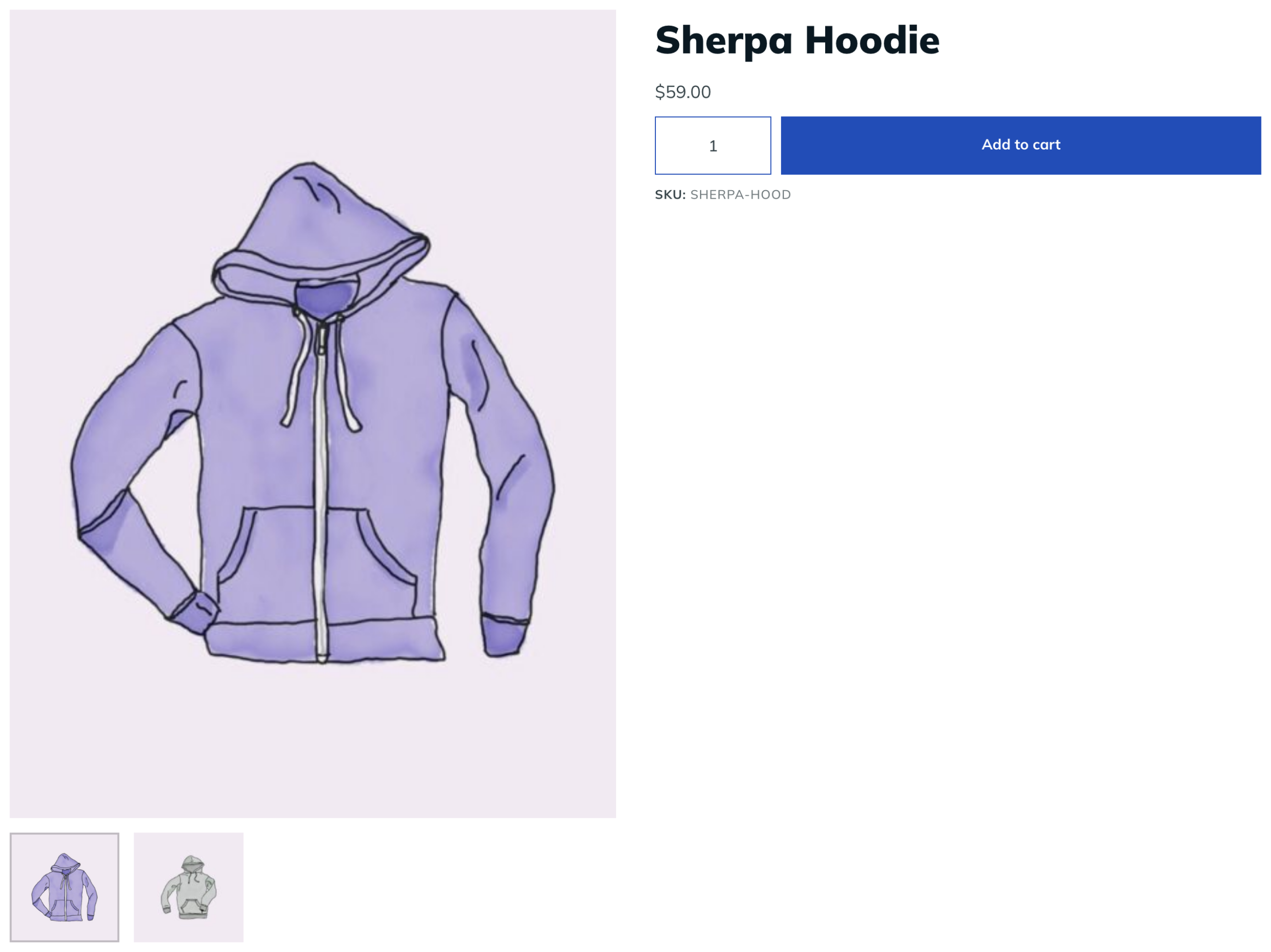
We ran the same file a second time: all six products were updated and the media library had no extra images.
Update Only the Images of Existing Products
When the supplier sends new photos later, you don’t need the full product file. Two columns are enough, SKU and Images:

Import it the same way, with If Match Found: Update and If No Match Found: Skip, so a typo in a SKU does not create an empty product. Names, prices, descriptions and stock stay as they are; only the images change. The Wool Scarf got its picture, and the Trucker Cap now has a gallery image:
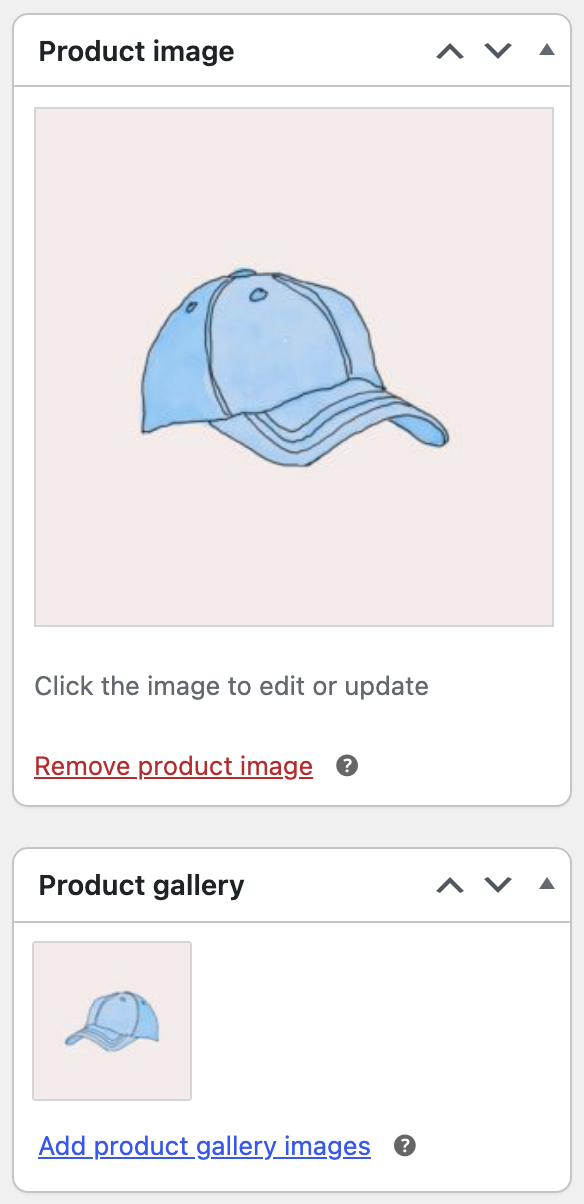
The Images list is the full set of pictures for the product. The first link replaces the product image, and the gallery becomes exactly the remaining links. A gallery image that is not in the list anymore is removed from the product (the file stays in the media library). Leave the Images cell empty to keep the current images.
Common Mistakes
- Automatically Import Media Files turned off. Links to other sites are then skipped, and the products have no images. Turn it on and run the import again.
- Links to a page instead of the file. Cloud drive share links open a preview page. Use a direct download link or upload the images somewhere they can be opened as files.
- Separators other than commas. Put the links of one product in one cell, separated by commas. Line breaks or semicolons are read as part of the address.
- Very large photos. Every image is downloaded and resized by WordPress. A few hundred 10 MB photos take a long time; ask the supplier for web-sized images if you can.
- Hotlinking expectations. The images are copied into your media library. If the supplier changes a photo later, import the link again to get the new version.
FAQ
Can I import images for variations?
Yes. Variation rows in a WooCommerce product CSV can have their own Images value; the first link becomes the variation image. See How to Import WooCommerce Variable Products from CSV.
Does it work with images that are already in my media library?
Yes. A link to an image on your own site is matched to the existing attachment and nothing is downloaded.
Will it set alt text?
The downloaded images get their file names as titles. Alt text can be set later in the media library or with a bulk update.
Do I need PRO?
Yes, importing WooCommerce products is part of the PRO add-on. For blog posts with featured images from URLs, the free plugin is enough; see How to Import Posts from Excel with Featured Images by URL.
Related Guides
- How to Import WooCommerce Products from CSV or Excel
- How to Update WooCommerce Prices and Stock by SKU from CSV
- How to Import WooCommerce Variable Products from CSV
- Shopify to WooCommerce: Import Products via CSV
Get the free plugin on WordPress.org.

Comments 0
Have a question or a tip to share? Leave it below.