
Many suppliers and wholesalers publish their catalog as an XML feed instead of a spreadsheet. Each product is an element with child elements for the SKU, title, price, stock and images, and every supplier names them a little differently. Below: how the plugin reads such a feed, how its elements map to WooCommerce fields, and how later feeds keep prices and stock up to date.
We tested it with Import Export by RockStarLab 2.1.27 and the PRO add-on 2.1.7, WooCommerce 11.2 and WordPress 7.1. Importing WooCommerce products is a PRO feature.
Short Answer
- Download the supplier’s XML file, or copy the feed address.
- Back up the site.
- Go to Import Export → Import → WooCommerce Products and upload the file, or paste the address in Or import a file from a URL.
- Click Auto Map, then drag any element it did not recognize to its field.
- Match by SKU with Update and Create, keep Automatically Import Media Files on, and start the import.
The Feed
Our test feed comes from a clothing supplier. It has one <product> element per item inside a <catalog> root:
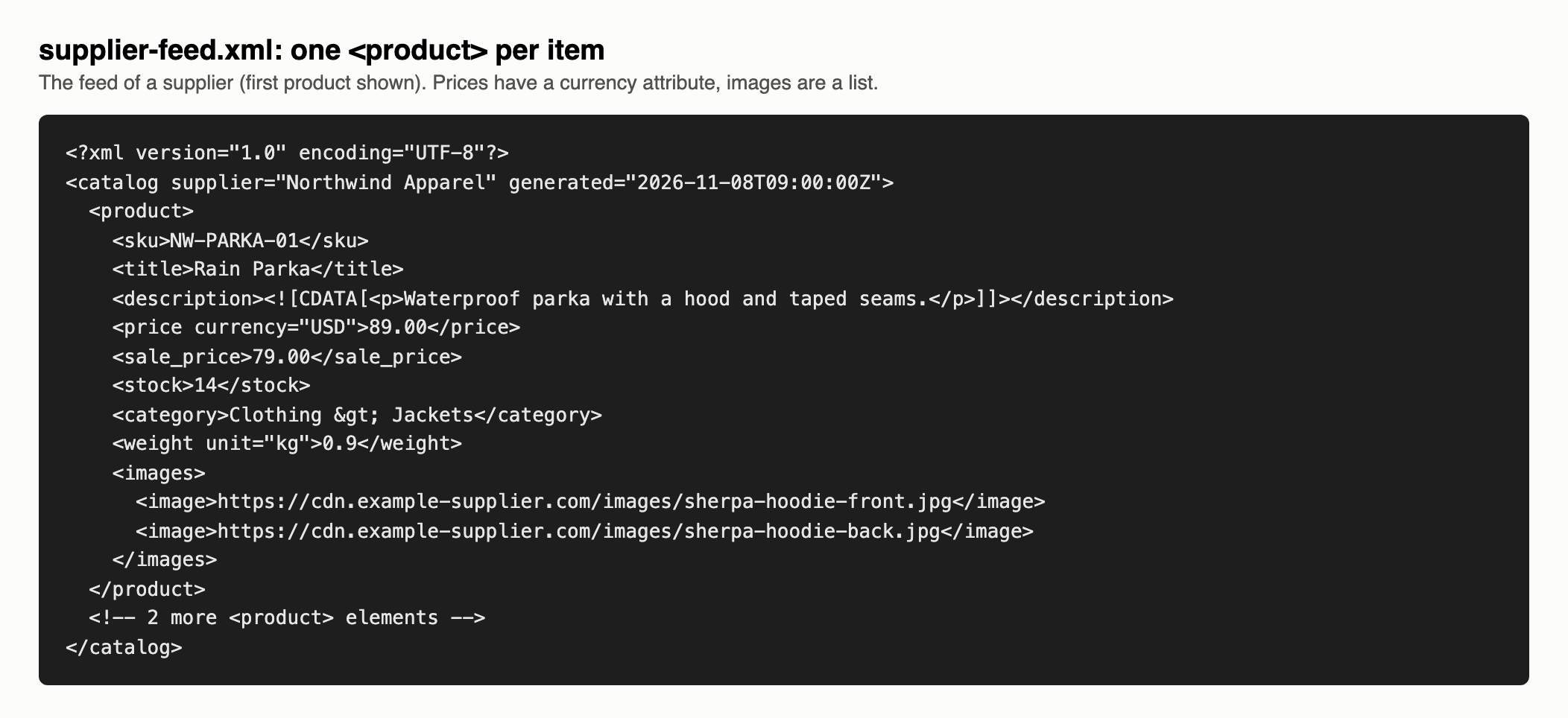
The plugin finds the repeating element by itself: <product> here, <item> in an RSS or Google Merchant feed, <offer> in many marketplace feeds. Each one becomes a row, and its child elements become columns:
- A simple element such as
<sku>or<title>is a column with its text. - An attribute becomes its own column:
<price currency="USD">89.00</price>givesprice= 89.00 andprice@currency= USD. - A list such as
<images><image>…</image><image>…</image></images>becomes one column with the values separated by commas, which is the format the product images field expects. - Nested elements get a path name, for example
shipping/weight. Namespaced elements keep their prefix, such asg:pricein a Google Merchant feed. - HTML in CDATA sections, as in our
<description>, is kept as HTML.
Step 1: Back Up the Site
The import creates and updates products and adds images to the media library. Make a backup first: UpdraftPlus Backup Now, your host’s backup, or ask an AI agent to run rsl-ie/updraftplus-backup-start. See How to Create a WordPress Website Backup and Restore It.
Step 2: Upload the Feed
Open Import Export → Import, choose WooCommerce Products and upload the XML file:
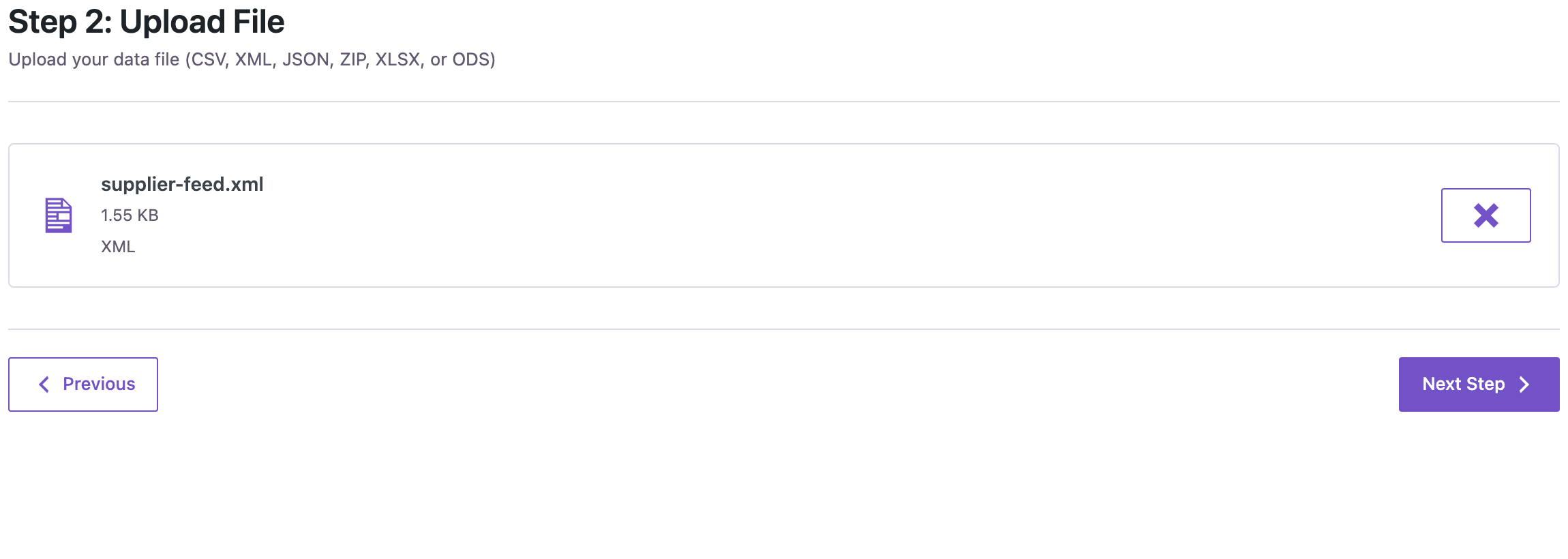
If the supplier gives you an address instead of a file, paste it in Or import a file from a URL below the upload area and click Fetch File. The plugin downloads the feed on the server. This also lets you run the import on a schedule later, with a fresh copy of the feed each time; see Automatic Supplier Feed Import for WooCommerce.
Step 3: Map the Elements
On Field Mapping, click Auto Map. It matched 9 of our 11 columns: sku, title to the product title, description to the content, price to the regular price, sale_price, stock to the stock quantity, category, weight and images:
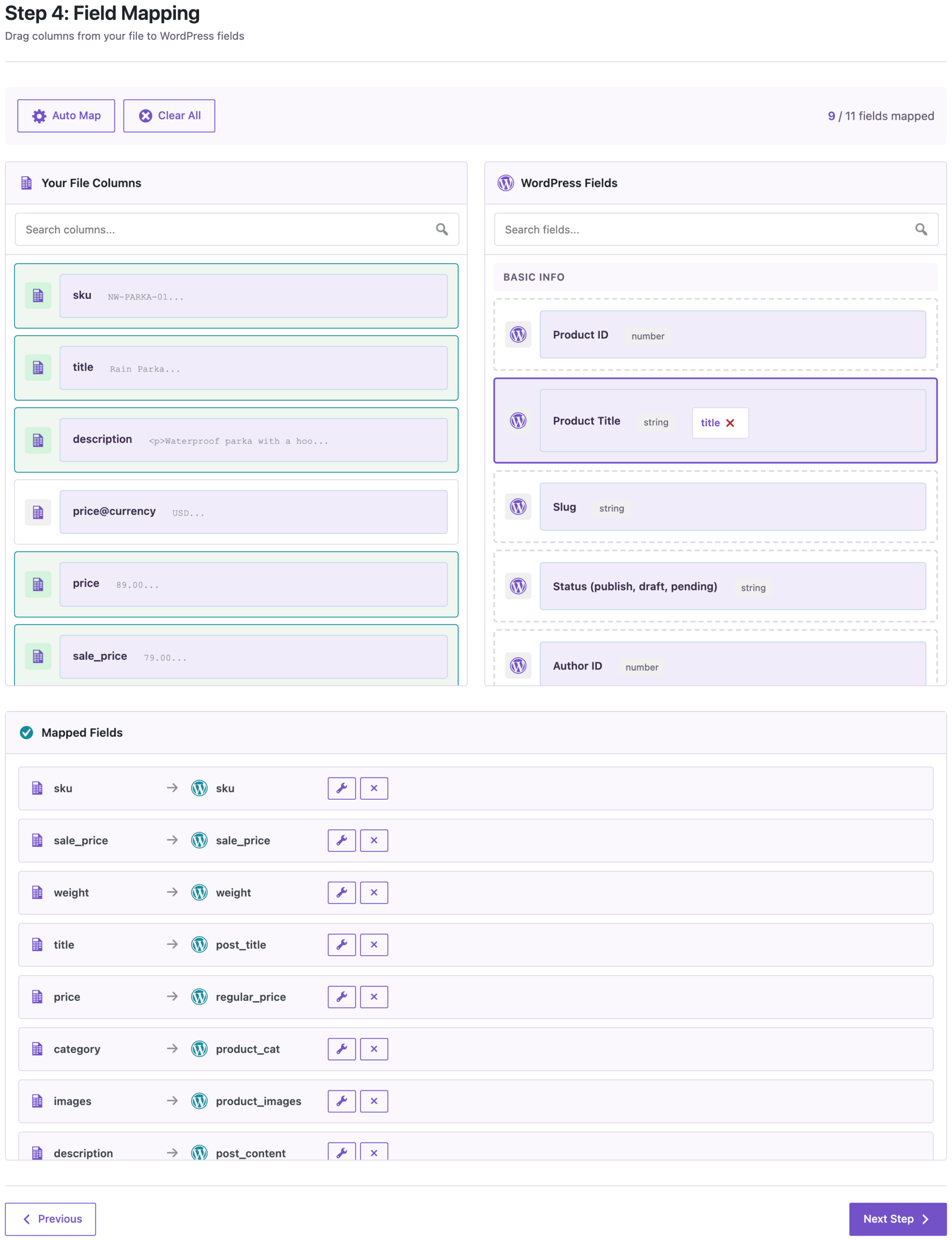
The two left over, price@currency and weight@unit, only describe the units and are not needed. If your supplier uses other names (name, qty, ean, pictures), drag them to the matching fields by hand. Check two things:
- Units. WooCommerce stores weight in the unit set under WooCommerce → Settings → Products. Our feed uses kg, the same as the store. If the feed uses grams and the store kilograms, change one of them before the import, or the weights will be 1,000 times too large.
- Category paths.
Clothing > Jacketscreates Jackets under Clothing if they don’t exist yet. Several categories are separated by commas.
Step 4: Import
On Import Options, set Check for Existing Items by Field to SKU, keep If Match Found: Update and If No Match Found: Create, and leave Automatically Import Media Files on so the images are downloaded. Start the import:

In Products, the three items have their photos, prices and stock. The Rain Parka shows the sale price from <sale_price>, and the Wool Cap is out of stock because the feed says <stock>0</stock>:
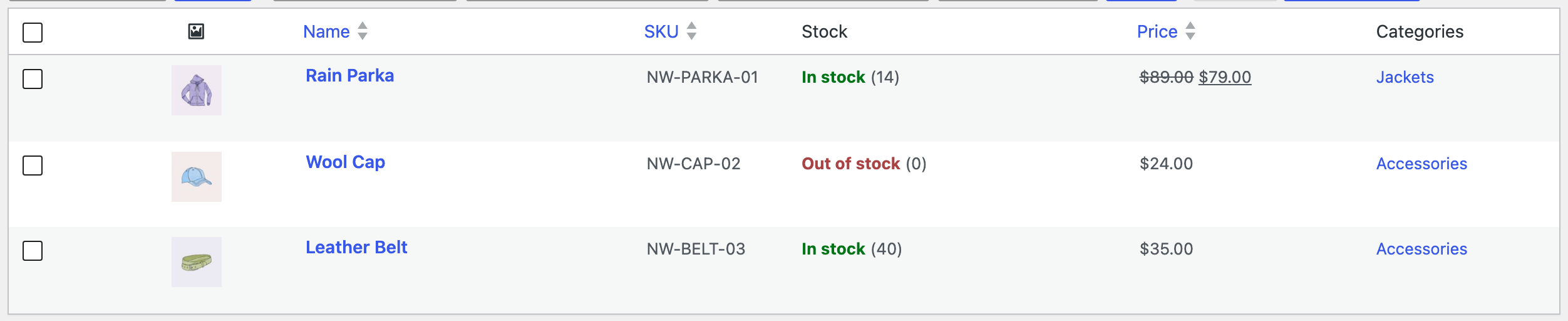
A stock number turns on stock management for the product, so WooCommerce shows the quantity and changes the status by itself when it reaches zero. The product page has the description from the feed, the sale price and both images:

Updating Prices and Stock from the Next Feed
Run the same import with the new feed. Because products are matched by SKU, existing products are updated and only new SKUs are created. Things to know:
- A product that disappeared from the feed is not deleted or hidden. If your supplier drops discontinued items from the feed, check them from time to time, or ask for a feed that keeps them with stock 0.
- An empty
<sale_price>ends the sale. To keep the sale prices you set in WooCommerce, removesale_pricefrom the mapping. - Images that were downloaded before are not downloaded again.
- To update only prices and stock, remove the other columns from the mapping (title, description, images, category). Products then keep everything else, including changes you made in WooCommerce.
Common Mistakes
- The upload is rejected as invalid XML. The address probably returned an HTML page (a login or error page) instead of the feed. Open it in a browser to check.
- Prices with a currency inside. A value like
89.00 USDis not a number for WooCommerce. Ask the supplier for a feed with the currency in an attribute or a separate element, as in our example. - Different SKUs in your store. If you changed SKUs in WooCommerce, the feed creates new products instead of updating yours. Keep the supplier’s SKUs on the products that come from the feed.
- Very large feeds. Feeds with tens of thousands of products import in batches; leave the tab open or let WP-Cron finish the job. See How to Import a Large CSV (100,000 Rows); the same applies to XML.
FAQ
Does it work with Google Merchant (RSS) feeds?
Yes. The <item> elements inside <channel> become rows, and the g: fields become columns such as g:id, g:price and g:image_link.
What about variable products?
This guide covers simple products. Feeds describe variations in many different ways, so for variable products convert the feed to WooCommerce’s CSV layout first; see How to Import WooCommerce Variable Products from CSV.
Can I import the plugin’s own XML export?
Yes. Files exported with the plugin are read as before, including nested data.
Do I need PRO?
Yes, importing WooCommerce products is part of the PRO add-on. Blog posts and pages can be imported from XML with the free plugin.
Related Guides
- How to Import WooCommerce Products from CSV or Excel
- How to Import WooCommerce Product Images from URLs
- How to Update WooCommerce Prices and Stock by SKU from CSV
- Automatic Supplier Feed Import for WooCommerce
Get the free plugin on WordPress.org.

Comments 0
Have a question or a tip to share? Leave it below.