
To give ChatGPT, Claude or your own RAG pipeline the content of a WordPress site, you need a file with every post, its URL and its metadata in a structure a model can read reliably. A JSON export does that. The steps below show which fields to include and how to remove the block markup that otherwise takes more than half of the tokens.
Everything below was run on a test coffee blog with the free Import Export by RockStarLab 2.1.22 and WordPress 7.1. The token counts are from the real export files.
Short Answer
- Go to Import Export → Export and choose Blog Posts (or Pages).
- Add the filter Status Equals publish.
- Select Title, Permalink, dates, Author Name, Categories, Tags, Excerpt, Content, Word Count and the meta description.
- Choose JSON, clear Pretty Print, and download the file.
- Run the short cleanup script below to turn HTML into plain text and save one post per line (JSONL). Then upload the file to your AI tool or index it.
All of this works in the free version. An AI agent connected to the site can run the same export for you (see the agent section).
Why JSON for AI
A model reads a JSON record as a set of labeled facts: this is the title, this is the URL, this is the date it was last updated. In a CSV file, long post content full of commas, quotes and line breaks is easy to break as soon as the file passes through a spreadsheet, and Excel cuts a cell at 32,767 characters. A WordPress WXR export is XML built for re-import, with every post’s metadata in separate nested elements that an AI tool has to sort through first.
JSON also suits code. Embedding scripts, vector databases and LLM frameworks load it without a parser for a special format. For a broader comparison, see CSV, JSON, XML, XLSX and ODS: What Data Formats Are and When to Use Them.
Which Fields to Export
Export only what the AI needs. Each extra field costs tokens in every record. These twelve fields cover most uses:
| Field | Key in the file | Why the AI needs it |
|---|---|---|
| ID | ID |
A stable key to match answers back to posts |
| Title | post_title |
Topic at a glance |
| Permalink | permalink |
Lets the model cite the source and suggest internal links |
| Date, Modified Date | post_date, post_modified |
Tells old content from fresh content |
| Author Name | author_name |
Attribution without exposing emails or logins |
| Categories, Tags | taxonomy_category, taxonomy_post_tag |
Grouping and filtering |
| Excerpt | post_excerpt |
A short summary written by a person |
| Content | post_content |
The text itself |
| Word Count | word_count |
Estimate the token budget before you send anything |
| Meta Description | _yoast_wpseo_metadesc |
The SEO summary, or an empty value that shows which posts lack one |
Leave out Author Email, Post Password, GUID and the full Custom Fields group unless you have a reason. They add noise, and some of them are personal data. With Rank Math the meta description field is rank_math_description. ACF fields are in their own group on the same screen if your content lives there.
Step 1: Choose Blog Posts and Filter to Published
Open Import Export → Export, select Blog Posts and click Next Step. The test blog had 6 posts, including drafts. On the Filter Data step, add a filter: Status, Equals, publish, then refresh the counter. It dropped to 4.
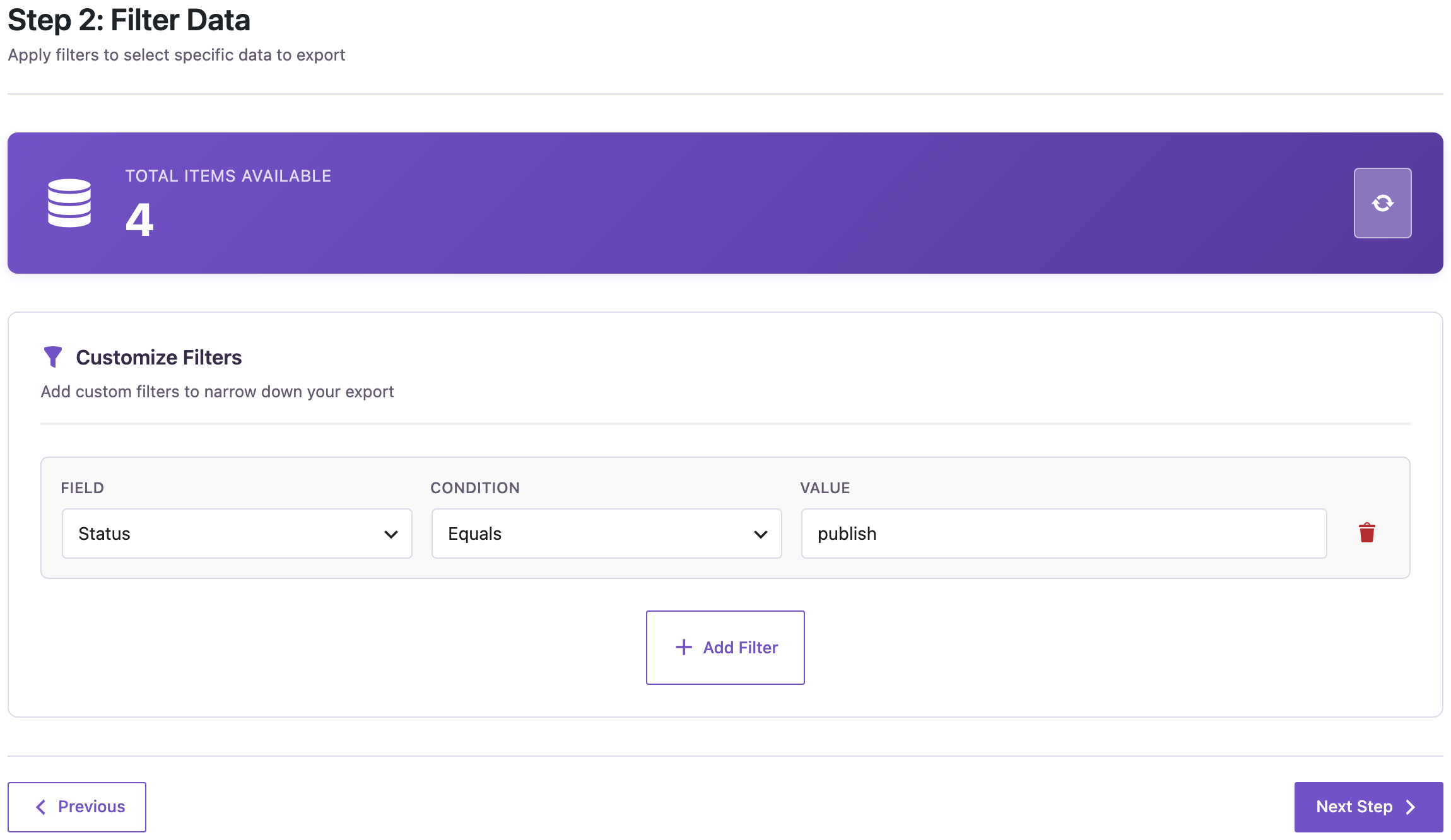
The filter matters more for AI than for a backup. Drafts can hold unannounced products, prices or half-checked facts, and a model will happily quote them. More filter examples, such as “modified after a date” for refreshing an index, are in WordPress Export Data Filters: Examples.
Step 2: Select the Fields
Drag the fields from the table above into Export File Structure. The order you set is the order of keys in each JSON record.

Step 3: Choose JSON and Turn Off Pretty Print
Select JSON. Under JSON Options, clear Pretty Print. Pretty Print indents every key for people reading the file; a model does not need the spaces. Enter a file name and click Start Export.

The export of 4 posts took 3 seconds and produced a 9.34 KB file. Click Download Export File.
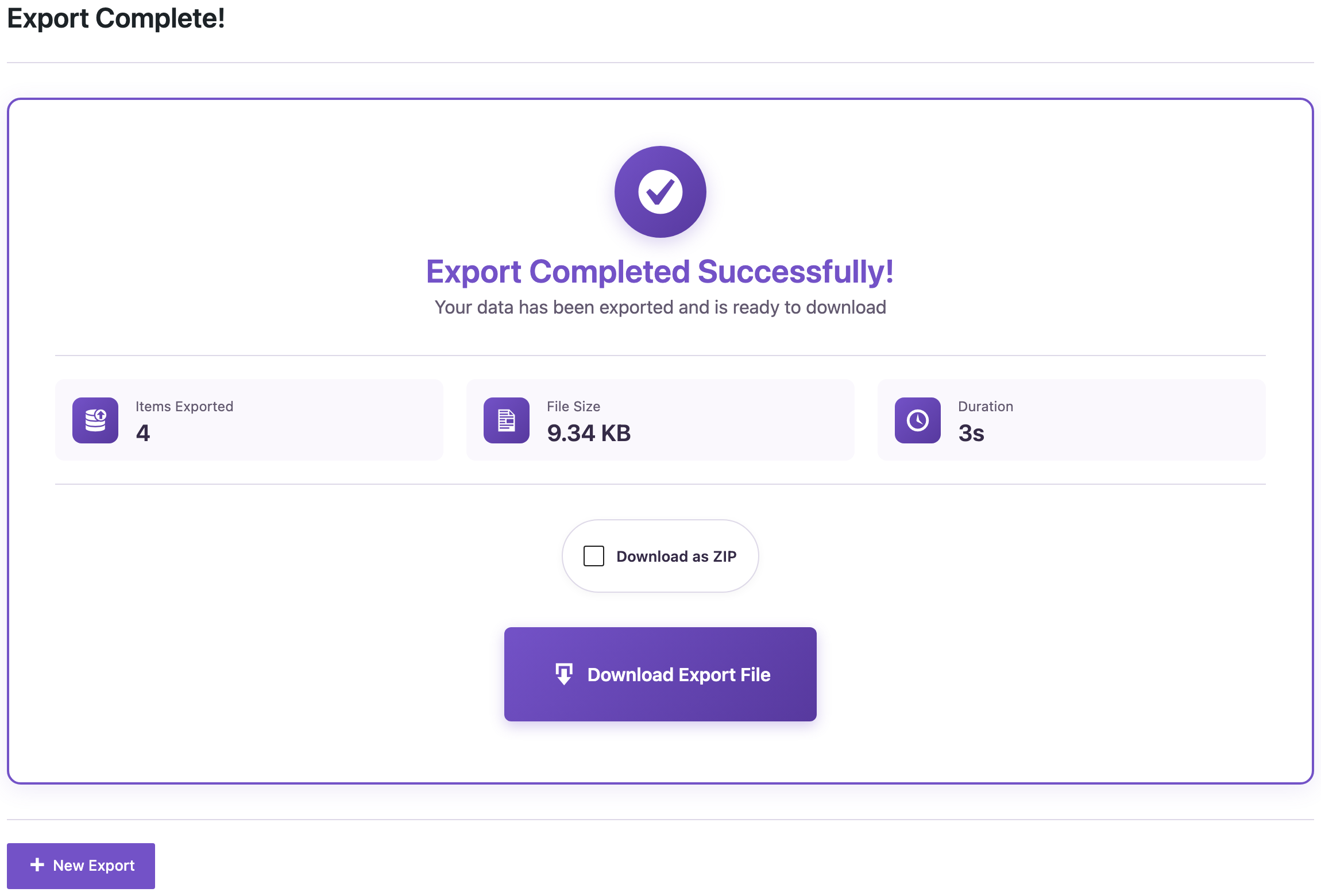
Each post is one object in a JSON array. This is the first record, shown indented here for reading and shortened in the content field:
{
  "ID": 1013,
  "post_title": "Cold Brew at Home",
  "permalink": "https://www.example-roastery.com/2024/06/01/cold-brew-at-home/",
  "post_date": "2024-06-01 09:00:00",
  "post_modified": "2026-11-06 20:02:10",
  "author_name": "Tom Becker",
  "taxonomy_category": "[{\"name\":\"Brewing\",\"slug\":\"brewing\",\"description\":\"\",\"parent_path\":\"\"}]",
  "taxonomy_post_tag": "[{\"name\":\"brew guide\",\"slug\":\"brew-guide\",...},{\"name\":\"cold brew\",...}]",
  "post_excerpt": "Coarse grind, 1:8 ratio, 16 hours in the fridge.",
  "post_content": "<!-- wp:paragraph -->\n<p>Cold brew is coffee steeped in cold water for a long time. ...",
  "word_count": 80,
  "_yoast_wpseo_metadesc": ""
}
Two details are worth knowing. Categories and tags are stored as a JSON string with name, slug, description and parent path, so the same file can be imported back into WordPress. And post_content is the raw block editor markup, exactly as it is saved in the database.
For pages, run the export again with Pages. Each export file holds one content type.
The Hidden Cost: Block Markup
The block editor wraps every paragraph, heading and list item in an HTML comment and a tag. For a person it is invisible. For a model it is text to read and to pay for.

Across the 4 test posts (414 words), the content field had 6,334 characters. The text inside it had 2,429. The rest, 62%, was markup. In tokens, the content went from 1,696 to 618 after cleanup, 64% less.
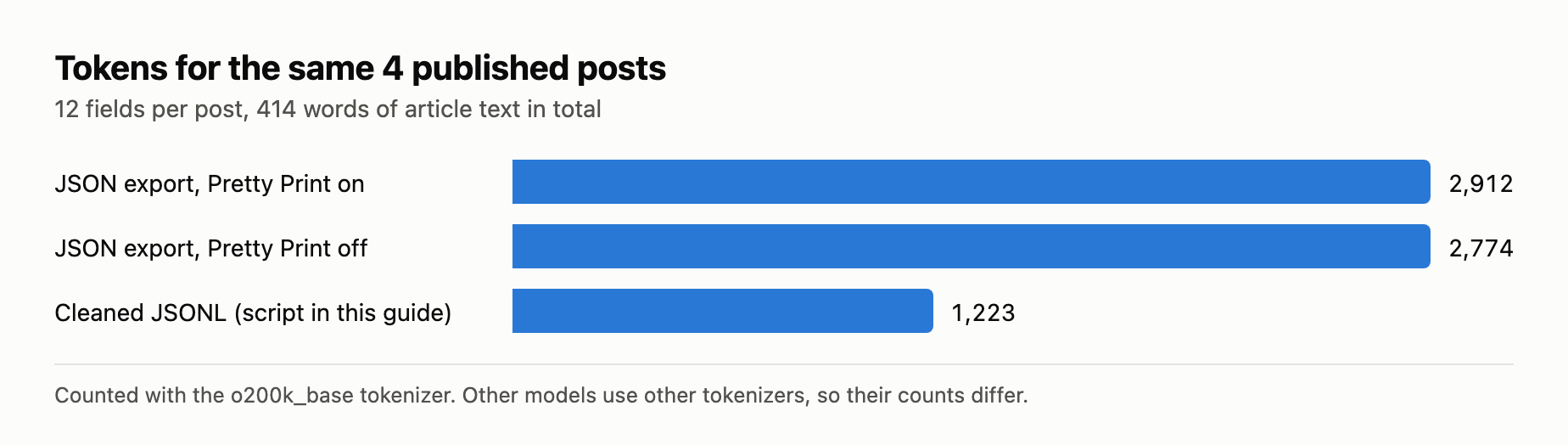
Turning off Pretty Print saved 138 tokens of 2,912 (5%). Cleaning the content and dropping the extra taxonomy keys brought the file to 1,223 tokens, 58% fewer than the default export. The test posts are simple. Pages built with columns, groups, buttons and image blocks carry more markup per word, so the saving is usually larger on a real site.
Markup is not only a cost question. Retrieval systems split text into chunks and compare them by meaning. A chunk that is half <!-- /wp:list-item --> matches questions worse than the same chunk in plain text.
Step 4: Clean the File for AI
This Python script uses only the standard library. It removes block comments and tags, keeps headings as Markdown (## Recipe) and list items as dashes, decodes entities such as –, turns categories and tags into plain lists, and writes one post per line (JSONL).
import html, json, re, sys

def to_text(markup):
    t = re.sub(r"<!--.*?-->", "", markup, flags=re.S)            # block comments
    t = re.sub(r"<h([1-6])[^>]*>", lambda m: "\n" + "#" * int(m.group(1)) + " ", t)
    t = re.sub(r"<li[^>]*>", "\n- ", t)
    t = re.sub(r"</(p|h[1-6]|li|figcaption|div)>|<br\s*/?>", "\n", t)
    t = re.sub(r"<[^>]+>", "", t)                                  # remaining tags
    t = html.unescape(t).replace(chr(0xA0), " ")
    t = re.sub(r"[ \t]+", " ", t)
    t = re.sub(r"\n\s*\n+", "\n\n", t)
    return re.sub(r"\n\n(?=- )", "\n", t).strip()

def names(value):
    try:
        return [term["name"] for term in json.loads(value or "[]")]
    except (TypeError, ValueError):
        return []

src, dst = sys.argv[1], sys.argv[2]
with open(src, encoding="utf-8") as f, open(dst, "w", encoding="utf-8") as out:
    for post in json.load(f):
        out.write(json.dumps({
            "id": post["ID"],
            "title": post["post_title"],
            "url": post["permalink"],
            "published": post["post_date"],
            "updated": post["post_modified"],
            "author": post["author_name"],
            "categories": names(post.get("taxonomy_category")),
            "tags": names(post.get("taxonomy_post_tag")),
            "excerpt": post.get("post_excerpt", ""),
            "meta_description": post.get("_yoast_wpseo_metadesc", ""),
            "text": to_text(post["post_content"]),
        }, ensure_ascii=False) + "\n")
Save it as clean_for_ai.py next to the export and run:
python3 clean_for_ai.py blog-posts-for-ai.json blog-posts-clean.jsonl
Each line of the result is a complete post:
{"id": 1013, "title": "Cold Brew at Home", "url": "https://www.example-roastery.com/2024/06/01/cold-brew-at-home/", "published": "2024-06-01 09:00:00", "updated": "2026-11-06 20:02:10", "author": "Tom Becker", "categories": ["Brewing"], "tags": ["brew guide", "cold brew"], "excerpt": "Coarse grind, 1:8 ratio, 16 hours in the fridge.", "meta_description": "", "text": "Cold brew is coffee steeped in cold water for a long time. It is smooth, low in acidity and keeps for a week in the fridge.\n\n## Recipe\n- Grind 100 g of coffee coarse, like sea salt.\n- Stir it into 800 ml of cold filtered water.\n- Cover and refrigerate for 16 hours.\n- Strain through a paper filter.\n- Dilute 1:1 with water or milk and serve over ice.\n\nA Brazil or Colombia works best; very bright coffees can taste flat when cold."}
JSONL is easier to work with than one large array: you can append new posts, split the file, or stream it into an embedding job line by line.
PRO alternative: the Strip HTML Tags transformation function can be applied to the Content field during the export itself. In our test it removed the tags and block comments, but entities such as – and stayed, headings became plain lines, and the paragraphs were separated by runs of empty lines. It is enough for search indexes; for prompts the script gives cleaner text. See Content Transformation Functions.
Step 5: Use the File with ChatGPT, Claude or RAG
Chat assistants and projects
Upload the JSONL file to a ChatGPT project, a Claude project, or attach it to a single chat. Small sites fit in one file. As a rough budget, the cleaned test text came to about 1.5 tokens per word, so the word_count field tells you in advance whether the whole site fits in your model’s context window. Prompts that use the structure:
The attached file has one published blog post per line, with title, url,
dates, categories, tags, excerpt, meta_description and text.
List every post with an empty meta_description and write one of at most
155 characters for each, based only on its text. Include the url.
Using only the posts in the attached file, suggest up to two internal links
for each post: the sentence where the link fits and the url of the target post.
Do not suggest links to posts that are not in the file.
Answer customer questions using only the posts in the attached file.
After each answer, give the url of the post you used. If the file does not
answer the question, say so.
In the test file, 2 of the 4 posts had an empty meta description, which is exactly what the first prompt is for.
RAG and vector databases
- Use one record per post. Split long
textat the##headings so each chunk covers one subtopic. - Store
url,title,categoriesandupdatedas metadata of every chunk, so answers can cite the page and you can filter by category or date. - Use
idas the document key. When a post changes, replace its chunks instead of adding new ones. - To refresh the index, export only posts with Modified Date after your last run, or set up a scheduled export: How to Schedule Repeated Exports in WordPress.
Do It with an AI Agent (Free)
When an AI agent such as Claude Code, Cursor or Codex is connected to the site through the WordPress MCP Adapter, it can run the export itself with the plugin’s abilities. Setup guides: Claude Code, Cursor, Codex. The abilities involved:
rsl-ie/export-countcounts the posts that match the filters. On the test site: 4 published posts.rsl-ie/export-previewreturns up to ten records with the selected fields straight into the chat, without creating a file. For a small site or a quick check, this is all the agent needs.rsl-ie/export-startqueues the full export. The agent passes the fields,post_status: publishandjson_pretty_print: false.rsl-ie/job-getreports progress, andrsl-ie/file-getreturns the download link.
In the test, the agent’s export produced job 29: 4 posts, 9,569 bytes, the same file as the one made in the admin. The job runs through WP-Cron, so on a site with no visitors it can stay pending until the next page load or cron run. The download link needs an administrator login, so the agent gives you the link and you open it in the browser.
Prompts:
Count the published blog posts on the site, then export them to JSON with
ID, title, permalink, date, modified date, author name, categories, tags,
excerpt, content, word count and Yoast meta description. Pretty print off.
File name: blog-posts-for-ai. Give me the download link when it is done.
Preview the 10 most recent published posts with title, permalink, word count
and Yoast meta description, and tell me which ones have no meta description.
More about what agents can do on a site: How to Use the WordPress Abilities API with AI Agents.
Common Mistakes
- Exporting every status. Without the status filter, drafts, private and scheduled posts go to the AI tool with everything else.
- Exporting every field. Add all, or an agent request without a field list, includes author email and all custom fields. More fields mean more tokens and more personal data.
- Feeding raw block markup into embeddings. Chunks full of comments and class names retrieve worse. Clean the text first.
- Losing the URL. Without the permalink the model cannot cite its source, and you cannot check its answers.
- Never refreshing. An AI working from a three-month-old export quotes old prices and dead offers. Re-export by modified date or on a schedule.
FAQ
Why not use the WordPress REST API instead?
/wp-json/wp/v2/posts also returns JSON, but at most 100 posts per request, categories as numeric IDs, content as rendered HTML, and SEO data only in whatever format your SEO plugin adds. An export gives one file with names instead of IDs and only the fields you chose.
JSON or JSONL?
The plugin exports a JSON array. Most chat tools read either. For embedding pipelines and large sites JSONL is more practical, which is why the script writes it.
Can I export custom post types and ACF fields?
Yes. Custom post types appear as content types on the first step, and ACF fields have their own group on the field step. See How to Export Posts, Pages and Custom Post Types with ACF PRO Fields.
Is it safe to upload my content to an AI tool?
Published posts are public anyway, but check your AI provider’s data settings before uploading anything else. Keep emails, passwords and unpublished content out of the export.
How large a site can I export?
The export runs in batches in the background, so the limit is the size of the file you want to handle, not a server timeout. For a site with thousands of posts, export in parts, for example by category or year, and check the word_count totals against your model’s context window.
Related Guides
- How to Bulk Update Yoast SEO Titles and Meta Descriptions from CSV
- How to Export All WordPress URLs to CSV or JSON
- WordPress Content Inventory: Export All Pages with Dates, Authors and Status
- WordPress Export Data Filters: Examples
- Letting an AI Agent Edit WordPress Content Safely: Permissions, Staging, Rollback
- How to Schedule Repeated Exports in WordPress
Get the free plugin on WordPress.org.

Comments 0
Have a question or a tip to share? Leave it below.