
ACF-powered WordPress content is rarely stored in the title and body alone. Flexible Content layouts, Repeater fields, galleries, SEO fields, featured images, and custom metadata often carry the structure that makes the page work.
WP Import Export by RockStarLab can export posts, pages, and custom post types with ACF fields, including ACF PRO fields where supported by the active setup. The export workflow lets you choose standard fields, custom fields, Yoast SEO fields, featured images, and registered ACF fields for CSV or JSON output.
Short Answer
To export ACF fields from WordPress posts, open Import Export -> Export, choose Posts, Pages, or Custom Post Types, filter the content if needed, select the standard and ACF fields to export, choose CSV or JSON, and click Start Export.
WP Import Export automatically recognizes registered ACF fields and lets you include them in the export file. It can also assign transformation functions to exported fields, which helps clean, format, or restructure data before download.
When to Export ACF Fields
Export ACF fields when your WordPress content uses structured data that is not stored only in the post title or post content. Many sites use ACF to power templates, resource libraries, product-like pages, directories, landing pages, and custom post type layouts.
If you export only basic post fields, the file may miss the data that actually drives the frontend template. Exporting ACF fields keeps the structured content available for migration, review, reporting, backup, developer workflows, or re-import with WP Import Export.
You can learn more about Advanced Custom Fields from the official ACF documentation.
What WP Import Export Supports
| Export task | Supported? | Notes |
|---|---|---|
| Export WordPress posts | Yes | Choose Posts in Step 1 of the Export workflow. |
| Export WordPress pages | Yes | Choose Pages when exporting page content and page fields. |
| Export custom post types | Yes, where available | Choose the registered custom post type that contains the structured content. |
| Export standard post fields | Yes | Export fields such as post date, title, content, excerpt, slug, author, and status. |
| Export featured images | Yes | Include featured image data when media references are needed. |
| Export Yoast SEO fields | Yes, where available | Useful for SEO audits, migrations, and metadata review. |
| Export ACF fields | Yes | Registered ACF fields can be selected during field selection. |
| Export ACF PRO fields | Yes, where supported | Includes advanced field types such as Flexible Content and Repeater fields where supported by the active setup. |
| Assign transformation functions | Yes | Apply functions to exported field values before the file is generated (available in PRO Add-on). |
Before You Start
Before you export ACF fields, confirm which content type contains the fields you need. ACF fields may be attached to posts, pages, or a custom post type, depending on the field group rules in WordPress.
You should also decide whether the export file will be used by editors, developers, or the WP Import Export import workflow. CSV is usually best for spreadsheet review and re-import. JSON is better for developers and structured data workflows.
Check the ACF Field Groups
Open the ACF field group settings and confirm which post type, page template, taxonomy, or rule group controls the fields. This helps you choose the right content type in the export workflow.
For complex ACF PRO structures, test the export on a small set of posts first. Flexible Content, Repeater fields, nested Repeaters, and relationship-style fields can contain layered data that should be reviewed carefully after export.
Plan the Export Format
Use CSV when you want to import the exported file back with WP Import Export or review the data in a spreadsheet. Choose JSON when a developer needs a structured export for custom tooling, integrations, or inspection outside a spreadsheet.
If the file will be edited and imported later, keep column names clear and avoid changing field identifiers unless that is part of the migration plan.
Step-by-Step Workflow
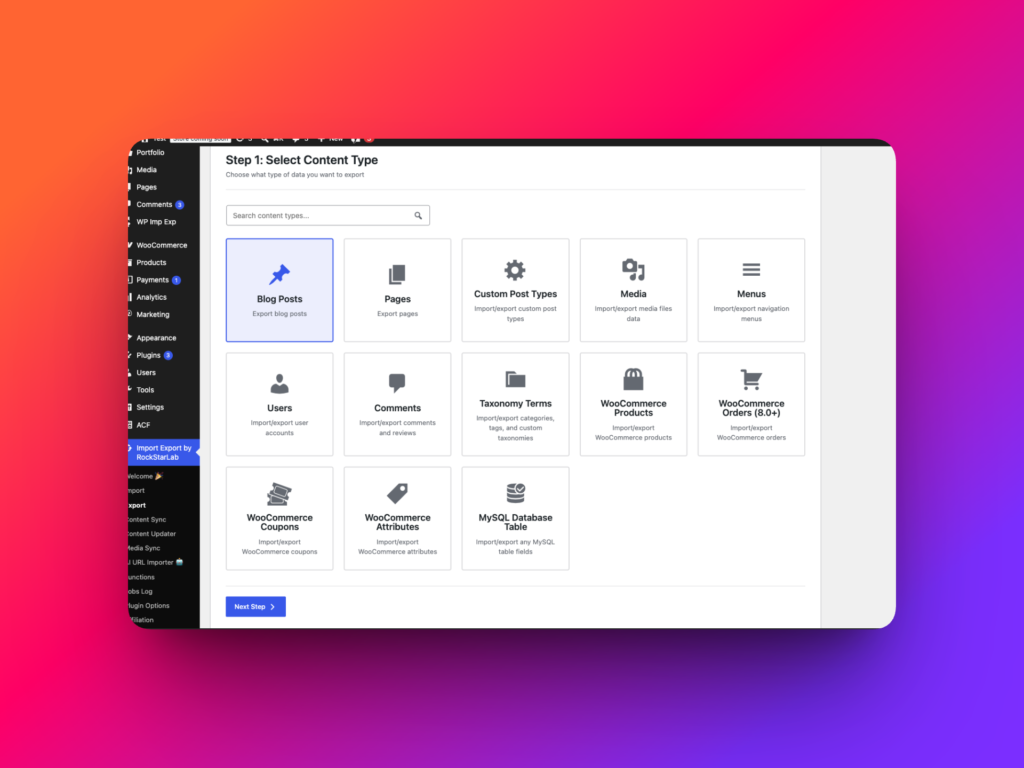
Step 1: Choose Posts, Pages, or Custom Post Types
Go to Import Export -> Export.
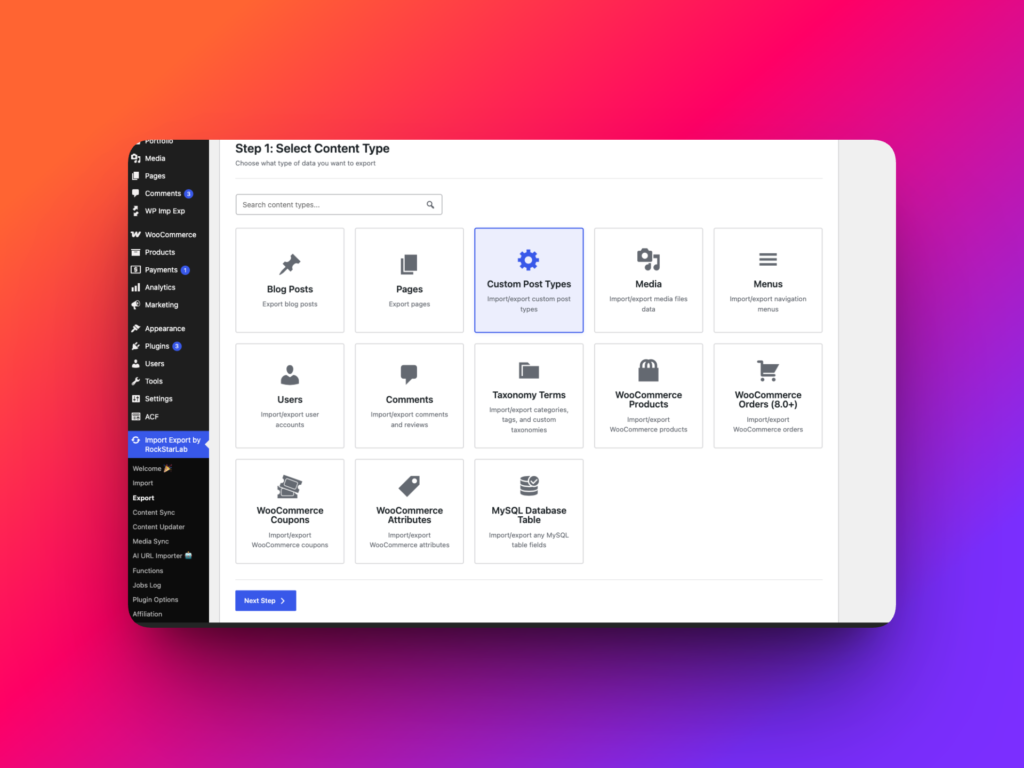
In Step 1, choose the content type you want to export. Select Posts, Pages, or a registered Custom Post Type, depending on where your ACF fields are attached.
For example, choose Posts for blog articles with ACF subtitles, Pages for landing pages with ACF sections, or a custom post type for listings, case studies, resources, locations, documentation, or portfolio entries.
Step 2: Filter the Content to Export
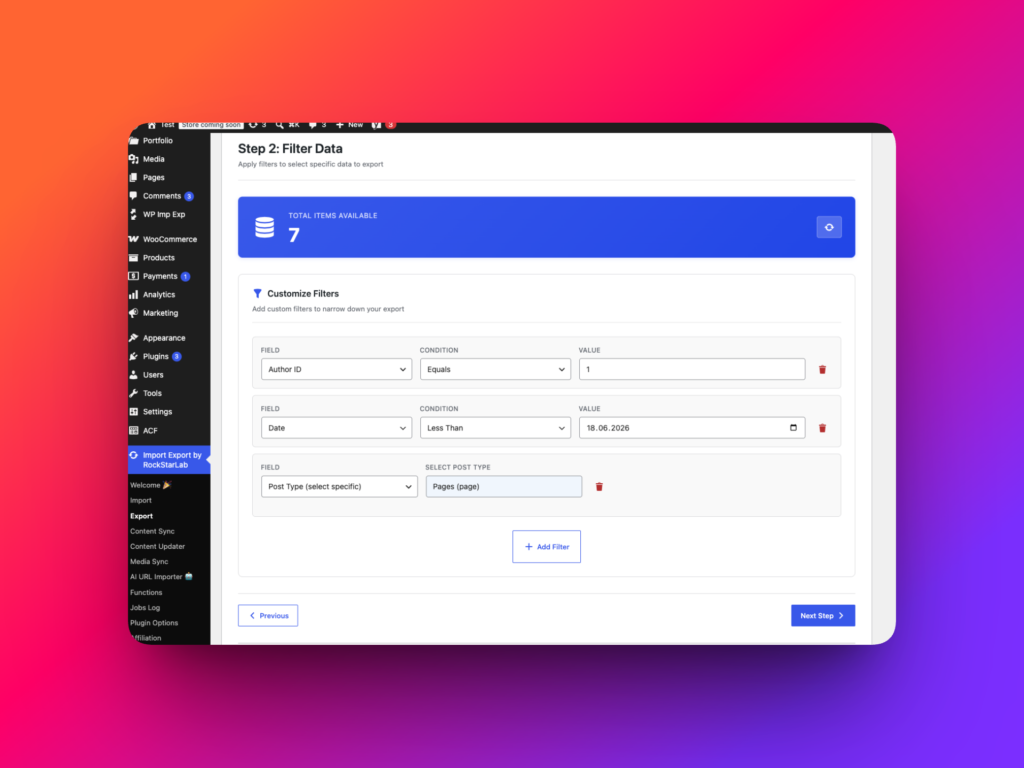
In Step 2, you can filter the records that should be included in the export. Filters are optional, but they are useful when you only need a specific set of posts, pages, or custom post type entries.
For example, you can export posts from the last week when preparing an editorial handoff. You can also filter by status, date, taxonomy, author, or other available fields depending on the selected content type.
Useful filter examples include:
- Export posts published in the last 7 days.
- Export draft posts that need editorial review.
- Export posts from a specific category, such as News or Tutorials.
- Export pages using a specific template, such as landing pages.
- Export only published pages for a site migration.
- Export custom post type entries with a specific taxonomy term, such as location or resource type.
- Export custom post type entries updated after a specific date.
- Export posts by a specific author for reporting or cleanup.
Step 3: Select Standard, Custom, Yoast, and ACF Fields
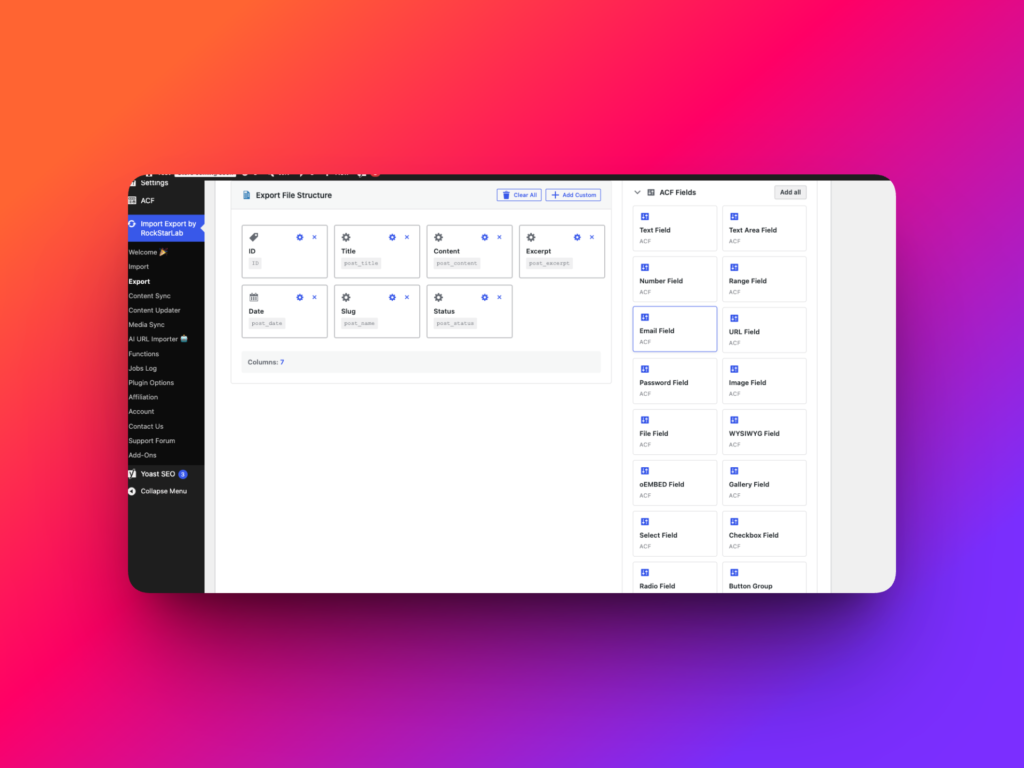
Step 3 is where you choose the exact data that should appear in the export file. This step is especially important when you need to export ACF fields, because structured WordPress content often depends on fields beyond the default post title and content.
You can export standard WordPress fields such as post date, post title, post content, excerpt, slug, author, status, and post ID. You can also export additional data such as custom fields, taxonomy fields, featured image data, Yoast SEO fields, and ACF custom fields.
WP Import Export supports all ACF field types where supported by the active setup, including ACF PRO fields such as Flexible Content, Repeater, nested Repeater fields, and other advanced ACF structures.
To select fields for export, drag the required fields from the right panel into the export field area. If you want to export every field from a field group, use the Add all button for that group.
WP Import Export automatically recognizes fields registered through the ACF plugin, so available ACF field groups and fields can appear in the export field selector.
This makes it possible to build a targeted export that includes only the fields you need. For example, a post export might include post_title, post_content, featured_image, _yoast_wpseo_title, acf_subtitle, acf_intro_text, acf_gallery, and acf_flexible_content.
Assign Transformation Functions to Exported Fields
During Step 3, you can assign a transformation function to any exported field. A transformation function receives the current field value, applies custom logic, and returns the value that should be written to the export file.
Transformation functions are useful when exported ACF fields need cleanup or formatting. For example, a function can strip HTML from a text field, format a date, normalize a value, replace an old domain in URLs, combine values for reporting, or make exported content easier to read in a spreadsheet.
To assign a function, choose the field in the export field area and select the saved transformation function for that field. You can create and test reusable functions in Import Export -> Functions before using them in an export.
Example transformation function for plain-text export:
function export_plain_text_acf_value( $value, $row ) {
    $value = wp_strip_all_tags( (string) $value );
    $value = preg_replace( '/\s+/', ' ', $value );

    return trim( $value );
}
Use transformation functions carefully with complex ACF PRO fields. Test with a small export first, especially when Flexible Content, Repeater, or nested Repeater values are involved.
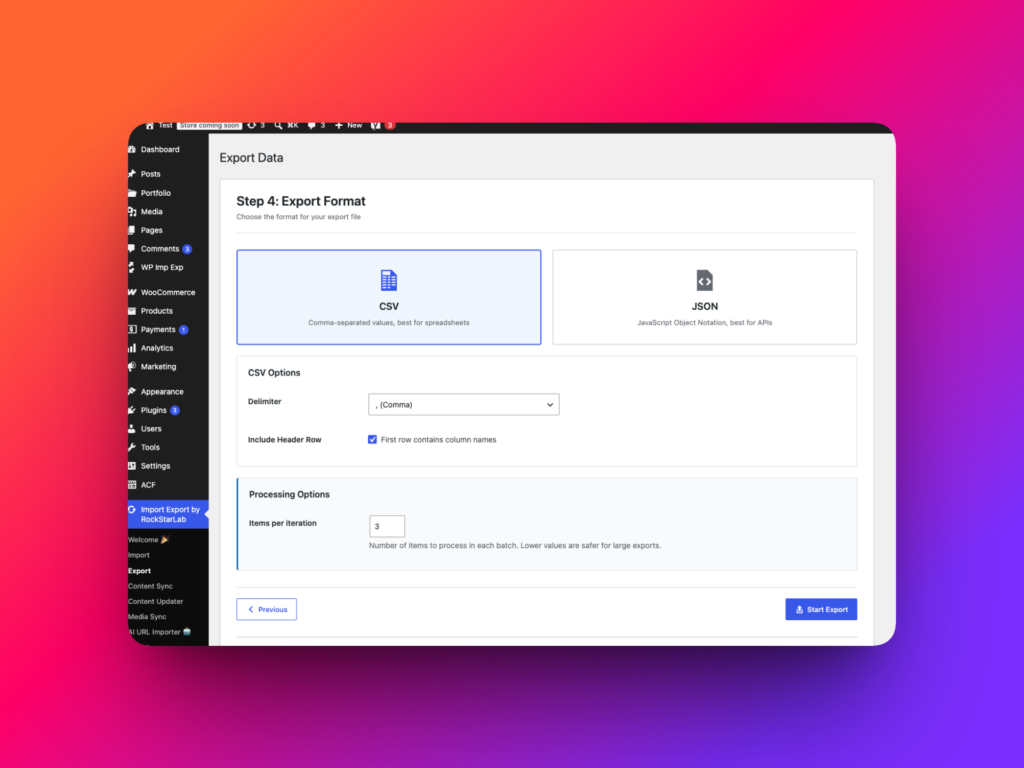
Step 4: Choose CSV or JSON Export Format
In Step 4, choose the file type for the export. Select CSV when the file should be edited in a spreadsheet or imported again with WP Import Export. Choose JSON when developers need a structured file for inspection, custom scripts, or integrations.
You can also configure CSV options such as the column delimiter. A comma is common, but a custom delimiter can help when field values contain many commas. For example, you might use a semicolon delimiter for European spreadsheet workflows, or a pipe delimiter | when exporting long text fields that already include commas.
Set Items per iteration based on the size of the export and the hosting environment. Smaller batches can be safer for large exports, while larger batches may complete faster on stronger servers.
Step 5: Start the Export and Download the File
Click Start Export. WP Import Export will process the selected posts, pages, or custom post type entries using the fields and options you selected.
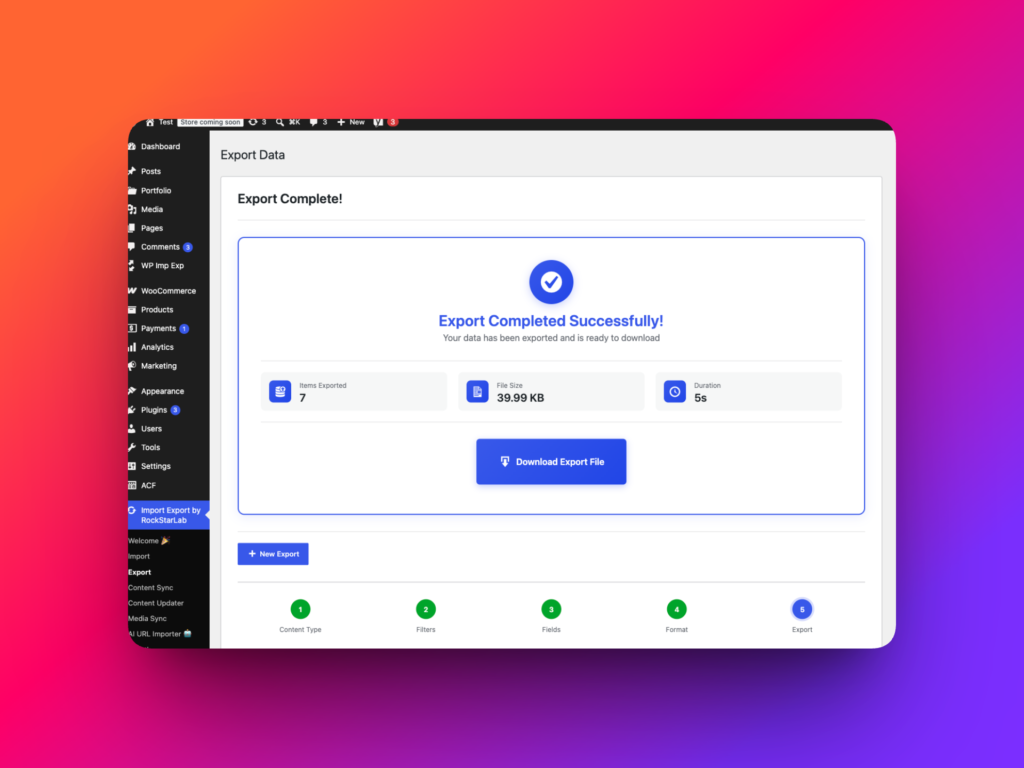
Watch the export progress until the job completes. After a successful export, click Download to save the file.
Open the file and confirm that the expected standard fields, custom fields, Yoast SEO fields, featured image values, and ACF fields are present. For complex ACF PRO fields, review a few sample rows closely before using the file for migration or development work.
Example: Export Posts with ACF PRO Flexible Content
Suppose your blog posts use ACF PRO Flexible Content to build article sections. You want to export recent posts with their standard post data, SEO metadata, featured images, and flexible content fields.
A practical workflow would be:
- Open
Import Export -> Export. - Choose Posts in Step 1.
- Filter posts published in the last 7 days in Step 2.
- In Step 3, add
post_title,post_date,post_content, featured image data, Yoast SEO fields, and the relevant ACF Flexible Content fields. - Assign transformation functions to fields that need cleanup or formatting.
- Choose CSV if the file will be reviewed or imported later.
- Choose JSON if a developer needs structured data.
- Set Items per iteration.
- Click Start Export.
- Download the completed file.
This creates an export that includes the ACF-powered parts of the post instead of only the basic WordPress fields.
Example: Export Custom Post Types with ACF Fields
Custom post types often depend heavily on ACF fields. A resource library might use ACF fields for subtitle, download URL, summary, author, topic, and related content. A location custom post type might use ACF fields for address, map coordinates, opening hours, phone number, and gallery.
To export custom post types with ACF fields, choose the custom post type in Step 1, filter the entries in Step 2, and select the registered ACF fields in Step 3. Use Add all when you need every field from a group, or drag only the fields required for the export.
After export, check that the custom post type data and ACF fields are represented clearly in the file. If the export is for migration, test the import on staging before using it on production.
Common Mistakes
The most common mistake is exporting only standard post fields and forgetting the ACF fields that power the template. If the site uses ACF, review the field groups before building the export.
Another mistake is exporting too much data without filters. If you only need posts from the last week, use Step 2 to keep the file focused and easier to review.
Do not ignore complex ACF PRO field structures. Flexible Content, Repeater fields, and nested Repeaters should be tested with a small export before you rely on the full file.
Also avoid applying transformation functions without testing them. A function that works for a simple text field may not be appropriate for structured ACF data.
Best Practices for Exporting ACF Fields
- Choose the correct content type in Step 1.
- Use filters in Step 2 to keep the export focused.
- Select standard WordPress fields and ACF fields in Step 3.
- Use Add all when exporting a complete ACF field group.
- Drag only required fields when building a focused export.
- Include featured image data when media matters for the destination workflow.
- Include Yoast SEO fields when the export is for migration or SEO review.
- Test transformation functions before assigning them to exported fields.
- Use CSV for re-import and spreadsheet review.
- Use JSON for developer workflows and structured inspection.
- Review complex ACF PRO fields after export.
Recommended Links
FAQ
Can I export ACF fields from WordPress posts?
Yes. WP Import Export can export ACF fields from WordPress posts where ACF support is available in the active setup.
Can I export ACF PRO fields?
Yes. WP Import Export supports ACF PRO field types where supported by the active setup, including Flexible Content, Repeater fields, nested Repeaters, and other advanced structures.
Can I export ACF fields from pages?
Yes. Choose Pages in Step 1, then select the registered ACF fields in Step 3.
Can I export ACF fields from custom post types?
Yes. Choose the registered custom post type in Step 1, then select its ACF fields during field selection.
Does WP Import Export detect ACF fields automatically?
Yes. WP Import Export can recognize fields registered through the ACF plugin and show them in the export field selector.
Can I export Yoast SEO fields with ACF fields?
Yes. You can include Yoast SEO fields, standard WordPress fields, featured image data, custom fields, and ACF fields in the same export.
Can I transform ACF field values during export?
Yes. You can assign transformation functions to exported fields to clean, format, or adjust values before the file is generated.
Should I use CSV or JSON for ACF exports?
Use CSV when the file will be reviewed in a spreadsheet or imported again with WP Import Export. Use JSON when developers need a structured export for custom workflows.