
Claude Code runs in your terminal, so adding a WordPress site to it is one terminal command. After that you can ask it to count drafts, export the posts of a category, import a file or push a page to another site, and it calls the site’s actions one at a time and reports each result. The connection is MCP (Model Context Protocol); on the WordPress side the official MCP Adapter plugin handles it.
The setup takes about ten minutes and needs no code. The free Import Export by RockStarLab plugin has a setup wizard that checks the site and writes the Claude Code command for you, and adds more than 100 actions for exports, imports and content sync. Everything below was tested with Claude Code 2.1.220, WordPress 7.1, MCP Adapter 0.7.1 and version 2.1.17 of the plugin.
Short Answer
- Install Import Export by RockStarLab, go to Import Export by RockStarLab > Plugin Options > AI Agent Connection and turn on Enable Abilities API.
- In the wizard, click Download and activate MCP Adapter (skip this if it already shows Ready).
- In Users > Profile > Application Passwords, create a password named “Claude Code” and copy it.
- Back in the wizard, choose Claude Code and One command, paste the password, click Generate connection and run the command in your terminal.
- Run
claude mcp get wordpress. When it says Connected, startclaudeand send the first request from the wizard.
What You Need
- WordPress 6.9 or newer. The Abilities API, which MCP Adapter builds on, is part of WordPress core since 6.9.
- An administrator account. The plugin’s actions require the
manage_optionspermission. - HTTPS on a live site. WordPress only offers Application Passwords over HTTPS. Local development sites (Local, DevKinsta, wp-env and similar) are the exception, which is why the test site in this guide runs on plain HTTP.
- Claude Code installed on your computer. Follow Anthropic’s setup guide; you need a paid Claude plan or an Anthropic Console account. Check the installation with
claude --version.
How the Connection Works
Claude Code sends requests over HTTP to one address on your site: /wp-json/mcp/mcp-adapter-default-server. It signs in with your username and an Application Password, so it acts with your WordPress permissions. MCP Adapter answers with three tools:
| MCP tool | What it does |
|---|---|
mcp-adapter-discover-abilities |
Lists every action (“ability”) that plugins on the site make available |
mcp-adapter-get-ability-info |
Returns the description and the exact input of one ability |
mcp-adapter-execute-ability |
Runs an ability with the given input and returns the result |
The abilities themselves come from plugins. WordPress core adds a few (site information, current user), Import Export by RockStarLab adds 105 in the free version (export, import, jobs, content sync, migration, media and settings), and other plugins add their own: on our test site, Yoast SEO added a handful for its settings. An ability only appears when the plugin that provides it allows access, and every call checks the permissions of the signed-in user.
Step 1: Turn On Agent Access
Go to Import Export by RockStarLab > Plugin Options and open the AI Agent Connection tab. Turn on Enable Abilities API. It is off by default, and turning it off again removes all of the plugin’s actions from agents at once.
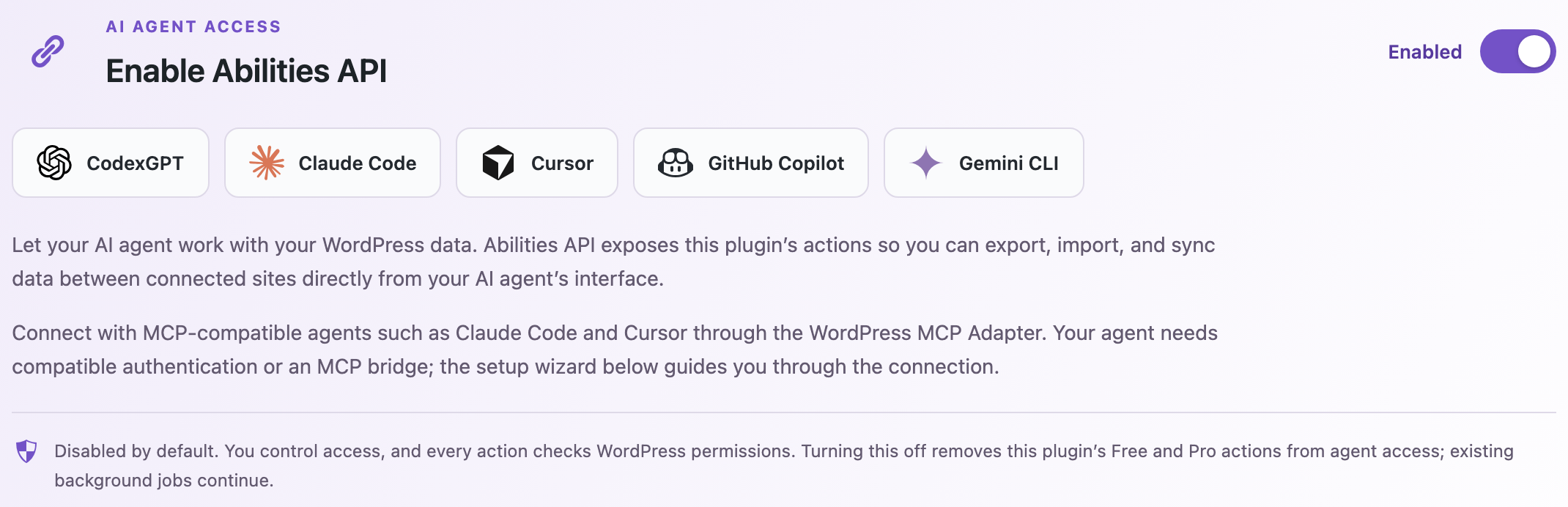
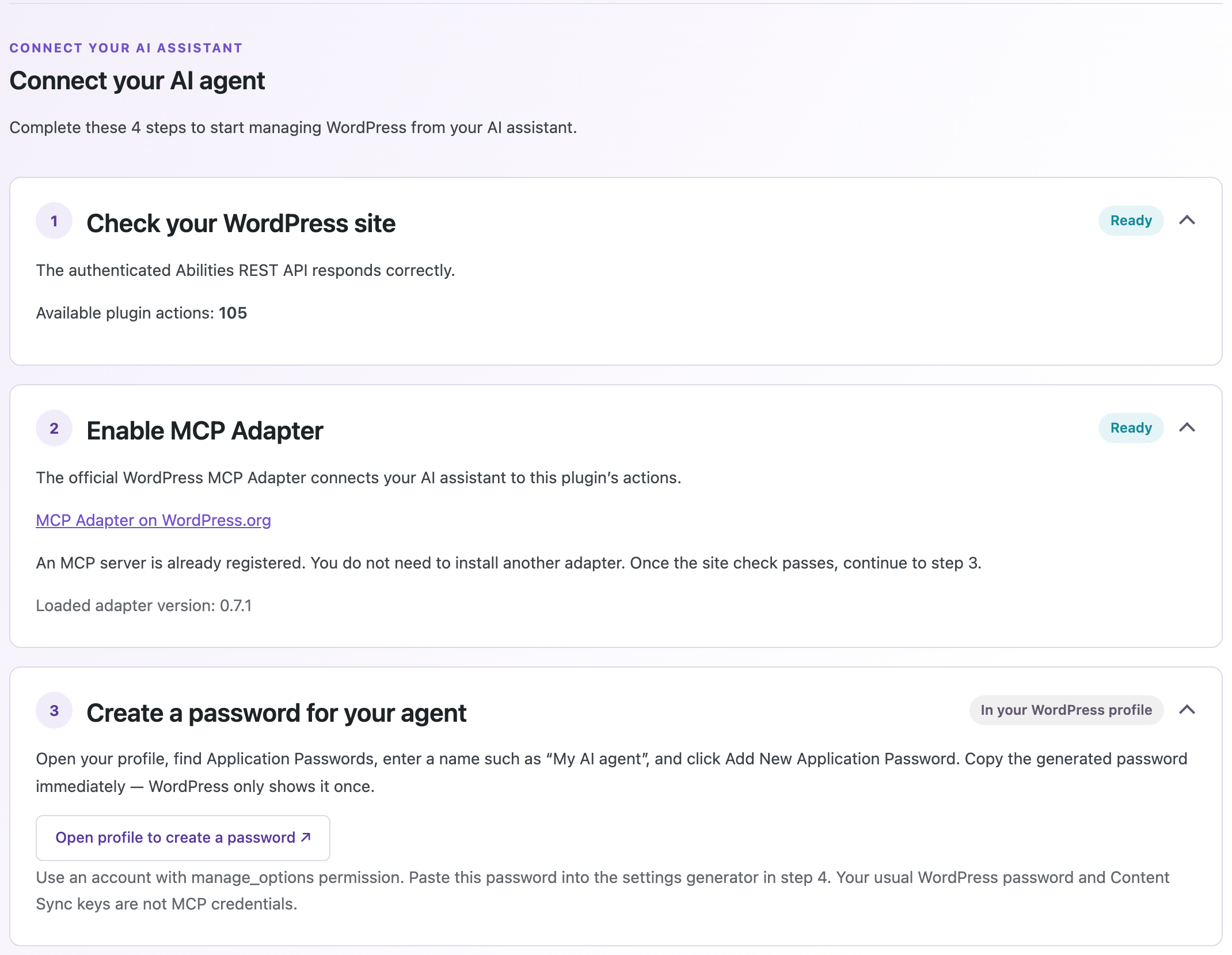
The setup wizard appears below the switch. Step 1 checks that the site’s REST API answers authenticated requests and shows how many plugin actions are available.
Step 2: Activate MCP Adapter
If MCP Adapter is not installed, step 2 of the wizard shows a Download and activate MCP Adapter button, which installs the official plugin from WordPress.org and activates it. If it is installed but inactive, the button says Activate MCP Adapter. When the adapter is running, the step shows Ready and the adapter version.
Step 3: Create an Application Password
Click Open profile to create a password in step 3, or go to Users > Profile and scroll to Application Passwords. Enter a name such as “Claude Code” and click Add Application Password. WordPress shows the new password once, so copy it right away.
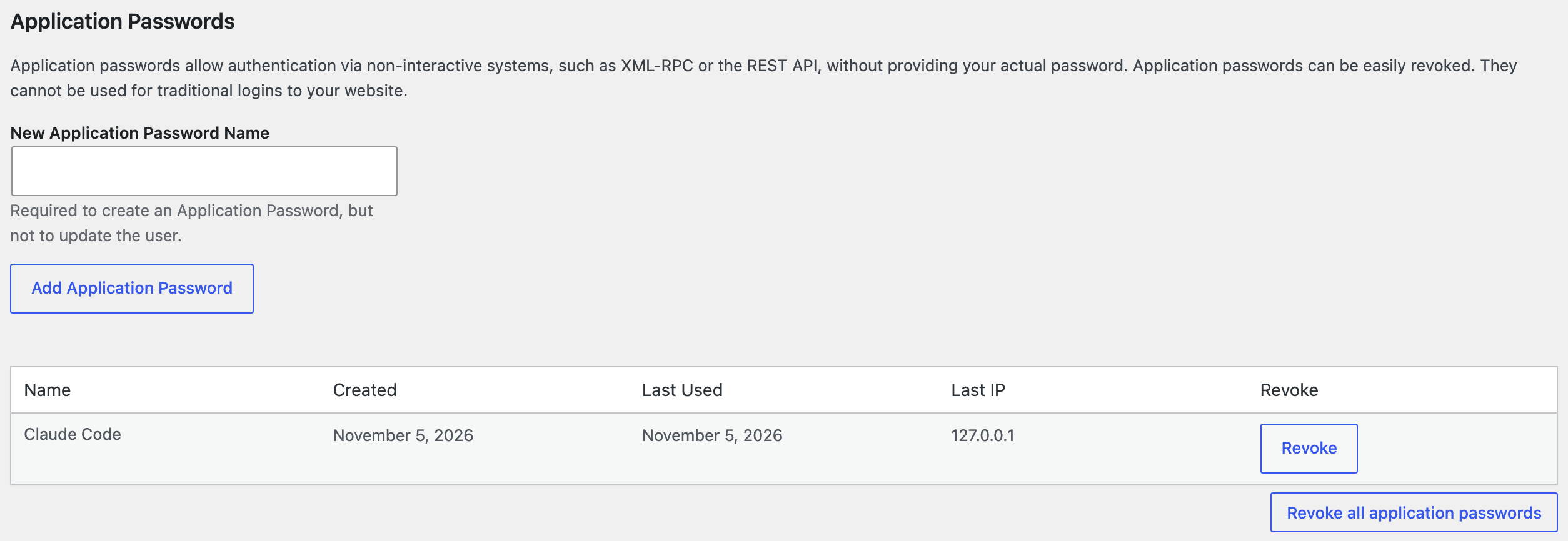
An Application Password only works for API requests, not for logging in to the dashboard, and you can revoke it at any time without changing your normal password. Create a separate one for every computer or tool, so you can revoke one without breaking the others. The Last Used column shows when Claude Code last connected.
Step 4: Generate and Run the Claude Code Command
In step 4 of the wizard, choose:
- AI app: Claude Code
- Connection method: One command
- Terminal: Mac / Linux, or Windows PowerShell
- WordPress username and the Application Password from step 3
Click Generate connection and then Copy result. The password never leaves your browser: the command is put together on the page.
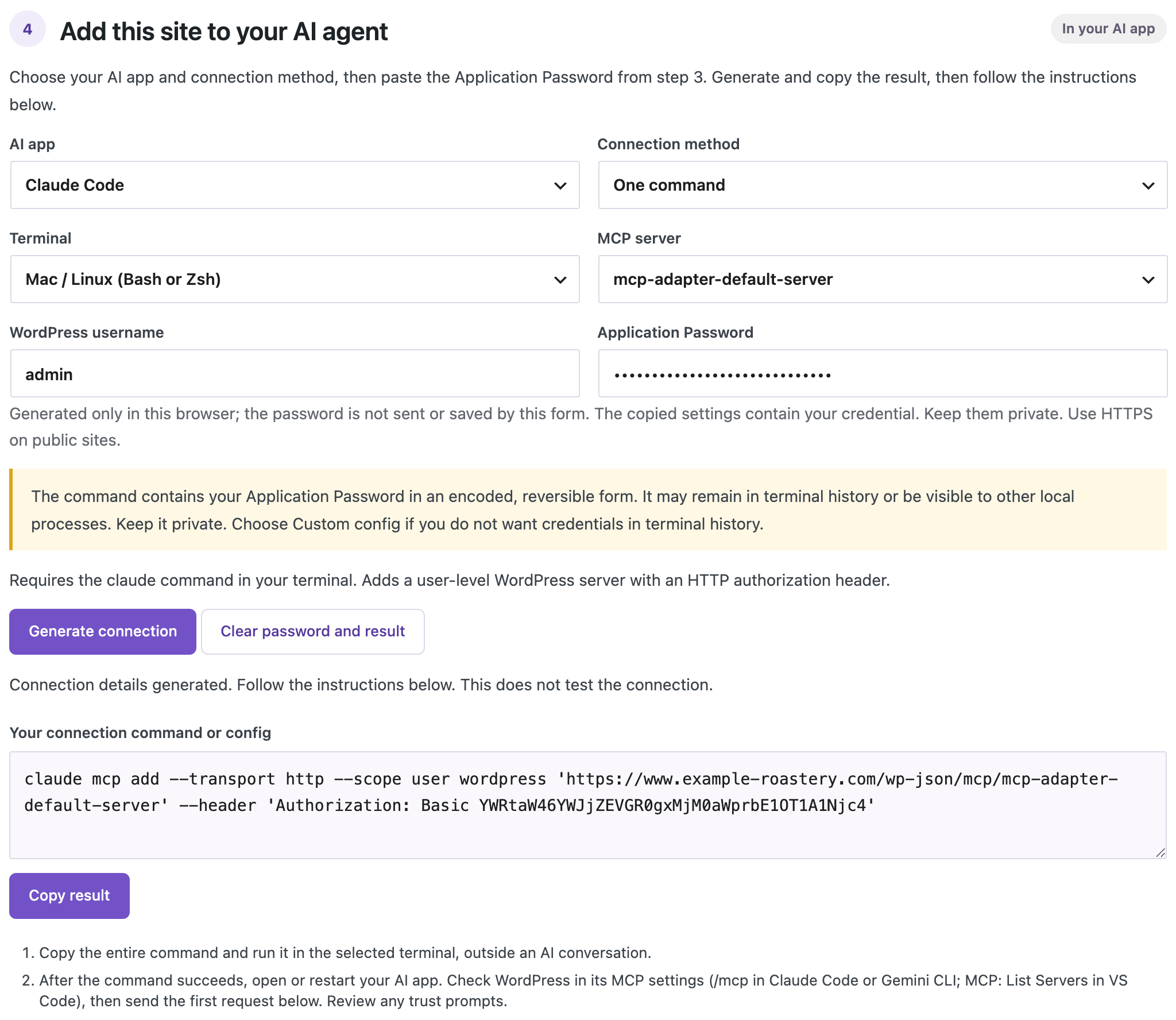
The command looks like this:
claude mcp add --transport http --scope user wordpress 'https://your-site.com/wp-json/mcp/mcp-adapter-default-server' --header 'Authorization: Basic ...'
Run it in a normal terminal window, not inside a Claude Code conversation. --scope user makes the site available in all your projects, and wordpress is the name Claude Code will use for it. The last part is your username and Application Password in Base64 form. That is an encoding, not encryption, so treat the whole command like a password.
If you prefer not to have the password in your terminal history, choose Custom config instead. The wizard then gives you a small JSON file and a claude mcp add-json command that reads it.
Step 5: Check the Connection
Run claude mcp get wordpress. Claude Code connects to the site and shows the status. ✔ Connected means the address and the password work.
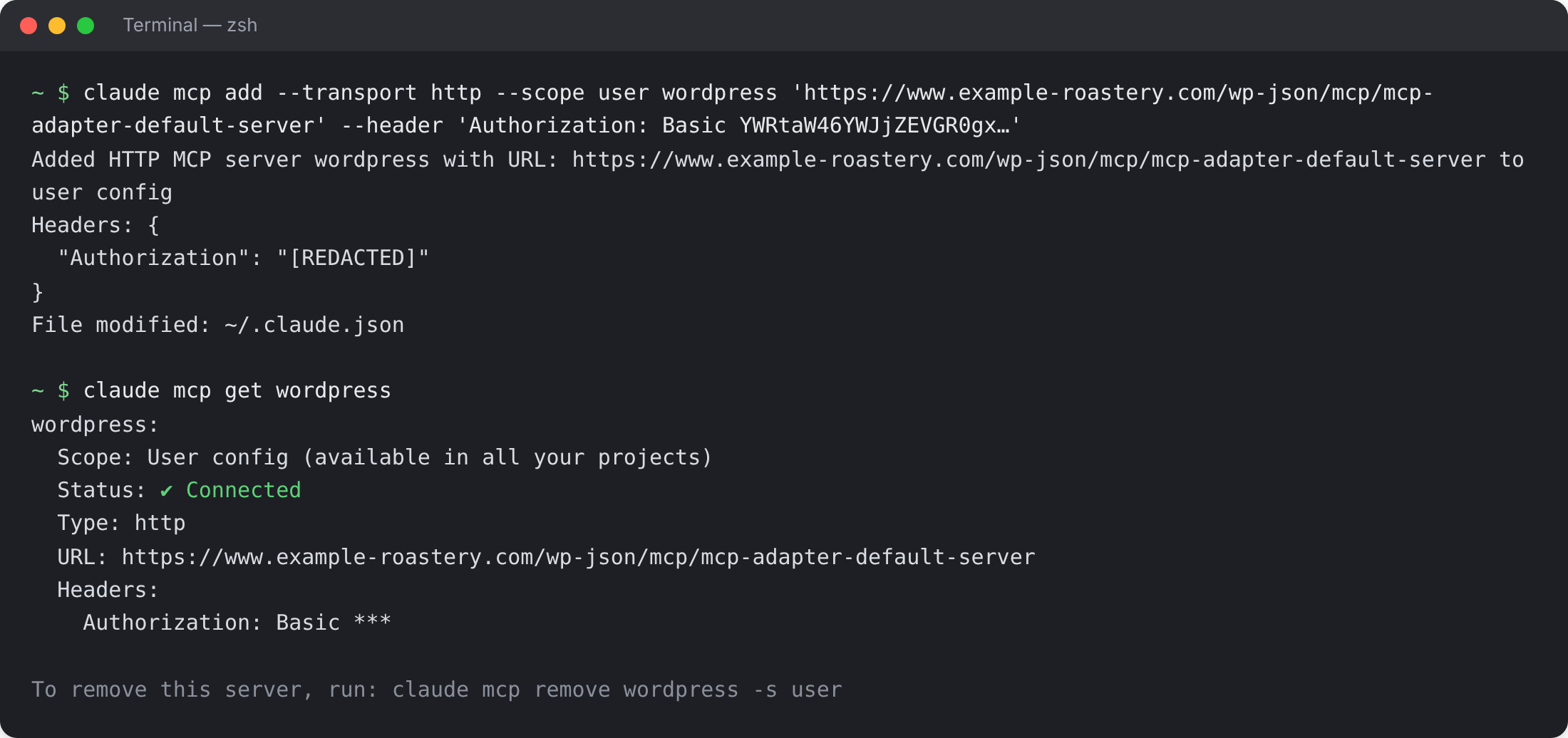
You can also run claude mcp list to see all your MCP servers, or type /mcp inside a Claude Code session.
Step 6: Send the First Request
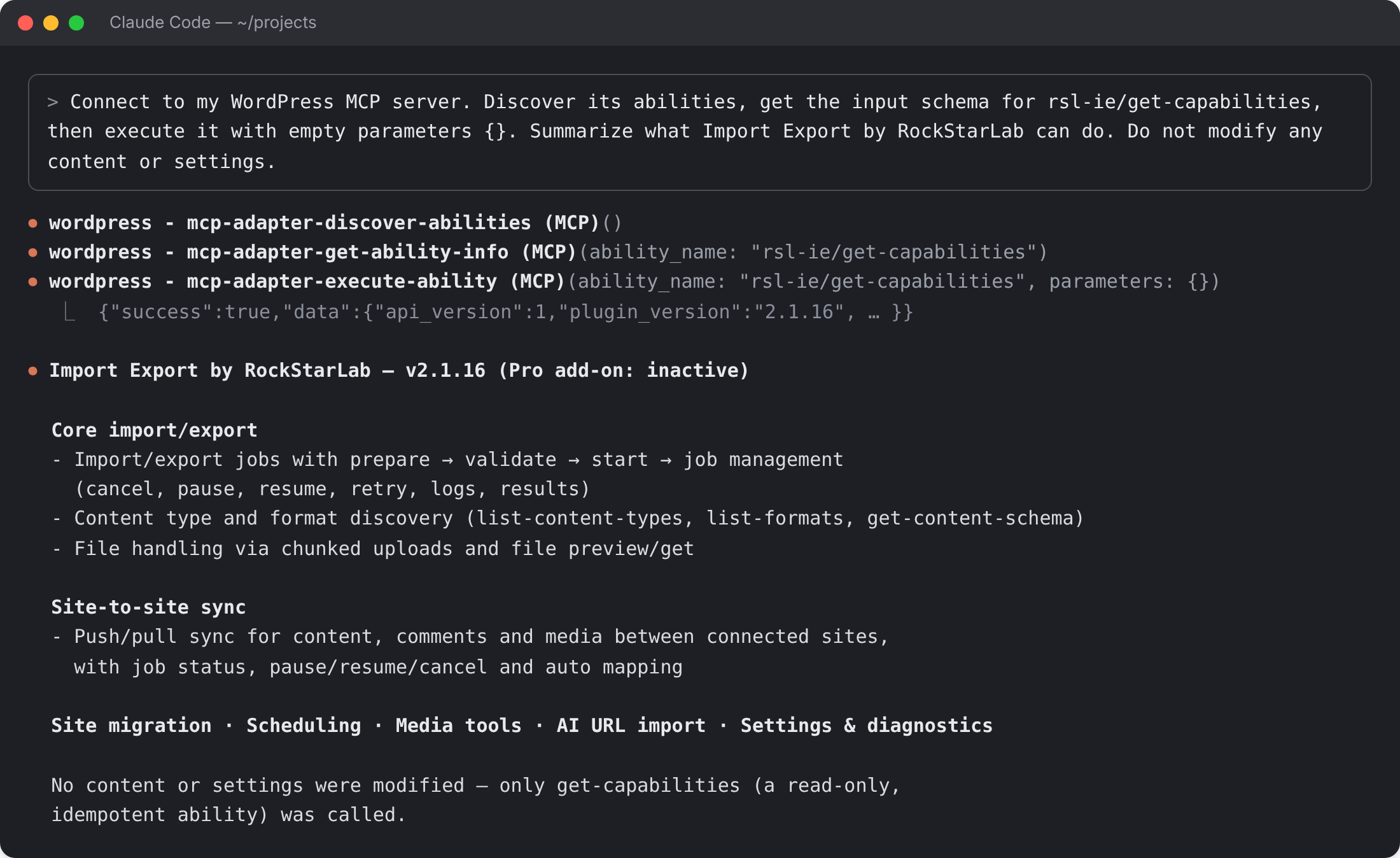
Start claude in any folder and paste the first request from the wizard. It only reads information and does not change the site:
Connect to my WordPress MCP server. Discover its abilities, get the input schema for rsl-ie/get-capabilities, then execute it with empty parameters {}. Summarize what Import Export by RockStarLab can do. Do not modify any content or settings.
Claude Code asks for your permission before it uses a WordPress tool, unless you have already allowed that tool for good. On our test site, it made three calls and answered in about 20 seconds:
A Real Task: Find Stale Pages and Export an Inventory
Once the connection works, you can ask for real work. This request checks for outdated pages and exports a content inventory to CSV:
Check my WordPress site for stale content. Find published pages that have not been modified since January 1, 2024. For each one, show the title, address, last modified date and word count. Then export all pages to a CSV file named content-inventory with ID, Title, Permalink, Status, Modified Date, Word Count and the Yoast meta description, and give me the download link. Do not change any content.
Claude Code looked up the export abilities and their inputs, counted the published pages, previewed the rows, started an export job, waited for it to finish and fetched the file. That took 15 tool calls and about two minutes. The result matched what the same export shows in the dashboard:
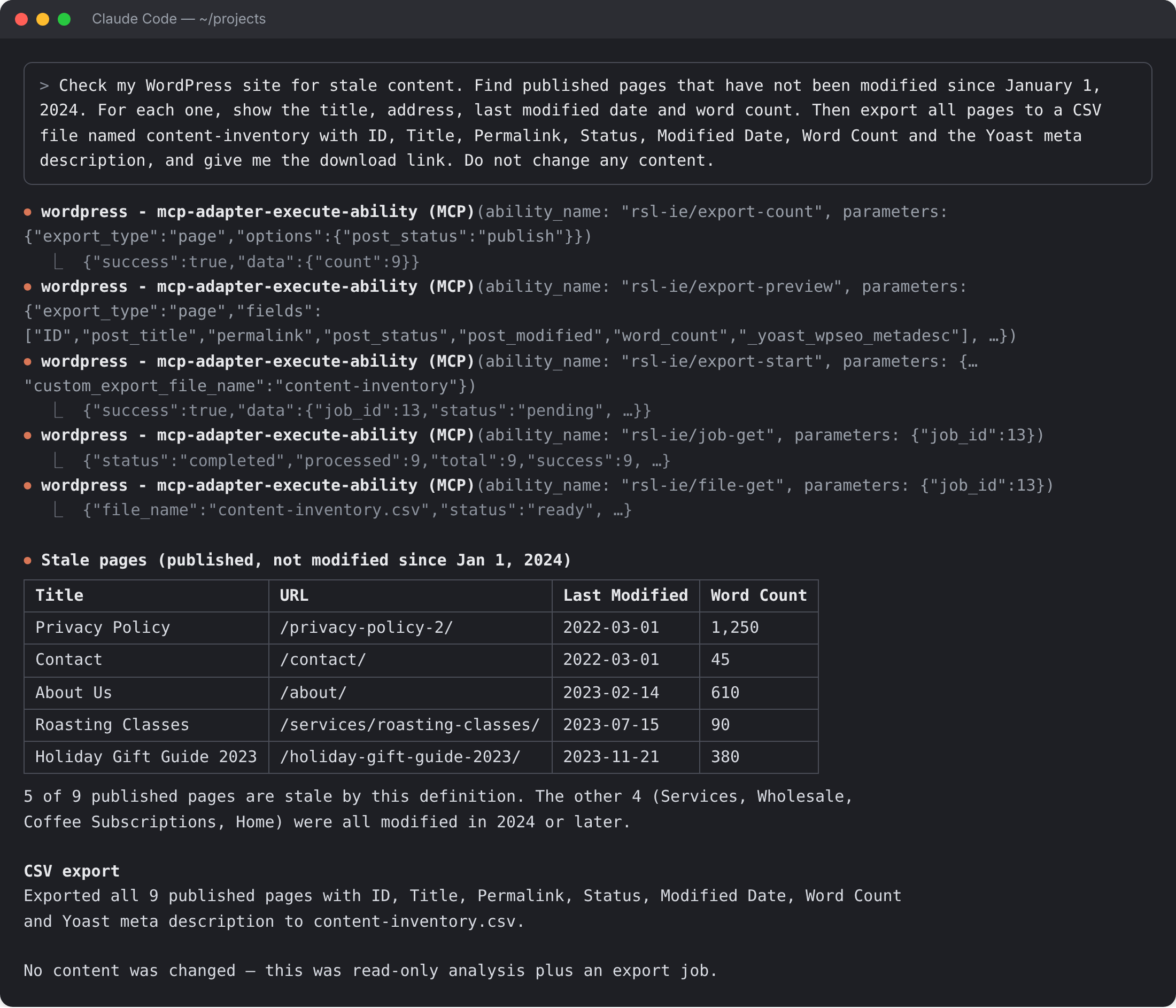
Two details are worth knowing from this run:
- Claude Code read “all pages” as all published pages, because the first half of the request was about published ones. Say “including drafts and private pages” when you want those too.
- For a link you can click, ask for the browser download link. It opens for any logged-in administrator. The other address the plugin returns is meant for programs that send the Application Password with the request.
The same export can be done by hand in the dashboard, as described in WordPress Content Inventory: Export All Pages with Dates, Authors and Status.
More Requests to Try
- “How many posts, pages, comments and media files does the site have? Do not change anything.”
- “Export all blog posts published in 2025 to an Excel file with the title, permalink, categories and featured image URL, and give me the browser download link.”
- “List the last 10 import and export jobs with their status, and show the errors of any job that failed.”
- “Find pages whose content contains old-domain.com and list their titles and addresses.”
- “Show which content types this site can import and export, and which fields a post import accepts.”
For imports, syncs between two sites, scheduled jobs and backups, see How to Use the WordPress Abilities API with AI Agents, which lists the abilities and example requests for each task.
Before You Let It Change Anything
Reading and exporting do not change the site. Imports, syncs and setting changes do, so a few habits help:
- Read the permission prompts. Every action goes through the same tool,
mcp-adapter-execute-ability, and the prompt shows which ability and which input Claude Code wants to use. Allowing that tool for good allows every ability, including ones that write. You can safely allow the two read tools without asking again, and approveexecute-abilityone call at a time when the task changes data. - Make a backup first. With UpdraftPlus, click Backup Now. If you turn on Enable Abilities API for UpdraftPlus on the same page, Claude Code can start a backup itself with
rsl-ie/updraftplus-backup-startand check it withrsl-ie/updraftplus-backup-status. Both ways are described in How to Create a WordPress Website Backup and Restore It. - Try it on a staging site. Add the staging site under its own name (for example
wordpress-staging) and run new kinds of tasks there first. - Ask for a preview. Phrases like “count first”, “show me 10 rows before exporting” or “validate the import, do not start it” make Claude Code use the read-only steps the plugin provides before the real run.
Connect Several Sites
Run the wizard on each site and change the name in the command, for example wordpress-shop and wordpress-blog. Then name the site in your request: “Using wordpress-blog, export all posts…”. To remove a site from Claude Code, run claude mcp remove wordpress -s user, and revoke its Application Password in the WordPress profile.
On a local development site where WP-CLI works, Claude Code can also start the adapter directly, without a password or HTTP:
claude mcp add --scope user wordpress-local -- wp --path=/path/to/site mcp-adapter serve --server=mcp-adapter-default-server --user=admin
Troubleshooting
All connection errors with their exact messages and fixes are collected in WordPress MCP Adapter Errors: Fix 401, 404 and Application Password Problems.
“Failed to connect” with HTTP 401
claude mcp get wordpress shows ✘ Failed to connect and “Server rejected the configured Authorization header (HTTP 401)” with rest_forbidden. The site did not accept the login:
- Check the username (not the email address) and create a new Application Password. Claude Code does not overwrite an existing server (“MCP server wordpress already exists”), so remove the old entry with
claude mcp remove wordpress -s userand run the newly generated command. - Some Apache servers drop the
Authorizationheader before it reaches WordPress. AddSetEnvIf Authorization "(.*)" HTTP_AUTHORIZATION=$1to the.htaccessfile, or ask your host to pass the header through. - Security plugins can turn off Application Passwords or REST access for logged-out requests. Check their settings or allow the
/wp-json/mcp/path.
“Failed to connect” with HTTP 404 and an OAuth error
The command was added without the --header part, so Claude Code tried to sign in with OAuth and found an HTML page instead. Remove the entry and run the full command from the wizard.
“error: missing required argument ‘name'”
In claude mcp add, the --header option takes all values that follow it. Put the name and the address before --header, as in the command above.
Application Passwords are missing from the profile
WordPress hides them on sites without HTTPS, unless the site is marked as a local environment. Turn on HTTPS, or check whether a security plugin disabled the feature.
Claude Code connects but finds no rsl-ie abilities
Enable Abilities API is off, or the account has no administrator rights. Turn the switch on and use an administrator’s Application Password.
Large results
The list of all abilities is about 50 KB. Claude Code saves results this large to a file and reads the parts it needs, so you do not have to do anything. If a single result is cut off, start Claude Code with a higher limit, for example MAX_MCP_OUTPUT_TOKENS=50000 claude.
FAQ
Is this the same as giving Claude my WordPress password?
No. Claude Code uses an Application Password, which cannot log in to the dashboard and can be revoked at any time. It can do what your account is allowed to do through the abilities that plugins expose, nothing outside them.
Does it work with Cursor, Codex, GitHub Copilot or Gemini CLI?
Yes. The same wizard generates settings for each of them. Choose the app in the AI app list. Step-by-step guides with tested requests are available for GitHub Copilot in VS Code, Cursor and OpenAI Codex.
Do I need the Pro version?
No. The connection and the 105 free abilities work with the free plugin: posts, pages, comments, media, URL lists, jobs, content sync and site migration. The Pro add-on adds abilities for WooCommerce, custom post types, users, menus and other content.
Can Claude Code break my site?
It can only run abilities that exist on the site, and only after you approve them. A wrong import or sync can still change content, so keep a backup and use a staging site for new tasks, as described above.
Related Guides
- How to Export WordPress Content to JSON for AI and LLMs
- Letting an AI Agent Edit WordPress Content Safely: Permissions, Staging, Rollback
- WordPress MCP Adapter errors: fix 401, 404 and Application Password problems
- How to connect GitHub Copilot to WordPress via MCP
- How to connect Cursor to WordPress via MCP
- How to connect OpenAI Codex to WordPress via MCP
- How to use the WordPress Abilities API with AI agents: exports, imports, content sync and backups
- WordPress content inventory: export all pages with dates, authors and status
- How to create a WordPress website backup and restore it
- How to push WordPress staging to live without overwriting the database
Import Export by RockStarLab is free on WordPress.org.

Comments 0
Have a question or a tip to share? Leave it below.