
In agent mode, GitHub Copilot in VS Code can call tools from MCP (Model Context Protocol) servers, and a WordPress site can be one of them. A request typed in the Copilot chat, such as “list the pages that are still drafts”, then runs against the site: Copilot lists and counts content, exports pages and posts, checks import jobs or syncs content between sites. On the WordPress side, the connection goes through the official MCP Adapter plugin.
The setup below uses the free Import Export by RockStarLab plugin, which generates the VS Code command for you and adds more than 100 actions for exports, imports and content sync. Everything below was tested with VS Code 1.139, WordPress 7.1, MCP Adapter 0.7.1 and version 2.1.18 of the plugin, including two real requests and what went wrong on the way.
Short Answer
- Use Import Export by RockStarLab 2.1.18 or newer. It includes a compatibility fix that VS Code needs to talk to MCP Adapter (see Why Copilot needs a compatibility fix).
- Go to Import Export by RockStarLab > Plugin Options > AI Agent Connection, turn on Enable Abilities API and let the wizard activate MCP Adapter.
- Create an Application Password in Users > Profile.
- In step 4 of the wizard, choose GitHub Copilot (VS Code), paste the password, generate the
code --add-mcpcommand and run it in your terminal. - In VS Code, open the chat in Agent mode, turn on the wordpress tools in Configure Tools and send the first request.
What You Need
- WordPress 6.9 or newer, where the Abilities API is part of core, and an administrator account.
- HTTPS on a live site. WordPress only offers Application Passwords over HTTPS, except on local development sites.
- VS Code with GitHub Copilot, signed in to GitHub. Copilot Chat is built into current VS Code versions; MCP tools work in Agent mode.
- The
codecommand in your terminal if you use the one-command setup. On a Mac, open the Command Palette (Command+Shift+P) and run Shell Command: Install ‘code’ command in PATH. On Windows it is added by the installer.
Step 1: Turn On Agent Access
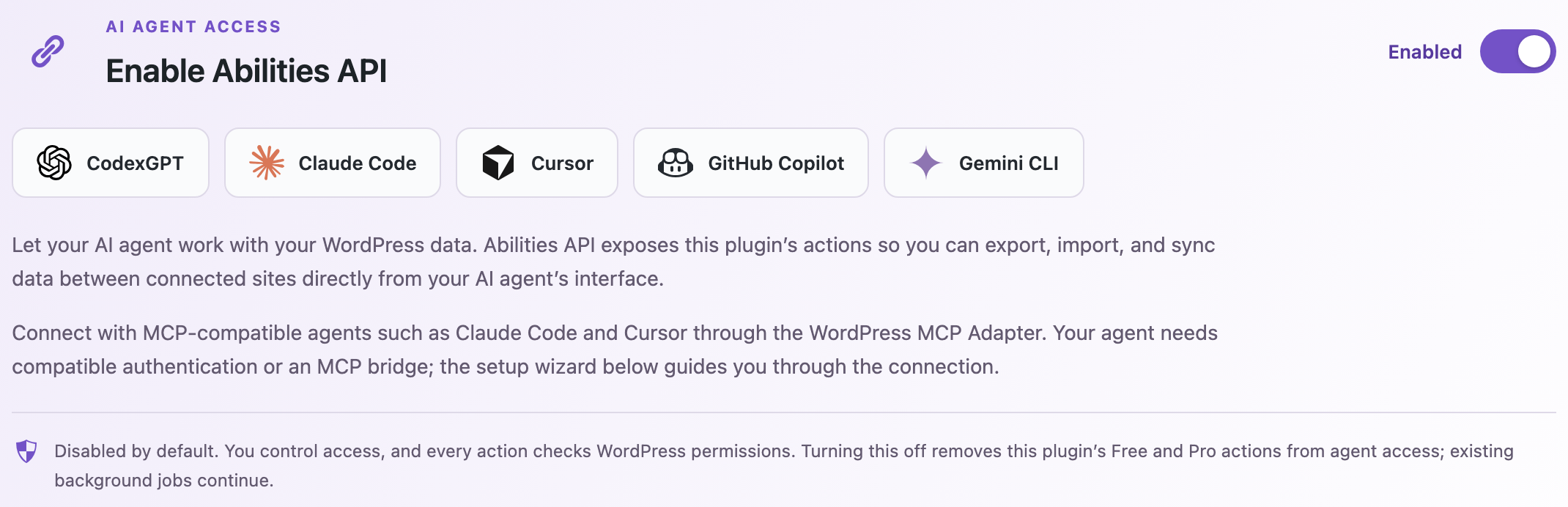
Go to Import Export by RockStarLab > Plugin Options > AI Agent Connection and turn on Enable Abilities API. The setup wizard appears below the switch.
Step 2: Activate MCP Adapter and Create a Password
Step 2 of the wizard installs and activates MCP Adapter with one click (Download and activate MCP Adapter). Step 3 links to your profile, where you create an Application Password: enter a name such as “GitHub Copilot”, click Add Application Password and copy the password. WordPress shows it only once.
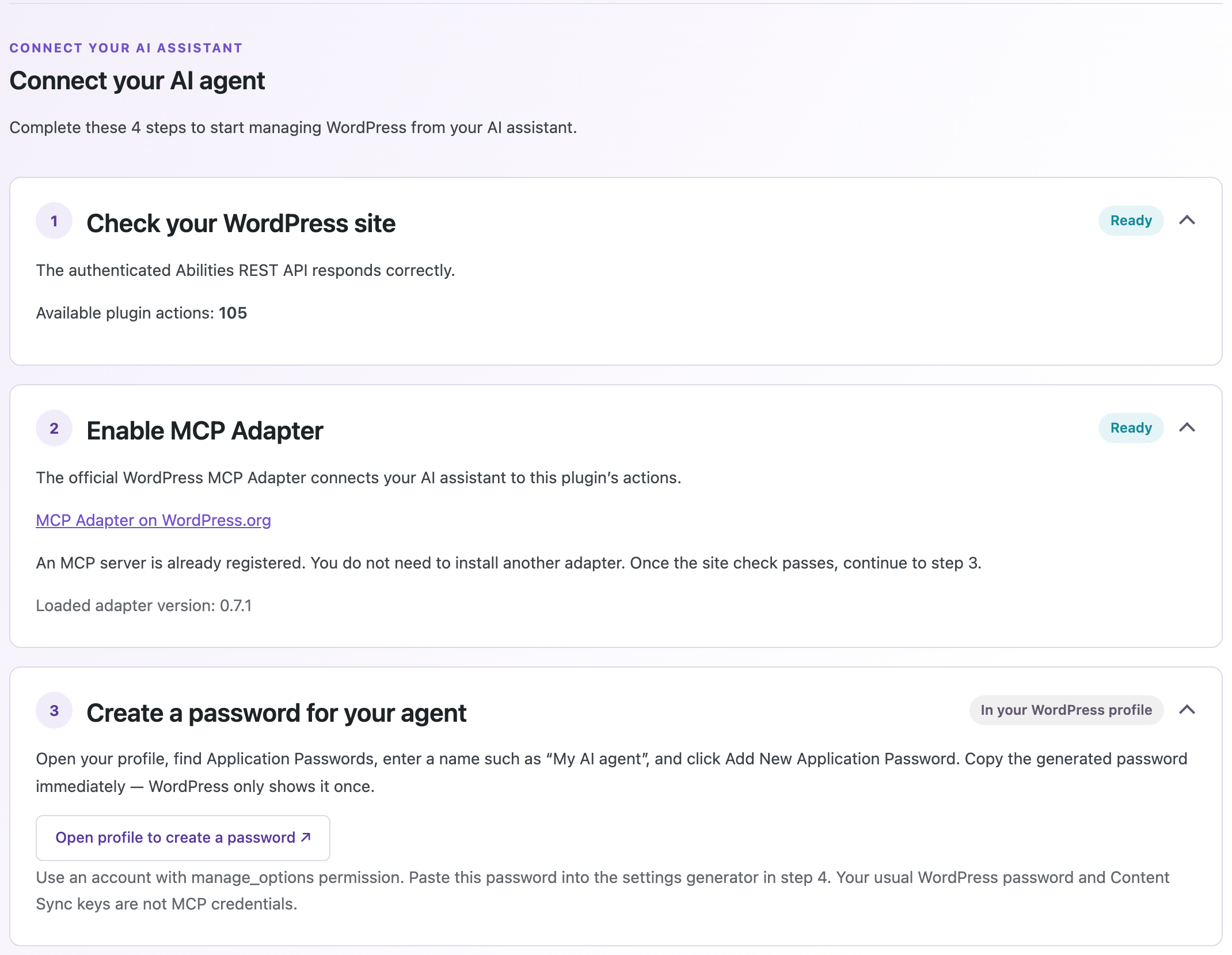
An Application Password works only for API requests, not for logging in, and you can revoke it in the profile at any time.
Step 3: Add the Site to VS Code
In step 4 of the wizard, choose GitHub Copilot (VS Code) as the AI app and One command as the method, select your terminal, and paste your username and the Application Password. Click Generate connection and Copy result. The command is built in your browser; the password is not sent anywhere.
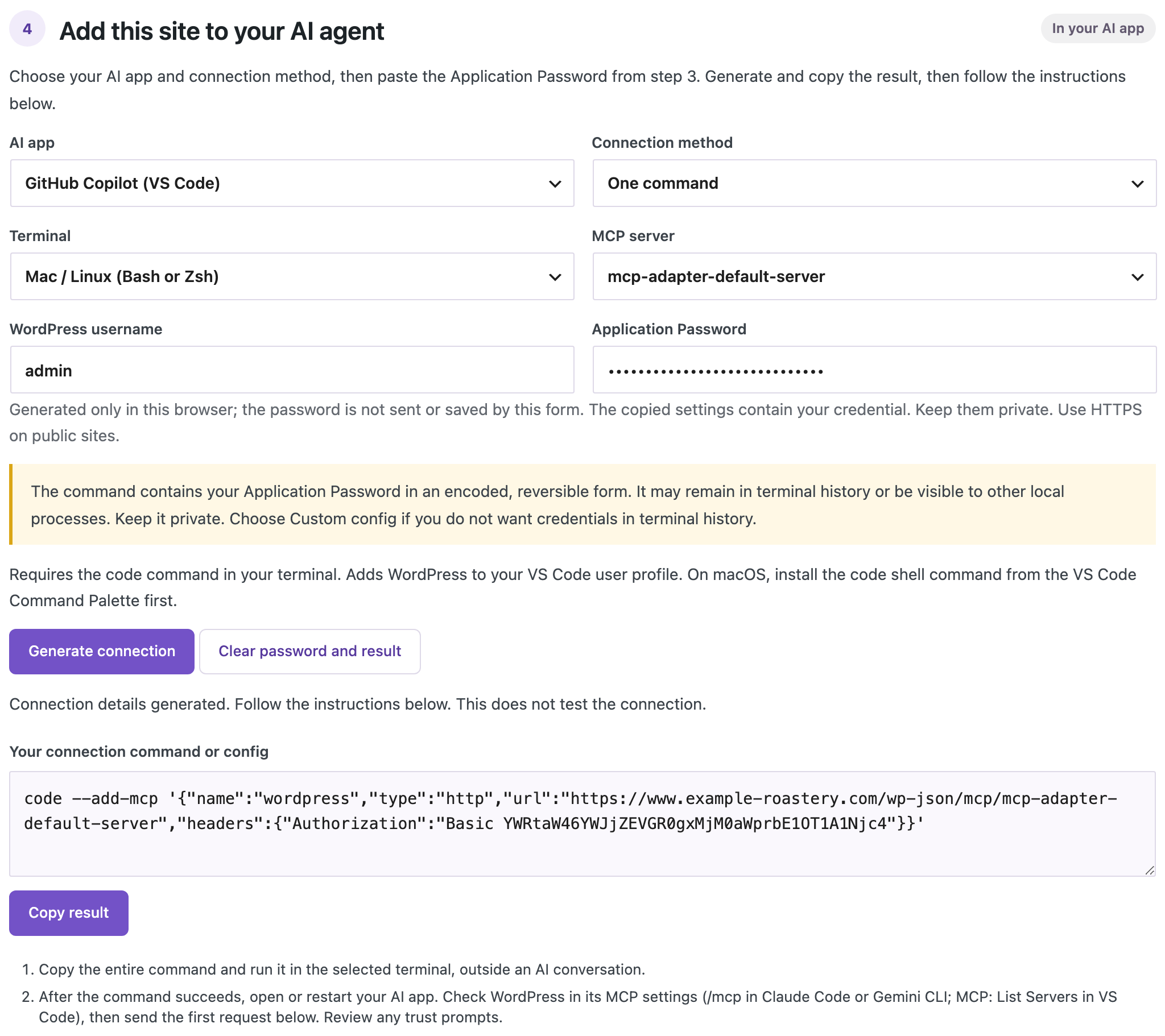
The command looks like this:
code --add-mcp '{"name":"wordpress","type":"http","url":"https://your-site.com/wp-json/mcp/mcp-adapter-default-server","headers":{"Authorization":"Basic ..."}}'
Run it in a terminal. VS Code answers Added MCP servers: wordpress and writes the server to your user mcp.json (on a Mac in ~/Library/Application Support/Code/User/mcp.json). Other servers in that file are kept. The Basic part is your username and Application Password in Base64, which is an encoding, not encryption, so keep the command private.
If you prefer not to run a command, choose Custom config in the wizard. Then run MCP: Open User Configuration from the Command Palette and paste the wordpress entry into the servers object.
Step 4: Turn On the WordPress Tools in Copilot
Open the chat (Control+Command+I on a Mac) and choose Agent mode. Click the Configure Tools icon next to the model picker, scroll to wordpress, tick it and click OK. VS Code starts the server and loads three tools: Discover Abilities, Get Ability Info and Execute Ability. In the Output panel, the MCP: wordpress channel shows Discovered 3 tools.
The three tools are the same on every site with MCP Adapter. The actual actions (“abilities”) come from plugins: Import Export by RockStarLab adds its export, import, job, sync and migration actions, and other plugins add their own. On our test site Copilot found 122 abilities from WordPress core, Import Export by RockStarLab, WPForms and Yoast SEO.
Step 5: Send the First Request
Paste the first request from the wizard. It only reads information:
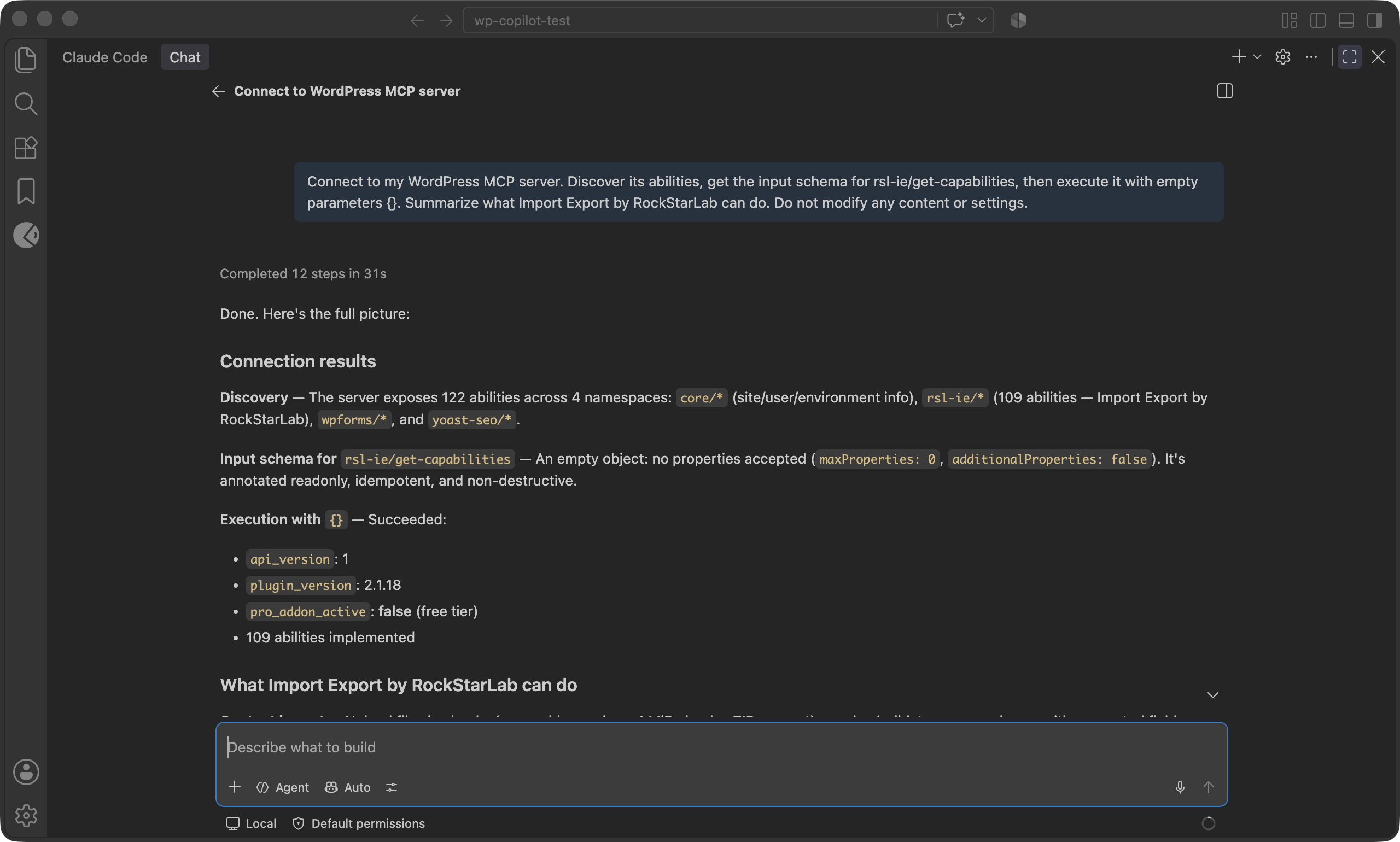
Connect to my WordPress MCP server. Discover its abilities, get the input schema for rsl-ie/get-capabilities, then execute it with empty parameters {}. Summarize what Import Export by RockStarLab can do. Do not modify any content or settings.
Copilot asks for permission before it runs a tool, unless you allowed it earlier. On our test site, it ran the three WordPress tools and answered in 31 seconds. With the model set to Auto, Copilot chose the model itself.
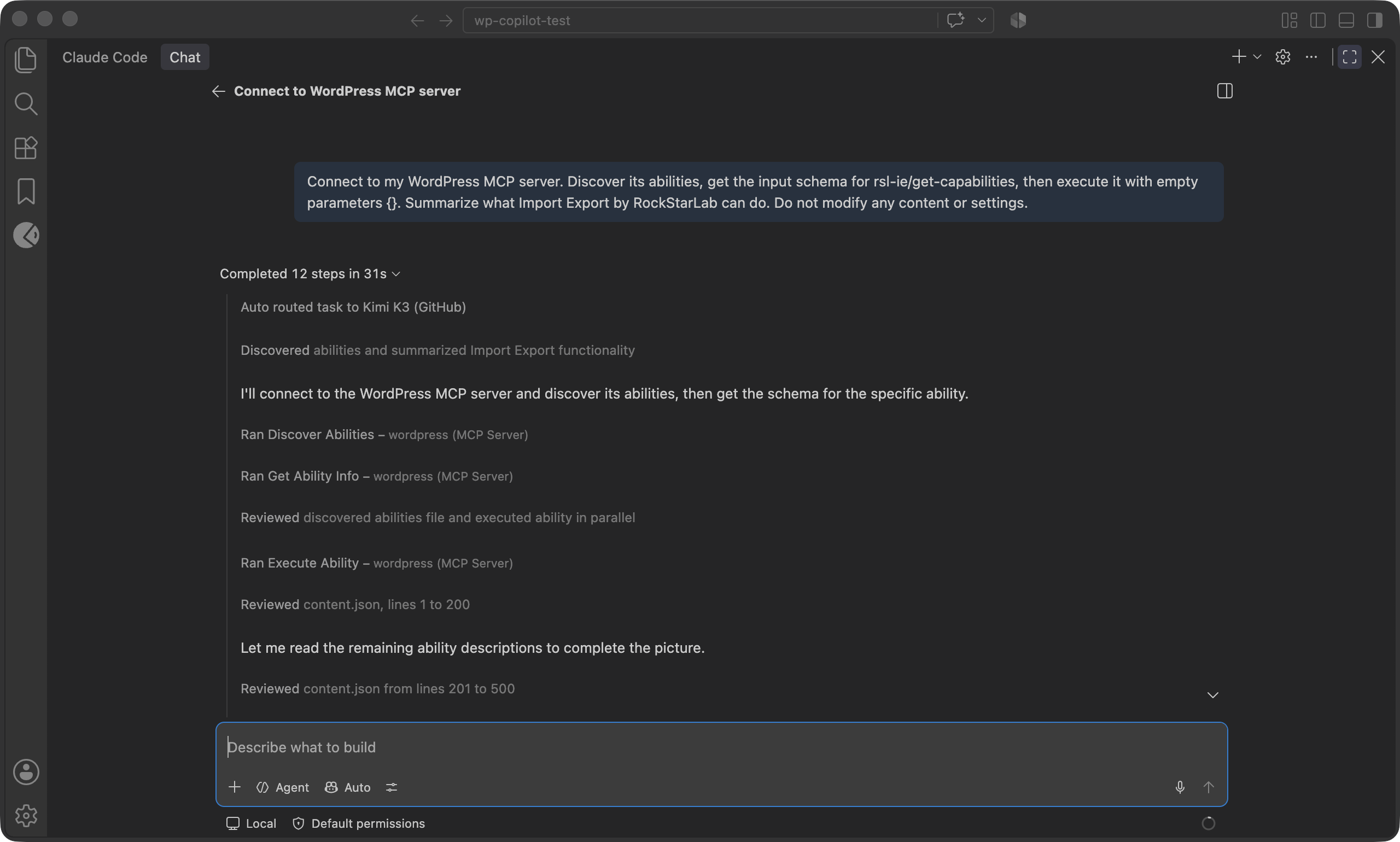
The answer listed the plugin version, whether the Pro add-on is active and a summary of what the plugin can do:
A Real Task: Stale Pages and a CSV Inventory
The second request asked for published pages that nobody has edited since 2024, and for a CSV inventory of all published pages:
Check my WordPress site for stale content. Find published pages that have not been modified since January 1, 2024. For each one, show the title, address, last modified date and word count. Then export all published pages to a CSV file named content-inventory with ID, Title, Permalink, Status, Modified Date, Word Count and the Yoast meta description, and give me the browser download link. Do not change any content.
This did not work on the first try. Copilot read the pages through MCP correctly, but then wanted to build the CSV itself: it proposed terminal commands and wrote a local Python script to count words. We declined those with Skip, and Copilot asked how to continue. The answer that worked named the plugin’s export action directly:
Don't run local scripts. Use the plugin's own export: call rsl-ie/export-start with export_type "page", options.post_status "publish", options.custom_export_file_name "content-inventory" and fields ID, post_title, permalink, post_status, post_modified, word_count, _yoast_wpseo_metadesc. The plugin calculates permalink and word count itself. Then poll rsl-ie/job-get and give me the browser_download_url from rsl-ie/file-get.
After that, Copilot finished in 6 steps and 26 seconds. The export job on the site processed all 9 published pages, and the answer contained the five stale pages and the download link:

The list of stale pages was right. The word counts in Copilot’s table were not: it estimated them (about 460, 500 and 580) instead of reading them from the file. The CSV that the plugin created had the exact numbers: 610 for About Us, 1,250 for Privacy Policy and 380 for the gift guide. Copilot even noted that the exact counts are in the CSV. Use the file for numbers, and the chat for the overview.
Tips for Better Results in Copilot
- Name the action when it matters. “Use rsl-ie/export-start” or “use the plugin’s export, not a script” keeps Copilot on the site’s own tools. To see the actions, ask: “List the rsl-ie abilities with a one-line description each.”
- Watch for terminal commands. In agent mode, Copilot can also run commands on your computer. It asks first, and the prompt shows the command. For WordPress tasks you rarely need them, so Skip is usually the right answer.
- Try another model if one fails. In our test one model stopped with “The model provider reported a failed response without any error details”. That error comes from the model service, not from WordPress. Switching the model to Auto fixed it.
- Ask for the browser download link. It opens for any logged-in administrator. The other address in the result is for programs that send the password with the request.
Why Copilot Needs a Compatibility Fix
Without a fix on the site, Copilot connects to MCP Adapter, but the connection fails right after it starts. The MCP: wordpress output shows:
Connection state: Error 400 status sending message to https://your-site.com/wp-json/mcp/mcp-adapter-default-server: {"jsonrpc":"2.0","id":2,"error":{"code":-32600,"message":"Invalid Request: MCP-Protocol-Version header is required for a 2025-11-25 session"}}
The MCP protocol asks clients to send an MCP-Protocol-Version header with every request after the first one. VS Code 1.139 does not send it, and MCP Adapter 0.7.1 refuses every request in the session without it, so Copilot never receives the list of tools. This affects every WordPress site that uses MCP Adapter. Import Export by RockStarLab 2.1.18 and newer fills in the missing header with the version that was already agreed for that session. A header that the client does send is never changed, and requests without a valid session are still refused. A similar fix has been proposed for MCP Adapter itself.
Before You Let It Change Anything
Reading and exporting do not change the site. Imports, syncs and setting changes do. Make a backup first: with UpdraftPlus, click Backup Now, or turn on Enable Abilities API for UpdraftPlus on the same settings page and ask Copilot to run rsl-ie/updraftplus-backup-start and check it with rsl-ie/updraftplus-backup-status. Both ways are described in How to Create a WordPress Website Backup and Restore It. Try new kinds of tasks on a staging site first, and read the ability name and input in each permission prompt before you allow it.
Troubleshooting
All connection errors with their exact messages and fixes are collected in WordPress MCP Adapter Errors: Fix 401, 404 and Application Password Problems.
“MCP-Protocol-Version header is required”
Update Import Export by RockStarLab to 2.1.18 or newer, then restart the server: in the Extensions view, open wordpress under MCP Servers – Installed, click Disable and then Enable, and start a new chat.
Copilot says the WordPress tools are not available
The server is installed but not turned on for the chat. Tick wordpress in Configure Tools, make sure the chat is in Agent mode, and start a new chat with the + button.
“zsh: command not found: code”
Install the shell command from the Command Palette (Shell Command: Install ‘code’ command in PATH), open a new terminal and run the command again. Or use Custom config instead.
HTTP 401 in the output
The username or Application Password is wrong, or the server drops the Authorization header. Create a new Application Password and generate the command again. On Apache, add SetEnvIf Authorization "(.*)" HTTP_AUTHORIZATION=$1 to .htaccess if the header does not reach WordPress.
FAQ
Does this work with other MCP clients?
Yes. The same wizard generates settings for Claude Code, Cursor, Codex and Gemini CLI. Step-by-step guides are available for Claude Code, Cursor and OpenAI Codex.
Can I connect several sites?
Yes. Change "name":"wordpress" in the command for each site, for example wordpress-shop and wordpress-blog, and say in your request which one to use.
Do I need the Pro version?
No. The connection and the free actions for posts, pages, comments, media, URL lists, jobs, content sync and migration work with the free plugin. The Pro add-on adds actions for WooCommerce, custom post types, users and menus.
Related Guides
- Letting an AI Agent Edit WordPress Content Safely: Permissions, Staging, Rollback
- WordPress MCP Adapter errors: fix 401, 404 and Application Password problems
- How to connect Claude Code to WordPress via MCP
- How to connect Cursor to WordPress via MCP
- How to connect OpenAI Codex to WordPress via MCP
- How to use the WordPress Abilities API with AI agents
- WordPress content inventory: export all pages with dates, authors and status
- How to create a WordPress website backup and restore it
Import Export by RockStarLab is free on WordPress.org.

Comments 0
Have a question or a tip to share? Leave it below.