
A complete WordPress URL export is useful when you need a clean list of public site URLs for SEO audits, migrations, redirect planning, crawler checks, QA, or reporting. WP Import Export by RockStarLab now includes URLs Export, a new exporter option that can collect frontend URLs from posts, taxonomies, archives, feeds, comments-related endpoints, and other public WordPress URL sources.
Instead of crawling the website manually or copying URLs from different admin screens, you can generate a WordPress URL export directly from Import Export -> Export and download the result as CSV or JSON.
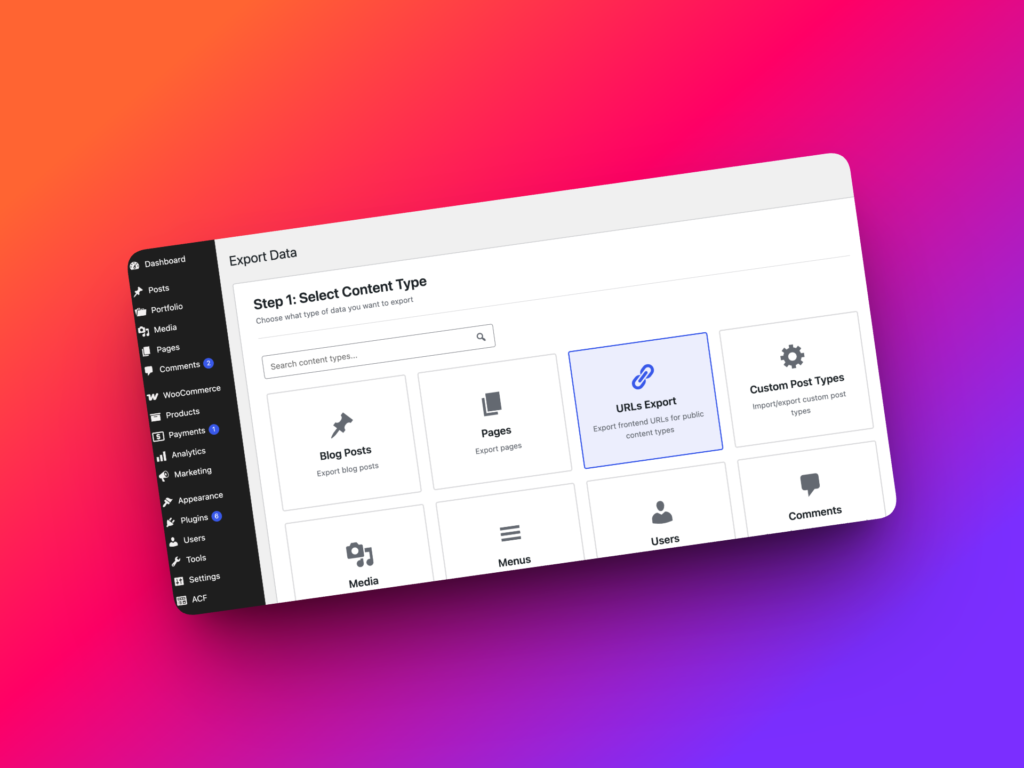
What is URLs Export?
URLs Export is a dedicated export mode for generating a file that contains the public URLs available on the frontend of a WordPress website. The export creates a simple URL inventory that can be saved as a CSV or JSON file.
A WordPress URL export can include URLs from posts, pages, media, public custom post types, taxonomy terms, post type archives, feeds, comments feeds, and other supported public URL sources.
The exported file is useful because it gives you a portable list of URLs that can be opened in spreadsheets, shared with SEO tools, passed to developers, used for migration QA, or stored as a snapshot before a site change.
Who needs a WordPress URL export?
SEO managers can use URLs Export to prepare crawl lists, compare indexed URLs, check redirects, audit internal structure, and review which public URLs exist on the site.
Migration specialists can export URLs before moving a website, then compare the old URL list with the new site after launch. This helps detect missing pages, broken archive URLs, changed permalink structures, and redirect gaps.
Developers can use a WordPress URL export during theme rebuilds, custom post type changes, routing changes, REST API checks, or QA testing before deployment.
Agencies can share URL inventories with clients, SEO teams, content teams, or external audit tools without giving everyone access to the WordPress admin area.
Content managers can use the exported URL list to review published content, taxonomy archives, author pages, and other public areas of the site from one file.
What URLs can be exported?
| URL source | What it includes | Example use case |
|---|---|---|
| Posts, Pages, Media, and Custom Post Types | Individual frontend permalinks for public content | Prepare a crawl list for SEO tools or migration QA |
| Taxonomies and Terms | Category, tag, product category, and other public term archive URLs | Audit indexable taxonomy pages and archive structure |
| Post Type Archives | Archive URLs for registered public post types that support archives | Check custom post type archive pages before launch |
| Standard WordPress URLs | Homepage, front page, author archives, date archives, and search URL where available | Build a broader inventory of public site sections |
| Feeds | RSS feeds, Atom feeds, post type archive feeds, and comments feeds | Review feed URLs during technical SEO checks |
| REST API Endpoints | REST API root and public collection endpoints for supported post types | Give developers a technical endpoint list for testing |
How to export all WordPress URLs
To create a WordPress URL export, open your WordPress admin dashboard and go to:
Import Export -> Export
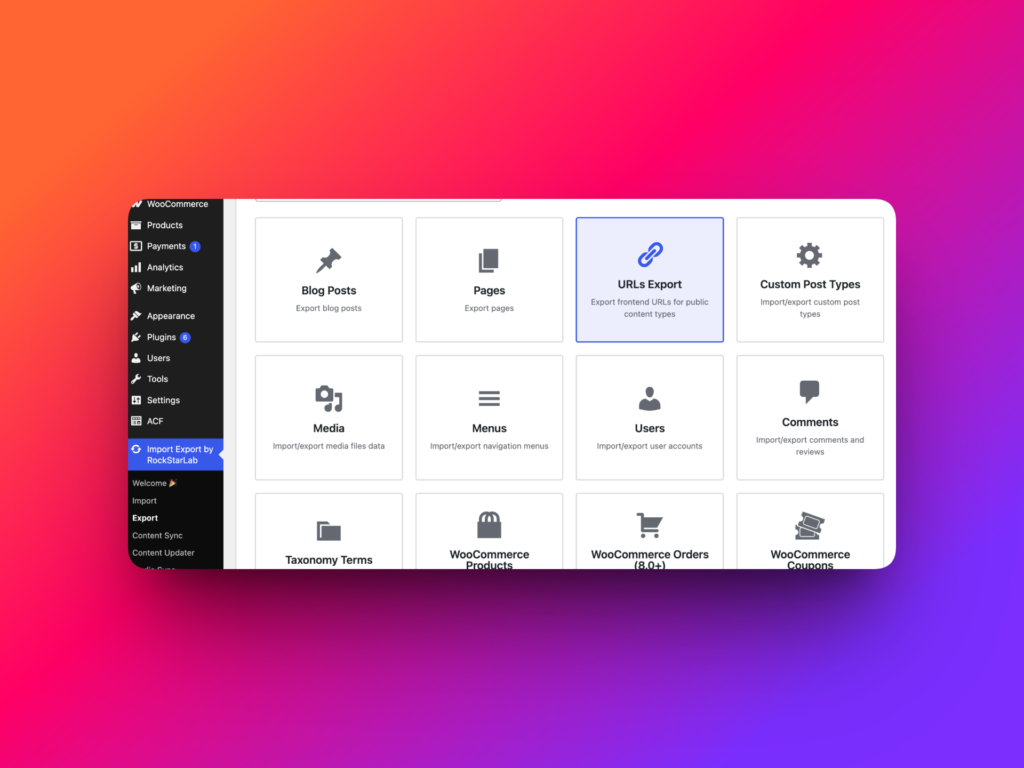
Step 1: Choose URLs Export
On the first export step, select URLs Export as the content type. This tells the exporter that you want to generate a list of frontend URLs instead of exporting posts, users, WooCommerce data, media records, or database table rows.
Step 2: Select URL sources
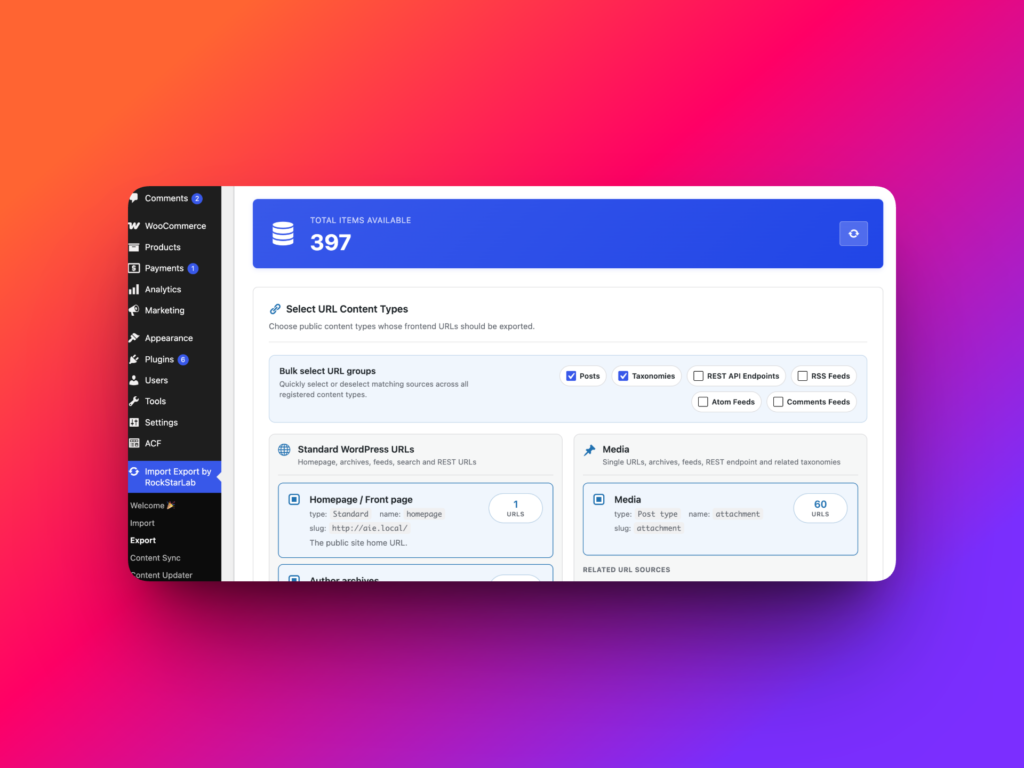
On Step 2, choose which URL sources should be included in the export. Instead of regular content filters, URLs Export shows source checkboxes for the types of URLs that can be collected from the site.
You can include public content URLs, taxonomy URLs, archive URLs, feed URLs, comment feed URLs, and REST API endpoints where available. The total URL count updates as you change the selection, which helps you understand how large the export will be before starting it.
Feed and REST endpoint sources are useful for technical audits, but they may not be needed for a normal SEO content URL list. If you only want a clean list of public content pages, keep the selection focused on posts, pages, custom post types, taxonomies, and archives.
Step 3: Review the URL export fields
URLs Export outputs a simple file with a url column. This keeps the result easy to open in spreadsheet tools, crawl tools, redirect mapping templates, and custom scripts.
A simple URL-only format is especially helpful when the next step is outside WordPress. For example, an SEO manager may upload the CSV into a crawler, while a developer may use the JSON file in a QA script.
Step 4: Choose CSV or JSON
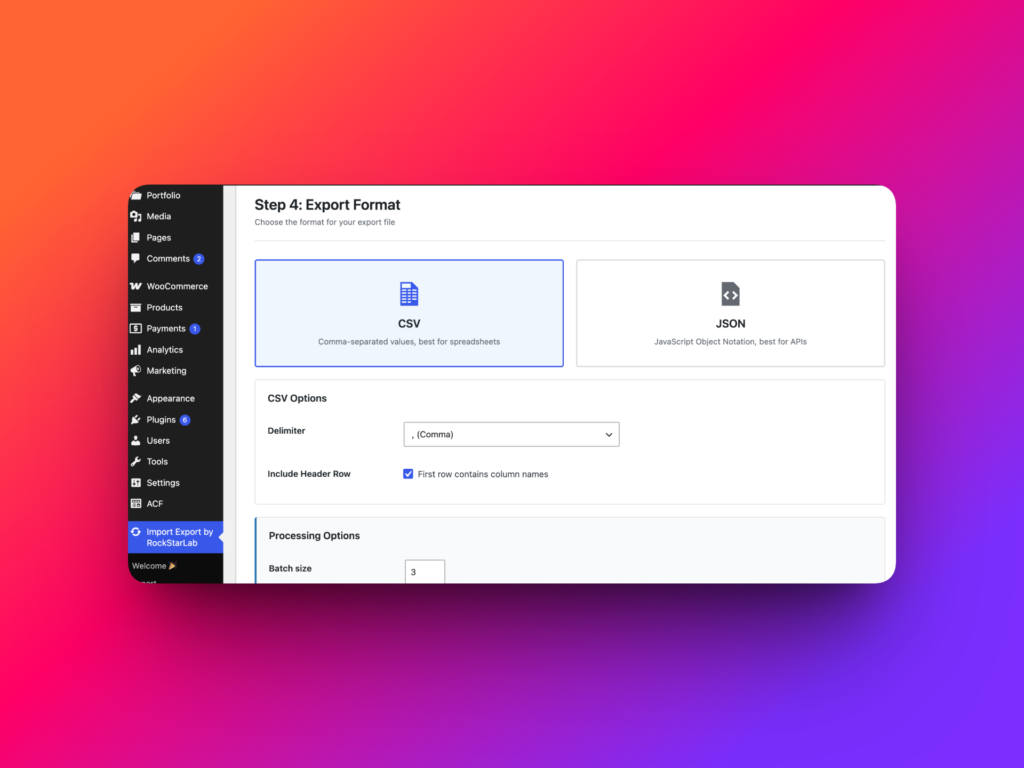
On the export options step, choose the file format. URLs Export supports both CSV and JSON.
Choose CSV if you want to open the URL list in Google Sheets, Excel, Screaming Frog, Sitebulb, or another SEO workflow tool. Choose JSON if the URL list will be used by a developer, automation script, or technical QA process.
You can also choose the batch size for processing. For large websites, background processing helps the export run more reliably without requiring every URL to be generated in one request.
Step 5: Start the export and download the file
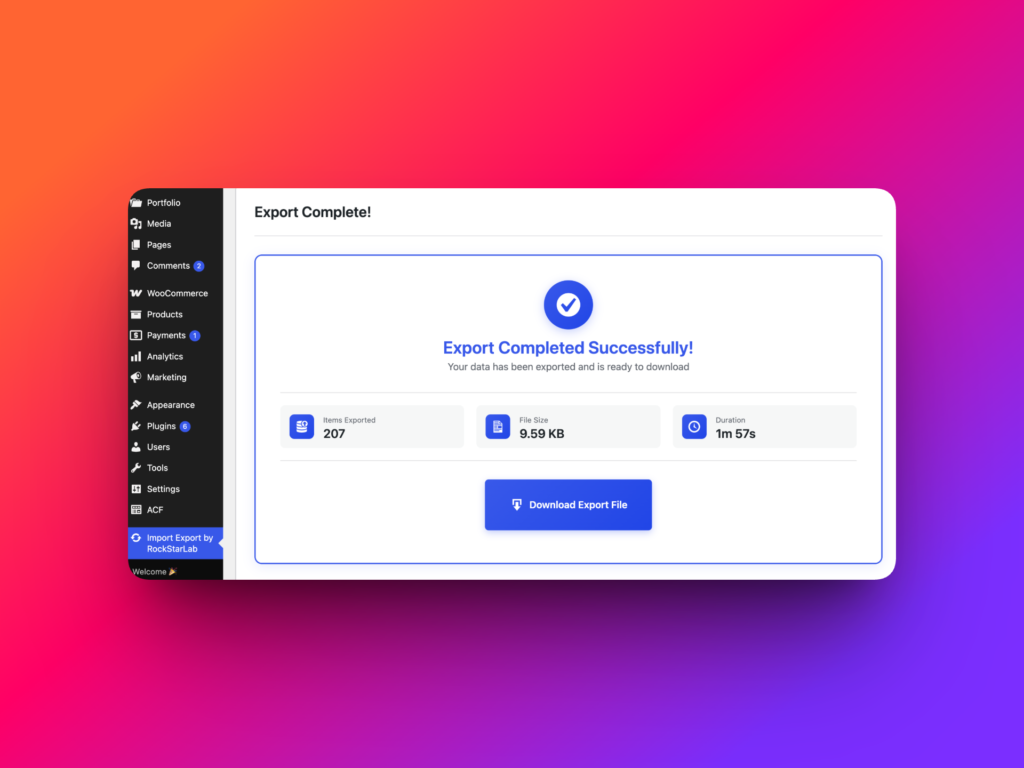
Click Start Export to begin the job. When the WordPress URL export is complete, download the generated CSV or JSON file.
The export job is also saved in Jobs Log, so you can review the job details, download the completed export again, or rerun the export with the same settings when needed.
CSV vs JSON for URL exports
| Format | Best for | Why choose it |
|---|---|---|
| CSV | SEO managers, content teams, agencies, spreadsheets, crawler tools | Easy to review, filter, sort, share, and upload into common SEO tools |
| JSON | Developers, automation scripts, QA workflows, technical exports | Structured format that is easier to consume in code and automated checks |
Practical examples
SEO audit before a redesign
Before a redesign, export all public URLs and use the file as a baseline. After the new site is launched, crawl the exported URLs and check for missing pages, unexpected 404 errors, redirect chains, or changed archive structures.
Migration redirect planning
A WordPress URL export can be used as the starting point for a redirect map. Export the old site URLs, decide which URLs should remain the same, and map changed URLs to their new destinations.
Technical QA for custom post types
If a website uses custom post types, URLs Export helps verify that individual entries and post type archives are still available after permalink changes, theme changes, or deployment work.
Feed and endpoint review
For technical SEO or development audits, include feed and REST endpoint sources. This gives teams a quick way to review which technical URLs are exposed by WordPress and whether they should be crawled, monitored, blocked, or tested.
Best practices for cleaner URL exports
Start with the URL sources you actually need. A standard SEO export usually works best with public content URLs, taxonomies, and archives. Add feeds and REST endpoints only when the audit needs technical URLs.
Save a URL export before major changes. If you are changing permalinks, launching a redesign, moving domains, replacing a theme, or restructuring custom post types, the export becomes a useful before-and-after reference.
Use CSV for collaborative reviews. CSV files are easier for SEO managers, clients, and content teams to inspect in a spreadsheet. Use JSON when another system or script needs to process the URL list automatically.
HowTo: Export all WordPress URLs
- Log in to your WordPress admin dashboard.
- Go to
Import Export -> Export. - Select URLs Export as the export content type.
- Choose the URL sources you want to include, such as posts, taxonomies, archives, feeds, comments feeds, or REST endpoints.
- Review the URL count and adjust the selected sources if needed.
- Choose CSV or JSON as the export format.
- Set the batch size for the export job.
- Click Start Export.
- Download the completed URL export file when the job finishes.
Recommended links
FAQ
Can I export all WordPress URLs?
Yes. URLs Export in WP Import Export can generate a WordPress URL export from public frontend URL sources such as posts, taxonomies, archives, feeds, comments feeds, and supported endpoints.
Can I export WordPress URLs to CSV?
Yes. URLs Export can save the generated URL list as a CSV file, which is useful for spreadsheets, SEO crawlers, redirect mapping, and client reports.
Can I export WordPress URLs to JSON?
Yes. URLs Export can also save the URL list as JSON, which is useful for developers, QA scripts, and automation workflows.
What column does the URL export file contain?
URLs Export creates a simple file with a url column, making the result easy to use in SEO tools, spreadsheets, and scripts.
Is URLs Export useful for SEO?
Yes. A WordPress URL export is useful for SEO audits, migration checks, crawl lists, redirect planning, sitemap comparison, and pre-launch QA.
Are feed and REST API URLs included automatically?
Feed and REST endpoint sources can be selected when needed. They are useful for technical audits, but a standard content URL export may not need them.