
How to Customize the WP Import Export Plugin Name and Admin Menu
WordPress admin menus can become crowded when a site has many plugins, custom post types, WooCommerce tools, SEO plugins, and internal workflows. The new Plugin Settings screen in WP Import Export by RockStarLab helps keep the admin area cleaner by letting you rename the plugin menu and hide plugin sections you do not use.
This update is useful for agencies, client websites, editorial teams, and store owners who want a simpler WordPress dashboard. Instead of showing every available WP Import Export tool in the sidebar, you can keep only the features that matter for the current site.
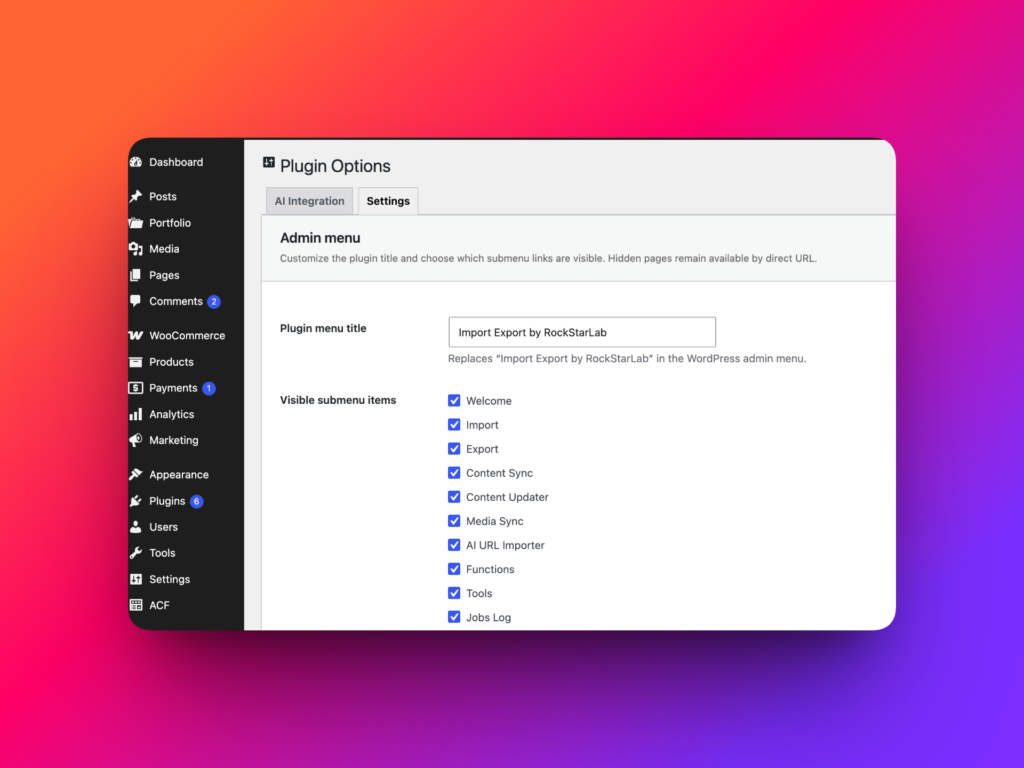
What the Plugin Settings screen does
The Plugin Settings screen gives site administrators more control over how WP Import Export appears inside the WordPress dashboard. You can change the plugin name shown in the admin menu and disable menu items that are not needed for your workflow.
For example, one website may only use CSV imports and exports. Another site may rely on Media Sync, Content Sync, Jobs Log, Schedules, and transformation functions. With Plugin Settings, each site can show a more focused menu instead of displaying every available feature to every administrator.
When this is useful
This feature is especially helpful when you manage WordPress websites for clients. You may want to rename the plugin menu to something familiar, such as Data Tools, Content Migration, Import Manager, or Site Sync.
It also helps reduce confusion for users who only need a small part of the plugin. If a content editor only needs to run imports, there is no reason to make the admin menu feel more complex than necessary. Hiding unused sections keeps the workspace easier to scan and lowers the chance that someone opens the wrong tool.
How to open Plugin Settings
To customize the plugin name and menu items, open your WordPress admin area and go to:
Import Export -> Plugin Settings
You can also open the settings screen directly from this admin URL:
wp-admin/admin.php?page=rsl-ie-plugin-settings
How to change the plugin name
On the Plugin Settings page, find the setting for the plugin menu name. Enter the name you want to show in the WordPress admin sidebar.
After saving the settings, the plugin menu will use the new label. This does not change the plugin files, plugin functionality, saved jobs, import templates, export settings, or data processing behavior. It only changes how the plugin appears in the WordPress admin menu.
Good examples of custom plugin names include:
- Import Export for a simple, general-purpose label.
- Data Manager for sites that use imports, exports, updates, and sync tools.
- Content Migration for agency or staging workflows.
- Media Tools for sites mainly using Media Sync and media import features.
- Store Data for WooCommerce-focused websites.
How to hide unused plugin menu items
The same settings screen also lets you remove unused WP Import Export sections from the admin menu. This is useful when your site does not need every tool enabled in the sidebar.
For example, you might hide menu items for features that are not part of the current workflow, such as Content Sync, Content Updater, Media Sync, Schedules, Functions, Tools, or other plugin sections that your team does not use regularly.
Hidden menu items are removed from the visible plugin menu for convenience. The goal is to make the WordPress admin area cleaner and easier to use, especially on sites where only a few import or export tools are needed.
Recommended setup examples
Different websites usually need different admin menu layouts. Here are a few practical examples.
Simple CSV import and export site
If the site only imports and exports basic WordPress content, keep the Import and Export menu items visible. You may hide advanced tools such as Content Sync, Media Sync, Schedules, or Functions if they are not used by the team.
Agency migration website
For an agency that regularly moves content between environments, you may keep Import, Export, Content Sync, Jobs Log, and Schedules visible. This makes it easier to review previous jobs and automate repeated operations.
Media-heavy website
If the site works with large media libraries, keep Media Sync, Tools, Import, Export, and Jobs Log visible. This layout helps administrators access media registration, media imports, exports, and hash indexing tools faster.
Client-friendly dashboard
For client websites, you can rename the plugin menu to a simpler label and hide advanced sections that the client should not need during normal content work. This keeps the dashboard less intimidating while still leaving the plugin available for administrators.
HowTo: Customize the plugin name and admin menu
- Log in to your WordPress admin dashboard as an administrator.
- Go to
Import Export -> Plugin Settings. - Enter the custom plugin name you want to show in the admin menu.
- Select which WP Import Export menu items should remain visible.
- Disable the menu items that are not needed for this website.
- Save the settings.
- Check the WordPress admin sidebar to confirm that the plugin menu now uses the updated name and layout.
Best practices
Keep the menu name short. A compact label works better in the WordPress admin sidebar and is easier for users to recognize quickly.
Only hide sections that your team does not use. If you are actively working with scheduled imports, saved jobs, media sync, or transformation functions, keep those menu items visible so administrators can reach them quickly.
For client websites, choose labels that match the client’s workflow. A name like Content Tools or Data Import may be clearer than a technical plugin name if the client only uses one part of the plugin.
FAQ
Does changing the plugin name affect imports or exports?
No. Changing the plugin name only changes how the plugin appears in the WordPress admin menu. It does not change import jobs, export jobs, schedules, mappings, files, or plugin functionality.
Can I show the hidden menu items again later?
Yes. You can return to Plugin Settings and enable the menu items again whenever you need them.
Should I hide advanced menu items on client websites?
In many cases, yes. If a client only needs a limited workflow, hiding unused tools can make the admin area easier to understand and reduce mistakes.
Can each site have a different plugin menu setup?
Yes. Plugin Settings are useful because each WordPress site can have its own menu name and visible plugin sections based on that site’s workflow.
Does this replace WordPress user permissions?
No. Menu customization is for convenience and dashboard organization. WordPress roles, capabilities, and administrator access should still be managed separately.